1
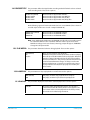
Once there is a Ki Pro Mini alarm active (e.g. Invalid Selection) the STATUS button light will
blink for as long as the alarm is present. This alerts you so you’ll know the reasons for the
alarm condition are still active—you can then press the STATUS button to determine
what the alarm condition is.
CONFIG and MEDIA menus, once entered after an alarm notification, will cause the alarm
display to go away. Pushing any button always returns Ki Pro Mini to its pre-alarm state—
however, if the alarm condition still exists after this initial button push (i.e., the reason for
the alarm), the alarm notification will reappear on the display. Note: the STATUS button
will blink if there is an active alarm condition.
Ki Pro Mini features a variety of alarms to help you diagnose the condition of the unit,
possible configuration issues, or possible signal issues. Here is a list of warning messages
and their meaning:
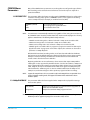
"WARNING Input Format Changed" prompt appears if a recording is started and the
signal is lost or changed. If this occurs, Ki Pro Mini stops the recording that is in
progress (unless the Loss of Video CONFIG menu parameter is set to continue
recording.)
"WARNING Record Format" may appear if there is no video input to Ki Pro Mini. No
recording will be performed in this state.
"WARNING A/V Mismatch" may appear if SDI video is selected and HDMI audio is selected
or vice versa. Embedded audio, via SDI or HDMI, must be matched to the video
source. Analog audio can be used with any video input.
"WARNING Dropped Frames" may appear if media is underperforming and cannot keep
up with the data rate required to make a recording or perform a playback. If you see
this prompt during recording, you might consider backing up your current
recordings and formatting the media. For playback, you might simply re-attempt
playback.
"WARNING SDI VFR Mismatch" will appear if you have set the video input to something
other than SDI when parameter 1.1 is set to “VFR”—as only the SDI input provides
the appropriate data for VFR support.
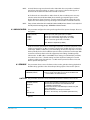
"WARNING Media Low" will appear when the media only has 15% of capacity remaining.
Media must be switched out when it reaches 10% of capacity. With 10% of media
remaining, the "WARNING Media Full" prompt will appear.
"WARNING Media in Use" may appear if you try to remove the media by pushing the
SLOT button while an operation is still taking place. Wait for the operation to finish
and then try again.
"WARNING Media Not Present" may appear if media has been physically removed and
the user hits the slot button.
"WARNING Media Unformatted" may appear if Ki Pro Mini does not recognize the file
system on the CF card or the CF card has never been formatted.
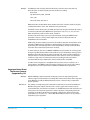
"WARNING Storage Removed" will appear if the CF media is removed without first hitting
the SLOT button to properly unmount it. In the event this happens, a CF card
immediately re-inserted into the Ki Pro Mini may show clips as "N/A" and subsequent
recordings may not be possible. To resolve this issue, mount the CF card on an
Apple computer under Mac OSX, then remove and re-insert the CF media into your
Ki Pro Mini. If the CF card does not read properly, you will need to format it.
"WARNING Backup and Reformat" may appear if CF media has issues being mounted by
the Ki Pro Mini. As the prompt indicates, it is best to back up the media by copying it
to another CF card, hard drive or disk array and then reformat the CF media. Some
signs that the media is in a read-only state: even though clips have been recorded to
KiPro Mini v4.2
42
www.aja.com