1
Chapter 5 | Exporting to a .CSV or other text file
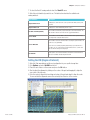
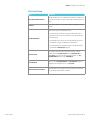
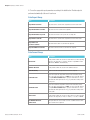
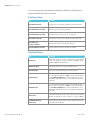
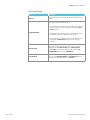
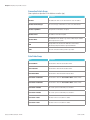
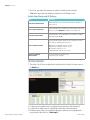
File Format Group
Item
Description
Directory
Use the browse button to select a folder in
which the output files are to be created.
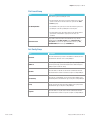
There are three options for naming the csv file:
• Use Date and Time: This option uses the date and time at the point of file
creation to name the file. The date format is as specified in the “Date
Format” property.
File Naming Method
• Use Rack Name: This option uses the rack name which was given to the
rack during the scan and is probably the most useful option.
• Use Fixed Filename: This option always names the file with the filename
specified in the “Fixed Filename” property. If the file exists, it is
overwritten.
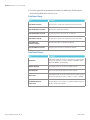
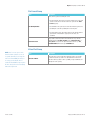
This property allows you to select the filename extension for the output file.
The available options are *.csv (comma-delimited file), *.txt (text file) and
*.log (log text file)
Filename Extension
• The *.csv file will normally open automatically in MS Excel where available.
• The *.txt file will normally open automatically in MS Notepad.
• The *.log file is not normally associated with any program.
Thermo Scientific
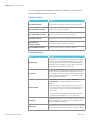
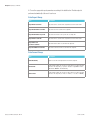
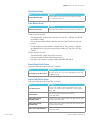
Filename Prefix
It is possible to add a text prefix for the filename here. E.g., if the file
naming method is “Use Date and Time” and a “Filename Prefix” of
“Test_Rack” is used, then the output file would be named e.g. “Test_
Rack01012008.csv” instead of just “01012008.csv”
Fixed File Name
If you select the “File Naming Method” of “Fixed Filename” then you
should enter the fixed filename here. E.g. “Test_Rack”.
High Speed 2D Barcode Reader | 5 - 3