1
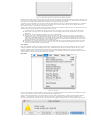
Figure 9. Dialog to determine the course of action when grouping a mixture of frozen and unfrozen tiles.
The menu [Ungroup] is active when at least one group of tiles has been selected. Its purpose is to break the group bonds, one
hierarchical level at a time. After completion of the [Ungroup] command, the individual group components are independent again and
remain selected.
The menu [Freeze] is active when at least one tile or group of tiles has been selected. Its purpose is to designate tiles over which no
automatic refinement of the rough position will take place. When the mosaic is been built, the frozen tiles will maintain their current
relative position. If one single tile of the whole mosaic is frozen, it will act as anchor and all the other tiles will align to it; if no tile is
frozen (default condition), the anchoring tile that is chosen is arbitrary; if several tiles are frozen, the closest unfrozen tiles will align to
them. The manual building of a mosaic is therefore achieved by freezing all tiles, in which case no automatic refinement takes place.
The menu [Unfreeze] is active when at least one tile or group of tiles has been selected. Its purpose is to designate tiles over which
the automatic refinement of the position will take place. By default, all tiles are unfrozen.
The menu [Hide] is active when at least one tile or group of tiles has been selected. Its purpose is to deselect and to hide the
currently selected objects from the upper part of the screen, so that the remaining objects can be operated upon. The spatial extent of
the mosaic is not affected by the hiding of tiles.
The menu [Show All] is active when there is at least one hidden object. Its purpose is to restore its visibility in the upper part of the
screen. The revealed objects remain unselected.
The menu [Maximize Contrast] is active when at least one tile or group of tiles has been selected. Its purpose is to map to black the
lowest grayvalue observed over the collection of selected tiles, and to white the highest one. The intermediate grayvalues are mapped
linearly between these two extremes. This contrast remapping is applied to the selected tiles. It affects only their display but has no
effect on the final mosaic.
The menu [Set Contrast...] is active when at least one tile or group of tiles has been selected. Its purpose is to map to black the userprovided 'Min' grayvalue, and to white the user- provided 'Max' grayvalue. These bounds are neither necessarily integers nor necessarily
positive, but 'Min' must be less than 'Max'; they are set in the dialog shown in Figure 10. The intermediate grayvalues are mapped
linearly between these two extremes, and out- of- bounds values are saturated. This contrast remapping is applied to the selected tiles.
It affects only their display but has no effect on the final mosaic.
Figure 10. Dialog to establish the range of displayed gray values.
The menu [Reset Contrast] is active when at least one tile or group of tiles has been selected. Its purpose is to enforce the generic
mapping where the value 0.0 corresponds to black and 255.0 to white. The intermediate grayvalues are mapped linearly between
these two extremes, and out- of- bounds values are saturated. This contrast remapping is applied to the selected tiles. It affects only
their display but has no effect on the final mosaic.
[Scale] Menu
Figure 11. Scale menu.
The menu [Minify] is always active. Its purpose is to reduce the size of the tiles by a linear factor two, so that large tiles can be
manipulated with more ease. The current scale is displayed as the last item of the [Scale] menu.
The menu [Magnify] is active unless the tiles are displayed at full scale. Its purpose is to magnify the size of the tiles by a linear factor
two, so that tiles can be manipulated with more precision. The current scale is displayed as the last item of the [Scale] menu.
The [{Activate/Deactivate} Quick&Dirty Scaling] menu determines the quality and speed of the reduction algorithm. Before quick&dirty
scaling is activated, like in Figure 11, the reduced tiles show good fidelity to the full- size tiles. Once quick&dirty scaling is activated,
the menu switches to [Deactivate Quick&Dirty Scaling]. In this condition, the reduction is performed faster, albeit with a lesser quality.
[Help] Menu
Figure 12. Help menu.
The menu [Credits] is always active. Its purpose is to present the text of Figure 13.