1
VISION TOUCHSCREEN
Toll free: 1 866 362 0445
T: 905 569 1605
E: [email protected]
USER MANUAL
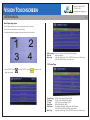
Playing List
1) Option for Monthly, Weekly or Daily Playlist:
Monthly Playlist: PLISTM01.XML~ PLISTM12.XML
Weekly Playlist:PLISTW00.XML~ PLISTW06.XML
Daily Playlist:PLISTD01.XML~ PLISTD31.XML
File must be named is ” PLAYLIST.XML”, all characters must be upper case
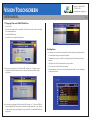
2) Option for multi group lists, every group can be played at preset times
3) The playing times for each file can be preset
4) For picture style, the playing mode and time can be preset
5) The audio level can be preset
6) Create a play list using xml Editor.exe
7 Each group can contain up to 80 files
8) When selecting a group, it is based on the first programmed time, so do not
set times that overlap.
9) When using the Playlist function, the Resume Play funtion in the main menu
must be turned off to avoid a conflict.
5/6
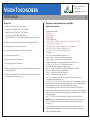
Supporting Code information for writing XML
Touchscreen programs
The details are as follows:
<programe>
<open=“stat.avi">
<title="title.jpg">
<mopen=“demo.mpg">
<sx="0" sy="0" ex="100" ey="100" type="1" file="08.avi" interval="3"
mode="2" repeat="1" back="1"/>
<sx="100" sy="0" ex="200" ey="100" type="2" file="folder"/>
<sx="0" sy="100" ex="100" ey="200" type="3"/>
<sx="100" sy="100" ex="200" ey="200" type="4"/>
</programe>
The blank color means keywords ,the content is in “ ”
<open="stat.avi"> "stat.avi" means file A referred above
<title="title.jpg"> “title.jpg”means file B referred above
<mopen=”demo.mpg”> means the playing file when touch the stat.avi
sx=“0” sy=“0” ex=“100” ey=“100“ defines the touch area,
file=“08.avi”defines the play file when touch the area,
type=“?”, 1 file,2 Sub Directory,3 Higher level Directory,4 Root
Interval=“?”,defines the play time for the photo
mode=“?”,defines the play mode for the photo
repeat=“?”,defines the play times for the file
back=“?”, after play the defined file, 0 – go back to the current directory title,
1 – go back to the directory Root title
sx=“0” sy=“0” ex=“100” ey=“100“ means the touch area, it’s the Diagonal Coordinates
of Rectangular or Square, the smaller value should placed in the front, while the larger
one should placed in the latter, or else there would no touch function.
The coordinates can be tested online, press STOP, then press LEFT button on the
remote 10 times continuously. As long as you press the touch screen, the corresponding
value will display in the upper-left corner. After the test, restart the machine, it will work
in the normal mode.
type=“?”,1 File,2 Low-level Directory,3 Higher Level Directory,4 Root
Remark: there are no higher level directory when in the root, so do not use type=”3“.
There are no low level directory when in the deepest directory, so please do not
use type=”2“.
Press the right key on the remote, enter the touch screen calibration mode, after
upgrade the different software, if the touch screen do not work, please check if the
touch screen has been calibrated.
©2013 McRae Imaging Inc.