1
Runtime Engine (PDA)
Page 10-12
10.3.5 Trend Graphs
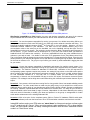
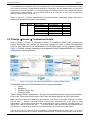
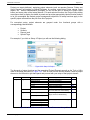
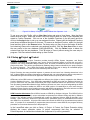
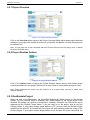
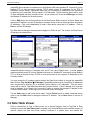
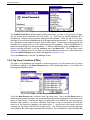
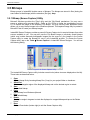
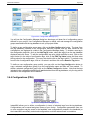
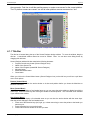
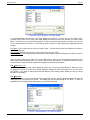
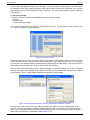
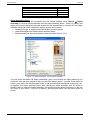
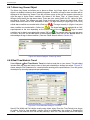
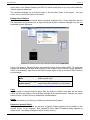
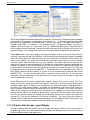
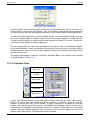
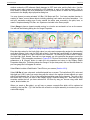
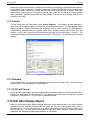
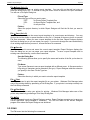
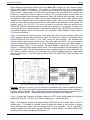
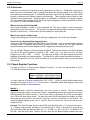
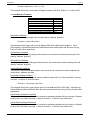
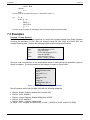
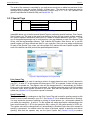
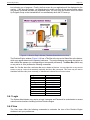
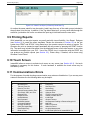
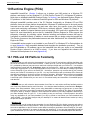
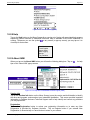
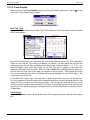
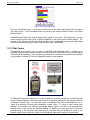
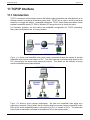
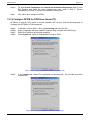
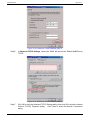
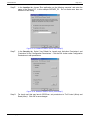
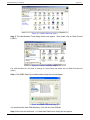
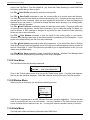
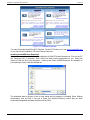
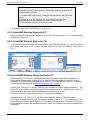
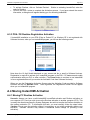
When you tap on the Trend Graphs button you will see the following dialog box. Tap on
tips on this ‘Trend Graphs’ popup screen.
for help
Figure 10.21: Trend Graphs Menu (PDA)
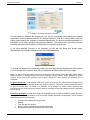
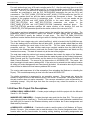
Real Time Trend
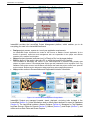
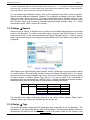
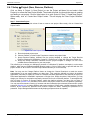
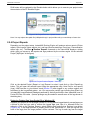
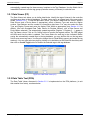
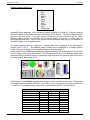
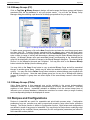
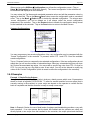
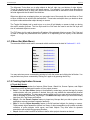
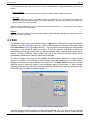
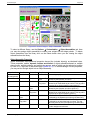
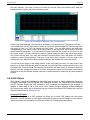
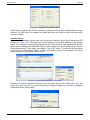
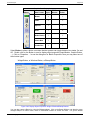
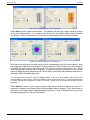
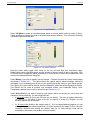
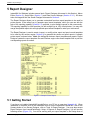
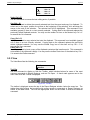
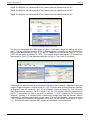
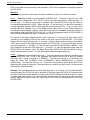
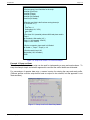
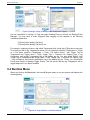
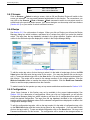
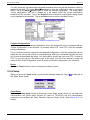
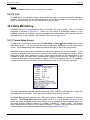
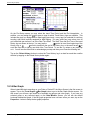
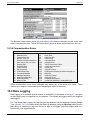
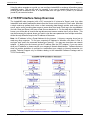
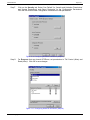
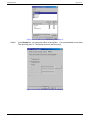
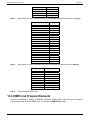
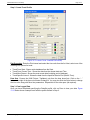
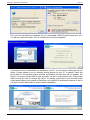
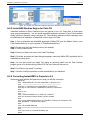
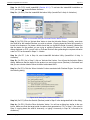
Tap on ‘Real Time’ button and set Real Time Trend Properties on the Plot Setup screen to see the
Real Time trend plot.
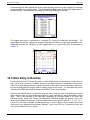
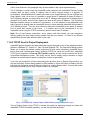
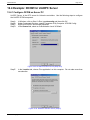
Figure 10.22: Real Time/History Plot (PDA)
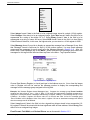
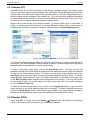
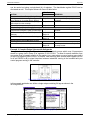
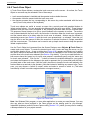
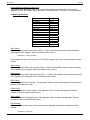
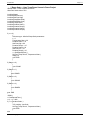
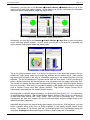
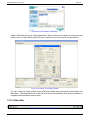
On the Plot Setup screen you may select the Time Period (Minute, Hours etc.), Plot Interpolation
(None or Line), and the Tag Group to be plotted. In addition, you may assign any tag from the
selected group to the four pens by tapping on the button next to the pen labels (1:, 2:, 3:, 4:). You
may also assign colors to the pen traces on the Real Time plot by tapping on the color tiles
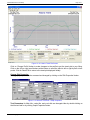
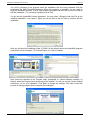
associated with each of the four pens. When you tap on Done after completing the Plot Setup, you
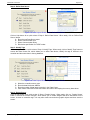
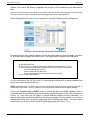
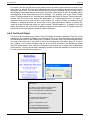
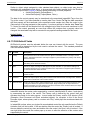
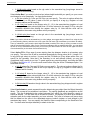
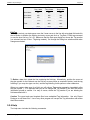
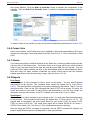
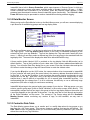
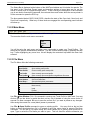
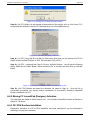
will see the Real Time trend of the tags you assigned to the four pens. The left hand end of the
Time axis corresponds to the time you initiated the trend (by tapping Done on the Plot Setup). The
current time is on the top left.
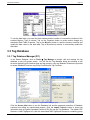
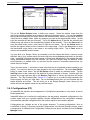
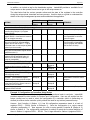
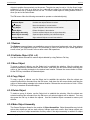
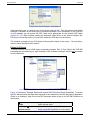
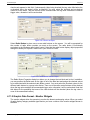
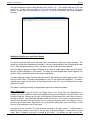
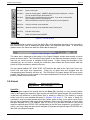
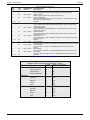
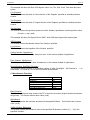
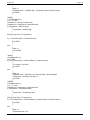
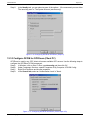
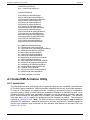
On the Real Time Trend screen, you may Show or Hide any pen trace, turn on or off the grid lines.
You may temporarily Pause the trend while InstantHMI continues to collect the trend data so it can
display it later for you when you Start the trend again. The trend plot will scroll left when the end of
the Time period is reached, and InstantHMI will continue to record the real time trend data until you
stop the real time trend by tapping on the Stop button or switch to Main Menu by tapping on Menu
Æ Main Menu.
Trend History
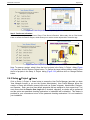
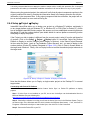
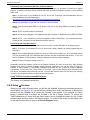
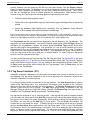
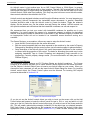
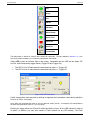
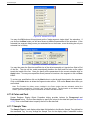
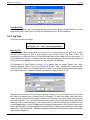
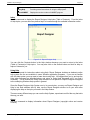
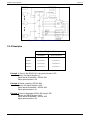
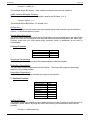
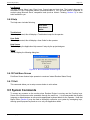
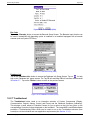
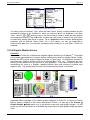
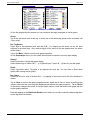
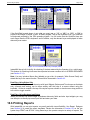
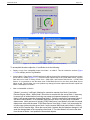
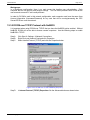
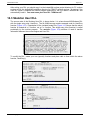
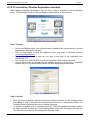
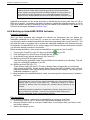
Tap on the ‘History’ button and set Trend History Plot Setup properties to see the Trend History
plot.
InstantHMI: Copyright © 2000-2008 Software Horizons Inc.
5.0 - 20Jul2008