1
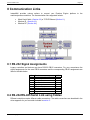
InstantHMI: LaunchPad
Page 2-12
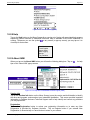
2.4.1 Setup Æ Project (New, Remove, Platform)
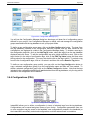
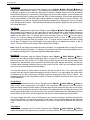
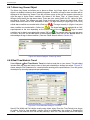
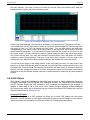
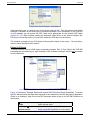
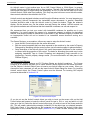
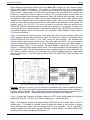
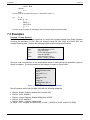
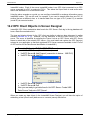
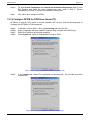
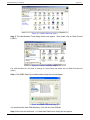
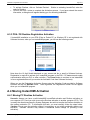
Click on Setup Æ Project Æ New Project (or use the Project pull-down list and select <New
Project>) to access the New Project Wizard. The wizard will guide you through the steps in creating
and testing a new project. Click on Help button for a quick review of 'Step 1: Create New Project'.
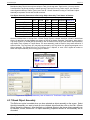
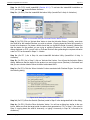
When ready, click on 'Create New Project' button. This will display the 'New Project Definition'
dialog.
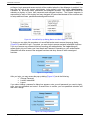
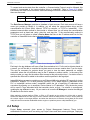
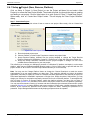
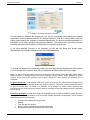
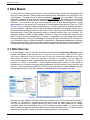
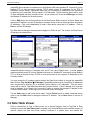
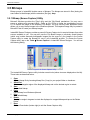
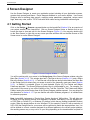
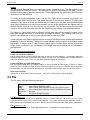
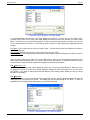
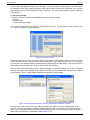
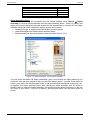
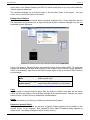
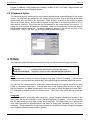
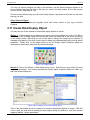
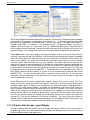
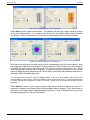
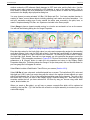
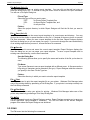
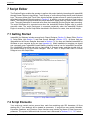
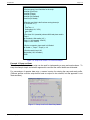
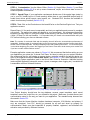
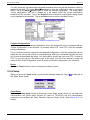
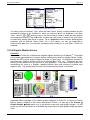
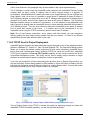
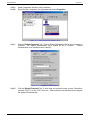
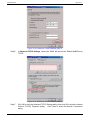
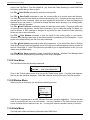
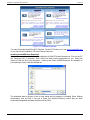
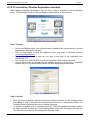
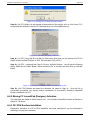
Step 1: Create New Project
Click on Help button for a quick review of how to create a new project. When ready, click on 'Create New
Project' button.
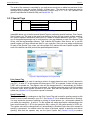
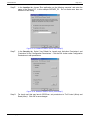
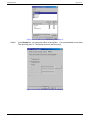
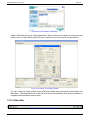
Figure 2.24: New Project Wizard - Step1: Create New Project
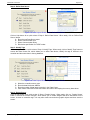
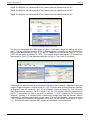
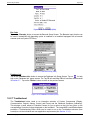
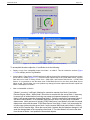
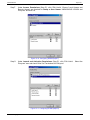
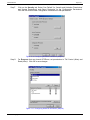
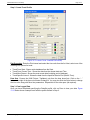
A. Enter the desired project name
B. Choose <Default> or other Project Template to create a new project folder
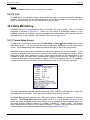
C. Accept Runtime Platform inherited from the project template or change the Target Runtime
Platform (Windows PC/CE/Mobile, Pocket PC, Smart Phone or Palm OS) using the pull-down list.
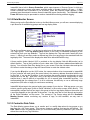
D. Accept the Screen Resolution inherited from the project template or change it to one of the
available Screen Resolutions for your new project.
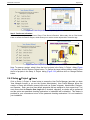
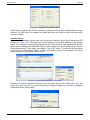
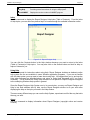
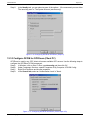
This will allow you to design your HMI project screens on a Windows PC platform, and deploy it on the target
platform, which has an installed InstantHMI Runtime engine. Click on Done button to proceed with the new
project creation or 'X' to cancel. The New Project Wizard will take you to the next step.
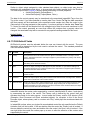
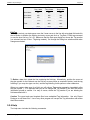
Note: You may use the 'Change Platform' button to change the 'Screen Resolution' to match the screen
size/resolution for a new target platform at a later date. This would be 640x480 (or higher) for desktop
applications, 240x320 (or higher) for Pocket PC/ Windows CE based applications, and 160x160 (or higher) for
Palm based applications. InstantHMI implements a “Design Once, Deploy Anywhere” HMI solution; you may
design your screens for one platform and easily convert them for use on another platform. To accomplish this,
click on Setup Æ Project Æ Change Platform, switch the platform selection, and then click on Setup Æ
Screens button (Section 2.4.5) and then re-save each of the project screens for the new platform (resolution).
You may use the automatic re-saving (of screens and other selected project elements) feature built-in project
protection (Section2.4.3) to change platform and screen resolution. Simply select a simple password to protect
screens, let the screens be 'protected' and re-saved. Repeat the same, resetting the password to 'no
password'. Project Designer/Administrator usually deploys projects and not the operator.
InstantHMI: Copyright © 2000-2008 Software Horizons Inc.
5.0 - 20Jul2008