1
New Features in Vector Xpression 3.1
5. Type a name for the new template in the Template Name field. To replace or add the current
information to an existing PathBlazer template, select the existing template name from the
Template Name drop-down list.
6. Click on Next. If you selected an existing template, you will be prompted to replace or amend
it.
The template will be created, and the current data in Vector Xpression that can be mapped using the
template will be transferred to PathBlazer. This may take a few minutes if you are mapping a large
number of genes.
You can now use the template for other experiments, expression runs, etc. involving the same genes.
Exporting Expression Data to PathBlazer
After you have created a mapping template for a set of genes (see page 2), you can export
expression data for those genes from Vector Xpression to Vector PathBlazer.
To export expression data (see also Figure 2):
1. In the Vector Xpression Viewer, load an experiment, expression run, or run project containing
the genes that you want to export. You may also display a list of the genes in a given
experiment, expression run, or run project and then select the gene(s) in that list that you
want to export.
2. Go to the Tools menu and select Send Expression Data to PathBlazer. If you have
selected genes from a list, you will be prompted to export all the listed genes or only the
selected genes.
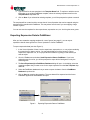
3. The Save Experiment(s) to PathBlazer Database dialog will open. In the dialog, select the
mapping template that you want to use for the export operation from the Use Template dropdown list.
4. Select the PathBlazer database that you want to export the data to from the PathBlazer
Database drop-down list.
5. Click on Save to complete the operation. The gene data will be exported and the Vector
PathBlazer application and database will open.
Figure 2.
Exporting Expression Data to PathBlazer.
4