1
Quick Start Guide for Maestro2 with 2.8 Software
MD15528 Rev. B, September 2008
1.
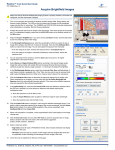
Select the Spectra tab.
2.
If a cube is already open, it displays in the image viewing
area. To open a cube, click the Load Cube toolbar icon.
Cube format types include CRi format (*.im3) cubes and
TIFF (*.tif) cubes.
3.
The sample used in this tutorial is included with the
Maestro software and is located in the following sample
data folder: C:\Maestro Data\Images\Sample Data\Q dot
mouse stack.
4.
If a Live Stream window is still open, you may close it by
clicking its Close
box.
5.
If desired, select a spectral display option from the
Scaling drop down box.
6.
Click the Real Component Analysis (RCA) button near the
bottom of the Spectral Processing panel. The RCA function
automatically detects and separates each of the
component signals in the cube.
Unmix Images
If you prefer to unmix the cube by manually identifying
the component signals, populate the color library with
spectra and click the Manual Compute Spectra button.
Refer to the “Maestro User’s Manual” for instructions.
7.
In the RCA dialog box, you have the option of manually
sampling the autofluorescence. Click the Sample Spectrum
button and use the mouse pointer to draw a sampling line
on an area of the specimen that contains only
autofluorescence (the mouse on the right). Hold down the
left mouse button and drag the pointer to draw.
8.
Click the Find Component Images button. Maestro identifies
and displays the autofluorescence and fluorescence
signals.
9.
Select the signals you want to unmix:
a. The autofluorescence is displayed in the upper left
image. Click two times anywhere in the image to select
it as the autofluorescence. Set its pseudo color to white.
b. Single-click on the other component image(s) you want
to unmix, and select a pseudo color for each.
10. Extract the pure fluorescence signal(s) from the
autofluorescence by clicking the Find Spectra button. The
component signals display in the spectral graph.
11. Use the controls in the Computed Spectra group to specify each spectrum’s name, pseudo
color, and location within the Spectral Library.
12. When finished, click the Transfer to Library, Unmix and Close button. This adds the spectra to
the Spectral Library and unmixes the spectra in the cube. (If a library is open already, you
may be asked if you want to overwrite the existing spectra.)
13. New images will display in the image viewing area:
a. There is a small component image for each selected spectrum, each with a colored
border that corresponds to the pseudo color of that spectrum.
b. There is also a larger pseudo-colored composite image displayed to the right of the
original RGB image of the cube. The colors used to create this image are the pseudo
colors selected in the library. The result should be a clear display of the specific
fluorescence signal, with obvious differentiation from the autofluorescence.
Occasionally, for weak signals, there may be too much baseline offset in the data. If you did
not get the desired results (i.e., a clear unmixed image), repeat the RCA process and select
the Fit Offset option. Unmix again and see if the results improve.
14. Save the resulting images:
a. You can save all images as displayed by selecting File > Save Image > Save All (As Displayed). Select or create a folder in the same directory as the original image cube.
Images are saved as TIFF images that can be
opened in a variety of image display programs.
b. You can save all images as unscaled data by
selecting File > Save Image > Save All Images (As
Unscaled Data). See the “Maestro User’s
Manual” for more about saving cubes and
images.
c. You can also save the entire workspace by
selecting File > Save Result Set. Enter a file name
to save all images and results in a single file.
15. Save the Protocol and/or Spectral Library for use
throughout your experiment:
a. You can save the complete Maestro protocol,
which includes the current Spectral Library, by
selecting File > Save Protocol.
b. If you want to save the Spectral Library as a
separate file, select File > Save Spectral Library.
CRi, 35-B Cabot Road, Woburn, MA, 01801, USA :: (Toll-Free US) 1-800-383-7924, (P) +1-781-935-9099, (F) +1-781-935-3388 :: [email protected] :: www.cri-inc.com