1
InstantHMI: Communication Links
Page 8-14
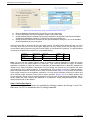
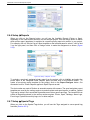
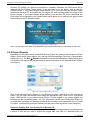
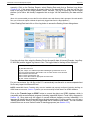
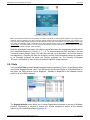
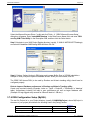
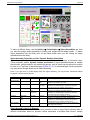
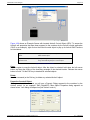
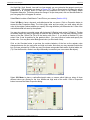
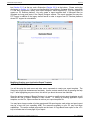
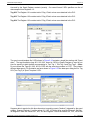
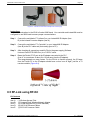
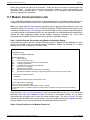
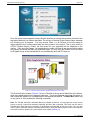
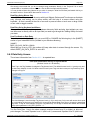
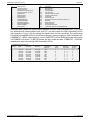
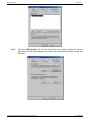
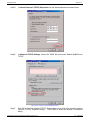
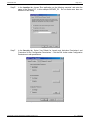
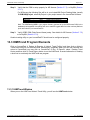
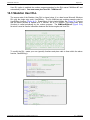
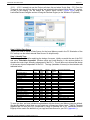
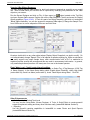
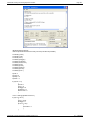
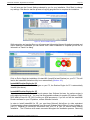
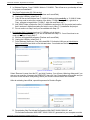
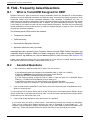
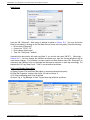
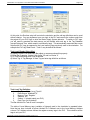
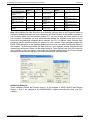
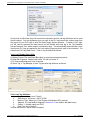
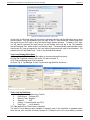
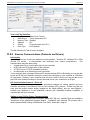
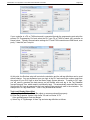
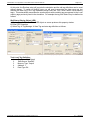
Call' button to setup InstantHMI to listen for incoming calls. Once a connection is made the Runtime
will display the first screen.
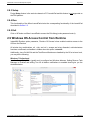
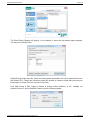
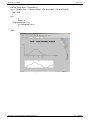
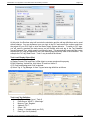
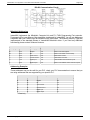
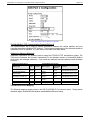
Figure 8-10: Modem Interface Dialog at Runtime
8.7.1 Using Modem with Unitronics PLC
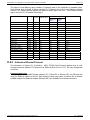
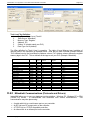
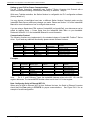
You may have a problem communicating with the IDEC Micro1 PLC, because IDEC Micro1 PLC
port setting is set at 9600 baud, 8 data bits, 1 stop bit, even parity and is not changeable.
Communication with this port specification requires a 11-bit modem (most modems are 10 bit
modems).
Also note that IDEC PLC communications may require the baud rate to be no higher than 2400. If
you need to change the baud rate in your IDEC PLC please consult the appropriate IDEC PLC
manual.
8.7.2 Trouble Shooting
If you are having difficulty communicating from the PC to the PLC using modems the suggestions in
this section may help you.
Step A: Make sure you can communicate from the PC to the PLC directly (eliminating the
modems) at the same baud rate you are attempting to communicate over the modems. Note: the
cable connections for this will not be the same as that involving modems.
Step B: If you are successful in Step A, but are unsuccessful using the modem at the baud rate
used in Step A, then try using a lower baud rate. For example, to get your Zoom modem (Zoom/Fax
Modem VFXV.32BIS Model 360) communicating at 2400 baud do the following:
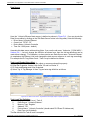
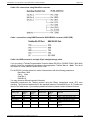
1. Configure your HOST modem (the one attached to the InstantHMI Runtime PC) with the
following initialization strings:
AT&F&C0&D0&S0N0S37=6%E0%C0&K0
AT&R1Q0V0&Y0&W0
2. Configure your REMOTE modem (The REMOTE modem is the modem attached to the PLC)
with the following initialization strings:
AT&F&C0&D0&S0N0S37=6%E0%C0&K0
AT&R1Q1V0S0=1&Y0&W0
3. Your modems should now be set to run properly at 2400 baud.
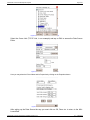
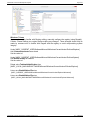
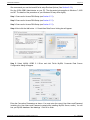
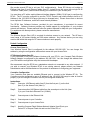
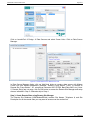
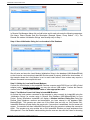
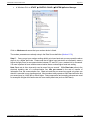
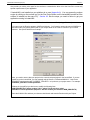
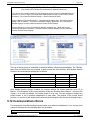
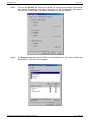
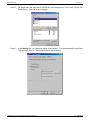
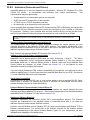
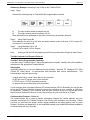
4. Now configure Local Modem, in Windows Device Manager, to communicate at 2400 baud as
follows:
InstantHMI: Copyright © 2000-2014 Software Horizons Inc.
6.1 – 20Jul2014