1
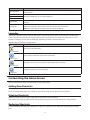
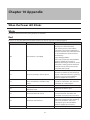
Name
Description
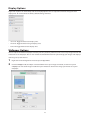
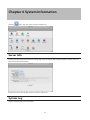
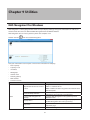
Icons: Displays icons.
Details: Displays the hostname, product name,
workgroup, IP address, subnet mask, and default
gateway.
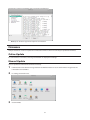
If you have multiple LinkStations and TeraStations on
the network, you may choose to display them in order
of hostname, product name, workgroup, IP address,
subnet mask, or default gateway.
Opens the selected LinkStation's or TeraStation's
shared folders.
Searches for NAS devices on the network again.
Opens the selected LinkStation's or TeraStation's
shared folders.
Opens Settings for the selected LinkStation or
TeraStation.
Opens the selected LinkStation's or TeraStation's
properties page.
Creates a desktop shortcut to the selected
LinkStation's or TeraStation's shared folders.
View
View
Sort by
Browse*
Refresh
Browse Shares
Displays when you
right-click a device's
icon.
Settings
Properties
Create Desktop Shortcut
*Click on the selected LinkStation's or TeraStation's icon to display these options.
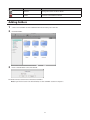
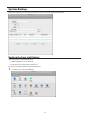
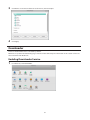
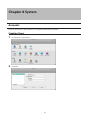
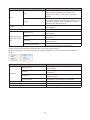
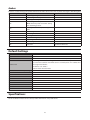
When NAS Navigator2 is minimized, right-click on the NAS Navigator2 icon in the system tray for the following
options.
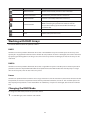
Name
Description
Opens the selected LinkStation's or TeraStation's
shared folders.
Opens Settings for the selected LinkStation or
TeraStation.
Opens the selected LinkStation's or TeraStation's
properties page.
Creates a desktop shortcut to the selected
LinkStation's or TeraStation's shared folders.
Refreshes list of NAS devices.
Displays NAS Navigator2 window.
Exits NAS Navigator2.
Browse Shares
Settings
NAS Name
Properties
Create Shortcut
Refresh
Browse Shares
Exit
68