1
Viewing a Photo or Video
1.
2.
3.
4.
5.
6.
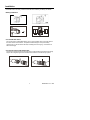
In the Real-Time Monitoring mode, press
to
display a list of dated playback folders
Use the ▼▲keys to select the desired folder.
Press OK to open the selected folder and view
a list of photo or video files.
Files are listed by time followed by (VID”) for
photos or (VID) for videos
Use the ▼▲keys to select a file.
Press OK to display the selected photo or
video.
For video files:
Press OK to pause while playing.
Press again to resume.
▲ Fast Forwards the video
▼ Rewinds the video
Press
2009-06-10
13:00:24
VID”
13:00:24
VID”
13:00:24
VID”
13:00:24
VID
0001/0004
to stop video
7.
Press
to return to menu.
8.
Press
again to exit.
Note: Video automatically saves to file every 30 minutes. When the SD card is filled to
capacity, the SD card icon changes to ‘F’. No video will be recorded if the SD card is not
inserted in the slot.
Delete a Single Video Or Photo
1.
2.
3.
4.
5.
6.
7.
8.
9.
In the Real-Time Monitoring mode, press
to
display a list of dated playback folders
Use the ▼▲keys to select the desired folder.
Press OK to open the selected folder and view
a list of photo or video files.
Files are listed by time followed by (VID”) for
photos or (VID) for videos
Use the ▼▲keys to select a file.
Press and HOLD the
button, the display will
show ‘DELETE CURRENT FILE?’
Use the arrow keys to select YES or NO
Press OK to accept selection.
Press
twice to exit the Delete screen.
2009-06-10
13:00:24
VID”
13:00:24
VID”
13:00:24
VID”
13:00:24
VID
0001/0004
Delete a File Folder
To delete a folder, use the same instructions for deleting a single video or photo. The
only additional concern is that if a folder is not empty it cannot be deleted. Delete all of
the files in a folder before deleting the folder. If the user attempts to delete a folder that is
not empty, the following message will appear: FOLDER NOT EMPTY
8
BR200-BR250 V4.3 8/09