1
2.7.2 Using the power button on the front panel
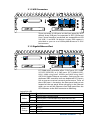
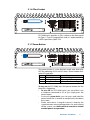
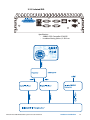
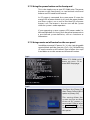
This is the simplest way to start ECS-5600 series. The power
button on the front panel is a non-latched switch and
behaves an ATX-mode on/off control.
As DC power is connected, the system enter S5 state, the
orange LED of power button is on, push the power button
and then system is on as well as the blue LED of power
button is on. The button is also can turn-off the system
while the system is under operation.
If your operating system supports ATX power mode (i.e.
Microsoft Windows or Linux), push the power button causes
a pre-defined system behavior, such as shutdown or
hibernation.
2.7.3 Using remote on/off control on the rear panel
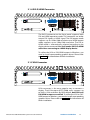
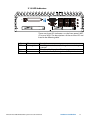
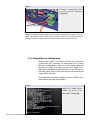
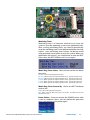
In addition to accept DC power (V+, V-), the 4-pin pluggable
terminal block provides two pins (Ctrl+, Ctrl-) for behaving
AT-mode remote on/off control. Please follow the steps
listed below to use the remote on/off control function.
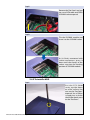
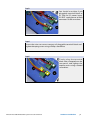
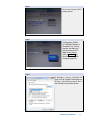
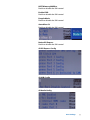
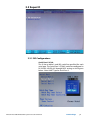
Step1.
When ECS-5600 series
boots up, press F2 to
enter BIOS setup page.
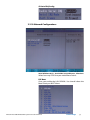
Step2.
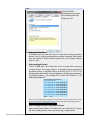
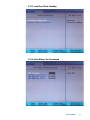
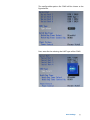
Configure the [Power On
after Power Failure] BIOS
option as [Always On].
This setting allows the
system to turn on after
external DC power is
connected. Please refer
t o s e c t i o n 2 . 6 fo r t h e
instruction of configuring
this option.
Hardware Installation
41