1
Sohodox
User Manual
I
Sohodox Help
Table of Contents
1
Part I Introduction
1 What is...................................................................................................................................
Sohodox
2
2 System...................................................................................................................................
Requirements
3
3 What's...................................................................................................................................
new in Sohodox
4
4 Bug Fixes
...................................................................................................................................
30
Part II For users upgrading from versions
earlier than version 5
45
1 Introduction
...................................................................................................................................
to new concepts in Sohodox
45
2 FAQ's...................................................................................................................................
for users using doQuments Professional Edition
47
50
Part III Getting Started
1 Managing
...................................................................................................................................
your documents
56
2 Security
...................................................................................................................................
Basics
57
3 Working
...................................................................................................................................
with Sohodox
59
4 Where...................................................................................................................................
does Sohodox store all my data?
65
5 Home...................................................................................................................................
Tab
66
6 Tools...................................................................................................................................
Tab
67
68
Part IV Add a document
1 Drag and
...................................................................................................................................
drop a document
69
2 Add documents
...................................................................................................................................
from disk
70
3 Add your
...................................................................................................................................
existing folder structure along with files from disk
71
4 Find and
...................................................................................................................................
Add documents
73
5 Drag and
...................................................................................................................................
drop text from a document
76
6 Drag and
...................................................................................................................................
drop image from a web page
76
7 Replace
...................................................................................................................................
document from disk
77
78
Part V Scanning Documents
1 For Users
...................................................................................................................................
upgrading from version 7.6 or earlier
79
2 Scanners
...................................................................................................................................
& TWAIN compliance
80
3 Scan ...................................................................................................................................
Window
80
4 Image...................................................................................................................................
Editor Window
86
5 Quickly
...................................................................................................................................
Scan and Add documents
89
6 Scanning
...................................................................................................................................
(Detailed Step by Step Instructions)
90
Scan and add a.........................................................................................................................................................
single document
90
Scan multiple single
.........................................................................................................................................................
paged Documents
91
Copyright © Sohodox 2000 - 2012
Contents
II
Scan all pages .........................................................................................................................................................
as One Document
94
Scan documents
.........................................................................................................................................................
with fixed number of pages
97
Scan document.........................................................................................................................................................
with variable number of pages
99
Scan a color document
......................................................................................................................................................... 102
7 Virtual
...................................................................................................................................
Duplex Scanning mode
102
8 Specify
...................................................................................................................................
Document Title of the scanned document
103
9 Insert
...................................................................................................................................
a page to a PDF or TIFF document
104
10 Save...................................................................................................................................
the frequently used Scan Settings as a Scan Profile
105
11 Replace
...................................................................................................................................
Document by Scanning
106
12 Automate
...................................................................................................................................
the Scan Process
107
13 Enhance
...................................................................................................................................
Scanned Documents
109
Part VI Documents
110
1 Document
...................................................................................................................................
Details Window
112
2 Create
...................................................................................................................................
a New Document
118
3 Update
...................................................................................................................................
Common Information for Multiple Documents
119
4 Open
...................................................................................................................................
a Document
119
5 Edit ...................................................................................................................................
a document
120
6 View...................................................................................................................................
Documents as Thumbnails
121
7 Share
...................................................................................................................................
documents
123
8 Assign
...................................................................................................................................
documents to another user
124
9 Delete
...................................................................................................................................
a Document
124
10 Email
...................................................................................................................................
a Document
125
11 Link...................................................................................................................................
one Document with another Document
126
12 Break
...................................................................................................................................
Links of a Document
127
13 Enter
...................................................................................................................................
Comments for a Document
129
14 Burn...................................................................................................................................
documents on a CD
129
15 Print...................................................................................................................................
a Document
130
16 Export
...................................................................................................................................
Documents
131
17 Drag...................................................................................................................................
and drop documents from Sohodox to a folder
131
18 Print...................................................................................................................................
the indexed information of a document
132
19 Fax a
...................................................................................................................................
Document
134
20 Enable/disable
...................................................................................................................................
the automatic preview of a specific file type
135
21 Change
...................................................................................................................................
the default viewer for a file type
135
22 Prevent
...................................................................................................................................
users from changing file type viewer settings
136
Part VII Index Documents
137
1 What...................................................................................................................................
are Data Fields
138
2 Data...................................................................................................................................
Fields - FAQ
139
3 Fields
...................................................................................................................................
tab
141
4 Create
...................................................................................................................................
Data Fields for Document Types
151
Copyright © Sohodox 2000 - 2012
III
Sohodox Help
Example
......................................................................................................................................................... 152
5 Enter
...................................................................................................................................
Indexing Information of a Document
155
6 Update
...................................................................................................................................
Common Indexing Information for Multiple Documents
157
7 Delete
...................................................................................................................................
Fields
158
8 Block
...................................................................................................................................
Indexing
159
160
Part VIII Document Types
1 What...................................................................................................................................
are Document Types
161
2 Document
...................................................................................................................................
Types - FAQ
161
3 Create
...................................................................................................................................
a Document Type
162
Example
......................................................................................................................................................... 163
4 Modify
...................................................................................................................................
a Document Type
166
5 Add ...................................................................................................................................
documents to a Document Type
167
6 Drag...................................................................................................................................
and Drop Documents to a Document Type
167
7 Set a...................................................................................................................................
Document Type of a Document
168
8 Delete
...................................................................................................................................
a Document Type
169
170
Part IX Folders
1 What...................................................................................................................................
are Folders
171
2 Folders
...................................................................................................................................
- FAQ
172
3 Create
...................................................................................................................................
a new Folder
173
4 Create
...................................................................................................................................
a Sub-Folder
173
5 Drag...................................................................................................................................
and Drop a Folder
174
6 Clone
...................................................................................................................................
a Sohodox Folder structure
174
7 Drag...................................................................................................................................
and Drop Documents to a Folder
175
8 Search
...................................................................................................................................
a Folder
176
9 Export
...................................................................................................................................
a Folder
177
10 Restrict
...................................................................................................................................
Users form viewing your Folders
177
11 Add ...................................................................................................................................
documents to a Folder
178
12 Add ...................................................................................................................................
existing folder structure to Sohodox
180
13 Add ...................................................................................................................................
folder structure along with files from disk
180
14 Change
...................................................................................................................................
the Folder of a Document
183
15 Delete
...................................................................................................................................
a Folder
183
16 Rename
...................................................................................................................................
a Folder
185
186
Part X Tags
1 What...................................................................................................................................
are Tags
187
2 Tags...................................................................................................................................
- FAQ
187
3 Create
...................................................................................................................................
a Tag
189
4 Tag ...................................................................................................................................
a Document
189
5 Tag ...................................................................................................................................
Multiple Documents Together
190
Copyright © Sohodox 2000 - 2012
Contents
IV
6 Drag...................................................................................................................................
and Drop Documents to a Tag
191
7 Add ...................................................................................................................................
Documents to a Tag
192
8 Remove
...................................................................................................................................
Tag from a Document
192
9 Remove
...................................................................................................................................
Tag from Multiple Documents
194
10 Search
...................................................................................................................................
a Tag
195
11 Delete
...................................................................................................................................
a Tag
195
12 Merge
...................................................................................................................................
Tags
196
13 Rename
...................................................................................................................................
a Tag
196
Part XI Dropbox Integration
196
1 Basics
...................................................................................................................................
198
2 Enable
...................................................................................................................................
Dropbox Integration
199
3 Add ...................................................................................................................................
Sohodox documents to Dropbox
199
4 Remove
...................................................................................................................................
Sohodox documents from Dropbox
200
5 Add ...................................................................................................................................
documents to Sohodox via Dropbox
200
6 Update
...................................................................................................................................
Dropbox with a file modified in Sohodox
200
7 Update
...................................................................................................................................
Sohodox with a file modified in Dropbpox
201
8 Sync...................................................................................................................................
the Dropbox tag in Sohodox
201
9 Sohodox
...................................................................................................................................
& Dropbox in a multi-user scenario
202
Part XII Search for a document
202
1 Find...................................................................................................................................
document quickly
203
2 Select
...................................................................................................................................
fields to include in the Quick Search
204
3 Narrow
...................................................................................................................................
down the Search Result
204
4 Document
...................................................................................................................................
Full Text Search
208
Learn about Document
.........................................................................................................................................................
Full Text Search
208
Document Full
.........................................................................................................................................................
Text Search - FAQ
209
Extract Text from
.........................................................................................................................................................
Document
213
View the Extracted
.........................................................................................................................................................
Text of a Document
214
Save the Extracted
.........................................................................................................................................................
Text
214
Search for text
.........................................................................................................................................................
in a document
215
Automatically.........................................................................................................................................................
Extract text from documents
217
OCR document
.........................................................................................................................................................
that contains text in a different language
217
5 Save...................................................................................................................................
a Search criteria
218
6 Prompt
...................................................................................................................................
user for the condition value when applying a saved search
220
7 Print...................................................................................................................................
the Search Results along with the Query Conditions
221
8 Export
...................................................................................................................................
the Search Result
223
9 Import
...................................................................................................................................
the Exported Search Result
224
Part XIII Annotation
229
1 What...................................................................................................................................
is Annotation?
230
2 Underline
...................................................................................................................................
Words or Sentences on a document
232
3 Highlight
...................................................................................................................................
Words on a document
232
Copyright © Sohodox 2000 - 2012
V
Sohodox Help
4 Mark...................................................................................................................................
Area using Rectangles and Circles
233
5 Add ...................................................................................................................................
Sticky Notes on a documents
234
6 Place
...................................................................................................................................
a Bookmark on a document
234
7 Place
...................................................................................................................................
a Stamp on a document
235
8 Place
...................................................................................................................................
a Signature on a document
236
9 Annotate
...................................................................................................................................
the Document permanently
236
10 Print...................................................................................................................................
Document along with the Annotations
237
239
Part XIV Templates, Themes, Profiles
1 Templates
...................................................................................................................................
240
Create a Document
.........................................................................................................................................................
Template
240
Create a Stamp
.........................................................................................................................................................
Template
241
Create a Signature
.........................................................................................................................................................
Template
243
2 Profiles
...................................................................................................................................
245
Create Scan Profiles
......................................................................................................................................................... 245
Create an Export
.........................................................................................................................................................
Profile
246
Create Destination
.........................................................................................................................................................
Profiles
247
3 Create
...................................................................................................................................
a theme
250
252
Part XV Sohodox DB
1 What...................................................................................................................................
is a Sohodox DB?
253
2 Multi-User
...................................................................................................................................
Config File
253
3 Sohodox
...................................................................................................................................
DB- FAQ
254
4 File Stores
...................................................................................................................................
255
Learn about File
.........................................................................................................................................................
Stores
255
Add a new File
.........................................................................................................................................................
Store
256
Change the Default
.........................................................................................................................................................
File Store
257
Move File Store
.........................................................................................................................................................
to another location
258
5 Configure
...................................................................................................................................
Sohodox DB for multi-machine environment
259
6 Moving
...................................................................................................................................
Sohodox Databases to new location
261
262
Part XVI Users
1 Learn
...................................................................................................................................
about Users
263
2 Create
...................................................................................................................................
a User Account
264
3 Lock...................................................................................................................................
a User account
265
4 Deactivate
...................................................................................................................................
a User Account
265
5 Disconnect
...................................................................................................................................
an Active User
266
6 Set Password
...................................................................................................................................
Policies for Users
267
269
Part XVII Export and Import data
1 Export
...................................................................................................................................
Data
270
Export data to.........................................................................................................................................................
a CSV file
270
Export data to.........................................................................................................................................................
a HTML file
272
Export data to.........................................................................................................................................................
a Excel file
274
Copyright © Sohodox 2000 - 2012
Contents
VI
Export data to.........................................................................................................................................................
a XML file
276
Save the frequently
.........................................................................................................................................................
used Export settings
278
Use a Export Profile
.........................................................................................................................................................
to Export Data
278
Export document
.........................................................................................................................................................
to CD/DVD
280
2 Import
...................................................................................................................................
Data
280
Import data from
.........................................................................................................................................................
a CSV file
280
Import data from
.........................................................................................................................................................
Paperport
285
Folder Monitor
......................................................................................................................................................... 287
Part XVIII Backup and Restore
291
1 Backup
...................................................................................................................................
and Restore Utility
292
2 Manually
...................................................................................................................................
backup a Sohodox DB
293
3 Manually
...................................................................................................................................
restore a backed-up DB
295
Part XIX Customizing Sohodox
296
1 Options
...................................................................................................................................
Window
297
2 Change
...................................................................................................................................
Sohodox Main View layout
300
3 Customize
...................................................................................................................................
List View Pane
301
4 Hide...................................................................................................................................
Details pane
303
5 Specify
...................................................................................................................................
the node to be selected on startup
304
Part XX Report Generator
304
Part XXI Manage Email in Sohodox
305
Part XXII Command line options
309
Part XXIII Troubleshooting Sohodox Services
312
Copyright © Sohodox 2000 - 2012
1
1
Sohodox Help
Introduction
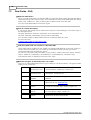
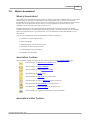
The Introduction section consists of topics which will give you basic information about Sohodox.
After going through this section you should have a basic understanding of Sohodox.
New Users
· Read the topics in this section and then go through the Getting Started section.
· Once you have familiarized yourself with the Sohodox user interface, please consider
regading the following sections...
Folders
Tags
Add a Document
Scan and Add a Document
Index Document
Search a Document
· You can now go through the more advanced topics like...
Document Types
Sohodox DB
Users Using version 4
· Sohodox features a completely redesigned user interface and introduces some new
concepts. We recommend that you read the Introduction to new concepts in Sohodox section,
the FAQ's for users using Version 4 section and also the What's New section before reading
other parts of this help file.
· Referring to the Getting Started tutorials will also help.
· Once you have familiarized yourself with the new user interface we would recommend
reading the following sections...
Document Types
Add a Document
Scan and Add a Document
Index Document
Search a Document
· You can now go through the more advanced topics like...
Sohodox DB
Copyright © Sohodox 2000 - 2012
Introduction
1.1
2
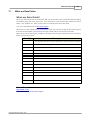
What is Sohodox
What is Sohodox?
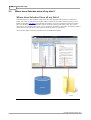
Sohodox is a document management application. It provides you with all the tools and features
you will need to create, manage and query a database of all your paper and electronic
documents. Sohodox provides you with a simple platform to manage the business information
residing in your documents and move towards a paperless environment in a phased, gradual
manner.
How does it help?
Some of the benefits of using Sohodox are...
· Saving time lost filing and retrieving documents
· Minimizing space used for document storage
· Helping you in disaster recovery and maintaining business continuity
· Preserving organizational knowledge
· Quickly finding the document you need. Always!
· Securing your documents and letting you control access to them
How does it work?
You can add your existing electronic documents like MS Word (*.doc) files and Adobe PDF files
to Sohodox by simply dragging and dropping them into Sohodox. You can add your paper
documents to Sohodox by scanning them using a scanner and the built in scanning tools in
Sohodox.
Inside Sohodox, you can do one of the following (or a combination of the following) to organize
your documents...
· Arrange your documents into a hierarchy of folders
· Attach one or more text tags (labels) to each document. You can later search for
documents containing specific tags.
· Separate documents into various types (e.g. bills, checks, letters) and store type specific
information along with each document. For e.g. you can store date and amount with each
bill and then easily find all bills greater than US $100 from January 2008.
· Link documents to each other
Sohodox features full multi-user support. This means multiple users can simultaneously access
and work with the same document database.
Copyright © Sohodox 2000 - 2012
3
1.2
Sohodox Help
System Requirements
System Requirements
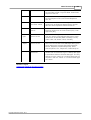
· Processor: 1GHz processor (2 GHz or more recommended)
· Memory (RAM): 2 GB recommended
· Free hard disk space for software installation: 200 MB
· Hard disk space to store documents: Depends on the total size of the documents
· Supported Operating Systems : Windows XP / 2003 / Vista / 2008 / Windows 7
(Recommended: Windows Vista / Windows 2008 / Windows 7 / Windows 8)
· Microsoft .NET Framework 2.0 (If not present, it will be automatically downloaded and
installed.)
Copyright © Sohodox 2000 - 2012
Introduction
1.3
4
What's new in Sohodox
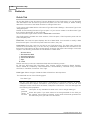
Sohodox Version 8.0.0.46 - October 01 2012
Support for Windows 8
Sohodox now supports both 32 and 64 bit versions of Windows.
Dropbox integration for documents that are in Sohodox
We have made it easy for you to access your Sohodox documents from anywhere using
devices like smartphones, tablets and even your web browser!
Any document in Sohodox can now be made available in Dropbox.Dropbox is a free service
that lets you access your important files anywhere. Any file you save to your Dropbox will
automatically save to all your computers, phones and even the Dropbox website.
To learn more about Dropbox integration in Sohodox, see Dropbox integration for documents
that are in Sohodox.
For users upgrading from version 7.6 and older: If you had created a tag called Dropbox in Sohodox
then upon updating your Sohodox installation, that tag will automatically be converted to the special
Dropbox tag. The documents you had added to that tag will stay as they were, but the icon for the Dropbox
tag will change to a 'cloud' icon. If you want to remove your existing documents from that tag (or not sync
them), you need to create a new tag and move your existing documents to it.
Renaming tags
From this version, Sohodox lets you rename tags too just like you can rename folders.
Simply right-click the tag in the Tags node and then click Rename. Type the new name and
press Enter to save it. For steps, see Rename a Tag.
Virtual Duplex Scanning mode
Sohodox has always supported duplex scanning i.e. scanning both sides of a page and
storing them in the correct order in a PDF or TIFF file. However this required your scanning
to have built-in support for duplex scanning. With the new Virtual Duplex scanning mode,
Sohodox can now handle duplex scanning even with scanners which do not have built-in
support for duplex scanning.
This is how it works...
Put a stack of documents in to your scanner’s ADF (Automatic Document Feeder).
Sohodox will scan the front side of each document. Now simply flip the stack of
documents and place them in your scanner’s ADF. Sohodox will now scan the reverse
side of all the documents in the stack. After this Sohodox will automatically re-arrange
the scanned pages so that the reverse side of each scanned page comes immediately
after the front side of that page in the PDF or TIFF file.
The virtual duplex mode also works if your scanner does not have an ADF (i.e. you scan
using the flatbed of your scanner). However in this case, you have to individually flip
each page after its front side is scanned.
Scanning and Scan window simplified...
1. New scan profiles added (these are only visible in new Sohodox installations).
2. You can now automatically despeckle scanned images.
Copyright © Sohodox 2000 - 2012
5
Sohodox Help
3. Virtual Duplex Scanning supported (this option is only displayed when the selected
scanner does not have built-in support for duplex scanning)
4. DPI settings are now adjusted dependent on the scanner.
5. Quality of Black and White scanned images has been improved.
6. Separator pages (Blank page or Barcode) are now displayed in the Scan Preview
window so you can see if a non-separator page has been wrongly detected as a
separator page.
7. The Scan Preview window now allows you to select a Page view (each scanned page
displayed as a single thumbnail) or Document view (each scanned multi-page
document displayed as single thumbnail) of the scanned documents.
8. When documents are duplex scanned, the Scan Preview window makes it easy to
differentiate between the front and reverse of the document.
Batch-updating of multiple documents with common information
Sohodox now lets you update common information for multiple documents together. You can
select multiple documents and update the following common information for them:
1. Set a document title (All the selected documents will then have the same title)
2. Assign a document type (The same document type will be set for all the selected
documents)
3. Enter indexing information for that document type (All the selected documents will have
the same indexing information)
4. Assign the same tags (All selected documents will have the same tags)
5. Choose a folder (All the selected documents will be assigned to the chosen folder)
This feature will save your time and effort as you won’t need to update information
individually for each document. You will be able to do it in a single batch.
Auto Save indexing information
In previous versions, Sohodox required you to manually save any changes to a document's
indexing information. But from this version, Sohodox gives you the option to automatically
save the changes you made to the indexing information of the document. To activate the
option, go to Options --> User Options --> Auto Save and check the Automatically save
changes to indexing information box.
Copy/Paste text from a scanned document into an indexing field
While entering indexing information for a document, sometime the values you need to enter
are already present in the document. So it can save a lot of time and typing mistakes if you
can just copy them from the document preview pane and paste them into the field. This new
feature allows you to do just that. Simply select the area of the scanned page which has the
text you need and copy it. Sohodox will OCR that selection, convert the selection into text
and copy it to the clipboard. All you have to do is paste the information into the right indexing
field. For steps, see second Note under Enter Indexing Information for a Document.
Preview of MS Outlook email messages now supported
Sohodox now supports previewing of .msg files imported from MS Outlook.
Documents hyperlinked to their Folder
For every document in Sohodox, until now you could see the folder in which it is stored. It
could be seen under Information panel --> Information tab --> Other Information --> Related
Copyright © Sohodox 2000 - 2012
Introduction
6
Folder. But you could not quickly jump to that folder. Now Sohodox automatically creates a
hyperlink to the folder so that when you click the link, it jumps to that folder, where you can
see the other related documents in that folder. This feature also lets you quickly switch from
the document to its folder in just one click, thereby saving your time.
Replace Document by Scanning
Now you can replace an existing document in Sohodox with a document you are about to
scan. All you need to do is right-click the document and select Replace by Scanning from the
menu. This will bring up the scan window. Scan the appropriate document just as you
normally would. The scanned document will automatically replace the existing document. The
file name will change to the new document’s file name, but the document title will remain
unchanged. The older document (the document being replaced) will be removed. For steps,
see Replace Document by Scanning.
Indexing field setting remembered
The Information tab in the Preview pane displays the indexing information of the document.
You can choose to view the indexing fields in a single column or double column view. In
previous versions, if you switched to a different view and then previewed another document,
Sohodox would revert to the original column setting. But now Sohodox retains the setting
until you change the setting again.
Zoom level of documents remembered
In previous versions, if you changed the zoom level of a document in the Preview pane,
Sohodox would return to the default level when you switched to another document. But from
this version, Sohodox remembers the zoom level you last selected and retains it across all
documents until you change it. In fact, it remembers the same zoom level even if you logout
and log back in.
No prompt when assigning/editing/deleting a tag from a document
In previous versions of Sohodox, if you added a tag to a document and hit the Enter key, it
would display a confirmation message. This message was not required. So we have done
away with it.
Block Indexing
By default, Sohodox automatically begins to index a newly added/modified document in the
background. Sometimes the documents can be very large (taking up too much processing
time to index) or just unindexable (for e.g. photos which have no text which can be
recognized or extracted). Also sometimes Sohodox can have trouble indexing a particular
document. With this version, Sohodox lets you block the indexing process for such
documents. For steps, see Block Indexing.
Two new Command Line Options added
Two new Command Line Options have been added in this version of Sohodox. They are:
Reset Cache DB and Reset User Profile. To learn more about them, see Command Line
Options.
Sohodox Version 7.6.0.7 - February 06 2012
Merging one Tag with another
Now you can merge one tag with another tag. This will delete the tag that is merged, remove
that tag from all documents that bear it; and automatically add the other tag to these
documents. When you click the Tags node in the Navigation pane, you will see these
documents added to the other tag. This feature helps you in case you misspelled a tag while
adding it to a document. To replace the incorrect tag with the correct one, you need not edit
the tag individually in each document separately. You can simply create a new tag and merge
the incorrect tag into the correct one. This feature also helps in rectifying situations where
multiple users accidentally create similar tags. To learn more, see Merge Tags.
Copyright © Sohodox 2000 - 2012
7
Sohodox Help
Sorting of Destination Profile list
Until now, if you wanted to view the Destination Profiles you have saved in Sohodox, the
Destination Profile drop-down would not display the list in an alphabetical order. But now,
Sohodox displays the profile list in the drop-down in an alphabetical order.
Thunderbird 9.x drag & drop mail Support
Now you can drag and drop your emails from Thunderbird version 9.x onwards, into Sohodox.
These email messages will be displayed in the Preview pane in Sohodox.
Sohodox Version 7.6.0.0 - January 13 2012
Language Support
From version 7.6, the Sohodox setup will be separately available with user interfaces in
English, Spanish, French and Slovak. Although the user interface (menus, messages etc.) is
now available in the above mentioned languages in addition to English, you can store
documents and data in any language in Sohodox.
Display of EML file in Preview Pane
Prior to version 7.6, viewing an email message stored in EML format required you to have
MS Outlook Express or Windows Live Mail installed on your machine. But now Sohodox
natively supports viewing EML files in the Preview Pane. So email messages including those
downloaded by the Email Capture module can be viewed without needing MS Outlook
Express or Windows Live Mail installed on your machine.
Sohodox Version 7.3.1.7 - September 22 2011
Import and store Email Attachments as separate documents in Sohodox
Email Capture can now handle in a better way, email messages which have attachments.
You can configure Sohodox Email Capture such that, whenever an email message with
attachments is detected, the attachments will be stored as separate documents. They will
automatically be linked to their corresponding email message. So for example if an email
message with a single attachment is captured, Sohodox will create two documents, the email
message itself and the attached file. Both the documents will be linked to each other. For
more information, see Import email attachments as separate documents.
Support for password protected files
Inbuilt viewer for MS Word and MS Excel now supports viewing password protected .docx
and .xlsx files.
Sohodox Version 7.2.0.10 - July 14 2011
Bug Fixes
Minor bugs have been fixed in this version of Sohodox.
Sohodox Version 7.1.1.5 - April 29 2011
Use Document Title as File name
Document Title specified by the user is now also used as the file name for scanned
documents.
Copyright © Sohodox 2000 - 2012
Introduction
8
Sohodox Version 7.0.0.9 - March 04 2011
Minor bug fixes
Sohodox Version 7.0.0.8 - February 28 2011
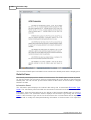
Built-in Word and Excel Viewer
The new built-in Word and Excel Viewer allows you to view .doc, .docx, .xls and .xlsx files even
if you do not have MS Office installed on your computer. What's more you can even annotate
and stamp MS Word and MS Excel files the same way as you could with files such as TIFF and
PDF files (annotations cannot be burned on MS Word or MS Excel files).
So how does this help?
Let us say you use Open Office Writer from Sun Microsystems, and your colleague uses MS Word. You have just
received a Word document in Sohodox that has been created by them. If you didn't have version 7 of Sohodox, you
would click the button at the top right of the preview pane ("Open this document for viewing in its associated
application"). This would open the document in MS Word if you had it installed on your machine. But if you did not have
MS Word installed, it would have given you an error message. But now that you have version 7, even if you do not have
MS Word installed on your machine, you can still view the document with the built-in MS Word viewer.
Choose between built-in and third-party viewer for MS Word, MS Excel and PDF Files
Using the options dialog, you can now specifically configure what viewer you wish to use for MS
Word, MS Excel AND PDF File. Learn more...
Lock Viewer settings for all users
Using the options dialog, you can now lock the file type viewer settings so that only the
superadmin can change them. Learn more...
Background Text Extraction
In the earlier versions of Sohodox, whenever a document was added to Sohodox, the
OCR/Text Extraction for the document was performed at the time of adding the document. But
now this process will be performed in the background. This means adding multiple files (even
hundreds of them at a time) to Sohodox will be much faster than before, as you will not need to
wait to add the next file until the OCR/Text Extraction has been completed for the current file.
The text extraction only happens on the machine on which Sohodox is installed in server mode
(a single user installation of Sohodox is always installed in server mode).
Since text extraction now happens in the background, the process continues even when you
close Sohodox.
The background text extraction service can be viewed by exploring Control Panel>
Administrative Tools >Services>ITAZ Sohodox Indexing Services under the Name column. A
user can stop or restart this service by right clicking and selecting the Stop or Restart options.
Built-In Text Extractors
Sohodox now features built-in text extractors for popular file formats such as MS Word (.doc, .
docx), MS Excel (.xls, .xlsx) and PDF files. This means you no more need to have iFilters
installed on your machines for these file formats, as Sohodox can handle them on it's own.
Backup and Restore Utility
Sohodox now ships with a backup and restore utility which makes it very easy backup and
Copyright © Sohodox 2000 - 2012
9
Sohodox Help
restore your Sohodox DB. The utility support encrypted and multi-volume backups. Learn
more...
Remember Layout
Now Sohodox will remember the width of the various panes that you set within the main window
and within the document windows too. It will also remember the document window size you had
set last time. So the next time you open the application or the resized document, it will open
Sohodox with the pane and window sizes you had the last time when you closed the document
or the main Sohodox window.
Sohodox Version 6.1.0.5 - February 09 2010
Error ignored when adding multiple files to Sohodox
While adding large number of files to Sohodox, if an error occurs for a file, that file will be
skipped and Sohodox will continue adding the remaining files. After the addition is complete it
will display the list of skipped files.
Confirmation sound when Ctrl + F7 is pressed
You will now hear a confirmation sound instead of the confirmation dialog being displayed,
when you press the CTRL + F7 keys on the keyboard, to copy the full path of the document to
the clipboard.
Sohodox Version 6.1.0.2 - December 31 2009
Copy the full path of the document to the clipboard
Press the CTRL + F7 keys on the keyboard, to copy the full path of the document to the
clipboard. You can now paste the document's location to a data field or any application you
want.
Sohodox Version 6.1.0.0 - December 23 2009
Policies
Use Policies to control some aspects of Sohodox Security. For more info see Policies
Drag & drop documents from Sohodox to Windows Explorer
You can now drag and drop documents from Sohodox to Windows Explorer by pressing the
CTRL button on the keyboard and dragging the documents to a Windows folder. For more info,
Drag and drop documents from Sohodox to a folder
Destination Profiles Manager
You can now create, modify or delete destination profiles using the Destination Profiles
Manager.
Sohodox Version 6.0.0.0 - October 16 2009
Email Capture
The Email Capture feature in Sohodox, downloads email messages from any POP3 mail server
and adds them to Sohodox. Sohodox will automatically extract fields (To, From, Subject etc.)
Copyright © Sohodox 2000 - 2012
Introduction
10
from each email and enter them as indexing information for that email in Sohodox. This makes
all email messages immediately searchable. For More info, see Manage Emails in Sohodox
Folder Monitor
The Folder Monitor watches one or more specified folders on your disk and adds any files
added to those folders to Sohodox. You can use this feature to directly add files to Sohodox
even when Sohodox is not running. All you need to do is, add the files to the monitored folder
and Folder Monitor will automatically add these files to Sohodox. This is also handy when
working with Network Scanners which put the scanned documents in a folder. For more info,
see Folder Monitor
Reports
Sohodox now comes with built-in usage reports, letting you see documents added or modified
by users on a daily, weekly or monthly basis. The reports can be exported as a PDF, HTML,
MHT or XLS files. For more info, see Reports
Deskew tool
You can now auto-straighten a tilted scanned image by using the Deskew tool. For more info
see Enhance Scanned Documents
Despeckle tool
You can now remove the noise (tiny black spots) from a scanned image by using the Despeckle
tool. For more info see Enhance Scanned Documents
Eraser tool
You can now remove punch hole marks, stapler (pin) marks or other areas from a scanned
document by using the Eraser tool. For more info see Enhance Scanned Documents
Parameterized Saved Search
You can now create a saved search that prompts you to enter the condition values, whenever
you run the search. For more info, see Prompt user for the condition value when applying a
saved search
Last logged in user name is remembered
The username of the person who logged into Sohodox last is remembered and is automatically
filled in the username box on the login screen. For more info see Security Policies
Remember password option on the login dialog
Login dialog now has an option to remember the password, so next time don't need to re-enter
your password. For more info see Security Policies
Automatically login on startup option on the Options dialog
Options dialog now has an option to automatically log you in when you start Sohodox (i.e. no
login box is displayed). For more info see Options Window
Sohodox Version 5.6.0.8 - November 05 2009
The multi-user.gdx file is now saved at a new location
The multi-user.gdx file is now stored in the ITAZ\Sohodox folder created under the folder
designated as the Common Application Data folder in your Windows installation. For Windows
Vista/Windows 2008/Windows 7, this will be the C:\ProgramData\ITAZ\Sohodox folder. For
Windows 2000/XP/2003 this will be C:\Documents and Settings\All Users\Application Data\ITAZ
\Sohodox
Copyright © Sohodox 2000 - 2012
11
Sohodox Help
Apart from multi-user.gdx file, the config.ini file is also stored in this folder.
Use document title as File name
You can now use the Document Title as the File name when exporting documents to a
Windows folder, by using the Export wizard. For more info see, Export data to a CSV file
Sohodox Version 5.6.0.6 - October 07 2009
Add pages to existing Tiff and PDF documents, from the Pages panel.
You can now add pages to an existing multi-paged PDF and tiff files directly from the Pages
panel. This reduces the number of clicks required to perform this task.
For more info see, Insert a page to a multi-paged document
Sohodox Version 5.6.0.1 - September 07 2009
Sohodox now loads much faster than before.
Sohodox Version 5.5.0.4 - August 07 2009
Print Advanced search conditions along with the search results
When you print search results that are displayed in the List View pane, you can now choose to
print the conditions used in that search at the top of the search results. This feature helps in
quickly identifying the conditions used to generate the search results. For more info see, Print
the Search Results along with the Query Conditions
Sohodox Version 5.3.0.0 - July 06 2009
Delete button now deletes documents from a Folder, Document Type, Tag or from a
Stack
Hitting the Delete button from anywhere in Sohodox will delete the selected document
permanently. For more info see, Delete a Document
OCR document containing text in a different language
You can now OCR a document that contains text in language other than English. For e.g. if you
have a document that contains text in the Danish language then you can configure the OCR
engine to recognize the Danish language text. This option will only works if you are using the
Microsoft Office OCR engine and only recognizes languages supported by the MS Office OCR
engine. For more info see, OCR document that contains text in a different language
Separate option for OCR in the Options dialog
A separate option is now added to OCR documents on check-in. Earlier versions of Sohodox
had just one option i.e. Automatically extract text on check-in option which would extract text as
well as OCR documents. From this version onwards we have separated them, so if you want to
only OCR image documents on adding, then check the Automatically OCR documents on
check-in option and if you want to only extract text from text documents on adding then check
the Automatically extract text on check-in option.
Customize Quick Search
You can now select the fields that you want to search in, using the Quick Search. For, e.g. in
the earlier versions of Sohodox, the Quick Search would only search in the Document Title, File
Copyright © Sohodox 2000 - 2012
Introduction
12
Name and the Document Text. Now, you can select any field (displayed in the List View) that
you want to search in, by using the Customize Quick Search dialog.
The Customize Quick Search box can be accessed by clicking the Quick Search drop-down
and selecting the Choose columns for Quick Search option. For more info see Select fields to
include in Quick Search
Reactivate a deactivated user
You can now reactivate a deactivated Sohodox user. So if you have accidentally deactivated a
user you can now activate it. For more info seeActivate a User Account
Document Type with an auto-generate field now shows up in the Scan window
Document Type that has an auto-generate field will now show up in the Scan window. You can
now directly set the document type (that has an auto-generate field) of a scanned document.
In the previous version, Auto-generate fields were not displayed in the Document Type dropdown of the Scan window as they are required field. By default document types that have
required fields are not shown in the Scan window, as it is not possible to add the required field
value when scanning and adding multiple documents. As auto-generate field values are
generated by the system, Sohodox can add the value for the auto-generate field when scanning
and adding multiple documents.
Create sibling folder
You can create a sibling folder by right clicking a folder. If you use folders to manage your
documents then you must have noticed that when you have a long list of folders then it
becomes unmanageable to scroll every now and then to click the Create new button, to create
a new folder. The same problem is also noticed when you have a long list of sub folders, you
have scroll above to select the parent folder and then right click it to create a sub-folder.
Now, we have added the New Folder option on the Folder right click menu. Now, just select a
folder right click it and select the New Folder option to create a sibling folder.
Export Folder Structure
You can now export Sohodox folders along with all the sub folders and documents to a
destination on your local disk (retaining the folder hierarchy).
For more info see, Export Folder Structure
Inactivity time out option
You can now auto-logout an inactive user from Sohodox by using the Inactivity time out option.
This option is available in System Options pane of the Options dialog. For more info see
Inactivity Timeout
Specify document name while scanning a document
You can specify the Document title of the scanned document from the Scan window. The
Document Title box is available in the Destination pane of the Scan Window.
For more info see, Specify Document Title of the scanned document
Sohodox Version 5.2.1.1 - June 16 2009
Continuous scrolling available for multi-page document
You can now scroll through a multi-page document by using the mouse wheel instead of using
the navigation buttons, in the display pane.
Add documents directly to the selected Document Type
You can now directly add a document to the selected Document Type.
Copyright © Sohodox 2000 - 2012
13
Sohodox Help
Add documents directly to the selected Folder
You can now directly add a document to the selected Folder.
Add documents directly to the selected Tag
You can now directly add a document to the selected Tag.
Save merged document as PDF or Tiff file
You can now merge two or more scanned documents and save them as PDF or Tiff. (Please
note we have changed the scan process from version 8. You can now scan a PDF or Tiff file
using a flatbed scanner without using the Merge button)
Sohodox Version 5.2.0.7 - May 27 2009
Auto-fill feature for PickList and Lookup field.
You can now just type in the value (at least 3 to 4 characters) you want to select in a PickList
and Lookup field and Sohodox will automatically find remaining portion of the value and fill it in
for you.
Sohodox Version 5.2.0.6 - May 27 2009
Improved barcode detection
Sohodox now uses a better technology to detect barcodes
Sohodox Version 5.2.0.1 - May 06 2009
Enhanced Command Line Options
You can now reset all the users profile or if you want you can specify a set of users, to reset
their profile. For more info see, Command Line options.
Sohodox Version 5.2.0.0 - May 05 2009
Initial Loading performance improved
Sohodox now loads much faster than before. The splash now displays the current status and
progress.
Clone Folders
You can now create the same folder structure that you frequently use in Sohodox by using the
Clone feature. For e.g. Let say to you create a same set folders for each customer. It will be
tedious to create these folders if you have a hundred's of customers. By using the Clone feature
you will have to create the folder structure just once and then clone/copy this structure
whenever you want.
Command Line Options
You can now run Sohodox in maintenance mode by using the Command Line options.
Sohodox Version 5.1.1.4 - April 21 2009
Display of PDF files using Foxit software
Copyright © Sohodox 2000 - 2012
Introduction
14
PDF files are now displayed in Sohodox using the Foxit reader. Now, PDF files will load much
faster. Tasks like annotating PDF documents, inserting Pages to PDF documents added to
Sohodox and modifying PDF files using Image Editor window will now be possible.
Compression available for few file types
You can now control the compression of few file types (like tiff and jpeg ) files by using the
Settings option available for File Types in the Scan window.
Sohodox Version 5.0.2.0 - February 16 2009
Export Folder Structure
You can now export Sohodox folders along with all the sub folders and documents to a
destination on your local disk (retaining the folder hierarchy).
For more info see, Export Folder Structure
Sohodox Version 5.0.2.0 - February 16 2009
Import data to a Look up field
You can now import data to a Look up field in a Sohodox DB.
Sohodox Version 5.0.2.0 - February 16 2009
Drag and drop files to the list View pane
You can now drag and drop files from windows explorer to the List View pane.
Automatically delete files from original location after adding to Sohodox
You can now choose to automatically delete files that are added to Sohodox from their original
location.
For more info see, Add documents from disk
Send multiple documents in a single fax
You can now send multiple documents in a single fax.
For more info see, Fax a document
Sohodox Version 5.0.1.7 - February 02 2009
Maximum size of documents to extract text from
You can now specify the size of the file that should be indexed by Sohodox. For e.g. you can
choose to extract and index files that are less than 4 mb in size by using this option. Please
note that this option is only available for MS Access DB.
By default the limit of the file size is set to 1 mb. This means that files larger then 1 mb will not
be indexed. For slower machines it is recommended to choose a lower value. A larger value
will affect the performance of MS Access DB . This option is useful in a multi-user scenario
where you can disable extracting and indexing of text on slow machines for large files without
disabling full text search.
For more info see, Maximum size of documents to extract text from
Scanned documents can now be displayed in Adobe Reader
You can now view the documents that are scanned using Sohodox in Adobe Reader.
For more info see, Show all PDF files in the associated viewer
Copyright © Sohodox 2000 - 2012
15
Sohodox Help
Sohodox Version 5.0.1.4 - January 09 2009
Replace from disk
Replace document from disk feature is now available
For more info see, Replace document from disk
Replace by Scanning - Coming Soon!
Sohodox Version 5.0.1.3 - December 18 2008
Search Folders and Tags
You can now quickly search for Folders and Tags.
For more info see, Search a Folder, Search a Tag
Sohodox Version 5.0.1.0 - December 3 2008
Add pages to existing Tiff and PDF documents.
You can now add pages to an existing multi-paged PDF and tiff files. You can also delete a
page and change the order of the pages.
For more info see, Insert a page to a multi-paged document
Field name with 40 characters is now supported.
Sohodox Version 5.0.0.5 - November 13 2008
Clear button added in the Advanced Search Panel
Clear button is now added in the Advanced Search Panel. The Search, Save As... and Clear
buttons have been shifted to the left side of the pane and the Conditions drop down is to the
right.
Sohodox Version 5.0.0.4 - November 11 2008
Paste button added on the PickList Data Type List source window.
Copy a list of values from Excel (from a column) or other spread sheet program and click the
Paste button on the List source window to add these values to the PickList field. For e.g.
instead of entering a list 100 values one by one you can just copy these values from a column
and click the Paste button on the List Source button to instantly import these values to the data
field. The Paste button is available for both PickListSingle data type and PickListMultiple data
type.
Sohodox Version 5.0.0.3 - November 6 2008
Renamed
doQuments Professional Edition is now renamed to Sohodox
Fully revamped user interface
An easy to use, redesigned user interface similar to the familiar Outlook user interface.
Designed to increase user efficiency while searching for and managing documents.
Search centric design
Copyright © Sohodox 2000 - 2012
Introduction
16
Search is much faster than before.
Folders
Folders behave very similar to Windows Explorer folders. Create Folders and Sub-Folders to
quickly categorize your documents.
Import entire folder structure
If you already have a well defined folder hierarchy in which you arrange your documents, you
can easily import your documents along with your existing folder hierarchy in to Sohodox. The
exact same folder hierarchy will be recreated in Sohodox.
Tags
Attach simple text tags to documents (think of it as attaching one or more labels to your
documents). You can apply as many tags as required to a document. You can then search for
documents to which a specific tag has been attached.
Document Types
Separate documents into various types (e.g. bills, checks, letters) and store type specific
information along with each document. For e.g. you can store Date and Amount with each bill
and then easily find all bills greater than US $100 from January 2008. Similarly you may want
to store Sender Name and Date along with each letter.
Annotation
With the annotation feature you can draw, highlight, stamp, write comments, etc. directly over
any scanned document. You can choose to burn the annotations on the image, so they become
permanent part of the image.
Electronic Signature
A scanned image of a user's signature can be stored and used as the user's electronic
signature. It can be applied on any part of a scanned document.
Document Notes
Store unlimited number of notes along with each document. Apart from the note text each note
will contain the date, time as well as the name of user (note creator).
Links
Documents can be linked to other documents.
OCR
Built in OCR automatically extracts text from scanned documents, making them searchable
instantly. Option also available to use Microsoft Office OCR engine (if available).
View and edit OCR and extracted text
You can now view text extracted via OCR from scanned documents also text extracted via
IFilters from other document types. You can edit and save this text. This provides a handy way
to correct any OCR errors.
Fax
Fax one or more documents directly from Sohodox.
Quick Multi-user setup
Quickly move from single user setup to a multi-user setup in a few easy steps.
Burn documents to a CD/DVD
Use the built-in CD/DVD burning features to burn selected documents to a CD/DVD.
Drag and Drop text
Copyright © Sohodox 2000 - 2012
17
Sohodox Help
Select and drag a piece of text from any source e.g. MS Word, Web page or from your email
and drop it in Sohodox to automatically save it as a .RTF file.
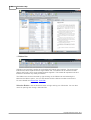
Bar Coded Separator Pages
Create bar coded separator pages during scanning to separate multi-page documents from
each other.
Preview of MS Office files is now supported
Preview MS Word, MS Excel and MS PowerPoint files directly in Sohodox.
Built in PDF Viewer
Sohodox can display PDF files using it's built-in viewer or the free Adobe Reader. Two new
options have been included in the Sohodox Options dialog to help you choose when to use the
built-in PDF Viewer
1. PDF files created using Sohodox
Choose this option if you only want the PDF documents created using Sohodox (i.e. by
saving a scanned document as PDF) to be displayed in the built in PDF viewer. In this case
the PDF documents that are not created using Sohodox will be displayed using Adobe
Reader.
2. All PDF files
Choose this option if you want all PDF documents (created using Sohodox or not) to be
displayed in the built in PDF viewer.
New Comparison Operators
Two new comparison operators have been included in the Advanced search
1. Is Empty
Use this operator to match empty values.
2. Is Not empty
Use this operator to match non-empty values.
Version 4.6.12 (November 26 2007)
Barcodes will now be detected row-wise from top to bottom. Just like reading sentences on
page, the barcodes will be detected in the left-to-right, top-to-bottom (line-by-line) sequence.
Version 4.6.6 (August 13 2007)
Barcode Detection
doQuments now supports Code 128 barcodes. More barcode formats will be supported in the
future.
Blank Page Detection Threshold
Default blank page threshold is now set to a lower value for more stricter detection of blank
page.
A wrong detection at any stage of the batch scan means that all subsequent pages will be
saved incorrectly. We recommend that you do a test run to find out the best value for your
scanner. You must choose the lowest value which works correctly for you. (Click here for more
Copyright © Sohodox 2000 - 2012
Introduction
18
details)
Minor bug fixes.
Version 4.6 (June 05 2007)
Barcode Detection
Using this feature doQuments can detect barcodes on any document being scanned (or even
any supported image document added via drag & drop). The information contained in the
detected barcodes can be automatically stored in data fields. You can select the data fields in
which information from the barcodes must be stored. Please note you can only select Small
text or Large text data fields to store the barcode information. You cannot use multi select data
fields, list data fields or auto-generate data fields to store the barcode information.
doQuments supports Code 39 barcodes. More barcode formats will be supported in the future.
Options to perform barcode detection are available in the Batch Scan Wizard, Scan Panel and
Scan Window. Bar codes on existing image documents can also be detected using the Detect
Barcodes option on the Document menu.
Do not show records
Use this option if you do not want to show any records to be displayed when a DB is opened.
Please note users will need to query the DB to view the records if this option is selected.
Note: Any records added by the user in the current session (that is after the user's latest
login) will remain accessible to the user. To view these records, the user must use the
"Show All Records" option on the Search menu. This option is normally used to remove any
applied query and show all the records.
Version 4.5
doQuments is now integrated with Workflow.
Version 4.4 (May 04 2007)
doQuments uses a new and improved mechanism to extract and index text from documents.
Text extraction is now done using IFilters installed on the user's machine. IFilters act as
plug-ins and are a part of Microsoft Indexing Service (they are also used by Windows Desktop
Search). Using the IFilter mechanism improves the accuracy and performance of text
extraction in doQuments.
For doQuments to be able to extract text from a file of a particular format, an IFilter for that
file format must be installed on the user's machine.
IFilters for the following file formats are installed by default on Windows 2000/XP/2003/Vista
machines...
· PPT (Microsoft PowerPoint presentation)
· DOC (Microsoft Word document)
· XLS (Microsoft Excel spreadsheet)
· HTML documents
· TXT documents
For PDF files, existing users will need to download the freely available PDF IFilter from...
http://www.adobe.com/support/downloads/detail.jsp?ftpID=2611
Copyright © Sohodox 2000 - 2012
19
Sohodox Help
You can also install third party filters to enable doQuments to extract text from other file
types, e.g.:
· Microsoft XML IFilter
· Microsoft RTF IFilter
· Microsoft Visio IFilter
More information and downloads links for various IFilters (both free and commercial) are
available at...
· IFilter.org
· Desktop Search IFilters
Version 4.3.3 (January 04 2007)
Minor bug fixes.
Version 4.3.1 (December 15 2006)
Portable doQuments DB
Using this new feature you can mark any MS Access based doQuments DB as a Portable
doQuments DB. This DB along with it's System Folder and all it's Storage Folders can then
be copied/moved to any removable media (e.g.: USB Drive, Removable Hard Disc, CD, DVD
etc.). You can then attach this removable media to any machine running doQuments and
open the doQuments DB located on the removable media.
You can use this feature to carry your doQuments DBs anywhere with you, distribute your
doQuments DB to multiple users or to archive your doQuments DBs.
Only doQuments DBs which meet the following criteria can be marked as "Portable"…
· The doQuments DB should be MS Access based
· The doQuments DB's System Folder and all it's Storage Folders must be under one
common folder (this is the default for newly created doQuments DBs).
doQuments DB list displayed when choosing target doQuments DB for export
When exporting to a doQuments DB, the doQuments DB List is now displayed for choosing
the target doQuments DB (instead of the doQuments DB Details Dialog being displayed).
Version 4.2.24 (October 31 2006)
Minor bug fixes.
Version 4.2.23 (October 20 2006)
Use the scanner interface while batch scanning
The Show scanner user interface option is now available in the Batch Scan Wizard. This will
allow you to use the scanner's image manipulation capabilities while batch scanning and
adding documents to a doQuments DB.
Version 4.2.16 (August 30 2006)
Minor bug fixes.
Version 4.2.4 (July 27 2006)
Copyright © Sohodox 2000 - 2012
Introduction
20
Record Templates
With the new record templates feature, when creating a new record, doQuments will
automatically fill up the data fields that were specified in the record template. This feature
benefits users who have same indexing information repeating on many records. It saves on
time and data entry costs.
For example: If you have 40 invoices from the same company and you have a data field for
'Company Name', you will not need to enter the name of the company 40 times. You just
have to create a record template with this information. Now every time you create a new
record using this record template, the company name information will already be filled up.
This feature is only available in the Enterprise Edition of doQuments 4.2 and higher.
Enhanced Backup and Restore
New improved Backup makes it easy to span your large database backup across multiple
storage media. You can now split your doQuments Archive file (.DQA) into fixed sized chunks
to fit on the required medium (e.g. CD, DVD, USB Drives, etc.). It creates a series of folders
with the specified sized files on your hard drive which can be burned onto CDs or DVDs.
Template Manager
You can use Template Manager under the 'File' menu to manage record templates as well as
document templates.
Reorder saved queries
You can use the Reorder saved queries feature to choose the order in which your saved
queries should appear in the menu. The new 'Reorder' option is located in the Query Wizard.
Modified Folder Structure
When you create a new doQuments DB, doQuments creates a new folder for that DB with the
same name as the DB, inside the doQuments Databases folder. This new folder usually
contains the Storage folder, the Messaging folder and the Temp Folder.
With the doQuments 4.2, the new DB folder will contain two folders i.e. the Storage folder
and the new System folder. The System folder from now on will contain all the folders that
are required to run doQuments. This will ease the process of sharing and applying
permissions. (Click here for details)
Version 4.1.10 (April 12 2006)
Minor bug fixes.
Version 4.1.2 (February 23 2006)
Minor bug fixes.
Version 4.1 (February 21 2006)
Dynamic Document Templates
Dynamic Document Templates enable you to automatically insert indexing data field values
Copyright © Sohodox 2000 - 2012
21
Sohodox Help
from the currently displayed record into the newly created document.
Version 4.0 (December 28 2005)
doQuments Standard Edition discontinued
doQuments Standard Edition has been discontinued. Existing users of doQuments Standard
Edition who have purchased within the last 12 months will be upgraded to doQuments
Professional Edition free of cost (as per our one year free upgrade policy). Existing users of
doQuments Standard Edition who have purchased more than 12 months ago will be able to
upgrade to doQuments Professional Edition for a small upgrade fee.
doQuments Clipboard
Use the new doQuments clipboard to copy documents or indexing data from one record and
paste them into another record. This can speed up data entry in cases where multiple
documents have identical indexing values. You can also move documents by cutting them
from one record and pasting them into another record. All clipboard options are available
from the new Edit menu.
Support for MS SQL Server 2005
doQuments now also supports MS SQL Server 2005 based doQuments DBs.
This feature is only available in the Enterprise Edition of doQuments 4.0 and higher.
The Spiral binder image is gone!
The spiral binder image has been removed from the main window, freeing up valuable
space.
doQuments DB Description
You can now store a small (255 characters) along with each doQuments DB. This
descriptions is displayed in the doQuments DB List as well as on the DB selection page of
doQuments Web Edition.
doQuments DB List Security
The doQuments DB list now displays only those doQuments DB for which the currently
logged in user has the required permissions. It also displays a small description for each DB.
This feature is only available in the Enterprise Edition of doQuments 4.0 and higher.
Password protect MS Access based doQuments DBs
You can now secure your MS Access based doQuments DBs by setting a password for the
doQuments DB. This ensures that unauthorized users cannot open MS Access based
doQuments DBs directly (without using doQuments).
This feature is only available in the Enterprise Edition of doQuments 4.0 and higher.
Full text search supported for MS Excel files
Support for full text search of MS Excel (.XLS) files is now added.
This feature is only available in the Enterprise Edition of doQuments 4.0 and higher.
Multi-select in Document List Panel
Multiple documents can now be selected in the document list panel on the doQuments Main
Window. This will allow you to copy/cut/delete/email/drag & drop multiple documents at the
same time.
Copyright © Sohodox 2000 - 2012
Introduction
22
Menu items re-located
Some menu items have been moved to make things more logical. The Copy and Paste
options have been moved from the Image menu to the new Edit menu. They are now called
Copy Image to System Clipboard and Paste Image from System Clipboard.
All options related to image type documents have been moved from the View menu to the
Image menu.
Support for MySQL based doQuments Security DB
The doQuments Security DB can now also be MySQL based.
This feature is only available in the Enterprise Edition of doQuments 4.0 and higher.
doQuments Security DB Wizard
The new doQuments Security DB Wizard provides an easy to use interface to change the
type, location or connection settings of the doQuments Security DB.
This feature is only available in the Enterprise Edition of doQuments 4.0 and higher.
User Manager - E-mail ID
You can now store the e-mail id of the user as part of the user's profile in User Manager. This
is useful when using the new E-mail Document feature in doQuments Web Edition.
This feature is only available in the Enterprise Edition of doQuments 4.0 and higher.
doQuments Web Edition Enhancements
E-mail one or more documents in a record with a single click
Version 3.6 (July 13 2005)
Drag and drop e-mail messages and attachments from Outlook and Outlook Express
You can now drag & drop e-mail messages from Microsoft Outlook and Microsoft Outlook
Express to add to a doQuments DB. Drag & drop of attachments in e-mail messages from
Microsoft Outlook, Microsoft Outlook Express and Lotus Notes is also supported.
Scanning Enhancements
The scanning features have been enhanced to provide better performance and support for
newer scanners.
Version 3.5.17 (May 09 2005)
Document name included in export to document package and import from document
package
Document name is now included while exporting data and documents to a document
package.
Support for escape character
Support for ~ (tilde) escape character to handle situations where the field value contains field
separator character.
Version 3.5.11 (April 05 2005)
Copyright © Sohodox 2000 - 2012
23
Sohodox Help
View-only access
View-only licenses are now available for doQuments Enterprise Edition. View-only licenses
are priced much lower than the normal full access licenses. Users with view-only licenses
cannot make any changes to doQuments DBs. They can only query and view
records/documents in a doQuments DB. Customers can purchase a mix of view-only and full
access licenses. However at least one full-access license must be purchased. Customers who
already own doQuments Enterprise Edition licenses can purchase view-only licenses because
the licenses they currently own are full access licenses.
Any existing or newly created user can be marked as view-only using doQuments User
Manager. A user marked as view-only will not be allowed to make changes to a doQuments
DB when logged in. Also users not marked as view-only can temporarily login as view-only by
checking the Login with view-only access box on the login dialog.
Version 3.5 (March 21 2005)
Support for MySQL based doQuments DBs
In addition to MS Access and MS SQL Server based doQuments, you can now even create
MySQL based doQuments DBs.
More information about MySQL is available at http://www.mysql.org
This feature is only available in the Enterprise Edition of doQuments 3.5 and higher.
Document Full Text Search
This feature allows you to search documents in a doQuments DB based on their content.
Currently MS Word (.DOC), PDF, E-mail (.EML, .MSG) , Web Page (.HTM, .HTML) and .TXT
files are supported. Support for more file formats will be added soon. Please note that for
.DOC files, an installation of MS Word must be present on the machine.
This feature can be separately enabled/disabled for each database.
This feature is only available in the Enterprise Edition of doQuments 3.5 and higher.
Scan and add pages at any position in an existing multi-page document
You can now scan and add more pages at any position in an existing multi-page document.
This means that a new page can be scanned and appended at the end of the document or
inserted in the beginning of the document or at any position in between.
Quick Print
You can now print documents with a single click. You can set the default printer to be used
when using quick print to print a document.
Vertical Spacing for data fields in the Data List Panel
You can now set vertical spacing between data fields in the Data Panel on the doQuments
Main Window.
Saved Document Queries
You can now save document queries for later use.
Auto rename documents in case of duplicate file names
Files being added to a doQuments DB can now be automatically renamed, if files with the
same name already exist in the doQuments DB.
Copyright © Sohodox 2000 - 2012
Introduction
24
0000 format for document names
Document names are now generated in the "Document00001" format. This will allow
documents to be correctly sorted in the Document List Panel in case a record contains more
than 9 documents.
Use file name as document name The file name can now be automatically used as the
document name when it is added to the doQuments DB.
Black Band Removal
Black bands (if any) bordering your scanned images can now be automatically detected and
removed.
Version 3.2.101 (May 31 2004)
Minor bug fixes.
Version 3.2 (May 26 2004)
doQuments Web Edition
doQuments Web Edition provides a browser based interface to the doQuments DBs created
using the desktop version of doQuments Enterprise Edition. doQuments Web Edition can be
accessed over your corporate Intranet or even over the Internet. No client-side install is
required at all! doQuments Web Edition makes each record and document URL-addressable
which you can share with your trusted users.
This feature is only available in the Enterprise Edition of doQuments 3.2 and higher.
doQuments Security Manager
doQuments Security Manager replaces the doQuments Authentication Server in doQuments
from version 3.2 onwards. The key advantage of this change is that, unlike doQuments
Authentication Server, you don't need to keep the doQuments Security Manager running in
order to use the doQuments.
This feature is only available in the Enterprise Edition of doQuments 3.2 and higher.
Exporting of Document Package
Export documents as well as the indexing data, to a folder or as a zip file or as a Document
Package (highly compressed file). You can even choose to encrypt the Document Package.
Importing of Document Package
Import the documents and the indexing data from the Document Package or the zip file.
This feature is only available in the Professional and Enterprise Editions of doQuments 3.2
and higher.
Create a Zip file
This feature enables you to create a zip file of the selected documents. This makes it
convenient to share the documents with the other users. You could simply choose to e-mail
the zip file.
Copyright © Sohodox 2000 - 2012
25
Sohodox Help
Version 3.0.115 (April 07 2004)
Minor bug fixes
Version 3.0.108 (March 04 2004)
Support for creation of PDF files
doQuments now supports saving of scanned documents as PDF files in addition to the
already supported formats like BMP, TIFF, JPEG and PNG.
Document Check In/Check Out
The Check In/Check Out feature lets you block others users on the network from trying to edit
a document that you are currently editing. When you open a document for editing it is
"Checked Out". Other users on the network will still be able to view this document but they
will not be able to edit it. Another user can only open the document for editing after you have
checked it in again.
This feature can be separately enabled/disabled for each database.
This feature is only available in the Enterprise Edition of doQuments 3.0 and higher.
Document Versioning
This feature allows you to create and retain multiple versions of the same document. Every
time you check out, modify and then check in a document, doQuments will retain a copy of
the older version and add the new modified document as a new version. You can have an
unlimited number of versions for each document or set an upper limit for the number of
versions. You can also set a different upper limit for each document.
This feature can be separately enabled/disabled for each database.
This feature is only available in the Enterprise Edition of doQuments 3.0 and higher.
Document Encryption
This feature allows you to store documents in an encrypted form. This eliminates the
possibility of someone accessing the documents directly using Windows Explorer (bypassing
doQuments). Encrypted documents can only be accessed using doQuments. Various popular
and powerful encryption methods such as AES, TripleDES and Blowfish are supported with
key lengths ranging from 128 bits to 256 bits.
This feature can be separately enabled/disabled for each database.
This feature is only available in the Enterprise Edition of doQuments 3.0 and higher.
Event Logging/Auditing
This feature allows you to log details about user actions. For example you can configure this
feature so that whenever a document is deleted, details about the action are logged. Details
logged include the name of the user performing the action along with the date and time of the
action. Almost any action a user can perform in doQuments can be logged. You can choose
the actions you wish to log.
This feature can be separately enabled/disabled for each database.
This feature is only available in the Enterprise Edition of doQuments 3.0 and higher.
Copyright © Sohodox 2000 - 2012
Introduction
26
Enhanced Batch Scanning
The batch scanning tool in doQuments has been significantly enhanced with the addition of
blank page detection and other options.
This feature is only available in the Professional and Enterprise Editions of doQuments 3.0
and higher.
Document Replace
You can now replace an existing document in doQuments with another document (instead of
having to first delete the existing document and then adding a new document). This feature is
useful for users who perform XCopy backups as with this feature the name and path of the
file can remain the same after the replace operation.
Variable Height Input Boxes for Large Text Data Fields
You can now set the height of the Input Box for each Large Text data field, using the new
option available on the first page of the Data Fields Wizard. You can now set the Input Box to
display anywhere between 3 and 20 lines of text.
Indexing Assistant
The Indexing Assistant is a tool to assist you in indexing documents which are not displayed
by the doQuments internal viewer (for e.g. MS Word .doc files). The Indexing Assistant is a
floating window which enables you to view the underlying document while entering indexing
data. This eliminates the need (while indexing) to switch back and forth between doQuments
and the application in which the document in opened.
Specify Scan Area
Instead of doing a preview scan and then selecting an area on the preview image for the final
scan, you can now directly specify the size of the page being scanned. You can choose from
a list of common page sizes such as A4, A3 etc...
Minor Enhancements
You will find hundreds of other small improvements everywhere in doQuments 3.0.
Restore from Archive menu option removed
Due to potential problems with new doQuments features, the Restore from Archive menu
option has been removed from the Document menu of the doQuments Main Window and
from right-click menu of the Storage Folder Manager window.
Version 2.0.172 (February 05 2004)
New options to save the doQuments DB as a template
The Save as doQuments DB Template dialog now has two options to retain the saved queries
in the template and to retain the security information in the doQuments DB template.
Version 2.0.163 (January 22 2004)
None
Version 2.0.158 (November 10 2003)
New options on the Image and View menus
Copyright © Sohodox 2000 - 2012
27
Sohodox Help
The View menu and the Image menus now have new options to Zoom in/Zoom out, flip or
rotate images. Also the Fit to Window has been moved from the Image menu to the
View menu.
New Image Toolbar on Main window
A new Image toolbar has been added to the doQuments Main Window for image
manipulation. You can now Zoom in/Zoom out, flip or rotate images in the preview panel.
Pan Window button in the Image Viewer window
A new button has been added to the Image Viewer window to show or hide the Pan window.
Zoom level remembered
The zoom level of the image in the preview panel of the main window and the in the Image
Viewer window is now remembered even after doQuments is closed and started again.
Pan window state remembered
The Pan Window state (show/hide) is now remembered for the main window and the Image
Viewer window even after doQuments is closed and started again.
Drag & drop e-mail attachments to add to doQuments
You can now drag & drop e-mail attachments from applications like Microsoft Outlook
Express, Microsoft Outlook and Lotus Notes to add them to doQuments.
Version 2.0.152 (October 23 2003)
None
Version 2.0.151 (September 01 2003)
None
Version 2.0.150 (August 28 2003)
Export to doQuments DB
Delete exported records option added. You can now choose to delete the exported records
and documents from the source doQuments DB.
Find and Add Files
The files added to the doQuments DB are removed from the search results.
Temp Folder Manager
The files added to the doQuments DB are deleted from the temp folder.
Parameterized Queries
Parameterized queries are now denoted in the menu by an ellipsis(...) at the end of the query
name.
Sample doQuments DBs
The doQuments setup now includes sample doQuments DBs to give you a better idea about
using doQuments to manage your documents.
Version 2.0.148 (July 07 2003)
Copyright © Sohodox 2000 - 2012
Introduction
28
Minor Bug Fixes
Version 2.0.147 (June 30 2003)
Options Dialog
New page File Addition added to Options dialog. You can choose how files which are dragged
and dropped must be added to a doQuments DB (to the current record or to the new record).
Version 2.0 (May 16 2003)
Security
Control access to your data and documents on a user by user basis. Decide who can view a
document and who can edit it. The comprehensive security framework also lets you control a
user's access to almost all doQuments features.
This feature is only available in the Enterprise Edition of doQuments 2.0 and higher.
Support for MS SQL Server based doQuments DBs
Create MS SQL Server based doQuments DBs. You can still choose to create MS Access
based doQuments DBs if required. If the volume of data grows or for any other reason you
can convert a MS Access based doQuments DB to a MS SQL Server based doQuments DB
at any time.
This feature is only available in the Enterprise Edition of doQuments 2.0 and higher.
doQuments DB List
The doQuments DB List is a central list of all the doQuments DBs that you work with.
doQuments DBs you create can be added to the doQuments DB List. If you use the
doQuments DB List you can avoid using the Windows File Open to locate and open a
doQuments DB. You can simply choose the doQuments DB you want to open from the
doQuments DB List.
Pages
If your doQuments DB contains a large number of fields it can be cumbersome to scroll the
data panel to view/edit all your data. Pages help you solve this problem, by letting you
create multiple pages and assigning groups of fields to each page. To view a particular set of
fields you simply choose a page from the new Active Page drop down list. Moreover a field
can be assigned to more than one page.
Export doQuments DB
Data can now be exported from one doQuments DB to another similarly structured
doQuments DB.
Parameterized Queries
Queries can now request values for their conditions when you execute them. For example
instead of creating a query like Name = "John", you can now create a query which will prompt
you for the Name whenever you execute it.
Create multi-page TIFF files
doQuments now allows creation of multi-page TIFF files. Multi-page TIFF files can be
created during scanning or even at later time. The new TIFF File Editorallows you combine
images file of any supported formats into a single multi-page TIFF file.
Copyright © Sohodox 2000 - 2012
29
Sohodox Help
Imaging Enhancements
A whole new set of tools for image manipulation have been added. You can now also open
an existing image, modify it and then save it back to the record.
Find and Add Documents (Batch addition of documents)
You can now search for and add multiple documents to the doQuments DB in a single step.
Options are available to add all found documents to single record or create a new record for
each document. You can also choose to add the found documents to a temporary folder so
that they can be classified by addition to records at a later time.
This feature is only available in the Professional and Enterprise Editions of doQuments 2.0
and higher.
Batch Scanning (Automatic Document Feeders)
Scan a stack of documents at once with the batch scanning features. Scanners with
Automatic Document Feeders are now fully supported. Options are available to add all
scanned documents to single record or create a new record for each document. You can
choose to add the scanned documents to a temporary folder so that they can be classified by
addition to records at a later time.
This feature is only available in the Professional and Enterprise Editions of doQuments 2.0
and higher.
Storage Folders (Professional & Enterprise Editions)
With the new Storage Folders feature older documents can now be moved to removable
storage devices (e.g. CD-R, Zip Disks etc..). doQuments can even prompt for the removable
media (on which the document is located) when you select the document for viewing.
This feature is only available in the Professional and Enterprise Editions of doQuments 2.0
and higher.
Enhanced Backup & Restore (Professional & Enterprise Editions)
The backup & restore features have been significantly enhanced with support for selective
backup & restore.
Data Import (Professional & Enterprise Editions)
You can now import data from text files (e.g. CSV) into doQuments.
This feature is only available in the Professional and Enterprise Editions of doQuments 2.0
and higher.
Find Record/Find Next Record
Use the Find Record/Find Next Record feature to quickly jump to records which met the
criteria you specify.
Removed - Store only the location of the file in the doQuments DB setting
The Store only the location of the file in the doQuments DB setting has now been removed.
Documents should now be stored in the doQuments DB's storage folder. Existing doQuments
DBs with this option set, are still supported but you cannot now set this option for any
doQuments DB.
Minor Enhancements
A LOT of minor enhancements.
Copyright © Sohodox 2000 - 2012
Introduction
30
Version 1.75 (June 11 2002)
Updated the doQuments installation program.
Minor Bug Fixes
Version 1.73 (May 20 2002)Minor Bug Fixes
Version 1.72 (May 10 2002)
Minor Bug Fixes
Version 1.71 (April 15 2002)
Auto-Generate Values
Values for Small Text & Numeric fields can now be auto-generated based on formats
provided by the user.
Sort and Query Data in the View Data window
The View Data window has been redesigned. Data can be sorted and queried using tools
available on the new View Data toolbar. Data can also be sorted by clicking on the column
headers of the grid.
Save Web Page Settings
Web page settings can be saved without having to create the web pages.
Reorder Documents
Documents in the document list can now be reordered using the new Reorder List option.
This option is available on the Documents menu.
Completely re-sizeable preview panel
The preview panel is now re-sizeable both vertically as well as horizontally.
Support for preview of PDF files
PDF files can now be previewed in the preview pane. Tnvalid associated folder
0 1 26 0 0 0
1.4
Bug Fixes
Version 8.0.0.46 - October 01 2012
1. Fixed: Bug when adding documents to an already existing tag.
2. Fixed: Occasional problem when searching for Tags.
3. Fixed: Email Capture stops capturing email when a large file name is detected for an
attachment or subject.
4. Fixed: Error 'Invalid File format' when viewing thumbnails for a document.
5. Fixed: When a document on a particular page of the List pane is deleted or refreshed, the
List pane display reverts to the first page rather than remaining on the same page.
6. Fixed: Certain File Type icons not being displayed when viewing a Document Type.
Copyright © Sohodox 2000 - 2012
31
Sohodox Help
7. Fixed: Note and Bookmark fonts in annotations not displayed clearly.
8. Fixed: Auto-preview now optimizes when documents are fetched for preview.
9. Fixed: Cannot search for folders with less than 3 characters.
10.Fixed: Occasional problem when rendering PDF files.
11.Fixed: Enter key now initiates a search in the Lookup dialog.
12.Fixed: Cannot save a profile in the Export Wizard.
13.Fixed: Cannot use a saved profile in the Import Wizard.
14.Fixed: Cannot move to another document until the current document (having a large number
of pages) is completely displayed.
15.Fixed: Other minor bugs.
Version 7.6.0.7 - February 06 2012
1. Fixed: Folder search not working for Private folders.
2. Fixed: Occasional error when adding multiple bookmarks on a document.
3. Fixed: Error when opening an existing Document Type from the Settings tab.
4. Fixed: Other minor bug fixes.
Version 7.6.0.0 - January 13 2012
1. Fixed: Print all pages option not working.
2. Fixed: Occasional error when modifying a document using the Image Editor.
3. Fixed: Export all pages option not working.
4. Fixed: Error when adding annotations on a language version of Windows.
5. Fixed: Error when viewing document in the Tags node.
6. Fixed: Occasional error when viewing Word documents.
7. Fixed: Occasional error when editing a scanned document.
8. Fixed: Other minor bug fixes.
Version 7.3.1.7 - September 22 2011
1. Fixed: Error when exporting a document which has : or / in the Document Title.
2. Fixed: Occasional error when viewing a Word/Excel document using the inbuilt viewer.
3. Fixed: Size of scanned documents has now been reduced to the earlier small size.
4. Fixed: Bug when using an Auto-generate field.
5. Fixed: Sohodox showing a crash error message when it reaches the Inactivity timeout limit.
6. Fixed: Occasional error when previewing certain Office 2011 Word and Excel files.
Version 7.2.0.10 - July 14 2011
1. Fixed: Error when extracting text from certain Word/Excel documents.
2. Fixed: Error when displaying certain Word/Excel documents.
3. Fixed: Minor Bug fixes.
Copyright © Sohodox 2000 - 2012
Introduction
32
Version 7.1.1.5 - April 29 2011
1. Fixed: Annotations not being printed while faxing documents.
2. Fixed: Error when viewing large PDF files.
3. Fixed: Scan profile not being saved when creating a new scan profile.
4. Fixed: OCR not being performed on PDF documents scanned in Sohodox
5. Fixed: Occasional error when dragging and dropping files from Outlook
6. Fixed: Occasional error when extracting text from a tiff file using JPEG compression.
7. Fixed: ‘Print selected’ option not working correctly in the Print List dialog.
8. Fixed: Incorrect date format displayed when viewing MS Excel files using the in-built
viewer.
9. Fixed: OCR not being performed on PDF files that contain large images.
Version 7.0.0.9 - March 04 2011
1. Fixed: Error when saving a document Type for a document and then reverting the changes
in the Information tab.
2. Fixed: Error when executing a parameterized query in the Saved searches node.
Version 7.0.0.8 - February 28 2011
1. Fixed: Sohodox becomes unresponsive when adding a large file.
2. Fixed: Sohodox does not detect a blank page when using a blank page separator when
scanning.
3. Fixed: Error when adding an emf or wmf file to Sohodox.
4. Fixed: Text extraction not happening for DOCX and XLSX files on a 64 bit machine.
5. Fixed: Error when updating a registration key and logging out of Sohodox.
6. Fixed: Occasional error when reconfiguring the location of the MainDB.
7. Fixed: Folder Monitor abruptly stops monitoring a folder.
8. Fixed: Occasional error when sorting columns in the List view.
9. Fixed: Other minor bug fixes.
Version 6.1.0.5 - February 09 2010
1. Fixed: Document Title is not exported as the filename of the document, when exporting
folders along with documents.
2. Fixed: (For Sohodox Plus) Cannot drag n drop documents, from within Sohodox, to a
Stack.
3. Fixed: Cannot change the properties of a field in a Document Type.
4. Fixed: Error while adding files not supported for OCR.
5. Fixed: Error when clicking on Show Extracted Text when no item is present in the List
pane.
6. Fixed: Printing of Annotation done wrongly.
Copyright © Sohodox 2000 - 2012
33
Sohodox Help
7. Fixed: Error when adding a password protected PDf file
8. Fixed: Application crashes when a scan is done with 'Auto deskew' option enabled ( Usually
seen in Windows7 and Vista).
9. Fixed: Error when a PDF file is rotated and Save and Close button is clicked.
Version 6.1.0.2 - December 31 2009
1. Fixed: OCR not being performed on a PDF file when added using the Scan Window.
2. Fixed: Error when adding a Document Template that has file name with more than 50
characters.
Version 6.1.0.1 - December 24 2009
1. Fixed: Error while scanning and adding a PDF file from the New Document Window
Version 6.1.0.0 - December 23 2009
1. Fixed: Improved print quality when printing PDF files from Sohodox.
2. Fixed: Issue when importing documents, using the Import Wizard.
3. Fixed: Bug when converting to multi-user, a DB which is stored in a mapped drive
4. Fixed: Error when assigning a role to a user.
5. Fixed: Annotations for document versions are now visible in the viewer
Version 5.6.0.8 - November 05 2009
1. Fixed: Error when clicking the Open/Edit in Selected Application button on a Windows
Vista/Windows7 machine.
Version 5.6.0.6 - October 07 2009
1. Fixed: Error when changing the Maximum length of a Small text field and then entering a
value for that field.
2. Fixed: Incorrect handling of certain date formats during Import.
3. Fixed: Error when installing the Sohodox databases on a drive, other than the C: drive.
4. Fixed: Error when a MS Office file is being displayed and the user logs out or opens
another DB.
5. Fixed: Occasional crash when launching the Connection Manager
Version 5.6.0.2 - September 18 2009
1. Fixed: Error when using the command line option /reconfiguremaindb.
Copyright © Sohodox 2000 - 2012
Introduction
34
2. Fixed: Error when adding and burning an annotation in the Image Editor window.
3. Fixed: Incorrect behaviour when dragging files to a newly created sub-folder.
4. Fixed: Error when installing the Sohodox databases on a drive, other than the C: drive.
5. Fixed: Single paged document could not be scrolled by dragging the scroll bar.
6. Fixed: Incomplete OCR on certain TIFF files.
7. Fixed: Automatically OCR documents when checked-in from the Main window.
Version 5.6.0.1 - September 07 2009
1. Fixed: Error when scanning and adding a file to an existing document.
2. Fixed: The maximum length of the field used to get set to 0 for a text field (occasionally).
3. Fixed: Text was not being automatically extracted when document was scanned using the
New window.
Version 5.5.0.6 - August 25 2009
1. Fixed: Crash on Chinese version of Windows.
2. Fixed: Occasional error when adding folders from disk.
3. Fixed: Occasional error when burning annotation on a document.
4. Fixed: Incorrect behaviour when changing the File Store path for a DB.
Version 5.5.0.5 - August 10 2009
1. Fixed: The value set for the Inactivity Timeout option was incorrectly being applied to
password length.
Version 5.5.0.4 - August 07 2009
1. Fixed: Error when adding and scanning documents via the New Document window.
2. Fixed: Occasional Error when adding a document to a Document Type.
3. Fixed: (For Sohodox Plus) Page Up and Page Down keys can now be used to navigate
between documents in Stack.
4. Fixed: Occasional Error when editing a PDF File
5. Fixed: Incorrect message displayed when activating a user in Sohodox
6. Fixed: Enabling Auto-Preview turn off option, turns off the preview of documents
Version 5.3.0.0 - July 06 2009
1. Fixed: Values in Lookup field is now sorted.
2. Fixed: Automatically Extract/OCR documents on check-in.
3. Fixed: Problem when changing the color of text in the Note annotation.
Version 5.2.1.1 - June 16 2009
Copyright © Sohodox 2000 - 2012
35
Sohodox Help
1. Fixed: Two or more scanned documents can now be merged as a single document.
Version 5.2.1.0 - June 08 2009
1. Fixed: Error when you specify 1 in the Pages box of the Print dialog and click the Print
button.
2. Fixed: Error when scanning.
Version 5.2.0.9 - June 05 2009
1. Fixed: Problem when inserting a multi-page document to an existing PDF file
2. Fixed: Error displayed when the Edit button is clicked and the Image Editor window is
closed.
3. Fixed: Error displayed on clicking the Edit button of the Scan window (only occurs from the
New Document window).
Version 5.2.0.8 - June 01 2009
1. Fixed:When a Primary field is changed of an upgraded DB, the Quick Search still searches
in the old primary field.
2. Fixed: When PDF Reader (e.g. Adobe Reader) is not installed on your machine, an error
message will be displayed when you click the icon to show the document in its associated
application.
Version 5.2.0.7 - May 27 2009
1. Fixed: Error when configuring a DB for multi-user.
2. Fixed: (For Sohodox Plus) Error when viewing thumbnails for documents related to a
Stack.
Version 5.2.0.6 - May 27 2009
1. Fixed: When you burn annotation on a PDF file which is not created by Sohodox, the
changes do not get reflected on saving the document.
2. Fixed: Sohodox crashes on closing the Scan, when a document has not been scanned.
3. Fixed: When a Document Type is deleted, the PickList values for that Document Type
does not get deleted.
4. Fixed: When an annotation is added on a document and if the document is opened in the
Details window then the annotation will not be shown.
5. Fixed: Error when inserting a page to an existing document via scanning.
Version 5.2.0.1 - May 06 2009
Copyright © Sohodox 2000 - 2012
Introduction
36
1. Fixed: Problem when using the Batch Scan window.
2. Fixed: Error when selecting the Color Photograph scan profile.
3. Fixed: When a document is shared from the Document Type node, the user with whom the
document is shared with is not displayed.
4. Fixed: Error on double clicking the Save on the create new user window.
5. Fixed: Prompt for deleting files from original location after adding files via the 'New' button
Version 5.2.0.0 - May 05 2009
1. Fixed: When a Primary Field is deleted and another field is set as the Primary field then an
error is displayed on Save.
2. Fixed: Error when searching for Tags in a Document Type.
Version 5.1.1.6 - April 27 2009
1. Fixed: When the Scan Window is maximized, then the 'Documents are Separated by'
option gets hidden.
2. Fixed: Error when you replace a PDF document and click on the Pages tab.
3. Fixed: When you replace a document from disk, the thumbnail still shows the old one.
4. Fixed: Error when 'multi-user.gdx' exists and you run Sohodox for the first time. It still
prompts for the file.
5. Fixed: Error when a document is related to Stack and you click on 'Small Thumbnails' in
the Stack Details pane.
6. Fixed: (For Sohodox Plus) Error when a particular Stack type node is selected in the Main
window(which has Stacks) and you edit the Stack Type by adding fields and then click on
save.
7. Fixed: Searching for a Typed Document in the Look up Window, did not throw any result
though the document existed.
Version 5.1.1.5 - April 23 2009
1. Fixed: Error while replacing documents from disk
Version 5.1.1.4 - April 21 2009
1. Fixed: PDF files are now loaded quickly.
2. Fixed: inserting pages to PDF files not created using Sohodox.
3. Fixed: Modifying PDF files not created using Sohodox.
Version 5.1.1.3 - April 01 2009
1. Fixed: Tiff files being distorted when displayed in the Details pane.
2. Fixed: Focus is now set to the Text box of the Jump to... dialog.
3. Fixed: Primary group of the user can now be viewed.
Copyright © Sohodox 2000 - 2012
37
Sohodox Help
Version 5.1.1.1 - March 27 2009
1. Fixed: Problem while Batch Scanning.
2. Fixed: Error fixed when starting Sohodox with a different Unicode settings.
3. Fixed: Error when modifying the DB details and clicking on Save button.
Version 5.1.0.9 - March 24 2009
1. Fixed: Error when launching the Connection Manager.
Version 5.1.0.6 - March 19 2009
1. Fixed: Performance Improved.
2. Fixed: Error when converting a DB.
Version 5.1.0.5 - March 12 2009
Minor bug fixes
Version 5.0.2.2 - February 20 2009
1. Fixed: Incorrect value imported for a column mapped to a picklist field, when the column
contained empty value.
Version 5.0.1.8 - February 09 2009
1. Fixed: Error while clicking on Add and close button in the Scan window.
Version 5.0.1.6 - January 28 2009
1. Fixed: Description of Data Fields are now remembered.
2. Fixed: Issue when a required field was left blank.
3. Fixed: A prompt for the location of Main DB in the Client setup
4. Fixed: Issues when adding folders to Public folder using the Add Folder dialog
Sohodox Version 5.0.1.5 - January 12 2009
1. Fixed: Occasional crash in Windows Vista on selecting a scanner.
Sohodox Version 5.0.1.4 - January 09 2009
Copyright © Sohodox 2000 - 2012
Introduction
38
1. Fixed: A problem while saving a Scan Profile as multi-page.
2. Fixed: Issue while reinstalling the program
3. Fixed: Login issue due to no license available.
4. Fixed: Permission issues while upgrading doQuments 4 DBs
Sohodox Version 5.0.1.3 - December 18 2008
1. Fixed: Error while inserting pages to an existing PDF document
Sohodox Version 5.0.1.0 - December 03 2008
1. Fixed: Export wizard not accepting a folder path that contains a bracket
2. Fixed: Saved search not being executed when the date criteria is left empty.
3. Fixed: Error while exporting a list of documents using the Export List Wizard.
4. Fixed: Incorrect error message being displayed while saving indexing data for a document
type containing a field which cannot be left blank.
5. Fixed: Error on log out when a Document Details window is open.
6. Fixed: Error while printing a PDF file.
7. Fixed: Error when viewing a list of documents of a document type, after a field from that
document type is deleted.
8. Fixed: Irrelevant fields being shown for document types
Sohodox Version 5.0.0.5 - November 13 2008
1. Fixed: Confirmation message is now displayed when you hit the Delete button (on the
keyboard) to delete a field.
2. Fixed: Document not getting added when using Scan from the New Document window.
3. Fixed: Occasional error when navigating undocked windows.
4. Fixed: Modified document type name not being displayed in the Information panel
(Document details window) unless the application is restarted.
5. Fixed: Document Type and Tag nodes are now sorted in the ascending order.
6. Fixed: Problems while exporting list containing file type or Public/Private icon
Sohodox Version 5.0.0.4 - November 11 2008
1. Fixed: Fixed: Sohodox folders are now sorted in the ascending order.
2. Fixed: Error on loading a document containing an empty PickList field.
3. Fixed: Windows folders being imported as Private folders instead of Public folders from the
Add folders from disk window.
Sohodox Version 5.0.0.3 - November 6 2008
doQuments Professional Edition is renamed to Sohodox
Version 4.6.16 - April 14 2008
Copyright © Sohodox 2000 - 2012
39
Sohodox Help
1. Fixed a problem with the storage folder path not being saved correctly in a MySQL based
DB
Version 4.6.14 - April 8 2008
1. Fixed: Saving a record occasionally took a long time
Version 4.6.12 - November 26 2007
1. Fixed: A problem with creating saved queries in a MS SQL Server based doQuments DB
after it is converted from an existing MS Access based doQuments DB.
Version 4.6.6 - August 13 2007
1. Fixed: Occasional error in the Enterprise edition while importing a document package with
full-text search enabled.
2. Fixed: A problem with the creation of the doQuments DB's system folder moving it to
another location.
3. Fixed: A problem with creation of MySQL based doQuments DB for MySQL version 5.0
and above.
4. Fixed: An occasional problem with the F9 key for Quick Preview.
5. Fixed: "Set permission..." button on the Field Permission dialog did not work when the
dialog is opened from the pop-up menu on the Data Fields dialog.
Version 4.6 - June 05 2007
1. Fixed: Same date and time being logged for all events when the doQuments Security DB
is MySQL based.
2. Fixed: Occasional problem with the Batch Scan Wizard creating multiple sub-folders in
the default Storage folder.
Version 4.4 - May 04 2007
1. Fixed: A problem while saving simple queries.
2. Fixed: A problem with restoring a doQuments backup to a MySQL based DB.
3. Fixed: A problem with the numeric field in MySQL(v5.0 and higher) based doQuments DBs
Version 4.3.3 - January 04 2007
1. Fixed: Occasional error while opening a MySQL based doQuments DB.
2. Fixed: A problem while extracting and indexing text from a file containing null characters.
Version 4.3.1 - December 15 2006
Copyright © Sohodox 2000 - 2012
Introduction
40
1. Fixed: A problem while exporting to a password protected doQuments DB
2. Fixed: Occasionally moving to a different record after saving a record.
3. Fixed: Occasional error while adding a password protected doQuments DB to the
doQuments DB List
4. Fixed: A problem with using dynamic document templates with a multi-select field.
5. Fixed: An error while saving a MS Access based doQuments DB as MS SQL Server
based or MySQL based doQuments DB.
Version 4.2.24 - October 31 2006
1. Fixed: Error while creating a backup if the segment size specified is greater than 2GB.
2. Fixed: Error while starting doQuments on machines with certain regional settings.
Version 4.2.23 - October 20 2006
1.
2.
3.
4.
5.
Fixed: Full access license used for a view-only login.
Fixed: Scan Document window not saving certain modifications to scanned images.
Fixed: Occasional error while saving a document query in the Find Documents dialog.
Fixed: Error after deleting all the files in the Temp Folder Manager
Fixed: Problem while renaming a query.
Version 4.2.16 - August 30 2006
1. Fixed: Occasional error with upgrading the doQuments DB to the latest version.
2. Fixed: Problems with scanning and adding a page to an existing PDF file which is
encrypted.
3. Fixed: Storage Folder and System Folder location problem in the New doQuments DB
wizard.
4. Fixed: Problem in displaying the correct number of pages of an existing encrypted
document in the Scan Panel and the Scan Window.
5. Fixed: Problem while printing documents.
Version 4.2.2 - July 19 2006
1. Fixed: Problem with setting the default doQuments DB to be opened when doQuments
starts.
2. Fixed: Occasional error in copy/paste of records..
3. Fixed: Occasional error while creating a Document Package.
4. Fixed: Occasional error while creating a new MS SQL server based doQuments DB.
5. Fixed: Problem with Replace text in dynamic document templates.
6. Fixed: Error while zipping encrypted documents using Zip Documents dialog.
7. Fixed: Error, in Tiff File Editor, while moving a file to the last position in the thumbnail
view.
8. Fixed: Problem with using the scan and add a new page to existing document feature
with PDF files in the Scan Panel/Scan Window
Version 4.1.10 - April 12 2006
Copyright © Sohodox 2000 - 2012
41
Sohodox Help
1. Fixed: Occasional error while previewing a PDF file in the Storage Folder Manager or in
the Find Documents - Results window.
2. Fixed: Error while saving a record in a doQuments DB with a large number of Data
Fields.
3. Fixed: Occasional error while opening the Storage Folder Manager.
4. Fixed: Occasional error while creating a new MS SQL server based doQuments DB.
5. Fixed: Occasional error while opening doQuments after upgrading it to the latest version.
6. Fixed: Problem with print preview and printing records for certain printers.
Version 4.1.2 - February 23 2006
1. Fixed: Occasional error while creating a backup of a doQuments DB.
2. Fixed: Incorrect error message while trying to open a doQuments DB protected using the
system default password.
3. Fixed: Incorrect error message when using the Quick Print feature.
4. Fixed: Occasional error when trying to locate a record from the View Data window.
Version 4.1 - February 20 2006
1.
2.
3.
4.
Fixed: Incorrect file times for file located on NAS drives.
Fixed: Error while creating a doQuments DB MS SQL Server 2000.
Fixed: Error while enabling Audit Events in the doQuments DB Settings dialog.
Fixed: Incorrect error message when using the Quick Print feature.
Version 4.0 - December 28 2005
1. Fixed: Error while encrypting or decrypting files on machines with DBCS operating
system.
2. Fixed: Sub-folders inside a Storage folder not being created after the specified limit when
scanning documents using the Scan Panel
3. Fixed: Scan Window not remembering previous scan settings.
4. Fixed: Error while opening encrypted documents in their associated applications while the
same document is being displayed in the Document Preview Panel.
Version 3.6 - July 13 2005
1. Fixed: Error while indexing PDF containing no text.
2. Fixed: Incorrectly creating versions of a document when scan fails or is canceled by the
user when adding a new page to an existing multi-page document.
Version 3.5.17 - May 09 2005
1. Fixed: Error while selecting a read-only folder as a storage folder.
2. Fixed: Occasional error "Key not unique in collection" on startup.
Copyright © Sohodox 2000 - 2012
Introduction
42
3. Fixed: Not opening of doQuments DB specified to be opened on startup in the Options
dialog.
4. Fixed: Differences in the date, time and number format while importing document
package.
Version 3.5.11 - April 05 2005
1. Fixed: Typo in the About box.
Version 3.5 - March 21 2005
1. Fixed: NetTOD error on Windows 98
2. Fixed: Incorrectly skipping records which had no documents while exporting to a
document package.
3. Fixed: Extra record imported at the end.
4. Fixed: Extra empty line at the end of exported file.
5. Fixed: Occasional problem when printing documents.
6. Fixed: Incorrect filtering in the Event Log Viewer.
7. Fixed: Type mismatch error when opening and closing a doQuments DB.
Version 3.2.101 - May 31 2004
1. Fixed: Incorrect options selected when a saved batch scan profile is applied.
2. Fixed: Error while filtering the Event log in certain European language versions of
Windows.
3. Fixed: Occasional problem when saving documents using the Batch Scan Wizard.
Version 3.2 - May 26 2004
Minor bug fixes.
Version 3.0.115 - April 07 2004
1. Fixed: Occasional problems while adding document templates.
2. Fixed: Error while displaying the progress when decrypting a document.
3. Fixed: Error while saving a MS Access based doQuments DB as a MS SQL Server based
doQuments DB.
Version 3.0.108 - March 04 2004
Minor bug fixes.
Version 2.0.172 - February 05 2004
Copyright © Sohodox 2000 - 2012
43
Sohodox Help
1. Fixed: Error while auto-creation of fields during the import data process.
Version 2.0.163 - January 22 2004
1. Fixed: Occasional problem while querying using date fields.
Version 2.0.158 - November 10 2003
1. The scanning problems with doQuments which surfaced when doQuments was installed
on a machine on which HP Memories Disc creator was installed have now been fixed.
Version 2.0.152 - October 23 2003
1. Fixed: Problem with record locking.
2. Scanning using an ADF scanner with the Use ADF option unchecked will now stop
scanning after scanning one page.
Version 2.0.151 - September 01 2003
1. Fixed: Incorrect active page in the Data Fields Details dialog.
Version 2.0.150 - August 28 2003
1. Fixed: Error while saving the file type settings from the file type settings dialog.
2. Fixed: List of documents not displayed in the Storage Folder Manager when the
Show/Hide button is clicked to show the list of documents.
Version 2.0.148 - July 07 2003
1. Field names with single quote " ' " character now allowed.
Version 2.0.147 - June 30 2003
1. Fixed: Problem displaying list of queries if it contained a query with name which started
with a number.
2. Fixed: Problem changing password when the earlier password was an empty string.
Version 2.0 - May 16 2003
Minor bug fixes
Copyright © Sohodox 2000 - 2012
Introduction
44
Version 1.75 - June 11 2002
1. Fixed: Error while opening doQuments DB in certain European language versions of
Windows
Version 1.73 - May 20 2002
1. Fixed: Occasional error while closing the Data Preview window of the Print dialog.
Version 1.72 - May 10 2002
1. Fixed: Occasional display of error message during installation on Windows XP.
Version 1.71 - April 15 2002
1. Fixed: Occasional problem while saving data list values for Small Text field.
2. Fixed: Problem displaying list of values.
3. Fixed: Occasional problem while closing the Tutorial window while running on Windows
2000.
4. Fixed: Occasional problem while opening the Web Page dialog.
Version 1.67 - February 11 2002
1. Fixed: Occasional MAPI error while mailing documents using Lotus Notes.
Version 1.65 - January 09 2002
1. Fixed: Occasional problem when exporting data
2. Fixed: Some problems with generation of file names for scanned and pasted images.
Version 1.52 - October 25, 2001
1. Fixed: Occasional problem with printing scanned documents.
Version 1.51 - August 23 2001
None.
Version 1.42 - August 5 2001
Copyright © Sohodox 2000 - 2012
45
Sohodox Help
None.
Version 1.41 - July 28, 2001
1. Fixed: "Type mismatch" error while launching doQuments on some machines
2. Fixed: Access violation while opening the View Data window on some machines
Version 1.40 - July 19, 2001
1.
2.
3.
4.
5.
Fixed: Could not add field error in European language versions of Windows
Fixed: Error while saving date values in European language versions of Windows.
Fixed: Problem with Min/Max setting for Small Text fields.
Fixed: Display of deleted files in the MRU list
Fixed: Occasional synchronization problem when jumping to a record from the Data
View.
6. Fixed: Distortion of images in the thumbnail view.
7. Fixed: Occasional problem while saving 1-bit scanned images.
2
For users upgrading from versions earlier than version 5
2.1
Introduction to new concepts in Sohodox
This article is only intended for doQuments users (Before the release of
version 5, Sohodox was known as doQuments) .
Sohodox addresses several limitations that existed in doQuments making Sohodox a far more
flexible document management solution. This article will help users of doQuments understand
the reasons for the changes and new features added in Sohodox.
Limitations with Version 4
Earlier versions of Sohodox, allowed you to define a single set of indexing fields in a database.
You would then create a new record which could hold one or more documents and enter
indexing information into the fields defined earlier. The indexing information would apply to all
the documents in that record.
So suppose you had to manage two types of documents, checks and photographs, one
approach you could take is to create indexing fields such as...
Document Type (with ‘Check’ and ‘Photo’ as the possible values)
Keywords (which could contain text keywords related to the document)
You would then store a single document (either a photo or a check) in every record of the
database. This approach would enable you to manage documents of different types in a single
database. Having a single database for all documents is important because the user does not
Copyright © Sohodox 2000 - 2012
For users upgrading from versions earlier than version 5
46
have to open and close different databases in order to look for a document.
However if you wanted to store specific information for each type of document, there was no
easy way to do it in version 4. For example if you wanted to store Photographer Name and
Place Taken with each photograph and Check Date and Check Number with each Check, you
could...
1) Create different databases for Photographs and Checks, with each DB containing indexing
fields specific to the type of document it was intended to hold.
OR
2) You could create all four fields (Photographer Name, Place Taken, Check Date and Check
Number) in the same DB and leave irrelevant indexing fields blank when entering indexing data
for a specific type of document.
Another way Sohodox was used to was to manage groups of documents, where each record of
the DB contained multiple related documents and the indexing information entered was for the
entire group of documents. Examples of this would be, having indexing fields which would hold
information about a customer and then adding all documents for a customer into a single
record.
The problem here was that there was no way to specify additional indexing information for
specific documents which were already part of a record. Which means it was harder to search
for and locate a particular document.
Sohodox
Sohodox significantly increases the number of ways you can index/classify a document. The
simplest method offered is of arranging documents in a folder hierarchy. Users can create as
many folders and sub folders as they want and they can also hide/share folders from/with other
users. The second easy method offered is of attaching simple text tags to documents (think of it
as attaching one or more labels to your documents). You can apply as many tags as required to
a document. You can then search for documents to which a specific tag has been attached.
For a more structured indexing approach you can use the concept of Document Types.
Document Types solve the Check and Photo problem described above. You can create two
different Document Types one for Photos (with the fields Photographer Name, Place Taken)
and one for Checks (with the fields Check Date and Check Number) in the same DB.
Another powerful feature is the ability to link any document to another document. You can have
any number of links between documents. The combination of all these features enable you to
build an extremely flexible and useful document repository.
Copyright © Sohodox 2000 - 2012
47
2.2
Sohodox Help
FAQ's for users using doQuments Professional Edition
This FAQ is only intended for doQuments users (Before the release of
version 5, Sohodox was known as doQuments) .
What is Sohodox? What happened to doQuments Professional Edition?
doQuments Professional Edition is now renamed to Sohodox
Can I upgrade from doQuments to Sohodox?
Yes you can easily upgrade from doQuments Professional edition to Sohodox. All your
existing doQuments DBs will be automatically migrated to the latest version of Sohodox. An
upgrade tool for this will be available shortly.
Why does it look so different?
Sohodox user interface had been completely redesigned and it is now similar to the familiar
MS Outlook user interface.
Where have all the menus and toolbars gone?
The menus and toolbars have now been replaced with the Ribbon bar. This makes all
important tools and features of Sohodox very easily accessible.
I can’t find the File menu
The File menu is not incorporated in any of the tabs of the ribbon bar. The File menu is
replaced with a button called the Sohodox button. You will find this button at top-left corner
of the main window. There are fewer options available from the Sohodox button compared to
the options available from File menu of version 4. Many of those options are either
incorporated in the ribbon bar or are available from the Settings pane.
How do I create a new record?
There is no more a need to create a record before adding documents to it. Documents can
be directly to the database by using any method such as drag & drop, scanning, import etc..
Copyright © Sohodox 2000 - 2012
For users upgrading from versions earlier than version 5
48
What is Document Type?
Document Types are groups of indexing fields specific to a particular type of document
For example a Check may need indexing fields such as Check Number and Check Date
while an Agreement may need indexing fields such as Agreement Date and Agreement
Party etc. You can create as many Document Types as you want.
Use Document Types when you need a more structured way of method of managing your
documents as compared to using Folders and Tags.
Where is the Data Field Manager?
The Data Field manager is available as the Fields tab while creating or modifying a
Document Type. For more info see, Fields Tab
I can’t find the Advanced Query?
Advanced Search pane is available by clicking the Double arrow button besides the Quick
Search.
Where is the Storage Folder and the System folder?
The System Folder and the Temp folder are no longer used in Sohodox. The Storage Folder
is now referred as the File Store.
Can I use my existing DB with Sohodox?
Yes you can use your existing DB's (version 4) with Sohodox but only after they have been
converted to the new format. The Sohodox DB structure is VERY different from the version
4 structure. The DB in Sohodox have .gxdb extension.
Where is the location.dqs/location.gxs file?
The location.dqs file is now referred to as the multi-user.gdx. The multi-user.gdx file is now
stored in the ITAZ\Sohodox folder created under the folder designated as the Common
Application Data folder in your Windows installation.
For Windows Vista/Windows 2008/Windows 7, this will be the C:\ProgramData\ITAZ
\Sohodox folder.
For Windows 2000/XP/2003 this will be C:\Documents and Settings\All Users\Application
Data\ITAZ\Sohodox
Copyright © Sohodox 2000 - 2012
49
Sohodox Help
Apart from multi-user.gdx file, the config.ini file is also stored in this folder.
Copyright © Sohodox 2000 - 2012
For users upgrading from versions earlier than version 5
3
50
Getting Started
You can manage your documents in Sohodox by using Tags, Folders and Document Types.
We will learn about each of them as we find the need to use them.
We will first go through the interface of Sohodox and then, learn to use it...
Sohodox Database:
Sohodox uses a database to store all the information you add to it. Sohodox database is a MS
Access based. MS Access based Sohodox DB has a .GXDB extension. When you add a file to
Sohodox, it copies the file to a special folder linked to the Sohodox DB. Sohodox refers to this
folder as the File Store. Information about the newly added file is stored in the Sohodox DB.
The Sohodox DB also holds information about what folder the file was added to, what tags have
been attached to it as well any indexing data entered for the file.
When you install Sohodox, a default MS Access based Sohodox DB is automatically installed.
This DB is called Main DB.gxdb. Apart from information about the files you add, this DB also
contains security information related to the users that you create.
Starting Sohodox:
1. Click on Start > All Programs > Sohodox or double click Sohodox icon desktop to run
Sohodox.
2. The default username and password to login to Sohodox is as below...
Username : superadmin
Password : superadmin
3. By default the Main DB will be opened and the All Documents node will be displayed.
4. To open the Sample DB. Click the Sohodox button and select the Sample DB from the
DB List
Sohodox User Interface:
This is Sohodox main window with a DB opened. The Sohodox Main window is divided into four
main parts...
1. Ribbon bar
2. Navigation Pane
3. List View Pane
4. Details View (Display) Pane
Copyright © Sohodox 2000 - 2012
51
Sohodox Help
1. Ribbon Bar:
Sohodox user interface is similar to the familiar MS Outlook user interface. The menus and
toolbars have been replaced with a single Ribbon bar. The Ribbon bar is divided into tabs
(Home and Tools), which group related features together. This makes all important tools and
features of Sohodox very easily accessible.
The Ribbon bar can be minimized by right clicking on the Ribbon bar and selecting the
Minimize the Ribbon option. You can also double click the ribbon bar tabs to minimize it.
For more details see Home Tab, Tools Tab
Sohodox Button: Use the Sohodox button to login and log out of Sohodox. You can also
use it for opening and closing a Sohodox DB.
Copyright © Sohodox 2000 - 2012
Getting Started
52
2. Navigation pane:
The Navigation pane appears on the left side of Sohodox window. It gives
you quick access to all the documents and data in your DB as well as the
various settings for your DB. The Navigation pane contains navigation
groups (e.g. Workplace, Settings) which in turn contain navigation nodes
(e.g. All Documents, Folders). Selecting a navigation node displays the
related information in the list view.
The Navigation pane can be minimized by clicking the Double Arrow on the
top right corner of the Navigation pane.
The Navigation pane has the following navigation groups...
Workspace: This is your personal workplace. The workspace initially displays all navigation
nodes (i.e. Folders, Tags, Document Types etc..) but you can customize the workspace to only
display navigation nodes which are of interest to you.
Workspace navigation group contains the following navigation items...
All documents: Select this node to view all documents that you are allowed to view.
Private Folders: Expand this node to view your private folders and sub folders. In this folder
you can add documents and folders that you do not want other users to view.
Create New: Click this link to create a new Folder.
Public Folders: Expand this node to view the list of shared folders and sub folders. You can
add documents and folders that you want to share with other users to this folder
Create New: Click this link to create a new Folder.
Tags: Expand this node to view the list of tags.
Copyright © Sohodox 2000 - 2012
53
Sohodox Help
Create New: Click this link to create a new tag.
Document Types: Expand this node to view the list of Documents Types.
Saved Searches: Expand this node to view the list of saved searches.
Documents recently added by me: Select this node to view the list of recently added
documents.
Custom Search: Expand this node to view the queries created and saved by you
Settings: The Settings group contains navigation nodes which let you access configuration
settings for the system and the DB.
Settings contain the following items...
System Settings: This node lists all the system settings options.
Users: Select this node to view/create/modify users.
Connected Users: Select this node to view all the users currently logged in to Sohodox.
You can also disconnect users from here.
DB Settings: This node lists all the DB settings options.
Document Types: Select this node to create/modify Document Types.
File Stores: Select this node to view/modify the Storage Location of the currently opened
Sohodox DB.
Copyright © Sohodox 2000 - 2012
Getting Started
54
3. List View Pane: This pane lists items related to the navigation item selected in the
Navigation pane.
· The order of the columns in the List View pane can be changed by dragging the column
header and dropping it to the position you want.
· To remove a column from the List View pane, right click a column header and deselect
the column.
· By default 50 items will be displayed in a single page of the List View pane. To view the
items (if any) on the other pages use the navigation buttons in the bottom right corner of
the List View pane
· You can click any column header to sort in the ascending or descending order of values
in that column.
See Also: Customizing the List View pane
Search: Use the Quick Search box to find items quickly. If you want to add more criteria to
your search, use the Advanced Search by clicking the double arrow.
4. Details Pane: This pane displays details about the currently selected document in the List
View Pane.
Copyright © Sohodox 2000 - 2012
55
Sohodox Help
For more info see, Document Details window
Now, that you are familiar with the Sohodox user interface you can start using Sohodox or you
can continue with the tutorial.
Copyright © Sohodox 2000 - 2012
Getting Started
3.1
56
Managing your documents
In Sohodox you can manage your documents using any of the following methods...
· Folders
· Tags
· Document Types
You can also use a mix of the above methods.
Folders
This is the simplest and easiest way of managing your documents. You can create a folder
hierarchy and then place the documents in the appropriate folders. You can also import your
existing folder structure from Windows Explorer by dragging and dropping the folder structure
onto a folder in Sohodox. The dropped folder, all it's sub-folders along with any files in them will
get added to Sohodox.
The folder structure in Sohodox is stored inside a database and is therefore very fast. Viewing
folder contents, moving documents between folders or moving folders themselves is very fast.
There are two types of folders:
Private Folders
Any folders and sub-folders a user creates under the Private Folders node are termed as
that user's private folders. Each user has her own set of Private Folders which are not
visible to any other user (except the superadmin). Any documents you add to a private
folder are considered private documents. Private documents are not visible to other users
(except the superadmin). Also you are set as the owner of any documents you add. An
owner of a document can modify or delete that document.
You can change ownership of a document, by assigning the document to another user. In
this case the document becomes the other user's private document and is no more visible
to you.
Public Folders
You can make a document public by moving it from your private folder to a public folder.
Any folders and sub-folders a user creates under the Public Folders node are termed public
folders. Public folders are visible to all users. Any documents you add to a public folder are
considered public documents. Public documents can be viewed and modified by any user.
Public documents can only be deleted by the owner of the document (or by the
superadmin).
Any public document that you own, can be made private again by moving it to any of your
private folders.
Documents you directly add to the All Documents node, a Tag node or a Document Type
node are considered your private documents
Tags
Tags are keywords that can be attached to documents. You can attach multiple tags to each
document. Tagging is a quick way of indexing your documents. Documents can be searched,
sorted or grouped based on their tags.
Sohodox supports Dropbox integration through a pre-configured Dropbox tag. You can
Copyright © Sohodox 2000 - 2012
57
Sohodox Help
configure Sohodox to automatically sync all documents that have been assigned this tag with
the Dropbox folder on your machine. Once synced, Dropbox on your machine will automatically
sync those documents to your Dropbox account online as soon as the machine connects to the
Internet.
In a lot of situations you will find just using the combination of Folders and Tags to be a very
powerful way to manage your documents.
Document Types
Document Types allows you to use a more structured approach to manage your documents.
Using Document Types, you can store specific indexing information with each document (for e.
g. store Invoice Number, Invoice Date, Invoice Amount with each stored Invoice and store
Sender Name, Date with each stored Letter).
The main advantage of this approach is that detailed information about each type of added
document can be captured by creating very specific data fields. Doing this also increases the
number of ways you can look for documents.
Sohodox ships with a few Document Types built-in such as Invoices, Checks etc.. ready for
your use. If required you can easily modify these Documents Types by adding additional
indexing fields or removing any existing indexing field. You can also delete any of these
Document Types if you do not intend to use them. You can also create entirely new set of
Document Types more suited to the type of documents you wish to manage.
Linking Documents
Another way to organize documents is to link them to each other. You can link any document to
multiple other documents. All links are two way - so if you link link a check to an invoice, when
you open the invoice you will see the link to the check and when you open the check you will
see the link to the invoice.
Bulk Import
You can use the Import data feature to quickly import all the required documents into the DB
from CSV files. For more info see, Import data from a CSV file
For any help regarding this, contact us at [email protected] with your requirements. We will be
glad to help you choose the right approach.
3.2
Security Basics
Users
Sohodox lets you create as many users as you want*. For each user you must provide at least a
user name and an email id. The user name is used for logging in to Sohodox and is caseinsensitive. E.g. If your user name is JOHN you can login in as john, John or JOHN. Ideally a
password must be provided for each user though it is not compulsory to do so (i.e. you can
leave the password blank).
A Sohodox user can add/modify/delete all items (i.e. Documents & Folders) in the database,
that they own. A user becomes owner of an item (i.e. Document or Folder), when the user
creates that item or when an item is assigned to the user.
*Though Sohodox lets you create as many users as you want, it controls how many users can
be simultaneously logged in at any given time. The maximum number of users that can be
simultaneously logged in at any given time is based on the number of licenses purchased by the
user.
Copyright © Sohodox 2000 - 2012
Getting Started
58
Owner
A user becomes the owner of an item (for e.g. Document or Folder) when the user creates/adds
that item. The user also becomes the owner of an item when that item is assigned to the user by
another user.
Private and Public Folders
In Sohodox, you can have two types of folders, Private folders and Public folders.
Private Folders
Any folders and sub-folders a user creates under the Private Folders node are termed as
that user's private folders. Each user has her own set of Private Folders which are not
visible to any other user (except the superadmin). Any documents you add to a private
folder are considered private documents. Private documents are not visible to other users
(except the superadmin). Also you are set as the owner of any documents you add. An
owner of a document can modify or delete that document.
You can change ownership of a document, by assigning the document to another user. In
this case the document becomes the other user's private document and is no more visible
to you.
Public Folders
You can make a document public by moving it from your private folder to a public folder.
Any folders and sub-folders a user creates under the Public Folders node are termed public
folders. Public folders are visible to all users. Any documents you add to a public folder are
considered public documents. Public documents can be viewed and modified by any user.
Public documents can only be deleted by the owner of the document (or by the
superadmin).
Any public document that you own, can be made private again by moving it to any of your
private folders.
Private Documents
Documents you directly add to the All Documents node, any private folder node, a Tag node or
a Document Type node are considered your private documents. You are also set as the owner
of these documents. You can modify, delete or share (i.e. make public) any document you own.
You can move your private documents to any public folder to share them with other Sohodox
users. These user can then view and modify (but not delete) these documents. You can also
move any public document you own, back to a private folder to make it private again.
Public Documents
Public documents can be viewed and modified by all Sohodox users. Any documents you drag
& drop from outside (e.g. from Windows Explorer) to a public folder in Sohodox, are considered
your public documents. You are also set as the owner of these documents.You can view, modify
or delete public documents that you own, while other users can only view or modify these
documents.
You can also make any of your existing private documents public by moving them to any public
folder. You can move any public document you own, back to a private folder to make it private
Copyright © Sohodox 2000 - 2012
59
Sohodox Help
again. Public documents are marked with the shared icon.
Password Policies
Maximum password age
Use this policy to set the maximum number of days after which a user's password will expire
and will have to be changed. If you want the password to never expire, set this value to
zero.
Minimum password length
Use this policy to set the minimum number of characters that a password must contain.
Sohodox will not allow any user to set a password that is shorter in length than this value. If
you do not want to set a minimum value then set this value to zero.
Maximum Logon attempts
Use this policy to set the maximum number of consecutive failed logon attempts before
Sohodox disables the user account. A disabled account can be enabled by the superadmin
user. If you do not want to set a maximum logon attempts limit then set this value to zero.
Security Policies
Inactivity Timeout
The Inactivity Logout policy allows you to set a time limit for application inactivity. So, if the
logged in user remains inactive for the specified time period then user is automatically
logout from the system. This can be used to terminate the connection to Sohodox which
appears to be logged in, in case of improper shut down of user machine.
Never logout
Check this option if you want do not want inactive users to be automatically logged out
of Sohodox
Application Inactivity time out
Enter the number of minutes to set the time limit for application inactivity.
Allow Remember Password and Auto-Login
Use this policy to allow users to use the Remember password option on the login screen.
This policy also allows users to choose to automatically login to Sohodox on Windows
startup.
3.3
Working with Sohodox
Working with Documents
When you start Sohodox, the default node selected is All Documents. You can change the
default node that is selected on startup from the Options window (Sohodox button > Options).
The All Documents node displays all documents that the currently logged in user is allowed to
view. By default 50 documents are displayed in the List View pane. To view more documents
use the navigation buttons at the bottom of the List View pane. To view documents as
Thumbnails click the Views button that is located towards the left of Search box and then
choose Small Thumbnails, Medium Thumbnails or Large Thumbnails. Select the List View
option from the Views drop-down to view documents as a list.
Copyright © Sohodox 2000 - 2012
Getting Started
60
Document Details Window: Details of the document selected in the List View pane are
displayed in the Details pane. You can also double-click any document in the List View pane, to
open it in a separate window called the Document Details window.
Copyright © Sohodox 2000 - 2012
61
Sohodox Help
Document Details Window
The Details window has the actions toolbar on top, towards the right is the Annotation toolbar
and at the bottom is the Image toolbar. The document title is displayed in the Title box. Modify
the text in this box, to change the document title. Tags can be added to a document using the
Tags box. You can also remove existing tags using this box. Use the Navigation buttons on the
top right corner of the Details window to go the next or previous document. Use the Navigation
button on the Image toolbar to navigate between the pages of the document.
On the left side of the Document Details window there are tabs, they are Information, Pages,
Notes, Links and Other Details.
· Information: The Information pane displays the Document Type of the document
as well as the indexing information entered for the document. You can add or
modify the indexing information from this pane.
Related Folder: If the document is stored in a folder, then the name of that
folder is displayed in this box. You can also change the document's folder
using this box.
· Pages: The Pages tab displays all the pages of the document as thumbnails. The
Pages panel also displays any Bookmarks created in the document. Thumbnails
for certain file types will not be displayed.
· Notes: The Notes tab displays the notes or comments entered by users, regarding
the document.
· Links: The Links tab displays the documents that are linked to the document. You
can also link the document to another document from this pane.
· Other Details: The Other Details tab displays additional information about the
document.
Copyright © Sohodox 2000 - 2012
Getting Started
62
Close the Document Details window.
We will now create a folder and then add a document to our new folder.
To create a folder, expand the Folders node and click Create New. A new folder will be created,
enter a name for the folder and hit the Enter button. The new folder will be created and
automatically selected.
Now on the Home tab, click the Add from disk button. The Add Files window will now be
launched. Select one or more files that you want to add and click the Open button. The
documents will now be added to Sohodox and will be listed in the new folder.
The simplest way of adding a document to Sohodox is by dragging and dropping the document
on the All Documents node, on any Folders node, on any Tag node or on any Document Type
node. You can also drag text from any source e.g. MS Word, PDF, Web page or from your
email and drop it in Sohodox to automatically save it as a new file. Documents can also be
added by using options like the Find and Add and Scan options. If you are have an existing
Folder structure that you use to manage your documents, you can use the Add Folders from
Disk option to import the entire folder structure along with documents to Sohodox. You can also
import multiple documents along with their indexing information from a CSV file.
Document Types: Double click the document that you just added to the folder to open it in
its Details window. In the Information pane, you must have noticed that there are no indexing
fields. This is because no Document type has been set for this document (see Managing your
documents)
Now, in the Information tab select a Document Type for the document. You can create a new
Document Type, if the document does not belong to the types that are listed in the Document
type drop-down. Document Types can be created from Settings node of the Navigation pane.
To view documents based on their types, in Sohodox main window expand the Document
Types node in the Navigation pane and select a document type (e.g. Invoice). All the
documents that have their Document Type set to Invoice will now be displayed in the List View
pane.
Copyright © Sohodox 2000 - 2012
63
Sohodox Help
Document Actions: All the actions that are required to work with documents are available
on the Home tab or on the right click menu of the list view pane. These are some of the actions
that are available from the Home tab.
Email: Select the document(s) and click the Email button on the Home tab or right click
document(s) in the List View pane and select the Email option to mail documents.
Fax: Select the document and click the Fax button on the Home tab. Documents can also
be faxed by right clicking the document and selecting the Fax option.
Print: Select the document(s) and click the Print button on the Home tab or right click
document(s) in the List View pane and select the Print option to print documents.
Annotation: You can use the Annotation toolbar on the right bar of the Details pane to mark,
highlight certain part of the document. You can also zoom, rotate or flip a document by using
the Image toolbar at the bottom of the Details pane.
Full Text Search/OCR: Use the Full text feature to search for text in a document. The Full
Text Search feature works by extracting text from documents that you add to a Sohodox DB
and then indexing the text.
To extract text from document(s) right click that document and select the Extract and Index
option.
Text extraction is done by using OCR (for image files) and IFilters (for other file types) installed
on the user's machine. IFilters act as plug-ins and are a part of Microsoft Indexing Service (they
are also used by Windows Desktop Search). For Sohodox to be able to extract text from a file
of a particular format, an IFilter for that file format must be installed on the user's machine.
Copyright © Sohodox 2000 - 2012
Getting Started
64
OCR is done by using the built-in OCR engine or it can be also done by using the Microsoft
OCR engine (to use this feature you must have Microsoft Office Document Imaging installed).
Use the Options window (available by clicking the Sohodox button) to select your default OCR
engine.
That's It! Now, that you are familiar with Sohodox you can go ahead and start adding
documents to it. We recommend you first learn to add documents and then learn things like
creating Document Types.
Copyright © Sohodox 2000 - 2012
65
3.4
Sohodox Help
Where does Sohodox store all my data?
Where does Sohodox Store all my Data?
Sohodox stores it's data inside the Sohodox DB. The Sohodox DB is linked to a Windows
folder. Any files you add to the Sohodox DB are copied to this folder.Sohodox refers to this
folder as the DB's File Store. All indexing information you enter is stored inside the Sohodox
DB. The DB also contains information which links the indexing information with the correct
document in the file store. So when you try to open a document in Sohodox, its indexing data is
retrieved from the DB and the document is retrieved from the File Store.
The Sohodox DB is a MS Access based and is called Main.GXDB.
Copyright © Sohodox 2000 - 2012
Getting Started
66
Related Topics
What is a Sohodox DB?
Create a File Store
3.5
Home Tab
The Home tab provides quick access to the most common tasks that you will need to perform
with your documents. Tasks that are related to each other are grouped in the Home tab. The
Home tab is spilt into groups, they are as follows...
Add Group
The Add group consists of various options to add a document to a Sohodox DB. This group
consists's the following buttons...
New: Click this button to add a new document.
The New button has the following options...
Document: Select this option to create a new document.
Document using Template: Select this option to create and add documents using a
template.
Document Type: Select this option to create a new Document Type.
File Store: Select this option to create a new File Store
Scan: Click this button to scan and add documents.
Add from disk: Click this button to add documents from disk.
The Add from disk button has the following option...
Find and add: Select this option to find documents on disk and add it to the Sohodox DB.
Add Folders from Disk: select this option to add folders from disk to the DB.
Edit Group:
The Edit group consists of various options to edit a document. This group consists the following
buttons...
Open: Click this button to open a document.
The Open button has the following options...
Copyright © Sohodox 2000 - 2012
67
Sohodox Help
Associated Application: Select this option to open the document in its associated document.
Selected Application: Select this option to select an application to open the document.
Delete: Click this button to delete a document.
Collaborate Group
The Collaborate group consists of options which can be used to move documents from one
location or person to another. This group consists the following buttons...
Print: Click this button to print the data that is displayed in the List View pane.
Print Documents: Click the Print drop-down and select the Print Documents option to print
documents.
Export: Click this button to export the data that is displayed in the List View pane. For more
details see Export data
Export to CD/DVD: Click the Export drop-down and select the Export to CD/DVD to
export data to CD/DVD.
E-mail: Click this button to e-mail documents.
Fax: Click this button to launch Sohodox Fax Add-on.
Route: Click this button to launch Sohodox Workflow Add-on.
View Group
The View group consists of options to change the layout view. This group consists the following
buttons...
Layout: Click the Layout drop-down and select the option as per your choice to change the
view.
Refresh: Click this button to refresh the display grid.
3.6
Tools Tab
The Tools tab consists of tools that can be used to import documents from other applications
into Sohodox, it also consists of tools that can be used to customize Sohodox interface as well
as your Sohodox account as per your needs.
Template
Manager
Click this option to add, modify or delete a template.
Import
Click this option to import indexing data and/or documents from any delimited
text file to a Sohodox DB
Multi-user
DB
Click this option to configure the Sohodox DB for multi-user scenario
Copyright © Sohodox 2000 - 2012
Getting Started
4
Add a document
Topics Covered
1. Drag and drop a document
2. Add documents from disk
3. Add existing folder along with the files from disk
4. Find and Add documents
5. Drag and drop text from a document
6. Drag and drop image from a web page
Copyright © Sohodox 2000 - 2012
68
69
4.1
Sohodox Help
Drag and drop a document
You can add documents by dragging and dropping them to a Sohodox DB.
To Add Documents by Dragging & Dropping:
1. In Sohodox, select the All Documents node in the Navigation pane.
2. Using Windows Explorer select the files you want to add and drag & drop them in the
List View pane.
Note: Once the documents are added, you will get a confirmation message box asking you
whether you want to delete the added files from the original location (on the disk). If you
want to delete the added documents then click the Yes button if not then click No.
· By default 50 documents are displayed on the List View pane. If you have added more
than 50 documents they will be moved to the next page. To view the documents
displayed on the next page use the Navigation buttons below the List View pane.
· You will be the Owner of the documents, that you have added.
· By default documents added to Sohodox can only be viewed and modified by the owner/
creator i.e. other Sohodox users will not be able to view documents added by you unless
you share that document.
· You can click the Edit button
to edit the scanned document in the Image Editor .
Using the Image Editor window you can resize, crop and rotate a document.
· Dragging & dropping email messages as well as email attachments from Microsoft
Outlook, Microsoft Outlook Express and Thunderbird 9.x is supported. Sohodox also
supports preview of .msg files imported from MS Outlook.
Related Topics
Drag and drop text from a document
Find and Add a document
Scan multiple single paged document
Share documents
Copyright © Sohodox 2000 - 2012
Add a document
4.2
70
Add documents from disk
You can add documents to a Sohodox DB by clicking the Add from Disk button of the Home
tab.
To Add Documents from Disk:
1. In Sohodox, select the All Documents node to add the documents.
2. Click the Add from disk button of the Home tab. The Add Files window will now be
launched.
3. Select one or more files that you want to add and click the Open button on the Add
Files window. The documents will now be added to Sohodox.
Note: Once the documents are added, you will get a confirmation message box asking
you whether you want to delete the added files from the original location (on the disk).
If you want to delete the added documents then click the Yes button if not then click
No.
· By default 50 documents are displayed in the List View pane. If you have added more
than 50 documents they will be moved to the next page. To view the documents
displayed on the next page use the Navigation button below the List View pane
· By default documents added to Sohodox can only be viewed and modified by the owner/
creator i.e. other Sohodox users will not be able to view documents added by you unless
you share that document.
· You can click the Edit button
to edit the scanned document in the Image Editor.
Using the Image Editor window you can resize, crop and rotate a document.
· You can click any column header of the List View to sort documents in the ascending or
descending order of values in that column.
· You can add your entire folders structure along with the documents on your disk that you
use to organize your documents. For more info see, Add the existing folder structure
along with files from disk
Related Topics
Find and Add a document
Set a Document Type of a Document
Enter Indexing Information for a Document
Drag and drop text from a document
Copyright © Sohodox 2000 - 2012
71
4.3
Sohodox Help
Add your existing folder structure along with files from disk
You can add the entire folder structure (on your local machine), that you use to organize your
documents to the Sohodox DB.
To Add Existing Folder Structure along with Files to the
Sohodox DB:
1. In Sohodox, click the Add from disk drop down and select the Add Folders from disk
option on the Ribbon bar. The Add Folders from disk window will be launched.
2. Check the folder or folder structure that you want to import to Sohodox from the Choose
folders from disk pane.
3. Select the Import files and folder tree option to import both the files and the folder
structure to Sohodox.
4. Check the Use exceptions option to use exceptions (optional).
You can use Exceptions to exclude or include particular file or file types to the Sohodox
DB. For e.g. If the folder that you have selected contains pdf, doc, tiff, jpeg files and if
you only want to add .DOC files to the DB, then you can use an exception which will add
the .DOC files and exclude the remaining files.
Follow these steps to use Exceptions
a) Click the Exceptions button to add exceptions. The Exceptions window will be
launched.
b) Select the Do not add these files tab to specify the file or file type you want to
exclude and then click the Add button. For e.g. if you do not want to add .PDF files,
then type *.PDF in the text box and click the Add button to add it to the list.
c) Select the Add only these files tab to specify the file or file type you want to include
and then click the Add button. For e.g. if you only want to add .DOC files, then
type *.DOC in the text box and click the Add button to add it to the list.
d) To remove an Exception from the list, select it and click the Remove button.
e) Click OK button to close the Exceptions window.
6. Click the Preview button to view the folder structure and the files that are going to be
imported to the Sohodox DB.
7. Click the Add button to add the folder structure and the files to the Sohodox DB.
Note: Once the documents are added, you will get a confirmation message box asking
you whether you want to delete the added files from the original location (on the disk). If
you want to delete the added documents then click the Yes button if not then click No.
Copyright © Sohodox 2000 - 2012
Add a document
72
8. Click the Close button to close the Add Folders from disk window. Now, navigate to the
Folders node in the Navigation pane to view the folders along with the documents.
9. You can now set the Document Type, of these documents.
· You will be the Owner of the documents that you have added.
· By default documents added to Sohodox can only be viewed and modified by the owner/
creator i.e. other Sohodox users will not be able to view documents added by you unless
you share that document.
· You can add only the folder structure (without the documents) that you use to organize
your documents, to the Sohodox DB. For more info see, Add existing folder structure to
Sohodox DB
· If you are a Paperport user, then see Import data from Paperport, to import your
documents from Paperport to Sohodox.
Related Topics
Edit a document
Find and Add a document
Drag and Drop a Folder
Copyright © Sohodox 2000 - 2012
73
4.4
Sohodox Help
Find and Add documents
You can search for documents on your disk and add them to Sohodox by using the Find and
Add option.
To Find Documents and Add them to Sohodox:
1. In Sohodox, click the Add from disk drop down and select the Find and Add option on
the Ribbon bar. The Find and Add Files window will be launched.
2. Click this button besides the Look in box of the Find and Add Files window, to select the
folder in which you want to search the documents. This will bring up the Browse for
folder window. You can also type in the location of the folder in the Look in box.
3. Select the folder and click OK. The folders location will be displayed in the Look in box.
4. Type all or part of the file name in the Search for box to search that file in the selected
folder. The name can contain wildcard characters (* and ?).
Click here to know more about using wildcard characters
A wildcard character is a keyboard character such as an asterisk (*) or a question mark
(?) that you can use to represent one or more real characters when you are searching
for files or folders. Wildcard characters are often used in place of one or more
characters when you don't know what the real character is or you don't want to type the
entire name.
Asterisk (*)
You can use the asterisk as a substitute for zero or more characters. If you're looking for
a file that you know starts with gloss but you can't remember the rest of the file name,
type the following:
gloss*
The Find and Add window will locate all files of any file type that begin with the word
gloss including Glossary.txt, Glossary.doc, and Glossy.doc.
To narrow the search to a specific type of file, type:
gloss*.doc
In this case, the Find and Add window will find all files that begin with gloss but have the
file extension .doc, such as Glossary.doc and Glossy.doc.
Question Mark (?)
You can use the question mark as a substitute for a single character in a name. For
example, if you typed gloss?.doc, the Find and Add window would locate the file Glossy.
doc or Gloss1.doc but not Glossary.doc.
5. Check the Include Sub-Folders option to search for files within sub- folders (if any), of
Copyright © Sohodox 2000 - 2012
Add a document
74
the selected folder.
6. Now, click the Search button. The files that match your search criteria will be listed in
the List of files to be added pane.
7. Uncheck the Clear previous search results option if you want the list of files returned by
the new search to be added to the list of the files returned by a previous search.
8. Click the Browse and Add button to select any additional files that were not found in the
search(optional). The selected files will be listed in the List of files to be added pane.
9. In the List of files to be added pane check the files that you want to add and uncheck
those files that you do not want to add to the Sohodox DB.
a) Click the Select All button to select all the files in the List of files to be added pane.
b) Click the Select None option to uncheck all the files in the List of files to be added
pane.
10.Check the Use exceptions option to use exceptions (optional).
You can use Exceptions to exclude or include particular file or file types to the Sohodox
DB. For e.g. If the folder that you have selected contains pdf, doc, tiff and jpeg files.
However, if you only want to add .DOC files, then you can use an exception which will
add the .DOC files and exclude the remaining files.
Click here to learn to use Exceptions
a) Click the Exceptions button to add exceptions. The Exceptions window will be
launched.
b) Select the Do not add these files tab to specify the file or file type you want to
exclude and then click the Add button. For e.g. if you do not want to add .PDF files to
the List of files to be added pane, then type *.PDF in the text box and click the Add
button to add it to the list.
c) Select the Add only these files tab to specify the file or file type you want to include
and then click the Add button. For e.g. if you only want to add .DOC files to the List of
files to be added pane, then type *.DOC in the text box and click the Add button to
add it to the list.
d) To remove an Exception from the list, select it and click the Remove button.
e) Click OK button to close the Exceptions window.
11.Specify the location to add the selected files in the Destination tab (optional). You can
also use a Destination Profile from the Select a Destination Profile drop down to specify
the location to add the selected files.
Follow these steps to specify the Destination for the selected files
a) Click this
button besides the Choose a Folder box to select a folder to add the
selected files.
The Folder Selection window will be launched.
i. Select a folder from the list. You can use the Search box to search a folder.
ii. Click the OK button to select the folder. The selected folder will now be displayed
in the Choose a Folder box.
b) You can add Tags (keywords) to the selected files in the Attach Tags option. You can
type as many tags you want by using a semi-colon to separate them.
Copyright © Sohodox 2000 - 2012
75
Sohodox Help
c) Set the Document Type of the document, from the Set a Document Type drop down.
For e.g. Set the Document Type to 'Invoice' if the selected files are invoices.
12.You can also link the selected files with other documents by using the Links tab.
Use the Link to existing Documents box to link the selected files to existing
documents
a) Click this
button besides the Link to existing documents box. The Look Up
window will be launched.
b) Select Documents option from the Look in box and type all or part of the file name in
the Look for box.
c) Now, click the Find button. The documents that contain the word that you have
entered in the Look for box will be displayed in the Search Result list.
d) Select the document that you want to link with the selected files and add it to the
Selected Files list.
e) Click the OK button to link these documents.
Note: You can add more links by clicking this
button and you can break a link by
clicking this
button.
Also see, Link one Document with another Document
13.Now, click the Add button to add the selected documents to the Sohodox DB.
Note: Once the documents are added, you will get a confirmation message box asking
you whether you want to delete the added files from the original location (on the disk). If
you want to delete the added documents then click the Yes button if not then click No.
14.Click the Close button to close the Find and Add window.
· You can add your entire folders structure along with the documents on your disk that you
use to organize your documents. For more info see, Add the existing folder structure
along with files from disk
· By default 50 documents will be displayed in the List View pane. If you have added more
than 50 documents they will moved to the next page. To view the documents displayed
on the next page use the Next button below the List View pane.
· By default documents added to Sohodox can only be viewed and modified by the owner/
creator i.e. other Sohodox users will not be able to view documents added by you unless
you share that document.
· You will be the Owner of the documents that you have added.
Related Topics
Find document quickly
Share documents
Enter Indexing Information for a Document
Drag and drop text from a document
Copyright © Sohodox 2000 - 2012
Add a document
4.5
76
Drag and drop text from a document
You can also drag and drop text from a document and add that text as a document in Sohodox
To Create a New Document by Dragging and Dropping
Text:
1. In Sohodox, select Workspace > All Documents in the Navigation pane.
2. Select the text from a file for e.g. MS Word (.DOC) files, Web Pages (HTML) files or
email messages
3. Drag this text and drop it in the List View pane. A new document will be created
containing the text you selected.
Note: Once the documents are added, you will get a confirmation message box asking
you whether you want to delete the added files from the original location (on the disk).
If you want to delete the added documents then click the Yes button if not then click
No.
· You will be set as the Owner of the documents, that you have added.
· You can click the Edit button
to edit the scanned document in the Image Editor .
Using the Image Editor window you can resize, crop and rotate a document.
· By default documents added to Sohodox can only be viewed and modified by the owner/
creator i.e. other Sohodox users will not be able to view documents added by you unless
you share that document.
· You can also drag & drop text to a folder, tag or document type node in Sohodox.
Related Topics
Drag and Drop a document
Drag and drop image from a web page
Share documents
4.6
Drag and drop image from a web page
You can also drag and drop text from a document and add that text as a document in Sohodox
To Create a New Document by Dragging and Dropping
an image from a web page:
1. In Sohodox, select Workspace > All Documents in the Navigation pane.
2. Drag any image from a web page opened in a web browser and drop it in the List
View pane. The image will be added to Sohodox.
Copyright © Sohodox 2000 - 2012
77
Sohodox Help
Note: Once the documents are added, you will get a confirmation message box asking
you whether you want to delete the added files from the original location (on the disk).
If you want to delete the added documents then click the Yes button if not then click
No.
This feature works with Internet Explorer and Google Chrome. It may not work with all
browsers.
Due to the way some web pages are built you may not be able to drag and drop all
images from a web page.
· You will be set as the Owner of the documents, that you have added.
· You can click the Edit button
to edit the scanned document in the Image Editor.
Using the Image Editor window you can resize, crop and rotate a document.
· By default documents added to Sohodox can only be viewed and modified by the owner/
creator i.e. other Sohodox users will not be able to view documents added by you unless
you share that document.
· You can also drag & drop text to a folder, tag or document type node in Sohodox.
Related Topics
Drag and Drop a document
Drag and drop text from a document
Share documents
4.7
Replace document from disk
You can replace a document from the Sohodox DB with another file on the disk by using the
Replace from disk option.
To Replace Document from Disk:
1. In Sohodox, select the document to be replaced from the List View pane.
2. Right click that document and select the Replace from disk... option.
3. The standard Windows File Open dialog will be launched.
4. Select the file you want to use to replace the document.
5. Now, click the Open button to replace the document.
6. The replacement file will be displayed (previewed) in the display pane.
· You can create a new document by dragging and dropping text from an RTF file to
Sohodox. For info see Create a New Document.
Related Topics
Drag and Drop a document
Drag and drop text from a document
Copyright © Sohodox 2000 - 2012
Scanning Documents
5
Scanning Documents
Topics Covered
1. For Users upgrading from version 7.6 or earlier
2. Scanners & TWAIN compliance
3. Scan Window
4. Image editor Window
5. Scan and add a single document
6. Scan multiple single paged document
7. Scan All pages as One Document
8. Scan documents with fixed number of pages
9. Scan document with variable number of pages
10.Scan a color document
11.Insert a page to a multi-paged document
12.Save the frequently used Scan settings as Scan Profile
13.Replace Document by Scanning
14.Automate the Scan Process
Copyright © Sohodox 2000 - 2012
78
79
5.1
Sohodox Help
For Users upgrading from version 7.6 or earlier
If you have upgraded from version 7.6 or earlier, you will see the following changes in
the scanning features in Sohodox:
Current Scan Settings Summary
A summary of the current scan settings is displayed below the Scan Profile drop-down. So
when you choose a profile, you can see a quick summary of the scan settings stored in the
selected profile. If after you select a profile, you make some changes to any of the scan
settings, then the summary will be updated to show the changed settings.
You can now automatically despeckle scanned images during the scanning process
A new option has been added to automatically despeckle the scanned image during the
scanning process. When you select this option before scanning a document, it will remove
noise (tiny black spots) from the scanned image.
Virtual Duplex Scanning mode
Sohodox can handle duplex scanning even if your scanner does not have built-in support for
duplex scanning.
DPI settings are now adjusted depending on the scanner
Prior to version 7.6, Sohodox used to support a fixed set pf DPIs (150, 200, 300) for all types of
scanners. Now the DPI will be shown depending on the scanner. If your scanner supports 600
dpi, you can scan the document using this DPI.
Better quality Black and White scanning
The quality of Black and White scanned images is now better than in the previous versions.
Scan Preview window offers 2 view options
The Scan Preview window now allows you to select a Page view (each scanned page displayed
as a single thumbnail) or Document view (each scanned multi-page document displayed as
single thumbnail) of the scanned documents.
Separator pages (Blank page or Barcode) now made clearly visible in the Scan Preview
window
Separator pages (Blank page or Barcode) are now displayed in the Scan Preview window so
you can see if a non-separator page has been wrongly detected as a separator page.
Reverse of scanned documents now made identifiable
When documents are duplex scanned, the Scan Preview window makes it easy to differentiate
between the front and reverse of the document. It displays the reverse of the page with this
icon at the bottom left of the page preview.
Some scan settings can now be changed after pages have been scanned
You can now now choose the file format in which to save scanned documents even after you
have scanned your documents. Based on the file format you choose you can also specify if you
wanted the documents to be saved as single page document or multi-page documents.
Example:
If you have scanned 4 pages and selected the format as JPEG then Sohodox will create 4
different documents of one page each. But if you choose PDF or TIFF, you choose to save all 4
pages as a single multi-page file. When you change file format settings (or single/multi-page
settings), Sohodox will rearrange the documents in the preview pane so it is easy to see how
the pages will be saved.
Copyright © Sohodox 2000 - 2012
Scanning Documents
80
Scanned documents now added based on last set file type settings
In previous versions of Sohodox, you could scan multiple documents each with a different file
format in the same scan session. From version 8, however, the scanned documents are added
to Sohodox based on the last set file type settings.
Example:
If you have scanned 2 pages of different file formats (first a PDF and then a JPG) in the same
scan session and now want to add them, Sohodox will add the documents as 2 different JPG
files because the last selected file type was JPG. In the previous versions, it would have added
the documents as one PDF and one JPG file.
Merge option has been removed
From version 8, the Merge button has been removed from the scan window. If you have a
flatbed scanner, you can still scan single pages, queue them up in the scan window and then
choose the file type PDF or TIFF and add them to make one multi-page document.
Example:
If you have scanned 2 pages using a flatbed scanner and if you choose the file type PDF or
TIFF and click on Add, Sohodox will automatically arrange and add the document based on the
option selected in the Documents and Pages options.
5.2
Scanners & TWAIN compliance
Is Sohodox TWAIN complaint?
Sohodox is TWAIN compliant. That means it lets you scan documents directly in to the
application. For this feature to work properly you must have a TWAIN compliant scanner (most
scanners are TWAIN compliant). The scanner drivers must be correctly installed on your
machine. You must also ensure that the scanner is connected to your PC and switched on
before you attempt to scan documents in to Sohodox.
Sohodox also support scanners with an ADF (Automatic Document Feeder) attachment. Such
scanners allow users to place a stack of documents on the scanner/ADF tray. These documents
are then automatically picked up by the ADF and fed to the scanner without requiring manual
intervention. ADF scanners are extremely convenient if you need to scan a lot of documents.
Sohodox also supports duplex scanning (if your scanner supports it). Even if your scanner does
not support duplex scanning, you can scan both sides of the document using Sohodox's Virtual
Duplex Scanning mode.
5.3
Scan Window
Use this window to scan and add paper documents to the Sohodox DB. The Scan Window also
allows you to modify the scanned image before it is saved to the Sohodox DB.
Copyright © Sohodox 2000 - 2012
81
Sohodox Help
Scan Tab:
Use the Scan tab to start the Scan process. The Scan tab contains the following options.
Select a Scan
Profile
Sohodox uses Scan Profile to simplify the process of scanning and saving
paper documents. Scan Profile is a collection of frequently used settings
which can be saved and reused to scan a document. Instead of specifying
these settings every time you scan and save a document, you can specify
these settings once and save them as a Scan Profile.
· Click the drop down to select a Scan Profile.
· To save the frequently used scan settings click the Save button.
· Click the Delete button to delete a Scan Profile
By default the following Scan Profiles are available...
Black & White Document (Single Sided): This option should be
selected if you want to scan a single sided document to a black and
white image.
Black & White Document (Double Sided): This option should be
selected if you want to scan a double sided document to a black and
white image.
Grayscale Document (Single Sided): This option should be selected
if you want to scan a single sided document to a grayscale image.
Grayscale Document (Double Sided): This option should be selected
if you want to scan a double sided document to a grayscale image.
Color Document (Single Sided): This option should be selected if you
want to scan a single sided document to a color image.
Color Document (Double Sided): This option should be selected if
you want to scan a double sided document to a color image
The following profiles from older versions have been discontinued from
version 8 onwards...
Black & White - A4 - Tiff - 150 DPI: Use this Scan Profile to scan a single page document
as a black & white Tiff document at 150 DPI.
Black & White - A4 - Tiff - 150 DPI - Multi-Page: Use this Scan Profile to scan a multipage document as a single black & white Tiff document at 150 DPI.
Black & White - A4 - PDF - 150 DPI: Use this Scan Profile to scan a single page
document as a black & white PDF document at 150 DPI.
Black & White - A4 - PDF - 150 DPI - Multi-Page: Use this Scan Profile to scan a multipage document as a single black & white PDF document at 150 DPI.
OCR Friendly: Use this scan profile if you want to OCR the document after the scan.
Grayscale - PNG - 200 DPI: Use this Scan Profile to scan a single page document as a
grayscale PNG document at 200 DPI.
Color Photograph - JPEG: Use this scan profile to scan a document as color JPEG
photograph.
.
Select a
Scanner
The name of the currently selected scanner (or other imaging device) is
Copyright © Sohodox 2000 - 2012
Scanning Documents
82
displayed in this box. To change the selected scanner click the drop down
to select the scanner (TWAIN compatible) you would like to use for
scanning.
Show
scanner
interface
before
scanning
Check this option if you want the user interface of your scanner driver to
be displayed while scanning.
Click this button to scan your document.
Start Scan
Once the scanning is completed successfully the document image will be
displayed.
Settings tab:
Use the settings tab to set the scan settings. The Settings tab contains the following options.
Select a Scan
Profile
Sohodox uses Scan Profile to simplify the process of scanning and saving
paper documents. Scan Profile is a collections of frequently used settings
which can be saved and reused to scan a document. Instead of specifying
these settings every time you scan and save a document, you can specify
these settings once and save them as a Scan Profile.
· Click the drop down to select an existing Scan Profile.
· To save the frequently used scan settings click the Save button.
· Click the Delete button to delete a Scan Profile
Select a
Scanner
The name of the currently selected scanner (or other imaging device) is
displayed in this box. To change the selected scanner click the drop down
to select the scanner (TWAIN compatible) you would like to use for
scanning.
Select Scan
Area
From the drop-down list, choose the size of the page you are scanning. If
you want to specify co-ordinates to scan only a part of the page, then click
the Options... button. Clicking the Options... button will launch the Scan
Area window.
If you do not wish to select a specific page size then select the Scanner
Default option.
Use
Document
Feeder
Check this option if you want to scan documents placed in the ADF
(Automatic Document Feeder) tray of your scanner. This option only has
effect if your scanner has an ADF attachment.
Scan Both
sides
Check this option if you want to scan both the sides of the document.
Please note that duplex scanning is a scanner dependent feature. If your
scanner supports duplex scanning then Sohodox will support it.
If your scanner is not a duplex scanner, then you can still perform a duplex
scan using the Virtual Duplex Scanning feature.
Automatically
deskew
scanned
Copyright © Sohodox 2000 - 2012
Check this option to auto-straighten scanned documents that are tilted.
83
Sohodox Help
image
Automatically
despeckle
scanned
image
Check this option to remove noise (tiny black spots) from the scanned
documents. The despeckle option can remove the tiny black spots from the
scanned image that are usually caused by the dust particles on the paper
or scanner's glass.
Select a File Type Use this option to select a file type, to save the scanned document. For e.
g. If you want to save the scanned document as pdf select the PDF option
from the drop down. In Sohodox, you can scan and save a documents as
TIFF, JPG, PNG, BMP, PDF. The Documents and Pages options are
shown only if the file type selected is either TIFF or PDF. That is because
you can save multi-page documents only in these file types from among
those supported by Sohodox.
Settings: Click this button to view the settings available for the selected
File type. The following options are available based on the File type you
have selected...
Compression
Controls the compression level (if supported by the Image Type) to be
used when saving the scanned image. Higher the value chosen, smaller
the saved file will be. Choosing a higher compression level may
adversely affect the quality of the scanned image.
Quality
If you selected JPEG file type then you can control the quality of the
scanned documents. If you want a good scanned image to be of a good
quality then increase its quality percentage. Higher the value chosen,
larger the saved file will be.
Select color
depth
This setting controls the amount of color that must be captured during the
scanning process.
Set scan DPI
(Dots per
inch )
This setting controls the amount of dots which must be captured per inch of
the document being scanned. Generally the higher this value is, more will
be the detail captured. However the quality of the scanned image mainly
depends on the quality of the document being scanned and in some cases
choosing a higher dots per inch value may not have any effect of the
quality of the image. DPI settings in Sohodox are adjusted dependent on
the scanner.
Normally a value of 300 is good enough to scan a color photograph, while
a value of 150 should provide a good quality scan of a text document.
The dots per inch value plays a big part in determining the file size when
the scanned image is saved as a file. The higher this value is the larger will
be the size of the saved file.
Not all scanners can support very high dots per inch values.
Scan single
page
documents
This option is only available if Use document feeder option is checked.
Select this option if you want to scan multiple single page documents.
Scan multipage
documents
This option is only available if Use document feeder option is checked.
Select this option if you want to scan multi paged documents. If you select
this option the options below will get enabled...
Scan all pages to one documents
Copyright © Sohodox 2000 - 2012
Scanning Documents
84
Select this option if you want scan all the pages as a single document
Number of Pages per document
Select or enter the number of pages for each document. For example
if you will be scanning 10 documents and you specify the number of
pages per document as 2, then Sohodox will create a total of five
documents with two pages each.
Documents are Separated by
Select this option if you will be separating documents by placing a Blank
white page or a Document Separator between them. Sohodox will
separate a document every time it encounters a blank white page or a
Document Separator. You can print a separator page by clicking the Click
here to print Document Separator Page link.
The blank white page detection feature depends on the quality of the
scanner and the quality of the blank white page used and therefore in some
cases may not work correctly.
Blank page
threshold
If you have specified that pages for each document are separated by a
blank white page, then specify the threshold value Sohodox should use
while detecting blank white pages. You can enter any value from 0 to 10.
When a blank white page is scanned, it may not scan as pure white
because of dust particles etc... To accommodate for this Sohodox will
disregard a certain amount of non-white pixels while trying to determine
that the scanned page was a blank white page. The tolerance for non-white
pixels is controlled by the threshold value. The higher the threshold value,
greater the tolerance for non-white pixels will be.
If you set this value too low then Sohodox may classify some blank white
pages as non-blank pages. If you set this value too high then non-blank
pages (for e.g. a page with a single line of text) may get detected as blank
pages. Since a wrong detection at any stage of the batch scan means that
all subsequent pages will be saved incorrectly, we recommend that you do
a test run to find out the best value for your scanner. You must choose the
lowest value which works correctly for you.
Image Toolbar:
The Image toolbar has the following buttons...
Click the Edit button to edit the scanned document in the Image Editor .
Using the Image Editor window you can resize, crop and rotate a
document. You can save the modifications made to a document from
the Image Editor
Click the Delete button to delete the selected scanned document.
Use this button to select the type of preview you want to see - per page
or per document.
Use this button to view the thumbnails of the scanned document.
Copyright © Sohodox 2000 - 2012
85
Sohodox Help
Destination tab:
Use the destination tab to set the location to save the scanned documents in the Sohodox DB.
The Destination tab has the following options.
Document Title
Use this option to enter the Document title of the scanned document.
Select a
Destination
Profile
Use this option to select or create a Destination Profile.
Choose a Folder Use this option to select a folder to save the scanned documents.
Attach Tags
Use this option to Tag the scanned documents.
Set a Document
Type
Use this option to the Document type of the scanned documents.
Links tab:
Use this tab to link the scanned images with other documents
Link to existing
documents
Use this option to link the scanned documents with the existing documents.
Security tab:
Use this tab to secure the scanned document. The Security tab has the following options:
Assign to
Use this option to Assign the scanned document to another user.
Related Topics
Scan and add single document
Scan documents with fixed number of pages
Scan documents with variable number of pages
Copyright © Sohodox 2000 - 2012
Scanning Documents
5.4
86
Image Editor Window
Use this window to edit image files. The Image Editor Window allows you to modify the
displayed files and save it back to the Sohodox DB.
Toolbar:
Use this button to Save the modifications made to the document and save it
back to Sohodox.
Click the changes to revert the modifications made to the document.
Image Toolbar:
Click the Scroll Mode button to activate the scroll mode.
In the scroll mode you can scroll the displayed image in any direction if the
size of the document exceeds the size of the display area. To scroll the
image press the left mouse button and then move the mouse in the direction
you want to scroll keeping the left mouse button pressed.
Click the Zoom button to activate the zoom mode.
In the zoom mode you can...
Zoom Out (shrink the image) by pressing the left mouse button and moving it
in the upward direction.
Zoom In (enlarge the image) by pressing the left mouse button and moving it
in the downward direction.
Click the Select button to activate the select mode.
In the select mode you can select any area of the displayed image by
pressing the left mouse button and then moving the mouse keeping the left
mouse button pressed.
Click the Magnify button to activate the magnify mode.
In the magnify mode you can magnify any area of the displayed image by
moving the mouse pointer to that area and pressing the left mouse button.
The area remains magnified only till the left mouse button is pressed. You
can move the mouse while the left mouse button is pressed to magnify other
parts of the displayed image.
Using the magnify mode is very similar to using a magnifying glass to read a
paper document.
Click the Zoom In button to enlarge the displayed image.
Click the Zoom Out button to shrink the displayed image.
Select the Zoom from this drop down.
Click the Actual Size button to reset the image to its original size.
Copyright © Sohodox 2000 - 2012
87
Sohodox Help
Click The Fit Width button to resize the width of the image to fit the width of
the Display pane.
Click Fit to Window button to resize the image to fit entirely in the Display
area.
Click Rotate Clockwise button to rotate the selected scanned document
clockwise.
Click Rotate Anticlockwise button to rotate the selected scanned document
anti-clockwise.
Click the Flip Vertical button to flip the selected document vertically.
Click the Flip Horizontal button to flip the selected document horizontally.
The adjustment drop-down has the following options.
Brightness: Click this option to adjust the brightness of the currently
displayed image
Contrast: Click this option to adjust the contrast of the currently displayed
image.
Hue: Click this option to change the hue of colors of the currently displayed
image.
Saturation: Click this option to change the saturation of colors of the
currently displayed image.
Gamma: Click this option to adjust the intensity of colors in the currently
displayed image by changing the gamma constant that is used to map the
intensity values.
Grayscale: Click this option to change the currently displayed image to a 8bit grayscale image.
Halftone: Click this option to display the Halftone sub-menu. The Halftone
method changes the currently displayed image to a halftone image. A
halftone image is a 1-bit image which has been dithered for black and white
printing or display. If the image is originally 1-bit but is not blank & white then
this method changes it to a black and white image.
Sharpen: Click this option to increase or decrease the sharpness of the
currently displayed image.
De-skew: Click this option to de-skew a scanned document. The De-skew
option can be used to auto-straighten a tilted scanned image.
De-speckle: Click this option to de-speckle a scanned document. The Despeckle option can remove the tiny black spots from the scanned image that
are usually caused by the dust particle on the paper or scanner's glass.
Click the Eraser Tool button to erase areas of the scanned image.
Click the Crop button to crop the current image to the shape and size of the
selection. This option is only available when a part of the image has been
selected using the selection tool
Copyright © Sohodox 2000 - 2012
Scanning Documents
88
Click Resize button to resize the current image. This is not the same as
zooming in and out of the image. The image will be re-sized permanently.
Click the Copy button to copy the selected area on the document.
Click the Print button to print the selected document
Annotation Toolbar:
The annotation toolbar is located on the extreme right of the Document Details pane.
Use this button to draw lines or underline text.
Use this button to draw rectangles.
Use this button to draw ellipses or circles.
Use this button to highlight texts.
Use this button to add notes to the document.
Use this button to insert a bookmark on the document.
Use this button to insert stamps on the document.
Use this button to insert signature on the document.
Delete all annotations on this page: Use this option to delete all the annotations
on the currently displayed page.
Delete all annotations on the document: Use this option to delete all the
annotations the document.
Use this button to toggle the annotation's User Information.
Pages pane:
The pages only appears for a multi-page tiff and PDF file (created by Sohodox). In this pane
you can view the thumbnail of each page of the multi-paged document. You can also add
additional pages to this multi-paged document, delete pages or change the order of the pages
of this multi-paged document. The following options are available on the Pages pane.
Use this button to insert a page to an existing multi-page file
Use this button to move a page.
Use this button to delete a page.
Copyright © Sohodox 2000 - 2012
89
5.5
Sohodox Help
Quickly Scan and Add documents
You can use the Scan button to quickly scan documents to the Sohodox DB.
Scan and add a single page document:
1. In Sohodox, select the Home tab and click the Scan button
now be launched.
.
The Scan Window will
2. Place the document in the Flatbed/ADF of the scanner.
3. Select a Scan Profile (E.g. Grayscale document (Single Sided)) from the Select a scan
profile drop-down.
4. Select a scanner from the Select a Scanner drop down.
5. Click the Start Scan button to scan the document. The scanned document will now be
displayed in the Preview pane of the Scan window.
6. Click the Add and Close button. The single page document will be displayed in the All
Documents node in Sohodox.
You can use the Scan button to quickly batch scan multiple single paged documents to the
Sohodox DB.
Scan and add a multi-page document:
1. In Sohodox, select the Home tab and click the Scan button
now be launched.
.
The Scan Window will
2. Place a stack of documents in the ADF of the scanner.
3. You can select a Scan Profile (E.g. Grayscale document (Single Sided) )from the Select
a scan profile drop-down.
4. Select a scanner from the Select a Scanner drop down.
5. Click the Start Scan button to scan the document. The scanned documents will now be
displayed in the Preview pane of the Scan window.
6. Click on the Add and Close button. The multi-page document will be displayed in the All
Documents node in Sohodox
Copyright © Sohodox 2000 - 2012
Scanning Documents
5.6
Scanning (Detailed Step by Step Instructions)
5.6.1
Scan and add a single document
90
You can use steps below to scan, edit and index single page documents.
To Scan, Edit and Index single page Document:
1. In Sohodox, select the Home tab and click the Scan button
now be launched.
.
The Scan Window will
2. You can select a Scan Profile from the Select a scan profile drop-down.
3. Select a scanner from the Select a Scanner drop down.
4. Click the Start Scan button to scan the document. The scanned document will now be
displayed in the Preview pane of the Scan window.
5. You can click the Edit button
to edit the scanned document in the Image Editor.
Using the Image Editor window you can resize, crop and rotate a document.
6. You can specify the location to add the scanned document in the Destination tab
(optional). You can also use a Destination Profile from the Select a Destination Profile
drop down to specify the location to add the selected files.
Follow these steps to specify the Destination of the scanned document
a) Enter a name for the scanned document in the Document Title box. If you leave
the Document Title blank then the system will generate a title for the scanned
document.
b) Click this
button besides the Choose a Folder box to select a folder to add
the scanned document.
The Folder Selection window will be launched.
i. Select a folder from the list. You can use the Search box to search a folder.
ii. Click the OK button to select the folder. The selected folder will now be
displayed in the Choose a Folder box.
c) You can add Tags (keywords) to the scanned documents in the Attach Tags
option. You can type as many tags you want by using a semi-colon to separate
them.
d) Set the Document Type of the scanned document, from the Set a Document
Type drop down. For e.g. Set the Document Type to 'Invoice' if the scanned
document is a invoice.
7. You can also link the scanned document with other documents by using the Links tab.
Use the Link to existing Documents box to link the scanned document to existing
documents
a) Click this
button besides the Link to existing documents box. The Look Up
window will be launched.
Copyright © Sohodox 2000 - 2012
91
Sohodox Help
b) Select Documents option from the Look in box and type all or part of the file name in
the Look for box
c) Now, click the Find button. The documents that contains the word that you have
entered in the Look for box will be displayed in the Search Result list.
d) Select the document that you want to link with the scanned document and add it to
the Selected Files list.
e) Click the OK button to link these documents.
Note:
You can add more links by clicking this
button and you can break a link by
clicking this
button.
Also see, Link one Document with another Document
8. Click the Security tab if you want to assign the document to another user as soon as it is
scanned. You can search for the user by clicking this
button in the Assign to: field.
9. Now, click the Add button to add the scanned document to the Sohodox DB. The
scanned document will now be added to the location that you have specified in the
Destination tab.
9. Click the Close button to close the Scan window.
· Check the Show scanner interface before scanning option if you want the user interface
of your scanner driver to be displayed while scanning.
· You can create a Scan Profile to save the frequently used scan settings. Also see,
Destination Profiles
· You can use the Settings tab to change or set the scan setting.
Related Topics
Scan document with variable number of pages
Scan documents with fixed number of pages
5.6.2
Scan multiple single paged Documents
You can use the Scan button to batch scan multiple single paged documents to the Sohodox
DB.
To Scan, Edit and Index multiple Single paged
Documents:
1. In Sohodox, select the Home tab and click the Scan button
now be launched.
. The Scan Window will
Copyright © Sohodox 2000 - 2012
Scanning Documents
92
2. Select a scanner from the Select a Scanner drop down.
3. Click the Settings tab to set the scan settings.
4. Select the scan area from the Select scan area drop-down to choose the size of the
page you are scanning. If you want to specify co-ordinates to scan only a part of the
page, then click the Options... button. Clicking the Options... button will launch the Scan
Area window.
5. Check the Use document feeder option to scan documents placed in the ADF (Automatic
Document Feeder) tray of your scanner. This option only has effect if your scanner has
an ADF attachment.
6. Select the file type from Select the file type option to save the scanned document. For
example, if you want to save the scanned document as pdf select the PDF option from
the drop down.
7. Select the color you want to scan in, from the Select color depth drop-down.
8. Set the scan DPI (Dots Per Inch) from the Set scan DPI option. The Dots Per Inch option
controls the amount of dots which must be captured per inch of the document being
scanned.
9. Select the Scan multi-page documents option and then select the Scan single page
documents option to scan multiple single paged documents.
10.Click the Start Scan button to scan the documents. The scanned documents will now be
displayed in the Preview pane of the Scan window.
11.You can click the Edit button
to edit the scanned document in the Image Editor.
Using the Image Editor window you can resize, crop and rotate a document.
12.You can specify the location to add the scanned documents in the Destination tab
(optional). You can also use a Destination Profile from the Select a Destination Profile
drop down to specify the location to add the selected files.
Follow these steps to specify the Destination of the scanned document
a) Enter a name for the scanned documents in the Document Title box. The documents
will have same name followed by a suffix. For e.g. if you entered Acme Invoice,
then the scanned document will be named as Acme Invoice1, Acme Invoice2, Acme
Invoice3 and so on.
If you leave the Document Title blank then the system will generate a title for the
scanned document.
b) Click this
button besides the Choose a Folder box to select a folder to add the
scanned document.
The Folder Selection window will be launched.
i. Select a folder from the list. You can use the Search box to search a folder.
ii. Click the OK button to select the folder. The selected folder will now be
displayed in the Choose a Folder box.
c) You can add Tags (keywords) to the scanned documents in the Attach Tags option.
You can type as many tags you want by using a semi-colon to separate them.
d) Set the Document Type of the scanned document, from the Set a Document Type
drop down. For e.g. Set the Document Type to 'Invoice' if the scanned document is a
invoice.
Copyright © Sohodox 2000 - 2012
93
Sohodox Help
13.You can also link the scanned documents with other documents by using the Links tab.
Use the Link to existing Documents box to link the scanned documents to existing
documents
a) Click this
button besides the Link to existing documents box. The Look Up
window will be launched.
b) Select Documents option from the Look in box and type all or part of the file name
in the Look for box
c) Now, click the Find button. The documents that contains the word that you have
entered in the Look for box will be displayed in the Search Result list.
d) Select the document that you want to link with the scanned documents and add it to
the Selected Files list.
e) Click the OK button to link these documents.
Note:
You can add more links by clicking this
button and you can break a link by
clicking this
button.
Also see, Link one Document with another Document
14.Click the Security tab if you want to assign the document to another user as soon as it is
scanned. You can search for the user by clicking this
button in the Assign to: field.
15.Now, click the Add button to add the scanned documents to the Sohodox DB. The
scanned documents will now be added to the location that you have specified in the
Destination tab.
16.Click the Close button to close the Scan window.
· Check the Show scanner interface before scanning option if you want the user interface
of your scanner driver to be displayed while scanning.
· You can create a Scan Profile to save the frequently used scan settings. Also see,
Destination Profiles
· You can use the Settings tab to change or set the scan setting.
· In the Settings tab, the display of options upon checking the Use document feeder
checkbox depends on the file type selected and not upon checking the document feeder
checkbox. This means you can scan multiple single pages even with a flatbed scanner, if
the file type supports it (e.g. TIFF or PDF).
Related Topics
Scan documents with fixed number of pages
Scan document with variable number of pages
Copyright © Sohodox 2000 - 2012
Scanning Documents
5.6.3
94
Scan all pages as One Document
You can use the Scan button to batch scan documents to the Sohodox DB.
To Scan all Pages as One Document:
1. In Sohodox, select the Home tab and click the Scan button
now be launched.
. The Scan Window will
2. Select a scanner from the Select a Scanner drop down.
3. Click the Settings tab to set the scan settings.
4. Select the scan area from the Select scan area drop-down to choose the size of the
page you are scanning. If you want to specify co-ordinates to scan only a part of the
page, then click the Options... button. Clicking the Options... button will launch the
Scan Area window.
5. Check the Use document feeder option to scan documents placed in the ADF
(Automatic Document Feeder) tray of your scanner. This option only has effect if your
scanner has an ADF attachment.
Note:
If you have a flatbed scanner, you can still scan single pages, queue them up and then
add them to make one multi-page document.
6. Check the Scan both sides option to scan both the sides of the document. Please note
that duplex scanning is a scanner dependent feature. If your scanner supports duplex
scanning then Sohodox will support it. If your scanner does not support duplex
scanning, then you can use scan using Sohodox's Virtual Duplex Scanning mode.
7. Select the file type from Select the file type option to save the scanned document. For
example, if you want to save the scanned document as pdf select the PDF option from
the drop down.
8. Select the color you want to scan in, from the Select color depth drop-down.
9. Set the scan DPI (Dots Per Inch) from the Set scan DPI option. The Dots Per Inch
option controls the amount of dots which must be captured per inch of the document
being scanned.
10.Select the Scan multi-page documents option and then select the Scan all pages to
one document option to scan multiple pages as a single multi-page document.
11.Click the Start Scan button to scan the documents. The scanned documents will now
be displayed in the Preview pane of the Scan window.
12.You can click the Edit button
to edit the scanned document in the Image Editor.
Using the Image Editor window you can resize, crop and rotate a document.
13.You can specify the location to add the scanned documents in the Destination tab
(optional). You can also use a Destination Profile from the Select a Destination Profile
drop down to specify the location to add the selected files.
Follow these steps to specify the Destination of the scanned document
Copyright © Sohodox 2000 - 2012
95
Sohodox Help
a) Enter a name for the scanned document in the Document Title box. If you leave
the Document Title blank then the system will generate a title for the scanned
document.
b) Click this
button besides the Choose a Folder box to select a folder to add the
scanned document.
The Folder Selection window will be launched.
i. Select a folder from the list. You can use the Search box to search a folder.
ii. Click the OK button to select the folder. The selected folder will now be
displayed in the Choose a Folder box.
c) You can add Tags (keywords) to the scanned documents in the Attach Tags
option. You can type as many tags you want by using a semi-colon to separate
them.
d) Set the Document Type of the scanned document, from the Set a Document Type
drop down. For e.g. Set the Document Type to 'Invoice' if the scanned document is
a invoice.
14.You can also link the scanned documents with other documents by using the Links
tab.
Use the Link to existing Documents box to link the scanned documents to existing
documents
a) Click this
button besides the Link to existing documents box. The Look Up
window will be launched.
b) Select Documents option from the Look in box and type all or part of the file
name in the Look for box.
c) Now, click the Find button. The documents that contains the word that you
have entered in the Look for box will be displayed in the Search Result list.
d) Select the document that you want to link with the scanned documents and
add it to the Selected Files list.
e) Click the OK button to link these documents.
Note:
You can add more links by clicking this
button and you can break a link by clicking
this
button.
Also see, Link one Document with another Document
15.Click the Security tab if you want to assign the document to another user as soon as it is
scanned. You can search for the user by clicking this
button in the Assign to: field
16.Now, click the Add button to add the scanned documents to the Sohodox DB. The
scanned documents will now be added to the location that you have specified in the
Destination tab.
17.Click the Close button to close the Scan window.
· Check the Show scanner interface before scanning option if you want the user interface
Copyright © Sohodox 2000 - 2012
Scanning Documents
96
of your scanner driver to be displayed while scanning.Select the documents that you want
to create as one document in the Preview pane of the Scan window.
· You can also select documents in the Preview pane of the Scan window and click the
Merge button to merge documents as one single document.
· You can create a Scan Profile to save the frequently used scan settings. Also see,
Destination Profiles
· You can use the Settings tab to change or set the scan setting.
· In the Settings tab, the display of options upon checking the Use document feeder
checkbox depends on the file type selected and not upon checking the document feeder
checkbox. This means you can scan multiple single pages even with a flatbed scanner, if
the file type supports it (e.g. TIFF or PDF).
Related Topics
Scan documents with fixed number of pages
Scan document with variable number of pages
Copyright © Sohodox 2000 - 2012
97
5.6.4
Sohodox Help
Scan documents with fixed number of pages
Sohodox separates various documents automatically while scanning, all you need to do is
specify the number of pages each document contains and Sohodox separates them based on
this information. For e.g. If you are scanning 15 pages comprising of 5 documents (each
document contains 3 pages), all you need to do is specify that each documents contains 3
pages so that Sohodox can separate them.
To Scan Documents with Fixed number of Pages:
1. In Sohodox, select the Home tab and click the Scan button
Scan Window.
. This will bring up the
2. Select a scanner from the Select a Scanner drop down.
3. Click the Settings tab to set the scan settings.
4. Select the scan area from the Select scan area drop-down to choose the size of the
page you are scanning. If you want to specify co-ordinates to scan only a part of the
page, then click the Options... button. Clicking the Options... button will launch the Scan
Area window.
5. Check the Use document feeder option to scan documents placed in the ADF
(Automatic Document Feeder) tray of your scanner. This option only has effect if your
scanner has an ADF attachment.
Note:
If you have a flatbed scanner, you can still scan single pages, queue them up and then
add them to make one multi-page document.
6. Check the Scan both sides option to scan both the sides of the document. Please note
that duplex scanning is a scanner dependent feature. If your scanner supports duplex
scanning then Sohodox will support it. If your scanner does not support duplex scanning,
then you can use scan using Sohodox's Virtual Duplex Scanning mode.
7. Select the file type from Select the file type option to save the scanned document. For
example, if you want to save the scanned document as pdf select the PDF option from
the drop down.
8. Select the color you want to scan in, from the Select color depth drop-down.
9. Set the scan DPI (Dots Per Inch) from the Set scan DPI option. The Dots Per Inch
option controls the amount of dots which must be captured per inch of the document
being scanned.
10.Select the Scan multi-page documents option and then the Number of Pages per
document option.
11.Specify the number of pages the document has, in the Specify Number of Pages per
document option. For example, you would choose 2 from this option if you were
scanning 10 documents and each document had two pages (a total of 20 pages).
12.Click the Start Scan button to start scanning the document. The scanned document will
be displayed in the Preview pane of the Scan window.
Copyright © Sohodox 2000 - 2012
Scanning Documents
98
13.You can click the Edit button
to edit the scanned document in the Image Editor.
Using the Image Editor window you can resize, crop and rotate a document.
14.Specify the location to add the scanned documents in the Destination tab (optional).
You can also use a Destination Profile from the Select a Destination Profile drop down
to specify the location to add the selected files.
Follow these steps to specify the Destination of the scanned document
a) Enter a name for the scanned documents in the Document Title box. The documents
will have same name followed by a suffix. For e.g. if you entered Acme Invoice, then
the scanned document will be named as Acme Invoice1, Acme Invoice2, Acme
Invoice3 and so on.
If you leave the Document Title blank then the system will generate a title for the
scanned document.
b) Click this
button besides the Choose a Folder box to select a folder to add the
scanned document.
The Folder Selection window will be launched.
i. Select a folder from the list. You can use the Search box to search a folder.
ii. Click the OK button to select the folder. The selected folder will now be displayed
in the Choose a Folder box.
c) You can add Tags (keywords) to the scanned documents in the Attach Tags option.
You can type as many tags you want by using a semi-colon to separate them.
d) Set the Document Type of the scanned document, from the Set a Document Type
drop down. For e.g. Set the Document Type to 'Invoice' if the scanned document is a
invoice.
15.You can also link the scanned documents with other documents by using the Links tab.
Use the Link to existing Documents box to link the scanned documents to existing
documents
a) Click this
button besides the Link to existing documents box. The Look Up
window will be launched.
b) Select Documents option from the Look in box and type all or part of the file name in
the Look for box
c) Now, click the Find button. The documents that contains the word that you have
entered in the Look for box will be displayed in the Search Result list.
d) Select the document that you want to link with the scanned documents and add it to
the Selected Files list.
e) Click the OK button to link these documents.
Note:
You can add more links by clicking this
button and you can break a link by clicking
this
button.
Also see, Link one Document with another Document.
16.Click the Security tab if you want to assign the document to another user as soon as it is
scanned. You can search for the user by clicking this
button in the Assign to: field.
17.Now, click the Add button to add the scanned documents to the Sohodox DB. The
Copyright © Sohodox 2000 - 2012
99
Sohodox Help
scanned documents will now be added to the location that you have specified in the
Destination tab.
18.Click the Close button to close the Scan window.
· Check the Show scanner interface before scanning option if you want the user interface
of your scanner driver to be displayed while scanning.
· You can create a Scan Profile to save the frequently used scan settings. Also see,
Destination Profiles
· You can also scan documents with variable number of pages, for more info see, Scan
document with variable number of pages.
· In the Settings tab, the display of options upon checking the Use document feeder
checkbox depends on the file type selected and not upon checking the document feeder
checkbox. This means you can scan multiple single pages even with a flatbed scanner, if
the file type supports it (e.g. TIFF or PDF).
Related Topics
Automate the Scan Process
5.6.5
Scan document with variable number of pages
You can scan documents that does not have fixed number of pages by using blank pages or by
using a Document Separator Page on it. For e.g. lets say you want to scan around 10 pages
comprising of 4 documents (each document contains 2, 4, 1, 3 pages respectively), to separate
these documents all you need to do is place a blank page or a page with barcode(s) on it after
every document (For this example you will need to place it after the 2nd, 6th and 7th page).
To Scan Documents with Variable number of Pages:
1. In Sohodox, select the Home tab and click the Scan button
Scan Window.
. This will bring up the
2. Select a scanner from the Select a Scanner drop down.
3. Click the Settings tab to set the scan settings.
4. Select the scan area from the Select scan area drop-down to choose the size of the
page you are scanning. If you want to specify co-ordinates to scan only a part of the
page, then click the Options... button. Clicking the Options... button will launch the Scan
Area window.
5. Check the Use document feeder option to scan documents placed in the ADF
(Automatic Document Feeder) tray of your scanner. This option only has effect if your
scanner has an ADF attachment.
Note:
If you have a flatbed scanner, you can still scan single pages, queue them up and then
Copyright © Sohodox 2000 - 2012
Scanning Documents
100
add them to make one multi-page document.
6. Check the Scan both sides option to scan both the sides of the document. Please note
that duplex scanning is a scanner dependent feature. If your scanner supports duplex
scanning then Sohodox will support it. If your scanner does not support duplex
scanning, then you can use scan using Sohodox's Virtual Duplex Scanning mode.
7. Select a file type from Select the file type option. For example, if you want to save the
scanned document as pdf file, then select the PDF option from the drop down.
8. Select the color you want to scan in, from the Select color depth drop-down.
9. Set the scan DPI (Dots Per Inch) from the Set scan DPI option. The Dots Per Inch
option controls the amount of dots which must be captured per inch of the document
being scanned.
10.Select the Scan multi-page documents option and then the Documents are separated
by option as the documents are multi page and each document has variable number of
pages.
11.From the Documents are separate by drop-down select if your separator page is a
Blank Page or a Document Separator Page(Document with Barcode).
a) If you have used Blank White Page as separators, then specify the Threshold value
Sohodox should use while detecting blank white pages in the Blank Page Threshold
option. You can enter any value from 0 to 10.
b) If you want to create a new Document Separator Page then click the Click here to
print Document Separator Page link.
12.Click the Security tab if you want to assign the document to another user as soon as it is
scanned. You can search for the user by clicking this
button in the Assign to: field.
13.Click the Start Scan button to start scanning the document. The scanned documents
will be displayed in the Preview pane of the Scan window.
14.You can click the Edit button
to edit the scanned document in the Image Editor.
Using the Image Editor window you can resize, crop and rotate a document.
15.Specify the location to add the scanned documents in the Destination tab (optional).
You can also use a Destination Profile from the Select a Destination Profile drop down
to specify the location to add the selected files.
Follow these steps to specify the Destination of the scanned document
a) Enter a name for the scanned documents in the Document Title box. The documents
will have same name followed by a suffix. For e.g. if you entered Acme Invoice, then
the scanned document will be named as Acme Invoice1, Acme Invoice2, Acme
Invoice3 and so on.
If you leave the Document Title blank then the system will generate a title for the
scanned document.
b) Click this
button besides the Choose a Folder box to select a folder to add the
scanned document.
The Folder Selection window will be launched.
i. Select a folder from the list. You can use the Search box to search a folder.
ii. Click the OK button to select the folder. The selected folder will now be displayed
Copyright © Sohodox 2000 - 2012
101
Sohodox Help
in the Choose a Folder box.
c) You can add Tags (keywords) to the scanned documents in the Attach Tags option.
You can type as many tags you want by using a semi-colon to separate them.
d) Set the Document Type of the scanned document, from the Set a Document Type
drop down. For e.g. Set the Document Type to 'Invoice' if the scanned document is a
invoice.
15.You can also link the scanned documents with other documents by using the Links tab.
Use the Link to existing Documents box to link the scanned documents to existing
documents
a) Click this
button besides the Link to existing documents box. The Look Up
window will be launched.
a) Select All Documents option from the Look in box and type all or part of the file
name in the Look for box
b) Now, click the Find. The documents that contains the word that you have entered in
the Look for box will be displayed in the Search Result list.
c) Select the document that you want to link with the scanned documents and add it to
the Selected Files list.
d) Click the OK button to link these documents.
Note: You can add more links by clicking this
button and you can break a link by
clicking this
button.
Also see, Link one Document with another Document.
16.Now, click the Add button to add the scanned documents to the Sohodox DB. The
scanned documents will now be added to the location that you have specified in the
Destination tab.
17.Click the Close button to close the Scan window.
· Check the Show scanner interface before scanning option if you want the user interface
of your scanner driver to be displayed while scanning.
· You can create a Scan Profile to save the frequently used scan settings. Also see,
Destination Profiles.
· You can also automate your scanning process, for more info see, Automate the Scan
Process.
· In the Settings tab, the display of options upon checking the Use document feeder
checkbox depends on the file type selected and not upon checking the document feeder
checkbox. This means you can scan multiple single pages even with a flatbed scanner, if
the file type supports it (e.g. TIFF or PDF).
Related Topics
Scan documents with fixed number of pages
Copyright © Sohodox 2000 - 2012
Scanning Documents
5.6.6
102
Scan a color document
You can scan color documents by selecting the Color option in the Select scan color option.
To Scan a Color Document:
1. In Sohodox, select the Home tab and click the Scan button
Scan Window.
. This will bring up the
2. Select a scanner from the Select a Scanner drop down.
3. Click the Settings tab to set the scan settings.
4. Select the file type from Select the file type option to save the scanned document. For
example, if you want to save the scanned document as pdf select the PDF option from
the drop down.
5. Select the Color option from the Select color depth drop-down.
6. Set the scan DPI (Dots Per Inch) from the Set scan DPI option. The Dots Per Inch
option controls the amount of dots which must be captured per inch of the document
being scanned.
7. Click the Start Scan button to start scanning the document. The scanned document
will be displayed in the Preview pane of the Scan window.
· Check the Show scanner interface before scanning option if you want the user interface
of your scanner driver to be displayed while scanning.
· You can create a Scan Profile to save the frequently used scan settings. Also see,
Destination Profiles.
· In the Settings tab, the display of options upon checking the Use document feeder
checkbox depends on the file type selected and not upon checking the document feeder
checkbox. This means you can scan multiple single pages even with a flatbed scanner, if
the file type supports it (e.g. TIFF or PDF).
Related Topics
Scan and add single document
Scan multiple single paged document
5.7
Virtual Duplex Scanning mode
Sohodox has always supported duplex scanning i.e. scanning both sides of a page and storing
them in the correct order in a PDF or TIFF file. However this required your scanning to have
built-in support for duplex scanning. With the new Virtual Duplex scanning mode, Sohodox can
Copyright © Sohodox 2000 - 2012
103
Sohodox Help
now handle duplex scanning even with scanners which do not have built-in support for duplex
scanning.
This is how it works...
Put a stack of documents in to your scanner’s ADF (Automatic Document Feeder). Sohodox will
scan the front side of each document. Now simply flip the stack of documents and place them
in your scanner’s ADF. Sohodox will now scan the back side of all the documents in the stack.
After this Sohodox will automatically re-arrange the scanned pages so that the reverse side of
each scanned page comes immediately after the front side of that page in the PDF or TIFF file.
The virtual duplex mode also works if your scanner does not have an ADF (i.e. you scan using
the flatbed of your scanner). However in this case, you have to individually flip each document
after their front side is scanned.
5.8
Specify Document Title of the scanned document
You can specify the Document title of the scanned document from Destination pane.
To specify Document Title from the Scan window:
1. In Sohodox, select the Home tab and click the Scan button
Scan Window.
. This will bring up the
2. You can select a Scan Profile from the Select a scan profile drop-down.
3. Select a scanner from the Select a Scanner drop down.
4. Click the Start Scan button to scan the document. The scanned document will now be
displayed in the Preview pane of the Scan window.
5. In the Destination pane, enter the name for the scanned document in the Document
title box.
6. Now, click the Add button to add the scanned document to Sohodox. The scanned
document will now be added to the location that you have specified in the Destination
tab.
7. Click the Close button to close the Scan window.
· If you have scanned multiple documents then all the documents will have same name
followed by a suffix. For e.g. if you entered Acme Invoice, then the scanned document
will be named as Acme Invoice1, Acme Invoice2, Acme Invoice3 and so on.
· If you leave the Document Title blank then the system will generate a title for the scanned
document.
Related Topics
Scan and add single document
Scan multiple single paged document
Copyright © Sohodox 2000 - 2012
Scanning Documents
5.9
104
Insert a page to a PDF or TIFF document
You can insert a page to a PDF (created using Sohodox) and Tiff file by using the Image Editor
window.
To Insert a Page to a PDF or Tiff Document:
1. Select the document to which you want to add the page.
2. Click the Pages tab on the left bar of the Document Details pane. The Pages panel
will now be displayed.
3. In the Pages pane click the Insert Page(s) button
now be launched.
. The Insert Pages dialog will
4. Select the position at which you want to insert the page(s) from the drop-down.
5. Select Insert pages from disk option if you want to add a document from disk or select
the Scan and insert pages option if you want to insert a scanned document.
Note: You can also insert a page (from disk) by dragging and dropping it to the
position you want.
6. Click the OK button. A window will be launched depending on the option you have
selected.
7. Now, select the document and add it to the multi-paged document. The page(s) will
now be inserted to the position you have selected.
8. Click the Add and Close button to save the changes and close the dialog.
To Insert a Page to a PDF or TIFF Document from the
Image Editor window:
1. Select the document to which you want to add the page.
2. In the Details pane of the document click the Edit button
now be opened in the Image Editor window.
3. In the Pages pane click the Insert Page(s) button
now be launched.
. The document will
. The Insert Pages dialog will
4. Select the position at which you want to insert the page(s) from the drop-down.
5. Select Insert pages from disk option if you want to add a document from disk or select
the Scan and insert pages option if you want to insert a scanned document.
Note: You can also insert a page (from disk) by dragging and dropping it to the
position you want.
6. Click the OK button. A window will be launched depending on the option you have
selected.
7. Now, select the document and add it to the multi-paged document. The page(s) will
now be inserted to the position you have selected.
Copyright © Sohodox 2000 - 2012
105
Sohodox Help
8. Click the Save and Close button to save the changes and close the dialog.
· From the Image editor window, you can change the position of the pages by using the
Move Page(s)... button
.
· From the Image editor window, you can delete a page(s) by using the Delete button
.
Related Topics
Scan and add single document
Scan multiple single paged document
5.10
Save the frequently used Scan Settings as a Scan Profile
Sohodox uses Scan Profile to simplify the process of scanning documents. Scan Profile is a
collections of frequently used settings which can be saved and reused to scan a document.
Instead of specifying these settings every time you scan and save a document, you can specify
these settings once and save them as a Scan Profile. Documents can be of several types (for
e.g. Color photographs, Black & White text etc.). The settings required to scan and save a
black & white text document are very different from the settings required to scan and save a
color photograph. Therefore different Scan Profiles are required to correctly scan and save
different types of documents.
For e.g. Lets say on a daily basis you scan all the Invoices you receive, as Black & White PDF
and all the Agreements as Color Tiff. You can create two Scan Profiles one for scanning your
Invoices and other for scanning the Agreements. Now, all you need to do is select the
appropriate Scan Profile and click the Start Scan button to begin the scan process.
You can create as many Scan Profiles as you want.
To Save the Frequently used Scan Settings as Scan
Profile:
1. In Sohodox, select the Home tab and click the Scan button
Scan Window.
. This will bring up the
2. Click the Settings tab to create a Scan Profile.
3. Click the New button
besides the Select a scan profile box. Now, enter a name for
the new profile in the Select a scan profile box.
4. Select a scanner from the Select a Scanner drop down.
5. Once you have specified the scan settings then click the Save button
besides the
Select a scan profile box to save the Scan Profile.
The Scan Profile will now be listed in the Select a scan profile drop-down.
Copyright © Sohodox 2000 - 2012
Scanning Documents
· To delete a Scan Profile, click the Delete button
box.
106
besides the Select a scan profile
· By default the following Scan Profiles are available...
Black & White Document (Single Sided): This option should be selected if you want to
scan a single sided document to a black and white image.
Black & White Document (Double Sided): This option should be selected if you want
to scan a double sided document to a black and white image.
Grayscale Document (Single Sided): This option should be selected if you want to
scan a single sided document to a grayscale image.
Grayscale Document (Double Sided): This option should be selected if you want to
scan a double sided document to a grayscale image.
Color Document (Single Sided): This option should be selected if you want to scan a
single sided document to a color image.
Color Document (Double Sided): This option should be selected if you want to scan a
double sided document to a color image
· You can also create profiles which stores information about the document like its
Document Type its folder which can be saved and reused. These profiles are called as
Destination Profiles. Thus by using Scan Profiles and Destination Profiles you can
automate your scanning process.
Related Topics
Scan multiple single paged document
Edit a document
5.11
Replace Document by Scanning
You can replace a file from Sohodox with another file in the scanner by using the Replace by
Scanning option.
To Replace a Document by Scanning:
1. In Sohodox, select the document to be replaced from the List View pane.
2. Right-click and select the Replace by Scanning option.
3. The Scan window will be launched. Now, use the Scan window to scan the document
and replace it with the selected document. For more information, see Scan and add a
single document.
Related Topics
Replace document from disk
Scan multiple single paged document
Copyright © Sohodox 2000 - 2012
107
5.12
Sohodox Help
Automate the Scan Process
You can use a Scan Profile along with a Destination Profiles to automate your scanning
process. Scan Profile is a collections of frequently used settings which can be saved and
reused to scan a document and Destination Profile is a collections of information about the
document like its Document Type, and its folder which can be saved and reused. Instead of
specifying the scan settings and location every time you scan save a document, you can
specify these settings once and save them as a Scan Profile and Destination Profile
respectively. Then all you need to do is select appropriate profiles and hit the Scan button. Your
documents will be scanned as per the settings specified in the Scan Profile and the Document
Type and folder will be set as per the information specified in the Destination Profile
For e.g. Lets say that you scan, all the Invoices from Acme Corp. as Black & White PDF and
then you set their Document Type to Invoice, add them to the Acme folder. You can make your
job much easier by creating a Scan Profile and Destination Profile. Now, all you just need to do
is select the Scan Profile then the Destination Profile and click the Start Scan button to begin
the scan process.
To Automate the Scan Process:
1. In Sohodox, select the Home tab and click the Scan button
Scan Window.
. This will bring up the
2. Click the Settings tab to create a Scan Profile.
3. Click the New button
besides the Select a scan profile box. Now, enter a name for
the new profile in the Select a scan profile box.
4. Select a scanner from the Select a Scanner drop down.
5. Once you have specified the scan settings then click the Save button
besides the
Select a scan profile box to save the Scan Profile.
The Scan Profile will now be listed in the Select a scan profile drop-down.Now, that you
have created a Scan profile, you can go ahead and create a Destination Profile.
6. In the Destination tab, click the New button
box.
besides the Select a Destination profile
7. Enter a name for the new profile in the Select a destination profile box.
8. Click this
button besides the Choose a Folder box to select a folder to add the
scanned document. The Folder Selection window will be launched.
a) Select a folder from the list. You can use the Search box to search a folder.
b) Click the OK button to select the folder. The selected folder will now be displayed in
the Choose a Folder box.
9. You can add Tags (keywords) to the scanned documents in the Attach Tags option. You
can type as many tags you want by using a comma to separate them
10.Select a Document Type for the document, from the Set a Document Type drop down.
Copyright © Sohodox 2000 - 2012
Scanning Documents
108
For e.g. Set the Document Type to 'Invoice' if the document is a invoice.
11.Once you have specified the information in the Settings section then click the Save
button
besides the Select a Destination profile box to save the Destination Profile.
The Destination Profile will now be listed in the Select a Destination profile drop-down.
12.Now, that you have created a Scan Profile and a Destination Profile all you just need to
do is select the Scan Profile then the Destination Profile and click the Start Scan button
to scan documents.
· To delete a Scan Profile, click the Delete
box.
Related Topics
Scan multiple single paged document
Separate various documents while scanning
Copyright © Sohodox 2000 - 2012
button besides the Select a scan profile
109
5.13
Sohodox Help
Enhance Scanned Documents
When I scan my documents they come appear to be very light. Is there a way to make the
document darker?
You can try the following to make the text appear darker.
1. In Sohodox, double click the scanned document to open it in the Image Viewer. Or click
the Edit button
Image editor window.
on the Image toolbar. The scanned document will now open in the
2. Click Adjustments drop down
Decrease the brightness percentage to -10.
and select the Brightness option.
3. Click Ok to apply the settings. The image will appear dark.
4. Now, again click the Adjustments drop down
option. Increase the contrast percentage till it appears bright.
and select the Contrast
5. Click Ok to apply the settings. The image content should now appear darker.
How to auto-straighten scanned documents
You can auto-straighten documents that were tilted during scanning process. To do this
follow the steps below...
In the Scan window, click the Settings tab. The Settings pane will now be displayed.
Check the Automatically deskew scanned image option to auto-straighten the scanned
image. Now, whenever a document is scanned, each and every page of that document will
be checked, if the scanned document is tilted, then the image will be auto-straightened and
will then be added to Sohodox.
You can also manually auto-straighten the document. To do this...
Click the Edit button
the Image editor window.
on the Image toolbar. The scanned document will now open in
Click Adjustments drop down
document will now be straightened
and select the Deskew option. The
How to remove noise (tiny black spots) from the documents
Check the Automatically despeckle scanned image option to remove noise from the scanned
image. Now, whenever a document is scanned, each and every page of that document will
be checked, if the scanned document is speckled (has tiny black spots), then the image will
be despeckled and will then be added to Sohodox.
To manually remove or reduce noise (tiny black spots) from the scanned document, follow
the steps below...
Copyright © Sohodox 2000 - 2012
Scanning Documents
1. Click the Edit button
in the Image editor window.
2. Click the Eraser button
spots to erase it.
110
on the Image toolbar. The scanned document will now open
. Now hold left button of the mouse and drag it over the black
Please make sure not to drag the Eraser tool over the scanned text as it may erase it too.
Incase you accidentally erased a text area then please make sure you do not save the
changes, this will retain the erased text area.
Another method to do this is as follows...
1. Click Adjustments drop down
and select the Despeckle option.
2. Specify 1 pixel in the Dot size box. Now, click the Ok button.
3. All the dots that are around one pixel in size will be automatically erased from the
document.
This method is not recommended for scanned documents that have text with small font
sizes, as it may remove full stops (period), decimals etc.
You can remove noise from the document even during the scan process.
You can avoid the tiny black spots by...
Cleaning the paper documents before scanning (wipe it with a dry cloth).
Cleaning the scanner's glass and making sure that there are no dust particles on it (for
cleaning instructions see scanner's manual).
How to remove punch hole marks (two big black spots) and stapler or pin marks from the
documents
You can remove the punch hole marks or the stapler (pin) marks from the scanned
document by using the Eraser tool. To use the eraser tool...
1. Click the Edit button
in the Image editor window.
on the Image toolbar. The scanned document will now open
2. Click the Eraser button
. Now hold left button of the mouse and drag it over the big
black spots and on the stapler marks to erase them.
Please make not to drag the Eraser tool over the scanned text as it may erase it too. Incase
you accidentally erased a text area then please make sure you do not save the changes, this
will retain the erased text area.
6
Documents
Topics Covered
1. Document Details Window
Copyright © Sohodox 2000 - 2012
111
Sohodox Help
2. Create a New Document
3. Update Common Information for Multiple Documents
4. Open a Document
5. Edit a Document
6. View Document as Thumbnails
7. Share documents
8. Assign documents to another user
9. Delete a Document
10.Email a Document
11.Link one Document with another Document
12.Break Links of a Document
13.Enter Comments or Notes for Documents
14.Burn documents on a CD
15.Print a Document
16.Export Documents
17.Drag and drop documents from Sohodox to a folder
18.Print the indexed information of a Document
19.Fax a Document
20.How to access your Sohodox documents on Dropbox online
Copyright © Sohodox 2000 - 2012
Documents
6.1
112
Document Details Window
The Document Details pane displays the selected document along with all its details. The
Document Details pane can be used to add indexing information, notes, annotation etc. The
Document Details pane can also be opened in a new window by double clicking the document
in the List View pane.
In the Document details window the icon of the associated file type of the document is
displayed on the right hand side of the window. You can click this icon to open the document in
its associated application.
The Document Details window has the Forward and Back navigation button on the top right
corner of the window which can be used to navigate through the entire list of documents
displayed in the List View pane.
Tags: You can enter tags for the selected document in the Tags box. After entering the tags,
hit the Enter key on the keyboard to apply the tags.
Document Title: The Document Title box displays the document name. You can rename the
document from here.
Copyright © Sohodox 2000 - 2012
113
Sohodox Help
The Document Details pane is divided into two sections the Details pane and the Display pane.
Details Pane:
The Details pane displays all the details of the document. The Details pane consists of panels.
To view the panels you will need to click its corresponding tab on the left bar of the Document
Details pane. You can use the Up and Down buttons at the bottom of the left bar to navigate
between the tabs.
Information Panel:
The Information panel displays the indexed data along with its associated Document Type,
Folder. The Information panel is divided into two sections Information and Other Information
Information: Click the Information tab on the left bar of the Document Details pane to view the
Information panel. The Information section displays the Document Type along with its Data
Fields. If the Document Type not set for the document then no Data Fields will be displayed.
You can add or modify the descriptive/indexing information of the document in its respective
Copyright © Sohodox 2000 - 2012
Documents
114
data fields. The Information section also has a toolbar, which has the following options...
Click this button to save the changes made
Click this button to undo the changes made
Other information: The Other Information section displays Folder that the document is
associated with.
Related Folder: The folder that the document is associated with will be displayed in the
Related Folder box. If the document is not associated with any folder or if you want to
change its associated folder then click the Change... button to set a folder.
Pages Panel:
Click the Pages tab on the left bar of the Document Details pane to view the Pages panel. The
Pages panel displays the pages of of a multi-page document as thumbnail and also the
Bookmarks on the document. The pages panel is divided into two section Pages and Bookmark
.
Pages: All the pages of a multi-page document are displayed as thumbnails in this section.
You can click a thumbnail to view it as a large image in the Display pane.
Bookmarks: All the Bookmarks that are inserted on the document will be listed in this section.
By double clicking a Bookmark, the place that is bookmarked on the document will be
displayed in the Display pane. The Bookmarks section also has a toolbar, which has the
following options...
Click this button to delete a Bookmark from the list.
Click this button to edit a Bookmark from the list
Notes Panel:
Click the Notes tab on the left bar of the Document Details pane to view the Notes panel. The
Notes panel can be used to enter notes, information or comments about the documents. The
notes that you enter for a document can be viewed by any user who has privilege to view that
document. The Notes panel has a toolbar with the following options...
Click this button to create a new note.
Click this button to edit a note.
Click this button to delete a note.
Click this button to refresh the Notes panel.
Click this button for more options. The following options will be displayed...
Links Panel:
Copyright © Sohodox 2000 - 2012
Print Data
Click this option to print the notes that is displayed in
the list
Export Data
Click this option to export the notes that is displayed in
the list
115
Sohodox Help
Click the Links tab on the left bar of the Document Details pane to view the Links panel. The
Links panel can be used to link the selected documents with other documents. You can also
break an existing link from this panel.
Linked Documents: Use the Linked Documents section to link the selected document with other
document(s) in the Sohodox DB. The Linked Documents section has a toolbar with the following
options...
Click the Link button to link the selected documents with other documents.
The Link button also has a drop-down portion with the following options...
Link existing
document(s)
Click this option to link the selected document with
document(s) stored in the Sohodox DB.
Add files from
disk and link
Click this option to add files from disk to the Sohodox DB
and link it with the selected document.
Scan document Click this option to scan a document and link it with the
and link
selected document
Click this button to break a link between the selected document and the
linked document
Click this button for more options. The following options will be displayed...
Print
Click this option to print the document(s) that is displayed in
Document(s) the list
Export
Click this option to export the document(s) that is displayed in
Document(s) the list
Email
Click this button to e-mail the document(s) that is displayed in
Document(s) the list
Fax
Click this button to fax the document(s) that is displayed in the
Document(s) list
Export to CD/ Click this button to export the data that is displayed in the list
DVD
to a CD/DVD
Other Details:
Click the Other Details tab on the left bar of the Document Details pane to view the Other
Details panel. The Other Details panel displays the properties and other descriptive information
of the selected. The properties of the selected document is divided into two groups: Document
Details and File Details.
Display Pane:
The Display pane displays the selected document. The Display pane has two toolbars The
Annotation toolbar on the right and the Image toolbar at the bottom.
Annotation Toolbar: Use this toolbar to annotate the document. The Annotation toolbar has
the following options.
Use this button to draw lines or underline text.
Use this button to draw rectangles.
Copyright © Sohodox 2000 - 2012
Documents
116
Use this button to draw ellipses or circles.
Use this button to hilight texts.
Use this button to add notes to the document.
Use this button to insert a bookmark on the document.
Use this button to insert stamps on the document.
Use this button to insert signature on the document.
Use this button to toggle the annotation's User Information.
Image toolbar: The Image toolbar has the following buttons...
Click the Scroll Mode button to activate the scroll mode.
In the scroll mode you can scroll the displayed image in any direction if the
size of the document exceeds the size of the display area. To scroll the
image press the left mouse button and then move the mouse in the direction
you want to scroll keeping the left mouse button pressed.
Click the Zoom button to activate the zoom mode.
In the zoom mode you can...
Zoom Out (shrink the image) by pressing the left mouse button and moving it
in the upward direction.
Zoom In (enlarge the image) by pressing the left mouse button and moving it
in the downward direction.
Click the Magnify button to activate the magnify mode.
In the magnify mode you can magnify any area of the displayed image by
moving the mouse pointer to that area and pressing the left mouse button.
The area remains magnified only till the left mouse button is pressed. You can
move the mouse while the left mouse button is pressed to magnify other parts
of the displayed image.
Using the magnify mode is very similar to using a magnifying glass to read a
paper document.
Click the Zoom In button to enlarge the displayed image.
Click the Zoom Out button to shrink the displayed image.
Select the Zoom from this drop down.
Click the Actual Size button to reset the image to its original size.
Click The Fit Width button to resize the width of the image to fit the width of
the Display pane.
Click Fit to Window button to resize the image to fit entirely in the Display
area.
Copyright © Sohodox 2000 - 2012
117
Sohodox Help
Click Rotate Clockwise button to rotate the selected scanned document
clockwise.
Click Rotate Anticlockwise button to rotate the selected scanned document
anti-clockwise.
Click the Flip Vertical button to flip the selected document vertically.
Click the Flip Horizontal button to flip the selected document horizontally.
Click the Copy button to copy the selected area on the document.
Click the Print button to print the selected document
Use these buttons to navigate between the pages of the selected
document.
First: Click this button to navigate to the first page of a multi-page
image file.
Previous: Click this button to navigate to the previous page of a
multi-page image file.
Page Drop-down: Choose a page number from the drop down to
jump to that page of the multi-page image file.
Next Click this button to navigate to the next page of a multi-page
image file.
Last: Click this button to navigate to the last page of a multi-page
image file.
Click the Edit button to edit the document in the Image Editor. Using
the Image Editor window you can resize, crop and rotate a
document. You can save the modifications made to a document
from the Image Editor
Related Topics
Create a New Document
Set a Document Type of a Document
Link one document with another Document
Copyright © Sohodox 2000 - 2012
Documents
6.2
118
Create a New Document
You can create a new document by clicking the New button of the Home tab.
To Create a New Document:
1. In Sohodox, select Workspace > All Documents in the Navigation pane.
2. Click the New button of the Home tab to add a document. The New Document window
will now be launched.
3. Click the Scan button to scan and add a document or click the Add a File button to add
document from disk.
4. Click the Information tab on the left side of the Documents Details pane. Select a
document type from the Document Type drop down. The data fields of the selected
document type will now be displayed.
5. Click the Save button on the Information bar to save the information.
To Create a New Document by Dragging and Dropping
Text:
1. In Sohodox, select Workspace > All Documents in the Navigation pane.
2. Select the text from a RTF (Rich Text Format) file for e.g. .DOC files, HTML files, .EML
files.
3. Drag this text and drop it on the All Documents node. A new document will be created
containing the text you selected.
Note: By default documents added to Sohodox can only be viewed and modified by the
owner/creator i.e. other Sohodox users will not be able to view documents added by you
unless you share that document.
· Dragging & dropping email messages from Microsoft Outlook, Microsoft Outlook Express
and Thunderbird 9.x is supported. Drag & drop of attachments in email messages from
Microsoft Outlook, Microsoft Outlook Express and Thunderbird 9.x is also supported.
Sohodox also supports preview of .msg files imported from MS Outlook.
· You will be the Owner of the documents, that you have created.
· By default 50 documents are displayed in the List View pane. If you have added more
than 50 documents they will be moved to the next page. To view the documents
displayed on the next page use the navigation buttons below the List View pane.
· You can also add a document from the Find and Add Files window.
Related Topics
Edit a document
Document Details Window
Drag and Drop a document
Drag and drop image from a web page
Copyright © Sohodox 2000 - 2012
119
6.3
Sohodox Help
Update Common Information for Multiple Documents
If two or more documents have common indexing information, you can update them together.
To Update Common Information for Multiple Documents:
1. In Sohodox, select Workspace > Document Types in the Navigation pane.
2. Select a Document Type from the Document Type node.
3. This will display all the documents under this document type in the List pane.
4. Select all the documents for which you want to update common indexing information.
Doing this will display the indexing fields as blank (empty/without any value entered).
5. Enter appropriate descriptive/indexing information for the documents in the respective
data fields in the Information pane of the Document Details pane.
Note:
Whatever you enter in any field will apply to all the documents. If you want to retain the
value of an indexing field of a particular document(s), then leave that field empty.
6. Click the Save button on the Information bar to save the information.
· There is no limit to the number of documents that can be selected for updating common
information. However, by default, as the number of documents displayed in the List View
pane is 50, you may want to change it if you need to update more documents together.
To display more documents in the List View pane, see Change the number of items
being displayed in List View. Once updated, you can revert to the default display of 50
documents if you want.
Related Topics
Update Common Indexing Information for Multiple Documents
Change the number of items being displayed in List View
6.4
Open a Document
You can select or double click a document in the List View pane to view or edit it using
Sohodox Internal Viewer or You can open a document in its associated application. For e.g.
Lets say that you want to open a .xls file, by selecting the Open in Associated Application
option, the .xls files will open in MS Excel instead of Sohodox Internal Viewer.
To Open a Document:
1. Select a document from the List View pane.
2. A preview of the document along with its details will be displayed in the Document
Details pane Or, double click a document from the list to open it in the Document Details
window.
Copyright © Sohodox 2000 - 2012
Documents
120
To Open a Document in its Associated Application:
1. Select a document from the List View pane. The document will now be displayed in the
Documents Details pane.
2. Click the Open drop-down and select the View in Associated Application of the Home tab,
Or right click the document in the List View pane and select the Open > View in
Associated Application option from the popup menu.
· In the Document details window the icon of the associated file type of the document is
displayed on the right hand side of the window. You can click this icon to open the
document in its associated application.
· Sohodox supports the preview of most image file formats. You can manage files of any
format using Sohodox. Files which have a format which Sohodox cannot display using it's
internal viewer can be opened for viewing in their associated application (for e.g. .PPT
files in MS Powerpoint) by clicking the Click here to open the document in its associated
application link in the Display pane of the Document Details window.
· By default 50 documents are be displayed in the List View pane. If you have added more
than 50 documents they will be moved to the next page. To view the documents
displayed on the next page use the navigation buttons below the List View pane
· You can also select an application to open a document, to do this select the Open in
Selected Application option from the Open drop-down. For e.g. Lets say that you want to
open .bmp files, by selecting the View in Selected Application option, you can choose an
application for e.g. MS Paint to view the file, instead of using the default application.
Related Topics
Edit a document
Set a Document Type of a Document
Link one document with another Document
6.5
Edit a document
You can edit a document in its associated application by clicking the Open button in the Home
tab. For e.g. Lets say that you want to edit .doc files, by selecting the Edit using Associated
Application option, the .doc files will open in MS word.
Copyright © Sohodox 2000 - 2012
121
Sohodox Help
To Edit a Document in its Associated Application:
1. Select a document from the List View pane.
2. On the Home tab click the Open drop-down and select the Edit in Associated Application
option, or right click the document in the List View pane and select the Open > Edit in
Associated Application option from the popup menu.
3. You can also click the Edit button
on the button on the Image Editor. Using the
Image Editor window you can resize, crop and rotate a document. You can save the
modifications made to a document from the Image Editor.
· In the Document details window the icon of the associated file type of the document is
displayed on the right hand side of the window. You can click this icon to open the
document in its associated application.
· Sohodox supports the preview of most image file formats. You can manage files of any
format using Sohodox. Files which have a format which Sohodox cannot display using
it's internal viewer can be opened for viewing in their associated application (for e.g.
.PPT files in MS Powerpoint) by clicking the Click here to open the document in its
associated application link in the Display pane of the Document Details window.
· If you double click a document in the Document List it will be opened in it's associated
application if the built-in Sohodox viewers cannot display files of that type.
· You can also select an application to edit a document, to do this select the Edit in
Selected Application option from the Open button. For e.g. Lets say that you want to edit .
bmp files, by selecting the Edit in Selected Application option, you can choose an
application for e.g. MS Paint to edit the file, instead of using the default application.
Related Topics
Document Details Window
Share documents
Drag and Drop a document
Drag and drop image from a web page
6.6
View Documents as Thumbnails
You can view documents as Thumbnails in the List View pane by using the Views button
besides the Search bar.
Copyright © Sohodox 2000 - 2012
Documents
122
To View Documents as a Thumbnails:
1. In Sohodox, select Workspace > All Documents in the Navigation pane.The documents
will be now displayed as list in the List View pane.
2. Now, click the Views button
near the Search bar and select the Small Thumbnails
option from the list to view small sized thumbnails of the documents. The documents will
now be displayed as Thumbnails in the List View pane.
Note: If the Create thumbnail on Check-in option is disabled, and you select the option to
view thumbnails of the documents in the List View pane, then you will be informed that the
thumbnail of the documents have not been generated. To generate the thumbnails, in the
List View pane click the Click here to generate the thumbnails now link on the yellow
information bar. You can enable this option from the Thumbnails section in the Options
dialog.
· Select the View List option to view the documents as list in the List View pane.
· By default 50 documents are displayed in the List View pane. If you have added more
than 50 documents they will be moved to the next page. To view the documents
displayed on the next page use the navigation buttons below the List View pane
· To display more thumbnails in the Display pane, click the Load more... button on the top
right side of the Display pane.
· If a document has more than one page, on selection of that document a navigation bar
will appear on its thumbnail to navigate its pages.
Copyright © Sohodox 2000 - 2012
123
Sohodox Help
Related Topics
Change Sohodox Main View layout
Change the number of items being displayed in List View
Advanced Search
Quick Search
6.7
Share documents
You can share a folder with other Sohodox users by adding the folder to the Public Folder.
To Share documents with other Users:
1. In Sohodox, select Workspace > Folder in the Navigation pane.
2. Select a folder from the Public Folders node.
3. Now, add the documents to this folder.
4. The document will now be shared with other users. The documents that you have shared
will be indicated by the Share icon
in the List View pane.
· You can view, modify or delete public documents that you own, while other users can
only view or modify these documents.
· Move the shared documents to Private Folder to stop sharing.
Copyright © Sohodox 2000 - 2012
Documents
124
· Documents added to a Public folder can be viewed by all the users. If you want only one
user to view your document, then you can assign that document to that user.
· By default documents added to Sohodox can only be viewed and modified by the owner/
creator i.e. other Sohodox users will not be able to view documents added by you unless
you share that document.
Related Topics
Drag and Drop a document
Drag and drop image from a web page
Drag and drop text from a document
6.8
Assign documents to another user
Sohodox lets you to assign documents owned by you to another user. You can assign a
document to only one user and not multiple users.
You can assign a document by right clicking it and choosing the Assign... option.
To Assign Documents to another User:
1. In Sohodox, select the document to assign to another user, from the List View pane.
2. Click the Assign button
on the Ribbon bar. The Assign window will be launched.
3. Select a user from the Users list to assign the document.
4. Click the OK button to assign the document. Now, this user will be the owner of the
document.
· You will not be able to unassign the document that you have assigned to a user. You will
have to ask that user to assign the document back to you.
· By default documents added to Sohodox can only be viewed and modified by the owner/
creator i.e. other Sohodox users will not be able to view documents added by you unless
you share that document.
Related Topics
Share a document
Email a Document
6.9
Delete a Document
You can delete a document clicking the Delete button on the Home tab.
To Delete a Document:
1. In the All Documents node, select the document you want to delete.
2. Click the Delete button of the Home tab, Or right click the document in the List View
Copyright © Sohodox 2000 - 2012
125
Sohodox Help
pane and select the Delete option from the popup menu.
3. The document will be deleted permanently.
Note: When you delete a document from a Folder, Document Type or from a Tag, the
document will now be permanently deleted.
· Documents are deleted directly from the system and are not moved to the Recycle Bin.
Related Topics
Create a New Document
Burn documents on a CD
Print a Document
6.10
Email a Document
You can mail a document from the Sohodox DB by clicking the Mail button.
To E-mail a Document:
1. Select the document you want to mail from the List View pane.
2. Click the E-mail button
of the Home tab, Or right click the document and select
the Mail option. The default email window will now be launched.
· Dragging & dropping email messages from Microsoft Outlook, Microsoft Outlook Express
and Thunderbird 9.x is supported. Drag & drop of attachments in email messages from
Microsoft Outlook, Microsoft Outlook Express and Thunderbird 9.x is also supported.
Sohodox also supports preview of .msg files imported from MS Outlook.
· You can create a new document by dragging and dropping text from a RTF file to
Sohodox. For more info see, Create a New Document
Related Topics
Print a document
Drag and Drop a document
Drag and drop image from a web page
Copyright © Sohodox 2000 - 2012
Documents
6.11
126
Link one Document with another Document
Links can be used when you want to maintain a link between two Documents belonging to the
same Document Type or different Document Type, in other words you want them to be loosely
linked and not strongly linked. You can link single document with multiple documents.
To Link a Document with Existing Documents:
1. Select a document from the List View pane. The document will now be displayed in the
Documents Details pane.
2. Click the Links tab on the left bar of the Document Details pane. The Links panel will
now be displayed.
3. In the Linked Documents section, click the Link button
and select the Link existing
Document(s) option to link the document to an existing document. The Look Up window
will be launched.
4. Select the Documents option from the Look in box and type all or part of the file name in
the Look for box and click the Find button.
5. The documents that contains the word that you have entered in the Look for box will be
displayed in the Search Result list.
6. Select a document to link and add it to the Selected Files list. Use this
button to
add the selected document from the Search Result list to the Selected Files list and use
this
button to remove the document from the Selected Files list and move them
back to the Search Result list.
7. Click the OK button to select the document. The selected document will now be
displayed in the Linked Documents list.
To Add Documents from Disk and Link it with another
Document:
1. Select a document from the List View pane. The document will now be displayed in the
Documents Details pane.
2. Click the Links tab on the left bar of the Document Details pane. The Links panel will
now be displayed.
3. In the Linked Documents section, click the Link button
and select the Add File(s)
from disk and link option. The Add Files window will now be launched.
4. Select one or more files that you want to add and click the Open button. The selected
document(s) will now be displayed in the Linked Documents list.
Also see, Add documents from disk
To Scan Document and Link it with another Document:
1. Select a document from the List View pane. The document will now be displayed in the
Copyright © Sohodox 2000 - 2012
127
Sohodox Help
Documents Details pane.
2. Click the Links tab on the left bar of the Document Details pane. The Links panel will now
be displayed.
3. In the Linked Documents section, click the Link button
and select the Scan
document and link option. The Scan window will now be launched.
4. Select a Scan Profile from the Select a Scan Profile drop-down to select the scan
settings.
5. Select a scanner from the Select a Scanner drop down.
6. Click the Start Scan button to scan the document. The scanned document will now be
displayed in the Preview pane of the Scan Window.
7. Select the location to add the scanned files in the Destination tab.
8. Now, click the Add button to add the scanned document to the Sohodox DB. The
scanned document will now be displayed in the Linked Documents list.
Also see, Scan and add a document
· When you link a document with another document, a loose link is created between the
two i.e. If you delete a document, its linked documents will not be deleted and vice versa.
· You can click the document displayed in the Linked Documents list to open it in the
Document Details window.
Related Topics
Edit a document
Break Link between linked Documents
Share documents
6.12
Break Links of a Document
You can break a document's link from the Links panel of the Document Details pane.
To Break a Link between two Documents:
1. Select the document from the List View pane. The document will now be displayed in
the Documents Details pane.
2. Click the Links tab on the left bar of the Document Details pane. The Links panel will now
be displayed.
3. The documents that are linked to the selected document will be displayed in the Linked
Documents list.
4. Now, select the document from the Linked Documents list and click the Break Link button
to break the link.
Copyright © Sohodox 2000 - 2012
Documents
Related Topics
Edit a document
Link one Document with another Document
Share documents
Copyright © Sohodox 2000 - 2012
128
129
6.13
Sohodox Help
Enter Comments for a Document
You can enter comments or notes regarding the documents in the Notes panel, so that other
users can read it
To Enter Comments for a Document:
1. Select a document from the List View pane. The document will now be displayed in the
Documents Details pane.
2. Click the Notes tab on the left bar of the Document Details pane. The Notes panel will
now be displayed.
3. Click the New button
on the Notes panel toolbar or right click and select the New
option to to enter notes or comments for the selected document.Edit Note window will
now be launched.
4. Enter notes in the Edit Note window. Click the OK button to save the note.
· You can delete a note by right clicking it and selecting the Delete option, you can also
click the Delete
button on the Notes panel toolbar.
· To edit a note right click that note and select the Edit option, you can also click the Edit
button
on the Notes panel toolbar.
· For more options click this
button. The following options will be displayed...
Print Data
Click this option to print the notes that is displayed in the
list
Export Data
Click this option to export the notes that is displayed in
the list
Related Topics
Edit a document
Email a Document
Fax a Document
6.14
Burn documents on a CD
You can burn documents from within Sohodox to a CD/DVD by using the Export to CD/DVD
option.
To Burn Documents on a CD/DVD:
1. In Sohodox, select Workspace > All Documents in the Navigation pane. The documents
will be displayed in the List View pane.
Copyright © Sohodox 2000 - 2012
Documents
2. Select the Home tab and click the Export
130
drop down in the Collaborate group.
3. Click the Export to CD/DVD option. The Burn to CD/DVD window will be launched.
4. Select the burning device from the Choose Device drop down.
5. Select the burning speed from the Choose speed drop down.
6. Click the Burn button to start the burning process.
· To erase a disc before burning the data, select the Erase disc before writing option.
· Select Verify disc after burning option to verify the data that has been burnt on the CD/
DVD correctly.
Related Topics
Export data to a CSV file
Back up Sohodox DB
6.15
Print a Document
You can print a document by clicking the Print button of the Home tab.
To Print a Document:
1. In Sohodox, select Workspace > All Documents in the Navigation pane. The documents
will be displayed in the List View pane.
2. Select a document to print from the List View pane.
3. On the Home tab click the Print button. This will bring up the Print Document window.
4. Select a printer to print the document from the Selected Printer drop-down. Click the
Properties button to view the printer's properties.
5. In the Page Range section specify the range of pages to be printed.
a) Select the All Pages option to print all the pages of the selected document.
b) Select the Pages option and type specific page numbers or a page ranges separated
by commas counting from the start of the document. For e.g. Type 1, 3 if you want to
print the first and the third page of the document or type 4-8 if you want to print
pages starting from the fourth page to the eighth page.
6. Select the Print with annotations option to print the document along with the annotations.
7. Select the users whose annotations you want to print in the User Name section.
8. Click the OK button to print the document.
· You can also print the indexed information of a document, for more info see, Print the
indexed information of a document
Copyright © Sohodox 2000 - 2012
131
Sohodox Help
Related Topics
Burn documents on a CD
6.16
Export Documents
You can export documents from Sohodox, by clicking the Export button of the Home tab.
To Export Documents:
1. In Sohodox, select the documents that you want to export.
2. On the Home tab click the Export button. This will bring up the Export Documents to
Explorer dialog.
3. Click the Browse button to specify the location to export the documents.
4. Click the OK button to export the documents.
· You can also export the documents along with its indexing data see, Export data to a
CSV file
Related Topics
Burn documents on a CD
6.17
Drag and drop documents from Sohodox to a folder
You can drag and drop documents from Sohodox to a Windows folder.
To Drag and Drop documents from Sohodox to a folder:
1. In Sohodox, select the documents that you want to add to a Windows folder.
2. Press the Ctrl key on the keyboard and drag & drop the files to the folder. (do not
release the Ctrl key until you dragged and dropped the files)
· You can also drag and drop documents from Sohodox to Microsoft Outlook and Microsoft
Outlook Express. The document will be added as an attachment to the email message.
Sohodox also supports preview of .msg files imported from MS Outlook.
Related Topics
Drag and drop text from a document
Export a Folder
Copyright © Sohodox 2000 - 2012
Documents
6.18
132
Print the indexed information of a document
You can print the indexed information of the documents that is displayed in the List View pane
by clicking the Print drop-down and selecting the Print List option.
To Print the Indexed Information of Documents:
1. In Sohodox, select Workspace > All Documents in the Navigation pane.
2. On the Home tab click the Print drop-down and select the Print List option. This will bring
up the Print window.
3. Select a theme to format the data that you want to print from the Themes drop down.
4. Check the columns you want to print from the Columns pane. You can rearrange the
columns order as per your wish by using the Up
and Down
button.
5. Select the data you want to print.
a) If you want to print the data displayed on the current page then select the Print
Current Page option.
b) If you want to print all the data then select the Print All Pages option.
c) If you want to print only the selected data then select the Print Selected option.
6. Click the Next button to go to the next page.
7. Select the printer from the Printers drop down to print the data. Click the Settings button
to select the printer's settings.
8. You can click the Print Preview... button to view the data that is going to be printed.
9. Select the line spacing for the data that is going to be printed from the Line Spacing drop
down.
10.Click the Custom Header button to modify the header of the document.
This will bring up the Header dialog.
This dialog will allow you to insert additional information in the header. The Header is
split into three sections, Left, Center and Right. You can enter text, page number,
system date or time in any of these sections, which will be printed on the left, center or
right side of the document.
· To format the entered text, click the Font button.
· To insert the page number click the Page number button.
· To insert the date click the Date button.
· To insert the time click the Time button.
11.Click the Custom Footer button to enter information in the header of the document.
This will bring up the Footer dialog.
This dialog will allow you to insert additional information in the footer. The Footer is
split into three sections, Left, Center and Right. You can put in text, page number,
system date or time in any of these sections, which will be printed on the left, center or
right side of the document.
Copyright © Sohodox 2000 - 2012
133
Sohodox Help
· To format the entered text, click the Font button.
· To insert the page number click the Page number button.
· To insert the date click the Date button.
· To insert the time click the Time button.
12.Select the Span columns across option to span the columns across the page. If you
select this option, the columns that will not fit on a page will be printed on the next page.
13.Select the Wrap text option to wrap the text.
14.Click the Print button to print the data.
· Some file formats (e.g. MS Powerpoint files) cannot be printed by using the Print
Document window. When you try to print such files, a Print Progress dialog will be
displayed informing you that these files cannot be printed.
To print these files, in the Print Progress dialog click the Document Title of the file. The
document will open in its associated application (e.g. .doc document will open in MS
Powerpoint). Now, use the associated application to print the document.
· You can also export the indexed information along with the documents to a CSV file or a
HTML file, for more info see, Export Data
Related Topics
Print a document
Burn documents on a CD
Copyright © Sohodox 2000 - 2012
Documents
6.19
134
Fax a Document
You can fax a document from the Sohodox DB by right clicking it and selecting the Fax option.
To Fax a Document:
1. Select the document you want to fax from the List View pane.
2. Click the Fax button of the Home tab, Or right click the document and select the Fax
option. The Fax dialog box will now be launched.
3. Select a fax printer to the send the fax from the Selected Fax printer drop-down.
4. If you want to send multiple documents as a single fax then make sure that the Merge all
documents in a single fax option is checked. Please note that this option is only available if
you have selected multiple documents.
5. Check the Set this printer as the default fax printer option to make the selected fax printer
as the default.
6. In the Page Range section specify the range of pages to be printed.
a) Select the All Pages option to print all the pages of the selected document.
b) Select the Pages option and type specific page numbers or a page ranges separated
by commas counting from the start of the document. For e.g. Type 1, 3 if you want to
print the first and the third page of the document or type 4-8 if you want to print
pages starting from the fourth page to the eighth page.
7. Select the Print with annotations option to fax the document along with the annotations.
a) Select the users whose annotations you want to print in the User Name section.
b) Check the Include User Information option to include the .
8. Click the OK button to fax the document.
Note: You can only Fax PDF files and image files for e.g. Tiff files.
· Currently you can only fax PDF documents and image files. You can fax documents belonging
to different file format by using their associated application.
· You can create a new document by dragging and dropping text from a RTF file to
Sohodox info see, Create a New Document
Related Topics
Print a document
Email a Document
Copyright © Sohodox 2000 - 2012
135
6.20
Sohodox Help
Enable/disable the automatic preview of a specific file type
You can use the Options dialog to select the file formats for which Sohodox must automatically
display a preview.
How to to configure the built-in document viewer:
Click the Sohodox button at the top left of the window.
1. Click Options. This opens a dialog box
2. In the left panel, User Options should highlighted; if not, click it
3. Scroll down to File Type Viewer Options
4. In the list of file types, make the files that you want Sohodox to preview automatically
are checked and the ones which should not be previewed automatically are left
unchecked.
5. Click OK to close the Options Dialog
Related Topics:
Change the default viewer for a file type
Prevent users from changing file type viewer settings
6.21
Change the default viewer for a file type
For file formats such as MS Word, MS Excel and PDF, you can also choose which viewer
Sohodox must use to display the file (for e.g. for PDF files, you can choose between Sohodox's
built-in viewer or Adobe Reader).
How to change the default viewer for a file type:
Click the Sohodox button at the top left of the window.
1. Click Options. This opens a dialog box
2. In the left panel, User Options should be highlighted; if not, click it
3. Scroll down to File Type Viewer Options
4. In the list of file types, double click .doc, .docx, .xls, .xlsx or .pdf
5. This opens a small dialog box.
6. From the drop down, select Use Built-in Viewer or Use System Default and click OK.
7. Click OK to close the Options Dialog
8. Click on the Refresh button on the Ribbon bar and the preview pane will now show the
Copyright © Sohodox 2000 - 2012
Documents
136
file format using the viewer you have specified
· MS Word and MS Excel are very complicated file formats. The built-in viewer cannot
handle all types of MS Word and MS Excel files. For example files which contain drawing
objects, shapes, flow charts, graphs etc., will not be displayed correctly. If you have a lot
of such files, you could try using the alternate viewers for these file type that Sohodox
supports.
· For MS Excel files, you can choose between the built-in viewer and the preview of
XLS/XLSX files using MS Excel. To enable this select Use System Default option in Step
6 above. This option requires that MS Excel be installed on your machine.
· For MS Word files, you can choose between the built-in viewer, the preview of
DOC/DOCX files using MS Word. To enable this select Use System Default option in
Step 6 above. This option requires that MS Word be installed on your machine.
· When using the built-in viewer, you can annotate/stamp Word or Excel documents and
print them with the annotation however you cannot burn the annotation to the documents
(in other words, if you open the annotated document in Word or Excel. the annotations
you added to that document using Sohodox will not be displayed).
Related Topics:
Enable/disable the automatic preview of a specific file type
Prevent users from changing file type viewer settings
6.22
Prevent users from changing file type viewer settings
In multi-user installations, some administrators prefer that non-admin users should no be able
to change the file type viewer settings. You can do so via the Options dialog.
How to to configure the built-in document viewer:
Make sure you are logged into Sohodox as superadmin.
Click the Sohodox button at the top left of the window.
1. Click Options. This opens a dialog box
2. In the left panel, User Options should highlighted; if not, click it
3. Scroll down to File Type Viewer Options
4. Check the Apply and lock these settings for all users box located below the list of file
types.\
5. Click OK to close the Options Dialog
6. Other users will now not be allowed to change the file type settings.
Copyright © Sohodox 2000 - 2012
137
Sohodox Help
Related Topics:
Enable/disable the automatic preview of a specific file type
Change the default viewer for a file type
7
Index Documents
Topics Covered
1. What are Data Fields
2. Data Fields - FAQ
3. Fields Tab
4. Create Data Fields for Document Types
i. Example
5. Enter Indexing Information of a Document
6. Update Common Indexing Information for Multiple Documents
7. Delete Fields
8. Block Indexing
Copyright © Sohodox 2000 - 2012
Index Documents
7.1
138
What are Data Fields
What are Data Fields?
When you add documents to a Sohodox DB you would also want to add descriptive/indexing
information along with each document. This information could include data items like Author
Name, Title, Subject etc.. Each of these items of data is known as a data field.
You can create data fields for Document Types
Whenever you add a Data Field to a Document Type you will need to specify the Data Type for
that field. A field's Data Type specifies the type of data that can be stored in that field.
Below is the list of Data Types available in Sohodox and the type of data that can be stored in
fields of these Data Types.
Data Type
Description
Text
Use this to enter text or combinations of text and numbers, as well
as numbers that don't require calculations, such as phone numbers.
Memo
Use this to enter lengthy text or combination of text and numbers
Email
Use this to enter email address
URL
Use this to enter web links
Integer
Use this to enter numeric data used in mathematical calculations
Decimal
Use this to enter Decimal values
Currency
Use this to enter Currency values
Date
Use this to enter Date values for the years through 1601 to 9999
Time
Use this to enter Time values
DateTime
Use this to enter both Date and Time value
Yes/No
Yes or No values, fields that contain only one of the two values
PickListSingle
Use this to create single item from a list.
PickListMultipl
e
Use this to be able to select multiple items from a list.
Lookup
Use this to be able to store a link to a Document
Related Topics
Data Fields - FAQ
Create Data Fields for Document Types
Copyright © Sohodox 2000 - 2012
139
7.2
Sohodox Help
Data Fields - FAQ
What are data fields?
When you add documents to a Sohodox DB you would also want to add descriptive/indexing
information along with each document. This information would include data items like Author
Name, Title, Subject etc.. Each of these items of data is known as a data field.
You can create data fields for Document Types
How do I create data fields?
If you want to add a data field to a Document Type then select Settings > Document Type in
the Navigation pane.
Click the New button. Enter the information in the Information tab
Click the Fields tab to add fields. Use this pane to add fields.
You can add, modify or delete data fields from a Sohodox DB at any time.
For more info see:
Creating Data Fields for Document Types
How many data fields can I create in a Sohodox DB?
The actual number of fields you can create in a Sohodox DB depends on the type of DB you
create. However normally you can create up to 200 fields. Please note that you cannot
create data fields with the following names...
ID, File Icon, Document Title, File Name, Type, Version, Version Comment, Status, Position,
Owner, Added On, Created By, Last Modified On, Last Modified by, Checked out by,
Checked Out Date, In Workflow, Document Text, Tags.
What are the types of data fields that I can create?
The type of a data field determines the type of data you can store inside it. The types of data
fields you can create are...
Text
Stores up to 255
characters of text
You can use the Text data type to enter values
such as Names, Telephone numbers etc.
Memo
Stores up to 65536
amount of text
You can use the Memo data type to enter Address,
Description, Comments etc.
Email
Stores Email
address
You can use the Email data type to enter email
address
URL
Stores Web links
You can use the URL data type to enter Web Sites
addresses for e.g. www.itaz.com
Integer
Stores numeric
values
You can use the Integer data type to enter
Telephone numbers, Age, Invoice number, etc.
Decimal
Stores Decimal
values
You can use the Decimal data type to enter values
such as Weight, Height, Length, etc.
Currency
Stores Currency
values
You can use the Currency data type to enter
values such as Price, Amount etc.
Copyright © Sohodox 2000 - 2012
Index Documents
140
Date
Stores Date values
You can use the Date data type to enter values
such as Date of Birth, Payment Date, Order Date,
Shipment Date etc.
Time
Stores time values
You can use the Time data type to enter values
such as Shipment Time, Arrival and Departure
time etc.
DateTime
Stores both Date
and Time values
You can use the DateTime data type to enter
values such as Shipment date and time, Arrival
date and time, Departure date and time etc.
Yes/No
Stores Yes/No
values
You can use the Yes/No data type to enter
Boolean values such as Invoice Paid (Yes), Loan
Approved (No),
PickListSi
ngle
Stores data in the
form of a List.
You can select only one item from this data field.
You can use the PickListSingle data type to enter
values such as Gender (Male, Female), Country
(India, USA, UK, Brazil, China, Canada),
PickListM
ultiple
Stores data in the
form of a List.
You can select only multiple item from this data
field. You can use the PickListMultiple data type to
enter values such as Items Purchased (Monitor,
Mouse, Keyboard, wireless Keyboard), Items
Owned (House, Car, Telephone, Credit Card) etc.
Lookup
Stores values of
document
You can use the LookUp data type to look for
values from a Document Type. LookUp data type
is somewhat similar to PickList data type. The only
difference is the values of a LookUp data type are
'Dynamic' and the values of a PickList data type
are 'Static'.
Related Topics
Create Data Fields for Document Types
Copyright © Sohodox 2000 - 2012
141
7.3
Sohodox Help
Fields tab
Fields Tab
All the data fields of the Document Type are displayed in the Fields pane. You can also add
new data fields to the Document Type from this panel. You can also modify or delete existing
data fields. The order of the fields can also be changed from here.
If you want to add a data field to a Document Type then select Settings > Document Type in the
Navigation pane.
Double click an existing Document Type to open it. If you want to create a new Document Type
then click the New button on the Home tab.
On the Document Type window click the Fields tab to add fields.
The Fields panel is divided into three sections, Field List pane, Field Properties pane and the
Field Template pane.
Field List: The Field List pane displays the list of data fields. You can add or modify a data
field from this pane. The Field List pane has three column, they are:
Field Name: Enter the name for the field in the Field Name box. The field name cannot be
more than 25 characters long. You can use any combination of alphabets and numbers for the
field name. Field names can also contain spaces, though a field name cannot begin or end with
a space. The following characters are not allowed in a field name...
` - Accent Grave
! - Exclamation Mark
[ - Open Box Bracket
] - Close Box Bracket
| - Pipe
# - Hash
Please note that you cannot create data fields with the following names...
ID, File Icon, Document Title, File Name, Type, Version, Version Comment, Status, Position,
Owner, Added On, Created By, Last Modified On, Last Modified by, Checked out by, Checked
Out Date, In Workflow, Document Text, Tags.
Field Type: Select the type of data the field will hold from this drop-down.
The data field can be of the following types
Text Data Type:
Use the Text data type to enter text or combinations of text and numbers, as well as
numbers that don't require calculations, such as phone numbers. You can use the Text
data type to enter values such as Names, Telephone numbers etc. The Text data type has
the following field properties...
AutoThis option is only available for fields of the Text or Integer data type.
generate
values for Check this option if you want values to be auto-generated for the field you
this field are creating. If this option is checked, a new value will be auto-generated for
this field every time you add a new document.
Copyright © Sohodox 2000 - 2012
Index Documents
142
Options to control the format of the auto-generated values are available in
the Auto Generate Options tab.
The following options are available in the Auto Generate Options tab.
Format
Enter the format using which Sohodox will auto-generate the value for
this field. You must use the @ sign for alphabets and the # sign for
numbers. For example if the format entered is Doc. No. @### then the
values generated will be...
Doc. No. A001, Doc. No. A002,......., Doc. No. Z001,......., Doc. No.
Z100,.......
Instead of typing in a format you can also select a format from the dropdown list
A number (0-9) will be generated for every # you enter and a alphabet (AZ) will be generated for every @ you enter. Any other characters included
in the format will appear in the generated value without change.
For example the format @/## will generate the following values...
A/01, A/02,......., Z/99,.......
To generate a simple list of numbers just enter a single # character as the
format. This will generate values...
1,2,3,......., 9, 10, 11,.......
If you enter the format as ##, then the values generated will be...
11, 12, 13,......., 19, 20, 21,........
Similarly, if the format entered is @#, then the values generated will be...
A1, A2, A3,........, A9, B0, B1,.......
If you enter the format as @##, then the values generated will be...
A01, A02, A03,......., A09, A10, A11,......., A99, B01, B02,.......
Any new format you enter is automatically added to the drop-down list. To
delete a format from the drop-down list, select the format and press the
Delete key on your keyboard.
Start Value
The value you enter here will become the first value which is generated
by Sohodox. For example if the format entered is # and Start Value
entered is 5 then the values generated will be...
5, 6, 7, 8,.......
A valid start value must satisfy the following conditions...
1) It must have the same number of characters as the Format
2) All characters except the # and the @ character must be the same.
3) For every # character in the format a numeric character [0-9] must
occur in the Start Value
Copyright © Sohodox 2000 - 2012
143
Sohodox Help
4) For every @ character in the format an upper-case alphabet [A-Z]
must occur in the Start Value.
For example...
Valid start values for the format Doc. No. @### would be Doc. No. A001,
Doc. No. Y999
Increment
Enter a numeric value using which Sohodox will increment the autogenerated value every time a document is added. For example, if the
increment value is 1, the values generated will be 1, 2, 3,....... 9, 10,
11,.......
If the increment value is entered as 100, the values generated will be...
1, 101, 201,.......,1001, 1101, 1201,.......
Minimum
Length
Specify the minimum number of characters that can be entered in this field.
Maximum Specify the maximum number of characters that can be entered in this field.
By default you can enter upto 255 characters in the Text data type
Length
Default
Value
Specify a default value for this field. The value entered here becomes the
default value for this field. You can change this value if required
Input ValueSpecify whether the field can have an empty value or not from this dropdown.
Required
Select this option to mark the field as required. If this option is
selected you will not be allowed to save the information until
some value is entered for this field. The required data field will
be displayed in red colored text.
Recommen Select this option to mark the field as recommended. The
recommended data field will be displayed in blue colored text.
ded
Can
blank
beSelect this option if the field can be left empty.
Allow
Specify whether a field value should be unique or whether it can have
Duplicates duplicate values.
Memo Data Type:
Use the Memo data type to enter lengthy text or combination of text and numbers. You can
use the Memo data type to enter Address, Description, Comments etc. The Memo data
type has the following field properties...
Minimum
Length
Specify the minimum number of characters that can be entered in this field.
Maximum Specify the maximum number of characters that can be entered in this field.
By default you can enter upto 65536 characters in the Text data type
Length
Default
Value
Specify a default value for this field. The value entered here becomes the
default value for this field. You can change this value if required.
Input ValueSpecify whether the field can have an empty value or not from this drop-
Copyright © Sohodox 2000 - 2012
Index Documents
144
down.
Required
Select this option to mark the field as required. If this option is
selected you will not be allowed to save the information until
some value is entered for this field. The required data field will
be displayed in red colored text.
Recommen Select this option to mark the field as recommended. The
recommended data field will be displayed in blue colored text.
ded
Can
blank
beSelect this option if the field can be left empty.
Email Data Type:
Use the Email data type to enter email address. The e-mail address entered in this this
field will turn into a hyperlink. The Email data type has the following field properties...
Default
Value
Specify a default value for this field. The value entered here becomes the
default value for this field. You can change this value if required.
Input ValueSpecify whether the field can have an empty value or not from this dropdown.
Required
Select this option to mark the field as required. If this option is
selected you will not be allowed to save the information until
some value is entered for this field. The required data field will
be displayed in red colored text.
Recommen Select this option to mark the field as recommended. The
recommended data field will be displayed in blue colored text.
ded
Can
blank
beSelect this option if the field can be left empty.
Allow
Specify whether a field value should be unique or whether it can have
Duplicates duplicate values.
URL Data Type:
Use the URL data type to enter type URL. The URL entered in this data type will turn into a
hyperlink. The URL data type has the following field properties...
Default
Value
Specify a default value for this field. The value entered here becomes the
default value for this field. You can change this value if required.
Input ValueSpecify whether the field can have an empty value or not from this dropdown.
Required
Select this option to mark the field as required. If this option is
selected you will not be allowed to save the information until
some value is entered for this field. The required data field will
be displayed in red colored text.
Recommen Select this option to mark the field as recommended. The
recommended data field will be displayed in blue colored text.
ded
Can
Copyright © Sohodox 2000 - 2012
beSelect this option if the field can be left empty.
145
Sohodox Help
blank
Allow
Specify whether a field value should be unique or whether it can have
Duplicates duplicate values.
Integer Data Type:
Use the Integer data type to enter numeric data that are used in mathematical calculations.
You can use the Integer data type to enter Telephone numbers, Age, Invoice number, etc.
The Integer data type has the following field properties...
AutoThis option is only available for fields of the Text or Integer data type.
generate
values for Check this option if you want values to be auto-generated for the field you
this field are creating. If this option is checked, a new value will be auto-generated for
this field every time you add a new document.
Options to control the format of the auto-generated values are available in
the Auto Generate Options tab. The following options are available in the
Auto Generate Options tab.
Minimum
Length
Specify the minimum number of characters that can be entered in this field.
Maximum Specify the maximum number of characters that can be entered in this field.
By default you can enter upto 255 characters.
Length
Default
Value
Specify a default value for this field. The value entered here becomes the
default value for this field. You can change this value if required.
Input ValueSpecify whether the field can have an empty value or not from this dropdown.
Required
Select this option to mark the field as required. If this option is
selected you will not be allowed to save the information until
some value is entered for this field. The required data field will
be displayed in red colored text.
Recommen Select this option to mark the field as recommended. The
recommended data field will be displayed in blue colored text.
ded
Can
blank
beSelect this option if the field can be left empty.
Allow
Specify whether a field value should be unique or whether it can have
Duplicates duplicate values.
Decimal Data Type:
Use the Decimal data type to enter decimal values. You can use the Decimal data type to
enter values such as Weight, Height, Length, etc. The Decimal data type has the following
field properties...
Decimal
Places
Specify the place at which the decimal should be applied. For e.g. If the
value is 2, then the decimal place will be 0.00
Minimum
Length
Specify the minimum number of characters that can be entered in this field.
Copyright © Sohodox 2000 - 2012
Index Documents
146
Maximum Specify the maximum number of characters that can be entered in this field.
By default you can enter upto 255 characters.
Length
Default
Value
Specify a default value for this field. The value entered here becomes the
default value for this field. You can change this value if required.
Input Value Specify whether the field can have an empty value or not from this dropdown.
Required
Select this option to mark the field as required. If this option is
selected you will not be allowed to save the information until
some value is entered for this field. The required data field will
be displayed in red colored text.
Recommen Select this option to mark the field as recommended. The
recommended data field will be displayed in blue colored text.
ded
Can
blank
beSelect this option if the field can be left empty.
Allow
Specify whether a field value should be unique or whether it can have
Duplicates duplicate values.
Currency Data Type:
Use the Currency data type to enter currency values. You can use the Currency data type
to enter values such as Amount, etc. The Currency data type has the following field
properties...
Minimum
Length
Specify the minimum number of characters that can be entered in this field.
Maximum Specify the maximum number of characters that can be entered in this field.
By default you can enter upto 255 characters.
Length
Decimal
Places
Specify the place at which the decimal should be applied. For e.g. If the
value is 2, then the decimal place will be 0.00
Default
Value
Specify a default value for this field. The value entered here becomes the
default value for this field. You can change this value if required.
Input ValueSpecify whether the field can have an empty value or not from this dropdown.
Required
Select this option to mark the field as required. If this option is
selected you will not be allowed to save the information until
some value is entered for this field. The required data field will
be displayed in red colored text.
Recommen Select this option to mark the field as recommended. The
recommended data field will be displayed in blue colored text.
ded
Can
blank
beSelect this option if the field can be left empty.
Allow
Specify whether a field value should be unique or whether it can have
Duplicates duplicate values.
Date Data Type:
Copyright © Sohodox 2000 - 2012
147
Sohodox Help
Use the Date data type to enter date values for the years through 1601 to 9999. You can
use the Date data type to enter values such as Date of Birth, Order Date, Shipment Date
etc. The Date data type has the following field properties...
Minimum
Length
Specify the minimum number of characters that can be entered in this field.
Maximum Specify the maximum number of characters that can be entered in this field.
By default you can enter upto 255 characters.
Length
Use
Check this option to set the system date as the default value for this field
system
date
as
default
value
Default
Value
Specify a default value for this field. The value entered here becomes the
default value for this field. You can change this value if required.
Input Value Specify whether the field can have an empty value or not from this dropdown.
Required
Select this option to mark the field as required. If this option is
selected you will not be allowed to save the information until
some value is entered for this field. The required data field name
will be displayed in red colored text.
Recommen Select this option to mark the field as recommended. The
recommended data field name will be displayed in blue colored
ded
text.
Can
blank
beSelect this option if the field can be left empty.
Time Data Type:
Use the Time data type to enter time values. You can use the Time data type to enter values
such as Shipment Time, Arrival and Departure time etc. The Time data type has the
following field properties...
Minimum
Length
Specify the minimum number of characters that can be entered in this field.
Maximum Specify the maximum number of characters that can be entered in this field.
By default you can enter upto 255 characters.
Length
Use
Check this option to set the system time as the default value for this field
system
time
as
default
value
Default
Value
Specify a default value for this field. The value entered here becomes the
default value for this field. You can change this value if required.
Input ValueSpecify whether the field can have an empty value or not from this dropdown.
Copyright © Sohodox 2000 - 2012
Index Documents
Required
148
Select this option to mark the field as required. If this option is
selected you will not be allowed to save the information until
some value is entered for this field. The required data field name
will be displayed in red colored text.
Recommen Select this option to mark the field as recommended. The
recommended data field will be displayed in blue colored text.
ded
Can
blank
beSelect this option if the field can be left empty.
DateTime Data Type:
Use the DateTime data type to enter both the date and time. You can use the DateTime data
type to enter values such as Shipment date and time, Arrival date and time, Departure date
and time etc. The DateTime data type has the following field properties...
Minimum
Length
Specify the minimum number of characters that can be entered in this field.
Maximum Specify the maximum number of characters that can be entered in this field.
By default you can enter upto 255 characters.
Length
Use
Check this option to set the system date time as the default value for this
field
system
date time
as default
value
Default
Value
Specify a default value for this field. The value entered here becomes the
default value for this field. You can change this value if required.
Input ValueSpecify whether the field can have an empty value or not from this dropdown.
Required
Select this option to mark the field as required. If this option is
selected you will not be allowed to save the information until
some value is entered for this field. The required data field will
be displayed in red colored text.
Recommen Select this option to mark the field as recommended. The
recommended data field will be displayed in blue colored text.
ded
Can
blank
beSelect this option if the field can be left empty.
YesNo Data Type:
Use the YesNo data type to enter Boolean values Yes or No. You can use the Yes/No data
type to enter values such as Invoice Paid (Yes), Loan Approved (No), etc.. The YesNo data
type has the following field properties...
Default
Value
Specify a default value for this field. The value entered here becomes the
default value for this field. You can change this value if required.
PickListSingle Data Type:
Use the PickListSingle data type to create a field to list a fixed set of values. You will be
Copyright © Sohodox 2000 - 2012
149
Sohodox Help
able to select only one item from the list of this data field. For a example you can use this
to create a data field to store the names of all your customers as list. This data field will
have a drop down with the list of all your customers name. You can select your customers
name from the list, instead of typing it. A PickListSingle data type can thus help in faster
data entry and also avoid errors while entering data. The PickListSingle data type has the
following field properties...
List SourceSpecify the list of items for this field. Click this [...] button to add values for
this fields. The List Source window will be launched. The List Source Window
has the following buttons...
Add: Enter a value in the text box and click the Add button on this window to
enter values for this field.
Paste: Copy list values from Excel (from a column) or other spread sheet
program and click the Paste button to add these values to this data field. For
e.g. instead of entering a list 100 values one by one you can just copy these
values from a column and click the Paste button on the List Source button to
instantly import these values to the data field.
Close: Click the Close button to close this window.
Default
Value
Specify a default value for this field. The value entered here becomes the
default value for this field. You can change this value if required.
Input ValueSpecify whether the field can have an empty value or not from this dropdown.
Required
Select this option to mark the field as required. If this option is
selected you will not be allowed to save the information until
some value is entered for this field. The required data field will
be displayed in red colored text.
Recommen Select this option to mark the field as recommended. The
recommended data field will be displayed in blue colored text.
ded
Can
blank
beSelect this option if the field can be left empty.
PickListMultiple Data Type:
Use the PickListMultiple data type to create a field to list a fixed set of values. You will be
able to select multiple items from the list of this data field. For a example you can create a
data field to store the names of all the products as list. This data field will have a drop
down with the list of all all the products. You can then check multiple products from the list.
A PickListSingle data type can thus help in faster data entry and also avoid errors while
entering data. The PickListSingle data type has the following field properties...
List SourceSpecify the list of items for this field. Click this [...] button to add values for
this fields. The List Source window will be launched. The List Source Window
has the following buttons...
Add: Enter a value in the text box and click the Add button on this window to
enter values for this field.
Paste: Copy list values from Excel (from a column) or other spread sheet
program and click the Paste button to add these values to this data field. For
e.g. instead of entering a list 100 values one by one you can just copy these
Copyright © Sohodox 2000 - 2012
Index Documents
150
values from a column and click the Paste button on the List Source button to
instantly import these values to the data field.
Close: Click the Close button to close this window.
Default
Value
Specify a default value for this field. The value entered here becomes the
default value for this field. You can change this value if required.
Input ValueSpecify whether the field can have an empty value or not from this dropdown.
Required
Select this option to mark the field as required. If this option is
selected you will not be allowed to save the information until
some value is entered for this field. The required data field will
be displayed in red colored text.
Recommen Select this option to mark the field as recommended. The
recommended data field will be displayed in blue colored text.
ded
Can
blank
beSelect this option if the field can be left empty.
Lookup Data Type:
Use the LookUp data type to look for values from a Document Type. LookUp data type is
somewhat similar to PickList data type. The only difference is the values of a LookUp data
type are 'Dynamic' and the values of a PickList data type are 'Static'. The Lookup data type
has the following field properties...
List Source Specify the Document Type that you want listed in Lookup
Input ValueSpecify whether the field can have an empty value or not from this dropdown.
Required
Select this option to mark the field as required. If this option is
selected you will not be allowed to save the information until
some value is entered for this field.
Recommen Select this option to mark the field as recommended.
ded
Can
blank
beSelect this option if the field can be left empty.
Description: Enter shot description about the data field in the this box.
Field Properties: The Field properties panel displays the properties of the selected data type.
You can set or modify a fields property in this pane.
Related Topics
Create Data Fields for Document Types
Copyright © Sohodox 2000 - 2012
151
7.4
Sohodox Help
Create Data Fields for Document Types
You can create a new Document Type and add Data Fields to it by using the Data Field Manger
.
To Create Data Fields for a Document Type:
1. In Sohodox, select Settings > DB Settings > Document Types in the Navigation pane.
The already existing Document types will now be displayed in the right pane.
2. Click the New button of the Home tab. The Data Field Manager will now be launched.
3. By default the Information panel of the Data Field Manager will be displayed. You can
enter information, like the Document Type name in this panel. You can also modify
information of an existing Document Type from this panel.
The Information panel contains the following options.
Name:
Enter or modify the name of the Document type in this box.
Plural Name: Enter or modify the plural name of the Document type in this box. For
e.g. If the name of the Document Type is 'Invoice' its Plural name will
be 'Invoices'.
Alias
Enter a alias name for the Document type in this box. By default the
system creates a alias name. You can change the default alias name
with the name of your choice. For e.g. if your Document Type is named
'Invoice' its Alias could be 'Inv'.
Description: Enter a short description about this Document type in this box.
4. Click the Fields tab to add data fields for the Document type. The Fields panel will now
be displayed.
5. Click the Click here to add a new field in the Field List pane to add a new field or right
click in the Field List pane and select the Add field option. A field will now be created.
6. Select the Field Name cell to enter a name for the field.
The field name cannot be more than 25 characters long. You can use any combination of
alphabets and numbers for the field name. Field names can also contain spaces, though
a field name cannot begin or end with a space. The following characters are not allowed
in a field name...
` - Accent Grave
! - Exclamation Mark
[ - Open Box Bracket
] - Close Box Bracket
| - Pipe
# - Hash
7. Select a Data Type for the data field from the Field Type drop down. By default Text
data type is selected.
The data field can be of the following types
8. Depending on the Data Type you have selected its field properties will be displayed in
the Field Properties pane. Enter the field properties as per your requirements.
9. Enter shot description about the data field in the Description cell.
Copyright © Sohodox 2000 - 2012
Index Documents
152
10.Click the Save button to save the changes and create the Data Field.
Also see, Example
· You can create as many Document Type you want. Each Document Type can have upto
200 data fields. Please note that you cannot create data fields with the following
names...
ID, File Icon, Document Title, File Name, Type, Version, Version Comment, Status,
Position, Owner, Added On, Created By, Last Modified On, Last Modified by, Checked
out by, Checked Out Date, In Workflow, Document Text, Tags.
· The recommended data field will be displayed in blue colored text and the required data
field will be displayed in red colored text.
· To delete a data field, right click that data filed in the Field List pane and select the
Delete option.
· You can change the order of data fields by using the navigation options available on the
right click menu. To move a data field one position upwards in the list, right click it and
select the Move Up option. To move a data field one position down in the list , right click
it and select the Move Down option.
Related Topics
Create a Document Type
Delete Fields
7.4.1
Example
In this example we will create a Document Type for invoices. This document contains
information such as the company name, invoice number, invoice amount, invoice paid and
invoice date. We will first list down the fields that we need to create and the data type that
should be used for it.
Data
Field
Name
Compa
ny
Name
Invoice
Number
Invoice
amount
Invoice
Paid
Invoice
Date
Data Type
PickListSingle
Text
Currency
Yes/No
Date
To Create Data Fields for a Document Type:
Copyright © Sohodox 2000 - 2012
153
Sohodox Help
1. In Sohodox, select Settings > DB Settings > Document Types in the Navigation pane.
The already existing Document types will now be displayed in the right pane.
2. Click the New button of the Home tab. The Data Field Manager will now be launched.
3. By default the Information panel of the Data Field Manager will be displayed.
4. Enter a name for the Document Type in the Name box. We will enter 'Invoice'.
5. Enter the plural name of the Document type in the Plural name box. We will enter '
Invoices'.
6. Enter the alias name for the Document type in the Alias box. We will enter 'Inv'.
7. Enter a short description about this Document type in the Description box.
8. Click the Fields tab to add data fields for the Document type. The Fields panel will now
be displayed.
9. Click the Click here to add a new field in the Field List pane to add a new field or right
click in the Field List pane and select the Add field option. A field will now be created.
10.Select the Field Name cell to enter a name for the field. We will enter 'Company Name'.
Note: The field name cannot be more than 25 characters long. You can use any
combination of alphabets and numbers for the field name. Field names can also contain
spaces, though a field name cannot begin or end with a space. The following characters
are not allowed in a field name...
` - Accent Grave
! - Exclamation Mark
[ - Open Box Bracket
] - Close Box Bracket
| - Pipe
# - Hash
11.Select the PickListSingle Data Type for this field from the Field Type drop down. The
properties of PickListSingle data type will now be displayed in the Field Properties
section.
12.In the Field Properties section select the List Source box. Click this [...] button to add
values for this fields. A new window will be launched. Click the Add button in this window
to enter values for this field. We will enter ABC corp., XYZ inc., MNO ltd., Once you
have entered the value, click the Close button to close the window.
13.Specify a default value for this field in the Default Value box.
14.Specify whether the field is required, recommended or can be left blank in the Input
Value drop-down
15.Click the Click here to add a new field bar in the Field List pane to add a new field.
Select the Field Name cell and enter Invoice Number a name for the field.
16.Select the Text Data Type for this field from the Field Type drop down. The properties
of Text data type will now be displayed in the Field Properties section.
17.In the Maximum Length and Minimum Length box specify the maximum and minimum
number of characters that can be entered in this field.
18.Specify whether the field is required, recommended or can be left blank in the Input
Value drop-down
Copyright © Sohodox 2000 - 2012
Index Documents
154
19.Specify that Invoice Number should not have any duplicate values in the Allow
Duplicates option.
20.We will now create the fields for Invoice Amount, Invoice Paid and Invoice Date.
21.Once you have created all the fields click the Save button to save the changes and
create the Data Field.
Now, that you have created a Document Type you can add a document to the Sohodox
DB and Set its Document Type
· You can create as many Document Type you want. Each Document Type can have upto
200 data fields. Please note that you cannot create data fields with the following
names...
ID, File Icon, Document Title, File Name, Type, Version, Version Comment, Status,
Position, Owner, Added On, Created By, Last Modified On, Last Modified by, Checked
out by, Checked Out Date, In Workflow, Document Text, Tags.
· The recommended data field will be displayed in blue colored text and the required data
field will be displayed in red colored text.
· To delete a data field, right click that data filed in the Field List pane and select the
Delete option.
· You can change the order of data fields by using the navigation options available on the
right click menu. To move a data field one position upwards in the list, right click it and
select the Move Up option. To move a data field one position down in the list , right click
it and select the Move Down option.
Related Topics
Create a Document Type
Delete Fields
Copyright © Sohodox 2000 - 2012
155
7.5
Sohodox Help
Enter Indexing Information of a Document
You can index a document by either tagging it or by using data fields to store the documents
indexing information.
To Enter Indexing Information or Description of a
Document:
1. Select a document from the List View pane, to enter its information or description. The
document will now be displayed in the Documents Details pane. If you double click the
document it will open in the Document Details window.
2. By default the Information panel will be displayed on the left side of the Documents
Details pane. Select a Document Type from the Document Type drop down if not
selected. The Data Fields of the selected Document Type will now be displayed.
3. Enter appropriate descriptive/indexing information of the document in the respective
data fields.
4. Click the Save button on the Information bar.
Notes:
· The Data Fields displayed in the Information panel depends on the Document Type
that is selected for the document. You can create your own Document Types and Data
Fields as per your requirements. for more info see, Document types.
· You can also choose to Auto Save the indexing information. For steps, see Auto Save
option in Options Window.
Copy/Paste text from a scanned document into an
indexing field:
1. Select a document from the List View pane. The document will be displayed in the
preview pane.
2. Expand the Information tab in the Document Details pane.
3. Select the Document Type you wish to assign the document. The fields for the
Document Type will be displayed.
4. To copy text from a scanned document, in the Image Toolbar (toolbar displayed below
the preview of the image) click the Select option as displayed in the image below...
This will enable the selection mode.
5. Drag and select the area you want to copy text from.Once the area is selected, press
CTRL + C.
Copyright © Sohodox 2000 - 2012
Index Documents
156
6. Now select the field in which you want to paste the text and press CTRL + V. The copied
text will now be pasted into this field.
Notes:
· The accuracy of the text detection depends on the print quality of the document which
was scanned and also the quality of the scan itself.
To Enter Information about a Document by Tagging it:
1. Select the document from the List View pane. The document will now be displayed in
the Documents Details pane.
2. Enter tags for this document in the Tag box of the Documents Details pane. You can add
as many relevant tags as you want to a document by separating them with a semi-colon.
3. Click anywhere outside the Tag box to apply the tags.
Points to remember while tagging a document...
· Enter words that describe the document. For e.g. email, fax, invoice, acme corp, etc.
· Use words that a user would use to search a document.
· Use the Undo button on the Information bar to undo the changes you made, in the
Information panel.
· You can use the Forward and Back navigation button on the top right corner of the
Document Details window which can be used to navigate through the entire list of
documents displayed in the List View pane.
· You can also modify the Document Type of multiple documents to a different (but
common) document type. To do this, first select the documents. Then go to Document
Details pane --> Information pane --> Document Type drop-down --> select the relevant
document type from the drop-down. This will update all the documents with the new,
common document type.
Related Topics
Edit a document
Create Data Fields for Document Types
Annotation
Copyright © Sohodox 2000 - 2012
157
7.6
Sohodox Help
Update Common Indexing Information for Multiple Documents
You can index a document by either tagging it or by using data fields to store the documents
indexing information.
To Update Common Indexing Information for Multiple
Documents:
1. In Sohodox, select Workspace > Document Types in the Navigation pane.
2. Select a Document Type from the Document Type node.
3. This will display all the documents under this document type in the List pane.
4. Select all the documents for which you want to update common indexing information.
Doing this will display the indexing fields as blank (empty/without any value entered).
5. Enter appropriate descriptive/indexing information for the documents in the respective
data fields in the Information pane of the Document Details pane.
Note:
Whatever you enter in any field will apply to all the documents. So if you want to retain
the value of an indexing field for a particular document(s), then leave that field empty.
6. Click the Save button on the Information bar to save the information.
· There is no limit to the number of documents that can be selected for updating common
indexing information. However, if the number of documents to be updated together is
greater than 50, it will be easier to change the number of documents being displayed in
the List View pane. Then update the information and revert to the earlier limit of 50 if
desired. See Change the number of items being displayed in List View.
Related Topics
Edit a document
Create Data Fields for Document Types
Annotation
Copyright © Sohodox 2000 - 2012
Index Documents
7.7
158
Delete Fields
You can delete a data field by right clicking that data field in the Field List pane and selecting
the Delete option in the Data Field Manger.
To Delete a Data Field of a Document Type:
1. In Sohodox, select Settings > DB Settings > Document Types in the Navigation pane.
The existing Document Types will now be displayed in the right pane.
2. Select the Document type whose data field you want to delete from the the right pane.
Now, double click this Document Type to open it in its window.
3. Click the Fields tab to view the data fields of the selected Document Type. The data
fields will be listed in the Field List pane of the Fields panel.
4. Select the data field that you want to delete, right click this data field and select the
Delete option to delete it.
5. Click the Save button to save the changes.
· You can change the order of data fields by using the navigation options available on the
right click menu. To move a data field one position upwards in the list, right click it and
select the Move Up option. To move a data field one position down in the list , right click
it and select the Move Down option.
Related Topics
Create Data Fields for Document Types
Copyright © Sohodox 2000 - 2012
159
7.8
Sohodox Help
Block Indexing
By default, Sohodox automatically begins to index a newly added/modified document in the
background. Sometimes the documents can be very large (taking up too much processing time
to index) or just unindexable (for e.g. photos which have no text that can be recognized or
extracted). Sometimes Sohodox can have trouble indexing a particular document. With this
version, Sohodox lets you block the indexing process for such documents.
To Block Indexing of a Document:
1. In Sohodox Workspace, in the List View pane, right-click the document for which you
want to block indexing.
2. Select Block Indexing from the right-click options. This will prevent that document from
being indexed.
To Manually Choose to Index a Document:
1. In Sohodox Workspace, in the List View pane, right-click the document which you want
to manually choose to get indexed.
2. Select Extract and Index from the right-click options. The document will be taken up for
indexing.
To Manually Reset Indexing Status of a Document:
1. In Sohodox Workspace, in the List View pane, right-click the document of which you
want to manually reset the indexing status.
2. Select Reset Indexing Status from the right-click options. Sohodox will now consider that
document as not indexed, until you manually choose to index it as explained in the
section above.
3. You can also use this option to unblock the Block Indexing option for the document that
was marked for Block Indexing.
· When you manually choose to index a document, Sohodox will begin indexing the
document immediately if currently there are no other documents to be indexed. If there
are other documents to be indexed, Sohodox will pick up the documents randomly for
indexing.
Related Topics
Create Data Fields for Document Types
Copyright © Sohodox 2000 - 2012
Index Documents
8
Document Types
Topics Covered
1. What are Document Types
2. Document Type - FAQ
3. Create Document Type
i. Example
4. Modify a Document Type
5. Add Documents to a Document Type
6. Drag and Drop documents to a Document Type
7. Set a Document Type of a document
8. Delete a Document Type
Copyright © Sohodox 2000 - 2012
160
161
8.1
Sohodox Help
What are Document Types
What are Document Types?
Document Types allows you to use a more structured approach to manage your documents.
Using Document Types, you can store specific indexing information with each document (for e.
g. store Invoice Number, Invoice Date, Invoice Amount with each stored Invoice and store
Sender Name, Date with each stored Letter). For more info see Data Fields.
The main advantage of this approach is that detailed information about each type of added
document can be captured by creating very specific data fields. Doing this also increases the
number of ways you can look for documents.
Related Topics
View Document Types - FAQ
Create a Document Type
8.2
Document Types - FAQ
What are document types?
Document Types allow you to use a more structured approach to manage your documents.
Using Document Types, you can store specific indexing information with each document (for
e.g. store Invoice Number, Invoice Date, Invoice Amount with each stored Invoice and store
Sender Name, Date with each stored Letter). For more info see Data Fields.
How is it useful?
The main advantage of this approach is that detailed information about each type of added
document can be captured by creating very specific data fields. Doing this also increases the
number of ways you can look for documents
Do I have to create Document Types?
Sohodox by default ships with some common Document Types such as Invoice, Checks,
Letters and Email. You can modify these Document Types by adding or removing data
fields. You can delete any of these Document Types and create a new set of Document
Types more suited for your organization.
Related Topics
Create a Document Type
Set a Document Type of a Document
Create Data Fields for Document Types
Copyright © Sohodox 2000 - 2012
Document Types
8.3
162
Create a Document Type
You can create a new Document Type and add Data Fields to it from the Settings pane.
To Create a Document Type:
1. In Sohodox, select Settings > DB Settings > Document Types in the Navigation pane.
The already existing Document types will now be displayed in the right pane.
2. Click the New button of the Home tab. The Data Field Manager will now be launched.
3. By default the Information panel of the Data Field Manager will be displayed. You can
enter information, like the Document Type name in this panel. You can also modify
information of an existing Document Type from this pane.
The Information panel contains the following options.
Name:
Enter or modify the name of the Document type in this box.
Plural
Name:
Enter or modify the plural name of the Document type in this box. For e.
g. If the name of the Document Type is 'Invoice' its Plural name will be '
Invoices'.
Alias
Enter a alias name for the Document type in this box. By default the
system creates a alias name. You can change the default alias name
with the name of your choice. For e.g. if your Document Type is named
'Invoice' its Alias could be 'Inv'.
Description: Enter a short description about this Document type in this box.
4. Click the Fields tab to add data fields for the Document type. The Fields panel will now
be displayed.
5. Click the Click here to add a new field in the Field List pane to add a new field or right
click in the Field List pane and select the Add field option. A field will now be created.
6. Select the Field Name cell to enter a name for the field.
The field name cannot be more than 25 characters long. You can use any combination
of alphabets and numbers for the field name. Field names can also contain spaces,
though a field name cannot begin or end with a space. The following characters are not
allowed in a field name...
` - Accent Grave
! - Exclamation Mark
[ - Open Box Bracket
] - Close Box Bracket
| - Pipe
# - Hash
7. Select a Data Type for the data field from the Field Type drop down. By default Text
data type is selected.
The data field can be of the following types
8. Depending on the Data Type you have selected its field properties will be displayed in
the Field Properties pane. Enter the field properties as per your requirements.
9. Enter shot description about the data field in the Description cell.
Copyright © Sohodox 2000 - 2012
163
Sohodox Help
10.Click the Save button to save the changes and create the Data Field.
Also see, Example
· You can create as many Document Type you want. Each Document Type can have upto
200 data fields. Please note that you cannot create data fields with the following names...
ID, File Icon, Document Title, File Name, Type, Version, Version Comment, Status,
Position, Owner, Added On, Created By, Last Modified On, Last Modified by, Checked
out by, Checked Out Date, In Workflow, Document Text, Tags.
· The recommended data field will be displayed in blue colored text and the required data
field will be displayed in red colored text.
· To delete a data field, right click that data filed in the Field List pane and select the
Delete option.
· You can change the order of data fields by using the navigation options available on the
right click menu. To move a data field one position upwards in the list, right click it and
select the Move Up option. To move a data field one position down in the list , right click
it and select the Move Down option.
Related Topics
Set a Document Type of a Document
Delete a Document Type
8.3.1
Example
In this example we will create a Document Type for invoices. This document contains
information such as the company name, invoice number, invoice amount, invoice paid and
invoice date. We will first list down the fields that we need to create and the data type that
should be used for it.
Data
Field
Name
Compa
ny
Name
Invoice
Number
Invoice
amount
Invoice
Paid
Invoice
Date
Data Type
PickListSingle
Text
Currency
Yes/No
Date
To Create Data Fields for a Document Type:
1. In Sohodox, select Settings > DB Settings > Document Types in the Navigation pane.
Copyright © Sohodox 2000 - 2012
Document Types
164
The already existing Document types will now be displayed in the right pane.
2. Click the New button of the Home tab. The Data Field Manager will now be launched.
3. By default the Information panel of the Data Field Manager will be displayed.
4. Enter a name for the Document Type in the Name box. We will enter 'Invoice'.
5. Enter the plural name of the Document type in the Plural name box. We will enter '
Invoices'.
6. Enter the alias name for the Document type in the Alias box. We will enter 'Inv'.
7. Enter a short description about this Document type in the Description box.
8. Click the Fields tab to add data fields for the Document type. The Fields panel will now
be displayed.
9. Click the Click here to add a new field in the Field List pane to add a new field or right
click in the Field List pane and select the Add field option. A field will now be created.
10.Select the Field Name cell to enter a name for the field. We will enter 'Company Name'.
Note: The field name cannot be more than 25 characters long. You can use any
combination of alphabets and numbers for the field name. Field names can also contain
spaces, though a field name cannot begin or end with a space. The following characters
are not allowed in a field name...
` - Accent Grave
! - Exclamation Mark
[ - Open Box Bracket
] - Close Box Bracket
| - Pipe
# - Hash
11.Select the PickListSingle Data Type for this field from the Field Type drop down. The
properties of PickListSingle data type will now be displayed in the Field Properties
section.
12.In the Field Properties section select the List Source box. Click this [...] button to add
values for this fields. A new window will be launched. Click the Add button in this window
to enter values for this field. We will enter ABC corp., XYZ inc., MNO ltd., Once you
have entered the value, click the Close button to close the window.
13.Specify a default value for this field in the Default Value box.
14.Specify whether the field is required, recommended or can be left blank in the Input
Value drop-down
15.Click the Click here to add a new field bar in the Field List pane to add a new field.
Select the Field Name cell and enter Invoice Number a name for the field.
16.Select the Text Data Type for this field from the Field Type drop down. The properties
of Text data type will now be displayed in the Field Properties section.
17.In the Maximum Length and Minimum Length box specify the maximum and minimum
number of characters that can be entered in this field.
18.Specify whether the field is required, recommended or can be left blank in the Input
Value drop-down
Copyright © Sohodox 2000 - 2012
165
Sohodox Help
19.Specify that Invoice Number should not have any duplicate values in the Allow
Duplicates option.
20.We will now create the fields for Invoice Amount, Invoice Paid and Invoice Date.
21.Once you have created all the fields click the Save button to save the changes and
create the Data Field.
Now, that you have created a Document Type you can add a document to the Sohodox
DB and Set its Document Type
· You can create as many Document Type you want. Each Document Type can have upto
200 data fields. Please note that you cannot create data fields with the following
names...
ID, File Icon, Document Title, File Name, Type, Version, Version Comment, Status,
Position, Owner, Added On, Created By, Last Modified On, Last Modified by, Checked
out by, Checked Out Date, In Workflow, Document Text, Tags.
· The recommended data field will be displayed in blue colored text and the required data
field will be displayed in red colored text.
· To delete a data field, right click that data filed in the Field List pane and select the
Delete option.
· You can change the order of data fields by using the navigation options available on the
right click menu. To move a data field one position upwards in the list, right click it and
select the Move Up option. To move a data field one position down in the list , right click
it and select the Move Down option.
Related Topics
Create a Document Type
Delete Fields
Copyright © Sohodox 2000 - 2012
Document Types
8.4
166
Modify a Document Type
You can modify an existing Document Type from the Settings pane.
To Modify a Document Type:
1. In Sohodox, select Settings > DB Settings > Document Types in the Navigation pane.
The existing document types will now be displayed in the right pane i.e. the Document
Type list.
2. Double click the Document Type that you want to modify from the right pane. The
document type will now be opened in its window.
3. By default the Information panel will be displayed. Modify the required data.
4. Click the Fields tab to modify data fields of the Document type. The Fields panel will now
be displayed. Modify the required fields.
5. Click the Save button to save the changes.
· To delete a data field, right click that data field in the Field List pane and select the
Delete option.
· You can change the order of data fields by using the navigation options available on the
right click menu. To move a data field one position upwards in the list, right click it and
select the Move Up option. To move a data field one position down in the list , right click
it and select the Move Down option.
Related Topics
Create Data Fields for Document Types
Set a Document Type of a Document
Delete a Document Type
Copyright © Sohodox 2000 - 2012
167
8.5
Sohodox Help
Add documents to a Document Type
You can add a document to a Document Type by dragging a document and adding it to that
Document Type.
To Add a Document to a Document Type:
1. In Sohodox, select Workspace > Document Types in the Navigation pane.
2. Select a Document Type from the Document Types node to add a document to it.
3. Click the New button of the Home tab to add a document. The New Document window
will now be launched.
4. Click the Scan button to scan and add a document or click the Add a File button to add
document from disk.
5. The Information panel will now be displayed on the left side. Enter appropriate
descriptive/indexing information of the document in the respective data fields.
6. Click the Save button on the Information bar to save the information.
· You can also add a document to its Document Type from the Find and Add Files window.
· To view documents based on their types, in Sohodox main window expand the Document
Types node in the Navigation pane and select a document type (e.g. Invoice). All the
document that have their Document Type set to Invoice will now be displayed in the List
View pane.
· By default documents added to Sohodox can only be viewed and modified by the owner/
creator i.e. other Sohodox users will not be able to view documents added by you unless
you share that document.
· You can also drag and drop text from a RTF file to a document Type for more info see,
Drag and Drop Documents to a Document Type
Related Topics
Edit a document
Document Details Window
Create a New Document
Add documents to a Folder
8.6
Drag and Drop Documents to a Document Type
You can add documents to a Document Type by dragging and dropping.
To Add Documents by Dragging & Dropping:
1. In Sohodox, select the Document Types node in the Navigation pane.
2. Select the Document Type to which you want to add the documents.
Copyright © Sohodox 2000 - 2012
Document Types
168
3. Using Windows Explorer select the files you want to add and drag & drop them in the List
View pane.
You can also drag and drop documents to a Document Type from All Documents, Folders
and Tags node
To Create a New Document by Dragging and Dropping
Text:
1. In Sohodox, select Workspace > Document Types in the Navigation pane.
2. Select text from a RTF file (Rich Text Format) for e.g. .DOC files, HTML files, .EML files
PDF files etc.
3. Drag this text and drop it in the List View pane. A new document will be created
containing the text you selected.
Note: Once the documents are added, you will get a confirmation message box asking you
whether you want to delete the added files from the original location (on the disk). If you
want to delete the added documents then click the Yes button if not then click No.
· You will be the Owner of the documents, that you have added.
· By default documents added to Sohodox can only be viewed and modified by the owner/
creator i.e. other Sohodox users will not be able to view documents added by you unless
you share that document.
· To view documents based on their types, in Sohodox main window expand the Document
Types node in the Navigation pane and select a document type (e.g. Invoice). All the
document that have their Document Type set to Invoice will now be displayed in the List
View pane.
· You can click the Edit button
to edit the scanned document in the Image Editor .
Using the Image Editor window you can resize, crop and rotate a document.
· Dragging & dropping email messages and email attachments from Microsoft Outlook,
Microsoft Outlook Express and Thunderbird 9.x is supported. Sohodox also supports
preview of .msg files imported from MS Outlook.
Related Topics
Create Data Fields for Document Types
Set a Document Type of a Document
Delete a Document Type
8.7
Set a Document Type of a Document
You can set a Document Type of a document by dragging and dropping the document to that
Document Type.
Copyright © Sohodox 2000 - 2012
169
Sohodox Help
To Set a Document Type of a Document:
1. Select a document from the List View pane, to set its Document type. The document
will now be displayed in the Documents Details pane.
2. By default the Information panel will be displayed on the left side of the Documents
Details pane. Select a Document Type from the Document Type drop down. The Data
Fields of the selected Document Type will now be displayed.
3. Enter appropriate descriptive/indexing information of the document in the respective
data fields.
4. Click the Save button on the Information bar.
· To view documents based on their types, in Sohodox main window expand the
Document Types node in the Navigation pane and select a document type (e.g. Invoice).
All the document that have their Document Type set to Invoice will now be displayed in
the List View pane.
· Use the Undo button on the Information bar to undo the changes you made, in the
Information panel.
Related Topics
Find and Add a document
Edit a document
8.8
Delete a Document Type
You can right click a Document Type and select the Delete option to delete it.
To Delete a Document Type:
1. In Sohodox, select Workspace > Document Types in the Navigation pane.
2. Select the Document Type you want to delete and click the Delete button of the Home
tab to delete the Document Type.
· You can also delete a Document Type by hitting the Delete key on the keyboard.
Related Topics
Delete Fields of a Document Type
Create a new Document Type
Delete a Document
Copyright © Sohodox 2000 - 2012
Document Types
9
Folders
Topics Covered
1. What are Folders
2. Folders - FAQ
3. Create a New Folder
4. Create a Sub-Folder
5. Drag and Drop a Folder
6. Clone a Sohodox folder structure
7. Drag and Drop documents to a Folder
8. Search a Folder
9. Restrict Users form viewing your Folders
10.Add documents to a Folder
11.Add existing Folder structure to Sohodox DB
12.Add Folder structure along with files from disk
13.Change the Folder of a Document
14.Delete a Folder
15.Rename a Folder
Copyright © Sohodox 2000 - 2012
170
171
9.1
Sohodox Help
What are Folders
What are Sohodox Folders?
Sohodox folders can be used to categorize documents in a hierarchical manner. Folders are
simple and easy to use and work the same was folders work in Windows Explorer. To retrieve a
document all you need to do is navigate to the folder and find your document.
Folders in Sohodox are backed by a database and can manage a large number of documents
with ease. You can also find your documents without any problem from a Sohodox Folder by
using the Quick Search box or the Advanced Search.
The folder approach becomes cumbersome to use when you have lots of folders or a very
deeply nested folders. This approach also does not work when a document needs to belong to
several categories (a document can belong to only one folder).
Please note that when you create a Sohodox folder no folder is being created on your system.
Sohodox folders is just used to categorize your documents and not store them. All your
documents are stored in the DB's File Store.
Types of Folders
There are two types of folders in the Folders node of Sohodox they are Private Folder and
Public Folder.
Private Folder
Any folders and sub-folders a user creates under the Private Folders node are termed as that
user's private folders. Each user has her own set of Private Folders which are not visible to any
other user (except the superadmin). Any documents you add to a private folder are considered
private documents. Private documents are not visible to other users (except the superadmin).
Also you are set as the owner of any documents you add. An owner of a document can modify
or delete that document.
You can change ownership of a document, by assigning the document to another user. In this
case the document becomes the other user's private document and is no more visible to you.
Public Folder
You can make a document public by moving it from your private folder to a public folder. Any
folders and sub-folders a user creates under the Public Folders node are termed public folders.
Public folders are visible to all users. Any documents you add to a public folder are considered
public documents. Public documents can be viewed and modified by any user. Public
documents can only be deleted by the owner of the document (or by the superadmin).
Any public document that you own, can be made private again by moving it to any of your
private folders.
Related Topics
View Folders - FAQ
Create a New Folder
Where does Sohodox store my data
Copyright © Sohodox 2000 - 2012
Folders
9.2
Folders - FAQ
How many Folders can I create
You can create as many folders you want as per your requirements.
Can I create sub-folders
Yes, you can create sub-folders based on a hierarchy
How many documents can I store in a Folder
You can store as many documents you want in a Folder.
Can I move documents from one folder to another
Yes, you can move a document from one folder to another.
Can I delete a Folder
Yes, you can delete a folder
Related Topics
Create a New Folder
Add existing Folder structure along with files from disk
Copyright © Sohodox 2000 - 2012
172
173
9.3
Sohodox Help
Create a new Folder
You can create a Folder by clicking the Create New button in the Folders node.
To Create a Folder:
1. In Sohodox, select Workspace > Public Folders or Private Folders in the Navigation pane
(depending upon whether you want to make the documents visible to all or keep them
private to yourself).
2. Now, click the Create New to create a new Folder.
3. Enter a name for the Folder and hit the Enter key.
Please note that when you create a Sohodox folder no folder is being created on your
system. Sohodox folders is just used to categorize your documents and not store them. All
your documents are stored in the DB's File Store.
· You can also right click a Folder and click the New Folder option to create a sibling
folder. This option is very helpful when you have a long list of folders, as it becomes
unmanageable to scroll every now and then to click the Create new button, to create a
new folder. This option also helpful when you have a long list of sub folders, as you have
scroll above to select the parent folder and then right click it to create a sub-folder.
· You will be the Owner of the folders, that you have created.
· You can also create sub folders for the parent folder.
· You can move one folder to another folder by drag and drop.
Related Topics
Add documents to a Folder
Add existing folder structure to Sohodox DB
9.4
Create a Sub-Folder
You can create a hierarchy for folders by creating sub-folders.
To Create a Sub-Folder:
1. In Sohodox, select Workspace > Public Folders or Private Folders in the Navigation pane
(depending upon whether you want to make the sub-folder and its documents visible to
all or keep them private to yourself).
2. Select the folder, for which you want to create a sub-folder.
3. Now, right click this folder and select Create Sub-Folder option.
4. Enter a name for the Folder and hit the Enter key. The folder will now be created.
Please note that when you create a Sohodox folder no folder is being created on your
system. Sohodox folders is just used to categorize your documents and not store them. All
Copyright © Sohodox 2000 - 2012
Folders
174
your documents are stored in the DB's File Store.
· You can right click a sub-folder and click the New Folder option to create a sibling folder.
This option is very helpful when you have a long list of sub folders, as you have scroll
above to select the parent folder and then right click it to create a sub-folder.
· You will be the Owner of the folders, that you have created.
· You can move one folder to another folder by dragging and dropping them.
Related Topics
Add documents to a Folder
Delete a Folder
9.5
Drag and Drop a Folder
You can add a folder to the Folders node by dragging and dropping.
To Add a Folder by Dragging & Dropping:
1. In Sohodox, select Workspace > Public Folders or Private Folders in the Navigation pane
(depending upon whether you want to make the folder and its documents visible to all or
keep them private to yourself).
2. Using Windows Explorer select the folder you want to add and drag & drop it on the
selected Folder.
· You can drag and drop your entire folder structure from the disk that you use to organize
your documents.
· You can also drag and drop text from a RTF file to a Folder for more info see, Drag and
Drop Documents to a Folder.
Related Topics
Add documents from disk
Find and Add a document
9.6
Clone a Sohodox Folder structure
You can now create the same folder structure that you frequently use in Sohodox by right
clicking that folder structure and selecting the Clone... option. For e.g. Let say to you create a
same set folders for each customer. It will be tedious to create these folders if you have a
hundred's of customers. By using the Clone feature you will have to create the folder structure
just once and then clone/copy this structure whenever you want.
To Clone a Sohodox Folder Structure:
Copyright © Sohodox 2000 - 2012
175
Sohodox Help
1. In Sohodox, select Workspace > Public Folders or Private Folders in the Navigation pane
(depending upon the type of folder you want to clone).
2. Now, select the folder that you want to clone/copy.
3. Right-click that folder and select the Clone... option. A dialog will pop-up
4. Enter a name for the cloned/copied folder in the dialog and click the OK key.
Please note that when you create a Sohodox folder no folder is being created on your
system. Sohodox folders are just used to categorize your documents and not store them.
All your documents are stored in the DB's File Store.
· You will be the Owner of the folders, that you have created.
· You can also create sub folders for the parent folder.
· You can move one folder to another folder by drag and drop.
Related Topics
Add documents to a Folder
Search a Folder
9.7
Drag and Drop Documents to a Folder
You can add documents by dragging and dropping to a Folder.
To Add Documents by Dragging & Dropping:
1. In Sohodox, select the Sohodox folder to which you want to add the documents.
2. Using Windows Explorer select the files you want to add and drag & drop them in the
folder.
You can also drag and drop documents to a Sohodox folder from All Documents,
Documents Types and Tags node
To Drag and Drop Text:
1. In Sohodox, select Workspace > Public Folders or Private Folders in the Navigation pane
(depending upon whether you want to make the text to be added visible to all or keep it
private to yourself).
2. Select the folder to which you want to add the text.
3. Select the text from a RTF (Rich Text Format) file for e.g. .DOC files, HTML files, .EML
files, PDF files etc.
4. Drag this text and drop it in the folder. A new document will be created containing the
text you selected.
Note: Once the documents are added, you will get a confirmation message box asking
you whether you want to delete the added files from the original location (on the disk). If
Copyright © Sohodox 2000 - 2012
Folders
176
you want to delete the added documents then click the Yes button; if not, then click No.
· You will be the Owner of the documents, that you have added.
· By default documents added to Sohodox can only be viewed and modified by the owner/
creator i.e. other Sohodox users will not be able to view documents added by you unless
you share that document.
· You can click the Edit button
to edit the scanned document in the Image Editor.
Using the Image Editor window you can resize, crop and rotate a document.
· Dragging & dropping email messages from Microsoft Outlook, Microsoft Outlook Express
and Thunderbird 9.x is supported. Drag & drop of attachments in email messages from
Microsoft Outlook, Microsoft Outlook Express and Thunderbird 9.x is also supported.
Sohodox also supports preview of .msg files imported from MS Outlook.
Related Topics
Add documents from disk
Find and Add a document
9.8
Search a Folder
You can quickly search a Sohodox folder by holding the Ctrl+J buttons on the keyboard.
To Search a Sohodox Folder:
1. In Sohodox, select Public Folders or Private Folders in the Navigation pane (depending
upon the type of folder you are searching).
2. Right-click a Folder and select the Jump to... option. The Jump to... dialog will now be
launched.
3. Select the Folders option to search folders.
4. Enter the name of the folder or the first few characters of the folder name in the text box.
5. The folder or a list of folder that matches or contains the word you have entered will be
displayed in the drop-down list.
6. Select the Folder that you want to go to, and hit the Enter key
7. The selected folder will now be displayed.
· For every document in Sohodox, you can see the folder to which it is related (stored in). It
can be seen under Information panel --> Information tab --> Other Information --> Related
Folder. The folder name is linked to the folder. Sohodox automatically creates a hyperlink
to the folder so that when you click the link, it jumps to that folder, where you can see the list
of documents under that folder.
Related Topics
Find document quickly
Copyright © Sohodox 2000 - 2012
177
Sohodox Help
Document Full Text Search
Search a Tag
9.9
Export a Folder
You can export Sohodox folders along with all the sub folders and documents to any destination
on your local disk (retaining the folder hierarchy).
To Export Sohodox folder structure:
1. In Sohodox, select Public Folders or Private Folders in the Navigation pane (depending
upon the type of folder you want to export).
2. Right-click a Folder and select the Export Folder option. The Export Folder dialog will
now be launched.
3. In the Select a folder to export to box, click the Folder icon to select the location to export
the Sohodox floders.
4. Check the Include sub-folders option to export the sub-folders of the selected folder.
5. Click the Export button to export the selected folder. The selected folder will now be
exported.
· Click the Double Arrow button to view the following advanced options.
Merge Folders: Check this option to merge the sub-folders of the selected folder. In this
case only the documents of the selected folders and its sub-folders will be exported.
Export only folder structure: Check this option to import only the folder structures and not
the documents.
Related Topics
Find document quickly
Document Full Text Search
Search a Tag
9.10
Restrict Users form viewing your Folders
You can restrict Sohodox users from viewing your documents by moving those documents from
the public folder containing them, to a private folder.
To Restrict users from viewing your Folders:
1. In Sohodox, select Workspace > Public Folders in the Navigation pane and then select
the folder or sub-folder containing the document you want to move.
2. From the List pane, select the document that you do not want other users to view.
3. Open Private Folders, then the Private Folder to which you want to move the document.
Copyright © Sohodox 2000 - 2012
Folders
178
4. Now drag and drop the document you have selected, to this folder. You can also create a
folder in the private folder.
5. This documents under the private folder will now not be available to other Sohodox
users.
· By default, documents added to Sohodox can only be viewed and modified by the owner/
creator i.e. other Sohodox users will not be able to view documents added by you unless
you share that document.
· Folders and documents added to the Private folder can only be viewed and modified by
their owners. Usually the user who has added the documents or created the folder is the
owner of the same (unless another user has assigned the folder or document to him/her).
Each user can have their set of private folders.
· You can drag and drop your entire folder structure from the disk that you use to organize
your documents to the Private Folder.
Related Topics
Drag and Drop a Folder
Drag and Drop Documents to a Folder
9.11
Add documents to a Folder
You can add documents to a Sohodox Folder by dragging and dropping them.
To Add Documents to a Folder:
1. In Sohodox, select the appropriate folder from Public Folders or Private Folders in the
Navigation pane, to add the document(s).
2. Click the Add From Disk button of the Home tab. The Add Files window will now be
launched.
3. Select one or more files that you want to add and click the Open button. The selected
files will now be added to the Folder.
Note:
Once the documents are added, you will get a confirmation message box asking you
whether you want to delete the added files from the original location (on the disk). If you
want to delete the added documents then click the Yes button if not then click No.
· Once you have added the documents to a folder, you can then set the Document Type of
these documents. To set a Document Type see, Set a Document Type of a Document
· A document can at any time be part of only one folder.
· You can also drag & drop documents from your disk to the Sohodox Folder. Dragging &
dropping email messages from Microsoft Outlook, Microsoft Outlook Express and
Thunderbird 9.x is supported. Drag & drop of attachments in email messages from
Microsoft Outlook, Microsoft Outlook Express and Thunderbird 9.x is also supported.
Sohodox also supports preview of .msg files imported from MS Outlook.
Copyright © Sohodox 2000 - 2012
179
Sohodox Help
Related Topics
Edit a document
Find and Add a document
Add existing folder structure to Sohodox DB
Copyright © Sohodox 2000 - 2012
Folders
9.12
180
Add existing folder structure to Sohodox
You can add your existing folders structure (on your local machine) that you use to organize
your documents, to the Sohodox DB.
To Add existing Folder Structure to the Sohodox DB:
1. In Sohodox, click the Add from disk drop down and select the Add Folders from disk
option on the Ribbon bar. The Add Folders from disk window will be launched.
2. Check the folder or folder structure that you want to import to Sohodox from the Choose
folders from disk pane.
3. Select Import only folder structure option to import only the folder structure and not the
files.
4. Select an existing Sohodox folder to add the selected folders from the Destination tab.
Follow these steps to specify the Destination of the selected folder
a) Click this
button besides the Choose a Folder box to select a folder to add the
files. The Folder Selection window will be launched.
b) Now, select a folder from the list. You can also use the Search box to quickly locate
the folder you are looking for.
c) Click the OK button to select the folder. The selected folder will now be displayed in
the Choose a Folder box.
5. Click the Preview button to view the folder structure that will be imported to the Sohodox
DB.
6. Now, click the Add button to add the folder structure to the Sohodox DB.
7. Now, click the Close button to close the Add Folders from disk window.
· If you only want to import the files and not the folder then select the Import only files
option.
Related Topics
Add documents from disk
Create a new Folder
Add folder structure along with files from disk
9.13
Add folder structure along with files from disk
You can add the entire folder structure (on your local machine), that you use to organize your
documents to the Sohodox DB.
To Add Existing Folder Structure along with Files to the
Sohodox DB:
Copyright © Sohodox 2000 - 2012
181
Sohodox Help
1. In Sohodox, click the Add from disk drop down and select the Add Folders from disk
option on the Ribbon bar. The Add Folders from disk window will be launched.
2. Check the folder or folder structure that you want to import to Sohodox from the Choose
folders from disk pane.
3. Select the Import files and folder tree option to import both the files and the folder
structure to Sohodox.
4. Check the Use exceptions option to use exceptions (optional).
You can use Exceptions to exclude or include particular file or file types to the Sohodox
DB. For e.g. If the folder that you have selected contains pdf, doc, tiff, jpeg files and if
you only want to add .DOC files to the DB, then you can use an exception which will add
the .DOC files and exclude the remaining files.
Follow these steps to use Exceptions
a) Click the Exceptions button to add exceptions. The Exceptions window will be
launched.
b) Select the Do not add these files tab to specify the file or file type you want to
exclude and then click the Add button. For e.g. if you do not want to add .PDF files,
then type *.PDF in the text box and click the Add button to add it to the list.
c) Select the Add only these files tab to specify the file or file type you want to include
and then click the Add button. For e.g. if you only want to add .DOC files, then type
*.DOC in the text box and click the Add button to add it to the list.
d) To remove an Exception from the list, select it and click the Remove button.
e) Click OK button to close the Exceptions window.
6. Click the Preview button to view the folder structure and the files that are going to be
imported to the Sohodox DB.
7. Click the Add button to add the folder structure and the files to the Sohodox DB.
Note: Once the documents are added, you will get a confirmation message box asking
you whether you want to delete the added files from the original location (on the disk). If
you want to delete the added documents then click the Yes button if not then click No.
8. Click the Close button to close the Add Folders from disk window. Now, navigate to the
Folders node in the Navigation pane to view the folders along with the documents.
9. You can now set the Document Type, of these documents.
· You will be the Owner of the documents that you have added.
· By default documents added to Sohodox can only be viewed and modified by the owner/
creator i.e. other Sohodox users will not be able to view documents added by you unless
Copyright © Sohodox 2000 - 2012
Folders
182
you share that document.
· You can add only the folder structure (without the documents) that you use to organize
your documents, to the Sohodox DB. For more info see, Add existing folder structure to
Sohodox DB
· If you are a Paperport user, then see Import data from Paperport, to import your
documents from Paperport to Sohodox.
Related Topics
Edit a document
Find and Add a document
Drag and Drop a Folder
Copyright © Sohodox 2000 - 2012
183
9.14
Sohodox Help
Change the Folder of a Document
You can change (or set) the Folder of a document by dragging and dropping it to the folder you
want.
To Change the Folder of a Document:
1. In Sohodox, select the document whose folder you want to change from the List View
pane. The document will now be displayed in the Documents Details pane.
2. Click the Information tab on the left side of the Documents Details pane. The current
folder of the selected document is be displayed in the Related Folder box.
3. Click the Change... button besides the Related Folder box to select a different folder.
The Folder Selection window will be launched.
4. Select a folder from the list. You can also use the Search box to quickly find the folder
you are looking for.
5. Click the OK button to select the folder. The selected folder will now be displayed in the
Related Folder box.
· A document can at any time be part of only one folder.
· You can choose to save multiple documents to a common folder together. To do this,
first select the documents. Then go to Documents Details pane --> Information pane -->
Other Information --> Related Folder --> click the Change button. This will bring up the
Folder Selection window. Select the folder to which you want to add these documents
together. All the selected documents will now be stored in the selected folder.
Related Topics
Set a Document Type of a Document
Add documents to a Folder
9.15
Delete a Folder
You can right click a Folder and select the Delete option to delete it.
To Delete a Folder:
1. In Sohodox, select Workspace > Public Folders or Private Folders in the Navigation
pane (depending upon the kind of folder you want to delete).
2. Select the Folder you want to delete.
3. Right click that Folder and select the Delete option or hit the Delete button on the
keyboard to delete the Folder.
If you delete a folder the documents in it will not be deleted. They will be displayed in the
All Documents node. If you want to delete a folder along with all its documents then right
click that Folder and select the Delete option and hit the Shift key on the keyboard.
Copyright © Sohodox 2000 - 2012
Folders
· If you delete a parent folder its sub folders will also be deleted.
Related Topics
Create a new Folder
Add existing folder structure to Sohodox DB
Delete a Document
Copyright © Sohodox 2000 - 2012
184
185
9.16
Sohodox Help
Rename a Folder
You can rename a folder at any time after you have created or imported it. You can rename a
folder even if you have already created sub-folders under it.
To Rename a Folder:
1. In the Navigation pane, from the Folders node, select the folder you want to rename.
2. Right-click the folder and then click Rename.
3. Type the new name and press Enter to save it.
Related Topics
Create a new Folder
Copyright © Sohodox 2000 - 2012
Folders
10
Tags
Topics Covered
1. What are Tags
2. Tags - FAQ
3. Create a Tag
4. Tag a Document
5. Tag Multiple Documents Together
6. Drag and Drop Documents to a Tag
7. Add Documents to a Tag
8. Remove Tag from a Document
9. Remove Tag from Multiple Documents
10.Search a Tag
11.Delete a Tag
12.Merge Tags
13.Rename a Tag
Copyright © Sohodox 2000 - 2012
186
187
10.1
Sohodox Help
What are Tags
What are Tags?
Tags are basically keywords that can be attached to any document. Tagging is a quick way of
indexing your documents. Documents can be searched, sorted or grouped based on their tags.
Multiple tags can be attached to the same document. Each tag must be single word and cannot
contain spaces.
Points to remember while tagging a document...
· Enter words that describe the document. For e.g. email, fax, invoice, etc.
· Use words that a user would use to locate a document.
· Use words that mean the same. For e.g. You can use both invoice and bill to tag a
document that is an Invoice.
For e.g. Lets say you have scanned invoice received from Acme corp for the month of January.
To tag this document you should use words like invoice, bill, January, acme corp.
Related Topics
Tags - FAQ
Tag a Document
Delete a Tag
10.2
Tags - FAQ
What are Tags?
Tags are keywords that you can attach to documents. Tags should be the most likely words
that a person would type to find a document. For e.g. Lets you have scanned Invoice
received from Acme corp for the month of January. To tag this document you should use
words like invoice, AcmeCorp.
Why do I need Tags?
You can use tags to categorize documents and make them easier to find. You can also use
folders to group/categorize documents but a document can only be part of one folder.
Sometimes a document can have multiple categories and this is where tags come in handy
because multiple tags can be attached to the same document.
A combination of folders and tags is a powerful way of managing your documents.
How many Tags can I attach to a Document?
You can attach as many tags as you like. Just use a semicolon to separate them. Each tag
must be a single word and cannot contain a space.
Do I have to attach Tags to Documents?
Its not mandatory to attach tags. Tagging is the quickest and the easiest way of indexing
your documents.
Copyright © Sohodox 2000 - 2012
Tags
Related Topics
What are Tags
Tag a Document
Delete a Tag
Copyright © Sohodox 2000 - 2012
188
189
10.3
Sohodox Help
Create a Tag
You can create a Tag by clicking the Create New button in the Tags node.
To Create a Tag:
1. In Sohodox, select Workspace > Tags in the Navigation pane.
2. Now, click the Create New button to create a new Tag.
3. Enter a name for the Tag and hit the Enter key.
· All tags are listed in the Tags node of the Navigation pane.
· You can also drag & drop documents from your disk to a Tag. You can also drag and
drop text from a RTF file to a tag for more info see, Drag and Drop Documents to a Tag
· You can select a tag from the Tags node, to view the the documents attached to it.
Related Topics
Tag a Document
Delete a Tag
10.4
Tag a Document
You can create a Tag by entering keywords in the Tag box of the Document Details window.
To Tag a Document:
1. In Sohodox, select the document from the List View pane. The document will now be
displayed in the Documents Details pane.
2. Enter tags for this document in the Tags box of the Documents Details pane. You can
add as many relevant tags as you want by separating each tag with a semi-colon or a
space.
3. Click outside the Tag box to apply the tag
· All tags are listed in the Tags node of the Navigation pane.
· You can select a tag from the Tags node, to view the the documents attached to it.
· You can also drag & drop documents from your disk to the Tag. You can also drag and
drop text from a RTF file to a tag for more info see, Drag and Drop Documents to a Tag
· Points to remember while tagging a document...
Enter words that describe the document. For e.g. email, fax, invoice, etc.
Use words that a user would use to search a document.
Related Topics
Copyright © Sohodox 2000 - 2012
Tags
190
Create a Tag
Delete a Tag
Edit a document
10.5
Tag Multiple Documents Together
You can Tag multiple documents together by selecting them and entering keywords in the Tag
box of the Document Details window.
To Tag Multiple Documents:
1. In Sohodox, select the document from the List View pane.
2. Enter the common tags for these document in the Tags box of the Documents Details
pane. You can add as many relevant tags as you want by separating each tag with a
semi-colon or a space.
Note:
Alternatively, you can drag and drop these documents onto the relevant tag in the Tags
node. If you want to add more than one tag together, you will need to drag and drop the
documents to each tag separately.
3. Click outside the Tags box or press Enter to apply the tags. If the tags added are new,
they will get listed in the Tags node along with the other tags.
· All tags are listed in the Tags node of the Navigation pane.
· You can select a tag from the Tags node, to view the the documents attached to it.
· You can also drag & drop documents from your disk to the Tag. You can also drag and
drop text from a RTF file to a tag for more info see, Drag and Drop Documents to a Tag
· When you add tags for multiple documents together, the existing tags of those
documents are retained. In case you want to delete all the existing tags of those
documents together, delete them before adding the new, common tags. To do this, first
select all the documents. Then click the 'Delete' button
next to the Tags box. This will
delete all existing tags of those documents. Now you can add the new tags. Deleting
existing tags after adding the new tags will cause even the new ones to be deleted.
· Points to remember while tagging a document...
Enter words that describe the document. For e.g. email, fax, invoice, etc.
Use words that a user would use to search a document.
· To modify a common tag for multiple documents together, first create the correct tag in
the Tags node. Then click the old tag which you wanted to modify. Now select the
relevant documents together and drag and drop them onto the new tag in the Tags node.
The documents will now no longer be visible under the old tag from the Tags node,
neither will any of them have the old tag when previewed in the Documents Details pane.
Related Topics
Create a Tag
Delete a Tag
Copyright © Sohodox 2000 - 2012
191
10.6
Sohodox Help
Drag and Drop Documents to a Tag
You can add documents by dragging and dropping on a Tag.
To Add Documents by Dragging & Dropping:
1. In Sohodox, select the Tag to which you want to add the documents.
2. Using Windows Explorer select the files you want to add and drag & drop them on that
Tag.
You can also drag and drop documents to a Tag from All Documents, Documents Types
and Folders node
To Drag and Drop Text:
1. In Sohodox, select Workspace > Tags in the Navigation pane.
2. Select the tag to which you want to add the text.
3. Select the text from a RTF (Rich Text Format) file for e.g. .DOC files, HTML files, .EML
files PDF files etc.
4. Drag this text and drop it on the tag. A new document will be created containing the text
you selected.
Note: By default 50 documents are displayed in the List View pane. If you have added
more than 50 documents they will be moved to the next page. To view the documents
displayed on the next page use the navigation buttons below the List View pane.
· You will be the Owner of the documents, that you have added.
· You can click the Edit button
to edit the scanned document in the Image Editor .
Using the Image Editor window you can resize, crop and rotate a document.
· Dragging & dropping email messages from Microsoft Outlook, Microsoft Outlook Express
and Thunderbird 9.x is supported. Drag & drop of attachments in email messages from
Microsoft Outlook, Microsoft Outlook Express and Thunderbird 9.x is also supported.
Sohodox also supports preview of .msg files imported from MS Outlook.
Related Topics
Create a New Document
Add documents from disk
Find and Add a document
Copyright © Sohodox 2000 - 2012
Tags
10.7
192
Add Documents to a Tag
You can add documents to a Tag by using the Add from disk button.
To Add Documents to a Tag:
1. In Sohodox, select the Tag in the Navigation pane, to add the document(s).
2. Click the Add From Disk button of the Home tab. The Add Files window will now be
launched.
3. Select one or more files that you want to add and click the Open button. The selected
files will now be added to the Tag.
Note: Once the documents are added, you will get a confirmation message box asking
you whether you want to delete the added files from the original location (on the disk). If
you want to delete the added documents then click the Yes button if not then click No.
· By default documents added to the Tags are added to the Private folder.
· Once you have added the documents to a Tag, you can then set the Document Type of
these documents. To set a Document Type see, Set a Document Type of a Document
· You can also drag and drop text from a RTF file to a tag for more info see, Drag and
Drop Documents to a Tag
· You can also drag & drop documents from your disk to the Tag. Dragging & dropping
email messages from Microsoft Outlook, Microsoft Outlook Express and Thunderbird 9.x
is supported. Drag & drop of attachments in email messages from Microsoft Outlook,
Microsoft Outlook Express and Thunderbird 9.x is also supported. Sohodox also supports
preview of .msg files imported from MS Outlook.
Related Topics
Create a Tag
Delete a Tag
Edit a document
10.8
Remove Tag from a Document
You can remove a tag of a document from the Tags box..
To Remove a Tag from a Document:
1. In the List View pane, select a document to remove its tag. The document will be
displayed in its Details pane.
2. In the Tags box, select the tag that you want to remove and hit the Backspace button on
the keyboard to remove the tag.
· A tag does not get deleted from the Tags node if you remove it from the Tags box.
Copyright © Sohodox 2000 - 2012
193
Sohodox Help
Related Topics
Create a new Tag
Delete a Tag
Copyright © Sohodox 2000 - 2012
Tags
10.9
194
Remove Tag from Multiple Documents
You can remove a common tag from multiple documents together, using the Tags node.
To Remove a Tag from Multiple Documents:
1. In the Tags node, select the tag to be removed from the documents.
2. Select the documents from which you want to remove the tag. None of the documents
will be displayed in the Documents Details pane. Instead, a batch update note will be
displayed.
3. Click the Delete button or right-click over the selected documents and click Delete. This
will bring up a dialog asking you to confirm if you want to delete the tag.
4. Click Yes to delete. Repeat the process for every tag that you want to delete from
multiple documents together.
· A tag does not get deleted from the Tags node if you remove it from the Tags box.
· Selecting multiple documents and then clicking the Delete
button next to the Tags
box in the Documents Details pane will remove all the existing tags from the selected
documents.
· To modify a common tag for multiple documents together, first create the correct tag in
the Tags node. Then click the old tag which you wanted to modify. Now select the
relevant documents together and drag and drop them onto the new tag in the Tags node.
The documents will now no longer be visible under the old tag from the Tags node,
neither will any of them have the old tag when previewed in the Documents Details pane.
Related Topics
Create a new Tag
Delete a Tag
Tag Multiple Documents Together
Copyright © Sohodox 2000 - 2012
195
Sohodox Help
10.10 Search a Tag
You can quickly search for a Tag by holding the Ctrl+J buttons on the keyboard.
To Search a Tag:
1. In Sohodox, select Tags node in the Navigation pane.
2. Right click a Tag and select the Jump to... option. The Jump to... dialog will now be
launched.
3. Select the Tags option to search tags.
4. Enter the name of the tag or the first few characters (above 3 characters) of the tag in the
text box.
5. The tag or a list of tags that matches or contains the word you have entered will be
displayed in the drop-down list.
6. Select the Tag that you want to view, and hit the Enter key.
7. The selected tag will now be displayed.
Related Topics
Find document quickly
Document Full Text Search
Search a Folder
10.11 Delete a Tag
You can right click a Tag and select the Delete option to delete it.
To Delete a Tag:
1. In Sohodox, select Workspace > Tags in the Navigation pane.
2. Select the Tag that you want to delete.
3. Right click that Tag and select the Delete option or hit the Delete button on the keyboard
to delete the tag.
· You can remove a tag from the Tag box. A tag does not get deleted if you remove it
from the Tags box.
Related Topics
Remove Tag from a Document
Create a new Tag
Delete a Document
Copyright © Sohodox 2000 - 2012
Tags
196
10.12 Merge Tags
You can merge a tag with another tag in the Navigation pane...
To Merge a Tag with another Tag:
1. In the Navigation pane, select the tag you want to merge.
2. Drag it and drop it onto the tag into which you want to merge it. This will delete the
merged tag from the Tags node and add its documents to the other tag.
Example:
While adding the tag 'Approved' to a set of documents, if you misspelled it as 'Aprovd' in
some of the documents, you can merge the latter tag into the former by using drag and
drop as outlined above. The 'Aprovd' tag will get deleted and all documents bearing it will
get added to the 'Approved' tag. Now every document under this tag will bear the tag with
the correct spelling.
Note:
· Merging of tags also helps in rectifying situations where multiple users accidentally create
similar tags. Only one correct tag needs to be retained. The other similar tags can be
merged into this one.
Related Topics
Create a new Tag
10.13 Rename a Tag
You can rename a tag just like you rename folders.
To Rename a Tag:
1. In the Navigation pane, from the Tags node, select the tag you want to rename.
2. Press F2 or right-click the tag and then click Rename.
3. Type the new name and press Enter to save the tag.
Related Topics
Create a new Tag
11
Dropbox Integration
Topics Covered
1. Basics
Copyright © Sohodox 2000 - 2012
197
Sohodox Help
2. Enable Dropbox Integration
3. Add Sohodox documents to Dropbox
4. Remove Sohodox documents from Dropbox
5. Add documents to Sohodox via Dropbox
6. Update Dropbox with a file modified in Sohodox
7. Update Sohodox with a file modified in Dropbox
8. Sync the Dropbox tag in Sohodox
9. Sohodox & Dropbox in a multi-user scenario
Copyright © Sohodox 2000 - 2012
Dropbox Integration
11.1
198
Basics
With Dropbox integration, any selected document in Sohodox can be made accessible from
anywhere using devices like smartphones, tablets and even your web browser!
Dropbox is a free service that lets you access your important files anywhere. Any file you save
to your Dropbox will automatically save to all your computers, phones and even the Dropbox
website.
To start using this feature, you must have a Dropbox account and the Dropbox client software
must be installed on the machine on which Sohodox is installed. Sohodox now has a new
special tag called Dropbox. Once you enable Dropbox integration, you can drag and drop
documents to the Dropbox tag to make that document available in your Dropbox.
A folder called Sohodox is created inside your Dropbox folder. Any document in Sohodox
tagged as Dropbox, will be copied to this folder. Once this is done, you can access this
document on your phone/tablet (via the Dropbox apps for iOS and Android), on another
machine or via the Internet using the Dropbox web site. In Dropbox you can also share this
document with others.
Example:
If you have a document called letter.docx in Sohodox. Once you tag this document as Dropbox
in Sohodox, you can view this document from your phone, tablet or web browser using
Dropbox. In addition to this you can make changes to the document in Sohodox or any other
machine (for e.g. your home machine which may not have Sohodox installed). At any time, you
can right-click the Dropbox tag in Sohodox and select the Sync option. Sohodox will then check
if letter.docx has been modified after you tagged it as Dropbox. If it was modified in Sohodox,
then the copy of the file in Dropbox will be automatically updated. If the file as modified on
some other machine Sohodox will update itself with the latest copy of the file from Dropbox!
You can also add new documents to Sohodox, via Dropbox. During the sync if Sohodox finds
any new documents, it will add them to Sohodox.
Example:
If you are out on the road and need a copy of a receipt in Sohodox. You can simply use your
mobile phone camera to capture an image of the receipt. Then use the Dropbox app on your
phone to save the photo of the receipt inside the Sohodox folder in Dropbox. When you are
back at the office, simply do a Sync on the Dropbox tag and the image of the receipt will appear
in Sohodox where you can index and organize it!
For users upgrading from version 7.6 and older: If you had created a tag called Dropbox in
Sohodox then upon updating your Sohodox installation, that tag will automatically be converted
to the special Dropbox tag. The documents you had added to that tag will stay as they were,
but the icon for the Dropbox tag will change to a 'cloud' icon. If you want to remove your
existing documents from that tag (or not sync them), you need to create a new tag and move
your existing documents to it.
Copyright © Sohodox 2000 - 2012
199
11.2
Sohodox Help
Enable Dropbox Integration
To Enable Dropbox Integration
If Dropbox was already installed on your machine before Sohodox v8 or later was
installed
If this is a new installation of Sohodox...
When Sohodox starts for the first time, it will automatically look for the Dropbox
folder on your machine and create a Sohodox sub-folder within the Dropbox folder.
It will also automatically enable Dropbox integration for you.
If you have upgraded an existing installation of Sohodox...
In Sohodox go to Options --> User Options --> Dropbox and check the Enable
Dropbox option. Sohodox will automatically detect the path of your Dropbox folder..
If you installed Dropbox on a machine after installing Sohodox v8 or later
· In Sohodox go to Options --> User Options --> Dropbox and check the Enable Dropbox
option. Sohodox will automatically detect the path of your Dropbox folder..
· Sohodox will create a sub-folder called Sohodox within the Dropbox folder on your
machine.
Note:
In case Sohodox is unable to automatically detect the location of the Dropbox folder, you
can specify the location manually. To specify the location manually, go to Options --> User
Options --> Dropbox and click the Browse button to browse to locate the Dropbox folder.
Select the folder and click OK..
11.3
Add Sohodox documents to Dropbox
Simply drag and drop any document in Sohodox to the Dropbox tag.
To Add documents to Dropbox:
1. Drag and drop any document in Sohodox to the Dropbox tag, OR
2. Select one or more documents in Sohodox and type Dropbox as a tag for them, OR
3. Drag and drop any document from Windows Explorer onto the Dropbox tag
Copyright © Sohodox 2000 - 2012
Dropbox Integration
200
The documents will be immediately copied to the Sohodox sub-folder in Dropbox (so there will
be a copy of the document in Sohodox as well as in your Dropbox folder), If you make a
change to any of the documents in the future, you can ensure that the latest copies of the
document are available in both places by occasionally Syncing the Dropbox tag in Sohodox.
The Dropbox tag works like any other tag in Sohodox. The only difference is that unlike other
tags you cannot delete the Dropbox tag.
See Also
Tag a Document
Tag Multiple Documents Together
Drag and Drop Documents to a Tag
Add Documents to a Tag
11.4
Remove Sohodox documents from Dropbox
To remove documents from Dropbox, remove the Dropbox tag from the documents.The
documents will be removed from Dropbox the next time you Sync the Dropbox tag in Sohodox.
See Also
Remove Tag from a Document
Remove Tag from multiple Documents
11.5
Add documents to Sohodox via Dropbox
To add new documents to Sohodox via Dropbox, simply add those documents to the Sohodox
sub-folder in Dropbox. The documents will be added to Sohodox, the next time you Sync the
Dropbox tag in Sohodox.
To Add documents to Sohodox via Dropbox:
1. Upload the document to the Sohodox sub-folder via the Dropbox web site, OR
Copy the file to the Sohodox sub-folder of your Dropbox installation, OR
Use the Dropbox app on your phone/tablet to add a document to the Sohodox sub-folder
2. Sync the Dropbox tag in Sohodox
3. The newly added files will now be available in Sohodox
11.6
Update Dropbox with a file modified in Sohodox
If you modify a file in Sohodox after tagging it as Dropbox, you must Sync the Dropbox tag in
Sohodox so that the file's copy in Dropbox is updated with the latest version from Sohodox.
Copyright © Sohodox 2000 - 2012
201
Sohodox Help
To Update Dropbox with a file modified in Sohodox
1. Open the file from Sohodox and make changes to it (for example rotate a scanned
image to correct it's orientation)
2. Sync the Dropbox tag in Sohodox
3. The older copy of the file in Dropbox will now be replaced with the latest modified
version
11.7
Update Sohodox with a file modified in Dropbpox
If you modify any file in Sohodox sub-folder in Dropbox, you must Sync the Dropbox tag in
Sohodox so that the file's copy in Sohodox is updated with the latest version from Dropbox.
Update Sohodox with a file modified in Dropbpox
1. Open the file from the Sohodox sub-folder in Dropbox and make changes to it (for
example, edit a MS Word file)
2. Sync the Dropbox tag in Sohodox
3. The older copy of the file in Sohodox will now be replaced with the latest modified
version from Dropbox
11.8
Sync the Dropbox tag in Sohodox
You must sync the Dropbox tag in Sohodox at regular intervals to ensure that the most recently
updated copy of each document is available in both Sohodox and Dropbox.At the end of the
Sync, both the Dropbox tag in Sohodox and the Sohodox sub-folder Dropbox will have the same
documents.
To Sync the Dropbox tag in Sohodox:
1. Right-click the Dropbox tag in Sohodox and select the Sync option. Sohodox will then
perform the following actions...
· Generate a list of all files in the Sohodox sub-folder in Dropbox, which are not
available in Sohodox. It will then add these files to Sohodox and tag them as
Dropbox.
· Compare each file in the in the Sohodox sub-folder in Dropbox with it's copy in
Sohodox to determine which copy is newer. It will then replace the older copy with
the newer copy.
Copyright © Sohodox 2000 - 2012
Dropbox Integration
202
Note:
You must never rename a file in the Sohodox sub-folder in Dropbox. This may prevent this file
from Syncing correctly. It may get added to Sohodox as a new document.
11.9
Sohodox & Dropbox in a multi-user scenario
Note about using Dropbox integration in a multi-user installation of Sohodox
· If a user logs-in to Sohodox on a machine that has another user's Dropbox account
configured on it, then adding documents to the Dropbox tag will copy them to that
Dropbox account.
Example:
John logs-in to Sohodox on Mary's machine that has her Dropbox account configured on
it. John adds documents to the Dropbox tag. Now these documents will get synced with
Mary's Dropbox account even though they have been added by John, because on any
given machine, Sohodox integrates with only one Dropbox account. Please also note that
this document will not be added to John's Dropbox account as it was added from a
machine on which John's Dropbox account was not configured.
12
Search for a document
Topics Covered
1. Find Document Quickly
2. Select fields to include in the Quick Search
3. Narrow down the Search Result
4. Document Full Text Search
5. Save a Search criteria
6. Export the Search Result
7. Import the Exported Search Result
Copyright © Sohodox 2000 - 2012
203
12.1
Sohodox Help
Find document quickly
Use the Quick Search box (in the upper-right corner of the Sohodox window) to quickly locate
the items you are looking for.
To Search for a Document using Quick Search:
1. In Sohodox, select Workspace > All Documents in the Navigation pane. The documents
will now be displayed in the List View pane.
2. When you move your mouse arrow on the Quick Search box, it will show you the fields
that are going to be searched.
Note: You can select the fields that you want to be searched by customizing the Quick
Search
3. Click in the Quick Search box and type a word which best describes the document you
are looking for.
4. Click the Search button
or hit the Enter key to begin the search.
5. The search results will be displayed in the List View pane.
· Search from the quick search is only possible for columns that you can see in the grid
below it. To search for a document for which you know the document type, you will need
to go that Document Type and then search in the fields of the same.
· To search for text in a document you will need to ensure that text has been extracted
from that document and stored in the DB.
· To clear the Search Results, click the Clear button
.
· Please note that you will not get an optimum search result by using the Quick Search, as
it will return all the possible documents containing the keyword you have used. To narrow
down your search use the Advanced Search
Related Topics
Save Search
Document Full Text Search
Copyright © Sohodox 2000 - 2012
Search for a document
12.2
204
Select fields to include in the Quick Search
You can select the fields that you want to include in the Quick Search by using the Customize
Quick Search dialog. The Quick Search searches in fields like the Document Title, File Name
and the Document Text. You can change this and select only the fields (displayed in the List
View) that you want to search in.
To Search for a Document using Quick Search:
1. In Sohodox, click the Quick Search drop -down.
2. Now, select the Choose columns for Quick Search... option. The Customize Quick
Search dialog will be launched.
3. All the columns (fields) that can be searched will now be listed. Select the columns you
want to include in the Quick Search box.
4. Click the OK button to save the settings. You will now be able to search the selected
fields using the Quick Search.
· Please note that currently Quick Search does not support Pick List Multiple field and
Lookup field. So these fields will not be listed in the Customize Quick Search dialog.
· Search from the quick search is only possible for columns that you can see in the grid
below it. To search for a document for which you know the document type, you will need
to go that Document Type and then search in the fields of the same.
· To search for text in a document you will need to ensure that text has been extracted
from that document and stored in the DB.
· Please note that you will not get an optimum search result by using the Quick Search, as
it will return all the possible documents containing the keyword you have used. To narrow
down your search use the Advanced Search
Related Topics
Save Search
Document Full Text Search
12.3
Narrow down the Search Result
You can use the Advanced Search to narrow down your search results and to make it more
specific. For e.g. Lets say you want to view all documents created by John on December 10
2007. By using the query below you will get all the documents created by John on December
10 2007...
User Equals to John
Copyright © Sohodox 2000 - 2012
205
Sohodox Help
Added On 12/10/2007
To Search a document using Advanced Search:
1. In Sohodox, select Workspace > All Documents in the Navigation pane. The documents
will be displayed in the List View pane.
2. Click the Double Arrow button
to bring up the Advanced Search pane.
3. Select a column name (indexing field) from the Field Name drop down, to search in a
particular column (indexing field).
4. Select the appropriate comparison operator (i.e. contains, begins with, equal to etc.)
from the Comparison drop down. For e.g. To search for field values beginning with
specific alphabets use the "begins with" operator in your query condition.
The following Comparison Operators are available
Comparison
Operator
Description
Example
Equal To
Use this operator to
exactly match the value
you are looking for
Document
Name "equal
to" AcmeInvoice
Not Equal To
Use this operator when
you do not want the
value to match the text
you are looking for
Document
Name "not
equal to"
AcmeInvoice
Less Than
Use this operator to find
values that are less
than the value you are
looking for
Invoice Amount
"less than" 1000
Greater
Than
Use this operator to find
values that are greater
than the value you are
looking for
Invoice Amount
"greater than"
1000
Less Than
equal than
Use this operator to find
values that are less
than and equal to the
value you are looking
for
Invoice Amount
"less than
equal to" 1000
Greater
Than
Use this operator to find
values that are greater
than and equal to the
value you are looking
for
Invoice Amount
"greater than
equal to" 1000
Begins With
Use this operator to find
values that begins with
the text that you are
looking for.
Document
Name "begins
with" Acme
Ends With
Use this operator to find
Document
Copyright © Sohodox 2000 - 2012
Search for a document
values that ends with
the text that you are
looking for.
Name "ends
with" Invoice
Contains
Use this operator to find
values that contains
the text that you are
looking for.
Document
Name
"contains" Acme
Does Not
Begin With
Use this operator to find
values that does not
begin with the text that
you are looking for.
Document
Name "does not
begin with"
Acme
Does Not
End With
Use this operator to find
values that does not
end with the text that
you are looking for.
Document
Name "does not
end with"
Invoice
Does Not
Contain
Use this operator to find
values that does not
contain the text that you
are looking for.
Document
Name "does not
contain" Acme
Is Empty
Use this operator to
match empty values.
Invoice Date "Is
Empty"
Is Not Empty
Use this
match
values.
Invoice Date "Is
Not Empty"
operator to
non-empty
206
5. Enter the value which will be used for the comparison in the Compare To box.
6. You can add more criteria to your search by clicking this
click this
button. To remove a criteria
button.
7. To get a result which matches all the criteria's specified by you, select the Match all
conditions option from the Conditions drop down. To get a result which matches any
criteria, select the Match any conditions option from the Conditions drop down
8. Click the Search button to begin the search.
9. The search results will be displayed in the List View pane.
· Search from the advanced search is only possible for columns that you can see in the
grid below it. To search for a document for which you know the document type, you will
need to go that Document Type and then search in the fields of the same.
· To see all your documents again, click the Clear button
Copyright © Sohodox 2000 - 2012
.
207
Sohodox Help
· To view the saved queries click the Saved Searches > Custom Search node in
Workspace.
Related Topics
Quick Search
Save Search
Document Full Text Search
Copyright © Sohodox 2000 - 2012
Search for a document
12.4
208
Document Full Text Search
3.1.Learn about Document Full Text Search
3.2.Document Full Text Search - FAQ
3.3.Extract Text from document
3.4.View the Extracted text of the Document
3.5.Save the Extracted Text
3.6.Search for text in Document
3.7.OCR document that contains text in a different language
12.4.1 Learn about Document Full Text Search
What is Document Full Text Search?
The Document Full Text search feature allows you to search for documents in a Sohodox DB
based on their content. The Full Text Search feature works by extracting text from documents
that you add to a Sohodox DB and then indexing the text. The text can be automatically
extracted in the background after you add a document. The text extraction only happens on
the machine on which Sohodox is installed in server mode (a single user installation of
Sohodox is always installed in server mode). If you have turned off automatic text extraction,
then text extraction and indexing can be performed manually later.
Since text extraction happens in the background, the process continues even when you close
Sohodox. To stop text extraction...
Explore Control Panel >Administrative Tools >Services. Select ITAZ Sohodox Indexing
Services under the Name column. Right click the entry and select the Stop option.
Related Topics
Frequently asked questions - Document Full Text Search
Copyright © Sohodox 2000 - 2012
209
Sohodox Help
12.4.2 Document Full Text Search - FAQ
What does the document full text search feature do?
The Document Full Text search feature allows you to search for documents in a Sohodox
DB based on their content. The Full Text Search feature works by extracting text from
documents that you add to a Sohodox DB and then indexing the text. The text can be
automatically extracted in the background after you add a document. Otherwise the text
extraction and indexing can be performed manually later.
Since text extraction happens in the background, the process continues even when you
close Sohodox. To stop text extraction...
Explore Control Panel >Administrative Tools >Services. Select ITAZ Sohodox Indexing
Services under the Name column. Right click the entry and select the Stop option.
Why is it useful?
Without the full text search feature you can find documents either...
· using the indexing information that you have stored along with each document, or...
· using the properties of the document (for e.g. file name, file size, file type etc.)
Enabling the full text search provides you with a third method for quickly finding documents.
For what file types does the document full text search feature work?
Depending on the file type (i.e. file format) text extraction from documents is now done using
OCR, built-in text extractors and IFilters installed on the user's machine.
For example for TIFF, JPG, PNG and other image file types Sohodox uses its built-in OCR
engine to extract text. You can configure Sohodox to use the faster Microsoft Office OCR
engine if it is installed (this is available if you have MS Office Document Imaging installed on
the machine). Note: Starting with MS Office 2010, Microsoft no more ships MS Office
Document Imaging with MS Office.
Sohodox uses it's built-in text extractor for MS Word (DOC, DOCX), MS Excel (XLS, XLSX)
and PDF files (PDF files which contain text and not only scanned images).
For other file types, Sohodox uses IFilters installed on your machine to extract text
PDF files are handled a little differently. PDF files created by Sohodox contain scanned
images. So Sohodox extracts text from them using OCR. For all other PDF files, Sohodox
first uses its built-in text extractor and if that does not return any text, Sohodox tries OCR to
extract text from the PDF file.
IFilters act as plug-ins and are a part of Microsoft Indexing Service (they are also used by
Windows Desktop Search). Using the IFilter mechanism improves the accuracy and
performance of text extraction in Sohodox.
For Sohodox to be able to extract text from a file of a particular format, an IFilter for that file
format must be installed on the user's machine.
IFilters for the following file formats are installed by default on Windows 2000/XP/2003/Vista
machines...
Copyright © Sohodox 2000 - 2012
Search for a document
210
· PPT (Microsoft PowerPoint presentation)
· DOC (Microsoft Word document)
- By default Sohodox does not use this because it uses its built-in
extractor for MS Word files.
· XLS (Microsoft Excel spreadsheet)
- By default Sohodox does not use this because it uses its built-in
extractor for MS Excel files.
· HTML documents
· TXT documents
You can also install third party filters to enable Sohodox to extract text from other file types,
e.g.:
· Microsoft XML IFilter
· Microsoft RTF IFilter
· Microsoft Visio IFilter
More information and downloads links for various IFilters (both free and commercial) are
available at...
· IFilter.org
· Desktop Search IFilters
Why aren’t all IFilters automatically installed along with Sohodox?
Although some IFilters are available for free, we cannot ship them with Sohodox as they are
published by different companies. You will find download links for available IFilters (both free
and commercial) at…
http://www.ifilter.org/Links.htm
Is OCR available in Sohodox?
Yes, OCR is available in Sohodox. You can use the built-in OCR engine to extract text from
TIFF, JPG, PNG and other image file types. You can configure Sohodox to use the faster
Microsoft Office OCR engine if it is installed (this is available if you have MS Office 2007 or
earlier with MS Office Document Imaging installed on the machine)..
What is the Use built-in OCR engine setting?
The Use built-in OCR engine option allows you to use the built-in engine to OCR your
documents.
What is the Microsoft OCR engine setting?
The Use Microsoft OCR engine option allows you to use the Microsost OCR engine to OCR
your documents. You will need to have MS OFFICE Document Imaging installed on the
system, to use the Microsoft Office OCR Engine (this is available if you have MS Office
2007 or earlier installed - not available with MS Office 2010).
How can I stop background text extraction on a machine?
Background text extraction only happens on the machine on which Sohodox has been
installed in server mode (a single user installation of Sohodox is always installed in server
Copyright © Sohodox 2000 - 2012
211
Sohodox Help
mode). On this machine, the extraction of text from newly added documents continues in the
background even when Sohodox itself is not running. To stop background text extraction...
Explore Control Panel >Administrative Tools >Services. Select ITAZ Sohodox Indexing
Service under the Name column. Right click the entry and select the Stop option.
Sohodox does not extract text from my document?
Sohodox uses two different methods depending on the file type (i.e. file format) to extract
text from documents.
For example for TIFF, JPG, PNG and other image file types, Sohodox uses its built-in OCR
engine to extract text. You can configure Sohodox to use the faster Microsoft Office OCR
engine if it is installed (this is available if you have MS Office Document Imaging installed on
the machine).
For file types such as .Doc, .XLS, .TXT, .HTM Sohodox uses IFilters installed on your
machine to extract text
PDF files are handled a little differently. PDF files created by Sohodox contain scanned
images. So Sohodox extracts text from them using OCR. For all other PDF files, Sohodox
first uses its built-in text extractor and if that does not return any text, Sohodox tries OCR to
extract text from the PDF file.
When I search for some text, documents (which I am sure contain that text) are not
listed in the search results.
For the Full text feature to work, the text from the document should be extracted. Depending
on the file type (i.e. file format) text extraction from documents is done using OCR and
IFilters installed on the user's machine.
The reason for this could be that the IFilter for that particular file format is not installed on
the machine. For Sohodox to be able to extract text from a file of a particular format, the
IFilter for that file format must be installed on the machine.
It could also be that the file for which text extraction is failing, is password protected.
Another reason could be that the size of the document may be larger than the size specified
in the Maximum size of documents to extract text from option.
Will Sohodox complain if it cannot extract text from a particular document?
No. Sohodox attempts to find the ifilter for a document and proceeds without complaining
(and without extracting text) if the IFilter for a particular file cannot be found on the machine.
What is the Maximum size of documents to extract text from option?
Specify the file size that should be indexed in this box. By default the limit of the file size is
set to 1 mb. This means that files larger then 1 mb will not be indexed. For slower machines
it is recommended to choose a lower value. A larger value affects the performance of MS
Access DB . This option is useful in a multi-user scenario where you can disable extracting
and indexing of text on slow machines for large files without disabling full text search.
Copyright © Sohodox 2000 - 2012
Search for a document
212
How do I use the document full text search feature to search for documents?
To search for documents using the document full text search feature...
In Sohodox, select Workspace > All Documents in the Navigation pane. The documents will
be displayed in the List View pane.
Click the Double Arrow button
to bring up the Advanced Search pane.
Select the Document Text option from the Field Name drop down, to search for text in the
document.
Select the appropriate comparison operator (i.e. contains, begins with, equal to etc.) from the
Comparison drop down. For e.g. To search for text beginning with specific alphabets use the
"begins with" operator in your query condition.
Enter the value which will be used for comparison in the Compare To box.
You can add more criteria to your search by clicking this
button. To remove a criteria by
click this
button.
To get a result which matches all the criteria's specified by you, select the Match all
conditions option from the Conditions drop down. To get a result which matches any criteria,
select the Match any conditions option from the Conditions drop down
Click the Search button to begin the search. The search results will be displayed in the List
View pane.
If from the Comparison drop-down list you had chosen does not contain then the search
would have returned all documents which do not contain the text you have specified.
Related Topics
Extract Text from Document
Search for text in a document
View the Extracted Text of the Document
Copyright © Sohodox 2000 - 2012
213
Sohodox Help
12.4.3 Extract Text from Document
The Full Text Search feature works by extracting (OCR) text from documents and then indexing
the text. You can use the Extract and Index option to manually extract and index a document (if
you have turned off automatic indexing or wish to re-index the document).
To Extract text (OCR) from Document:
1. Select the document that you want to extract from the List View pane.
2. Right-click the document and select the Extract and Index option of the Home tab.
3. The text from the document will now be extracted and indexed.
4. Select the document and click the More drop down arrow and select the Show Extracted
Text option of the Home tab to view the extracted text.
5. You can modify the extracted text being displayed. Click the Save button to save the
extracted text.
To Extract text (OCR) from Document using Microsoft
Office OCR engine:
1. In Sohodox, click the Sohodox button.
2. Click the Options button. The Options window will be launched.
3. Select Use Microsoft Office OCR Engine, from Extract and Index, to make it your default
OCR Engine.
4. Click the OK button to apply the changes
5. Select the document that you want to extract from the List View pane.
6. Click the More drop down arrow and select the Extract and Index option of the Home
tab.
7. The text from the document will now be extracted and indexed.
8. Select the document and click the More drop down arrow and select the Show Extracted
Text option of the Home tab to view the extracted text.
9. You can modify the extracted text being displayed. Click the Save button to save the
extracted text.
Note: You will need to have MS Office Document Imaging installed on the system, to use
the Microsoft Office OCR Engine. MS Office Document Imaging has been discontinued
with the launch of MS Office 2010. So text extraction using MS Office OCR Engine, only
works if the version of MS Office installed on your machine is older than MS Office 2010.
· Sohodox uses it's built-in text extractor for MS Word (DOC, DOCX), MS Excel (XLS,
XLSX) and PDF files (PDF files which contain text and not only scanned images). In case
of any other file formats, for Sohodox to be able to extract text from a file of that
particular format, an IFilter for that file format must be installed on the user's machine.
Copyright © Sohodox 2000 - 2012
Search for a document
214
IFilters for the following file formats are installed by default on Windows 2000/
XP/2003/2008//Vista/7 machines...
Ø PPT (Microsoft PowerPoint presentation)
Ø HTML documents
Ø TXT documents
Related Topics
Search for text in a document
Document Full Text Search - FAQ
12.4.4 View the Extracted Text of a Document
You can view the extracted text of the document by using the Show Extracted Text option.
To View Extracted text of the Document:
1. Select the document whose extracted text you want to view from the List View pane.
2. Click the More drop down arrow and select the Show Extracted Text option of the Home
tab.
3. The extracted text will now be displayed in a window.
· You can also switch from Sohodox OCR engine to Microsoft Office OCR engine to
extract text from documents. For more info see Extract Text from Document
Related Topics
Search for text in a document
Document Full Text Search - FAQ
12.4.5 Save the Extracted Text
You can save the changes you have made to the extracted text of a document.
To Save the Extracted text from Document:
1. Select the document that you want to extract from the List View pane.
2. Click the More drop down arrow and select the Extract and Index option of the Home
tab.
3. The text from the document will now be extracted and indexed.
4. Click the More drop down arrow and select the Show Extracted Text option of the Home
tab.
5. The extracted text will now be displayed in a window. Make changes or correction to the
text.
Copyright © Sohodox 2000 - 2012
215
Sohodox Help
6. Click the Save button to save the extracted text
· Sohodox uses it's built-in text extractor for MS Word (DOC, DOCX), MS Excel (XLS, XLSX)
and PDF files (PDF files which contain text and not only scanned images). In case of any
other file formats, for Sohodox to be able to extract text from a file of that particular format,
an IFilter for that file format must be installed on the user's machine.
IFilters for the following file formats are installed by default on Windows 2000/
XP/2003/2008//Vista/7 machines...
Ø PPT (Microsoft PowerPoint presentation)
Ø HTML documents
Ø TXT documents
Related Topics
Search for text in a document
Document Full Text Search - FAQ
12.4.6 Search for text in a document
The Document Full text search and OCR feature searches for documents based on their
content by extracting and indexing the text from documents. You will not be able to search for
text in a document if the text is not extracted from the document, for more info see Extract Text
from document
You can search for text in a document by using the Advanced Search.
To Search for Text in a Document:
1. In Sohodox, select Workspace > All Documents in the Navigation pane. The documents
will be displayed in the List View pane.
2. Click the Double Arrow button
to bring up the Advanced Search pane.
3. Select the Document Text option from the Field Name drop down, to search for text in
the document.
4. Select the appropriate comparison operator (i.e. contains, begins with, equal to etc.)
from the Comparison drop down. For e.g. To search for text beginning with specific
alphabets use the "begins with" operator in your query condition.
The following Comparison Operators are available
Comparison
Operator
Description
Example
Contains
Use this operator to find
values that contains the
text that you are looking
for.
Document Text
"contains" Acme
Does Not
Contain
Use this operator to find
Document Text
Copyright © Sohodox 2000 - 2012
Search for a document
values that does not
contain the text that you
are looking for.
216
"does not
contain" Acme
Is Empty
Use this operator to match Document Text "Is
empty values.
Empty"
Is Not Empty
Use this operator to match Document Text "Is
non-empty values.
Not Empty"
5. Enter the value which will be used for comparison in the Compare To box.
6. You can add more criteria to your search by clicking this
click this
button. To remove a criteria
button.
7. To get a result which matches all the criteria's specified by you, select the Match all
conditions option from the Conditions drop down. To get a result which matches any
criteria, select the Match any conditions option from the Conditions drop down.
8. Click the Search button to begin the search.
9. The search results will be displayed in the List View pane.
· For Sohodox to be able to extract text from a file of a particular format, an IFilter for that
file format must be installed on the user's machine.
IFilters for the following file formats are installed by default on Windows 2000/XP/2003/
Vista machines...
Ø PPT (Microsoft PowerPoint presentation)
Ø DOC (Microsoft Word document)
Ø XLS (Microsoft Excel spreadsheet)
Ø HTML documents
Ø TXT documents
Related Topics
Extract Text from Document
View the Extracted Text of the Document
Copyright © Sohodox 2000 - 2012
217
Sohodox Help
12.4.7 Automatically Extract text from documents
You can automatically extract text from documents on adding by selecting the Automatically
extract text from documents while adding option from the Options window.
To Automatically Extract text (OCR) from the Document:
1. In Sohodox, click the Sohodox button.
2. Click the Options button. The Options window will be launched.
3. Select the DB options node in the left pane. The DB options will now be displayed in the
right pane.
4. Check the Automatically extract text from documents on check-in option.
5. Click the OK button to apply the changes.
· You can also switch from Sohodox OCR engine to Microsoft Office OCR engine to
extract text from documents. For more info see Extract Text from Document
· Sometimes for slower machines you may want to turn off the automatic extraction and
indexing of documents.
· Sohodox uses it's built-in text extractor for MS Word (DOC, DOCX), MS Excel (XLS,
XLSX) and PDF files (PDF files which contain text and not only scanned images). In case
of any other file formats, for Sohodox to be able to extract text from a file of that
particular format, an IFilter for that file format must be installed on the user's machine.
IFilters for the following file formats are installed by default on Windows 2000/
XP/2003/2008//Vista/7 machines...
Ø PPT (Microsoft PowerPoint presentation)
Ø HTML documents
Ø TXT documents
Related Topics
Search for text in a document
Document Full Text Search - FAQ
12.4.8 OCR document that contains text in a different language
You can now OCR a document that contains text in language other than English. For e.g. if you
have a document that contains text in the Danish language then you can configure the OCR
engine to recognize the Danish language text. This option will only works if you are using the
Microsoft Office OCR engine and only recognizes the languages supported by the MS Office
OCR engine.
Copyright © Sohodox 2000 - 2012
Search for a document
218
To OCR document that contains text in a different
language:
1. In Sohodox, click the Sohodox button.
2. Click the Options button. The Options window will be launched.
3. From the Extract and Index section, select the Use Microsoft Office OCR Engine option
to make it your default OCR Engine.
4. In Select the language to use drop-down, select the language to use to OCR the
document. By default the System language is used for text recognition.
5. Click the OK button to apply the changes.
Related Topics
Search for text in a document
View the Extracted Text of a Document
12.5
Save a Search criteria
You can save the frequently used query for later use from the Advanced Search Panel.
To Save a Query:
1. In Sohodox, select Workspace > All Documents in the Navigation pane. The documents
will be displayed in the List View pane.
2. Click the Double Arrow button
to bring up the Advanced Search pane.
3. Select a column name (indexing field) from the Field Name drop down, to search in a
particular column (indexing field).
4. Select the appropriate comparison operator (i.e. contains, begins with, equal to etc.) from
the Comparison drop down.
5. Enter the value which will be used for the comparison in the Compare To box.
6. You can add more criteria to your search by clicking this
click this
button. To remove a criteria
button.
7. To get a result which matches all the criteria's specified by you, select the Match all
conditions option from the Conditions drop down. To get a result which matches any
criteria, select the Match any conditions option from the Conditions drop down
8. Click the Save As... button to save this query. The Save Search window will be launched.
9. Enter a name for the query in the Name box, enter a short description about the query in
the Description box.
10.Click the OK button to save the query.
Copyright © Sohodox 2000 - 2012
219
Sohodox Help
To view the saved query click the Saved Searches > Custom Search node in
Workspace.
· To apply a saved query click the Saved Searches > Custom Search node and select the
Saved Search in the list. The search result will be displayed in the List View pane.
· To clear the Query Result, click the Clear button
.
Related Topics
Advanced Search
Export the Search Result
Copyright © Sohodox 2000 - 2012
Search for a document
12.6
220
Prompt user for the condition value when applying a saved search
You can create a saved search that prompts you to enter the condition value everytime you
apply that saved search.
To Prompt the user for Condition Values when applying a
Saved search:
1. In Sohodox, select Workspace > All Documents in the Navigation pane. The documents
will be displayed in the List View pane.
2. Click the Double Arrow button
to bring up the Advanced Search pane.
3. Select a column name (indexing field) from the Field Name drop down, to search in a
particular column (indexing field).
4. Select the appropriate comparison operator (i.e. contains, begins with, equal to etc.) from
the Comparison drop down.
5. Enter the value which will be used for the comparison in the Compare To box.
6. You can add more criteria to your search by clicking this
click this
button. To remove a criteria
button.
7. To get a result which matches all the criteria's specified by you, select the Match all
conditions option from the Conditions drop down. To get a result which matches any
criteria, select the Match any conditions option from the Conditions drop down
8. Click the Save As... button to save this query. The Save Search window will be launched.
9. Enter a name for the query in the Name box, enter a short description about the query in
the Description box.
10.Check the Prompt for condition values before searching option to prompt the user to
enter the values for the search condition.
11.Click the OK button to save the query.
12.Now when you will apply the saved search, a box will pop-up, asking you to enter the
conditions value to perform the search.
· To apply a saved query click the Saved Searches > Custom Search node and select the
Saved Search in the list. The search result will be displayed in the List View pane.
· To clear the Query Result, click the Clear button
Related Topics
Advanced Search
Export the Search Result
Copyright © Sohodox 2000 - 2012
.
221
12.7
Sohodox Help
Print the Search Results along with the Query Conditions
When you print search results that are displayed in the List View pane, you can now choose to
print the conditions used in that search at the top of the search results. This feature helps in
quickly identifying the conditions used to generate the search results.
To Print the Search results along with the Query
conditions:
1. Use Quick Search/Advanced Search to find the documents. The search result will be
displayed in the List View pane.
2. On the Home tab click the Print drop-down and select the Print List option. This will bring
up the Print window.
3. Check the columns you want to print from the Columns pane. You can rearrange the
columns order as per your wish by using the Up
and Down
button.
4. Select the Print All Pages option to print the search result.
· If you want to print the search result displayed on the current page then select the
Print Current Page option.
· If you want to print only the selected search result then select the Print Selected
option.
5. Check the Print Columns Names option to print the column.
6. Click the Next button to go to the next page.
7. Select the printer from the Printers drop down to print the data. Click the Settings button
to select the printer's settings.
8. You can click the Print Preview... button to view the data that is going to be printed.
9. Select the line spacing for the data that is going to be printed from the Line Spacing drop
down.
10.Click the Custom Header button to insert the Query Condition in the header.
The Header is split into three sections, Left, Center and Right. You can enter the Query
Condition in any of these sections, the Query Condition will be printed on the left, center
or right side of the document.
To insert the advanced search conditions click the Search Conditions button. Click the
Ok button to save the settings
11.Click the Custom Footer button to enter information in the footer of the document.
This will bring up the Footer dialog.
This dialog will allow you to insert additional information in the footer. The Footer is
split into three sections, Left, Center and Right. You can enter text, page number,
system date, time as well the search conditions, in any of these sections. This
information will then be printed on the left, center or right side of the document.
· To format the entered text, click the Font button.
Copyright © Sohodox 2000 - 2012
Search for a document
222
· To insert the page number click the Page number button.
· To insert the date click the Date button.
· To insert the time click the Time button.
12.Select the Span columns across option to span the columns across the page. If you
select this option, the columns that will not fit on a page will be printed on the next page.
13.Select the Wrap text option to wrap the text.
14.Click the Print button to print the data.
· You can also export the indexed information along with the documents to a CSV file or a
HTML file, for more info see, Export Data
Related Topics
Print a document
Burn documents on a CD
Copyright © Sohodox 2000 - 2012
223
12.8
Sohodox Help
Export the Search Result
Sohodox Export can be used to export the search results to a CSV (Comma Separated Values)
file. This export file can be used as a backup or can be used to import these documents along
with its indexed information in other Databases or programs.
You can export the search result by clicking the Export button on the Home tab.
To Export Search Result to a CSV file:
1. In Sohodox, select Workspace > All Documents in the Navigation pane. The documents
will now be displayed in the List View pane.
2. Search the documents that you want to export by using the Quick Search or the
Advanced Search option. The search result will now be displayed in the List View pane.
3. Select the Home tab and click the Export button
Data Export window will now be launched.
in the Collaborate group. The
4. The data (search result) that is going to be exported will be displayed on left pane of the
Data Export window.
5. Select a theme to format the data from the Themes drop down.
6. Select the columns you want to export from the Columns pane. You can rearrange the
columns order as per your wish by using the Up
and Down
button.
7. You can click the Preview button to view the data that's going to be exported.
8. Select the item you want to export.
a) If you want to export all the items from the list then select the Export All option.
b) If you want to export only the selected items from the list then select the Export
Selected option.
9. Select the Export Documents option to export the documents.
10.Select the Export Column Names option to export the column names (column headers).
11.Click the Next button to go to the next page.
12.Select the CSV option from the File Type drop down to export the data as a CSV file.
13.Click the Options button to select a separator for the CSV file.
14.Click the Browse button besides the Destination box to select the destination to save the
exported file. Or type the location to save the file in the Destination box.
15.Click the Export button to begin exporting the data. If you want to view the exported
CSV file then click the Open folder button.
16.Once the data is exported click the Close button to close the wizard.
· To start a new export click the Export More... button.
Copyright © Sohodox 2000 - 2012
Search for a document
224
· Go to the previous page click the Previous button located on the top left corner of the
wizard.
Related Topics
Export data to a HTML file
Export data to a Excel file
Export data to a XML file
Back up Sohodox DB
12.9
Import the Exported Search Result
The Import Data Wizard lets you quickly populate your Sohodox DB by importing data and
documents from a CSV file. Most database and spreadsheet programs can export their data as
CSV files. You can therefore use the Import Data Wizard to move data from any database
program or spreadsheet into a Sohodox DB. This is the fastest way to add a large data to a
Sohodox DB.
You can import your data from a file by clicking the Import button of the Tools tab.
To Import Data from a CSV file:
1. In Sohodox, open the DB to which you want to import the data from the CSV file.
2. Select the Tools tab and click the Import button
be launched.
. The Data Import window will now
3. Click the Browse... button besides the Specify the file to import the data from box, to
select the CSV file you want to import.
Note: If you want to import documents along with the indexing data then add a extra
column to the CSV file from which you are importing the data. In this column, enter the
name of the file that you want to import along with the indexing data. If more than one
file is to be imported then enter the names of all the files separated by a pipe ( | ).
4. Click the Next button to go to the next page.
5. Specify the content (data) of the import file in the Import File contains columns with the
following information section.
a) Select the Documents and Document Type Info option if the CSV file contains
indexing information along with the type of document.
If you select the Documents and Document Type Info option then the Choose
existing document type drop-down option will be available. Select an existing
document type from this drop-down to import the documents and document types
information to it.
b) Select the Documents and Document Type Name option if the CSV file contains the
names of documents and document types.
c) Select the Documents option if the CSV file contains information of only documents.
Copyright © Sohodox 2000 - 2012
225
Sohodox Help
6. Click the Next button to go to the next page. View the contents of the selected text file
displayed in the Data Preview and enter the information required on this page
7. Choose the delimiter that separates the fields(columns) in the data. You can choose
more than one delimiter.
a) Check the Tab option if the fields (columns) in the data are separated by a Tab
character.
b) Check the Semicolon option if the fields (columns) in the data are separated by a
semicolon.
c) Check the Comma option If the fields (columns) in the data are separated by a
comma.
d) Check the Space option if the fields (columns) in the data are separated by a single
space.
e) If the fields (columns) in the data are separated by a character other than tab,
semicolon, comma or space then check the Other option and enter that character in
the box. You can only enter a single character in this box.
8. Check the Treat consecutive delimiters as one option if you want consecutive delimiters
to be treated as a single delimiter. This causes all the consecutive delimiters after the
first one to be ignored during the import. If this option is unchecked consecutive
delimiters will be treated as empty values during the import.
9. Check the First row contains field names option if the first row of the text file contains the
names of the fields (column headings).
10.Select the character that is used as the text qualifier in the data. Text values which
contain spaces (or any other character specified as a delimiter) must be delimited by a
text qualifier. The double-quote or the single-quote character can be selected as a text
qualifier.
11.Enter the number of the row from which you want the import to start. Use the Start
import at row no. option if you want to skip the first few lines of the text file during the
import. This option does not affect the behaviour of the First row contains field names
option which always uses the actual first row of the file and not the start row.
12.Click the Next button to go to the next page. Use this page to map fields (columns) of
the CSV file to the source fields (columns) of the document type that you have selected
to import the data. The data from CSV fields (columns) will be imported to the source
fields (columns) of the document type.
13.The Choose columns pane displays the columns (data fields) that are in the selected
CSV file and the Selected column contains pane displays the columns (data field) of the
document type that you have selected to import the data.
14.Select a column in the Choose columns pane and map it by selecting a data field in the
Selected column contains pane. By mapping a column to a data field, you are telling the
system to import the data from the selected column to the selected data field.
If a column in the Choose columns pane contains the name and location of documents
then map that column with the Document List option of the Selected column contains
pane. The Document List option is only available if you have specified on the first page
that the CSV file contains documents.
If a column in the Choose columns pane contains tags of the documents then map that
Copyright © Sohodox 2000 - 2012
Search for a document
226
column with the Tags option of the Selected column contains pane. The Tags option is
only available if you have specified on the first page that the CSV file contains
documents.
If you do not wish to import a column from the Choose columns pane then map that
column with the Do not import option of the Selected column contains pane.
15.Depending on the data type of the selected data field their respective options will be
displayed in the Options pane.
The following options will be displayed for certain data type
Integer Data Type
Thousands Separator: If the numeric data contains thousands separators select or
enter the character which is used as the thousands separator in the data.
Decimal Separator: If the numeric data contains decimal separators select or enter
the character which is used as the decimal separator in the data.
Date Data Type
Any two digit year should be interpreted as a year between: Control how Sohodox
interprets date values which contain two digit years (for e.g. 03 instead of 2003).
The default time span used by Sohodox is 1930 to 2029. Therefore by default
Sohodox will consider...
Two digit years between (and including) 30 and 99 as preceded with 19, and
Two digit years between (and including) 00 and 29 as preceded with 20.
For example...
By default Sohodox will treat a two digit year such as 30 as 1930 and a two digit
year such 29 as 2029.
You can change the default time span, type in a new ending year.
Date Separator: Select or enter the character which separates the day, month and
year parts in the date value.
Format: Select the sequence in which day, month and year appear in the date
value i.e. the format of the date.
Time Data Type
Time Separator: Select or enter the character which separates the hours, minutes
and seconds parts of the time value.
24 Hour Format: Select this option if you want the time to be shown in 24 hour
format
12 hour Format: Select this option if you want the time to be shown in 12 hour
format
AM Symbol: Select or enter the text which indicates the hours before noon when
the time value is in a 12-hour format.
PM Symbol: Select or enter the text which indicates the hours after noon when the
time value is in a 12-hour format.
Yes/No Data Type
Text to import as 'Yes': While importing data, any value which matches the value
Copyright © Sohodox 2000 - 2012
227
Sohodox Help
selected or entered here will be considered by Sohodox as a Yes value. You can
also specify a comma separated list of values and any values matching a value in
this list will be treated a Yes value. If the special value {Any Other Value} is
selected then any value except the values specified for Text to import as 'No' will
be treated as a Yes value.
Text to import as 'No': While importing data, any value which matches the value
selected or entered here will be considered by Sohodox as a No value. You can
also specify a comma separated list of values and any values matching a value in
this list will be treated as a No value. If the special value {Any Other Value} is
selected then any value except the values specified for Text to import as 'No' will
be treated as a No value.
Document List
Location: Specify the folder path where the documents to be imported are located.
By default Sohodox selects the folder path containing the text file from which you
are importing the data.
Click the Browse button to change this folder path.
File names are separated by: Select the separator which is used to separate the
names of the documents in Document List field. The default separator selected is
pipe ( | ).
16.Click the Next button to go to the next page. Use this page to specify actions Sohodox
should take if it encounters invalid or empty values for any field. You can specify
different actions for each field. By default Sohodox will import empty or invalid values as
empty values wherever possible (if the Sohodox DB field cannot accept empty values
then by default Sohodox will not import the row containing that value.
17.Select the action Sohodox should take if it encounters a row in which the value for the
selected field is empty or invalid. You can select different action for each field.
Import as empty value
If this option is selected the value will be imported as an empty value. This option is
not available if the Sohodox DB field does not support storing of empty values.
Use default value
If this option is selected the specified default value will be used instead of the empty
value while importing. Enter a default value in the Enter Default Value box. This value
will be used for the import if an empty value is encountered for the selected field. If a
default value is available for Sohodox DB field in the Sohodox DB then that value will
be displayed in this box.
Do not import
If this option is selected then the row containing an empty value for this field will not be
imported i.e. it will be skipped.
18.Click the Next button to go to the next page. Use this page to start and view the
progress of the data import process.
19.You can save the import setting that was used to import the file for later re-use by
clicking this Save button
besides the Save import Profile box.
20.Click the Start Import button to begin exporting the data. The Status bar will show the
status of the import process
Copyright © Sohodox 2000 - 2012
Search for a document
228
21.Click the Show skipped records button to view any rows that were skipped during the
import process. Once the data is imported click the Close button to close the wizard.
· Go to the previous page click the Previous button located on the top left corner of the
wizard.
Related Topics
Export data to a CSV file
Export data to a HTML file
Export data to a Excel file
Export data to a XML file
Copyright © Sohodox 2000 - 2012
229
13
Sohodox Help
Annotation
Topics Covered
1. What is Annotation
2. Underline Words or sentence on a document
3. Highlight words on a document
4. Mark Area using Rectangles and Circles
5. Add sticky notes on a document
6. Insert a Bookmark on a Document
7. Place Stamp on a Document
8. Place Signature on a document
9. Annotate the document permanently
10.Print documents along with the Annotations
Copyright © Sohodox 2000 - 2012
Annotation
13.1
230
What is Annotation?
What is Annotation?
Annotation is the process of marking words or writing short notes or definitions on a document
while reading it. Annotation makes a document more interactive. Once the document is
annotated you know exactly what to look for in it therefore you will not waste any time in going
through the whole document again. Also, if you have passed on the document to your
colleague, even they will know what to look for in it.
Sohodox allows you to annotate electronic documents in the same ways that you would
annotate documents in real life (paper based documents). Using annotation you can highlight
and mark important text in your documents. You can add sticky notes and stamps to your
documents.
You can do the following using the Annotation toolbar in Sohodox...
· Underline or circle important text
· Draw a rectangle
· Highlight certain text in the document
· Add sticky notes to the documents.
· Insert stamps on the documents.
· Bookmark the document.
Annotation Toolbar:
The annotation toolbar is located on the extreme right of the Document Details pane.
Use this button to draw lines or underline text.
Use this button to draw rectangles.
Use this button to draw ellipses or circles.
Use this button to hilight texts.
Use this button to add notes to the document.
Use this button to insert a bookmark on the document.
Use this button to insert stamps on the document.
Use this button to insert signature on the document.
Use this button to toggle the annotation's User Information.
Annotation's Mini Toolbar:
Copyright © Sohodox 2000 - 2012
231
Sohodox Help
When you select an annotation object and hover around it a small toolbar appears called the
Mini toolbar. The Mini toolbar can be used to edit the selected annotation. The Mini toolbar
disappears when you move away from the object and appears when you come near it. You
may not get all the option that are listed below, on the toolbar. The option changes according to
the object that is selected.
Use this button to change the color of the selected object.
Use this button to change the border's thickness of the selected object.
Use this button to edit the text that has been entered in the selected object.
Use this button to bring the selected object in front. If there are two or more
objects overlapping each other, you can use this button to bring the selected
object above the other object.
Use this button to put the selected object back. If there are two or more objects
overlapping each other, you can use this button to put the selected object below
the other object.
Use this button to burn the selected object on the document.
The annotated objects are not permanently imprinted on the document, it can
be deleted or moved. To make it permanent use this button.
Use this button to delete the selected object.
Copyright © Sohodox 2000 - 2012
Annotation
13.2
232
Underline Words or Sentences on a document
You can use the Line button on the Annotation toolbar to draw straight lines or underline
important texts or strike out texts on the documents.
To Underline Words or Sentences:
1. Select the document that you want to annotate. The document will now be displayed in
the Document Details pane.
2. Click the Line button
on the Annotation toolbar.
3. Drag the pointer to draw the line. That's it.
4. You can also format the line that you have drawn on the document i.e. change its color
or its border thickness. To do this...
a) Select the image drawn and move your mouse over it. You will now get a Mini
toolbar.
b) Select a color by clicking the Color button
.
c) Select a value for the thickness of the line from the Border Thickness drop down.
· Please note the lines that are drawn by you on a document are not imprinted on it, it can
be deleted or moved. To delete the drawn image, select it and hit the Delete button on
the keyboard or click the Delete button on the Mini toolbar.
· You can make the lines permanent by burning it on the document. To do this, refer to
Annotate the Document permanently. Please note if you burn a colored annotated object
on a Black & White document, the annotated object will be burned in black color.
Related Topics
Hilight Words on a document
Insert a Bookmark on a document
13.3
Highlight Words on a document
Sohodox allows you to hilight important words or sentences on a document just as you would
use a Hilighter marker on your paper documents. Use the Hilight button on the Annotation
toolbar to hilight texts.
To Hilight Words or Sentences:
1. Select the document that you want to annotate. The document will now be displayed in
the Document Details pane.
2. Click the Hilight button
on the Annotation toolbar.
3. Drag the pointer on that part of document that you want to hilight. That's it.
Copyright © Sohodox 2000 - 2012
233
Sohodox Help
4. You can also change the Hilight area's color. To do this...
a) Select the hilighted area and move your mouse over it. You will now get a Mini
toolbar.
b) Select a color by clicking the Color button
.
· Please note the words or sentences hilighted by you on the document are not
permanently imprinted on it, it can be deleted or moved. To delete the drawn image,
select it and hit the Delete button on the keyboard or click the Delete button on the Mini
toolbar.
· You can make the lines permanent by burning it on the documents. To do this click the
Burn button
on the Mini toolbar. Please note if you burn a colored annotated object
on a Black & White document, the annotated object will be burnt in black color.
Related Topics
Mark Words using Rectangles and Circles
Insert a Bookmark on a document
13.4
Mark Area using Rectangles and Circles
You can mark important words or sentences by drawing a rectangle or circle around them by
using the Circle or Rectangle button on the Annotation toolbar.
To Mark Area using a Rectangle or a Circle:
1. Select the document that you want to annotate. The document will now be displayed in
the Document Details pane.
2. Click the Rectangle
or Circle
button on the Annotation toolbar.
3. Drag the pointer on that part of document that you want to mark. That's it.
4. You can also change the Rectangle's or Circle's color. To do this...
a) Select the image drawn and move your mouse over it. You will now get a Mini
toolbar.
b) Select a color by clicking the Color button
.
c) Select a value for the thickness of the line from the Border Thickness drop down.
· You can make the lines permanent by burning it on the documents. To do this click the
Burn button
on the Mini toolbar. Please note if you burn a colored annotated object
on a Black & White document, the annotated object will be burnt in black color.
· Please note the words or lines marked by you on the document are not permanently
imprinted on it, it can be deleted or moved. To delete the drawn image, select it and hit
the Delete button on the keyboard or click the Delete button on the Mini toolbar.
Copyright © Sohodox 2000 - 2012
Annotation
234
Related Topics
Hilight Words on a document
Insert a Bookmark on a document
13.5
Add Sticky Notes on a documents
You can add notes or short description about the document on the document itself by using the
Notes button on the Annotation toolbar. The notes that are added by you can also be viewed by
other users.
To Add Sticky Notes on a Document:
1. Select the document to add a note. The document will now be displayed in the
Document Details pane.
2. Click the Notes button
on the Annotation toolbar.
3. Drag the pointer on the document to add a note. The Notes icon
the document
will be placed on
4. Enter the note in the Text box and click the OK button.
· Double click the Notes icon to view the added notes.
· Notes are not permanently imprinted on the document, it can be deleted or moved. To
delete a note, select it and hit the Delete button on the keyboard or click the Delete
button on the Mini toolbar.
Related Topics
Enter Comments for a Document
Underline Words or Sentences on a document
Hilight Words on a document
Insert a Bookmark on a document
13.6
Place a Bookmark on a document
You can add a bookmark to a document by using the Bookmark button on the Annotation
toolbar. You can use Bookmarks to mark a document and also add a short note to it so that you
can easily locate it in the Documents List View Pane.
To Place a Bookmark on a Document:
1. Select a document to insert a Bookmark. The document will now be displayed in the
Document Details pane.
2. Click the Bookmark
Copyright © Sohodox 2000 - 2012
button on the Annotation toolbar.
235
Sohodox Help
3. Drag the pointer on that part of the document that you want to bookmark.
4. The Bookmark icon
will be placed on the document.
5. To add a short note to the bookmark click the Edit button on the Mini toolbar.
· To view the bookmarks on a document, select the document and click the Pages tab on
the left side of the Document Details pane.
· Please note that bookmarks are not permanently imprinted on the document, it can be
deleted or moved. To delete a bookmark, select it and hit the Delete button on the
keyboard or click the Delete button on the Mini toolbar.
· In the Documents List View Pane the documents that has a bookmark are denoted with
the Bookmark icon . If you double click on this icon it will directly open the document
and display the content that has been bookmarked.
Related Topics
Enter Comments for a Document
Add Sticky Notes on a documents
Place Stamp on a document
13.7
Place a Stamp on a document
Sohodox now lets you to put a stamp on your documents. Currently there are only 2 stamps
available in Sohodox i.e. Approve and Reject which can be used for approval and rejection of
documents. More stamps will added to the existing list in the near future.
To Place a Stamp on a Document:
1. Select the document to insert a stamp. The document will now be displayed in the
Document Details pane.
2. Click the Stamp
launched.
button on the Annotation toolbar. The Stamp Type box will now be
3. Select a stamp from the list and click the OK button.
4. Drag the pointer on the document to insert the stamp. You can resize the size of the
stamp by dragging it.
· Please note that stamps are not permanently imprinted on the document, it can be
deleted or moved. To delete a stamp, select it and hit the Delete button on the keyboard
or click the Delete button on the Mini toolbar.
· You can make a stamp permanent by burning it on the documents. To do this click the
Burn button
on the Mini toolbar. Please note if you burn a colored annotated object
on a Black & White document, the annotated object will be burnt in black color.
· You can create a stamp as per your requirement, for more info see, Create a Stamp
Copyright © Sohodox 2000 - 2012
Annotation
236
Related Topics
Enter Comments for a Document
Add Sticky Notes on a documents
Insert a Bookmark on a document
13.8
Place a Signature on a document
Sohodox now lets you to put a insert signature on your documents. To insert a signature, you
will need to create a signature. For more info, see
To Place a Signature on a Document:
1. Select the document to insert a signature. The document will now be displayed in the
Document Details pane.
2. Click the Signature button
on the Annotation toolbar.
3. Drag the pointer on the document to insert the signature. You can resize the size of the
signature by dragging it.
· A user can be assigned only one Signature.
· You can make a signature permanent by burning it on the documents. To do this click
the Burn button
on the Mini toolbar. Please note if you burn a colored annotated
object on a Black & White document, the annotated object will be burnt in black color.
· Please note that signatures are not permanently imprinted on the document, it can be
deleted or moved. To delete a signature, select it and hit the Delete button on the
keyboard or click the Delete button on the Mini toolbar.
Related Topics
Enter Comments for a Document
Add Sticky Notes on a documents
Insert a Bookmark on a document
13.9
Annotate the Document permanently
The annotation that are made on a document are not permanent, they can be moved around or
deleted. However if you want to permanently etch the annotation on the document, you will
need to to burn it on the document. Once the annotation is burned on the document it will not
be possible to undo the change.
You can burn a annotation on a document by clicking the Burn button on the Mini toolbar.
To Burn Annotation on a Document:
Copyright © Sohodox 2000 - 2012
237
Sohodox Help
1. Click the Edit button
the Image editor window.
on the Image Toolbar. The document will be launched in
2. Select the annotation and move your mouse over it. You will now get a Mini toolbar.
3. Click the Burn button
document
on the Mini toolbar. The annotation will now be burnt on the
· Please note if you burn a colored annotated object on a Black & White document, the
annotated object will be burnt in black color.
Related Topics
Print Document along with the Annotations
13.10 Print Document along with the Annotations
You can print the documents along with the annotations by clicking the Print button of the Home
tab.
To Print a Document along with the annotation:
1. In Sohodox, select Workspace > All Documents in the Navigation pane. The documents
will be displayed in the List View pane.
2. Select a document to print from the List View pane.
3. Click the Print drop-down and select the Print Documents option of the Home tab. This
will bring up the Print Document window.
4. Select a printer to print the document from the Selected Printer drop-down. Click the
Properties button to view the printer's properties.
5. In the Page Range section specify the range of pages to be printed.
a) Select the All Pages option to print all the pages of the selected document.
b) Select the Pages option and type specific page numbers or a page ranges separated
by commas counting from the start of the document. For e.g. Type 1, 3 if you want to
print the first and the third page of the document or type 4-8 if you want to print
pages starting from the fourth page to the eighth page.
6. Select the Print with annotations option to print the document along with the annotations.
7. Select the users whose annotations you want to print in the User Name section.
8. Click the OK button to print the document.
· You can also print the indexed information of a document, for more info see, Print the
indexed information of a document
Copyright © Sohodox 2000 - 2012
Annotation
Related Topics
Annotate the Document permanently
Burn documents on a CD
Copyright © Sohodox 2000 - 2012
238
239
14
Sohodox Help
Templates, Themes, Profiles
Topics Covered
1. Templates
2. Profiles
3. Create Theme
Copyright © Sohodox 2000 - 2012
Templates, Themes, Profiles
14.1
240
Templates
1.1 Create a Document Template
1.2 Create a Stamp
1.3 Create a Signature
14.1.1 Create a Document Template
If you create a lot of similar documents, then you can save time by adding a copy of the
document to Sohodox as a Document Template. Files of any type can be added as a Document
Template. You can then create new documents based on the Document Template.
To Create a Document Template:
1. In Sohodox, click the Tools tab.
2. Click the Template Manager button. The Template Manager window be launched.
3. Click the File option in the left pane. The File Template pane will be displayed.
4. Click the New button on the Template Manager window to create a new Document
Template. The New Document Template window will be launched.
5. Click this Browse... button to select a file, to add as a template.
6. Enter a name for this template in the Template Name box.
7. Now, click the Save and Close button to save the changes and close the window. The
template will now be displayed on the right pane i.e. File Template list.
· You can click the Save and New button to save the changes and open the New
Document Template window.
· To modify an existing template, select a Document Template from the list and click the
Edit button on the Template Manager window.
· To delete a template, select a Document Template from the list and click the Delete
button on the Template Manager window
Related Topics
Create a Stamp Template
Copyright © Sohodox 2000 - 2012
241
Sohodox Help
14.1.2 Create a Stamp Template
Sohodox is shipped with default stamps for e.g. the Approved and Reject, that are used to
Annotate documents. However, you can also create stamps using Sohodox Template Manager.
To Create a Stamp Template:
1. In Sohodox, click the Tools tab.
2. Click the Template Manager button. The Template Manager window be launched.
3. Click the Stamp option in the left pane. The Stamp Template pane will be displayed.
4. Click the New button on the Template Manager window to create a new Stamp Template.
The New Stamp Template window will be launched.
5. Enter a name for this template in the Template Name box.
6. From the Stamp Type drop-down select the General option (selected by default).
7. From the Stamp Source drop down select the Image File option if you want to use an
image as a stamp. Now, click the Browse... button to select an image for the stamp from
the Select an image file to use as a stamp option.
For e.g. If you already have images for Approved, Rejected stamps then you can use
these images instead of the default stamps that are shipped with Sohodox.
8. If you want to manually create a stamp then select the Custom Text option from the
Stamp Source drop down.
The tools to create the stamp will now be displayed below the Stamp Source drop
down.
a) Enter the text for the stamp in the Stamp Text box. For e.g. Paid, Canceled etc.
b) Select a font and a size for the stamp from the Font drop down.
c) Select a color for the font from the Text Color drop down.
d) Select a width for the stamp's border from the Border drop down. If you do not
want a border select the None option.
e) Select a shape for the stamp's border by clicking Rectangle
Rectangle
or Rounded
button.
f) Select a color for the stamp's border from the Border Color drop down.
g) The stamp will be displayed in the Preview pane.
Copyright © Sohodox 2000 - 2012
Templates, Themes, Profiles
242
9. Now, click the Save and Close button to save the changes and close the window.
10.The stamp will now be displayed on the right pane i.e. Stamps list.
· You can click the Save and New button to save the changes and open the New Stamp
Template window.
· To modify an existing template, select a Stamp Template from the list and click the Edit
button on the Template Manager window.
· To delete a stamp, select a Stamp Template from the list and click the Delete button on
the Template Manager window.
Related Topics
Place Stamp on a document
Create a Document Template
Copyright © Sohodox 2000 - 2012
243
Sohodox Help
14.1.3 Create a Signature Template
You can create a signature by using Sohodox Template Manager.
To Create a Signature Template:
1. In Sohodox, click the Tools tab.
2. Click the Template Manager button. The Template Manager window be launched.
3. Click the Stamp option in the left pane. The Stamp Template pane will be displayed.
4. Click the New button on the Template Manager window to create a new Signature. The
New Stamp Template window will be launched.
5. Enter a name for this template in the Template Name box.
6. Enter a short description about this template in the Description box.
7. From the Stamp Type drop-down select the Signature option.
8. From the Stamp Source drop down select the Image File option if your signature saved
as an image. Now, click the Browse... button to select the image (signature) from the
Select an image file to use as a stamp option.
9. If you want to manually create a signature then select the Custom Text option from the
Stamp Source drop down.
The tools to create the signature will now be displayed below the Stamp Source drop
down.
a) Enter the text for the stamp in the Stamp Text box. For e.g. Paid, Canceled etc.
b) Select a font and a size for the stamp from the Font drop down.
c) Select a color for the font from the Text Color drop down.
d) Select a width for the stamp's border from the Border drop down. If you do not
want a border select the None option.
e) Select a shape for the stamp's border by clicking Rectangle
Rectangle
or Rounded
button.
f) Select a color for the stamp's border from the Border Color drop down.
g) The stamp will be displayed in the Preview pane.
10.Now, click the Save and Close button to save the changes and close the window.
11.The signature will now be displayed on the right pane i.e. Stamps list.
Copyright © Sohodox 2000 - 2012
Templates, Themes, Profiles
244
· A user can be assigned only one Signature.
· You can click the Save and New button to save the changes and open the New Stamp
Template window.
· To delete a signature, select a Signature from the list and click the Delete button on the
Template Manager window.
Related Topics
Insert Signature on a document
Create a Document Template
Copyright © Sohodox 2000 - 2012
245
14.2
Sohodox Help
Profiles
2.1 Create a Scan Profile
2.2 Create a Export Profile
2.3 Create a Destination Profile
14.2.1 Create Scan Profiles
Sohodox uses Scan Profile to simplify the process of scanning documents. Scan Profile is a
collections of frequently used settings which can be saved and reused to scan a document.
Instead of specifying these settings every time you scan and save a document, you can specify
these settings once and save them as a Scan Profile. Documents can be of several types (for
e.g. Color photographs, Black & White text etc.). The settings required to scan and save a
black & white text document are very different from the settings required to scan and save a
color photograph. Therefore different Scan Profiles are required to correctly scan and save
different types of documents.
For e.g. Lets say on a daily basis you scan all the Invoices you receive, as Black & White PDF
and all the Agreements as Color Tiff. You can create two Scan Profiles one for scanning your
Invoices and other for scanning the Agreements. Now, all you need to do is select the
appropriate Scan Profile and click the Start Scan button to begin the scan process.
You can create as many Scan Profiles as you want.
To Save the Frequently used Scan Settings as Scan
Profile:
1. In Sohodox, select the Home tab and click the Scan button
Scan Window.
. This will bring up the
2. Click the Settings tab to create a Scan Profile.
3. Click the New button
besides the Select a scan profile box. Now, enter a name for
the new profile in the Select a scan profile box.
4. Select a scanner from the Select a Scanner drop down.
5. Once you have specified the scan settings then click the Save button
besides the
Select a scan profile box to save the Scan Profile.
The Scan Profile will now be listed in the Select a scan profile drop-down.
· To delete a Scan Profile, click the Delete button
box.
besides the Select a scan profile
· By default the following Scan Profiles are available...
Copyright © Sohodox 2000 - 2012
Templates, Themes, Profiles
246
Black & White Document (Single Sided): This option should be selected if you want to
scan a single sided document to a black and white image.
Black & White Document (Double Sided): This option should be selected if you want
to scan a double sided document to a black and white image.
Grayscale Document (Single Sided): This option should be selected if you want to
scan a single sided document to a grayscale image.
Grayscale Document (Double Sided): This option should be selected if you want to
scan a double sided document to a grayscale image.
Color Document (Single Sided): This option should be selected if you want to scan a
single sided document to a color image.
Color Document (Double Sided): This option should be selected if you want to scan a
double sided document to a color image
· You can also create profiles which stores information about the document like its
Document Type its folder which can be saved and reused. These profiles are called as
Destination Profiles. Thus by using Scan Profiles and Destination Profiles you can
automate your scanning process.
Related Topics
Scan multiple single paged document
Edit a document
14.2.2 Create an Export Profile
Sohodox uses Export Profile to simplify the process of exporting documents. Export Profile is a
collections of frequently used settings which can be saved and reused to export documents.
Instead of specifying these settings every time you export documents, you can specify these
settings once and save them as a Export Profile.
You can create as many Export Profiles as you want.
To Save the Frequently used Export Settings as Export
Profile:
1. In Sohodox, open the DB whose data you want to export.
2. Once the DB is opened, select Workspace > All Documents in the Navigation pane.
3. Select the Home tab and click the Export button
Data Export window will now be launched.
in the Collaborate group. The
4. Specify the export settings and go to the last page.
5. Enter a name for the Export Profile in the Save Settings To box. Click the Save button
to save the profile.
The Export Profile will now be listed in the Saved Profile drop-down.
Copyright © Sohodox 2000 - 2012
247
Sohodox Help
· To delete a Export Profile, click the Delete button
besides the Saved Profile box.
· You can use the Export Profile to export data, for more info see Use a Export Profile to
Export Data
Related Topics
Export data to a CSV file
Export data to a HTML file
Export data to a Excel file
Export data to a XML file
14.2.3 Create Destination Profiles
Sohodox uses Destination Profiles to simplify the process of categorizing added documents.
Destination Profile is a collection of information about the document like its Document Type
and its folder which can be saved and reused. Instead of specifying these settings every time
you add a document, you can specify these settings once and save them as Destination
Profiles. Then while adding a document simply choose the destination profile for it.
You can create as many Destination Profiles as you want.
You can create Destination Profiles using the...
Destination Profiles Manager
Scan window
Find and Add window
Add Folders from disk window
To Create a Destination Profile using the Destination
Profiles Manager
1. In Sohodox, select the Tools tab and click the Destination Profiles button. This will bring up
the Destination Profiles Manager Window.
2. In the Destination tab, enter a name for the new profile in the Select a destination profile
box.
3. Enter the required information in the Settings pane.
4. You can specify information to link the added documents with other documents by using
the Links tab.
5. Use the Security tab to automatically assign the added documents to a specific user
6. Once you have specified this information then click the Save button
besides the Select
a Destination profile box to save these information as a Destination Profile. The
Destination Profile will now be listed in the Select a Destination profile drop-down.
To Create a Destination Profile from the Scan Window:
Copyright © Sohodox 2000 - 2012
Templates, Themes, Profiles
7. In Sohodox, select the Home tab and click the Scan button
Scan Window.
248
. This will bring up the
8. In the Destination tab, enter a name for the new profile in the Select a destination profile
box.
9. Enter the required information in the Settings pane.
10.You can also specify information to link the scanned documents with other documents by
using the Links tab.
11.Once you have specified this information then click the Save button
besides the
Select a Destination profile box to save these information as a Destination Profile. The
Destination Profile will now be listed in the Select a Destination profile drop-down.
To Create a Destination Profile from the Find and Add
Window:
1. In Sohodox, click the Add from disk drop down and select the Find and Add option on
the Ribbon bar. The Find and Add Files window will be launched.
2. In the Destination tab, enter a name for the new profile in the Select a destination profile
box.
3. Enter the required information in the Settings pane.
4. You can also specify information to link the scanned documents with other documents by
using the Links tab.
5. Once you have specified this information then click the Save button
besides the
Select a Destination profile box to save these information as a Destination Profile. The
Destination Profile will now be listed in the Select a Destination profile drop-down.
To Create a Destination Profile from the Add Folders from
Disk Window:
1. In Sohodox, click the Add from disk drop down and select the Add Folders from disk
option on the Ribbon bar. The Add Folders from disk window will be launched.
Copyright © Sohodox 2000 - 2012
249
Sohodox Help
2. In the Destination tab, enter a name for the new profile in the Select a destination profile
box.
3. Enter the required information in the Settings pane.
4. You can also specify information to link the scanned documents with other documents by
using the Links tab.
5. Once you have specified this information then click the Save button
besides the
Select a Destination profile box to save these information as a Destination Profile. The
Destination Profile will now be listed in the Select a Destination profile drop-down.
· To delete a Destination Profile, click the Delete
destination profile box.
button besides the Select a
· You can use Scan Profiles and Destination Profiles to automate your scanning process.
Related Topics
Scan multiple single paged document
Find and Add a document
Add the existing folder structure along with files from disk
Copyright © Sohodox 2000 - 2012
Templates, Themes, Profiles
14.3
250
Create a theme
When exporting or printing documents, Sohodox allows you to format the data that is going to
be exported or printed. The frequently used format settings can be saved as a Theme for reuse. The same Theme can be used for exporting as well as printing data.
A Theme can be created either from the Print window or Data Export window.
To Create a Theme:
1. Click the Customize... button on the Print List window from the Print drop down. This will
bring up the Themes Editor window.
2. Enter a name for the theme in the Themes box. Click the Save button
theme name.
to save the
3. Select the background color for the column header from the Column Header Color dropdown.
4. Select the font type for the column header from the Column Header Font drop-down.
5. Select the font color for the column header from the Column Header Font Color dropdown.
6. Select the Single Color option from the Data Row Color Style drop-down, if you want to
use the same color for the rows. If you want to differentiate two rows by using two
different colors then select the Alternate Color option from the Data Row Color Style
drop-down.
7. Select the color of the first row from the from the Data Row Color drop-down.
8. Select the color of the second row from the from the Data Row Color (Alternate) dropdown. This option is only available if the Alternate Color option in the Data Row Color
Style drop-down.
9. Select the color of the data in the row from the Data Row Font Color drop-down.
10.Select the font of the data in the row from the Data Row Font drop-down.
11.Check Show Column lines option, if you want to differentiate two columns by separating
them by a line.
12.Check Show Row Lines option, if you want to differentiate two rows by separating them
by a line.
13.Select the color for the lines separating the rows and columns from the Line Color dropdown.
14.Click the Save button to save the theme.
15.Click the Close button to close the Themes Editor window.
· To delete a theme click the Delete button.
Related Topics
Export Data
Copyright © Sohodox 2000 - 2012
251
Sohodox Help
Print the indexed information of a document
Copyright © Sohodox 2000 - 2012
Templates, Themes, Profiles
15
Sohodox DB
Topics Covered
1. What is Sohodox DB
2. Sohodox Multi-User Config File
3. Sohodox DB - FAQ
4. File Stores
5. Configure Sohodox DB for multi-user environment
Copyright © Sohodox 2000 - 2012
252
253
15.1
Sohodox Help
What is a Sohodox DB?
What is a Sohodox DB?
Sohodox DB is a database which stores all the data you enter and also stores references to all
the documents that you add to the database. Apart from your indexing data it also holds
security information about Users. A Sohodox DB is a MS Access based DB. Sohodox DB has .
GXDB extension.
File Store
A Sohodox DB is always linked to a local or network folder in which any documents you add to
that DB are stored. Sohodox refers to this folder as the DB's File Store.
· File Store Folder - The folder in which the files added to the Sohodox DB are stored
You can create multiple file stores but this is normally not required. One reason to create a new
file store would be if the disk on which your current file store is located is running out of disk
space. In this case you can create a new file store for the DB in a different location and mark it
as the Default File Store. Though a DB can have multiple file stores, any documents you add
are always added to the DB's Default File Store (the file store currently marked as default).
Related Topics
Sohodox DB
Frequently asked questions - Sohodox DB
15.2
Multi-User Config File
What is Multi-User Config File?
The multi-user.gdx file stores information about the type of and location of the Main DB. This
file is very important as it is required for multi-user setup.
When you do a server installation of Sohodox a MS Access based Sohodox DB called Main.
GXDB is installed by default. The multi-user.gdx is also created at this time.
When you do a client installation of Sohodox, Sohodox will ask you for the multi-user.gdx file.
The multi-user.gdx file is stored in the ITAZ\Sohodox folder created under the folder designated
as the Common Application Data folder in your Windows installation.
For Windows Vista/Windows 2008/Windows 7/Windows 8, this will be the C:\ProgramData
\ITAZ\Sohodox folder.
For Windows 2000/XP/2003 this will be C:\Documents and Settings\All Users\Application Data
\ITAZ\Sohodox
Note:
You can export the 'multi-user.gdx'. To do this, click the Tools tab >> Export Configuration
button. The 'multi-user.gdx' file will be exported to the My Documents folder on your machine.
Copyright © Sohodox 2000 - 2012
Sohodox DB
254
This process applies to the server machine as well as client machines.
15.3
Sohodox DB- FAQ
What is a Sohodox DB?
The database that Sohodox uses to store information about documents that you have added
is known as a Sohodox DB. Sohodox DB is a MS Access based DB.
Do I have to create a Sohodox DB?
Sohodox ships with a default Sohodox DB, which you can open and use. This is a MS
Access based Sohodox DB called Main.GXDB.
Which databases are supported by Sohodox?
Sohodox only supports MS Access based DB
What is the file extension of a MS Access based Sohodox DB?
A MS Access based Sohodox DB has the .GXDB extension.
Do I need MS Access installed on my machine to work with Sohodox?
No. You do not need MS Access installed on your machine to work with Sohodox and to
create or open a MS Access based Sohodox DB. Sohodox installs all the files required to do
this.
How many Sohodox DBs can I create?
You cannot create any DB in Sohodox. Sohodox is shipped with a Default DB called the
Main DB.
Are the documents I add to a Sohodox DB, stored inside the Sohodox DB?
No the documents you add to a Sohodox DB are copied and stored in a normal Windows
folder linked to that Sohodox DB. Only the references to the documents are stored in the
Sohodox DB. This ensures that your documents are safe and available to you even if you
stop using Sohodox. The folder in which a Sohodox DB's documents are stored is known as
the File Store. Each Sohodox DB has it's own File Store folder. A single Sohodox DB can be
linked to one or more File Stores.
For more information about Sohodox DB,click here
Is there a limit to the amount of data the system can handle using Access?
Sohodox itself does not impose any limits. The only limits are those imposed by the
database in use (e.g. MS Access) and your hardware (Processor, RAM etc.).
It is difficult to state the limits in terms of number of document types because it depends on
the numbers and type of fields defined etc. For e.g. A MS Access based Sohodox DB can be
as large as 2 GB in size.
Please note that Sohodox does not store the added documents inside the database.
Therefore the size of documents is not restricted by this. Sohodox only stores the indexing
Copyright © Sohodox 2000 - 2012
255
Sohodox Help
information about the documents in the database and even a 2 GB database would be able
to store indexing information about a very large number of documents.
Related Topics
File Stores
Configure Sohodox DB for multi-user environment
15.4
File Stores
8.1 Learn about File Stores
8.2 Add a new File Store
8.3 Change the Default Store
8.4 Move File Store to another location
15.4.1 Learn about File Stores
What are File Store?
Whenever you add a file from disk to a Sohodox DB or scan in a new document the files are
saved in a folder which is called a File Store.
· A File Store is like any other Windows folder except for the fact that Sohodox treats
these folders differently.
· Every Sohodox DB has it own set of File Store.
· A Sohodox DB can contain any number of File Store.
· Each Sohodox DB must always have one File Store designated as the Default File Store
· The Default File Store is the same as other File Store except for the fact that any new
added documents (including scanned documents) are saved in this folder.
· A Sohodox DB cannot have more than one Default File Store at any time.
· You can set any File Store as the Default File Store at any time.
Some uses for File Store...
File Store enable storage of documents related to a Sohodox DB on removable devices like
CDs, Zip Disks etc..
For example these would be the steps, if you wanted to move some of the documents to a
CD...
Create a new File Store on the removable device
Move the required documents from other File Store to the new File Store
That's it!
If disk space is a problem on one machine File Store can also be used to move older or rarely
used files to other machines on the network.
Copyright © Sohodox 2000 - 2012
Sohodox DB
256
15.4.2 Add a new File Store
You can add a new file store by clicking the New drop-down of the Home tab and selecting the
File Store option.
To Add a New File Store:
1. Open the DB to which you want to add the new File Store.
2. Click Settings > DB Settings in the Navigation Pane.
3. Select the File Store node and click the New button of the Home tab. The File Store
window will now be launched.
4. Enter a name for the File Store in the File Store Name box.
5. Select or enter the path of the folder where documents added to this File Store will be
stored.
6. Check the Set as default file store option if you want the File Store to be set as the
Default File Store.\
7. Check the Set as read-only option to set the read-only attribute for the File-Store.
8. Check the Automatically create sub-folders under the main folder option if you want
documents to be stored in sub-folders created automatically inside the File Store. This
option is not available when the Set as read only option has been checked. If this option
is unchecked documents are stored in the root of the File Store.
For example if the path of your File Store is C:\MyFileStore, then
If this option is checked then documents will first create a sub-folder called Location1
and then stores documents in that (C:\MyFileStore\Location1) folder.
When the maximum number of files (see File Count based) have been stored in the
Location1 sub-folder, Sohodox will automatically create a new sub-folder called
Location2. Documents will then be stored in the C:\MyFileStore\Location2 folder.
If this option is unchecked then documents will be stored directly in the C:\MyFileStore
folder.
Time based
Enter the time (in minutes) in the box which specifies the time after which a new subfolder will be created in the root of the File Store.
File count based
Enter a numeric value in the box which specifies the maximum number of files that
Sohodox can store in each sub-folder. When the maximum number of files have been
stored in a sub-folder, a new sub-folder will automatically be created in the root of the
File Store.
When working with a very large number of documents creating sub-folders can improve
the performance of Sohodox.
9. Click the Save and close button to create the new File Store.
· Documents added to the Sohodox DB are saved in the File Store.
Copyright © Sohodox 2000 - 2012
257
Sohodox Help
Related Topics
Change the Default File Store
15.4.3 Change the Default File Store
You can right click a File store in the File Store list and select the Delete option to delete it.
To Change the Default File Store:
1. Open the DB whose Default File Store you want to change.
2. Click Settings > DB Settings in the Navigation Pane.
3. Select the File Store node. All the File Stores will be displayed in the right pane, i.e. the
File Stores list.
4. Double click the current Default File Store from the File Stores list. The File Store
window will now be launched.
5. Uncheck the Set as default file store option.
6. Click the Save button to save the settings.
7. Now, open a File Store from the File Stores list to make it the Default File Store. The File
Store window will now be launched.
8. Check the Set as default file store option.
9. Click the Save and close button to save the settings.
· You can only change the path of an existing File Store if...
You have manually copied or moved the File Store to another location, or
You have restored the File Store (from a Sohodox backup) to a new location
· You can have only one file store set as the default for a Sohodox DB.
Related Topics
Add a New File Store
Move File Store to another location
Copyright © Sohodox 2000 - 2012
Sohodox DB
258
15.4.4 Move File Store to another location
You can move a File store from one location to another and then point Sohodox to the new
location.
To Move a File Store to another Location:
1. Move the File Store of the Database to the new location. Please make sure that this
location is accessible on the network and the file store has all the necessary share and
security permissions.
2. Start Sohodox and login as the superadmin.
3. Open the DB whose File Store is move to the new location. Please note that a "File not
found" message will be displayed.
4. Click Settings > DB Settings in the Navigation Pane.
5. Select the File Store node. The File Store will be displayed in the right pane, i.e. the File
Stores list.
6. Double click the current Default File Store from the File Stores list. The File Store
window will now be launched.
7. Click the Browse... button to specify the new location of the file store
8. Click the OK button to select the new location.
9. Click the Save and close button to save the settings.
10.Now, go to to Workspace. The documents will now be displayed.
· You can only change the path of an existing File Store if...
You have manually copied or moved the File Store to another location, or
You have restored the File Store (from a Sohodox backup) to a new location.
Related Topics
Add a New File Store
Change the Default File Store for a Sohodox DB
Copyright © Sohodox 2000 - 2012
259
15.5
Sohodox Help
Configure Sohodox DB for multi-machine environment
Please ensure that the Sohodox DB (a file with a .GXDB extension) is located in a shared folder
which is accessible from all those machines from which users need to open and work with the
DB. Users from all these machines will need read/write/modify permissions to this shared folder
as well as to the .GXDB file itself.
To be usable in a multi-machine environment, the Sohodox DB should be accessible from all
machines from which access is required. Sohodox DB may be linked to one or more File Stores
. Each of these folders must also be accessible from all machines from which access is
required (i.e. these folders should be shared or must reside inside a shared folder). Users from
other machines will need read/write/modify permissions to these folders.
Tip: Sohodox DB and its linked folders are by default located in the C:\Sohodox Databases
folder. So configuration will be easier if you simply share the C:\Sohodox Databases folder and
make sure all users who need access have read/write/modify permissions to this shared folder.
To Automatically Configure Sohodox DB for MultiMachine Environment:
1. Make sure no users are logged on to Sohodox.
2. Make sure that the folder in which Sohodox DB's are located (usually the C:\Sohodox
Databases folder) and is shared.
3. Login as superadmin, from Sohodox desktop client.
4. Select the Tools tab and click the Multi-user DB button. A dialog will now pop up. Click
the Automatic button on it.
5. The Multi-User Configuration window will be launched and will start configuring your DB
automatically for multi-machine environment.
6. Once the DB is configured Status will display Configuration Completed on the Multi-User
Configuration window. Click the Close button to close the window.
7. In the DB List pane i.e. the right pane the DB's location that is displayed in the Location
columns will now change to UNC format (for e.g. \\MachineName\ShareName). The DB
will now be ready for multi-machine environment.
8. Now click the Tools tab >> Export Configuration button. The 'multi-user.gdx' file will be
exported to the My Documents folder on your machine. Make sure you move this file to
a shared location on the server machine so that it can be accessed from all the client
machines.
To Manually Configure Sohodox DB for Multi-Machine
Environment:
1. Make sure no users are logged on to Sohodox.
2. Make sure that the folder in which Sohodox DB's are located (usually the C:\Sohodox
Databases folder) and is shared.
3. Login as superadmin, from Sohodox desktop client.
Copyright © Sohodox 2000 - 2012
Sohodox DB
260
4. Select the Tools tab and click the Multi-user DB button. A dialog will now pop up.
5. Click the Manual button on it. The Manual Configuration window will be launched.
6. Specify the location of the shared Sohodox databases folder and the Default file store in
the Manual Configuration window. Click the OK button to save the new location and to
close the window
7. Once the DB is configured Status will display Configuration Completed on the Multi-User
Configuration window. Click th Close button to close the window.
8. In the DB List pane i.e. the right pane the DB's location that is displayed in the Location
columns will now change to UNC format (for e.g. \\MachineName\ShareName). The DB
will now be ready for multi-machine environment.
· By default all Sohodox Databases and its File Stores are stored in the C:\Sohodox
Databases folder. File Store is a normal Windows folder which is located inside a folder
with the same name as the name of its related DB.
Related Topics
Create a User Account
Import Data
Copyright © Sohodox 2000 - 2012
261
15.6
Sohodox Help
Moving Sohodox Databases to new location
Assumptions:
1. We are assuming all the folders linked to all your Sohodox DBs are located inside a
single root folder (for e.g. C:\Sohodox Databases) on the old machine. i.e. if we move
this single folder to the new machine, then we would have moved all the file stores for all
the DBs.
2. You have backed up all your Databases and their file Stores
The following are the instructions for moving the folders linked to all Sohodox DBs to the new
machine...
I. Moving the DBs and the File Store to the new machine
1. Make sure Sohodox is not running on any of the machines on the network.
2. Using Windows Explorer copy the root folder (i.e the Sohodox Databases' folder) to the new
machine. We are copying and not moving so that we can revert back to the old setup if
required.
3. Make sure users have permissions on this new root folder(see the permissions on the root
folder on the old machine for reference).
4. Share the folder on the new machine. Make sure users have permissions on this new share
(see the permissions on the share on the old machine for reference).
5. Rename the share for the root folder on the old machine. The aim is to make sure Sohodox
can no more access the files on the old machine.
6. Install Sohodox on the new machine.
7. Now, copy the multi-user.gdx file from the ITAZ\Sohodox folder, created under the folder
designated as the Common Application Data folder in the Windows installation, of the old
machine.
For Windows Vista/Windows 2008/Windows 7, this will be the C:\ProgramData\ITAZ
\Sohodox folder.
For Windows 2000/XP/2003 this will be C:\Documents and Settings\All Users\Application
Data\ITAZ\Sohodox
Note: If Sohodox is launched after the installation you may get this message "Required
configuration file 'multi-user.gdx' does not exist or access denied". Just close the message
box and follow the above step.
8. Now, paste this file in ITAZ\Sohodox folder located on the new machine.
II. Configuring Sohodox to launch the Main DB from the new location
1. Open the Command Line Window (Start > All programs > Accessories > Command Prompt).
2. In the Command Line window type the following at the cursor...
"C:\Program Files\Sohodox Desktop\Sohodox.exe" /reconfiguremaindb
Copyright © Sohodox 2000 - 2012
Sohodox DB
262
(Assuming that Sohodox is installed in the default location.)
3. Now, hit the Enter key.
4. Sohodox will now launch. Now, specify the location where the Main DB is located. (It is
usually located in the C:\Sohodox Databases folder)
5. After this is configured, you will get a message confirming that Command Line action has
been completed. Sohodox will now close.
6. Start Sohodox. The Main DB will now be opened.
7. As you browse through the DB, you may get File not found message as the File Stores are
still pointing to the old location. You will now have to point the Main DB to use the new File
Store location. To do this follow the Steps below
8. Click Settings > DB Settings in the Navigation Pane.
9. Select the File Store node. The File Store will be displayed in the right pane, i.e. the File
Stores list.
10.Double click the current Default File Store from the File Stores list. The File Store window
will now be launched.
11.Click the Browse... button to specify the new location of the file store. This is usually the C:
\Sohodox Databases\MainDB\Default File Store folder.
12.Click the OK button to select the new location.
13.Click the Save and close button to save the settings.
14.Now, go to to Workspace. The documents will now be displayed.
III. Pointing Sohodox clients to the server installation
1. Make sure you have configured the DB's for multiple-users.
2. Copy the multi-user.gdx file from the ITAZ\Sohodox folder located on the new machine.
3. Now paste the multi-user.gdx file in the ITAZ\Sohodox folder on all the machines on which
Sohodox is installed.
4. Start Sohodox Desktop client on another client machine and open a Sohodox DB. Check if it
opened successfully.
If everything works fine then you can uninstall Sohodox and delete the Sohodox Databases
folder from the old machine (assuming you have already taken a backup of the Sohodox
Databases folder)
That's It!
16
Users
2.1 Learn about Users
Copyright © Sohodox 2000 - 2012
263
Sohodox Help
2.2 Create a User account
2.3 Lock a User account
2.4 Deactivate a User Account
2.5 Disconnect an active user
16.1
Learn about Users
Sohodox lets you create as many users as you want*. For each user you must provide at least a
user name and an email id. The user name is used for logging in to Sohodox and is
case-insensitive. E.g. If your user name is JOHN you can login in as john, John or JOHN.
Ideally a password must be provided for each user though it is not compulsory to do so (i.e. you
can leave the password blank).
*Though Sohodox lets you create as many users as you want, it controls how many users can
be simultaneously logged in at any given time. The maximum number of users that can be
simultaneously logged in at any given time is based on the number of licenses purchased by
the user.
By default the following users are automatically created…
1. SuperAdmin - This is the most powerful user in Sohodox and cannot be deleted.
SuperAdmin is by default allowed all system permissions and these permissions cannot be
changed. In addition the Superadmin is also automatically allowed all permissions for all
Sohodox DB, document types, tags and documents that are created by any user. Normally
you should never have to log in as SuperAdmin except for initially configuring Sohodox.
Related Topics
Create a User Account
Copyright © Sohodox 2000 - 2012
Users
16.2
264
Create a User Account
You must create a user for every person that needs to log on to Sohodox. You can create a
user by clicking the New drop-down and selecting the User option.
To Create a User Account:
1. In Sohodox, select Settings > System Settings > Users in the Navigation pane. The
default Users will be displayed in the right pane i.e. Users list.
2. Now, click the New button on the Ribbon bar to create a new user. The New User
window will now be launched.
3. Enter the name the user must enter to logon to the system in the User Name box.
4. Click the Set Password... button to set the users password.
5. Check the User must change password at next logon option if you want to force the user
to change his/her password, the next time the user logs on to the system. Use this option
if you want users to choose their own passwords.
6. Check the Account is locked option if you want to disable the user's account. If a user's
account is disabled then the user is not allowed to log in.
A user's account is automatically disabled when the user makes more consecutive failed
logon attempts than the value specified in the Maximum Logon attempts password
policy.
7. Enter the users general information in the General Information section and click the Save
button.
8. Click the Save and Close button to create the user and close the User window. The user
will now be displayed in the Users List.
· You can click the Save and New button to save a users account and to open a new user
window to create a new user account.
· Please note that you cannot delete a user, however you can disable that user account.
Related Topics
Disconnect an Active User
Lock a User account
Copyright © Sohodox 2000 - 2012
265
16.3
Sohodox Help
Lock a User account
You cannot delete a user account in Sohodox, you can only disable that user account.
To Lock a User Account:
1. In Sohodox, select Settings > System Settings > Users in the Navigation pane.
2. Select a user from the right pane i.e. the Users list.
3. On the Users tab click the Lock button to lock the user. The user will now not be able to
login to Sohodox.
To Unlock a User Account:
1. In Sohodox, select Settings > System Settings > Users in the Navigation pane.
2. Select the locked user from the right pane i.e. the Users list.
3. On the Users tab click the Unlock button to lock the user. The user will now be able to
login to Sohodox.
Related Topics
Set Password Policies for Users
Deactivate a User Account
Disconnect an Active User
16.4
Deactivate a User Account
You cannot delete a user account in Sohodox, you can only deactivate that user account.
To Deactivate a User Account:
1. In Sohodox, select Settings > System Settings > Users in the Navigation pane.
2. Select a user from the right pane i.e. the Users list.
3. On the Users tab click the Deactivate button to deactivate the user.
To Re-activate a User Account:
1. In Sohodox, select Settings > System Settings > Users in the Navigation pane.
2. Select the deactivated user from the right pane i.e. the Users list.
3. On the Users tab click the Activate button to activate the user.
Copyright © Sohodox 2000 - 2012
Users
266
· To make a disabled user account active uncheck the Account is disabled option.
· Please note you cannot delete a user, you can only disable a user's account.
Related Topics
Create a User Account
Disconnect an Active User
16.5
Disconnect an Active User
The Connected Users node displays a list of all the users/applications currently logged in to
Sohodox. The Connected Users node can also be used to forcefully log off any logged in user.
To Disconnect an Active User:
1. In Sohodox, select Settings > System Settings > Connected Users in the Navigation
pane.
2. Select a user from the right pane i.e. the Connected Users list and click the Disconnect
button on the Ribbon bar to disconnect the user.
3. The user will now be disconnected.
To Find out any Inactive users and Disconnect them
Some times Sohodox displays a message saying that the maximum number of users
already logged into Sohodox. However nobody has logged into Sohodox. This usually
happens when Sohodox is not shut down properly and the logging off process is not
completed.
1. Click Start > All Programs > Sohodox Desktop > Sohodox Connection Manager. The
Sohodox Connection Manager will now be launched.
2. Login to Connection Manager as a superadmin.
3. Select inactive users and click on the Disconnect button to disconnect the user.
· You can click the Refresh button on the Ribbon bar to refresh the contents of the
connection list.
Related Topics
Create a User Account
Deactivate a User Account
Copyright © Sohodox 2000 - 2012
267
16.6
Sohodox Help
Set Password Policies for Users
You can set policies for password and thus control some aspects of security.
Set Maximum Password age:
Use this policy to set the maximum number of days after which a user's password will
expire and will have to be changed.
1. Select Settings > Password Policies in the Navigation pane.
2. Double click the Maximum password age policy in the left pane. The Maximum
password age policy dialog will be launched.
3. Select the button besides the text box and specify the number of days after which the
password should expire. If you want the password to never expire, then select the Never
expire option.
4. Click the Save and Close button to apply this policy.
Set Minimum password length:
Use this policy to set the minimum number of characters that a password must contain.
Sohodox will not allow any user to set a password that is shorter in length than this value.
1. Select Settings > Password Policies in the Navigation pane.
2. Double click the Minimum password length policy in the left pane. The Minimum
password length policy dialog will be launched.
3. Select the button besides the text box and specify the number of characters that a
password must contain. If you do not want to set a minimum value then select the
Unlimited Characters option.
4. Click the Save and Close button to apply this policy.
Set Maximum Logon attempts:
Use this policy to set the maximum number of consecutive failed logon attempts before
Sohodox locks the user account. A locked account can be enabled by the superadmin user.
1. Select Settings > Password Policies in the Navigation pane.
2. Double click the Maximum Logon attempts policy in the left pane. The Maximum Logon
attempts policy dialog will be launched.
3. Select the button besides the text box and specify the maximum number of consecutive
failed logon attempts before Sohodox disables the user account. If you do not want to set
a maximum logon attempts limit then select the Unlimited attempts option.
4. Click the Save and Close button to apply this policy.
Related Topics
Copyright © Sohodox 2000 - 2012
Users
Create a User Account
Deactivate a User Account
Copyright © Sohodox 2000 - 2012
268
269
17
Sohodox Help
Export and Import data
Topics Covered
1. Export Data
2. Import Data
Copyright © Sohodox 2000 - 2012
Export and Import data
17.1
270
Export Data
1. Export data to a CSV file
2. Export data to a HTML file
3. Export data to a Excel file
4. Export data to a XML file
5. Save the frequently used Export Settings
6. Use a Export Profile to Export data
7. Export documents to CD/DVD
17.1.1 Export data to a CSV file
Sohodox Export can be used to export the documents along with its indexed information from
the Sohodox DB to a CSV (Comma Separated Values) file. This export file can be used as a
backup or can be used to import these documents along with its indexed information into other
Databases or programs.
You can export your data to a CSV file by clicking the Export button.
To Export Data to a CSV file:
1. In Sohodox, open the DB whose data you want to export.
2. Once the DB is opened, select Workspace > All Documents in the Navigation pane. If
you wish to export data from a Document Type then select that Document Type.
3. Select the Home tab and click the Export button
Export wizard will now be launched.
of the Collaborate group. The
4. The Start a new Export section displays the DB and the item that is going to be
exported. Click the Next button to go the next page.
5. The data that is going to be exported will be displayed on left pane of the Data Export
window.
6. Select a theme to format the data from the Themes drop down. You can also create a
new theme by clicking the Customize... button.
7. Check the columns you want to export from the right pane i.e. the Columns pane. You
can rearrange the columns order as per your wish by using the Up
button.
and Down
8. Select the item you want to export.
a) If you want to export the data displayed on the current page then select the Export
Copyright © Sohodox 2000 - 2012
271
Sohodox Help
Current Page option.
b) If you want to export all the data then select the Export All Pages option.
c) If you want to export only the selected data then select the Export Selected option.
9. Check the Export Column Names option to export the column names (column headers).
10.Check the Export Documents option to export the documents.
11.Check the Use full file path option to export the entire path of the file for e.g. C:\Pictures
\Acme.jpg.(This option is only available if the Export Documents option is checked)
12.Check the Use document title as file name option to export the documents with the
document title as the file name. By default this option is checked. (This option is only
available if the Export Documents option is checked)
13.Click the Next button to go to the next page.
14.Select the CSV option from the File Type drop down to export the data as a CSV file.
15.Click the Options button to select a separator for the CSV file.
16.Click the Browse button besides the Destination box to select the destination to save the
exported file. Or type the location to save the file in the Destination box.
17.Click the Export button to begin exporting the data. If you want to view the exported
CSV file then click the Open folder button.
18.Once the data is exported click the Close button to close the wizard.
· To start a new export click the Export More... button.
· Go to the previous page click the Previous button located on the top left corner of the
wizard.
Related Topics
Export data to a HTML file
Export data to a Excel file
Export data to a XML file
Copyright © Sohodox 2000 - 2012
Export and Import data
272
17.1.2 Export data to a HTML file
Sohodox Export can be used to export the documents along with its indexed information from
the Sohodox DB to a HTML file. This file can be published on your website.
You can export your data to a HTML file by clicking the Export button.
To Export Data to a HTML file:
1. In Sohodox, open the DB whose data you want to export.
2. Once the DB is opened, select Workspace > All Documents in the Navigation pane. If
you wish to export data from a Document Type then select that Document Type.
3. Select the Home tab and click the Export button
Export wizard will now be launched.
in the Collaborate group. The
4. The Start a new Export section displays the DB and the item that is going to be
exported. Click the Next button to go the next page.
5. The data that is going to be exported will be displayed on left pane of the Data Export
window.
6. Select a theme to format the data from the Themes drop down. You can also create a
new theme by clicking the Customize... button.
7. Check the columns you want to export from the right pane i.e. the Columns pane. You
can rearrange the columns order as per your wish by using the Up
button.
and Down
8. Select the item you want to export.
a) If you want to export the data displayed on the current page then select the Export
Current Page option.
b) If you want to export all the data then select the Export All Pages option.
c) If you want to export only the selected data then select the Export Selected option.
9. Check the Export Column Names option to export the column names (column headers).
10.Check the Export Documents option to export the documents.
11.Check the Use full file path option to export the entire path of the file for e.g. C:\Pictures
\Acme.jpg.(This option is only available if the Export Documents option is checked)
12.Check the Use document title as file name option to export the documents with the
document title as the file name. By default this option is checked. (This option is only
available if the Export Documents option is checked)
13.Click the Next button to go to the next page.
Copyright © Sohodox 2000 - 2012
273
Sohodox Help
14.Select the HTML option from the File Type drop down to export the data as a HTML file.
15.Click the Options button to format the HTML file.
The HTML Options window will now be launched.
a) Check Generate Multiple Pages option to generate multiple pages in the HTML file.
If you do not wish to check this option then all the data will be displayed on a single
page.
b) Specify the number of items to be displayed on each page in the Number of items
per page box. This option will only be available if Generate Multiple Pages option is
checked.
c) Check Generate Index Page option to generate a index page for the HTML file.
d) Check Generate Navigation Bar option to insert a navigation bar in the HTML file.
e) Check Use Custom CSS option to enter your own code.
f) Click the Data Page Options tab to modify the header and footer of the Data Page
by entering our own code.
g) Click the Index Page Options tab to modify the header and footer of the Index Page
by entering our own code. This tab will only be available if Generate Index Page
option is checked on the HTML Options tab.
h) Click the OK button to save the settings and close the HTML Options window.
16.Click the Browse button besides the Destination box to select the destination to save the
exported file. Or type the location to save the file in the Destination box.
17.Click the Export button to begin exporting the data. If you want to view the exported
HTML file then click the Open folder button.
18.Once the data is exported click the Close button to close the wizard.
· To start a new export click the Export More... button.
· Go to the previous page click the Previous button located on the top left corner of the
wizard.
Related Topics
Export data to a CSV file
Export data to a Excel file
Export data to a XML file
Copyright © Sohodox 2000 - 2012
Export and Import data
274
17.1.3 Export data to a Excel file
Sohodox Export can be used to export the documents along with its indexed information from
the Sohodox DB to a Excel file. This export file can be used as a backup or can be used to
import these documents along with its indexed information in other Databases or programs.
You can export your data to a Excel file by clicking the Export button.
To Export Data to a Excel file:
1. In Sohodox, open the DB whose data you want to export.
2. Once the DB is opened, select Workspace > All Documents in the Navigation pane. If
you wish to export data from a Document Type then select that Document Type.
3. Select the Home tab and click the Export button
Export wizard will now be launched.
in the Collaborate group. The
4. The Start a new Export section displays the DB and the item that is going to be
exported. Click the Next button to go the next page.
5. The data that is going to be exported will be displayed on left pane of the Data Export
window.
6. Select a theme to format the data from the Themes drop down. You can also create a
new theme by clicking the Customize... button.
7. Select the columns you want to export from the right pane i.e. the Columns pane.
8. You can rearrange the columns order as per your wish by using the Up
and Down
button.
9. Select the item you want to export.
a) If you want to export the data displayed on the current page then select the Export
Current Page option.
b) If you want to export all the data then select the Export All Pages option.
c) If you want to export only the selected data then select the Export Selected option.
10.Check the Export Column Names option to export the column names (column headers).
11.Check the Export Documents option to export the documents.
12.Check the Use full file path option to export the entire path of the file for e.g. C:\Pictures
\Acme.jpg.(This option is only available if the Export Documents option is checked)
13.Check the Use document title as file name option to export the documents with the
document title as the file name. By default this option is checked. (This option is only
available if the Export Documents option is checked)
14.Click the Next button to go to the next page.
15.Select the Excel option from the File Type drop down to export the data as a MS Excel
file.
Copyright © Sohodox 2000 - 2012
275
Sohodox Help
16.Click the Browse button besides the Destination box to select the destination to save the
exported file. Or type the location to save the file in the Destination box.
17.Click the Export button to begin exporting the data. If you want to view the exported
Excel file then click the Open folder button.
18.Once the data is exported click the Close button to close the wizard.
· To start a new export click the Export More... button.
· Go to the previous page click the Previous button located on the top left corner of the
wizard.
Related Topics
Export data to a CSV file
Export data to a HTML file
Export data to a XML file
Copyright © Sohodox 2000 - 2012
Export and Import data
276
17.1.4 Export data to a XML file
Sohodox Export can be used to export the documents along with its indexed information from
the Sohodox DB to a XML file. This export file can be used as a backup or can be used to
import these documents along with its indexed information in other Databases or programs.
You can export your data to a XML file by clicking the Export button.
To Export Data to a XML file:
1. In Sohodox, open the DB whose data you want to export.
2. Once the DB is opened, select Workspace > All Documents in the Navigation pane. If
you wish to export data from a Document Type then select that Document Type.
3. Select the Home tab and click the Export button
Data Export wizard will now be launched.
in the Collaborate group. The
4. The Start a new Export section displays the DB and the item that is going to be
exported. Click the Next button to go the next page.
5. The data that is going to be exported will be displayed on left pane of the Data Export
window.
6. Select a theme to format the data from the Themes drop down. You can also create a
new theme by clicking the Customize... button.
7. Select the columns you want to export from the right pane i.e. the Columns pane. You
can rearrange the columns order as per your wish by using the Up
button.
and Down
8. Select the item you want to export.
a) If you want to export the data displayed on the current page then select the Export
Current Page option.
b) If you want to export all the data then select the Export All Pages option.
c) If you want to export only the selected data then select the Export Selected option.
9. Check the Export Column Names option to export the column names (column headers).
10.Check the Export Documents option to export the documents.
11.Check the Use full file path option to export the entire path of the file for e.g. C:\Pictures
\Acme.jpg.(This option is only available if the Export Documents option is checked)
12.Check the Use document title as file name option to export the documents with the
document title as the file name. By default this option is checked. (This option is only
available if the Export Documents option is checked)
13.Click the Next button to go to the next page.
14.Select the XML option from the File Type drop down to export the data as a XML file.
15.Click the Browse button besides the Destination box to select the destination to save the
Copyright © Sohodox 2000 - 2012
277
Sohodox Help
exported file. Or type the location to save the file in the Destination box.
16.Click the Browse button in the Save Settings box to select the destination to save the
frequently used export settings for later re-use. Now, click the Save Profile button to
save the Export Profile.
17.Click the Export button to begin exporting the data. If you want to view the exported
XML file then click the Open folder button.
18.Once the data is exported click the Close button to close the wizard.
· To start a new export click the Export More... button.
· Go to the previous page click the Previous button located on the top left corner of the
wizard.
Related Topics
Export data to a CSV file
Export data to a HTML file
Export data to a Excel file
Copyright © Sohodox 2000 - 2012
Export and Import data
278
17.1.5 Save the frequently used Export settings
Sohodox uses Export Profile to simplify the process of exporting documents. Export Profile is a
collections of frequently used settings which can be saved and reused to export documents.
Instead of specifying these settings every time you export documents, you can specify these
settings once and save them as a Export Profile.
You can create as many Export Profiles as you want.
To Save the Frequently used Export Settings as Export
Profile:
1. In Sohodox, open the DB whose data you want to export.
2. Once the DB is opened, select Workspace > All Documents in the Navigation pane.
3. Select the Home tab and click the Export button
Data Export window will now be launched.
in the Collaborate group. The
4. Specify the export settings and go to the last page.
5. Enter a name for the Export Profile in the Save Settings To box. Click the Save button
to save the profile.
The Export Profile will now be listed in the Saved Profile drop-down.
· To delete a Export Profile, click the Delete button
besides the Saved Profile box.
· You can use the Export Profile to export data, for more info see Use a Export Profile to
Export Data
Related Topics
Export data to a CSV file
Export data to a HTML file
Export data to a Excel file
Export data to a XML file
17.1.6 Use a Export Profile to Export Data
Sohodox uses Export Profile to simplify the process of exporting documents. Export Profile is a
collections of frequently used settings which can be saved and reused to export documents.
Instead of specifying these settings every time you export documents, you can specify these
settings once and save them as a Export Profile.
You can create as many Export Profiles as you want.
To use a Export Profile to Export Data:
1. In Sohodox, open the DB whose data you want to export.
Copyright © Sohodox 2000 - 2012
279
Sohodox Help
2. Once the DB is opened, select Workspace > All Documents in the Navigation pane.
3. Select the Home tab and click the Export button
Data Export window will now be launched.
in the Collaborate group. The
4. Select the export profile from the Saved Profile drop-down.
5. Click the Export Saved Profile button to begin exporting.
6. Click the Close button to close the wizard.
· To delete a Export Profile, click the Delete button
besides the Saved Profile box.
Related Topics
Save the frequently used Export settings
Copyright © Sohodox 2000 - 2012
Export and Import data
280
17.1.7 Export document to CD/DVD
You can burn documents from within Sohodox to a CD/DVD by using the Export to CD/DVD
option.
To Burn Documents on a CD/DVD:
1. In Sohodox, select Workspace > All Documents in the Navigation pane. The documents
will be displayed in the List View pane.
2. Select the Home tab and click the Export
drop down in the Collaborate group.
3. Click the Export to CD/DVD option. The Burn to CD/DVD window will be launched.
4. Select the burning device from the Choose Device drop down.
5. Select the burning speed from the Choose speed drop down.
6. Click the Burn button to start the burning process.
· To erase a disc before burning the data, select the Erase disc before writing option.
· Select Verify disc after burning option to verify the data that has been burnt on the CD/
DVD correctly.
Related Topics
Export data to a CSV file
Back up Sohodox DB
17.2
Import Data
2.1 Import Data from a CSV file
2.2 Import Data from Paperport
2.3 Folder Monitor
17.2.1 Import data from a CSV file
The Import Data Wizard lets you quickly populate your Sohodox DB by importing data and
documents from a CSV file. Most database and spreadsheet programs can export their data as
CSV files. You can therefore use the Import Data Wizard to move data from any database
program or spreadsheet into a Sohodox DB. This is the fastest way to add a large data to a
Sohodox DB.
You can import your data from a file by clicking the Import button of the Tools tab.
Copyright © Sohodox 2000 - 2012
281
Sohodox Help
To Import Data from a CSV file:
1. In Sohodox, open the DB to which you want to import the data from the CSV file.
2. Select the Tools tab and click the Import button
be launched.
. The Data Import window will now
3. Click the Browse... button besides the Specify the file to import the data from box, to
select the CSV file you want to import.
Note: If you want to import documents along with the indexing data then add a extra
column to the CSV file from which you are importing the data. In this column, enter the
name of the file that you want to import along with the indexing data. If more than one
file is to be imported then enter the names of all the files separated by a pipe ( | ).
4. Click the Next button to go to the next page.
5. Specify the content (data) of the import file in the Import File contains columns with the
following information section.
a) Select the Documents and Document Type Info option if the CSV file contains
indexing information along with the type of document.
If you select the Documents and Document Type Info option then the Choose
existing document type drop-down option will be available. Select an existing
document type from this drop-down to import the documents and document types
information to it.
b) Select the Documents and Document Type Name option if the CSV file contains the
names of documents and document types.
c) Select the Documents option if the CSV file contains information of only documents.
6. Click the Next button to go to the next page. View the contents of the selected text file
displayed in the Data Preview and enter the information required on this page
7. Choose the delimiter that separates the fields(columns) in the data. You can choose
more than one delimiter.
a) Check the Tab option if the fields (columns) in the data are separated by a Tab
character.
b) Check the Semicolon option if the fields (columns) in the data are separated by a
semicolon.
c) Check the Comma option If the fields (columns) in the data are separated by a
comma.
d) Check the Space option if the fields (columns) in the data are separated by a single
space.
e) If the fields (columns) in the data are separated by a character other than tab,
semicolon, comma or space then check the Other option and enter that character in
the box. You can only enter a single character in this box.
8. Check the Treat consecutive delimiters as one option if you want consecutive delimiters
to be treated as a single delimiter. This causes all the consecutive delimiters after the
Copyright © Sohodox 2000 - 2012
Export and Import data
282
first one to be ignored during the import. If this option is unchecked consecutive
delimiters will be treated as empty values during the import.
9. Check the First row contains field names option if the first row of the text file contains the
names of the fields (column headings).
10.Select the character that is used as the text qualifier in the data. Text values which
contain spaces (or any other character specified as a delimiter) must be delimited by a
text qualifier. The double-quote or the single-quote character can be selected as a text
qualifier.
11.Enter the number of the row from which you want the import to start. Use the Start
import at row no. option if you want to skip the first few lines of the text file during the
import. This option does not affect the behaviour of the First row contains field names
option which always uses the actual first row of the file and not the start row.
12.Click the Next button to go to the next page. Use this page to map fields (columns) of
the CSV file to the source fields (columns) of the document type that you have selected
to import the data. The data from CSV fields (columns) will be imported to the source
fields (columns) of the document type.
13.The Choose columns pane displays the columns (data fields) that are in the selected
CSV file and the Selected column contains pane displays the columns (data field) of the
document type that you have selected to import the data.
14.Select a column in the Choose columns pane and map it by selecting a data field in the
Selected column contains pane. By mapping a column to a data field, you are telling the
system to import the data from the selected column to the selected data field.
If a column in the Choose columns pane contains the name and location of documents
then map that column with the Document List option of the Selected column contains
pane. The Document List option is only available if you have specified on the first page
that the CSV file contains documents.
If a column in the Choose columns pane contains tags of the documents then map that
column with the Tags option of the Selected column contains pane. The Tags option is
only available if you have specified on the first page that the CSV file contains
documents.
If you do not wish to import a column from the Choose columns pane then map that
column with the Do not import option of the Selected column contains pane.
15.Depending on the data type of the selected data field their respective options will be
displayed in the Options pane.
The following options will be displayed for certain data type
Integer Data Type
Thousands Separator: If the numeric data contains thousands separators select or
enter the character which is used as the thousands separator in the data.
Decimal Separator: If the numeric data contains decimal separators select or enter
the character which is used as the decimal separator in the data.
Date Data Type
Any two digit year should be interpreted as a year between: Control how Sohodox
Copyright © Sohodox 2000 - 2012
283
Sohodox Help
interprets date values which contain two digit years (for e.g. 03 instead of 2003).
The default time span used by Sohodox is 1930 to 2029. Therefore by default
Sohodox will consider...
Two digit years between (and including) 30 and 99 as preceded with 19, and
Two digit years between (and including) 00 and 29 as preceded with 20.
For example...
By default Sohodox will treat a two digit year such as 30 as 1930 and a two digit
year such 29 as 2029.
You can change the default time span, type in a new ending year.
Date Separator: Select or enter the character which separates the day, month and
year parts in the date value.
Format: Select the sequence in which day, month and year appear in the date
value i.e. the format of the date.
Time Data Type
Time Separator: Select or enter the character which separates the hours, minutes
and seconds parts of the time value.
24 Hour Format: Select this option if you want the time to be shown in 24 hour
format
12 hour Format: Select this option if you want the time to be shown in 12 hour
format
AM Symbol: Select or enter the text which indicates the hours before noon when
the time value is in a 12-hour format.
PM Symbol: Select or enter the text which indicates the hours after noon when the
time value is in a 12-hour format.
Yes/No Data Type
Text to import as 'Yes': While importing data, any value which matches the value
selected or entered here will be considered by Sohodox as a Yes value. You can
also specify a comma separated list of values and any values matching a value in
this list will be treated a Yes value. If the special value {Any Other Value} is
selected then any value except the values specified for Text to import as 'No' will
be treated as a Yes value.
Text to import as 'No': While importing data, any value which matches the value
selected or entered here will be considered by Sohodox as a No value. You can
also specify a comma separated list of values and any values matching a value in
this list will be treated as a No value. If the special value {Any Other Value} is
selected then any value except the values specified for Text to import as 'No' will
be treated as a No value.
Document List
Location: Specify the folder path where the documents to be imported are located.
By default Sohodox selects the folder path containing the text file from which you
are importing the data.
Click the Browse button to change this folder path.
File names are separated by: Select the separator which is used to separate the
names of the documents in Document List field. The default separator selected is
Copyright © Sohodox 2000 - 2012
Export and Import data
284
pipe ( | ).
16.Click the Next button to go to the next page. Use this page to specify actions Sohodox
should take if it encounters invalid or empty values for any field. You can specify
different actions for each field. By default Sohodox will import empty or invalid values as
empty values wherever possible (if the Sohodox DB field cannot accept empty values
then by default Sohodox will not import the row containing that value.
17.Select the action Sohodox should take if it encounters a row in which the value for the
selected field is empty or invalid. You can select different action for each field.
Import as empty value
If this option is selected the value will be imported as an empty value. This option is
not available if the Sohodox DB field does not support storing of empty values.
Use default value
If this option is selected the specified default value will be used instead of the empty
value while importing. Enter a default value in the Enter Default Value box. This value
will be used for the import if an empty value is encountered for the selected field. If a
default value is available for Sohodox DB field in the Sohodox DB then that value will
be displayed in this box.
Do not import
If this option is selected then the row containing an empty value for this field will not be
imported i.e. it will be skipped.
18.Click the Next button to go to the next page. Use this page to start and view the
progress of the data import process.
19.You can save the import setting that was used to import the file for later re-use by
clicking this Save button
besides the Save import Profile box.
20.Click the Start Import button to begin exporting the data. The Status bar will show the
status of the import process
21.Click the Show skipped records button to view any rows that were skipped during the
import process. Once the data is imported click the Close button to close the wizard.
· Go to the previous page click the Previous button located on the top left corner of the
wizard.
Related Topics
Export data to a CSV file
Export data to a HTML file
Export data to a Excel file
Export data to a XML file
Copyright © Sohodox 2000 - 2012
285
Sohodox Help
17.2.2 Import data from Paperport
You can import data to Sohodox from other programs that uses folders to store your
documents. This example shows how to import data from Paperport
To Import Data from Paperport:
1. In Sohodox, click the Add from disk drop down and select the Add Folders from disk
option on the Ribbon bar. The Add Folders from disk window will be launched.
2. Check the folder structure in which your Paperport documents are stored (This usually
the My Documents > My Paperport Documents folder) that you want to import to
Sohodox from the Choose folders from disk pane.
3. Select the Import files and folder tree option to import both the files and the folder
structure to Sohodox. If you only want to import the files from the selected folders, then
Select the Import only files from the selected folders option.
4. Check the Use exceptions option to use exceptions (optional).
You can use Exceptions to exclude or include particular file or file types to the Sohodox
DB. For e.g. The folder that you have selected contains pdf, doc, tiff and jpeg files.
However, you only want to add the .DOC files to the List of files to be added pane, what
you can do is use an exception which will add the .DOC files and exclude the remaining
files.
Follow these steps to use Exceptions
a) Click the Exceptions button to add exceptions. The Exceptions window will be
launched.
b) Select the Do not add these files tab to specify the file or file type you want to
exclude and then click the Add button. For e.g. if you do not want to add .PDF files to
the List of files to be added pane, then type *.PDF in the text box and click the Add
button to add it to the list.
c) Select the Add only these files tab to specify the file or file type you want to include
and then click the Add button. For e.g. if you only want to add .DOC files to the List
of files to be added pane, then type *.DOC in the text box and click the Add button to
add it to the list.
d) To remove an Exception from the list, select it and click the Remove button.
e) Click on OK button to close the Exceptions window.
5. Click the Add button to add the folder structure or files to the Sohodox DB.
6. Click the Close button to close the Add Folders from disk window. Now, navigate to the
Folders node in the Navigation pane to view the folders along with the documents.
You can now create Document Types for these documents.
· You can add only the folders structure (without the documents) that you use to organize
your documents, to the Sohodox DB. For more info see, Add existing folder structure to
Sohodox DB
· You can also drag and drop folders in Sohodox
Copyright © Sohodox 2000 - 2012
Export and Import data
Related Topics
Find and Add a document
Scan multiple single paged document
Copyright © Sohodox 2000 - 2012
286
287
Sohodox Help
17.2.3 Folder Monitor
Introduction:
The Folder Monitor watches one or more specified folders on your disk and adds any files
added to those folders to Sohodox. You can use this feature to directly add files to Sohodox
even when Sohodox is not running. All you need to do is, add the files to the monitored folder
and Folder Monitor will automatically add these files to Sohodox. This is also handy when
working with Network Scanners which put the scanned documents in a folder.
You can also configure the Folder monitor to delete the files from the monitored folder, after
they have been added to Sohodox.
Following are the main features of Sohodox Folder Monitor...
1. Watch multiple folders at the same time
2. Select a Destination Profile to use, while adding a document to Sohodox
3. Specify Include Filters to only add files of a particular type (e.g. *.doc)
4. Specify Exclude Filters to exclude files of a particular type (e.g. *.txt)
When you select the folders to be watched, two sub-folders called AddedFiles and
ExcludedFiles may be created inside each watched folder depending on the options you have
chosen.
Files which are added to Sohodox can be automatically deleted from the folder or they can be
moved to the AddedFiles sub-folder of the watched folder.
Files which are not added to Sohodox are automatically moved to the ExcludedFiles sub-folder
of the watched folder. This will include files which did not meet the criteria of the Include Filters
or files which met the criteria of the Exclude Filters.
How To's:
How to launch Folder monitor
To launch Folder Monitor, click on the Tools tab on the Ribbon Bar and then click on the
Folder Monitor button. This will bring up the Folder Monitor dialog. Folder Monitor runs in the
background and you only need to launch Folder Monitor dialog for configuration.
Specify a Folder to monitor
To specify a folder to be monitored...
1. Click on the Tools tab on the Ribbon Bar and then click on the Folder Monitor button. This
will bring up the Folder Monitor dialog.
2. Click on the Add... button to add a folder. This will bring up the Folder Properties dialog.
3. Specify the location of the folder in the Folder path box by clicking the [...] Browse button
besides the Folder path box.
4. In the Choose DB drop-down MainDB will be selected by default.
5. From the Choose Profile drop-down, you can select a Destination Profile to be used while
adding a document from this folder. Using the Destination Profile you can specify how the
Copyright © Sohodox 2000 - 2012
Export and Import data
288
documents should be categorized in Sohodox. For example you can specify the Sohodox
folder in which the document should be stored as well as the tags and document type for
the folder. If you do not select a Destination profile all the documents added to Sohodox
will be displayed in the All Documents node
6. Click the OK button to close the Folder Properties dialog.
7. Click the Close button to close the Folder Monitor dialog.
Start monitoring the Folder(s)
Sohodox Folder Monitor automatically starts monitoring folders as soon as you configure it
and and close the Folder Monitor dialog. If you have manually stopped the service using the
Windows Service Controller application, you can start the service using the steps below...
1. Press the Windows key+[R] key combination to launch the Windows Run dialog
2. Type services.msc in the Run dialog and hit Enter to launch the Service Controller
application
3. Select and right-click the service named ITAZ Sohodox Folder Monitor Service and click
on Start
Stop monitoring Folder(s)
To stop monitoring folders...
1. Press the Windows key+[R] key combination to launch the Windows Run dialog
2. Type services.msc in the Run dialog and hit Enter to launch the Service Controller
application
3. Select and right-click the service named ITAZ Sohodox Folder Monitor Service and click
on Stop
Modify the details of a folder being watched
Follow the steps below to modify the details of a folder being watched.
1. Click on the Tools tab on the Ribbon Bar and then click on the Folder Monitor button. This
will bring up the Folder Monitor dialog.
2. Select the Folder you want to modify.
3. Click on the Modify... button. The Folder Properties dialog will be displayed.
4. Make the required modifications and then click the OK button to close the Folder
Properties dialog.
5. Click the Close button to close the Folder Monitor dialog.
Specify the files to be added to Sohodox
Use the steps below if you only want files of certain types (e.g. *.doc) to be added from the
monitored folder (any files which do not meet the criteria you specify will not be added)...
1. Click on the Tools tab on the Ribbon Bar and then click on the Folder Monitor button. This
will bring up the Folder Monitor dialog.
2. Select the folder you want to modify. Click the Modify... button. The Folder Properties
Copyright © Sohodox 2000 - 2012
289
Sohodox Help
dialog will be displayed.
3. Select the Monitor files tab.
4. In the text box enter the information about the file or files type you want to include and
then click the Add button. For e.g. if you want to add only DOC files then enter *.doc
5. After entering all the file names or file types, click the OK button to close the Folder
Options dialog.
6. Click the Close button to close the Configure Folder Monitor dialog.
Specify the files that should not be added to Sohodox
Use the steps below if you do not want files of certain types (e.g. *.pdf) to be added from the
watched folder (any files which meet the criteria you specify will not be added)...
1. Click on the Tools tab on the Ribbon Bar and then click on the Folder Monitor button. This
will bring up the Folder Monitor dialog.
2. Select the folder you want to modify. Click the Modify... button. The Folder Properties
dialog will be displayed.
3. Select the Skip files tab.
4. In the text box enter the information about the file or files type you want to exclude and
then click on the Add button. For e.g. if you do not want to add PDF files then enter *.pdf
5. After entering all the file names or file types, click the OK button to close the Folder
Properties dialog.
6. Click the Close button to close the Configure Folder Monitor dialog.
Files which are excluded will be automatically moved to the ExcludedFiles sub-folder of the
watched folder.
Automatically delete files fom the monitored folder after they are added to Sohodox
Use the steps below if you want files to be automatically deleted from the monitored folder
after they are added to Sohodox...
1. Click on the Tools tab on the Ribbon Bar and then click on the Folder Monitor button. This
will bring up the Folder Monitor dialog.
2. Select the Folder you want to modify.
3. Click on the Modify... button. The Folder Properties dialog will be displayed.
4. Select the Delete files from the monitored folder option
5. Click the OK button to close the Folder Properties dialog.
6. Click the Close button to close the Configure Folder Monitor dialog.
Automatically move files to the Added Files sub-folder after they are added to Sohodox
Use this step to move files to the Added Files sub-folder after they are added to Sohodox...
Click on the Tools tab on the Ribbon Bar and then click on the Folder Monitor button. This
will bring up the Folder Monitor dialog.
Copyright © Sohodox 2000 - 2012
Export and Import data
290
Select the Folder you want to modify.
Click on the Modify... button. The Folder Properties dialog will be displayed.
Select the Move the files to the 'AddedFiles' sub-folder option
Click the OK button to close the Folder Properties dialog.
Click the Close button to close the Configure Folder Monitor dialog.
Save files from application such as Word and Excel, directly to Sohodox
You can save a MS Word file or any file, from any application, directly in Sohodox by using
the Folder monitor module. To do this...
Create a Folder on your local disk.
Select this folder to be monitored.
Now, when you have finished working on a Word file save it in this folder.
Now, this file will be automatically added in Sohodox.
If you wish you can automatically delete the files from this folder by using the Delete files
from the monitored folder option.
Copyright © Sohodox 2000 - 2012
291
18
Sohodox Help
Backup and Restore
Topics Covered
1. Automatic Backup and Restore Utility
2. Backup Sohodox DB
3. Restore a backed-up DB
Copyright © Sohodox 2000 - 2012
Backup and Restore
18.1
292
Backup and Restore Utility
The Sohodox Backup and Restore Utility provides an easy and convenient method to backup
the Sohodox database and restore the Sohodox database from backup if required.
How to backup the Sohodox DB:
1. Click Start > All programs > Sohodox Desktop > Sohodox Backup & Restore.
2. The Sohodox Backup And Restore Wizard window will be launched.
3. Select Backup option and click the Next button.
4. In the ‘Backup file path’ section, click on the […] button to browse to the location
where the backup file must be saved.
5. Click on Advanced.. button for more backup options:
Compression Level: Set the compression level for the backup. You can choose a
level which creates a smaller sized backup file but takes longer, a level which does
the job quickly but creates a relatively large backup file or a level which balances
both backup speed and backup file size.
Split to volumes: This option is used for splitting large backup files into multiple
smaller pieces.
For e.g. A CD can usually hold around 700 MB of data. So if you wanted to store the
backup file on a CD, it would not be possible if the size of the backup file was
greater than 700 MB. In that case, you can use this option to ensure that the backup
file is split into multiple pieces each not more than 700 MB in size; so you can store
the back up on a set of CDs.
Encryption Method: The backup file that Sohodox creates is in ZIP format, so it
can be opened by any program which lets you open ZIP files. If you want to make
your backup more secure, then you can choose to encrypt the backup file using
AES128 bit encryption or AES256 bit encryption. AES256 bit encryption is more
secure but it would slow down the backup process.
Password: In case you have chosen A128 and A256 encryption, then enter the
password. When restoring the DB again you will be prompted for the password. If
you do not know the password at the time of restoring, then it would be almost
impossible to restore the Sohodox DB from that backup.
6. Check Run in background option if you wish to run the backup process in the
background.
7. Click Start option for start the backup process.
8. Click Close once the backup process has been completed successfully.
9. The backup of the Sohodox DB will be stored as a file with ‘.sxbak’ extension at the
specified location.
Copyright © Sohodox 2000 - 2012
293
Sohodox Help
How to Restore Sohodox DB:
1. Click Start > All programs > Sohodox Desktop >Sohodox Backup & Restore.
2. The Sohodox Backup And Restore Wizard window will be launched.
3. Select Restore option and click next.
4. In the ‘Backup file path’ option, click on […] button browse to the location where the
Sohodox backup file (a file with a .sxbak extension) is stored.
5. In “Restore folder path” box specify a folder where the contents from the backup file
will be restored. Make sure that you specify an empty folder.
6. In Advanced options text box enter the password if you had set a password when
taking a backup of the DB.
7. Click Start to start the restore process.
8. Click Close once the DB has been restored successfully.
Note: If you receive any errors during the backup or restore process, you will need to click on
the ‘Open error log file’ link on the last page of the Backup/Restore Wizard to view the error
details.
Related Topics
Manually backup a Sohodox DB
Manually restore a Sohodox DB
18.2
Manually backup a Sohodox DB
You will need to zip the MS Access Based Sohodox DB to take its backup.
You will need to take a backup of...
The the MainDB.gxdb
You must also backup it's linked folder which contains the System Folder and the documents
and their cache files, by zipping it.
All the above files and folders are usually located in the 'C:\Sohodox Databases' folder
To manually backup the Sohodox DB:
1. Make sure Sohodox is not running.
Copyright © Sohodox 2000 - 2012
Backup and Restore
294
2. Open the folder where Sohodox Database is located. This is usually the C:\Sohodox
Databases folder.
3. Locate the MainDB.gxdb file (i.e. the DB that you want to back-up) and zip it.
4. Locate the MainDB folder (This is the DB's linked folder which contains the documents)
and zip it.
5. Locate the MainDB_cache file and zip it
6. Open the the ITAZ\Sohodox folder created under the folder designated as the Common
Application Data folder in your Windows installation.
For Windows Vista/Windows 2008/Windows 7, this will be the C:\ProgramData\ITAZ
\Sohodox folder.
For Windows 2000/XP/2003 this will be C:\Documents and Settings\All Users\Application
Data\ITAZ\Sohodox
7. Locate the multi-user.gdx file and zip it.
8. Now, copy these backed up files to a secure location.
· To restore a backed-up copy of the DB see, Restore a backed-up DB
Related Topics
Backup and Restore Utility
Export data to a CSV file
Export data to a Excel file
Copyright © Sohodox 2000 - 2012
295
18.3
Sohodox Help
Manually restore a backed-up DB
You will require the latest Backup copy of the MainDB its cache file i.e. the MainDB_cache, and
their linked folder which contains the File Store. Also see, Backup a Sohodox DB
To manually restore a Backed-up Sohodox DB:
1. Make sure Sohodox is not running.
2. Open the folder where Sohodox Database is located. This is usually the C:\Sohodox
Databases folder.
3. Unzip the backed-up MainDB i.e. the MainDB.gxdb file and restore it in the folder in
which Sohodox Databases are stored.
4. Unzip the backed-up MainDB_cache file and restore it in the folder in which Sohodox
Databases are stored.
5. Now that you have restored the DB, you will now have to restore the DB's File Store i.e.
its linked folder which contains the File Store.
6. Unzip this backed up folder i.e. the MainDB folder that contains the File Store and add it
to the folder where Sohodox databases is stored. This is usually the C:\Sohodox
Databases folder.
7. Now, unzip the multi-user.gdx file and paste it in the ITAZ\Sohodox folder created under
the folder designated as the Common Application Data folder in your Windows
installation.
For Windows Vista/Windows 2008/Windows 7, this will be the C:\ProgramData\ITAZ
\Sohodox folder.
For Windows 2000/XP/2003 this will be C:\Documents and Settings\All Users\Application
Data\ITAZ\Sohodox
8. The DB is now restored and ready to use.
· The restore process may take some time depending on the size of the backed-up
Sohodox DB being restored.
Copyright © Sohodox 2000 - 2012
Backup and Restore
Related Topics
Backup and Restore Utility
19
Customizing Sohodox
Topics Covered
1. Options Window
2. Change Sohodox Main View Layout
3. Customize List View pane
4. Hide Details pane
5. Specify the node to be selected on startup
Copyright © Sohodox 2000 - 2012
296
297
19.1
Sohodox Help
Options Window
Use this window to set the various options available in Sohodox. This window is divided into
several pages which are listed in the left panel of the window. Selecting a page in the left panel,
will display that page in the right window.
User options
Login Information
Clear Password
Click this button to clear the remembered username and password that is used to login.
Automatically login on startup
Check this option to automatically login to Sohodox on Windows startup.
List Pane
Items per page
Specify the number of documents to be displayed in the List View pane.
Details Pane
Show Details Pane on the main screen
Select this option if you want to view the Details Pane on the main screen
Auto-show preview of documents in the Details Pane
Select this option to preview the documents in the Details Pane.
Extract & index
Use built-in OCR engine
Select this option to use the built-in OCR engine of Sohodox
Use Microsoft Office OCR engine
Select this option to use the OCR engine of Microsoft Office
Use built-in PDF Viewer for...
PDF files created using Sohodox
Choose this option if you only want the PDF documents that are scanned using Sohodox to
be displayed in the built in PDF viewer. In this case the PDF documents that are not
created using Sohodox will be displayed using Acrobat Reader.
All PDF files
Choose this option if you want all PDF documents (created using Sohodox or not) to be
displayed in the built in PDF viewer.
None (show all PDF files in the associated viewer)
Choose this option if you want all PDF documents (created using Sohodox or not) to be
displayed in Adobe Reader. This feature will only work if Adobe Reader is installed on your
machine. It is recommended to use Adobe Reader 8.
Other User Options
Copyright © Sohodox 2000 - 2012
Customizing Sohodox
298
Auto Save
Sohodox gives you the option to automatically save the changes made to a document's
indexing information field's value. If you have entered indexing information in a data field
for a document in Sohodox, but clicked on another document without saving it, click the
Auto Save indexing information checkbox. This will enable the Auto Save option.
Default scan device
This drop-down list displays all TWAIN devices (scanners) available on your machine.
Select a TWAIN device from this list to be used as default when scanning. If you select the
Last used device option then Sohodox will automatically select the device you last used to
scan documents.
Select the file types you want to automatically preview
The list displays the file types that can be viewed in the display pane in Sohodox. Use this
list to specifically turn on or turn off the preview for selected file types.
Check the file types for which you want to see the preview and uncheck those file types for
which you do not want to see the preview.
DB Options
On startup select...
Last selected node
Select this option if you want the last used node of the Workspace to be displayed when a
DB opens.
Specific node
Select this option if you want choose a node of the Workspace to be displayed when a DB
opens.
Select the node from the list that you want to be displayed when a DB opens.
Document Text Extraction
Maximum size of documents to extract text from
Specify the file size that should be indexed in this box. By default the limit of the file size is
set to 1 mb. This means that files larger then 1 mb will not be indexed. For slower
machines it is recommended to choose a lower value. A larger value affects the
performance of MS Access DB . This option is useful in a multi-user scenario where you
can disable extracting and indexing of text on slow machines for large files without
disabling full text search.
No limit: Select this option if you want to extract and index all the files irrespective of their
size.
Thumbnails
Create thumbnail on Check-in
Check this option to generate thumbnails of documents, as soon as they are added to
Sohodox. With this option enabled, it will take slightly longer to add documents because of
the time taken to generate the thumbnail. Enabling this option is recommended only if you
often use the thumbnail view instead of the list in the List View pane.
Enabling this option ensures that the thumbnail view is loaded quickly. If this option is
disabled then when you select the option to view thumbnails of the documents in the List
Copyright © Sohodox 2000 - 2012
299
Sohodox Help
View pane, you will be informed that the thumbnails for the documents have not been
generated. To generate the thumbnails, in the List View pane click the Click here to
generate the thumbnails now link on the yellow information bar which appears. Enabling the
Create thumbnail on Check-in option may cause performance issues.
Copyright © Sohodox 2000 - 2012
Customizing Sohodox
19.2
300
Change Sohodox Main View layout
You can change the layout of Sohodox Main View to horizontal or vertical by using the Layout
button.
To Change the Layout:
1. In Sohodox, select Home tab.
2. Click the Layout drop-down arrow to change the layout.
3. Select the Horizontal option if you want a horizontal layout.
4. Select the Vertical option if you want a vertical layout.
· By default the Horizontal layout is displayed.
· The Ribbon bar can be minimized. To do this right click the Ribbon bar and select
Minimize the Ribbon option. You can also double click the ribbon bar tabs to minimize it.
Related Topics
View Documents as Thumbnails
Copyright © Sohodox 2000 - 2012
301
19.3
Sohodox Help
Customize List View Pane
You can customize the List View Pane as per your requirement. The following customization is
possible
To Change the number of Items being displayed in the
List View pane:
1. In Sohodox, click the Sohodox button.
2. Click the Options button. The Options window will now be launched.
3. From the User Options node select the Specific node option.
4. Specify the number of items to be displayed in the Items per page box.
5. Click the OK button to apply the settings.
To Sort the Items being displayed in the List View pane:
1. Click any column header to sort in the ascending or descending order of values in that
column.
2. The column that is being sorted is represented with an arrow. If the column is sorted in
ascending order then the arrow is pointed upwards, if the column is sorted in the
descending order then the arrow will be pointed downwards.
To Change the order of the columns being displayed in
the List View pane:
1. Click the column header that you want to move to another.
2. Drag this column header and drop it to the position that you want.
To Hide columns being displayed in the List View pane:
1. Right click on any column header. The Columns menu will appear.
2. From the list of columns uncheck the column that you want to hide. The column will be
hidden.
3. To display the column again check the column.
Copyright © Sohodox 2000 - 2012
Customizing Sohodox
Related Topics
View Documents as Thumbnails
Hide Details pane
Copyright © Sohodox 2000 - 2012
302
303
19.4
Sohodox Help
Hide Details pane
You can hide the Details pane which displays the details of documents by using the Options
window.
To Hide the Details pane:
1. In Sohodox, click the Sohodox button.
2. Click the Options button. The Options window will now be launched.
3. In the User Options node, uncheck the Show Details Pane on the main screen option.
4. Click the OK button to apply the settings.
Related Topics
Customize List View Pane
Copyright © Sohodox 2000 - 2012
Customizing Sohodox
19.5
304
Specify the node to be selected on startup
You can hide the Details pane which displays the details of documents by using the Options
window.
To specify the Node to be selected on Startup:
1. In Sohodox, click the Sohodox button.
2. Click the Options button. The Options window will now be launched.
3. Select the DB options from the left pane. The DB options will now be displayed in the
right pane.
4. From the On startup select section...
· Select Last selected node option to display the last selected node on startup
· Select the Specific node option to select a node to be displayed on startup. After
selecting this option, select the node to be displayed on start up.
5. Click the OK button to apply the settings.
Related Topics
Hide Details pane
Customize List View Pane
20
Report Generator
Introduction:
Sohodox comes with built-in usage reports, letting you see documents added or modified by
users on a daily, weekly or monthly basis. The reports can be exported as a PDF, HTML, MHT
or XLS files.The following are the reports that are shipped with Sohodox.
Documents Added - Grouped by user
Use this to generate a report of all the documents added between two given dates grouped by
user. By default documents added in the last 7 days are included in the report.
Documents Added - Daily report
Use this to generate a report of all the documents added between two given dates grouped by
day. By default documents added in the last 7 days are included in the report.
Documents Added - Monthly report
Use this to generate a report of all the documents added between two given dates grouped by
month By defaults documents added in the last 3 months are included in the report.
To view the above reports select the Workspace > Reports node in the Navigation pane.
How To's
Copyright © Sohodox 2000 - 2012
305
Sohodox Help
Generate a Report
1. In Workspace, expand the Reports node and select the Built-in Reports node.
2. Double click the report that you want to generate in the left pane. The report will now open
in its window.
3. The Start Date and End Date will be set as per the report default. If you wish you change
the start date and end date. For example you can generate quarterly/half yearly/yearly
reports.
4. Click the Run button to generate the report. The report will now be generated and
displayed in the Display pane.
Print a generated report
1. Generate the report that you want.
2. Click the Print button. The print dialog will be launched.
3. Select the printer to print the report.
Export the generated report to a PDF file
1. Generate the report that you want.
2. Click the Export button and select Export to PDF option.
3. Save the PDF file on your disk.
The generated report can be also be exported as a HTML, MHT or XLS file.
21
Manage Email in Sohodox
Introduction:
Email Capture in Sohodox, downloads email messages from any POP3 mail server and adds
them to Sohodox.This module will automatically extract fields (To:, From; Subject etc.) from the
email message and enter them in Sohodox. This makes all email messages immediately
searchable.
Sohodox Email Capture runs as a Windows service and can download messages and add them
to Sohodox even when Sohodox is not running.
In simple words you can automatically download and add to Sohodox, incoming messages from
your Yahoo, Gmail, AOL, MSN or any other email account. Email capture can work with
multiple email accounts. This means that you can archive emails from all your different emails
accounts at a single place. So you do not need to login to your email account when you need to
refer to an email. You can search and retrieve quickly from Sohodox.
To setup Email Capture, you will require the POP3 settings that are supplied by your email
provider. You may also have to enable the POP3 feature for the email account. You can do this
by logging into your email account (for e.g. Gmail) and enabling it in the Settings section.
If you have a Gmail account then click the link below for the POP3 settings...
Copyright © Sohodox 2000 - 2012
Manage Email in Sohodox
306
http://mail.google.com/support/bin/answer.py?hl=en&answer=13287
If you have a AOL account then click the link below for the POP3 settings...
http://help.aol.com/help/microsites/search.do?
cmd=displayKC&docType=kc&externalId=217449
If you have a Yahoo account, then the POP3 account settings are...
Incoming Mail (POP3) Server: pop.mail.yahoo.com (port 995 SSL[enabled])
How To's:
How to launch Email Capture
To launch Email Capture, click on the Tools tab on the Ribbon Bar and then click on the
Email Capture button.
Add an email account to Email Capture
To add an email account...
1. Make sure the Email Capture window is being displayed
2. Click the Add... button. This will bring up the Add New Server dialog.
3. Specify a name for the email account in the Server Name box. This will be used as the
display name (for e.g. Work Email).
4. In the POP3 Server box enter the POP3 server address. (e.g. for a GMail Account this
would be pop.gmail.com)
5. Enter the port number in the port box. This is usually 110 but can be different. (e.g. for
a GMail Account this would be 995)
6. Check the SSL box if your POP3 server requires a SSL connection.
7. In the User Name box enter your POP3 username, (in most cases this will be your
email address)
Note: If your GMail account has a lot of messages, you may enter your username as
recent:[email protected] (replace [email protected] with your actual
email address). This way only messages from the last 30 days will be downloaded.
8. In the Password box enter the password that you use to login to this account.
9. Click the Test button to test the connection.
10.Click the OK button to save the settings.
11.Now, click the Settings button. The Field Mapping dialog will be launched.
12.Make sure Email is selected in the Choose Target drop-down.
13.Now map the source fields, to the fields of the Email Document Type. For e.g. Map the
Subject field to the Document Title field, map the Send Date field to the Date field.
14.Click the Ok button to save the settings
Start capturing email from your email account
Sohodox Email Capture automatically starts capturing email messages as soon as you add
your POP3 email account and close the Window. If you have manually stopped the service
Copyright © Sohodox 2000 - 2012
307
Sohodox Help
using the Windows Service Controller application, you can start the service using the steps
below...
1. Press the Windows key+[R] key combination to launch the Windows Run dialog
2. Type services.msc in the Run dialog and hit Enter to launch the Service Controller
application
3. Select and right-click the service named ITAZ Sohodox Email Capture Service and click
on Start
Stop capturing email
To stop capturing email, you need to stop the Sohodox Email Capture service using the
Windows Service Controller application. For this...
1. Press the Windows key+[R] key combination to launch the Windows Run dialog
2. Type services.msc in the Run dialog and hit Enter to launch the Service Controller
application
3. Select and right-click the service named ITAZ Sohodox Email Capture Service and click
on Stop
Modify your email account settings
Follow the steps below to modify the details of your email account.
1. Launch Email Capture by clicking on the Tools tab on the Ribbon Bar and then clicking
on the Email Capture button.
2. Select the email account whose settings you want to modify.
3. Click the Modify button. This will bring up the Modify Server Details dialog.
4. Make the required modifications and then click the OK button to close the dialog.
5. Click the Close button to close the Email Capture dialog.
Import email attachments as separate documents
First setup Sohodox for Email Capture. Then follow the steps below to import attachments
as separate documents....
1. Launch Email Capture by clicking on the Tools tab on the Ribbon Bar and then clicking
on the Email Capture button.
2. Select an email account and click the Settings button. This will bring up the Settings
dialog.
3. In the Others tab, check the box Import email attachments as documents.
4. In the Field Mapping tab, choose the target and map the fields. Then click the OK
button to close the dialog.
5. Click the Close button to close the Email Capture dialog.
For example:
If an email message with a single attachment is captured, Sohodox will create two
documents, the email message itself and the attached file. Both the documents will be
Copyright © Sohodox 2000 - 2012
Manage Email in Sohodox
308
linked to each other. The attached files will show up as links when you click the Links tab on
the Display Pane of the email. You can select the document type which must be applied to
the attached files.
Specify a folder in which downloaded email messages will be temporarily stored
By default the downloaded email messages are temporarily stored in the ITAZ\Sohodox
Email Capture Data folder created under the folder designated as the Common Application
Data folder in your Windows installation.
For Windows Vista/Windows 2008/Windows 7, this will be the C:\ProgramData\ITAZ
\Sohodox Email Capture Data folder.
For Windows 2000/XP/2003 this will be C:\Documents and Settings\All Users\Application
Data\ITAZ\Sohodox Email Capture Data folder
These messages are removed from the folder as soon as they are processed and added to
Sohodox. If you wish you you can specify a different location for this folder. To do this...
1. Launch Email Capture by clicking on the Tools tab on the Ribbon Bar and then clicking
on the Email Capture button.
2. Click the Settings... button. This will bring up the Field Mapping dialog.
3. Click the Others tab.
4. In the Data folder box, click the [...] to specify the new location of the Sohodox Email
Capture Data folder.
5. Click the Ok button to apply the settings.
Specify the time interval to capture email from your email account
You can specify a time interval to control how often Email Capture checks your email
accounts for new messages. By default this time is set to 30 minutes. To change the time
interval...
1. Launch Email Capture by clicking on the Tools tab on the Ribbon Bar and then clicking
on the Email Capture button.
2. Click the Settings... button. This will bring up the Field Mapping dialog.
3. Click the Others tab.
4. In the Download interval box specify the time interval (in mins). You cannot set a time
less than 30 mins.
5. Click the OK button to apply the settings.
Copyright © Sohodox 2000 - 2012
309
22
Sohodox Help
Command line options
You can now run Sohodox in maintenance mode
Commands:
1. /resetdbprofile /dbid=1
This option resets the profile of the MainDB.
where, dbid is the ID of the DB.
2. /resetuserdbprofile /dbid=1 /username=john
This options resets the specified user’s profile in the specified DB.
where, dbid is the ID of the DB.
and username is user name of the user whose profile you want to reset.
/resetuserdbprofile /dbid=1 /username=#all
This options resets all the users profile in the specified DB.
/resetuserdbprofile /dbid=1 /username=john,mike,mary
This options resets specified users profile in the specified DB.
3. /resetuserprofile /dbid=1 /userid=1
This options resets the user profile itself.
4. /resetcachedb /dbid=1/
This options resets the cache of the specified DB.
5. /reconfiguremaindb
This options reconfigures the Main DB when you change its location.
Usage:
You can use the commands in the following situation...
1. When you are navigating a Document type and you get the following error "The given
key was not present in the dictionary". Then follow the steps below...
Close Sohodox and Open the Command Line Window.
In the Command Line window type the following at the cursor...
"C:\Program Files\Sohodox Desktop\Sohodox.exe" /resetdbprofile/dbid=1/
username=#all
(Assuming that Sohodox is installed in the default location.)
Copyright © Sohodox 2000 - 2012
Command line options
310
Now, hit the Enter key.
Sohodox should now launch and you should not get any errors.
If you still get the same error then follow the steps below...
Close Sohodox and Open the Command Line Window.
In the Command Line window type the following at the cursor...
"C:\Program Files\Sohodox Desktop\Sohodox.exe"/resetdbprofile/dbid=1
(Assuming that Sohodox is installed in the default location.)
Now, hit the Enter key.
Sohodox should now launch and you should not get error again.
2. When you have changed the location of the Main DB then you will have to use this
command to reconfigure it otherwise you will get the following error "Failed to connect
to the Main DB". To reconfigure the Main DB follow the steps below...
Close Sohodox and Open the Command Line Window on the machine on which Sohodox is
installed in Server mode.
In the Command Line window type the following at the cursor...
"C:\Program Files\Sohodox Desktop\Sohodox.exe" /reconfiguremaindb
(Assuming that Sohodox is installed in the default location.)
Now, hit the Enter key.
Sohodox will now launch. A dialog will pop-up, in this dialog specify the location where the Main
DB is located. (It is usually located in the C:\Sohodox Databases folder)
After this is configured, you will get a message confirming that Command Line action has been
completed. Sohodox will now close.
**If Sohodox is installed on multiple machines** Copy the multi-user.gdx file from the ITAZ
\Sohodox folder located on the machine on which Sohodox is installed in the Server mode.
Now paste the copied multi-user.gdx file in the ITAZ\Sohodox folder on all the machines on
which Sohodox is installed.
3. When you want to reset the cache for the DB, follow the step below...
Close Sohodox and Open the Command Line window on the machine on which Sohodox is
installed in Server mode.
In the Command Line window type the following at the cursor...
"C:\Program Files\Sohodox Desktop\Sohodox.exe" /resetcachedb /dbid=1
(Assuming that Sohodox is installed in the default location.)
Copyright © Sohodox 2000 - 2012
311
Sohodox Help
Now, hit the Enter key.
Sohodox will now launch and automatically reset the cache for the specific DB.
After this is configured, you will get a message confirming that Command Line action has been
completed. Sohodox will now close.
Copyright © Sohodox 2000 - 2012
Command line options
23
312
Troubleshooting Sohodox Services
Introduction
Certain features in Sohodox use background services so that they can continue working even if
Sohodox is not running. These features include…
· Folder Monitor
· Email Capture
· Text Extraction and Indexing
If these features are not working correctly on your machine, the reason for this could be that the
background services on which these feature rely are not functioning correctly. In order to find
out why a particular background service is not functioning correctly, you must enable logging
for that service. This will create a log file which has a record of all the actions performed by that
service and problems faced (if any). The information in the log file is very valuable for our
support team in order to help you resolve the problem quickly.
Log File Location
A sub-folder will be created for each service inside the Sohodox Logs folder and the logs files
for that service will be located within the sub-folder.
The location of the Sohodox logs folder is different in different versions of Windows....
On Windows Vista/Windows 2008/Windows 7
The logs folder will be located at ‘C:\ProgramData\ITAZ\Sohodox\Logs’
Note: By default, the Program Data folder is hidden; so you have to type this location manually in the Address bar
On Windows 2000/XP/2003
The log folder will be located at ‘C:\Documents and Settings\All Users\Application
Data\ITAZ\Sohodox\Logs’
Note: By default, the Application Data folder is hidden; so you have to type this location manually in the Address bar
How to enable Logging
How to enable the logging for the E-mail Capture Service:
To enable the logging for the Email capture service in Sohodox, follow the steps given below:
·
·
·
·
·
Click the Tools tab in the ribbon bar and select Email Capture.
This will open a login window. Enter the Username and Password.
Select the Options button.
In the Options window, check the Enable logging option. Click OK.
This will activate the logging service for Email Capture.
How to enable the logging for the Folder Monitor Service
To enable logging for the Folder monitor service in Sohodox, follow the steps given below:
Copyright © Sohodox 2000 - 2012
313
Sohodox Help
·
·
·
·
·
Click the Tools tab in the ribbon bar and select Folder Monitor.
This will open a login window. Enter the Username and Password.
Click the Options button.
In Options window, check the Enable logging option. Click OK.
This will activate the logging service for Folder Monitor.
How to enable logging for the Text Extraction and Indexing Service
To enable logging for the Text Extraction and Indexing service in Sohodox, follow the steps
given below:
For Windows 64 bit machines:
· Open the location C:\Program Files (x86)\Sohodox Desktop\Modules\Indexing Service.
· Run “Itaz.Dms.IndexingService.Controller.exe” which will be in the Indexing Service
folder. After running Itaz.Dms.IndexingService.Controller.exe, the
the system tray (located at the bottom right).
icon will appear in
· Double click the
button to open Options window.
· In the Options window, check the Enable logging option to enable logging for the Indexing
service.
For Windows 32 bit machines:
· Open the location C:\Program Files\Sohodox Desktop\Modules\Indexing Service.
· Run “Itaz.Dms.IndexingService.Controller.exe” which will be in Indexing Service folder.
After running Itaz.Dms.IndexingService.Controller.exe, the
system tray (located at the bottom right).
icon will appear in the
· Double click on the
button to open Option window.
· In the Options window, check the Enable logging option to enable logging for the Indexing
service.
How to check the critical errors regarding each service
Sometimes a problem may prevent a background service from logging or even starting up. In
this case the only place to check for the cause of the problem is the Windows Event Viewer.
To start the Event Viewer, select Start > Control, Panel > Administrative tools > Event
Viewer
For Windows XP/Windows 2003…
Click the Sohodox node in the Event Viewer dialog. Errors regarding the Sohodox services
will be displayed in the right pane. Double click the error to view the error details.
For Windows Vista/Windows 2008/Windows 7…
Copyright © Sohodox 2000 - 2012
Troubleshooting Sohodox Services
314
Expand the Applications and Services Logs node. Click on the Sohodox node in the Event
Viewer dialog. Errors regarding the Sohodox services will be displayed in the right pane.
Double click the error to view the error details.
Copyright © Sohodox 2000 - 2012
315
Sohodox Help
Index
-..GXDB
253
-AAccount is disabled 264
Activate a deactivated user 265
Add a document 68, 69, 70, 73, 90, 91, 178
Add a Document to a Document Type 167
Add Bookmark 234
Add Documents by Dragging & Dropping 175
Add documents from disk 70
Add documents to a Document Type 168
Add documents to a Folder 178
Add Documents to a Tag 192
Add existing folder structure 180
Add existing folder structure along with documents
71, 180
Add File Store 256
Add File(s) from disk and link 126
Add folder structure 71, 180
Add folders from disk 71, 180
Add From Disk 70
Add group 66
Add Memo 234
Add Notes 234
add pages 86
Add Sticky Notes 234
Additional Language Support 297
ADF 80, 91, 97, 99
Administrator 263
Advanced Search 204, 215, 218
Alias 141, 151
All Items 50
Allow Duplicates 141, 151
Allow Multi-select 141, 151
Allow page navigation 297
Allow Remember Password and Auto-Login 57
Annotate 230, 232, 233, 234, 235
Annotate the Document permanently 236
Annotation 59, 229, 230, 232, 233, 234, 235
Annotation Mini Toolbar 230
Annotation Toolbar 112, 230
Application Inactivity time out 57
Apply and lock these settings for all users 136
archive emails 305
Asociated Application 119
Assign 124
Assign Documents to another User 124
Assign Role 264
Auto Preview 67
Autogenerate fields 151
Automate the Scan Process 107
Automatic Document Feeder 80, 91, 97, 99
Automatically Configure Sohodox DB for
Multi-machine Environment 259
Automatically create sub-folders under the main
folder 256
Automatically deskew scanned image 80
Automatically extract text from documents 217
Automatically index documents 209
Automatically OCR documents 217
Auto-show preview of documents in the Details Pane
297
auto-straighten 80, 86, 109
auto-straighten scanned documents 109
-BBackup and Restore 291
Backup MS Access DB 293
Begins With 204
Black and White 90
black spot removal 86
black spots 109
Blank page separator 99
Blank page threshold 80, 91
Bookmark 234
Bookmarks 112, 230
Border Thickness 230
Break Links of a Document 127
Brightness 86
Bring to front 230
bug fix 30
bug fixed 30
bug fixes 30
Copyright © Sohodox 2000 - 2012
Index
bugs fixed 30
built-in document viewer 135
built-in file viewer 135
Built-in viewer 135
Built-in viewer method 135
Burn Annotation 230, 236
Burn data 129, 280
Burn documents on a CD/DVD
129, 280
-CCan I upgrade from doQuments to Sohodox 47
Can I use my existing DB with Sohodox 47
Can Sohodox make an office paperless 2
Change Folder of a Document 183
Change layout 300
Change Scanner 91
Change the Default File Store 257
Change the default viewer for a file type 135
change the location of file store 258
Change the number of Items being displayed in the
List View pane 301
change the order of data fields 166
Change the order of the columns being displayed in
the List View pane 301
Choose Device 129, 280
Choose speed 129, 280
Circles 233
Clear Search 203
Clipboard Viewer 67
Clone 174
Clone a Sohodox Folder 174
Collaborate group 66
Color 230
Command line options 309
Comments 129
Conditions 204
config file 253
Configure Automatically 259
Configure Sohodox DB for Multi-machine
Environment 259
configure the built-in file viewer 135
Connecction Manager 266
Connected Users 266
Contains 204
Contrast 86
Copyright © Sohodox 2000 - 2012
316
Create a New Document 118
Create a New Document by Dragging and Dropping
Text 69, 118
Create a Signature 243
Create a Tag 189
create a Theme 250
create a user 264
Create Data Fields 139, 151
Create Data Fields for Document Types 151
Create Destination Profile 247
Create Destination Profile from the Add Folders from
Disk Window 247
Create Destination Profile from the Find and Add
Window 247
Create Destination Profile from the Scan Window
247
Create Document Template 240
Create Document Types 162
Create Folder 173
Create new Document and Link 126
Create Scan Profile 105, 245
Create Stamp 241
Create Stamp Template 241
Create thumbnail on Check-in 297
create user 264
CSV file 270
Currency Data Type 138, 141, 151
Custom Footer 132
Custom Header 132
Customization 67
Customize 301
Customize List View Pane 301
Customize Sohodox 296
-DData Field Manger 141, 151
Data Fields 138, 139, 141, 151, 158
Data Fields - FAQ 139
Data Type 138, 141, 151
Database 253
Date Data Type 138, 141, 151
DateTime Data Type 138, 141, 151
DB List 253
Deactivate User 265
Decimal Data Type 138, 141, 151
Decimal Places 141, 151
317
Sohodox Help
Default File Store 253
Default scan device 297
Default Value 141, 151
Delete a document 124
Delete a Document Type 169
Delete a Folder 183
Delete a Tag 195
Delete Annotation 230
Delete Document Template 240
Delete Fields 158
Delete files from the monitored folder 287
delete pages 86
Delete Scan Profile 105, 245
Delete Stamp 241
Delete User 265
Deskew 86
Despeckle 86
Destination 90, 91, 97, 99
Destination Profile 245, 247
Destination Profile Manager 247
Destination Profiles 107
Destination Profiles Manager 247
Destination tab 80
Details pane 104
Disable a User Account 265
Disable drag and drop of documents to Windows
Explorer 297
Disconnect 266
Disconnect Active User 266
Display Pane 112
Document Actions group 66
Document Details Window 59, 112
Document Feeder 80
Document Full text search 208, 215
Document Full Text Search - FAQ 209
Document Separator 80, 99
Document Template 240
Document Text 215
Document Type 155, 168, 169
Document Types 59, 160, 161, 162
Document Types - FAQ 161
Documents 110
Documents Added - Daily report 304
Documents Added - Grouped by user 304
Documents Added - Monthly report 304
Documents Details 119
Documents Details Pane 50
Documents per List Item 97, 99
Does Not Begin With 204
Does Not Contain 204
Does Not End With 204
Dots Per Inch 80, 91
DPI 80, 91
Drag & Drop email messages from Lotus Notes
69, 70
Drag & Drop email messages from Outlook 69, 70
Drag and drop a document 69
Drag and Drop a Folder 174
Drag and Drop Document 191
Drag and Drop Documents 131, 167, 175, 297
Drag and Drop Documents to a Document Type
167
Drag and drop image from a web page 76
Drag and Drop Text 69, 118, 167, 175, 191
Drag and drop text from a document 76
Drag Entire Folder structure 174
Draw Circles 233
Draw lines 232
Draw Rectangles 233
Duplex scanning 80, 91, 97, 99
-EEdit 112
Edit a document 120
Edit Document Template 240
Edit group 66
Edit in Associated Application 120
Edit in Selected Application 120
Edit Stamps 241
Email a document 125
Email Capture 312
Email Data Type 138, 141, 151
email messages 76
Email Template 240
emails 305
Enable right to left mode 297
Enable the document full text search 209
Enable/disable the automatic preview of a specific
file type 135
Ends With 204
Enter Comments for a Document 129
Copyright © Sohodox 2000 - 2012
Index
Enter Indexing Information for a Document 155
Equal To 204
Erase disc before writing 129, 280
Excel 135
Exceptions 73
Export 223, 269, 270
Export Column Names 270, 272, 274, 276
Export Data 270, 272, 274, 276
Export data to a CSV file 270
Export data to a Excel file 274
Export data to a HTML file 272
Export Data to a XML file 276
Export Documents 270, 272, 274, 276
export documents to CD/DVD 129, 280
Export Folder 177
Export only folder structure 177
Export Package 67
Export Profile 245, 246, 276, 278
Export Saved Profile 278
Export Search Result 223
Export Sohodox folder structure 177
Export to CD/DVD 129, 280
Extract & index 297
Extract and Index 213
Extract text 209
Extract Text from Document 213, 217
-FFailed to connect to the Main DB 309
Fax a Document 134
Fax multiple documents 134
Field List 141, 151
Field Name 141, 151
Field Properties 141, 151
Field Size 141, 151
Field Templates 141, 151
Field Type 141, 151
Fields 141, 151, 158
FiIe type view 135
File Store 65, 253, 255, 256, 257
File type 80, 91
File Type Viewer Options 136
File types supported by Document Full Text Search
209
Find a Folder 176
Copyright © Sohodox 2000 - 2012
318
Find a Tag 195
Find and Add a document 73
Find and Add Files 73
Find Documents 203, 204
First row contains field names 224, 280
Fixed number of pages 97
Folder 176
Folder Monitor 287, 312
Folder watch 287
Folders 170, 171, 172, 173, 178, 183
Folders - FAQ 172
Footer 132
Full Text Search 208, 209, 213, 214, 217
-GGamma 86
Generate a Report 304
Getting started 50
Grayscale 86
-HHalftone 86
Header 132
Hide columns being displayed in the List View pane
301
Highlight 232
Hilight 230
Hilight sentences 232
Hilight words 232
Hilite 232
Home tab 66
Horizontal view 300
How do I create a new record 47
how to configure the built-in document viewer 135
HTML file 272
Hue 86
-II can’t find the Advanced Query 47
I can’t find the File menu 47
I can't find the Backup and Restore tool
ifilter 209
Image Editor 86, 120
47
319
Sohodox Help
Image Editor window 112, 120
Image toolbar 112
Import 67, 269, 280
Import data 224, 280
Import data from a CSV file 224, 280
Import data from Paperport 285
Import Emails to Sohodox 305
Import File contains columns with the following
information 224, 280
Import files and folder tree 71, 180
Import only files 180
Import only files from the selected folders 71, 180
Import only folder structure 180
Import Package 67
Inactivity Timeout
57
Include Sub-Folders 73
Index documents 137, 155
Indexing fields 139, 141, 151
Information 112, 141, 151
Information Panel 112
Insert a Page 104
Insert a page to a multi-paged document 104
Insert Bookmark 234
Insert Page 86, 104
Insert pages from disk 104
Insert Signature on a Document 236
Insert Stamp 235
Integer Data Type 138, 141, 151
Items per page 297, 301
-JJump to
176
-LLayout 300
Limit the size of documents to extract text from to
209
lines 232
Link 126
Link Documents 126
Link existing Document(s) 126
Linked Documents 112
Links 59
Links Panel 112
Links tab 80
List Source 141, 151
List View 121
List View Pane 50, 301
Locate a folder 176
Locate a Tag 195
Lock a User Account 265
Login Details 264
Lookup Data Type 138, 141, 151
Lotus Notes 69
-MMail a document 125
Main DB 65
make scanned document darker 109
manage emails 305
Managing Emails 305
Manually Configure Sohodox DB for Multi-machine
Environment 259
Manually index documents 209
Match all conditions 204
Match any conditions 204
Maximum Logon attempts 57
maximum number of users already logged into
Sohodox 266
Maximum Password age 57, 267
Maximum size of documents to extract text from
209, 297
Media Label 256
Memo 234
Memo Data Type 138, 141, 151
Merge 94
merge a tag 196
Merge all documents in a single fax 134
Merge Folders 177
merge tag 196
merge tags 196
merging a tag 196
merging tags 196
Microsoft 135
Microsoft Office OCR Engine 213
Microsoft Outlook 69
Mini Toolbar 230
Minimum password length 57, 267
misspelled tag 196
Copyright © Sohodox 2000 - 2012
Index
misspelt tag 196
Modify a Document Type 166
move a data field 166
Move a File Store to another Location 258
Move documents 183
move File Store 258
move page 86
Move the files to the 'AddedFiles' sub-folder 287
Moving Sohodox Databases to new location 261
MS Access 253
MS Excel file 274
MS Office 135
MS Word (.DOC) files 76
Multi page Document 97, 99
Multi-machine 259
Multi-User Config File 253
Multi-user DB 259
multi-user.gdx 253
My Profile 67
-NNavigation pane 50
Never logout 57
New Data Fields 151
New Document 118
New Scan Profile 105, 245
Non TWAIN scanner 80
Not Equal To 204
Notes 129, 230, 234
Notes Panel 112
Number of Pages per document 97
Number of rows to load for preview 224, 280
-OOCR 208, 209, 213, 214, 215, 217, 297
OCR the document 217
On start up select Last selected node 297
On start up select Specific node 297
Opening a Document 119
Optimized Search 209
Options Window 297
Other Details 112
Other information 112
Owner 57
Copyright © Sohodox 2000 - 2012
320
-PPage Range 130
Pages pane 86
Pages Panel 112
Pages per document 80, 91, 97, 99
Paperport 285
Parameterized query 220
Password never expires 264
Password Policies 57, 267
Paste an Existing Document as Link 126
Paste Document as Link 126
PDF Creator 135
PickList Data Type 138, 151
PickListMultiple Data Type 141
PickListSingle Data Type 141
Plural name 141, 151
policies 57, 59
Portable Sohodox DB 4
Prevent users from changing file type viewer settings
136
preview scan 80
Primary Data Field 139
Print 130, 132
print a document 130
Print a Document along with the annotation 237
Print Document 237
print indexed information 132
Print Indexed Information of Documents 132
Print Preview 132
print search result 221
Print search results along with the advanced search
conditions 221
Print with annotations 130, 237
Private Documents 57
Private Folder 56, 57, 171, 177
Profiles 105, 239, 245
Prompt for condition values before searching 220
Public Documents 57
Public Folder 56, 57, 123, 171
-QQuery 203, 204
Quick Access toolbar
50
321
Sohodox Help
Quick Search 203
Quick Search box 203
Scan document and link 126
Scan Log 80
Scan multiple document 91, 97, 99
Scan multiple single paged Document 91
Scan Profile 80, 105, 107, 245
Read Packet Size 209
Scan Window 80
Rectangles 233
Scanner 80
Related Folder 59, 112, 183
Search 202, 203, 204
Remove a Tag 192
Search a Folder 176
remove pin marks 109
Search a Tag 195
remove punch hole marks 109
Search Conditions 221
remove stapler marks 109
Search documents 203
remove tiny black spots from the documents 109 Search for Text in a Document 215
Replace the list below with Search Results 73
secure folders 56
Report Generator 304
security 57, 141, 151, 263
Reports 304
Security Policies 57
Required 141, 151
Security tab 80
Restore a Backed-up MS Access based Sohodox DB Select a Destination profile 247
295
Select a folder to export to 177
Restrict 57
Select file type 80, 90
Restrict users from viewing your Folders 177
Select Scan Area 80
Ribbon Bar 50
Select scan color 80, 90
Rich Text Format 118, 167, 175
Select Scanner 80, 91
RTF 118, 175
Select the file types you want to automatically
RTF file 167
preview 297
select the language to use to OCR the document
217
Selected Application 119
Send to back 230
Saturation 86
Separate documents 97, 99
Save a Query 218
Separate documents while scanning 99
Save a Scan Profile 90, 91
Set as default file store 257
Save a Search criteria 218
Set Document Type 168
Save the Extracted text from Document 214
Set Maximum Password age 267
Save the Frequently used Export Settings 246,
278
Set Minimum password length 267
Saved Searches 218
Settings 50
Scan a color document 102
Share documents 56, 123
Scan a document 90, 91, 97, 99, 102
Share folders 56
Scan all Pages as One Document 94
Sharing 57
Scan and add a document 78
Sharpen 86
Scan and insert pages 104
show all PDF files in the associated viewer 297
Scan Area 80, 91
Show Details Pane on the main screen 297
Scan Black and White documents 91
Show Extracted Text 214
Scan Both sides 80, 91, 94, 97, 99
Show scanner interface before scanning 80, 94
Scan Color documents 91
Signature 236, 243
Scan Destination 90, 91, 97, 99
similar tag 196
-R-
-S-
Copyright © Sohodox 2000 - 2012
Index
Simple Query 203
Sohodox Button 50
Sohodox Connection Manager 266
Sohodox DB 252, 253
Sohodox DB- FAQ 254
Sohodox DB List 253
Sohodox Editions 2
Sohodox Folder Monitor 287
Sohodox Introduction 1
Sohodox Multi-User Config File 253
Sohodox Services 312
Sohodox-multi-user.config 253
sort 301
sort columns 301
sort documents 70
Sort the Items being displayed in the List View pane
301
Span columns across 132
Specify the file to import the data from 224, 280
Stamp 230, 235, 241
Stamp Template 240, 241
Start Folder monitor 287
Start Service 287
Sticky Notes 234
Stop Service 287
sub folders 172
superadmin 263
System default method 135
System language 217
system requirements 3
-TTag 192, 195
Tag a Documemt 189
tag deleted 196
tagging error 196
tags 186, 189, 191, 192, 195, 196
Tags - FAQ 187
Template Manager 67, 240, 241
Templates 239, 240, 241
Text Data Type 138, 141, 151
Text Extraction and Indexing 312
text in a different language 217
text recognition 217
Copyright © Sohodox 2000 - 2012
322
The given key was not present in the dictionary
309
Theme 250
Themes 239, 270, 272, 274, 276
Thumbnails 121, 297
Time Data Type 138, 141, 151
tiny black spots 109
To OCR document 217
To OCR document that contains text in a different
language 217
Tools tab 67
Treat consecutive delimiters as one 224, 280
Troubleshooting Sohodox Services 312
TWAIN complaint 80
TWAIN scanner 80
Type of media 256
-UUnderline Sentence 232
Underline words 232
Unlock a user account 265
URL Data Type 138, 141, 151
Use a Export Profile to Export Data 278
Use built-in OCR engine 297
Use Built-in Viewer 135
Use document feeder 94
Use full file path 270, 272, 274, 276
Use Microsoft Office OCR engine 213, 297
Use System Default 135
User must change password at next logon 264
User options 297
Users 57, 262, 263, 266
-VVerify disc after burning 129, 280
vertical view 300
view documents as a Thumbnails 121
View Extracted text of the Document 214
View group 66
View in Associated Application 119
View in Selected Application 119
View-only Access 264
Virtual printer method 135
323
Sohodox Help
-WWeb Pages (HTML) 76
What are Tags 187
What can Sohodox do 2
What happened to doQuments 47
What is Document Type 47
What is Document Types 161
What is Sohodox 2, 47
What is Sohodox DB 253
What's new 4
What's new in Sohodox 4
Where are all the menus gone 47
Where does Sohodox Store all my Data 65
Where is Security Manager? Where is Security DB
47
Where is the Data Field Manager 47
Where is the location file 47
Where is the Storage Folder and the System folder
47
Where is the User and Connection Manager 47
Why does the MainDB open by default? Why doesn’t
the DB List show up when I start Sohodox 47
Word 135
Workspace 50
Wrap text 132
Write documents 129, 280
Write Packet Count 209
-XXML file
276
-YYes No Data Type
138, 141, 151
Copyright © Sohodox 2000 - 2012