1
3. Insert the CF card the computer where desired imagery is stored. See the
computer user manual for instructions as needed.
4. On the computer, you can now add and/or remove files from the CF card
using the normal files management routines of Windows Explorer or File
Manager to Move, Copy and/or Paste imagery files onto the CF card.
5. When finished loading imagery files, remove CF card from computer and
insert into the PIXELframe™ CF card slot.
6. Turn ON PIXELframe™. New image files will begin playing automatically
from the root directory of the CF card.
NOTE: Depending on the
operating system, installation
or update of USB driver from
Windows CD or latest
Microsoft service pack may
be required.
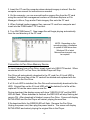
Connection to Pen Drive Memory Device
To input imagery from a Pen Drive, simply insert into USB OTG socket. When
connected to a PC or Pen Drive, the Media Player will Stop.
Pen Drive will automatically download to the CF card if no 2.5-inch HDD is
installed. Previous files on the CF card will be deleted and replaced with the
new files from the Pen Drive.
If a 2.5-inch HDD is installed, the Pen Drive will automatically download to the
HDD. Original files on the 2.5-inch HDD will not be deleted, but a file will be
replaced if it has the same name a new file.
During download, the display screen will show “USB PLUG IN” and the RED
LED will flash. When download is finished, the RED LED will stop flashing but
remain ON. After download is finished, remove Pen Drive. Screen will display
INITIALIZING and the the Player will restart, playing the new files.
If file download fails, the GREEN LED will flash. Remove the Pen Drive.
Unplug the power cord, then plug the power back in. The screen will display
INITIALIZING and restart, playing the original files in the Player.
13