1
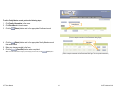
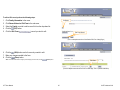
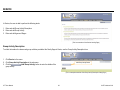
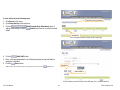
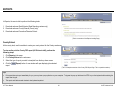
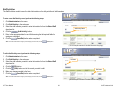
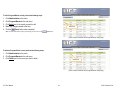
5. Enter or select the First Name, Last Name, Date of Birth, and Sex of the
family member from the appropriate fields.
6. Click the
(Search) button to verify that the family member is unique.
*Note: Entering the First Name, Last Name, Date of Birth, and Sex of the family member will produce the most likely
match.
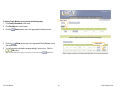
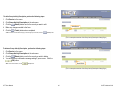
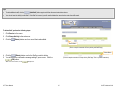
a. If a family member is unique, a message indicating that No record was
found in the MCI database will appear. Click the
(OK)
button.
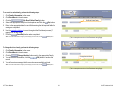
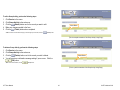
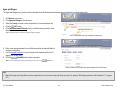
b. If there are potential matches based on the data entered in the initial
fields (First Name, Last Name, Date of Birth, and Sex of the family member), a
data grid with each potential match will appear. Verify a match with an
existing client in the MCI database by clicking the Select button next to
the client’s record.
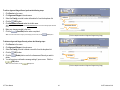
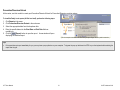
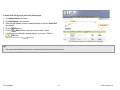
7. Enter in the appropriate data for each field ensuring that all required fields for
saving are completed.
8. Click the
(Save/Exit) button when the form is completed.
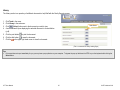
*Note: To exit this screen without saving any of the changes you have made, click the
Search Button
(Cancel) button.
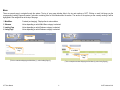
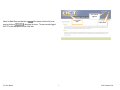
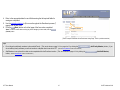
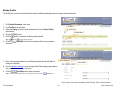
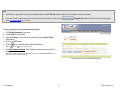
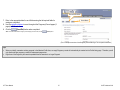
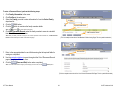
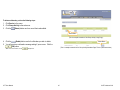
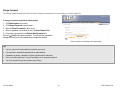
(This is a screenshot of the Add a Family Member Edit Page. This is a partial screenshot.)
Tips
•
•
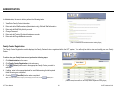
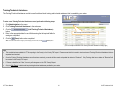
If No record was found in the MCI database, once Save is selected the new family member will be added to the Family Member data grid and while assigning the family member a
unique MCI ID and inserting him/her into the MCI database.
If Potential matches are listed but it is determined that none of the potential matches is the family member you are trying to add , try to correct the family member data and retry the
Search.
LIFT User Manual
18
© KIT Solutions® 2010