1
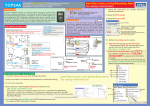
USB51A
iProx RFID USB Time Clock - store 50,000 Records
Dimensions: 101mm x 71mm x 32mm
connect directly to USB port
- LCD display
- Real time clock
- Store 50,000 log records
PC Based Time Clock
- Time Attendance reports
(must be used with PC and Time Clock)
- Total Hours Report
- Real time system
- Late, Early Leave and Overtime Attendance Report
- Capture & Display card holder's photo while clocking
- Export the clock in / clock out time to Excel
- Email clock IN / OUT data immediately
- Export to text file format
- Unlimited number of employees and records
- Time Attendance reports
With PC on & PC camera
- Total Hours Report
- Real time system
Late, Early Leave and Overtime Attendance Report
- Capture & Display Emloyee's photo while clocking
- Export the clock in / clock out time to Excel
- Email clock IN / OUT data immediately
- Export to text file format
- Unlimited number of employees and records
Standalone Time Clock
USB02B
duoFace RFID USB Time Clock (PC Based)
Dimensions: 97mm x 57mm x 23.5mm
USB02B duoFace KEYPAD FUNCTIONS
(for USB51A only)
USB51A iProx
MODE OF OPERATION
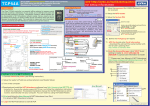
QUICK START
1
Turn on the computer
2
Connect the reader’s USB cable to the computer’s USB port
7
5
6
Click
(for USB51A only)
SET CLOCK - from the keypad of USB51A
Use PIN to setup the clock:
1. Enter the “ PIN ” number (see Time Clock manual sec 3.8) + “ # ”
2. Enter the DATE - “ yymmdd ”, then the TIME - “ hhmmss ” (e.g. September 30,2006
2:00PM), please enter “ 060926 ” then “ 140000 ”.
Enter:
“ yymmdd ”
Enter:
“ PIN ” + “ # ”
3
Enter:
“ 060930 ” Sept 30,06
Enter:
“ hhmmss ”
Insert the TIME CLOCK CD into your computer's CD-ROM drive
8
Click
222
" # " - Use in CLOCK mode with Auto IN/OUT Timetable in use
Pre ss "#" to override from IN to OUT or vice versa for clocking
9
Open the CD ROM drive and
insert the CD again into the drive!
Wait ...! Don’t click any key!
Number of records stored
in reader
USE
" * " - Check MEMORY USAGE
There are three modes of operation :
1. CLOCK Mode - use one reader for clocking IN and OUT. See Time Clock manual
section 3.6 & 3.8.1 to set up the reader in this mode.
2. IN Mode or OUT Mode - t wo readers will be used in this mode. One for clocking IN and
the other for clocking OUT. See Time Clock manual section 3.6 & 3.8.2 to set up the
reader in IN mode. And s ee Time Clock manual section 3.6 & 3.8.3 to set up the reader
in OUT mode.
Select
15
16
14
Click
Ref:USB51A&USB02B-V1.1
Click
Finish
Enter:
“ 140000 ” Sept 30,06
4
wait ...
11
10
Select
Click
Open the CD ROM drive and
insert the CD again into the drive!
Wait ...! Don’t click any key!
12
Click “ Finish ”. Then, open the CD ROM drive
and insert the CD again to install the
Time Clock! Wait ...! Don’t click any key!
19
13
www.avea.cc
17
Click
18
Click
Click
TIME CLOCK USER MANUAL
The user manual will be automatically installed into your computer after Time Clock installation.
If the Installer doesn't start automatically, you can run the setup.exe program to install the Time Clock software.
Installer of Time Clock will start by itself automatically.
Print and follow the User Manual of Time Clock from Start for details of Time Clock Setup.
1
Setup the password
2
Login the Time
Clock to start
3
5
Define the workgroups
with different working
hours for reports
4
Install the PC camera
and setup the Webcam
in Time Clock for
photo capture when
PC on
ADD CARDS select the
serial number printed on
the packing of the ID card
CD ROM to add cards
6
Enter Card Information
Double click the card
number to enter new Card
Information
(for USB51A only)
8
Offline Reader setup -always remember to
PUT setting after setting up (for USB51A only)
8.4 Setup the Auto IN/OUT Timetable for single reader in CLOCK mode
7
Setup the RFID reader
8.1
Click short cut
button to go to
offline reader setup
(Not applicable for IN or OUT mode)
Allow the CLOCK reader to clock IN and clock OUT at the specific time intervals.
(Setup will end at 23:59pm, remember to start the setup from 00:00)
For example:
Office hour is 9:00am to 6:00pm and employee will start to arrive from 8:00am
Reader will start for clocking OUT from 00:00
Then change for clocking IN from 8:00am to 17:59pm
Change back for clocking OUT from 18:00 until 23:59pm
Name the
8.2
Select the com
port connected
to the reader
Double click the
correct com port to
enter reader setup
8.3
Set any PIN from 0 to
65535 - use the PIN to
set TC01UA’s clock
from it’s keypad
For single reader, select “ CLOCK ”
For IN and OUT reader, select “IN” for IN
reader, select “OUT” for OUT reader
8.6
Transaction records
can be downloaded
here from reader to
Time Clock for
reporting
“Enable All” if you do not know
which com port is correct. The Time
Clock will enable it if it is exist.
8.5
TIME CLOCK QUICK START
Close the window and start clocking
PUT setting to reader