1
3-6
Operator’s Guide
Procedure Overview
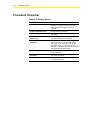
Table 3-5: Getting Started
To Do This
Follow These Steps:
Start M-Trend
On the Windows Start menu select
Programs > Johnson Controls > M-Trend.
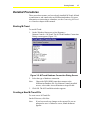
Select the type of database connection.
Click OK.
Create a New M-Trend File
On the File menu, click New.
Open an M-Trend File
On the File menu, click Open. Select a file.
Click Open.
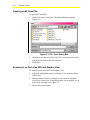
Zoom in on Part of an M-Trend
Graphic View
Left-click the mouse on the graphic and drag
over desired portion of graphic data.
View Detailed Trend Sample
Information
With Trend data displayed in either Graphic
View or Text View, move the cursor over a
data point. Left-click to view Trend sample
information about the data point you have
selected. In Text View, you must select sample
data other than the date and time.
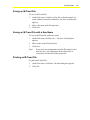
Save an M-Trend File
On the File menu, click Save. Enter a name for
the file. Click Save.
Save an M-Trend File with a
New Name
On the File menu, click Save As. Type in a
new name. Click Save.
Print an M-Trend File
On the File menu, click Print. The Print dialog
box appears. Click OK.