1
WAVES
MultiRack
USER GUIDE
V9.80
1
Table of Contents
1.
Overview............................................................................................................................. 3
2.
Create a New Session and Choose Plugin Version ............................................................. 4
3.
Adding New Racks and Setting Their Audio Signal Flow ..................................................... 4
4.
The Rack Control Strip ........................................................................................................ 6
5.
Selecting Racks and Plugins and Using Keystroke Commands ............................................ 7
6.
Input and Output Sections ..................................................................................................10
7.
Adding Plugins to a Rack ...................................................................................................11
8.
View Modes .......................................................................................................................12
9.
System Monitor Window (MultiRack SoundGrid Only) ........................................................14
10. WaveSystem Toolbar Buttons ............................................................................................15
11. Setting Up a Sidechain .......................................................................................................17
12. Group Properties Window: Organization and Latency Alignment ........................................18
13. Snapshot Pane: Automating Your Racks ............................................................................21
14. Dugan Automixer ...............................................................................................................26
15. Setting Up Your MIDI Environment for Remote Control ......................................................29
How to Use MultiRack with a MIDI Controller ....................................................................29
The Controller Strip ............................................................................................................29
Assigning Hardware Control with the Remote Controller Editor ..........................................30
Remotely Triggering Snapshots .........................................................................................31
16. Hot Plugins ........................................................................................................................34
17. Rescan Present Licenses (Edit Menu)................................................................................36
18. Recovering from an Unexpected Error ...............................................................................36
19. Show Mode ........................................................................................................................37
20. MultiRack Keyboard Shortcuts ...........................................................................................38
2
1. Overview
MultiRack is a host platform for Waves audio processing plugins, designed especially for live
sound applications. It provides a software equivalent to outboard hardware processing racks, and
signal flow to and from your console is similar to what you’re accustomed to with traditional
hardware racks. MultiRack allows you to program Snapshots, so you can seamlessly change
plugin settings between or even during songs.
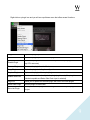
Here are some flowchart examples of MultiRack connections:
2. Create a New Session and Choose Plugin Version
A Session is a collection of Racks, each of which contains plugin processors. It holds the
“architecture” of your setup (input and output routing, Rack count and order, which plugins and
their order and etc.), as well as Rack I/O levels and plugin settings. Normally, a Session will
contain the setup for an entire show, while Snapshots are used to change plugin parameters
between or within songs.
MultiRack will initially open the Session Templates window. Choose a template from the list or
open a blank session. MultiRack will then open to the most recent Session.
3
3. Adding New Racks and Setting Their Audio Signal Flow
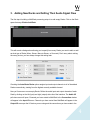
The first step in building a MultiRack processing setup is to add empty Racks. Click on the Rack
space that says Click to Add Rack.
This will reveal a dialogue box allowing you to specify how many Racks you want to add, as well
as what type of Racks (Mono, Stereo, Mono-to-Stereo, or Surround). Don’t worry about making
the wrong choice; you can always change this setting later.
Checking the Auto-Route Racks option assigns input and output channels to all of the added
Racks consecutively, starting from the highest currently available channel.
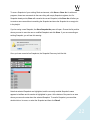
Now you’ll see one or more empty Racks. Define the audio input and output channels of each
Rack by clicking on the left (input) and right (output) side rails of the interface. The Audio I/O
pull-down menu will open. Channels you have routed to MultiRack in the Connection window
will appear in the Input I/O menu. Channels you have routed from MultiRack will appear in the
Output I/O menu per the I/O device you are using and the connections you have made in the
4
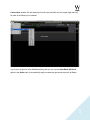
Connections window. Set the channel(s) for both input (left side rail) and output (right side rail)
for each of the Racks you’ve created.
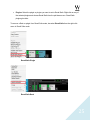
If you have not done so in the Add Rack dialog, then you can use the Auto-Route All Racks
option in the Audio menu to automatically assign consecutive inputs and outputs to all Racks.
5
4. The Rack Control Strip
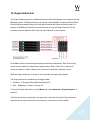
At the top of each Rack is a status bar that you use to control, name and assign processing
groups. The control strip has the following windows and buttons:
Disables a Rack and removes it from CPU processing. Mutes all signals
On/Off
routed to the Rack. Turning off an unneeded Rack results in better CPU
management of the system.
Disables the Rack’s plugins and passes the signal directly from Rack input
In/Out
to Rack output. Typically used for “before and after” comparison or to
bypass processing.
Silences the Rack, but doesn’t remove it from CPU processing. Muting is
Mute
performed on the Rack’s input to allow reverb tails and delay taps to fade
gracefully.
Rack Name
The user-defined name of the Rack. Double-click to enter a new name or in
Rack view use the pull-down menu to open another Rack.
Refers to the name of the processing group, if any, to which the Rack has
Group Name
been assigned. Use the pull-down menu to assign the Rack to another
processing group.
Lists all available inputs. Use the pull-down menu to select the input you
Sidechain (input)
intend to use as sidechain to any of the plugins inserted in this Rack. All
sidechain-capable plugins inserted in this Rack share the same input. Note
that it is possible to use a mono sidechain signal in a stereo Rack
Sidechain (monitor)
Press this button to listen to the sidechain signal. Sidechain is monitored
through the Rack’s output.
6
5. Selecting Racks and Plugins and Using Keystroke
Commands
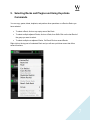
You can copy, paste, delete, duplicate, and perform other operations on a Rack or Racks you
have selected.
•
To select a Rack, click on any empty area of the Rack.
•
To select multiple adjacent Racks, click on a Rack, then Shift+Click on the last Rack of
the group you want to select.
•
To select multiple non-adjacent Racks, Ctrl/Cmd+Click on several Racks.
Right-click on the top part of a selected Rack and you will see a pull-down menu that offers
several functions:
7
Active(On)
Bypass
Mute
Cut Rack(s)
Turns Rack on/off, disabling and removing it from the CPU. This is useful
for greater CPU efficiency when a Rack is not needed.
Disables the Rack’s plugin processing and passes the signal from Rack
input to Rack output.
Mutes the entire Rack’s input, but doesn’t remove plugins from CPU, thus
allowing reverb tails to complete.
Cuts the Rack and its contents and places them in the computer’s
clipboard.
Copy Rack(s)
Copies the Rack and its contents into the computer’s clipboard.
Paste Rack(s)
Pastes the Rack, including its content and state.
Duplicate Rack(s)
Creates a copy of the Rack, including its content and state.
Delete Rack(s)
Deletes the Rack. Racks below this Rack will move upward.
Copies the Rack’s parameters from the recalled Snapshot and pastes them
into the selected Snapshots when “Global Paste” is selected in the
Snapshot Pane. For example, if your singer has a cold and you need to EQ
Global Paste Rack
the vocals differently, Global Paste allows you to change specific settings,
and then embed these parameter changes into all of the Snapshots you’ve
made, rather than having to adjust each Snapshot separately. The Global
Paste function is discussed in detail in the “Snapshots” section of this
manual.
Places the selected Rack or plugin into a “safe” mode that protects it from
Recall Safe
Snapshot recalls. Recall Safe Racks or Plugins are unaffected by all
Snapshot recalls.
Group
Switch Rack type
Latency
CPU Consumption
Presents a list of available processing groups from which to choose.
Allows you to change the Rack configuration (mono, stereo, mono-tostereo).
Displays the Rack’s overall latency (accumulated inserted plugin latencies).
Displays the Rack’s CPU consumption (usage) on the Server and the core
it runs on.
8
Right-click on a plugin icon and you will see a pull-down menu that offers several functions:
Copy Preset
Copies the plugin’s preset
Paste Preset
Pastes the plugin’s preset to another plugin instance
Disable Plugin
Disables the plugin and takes it off the computer’s CPU (the plugin doesn’t take
any CPU resources)
Remove Plugin
Removes the plugin from the Rack
Copy Plugin
Copies the plugin including its configuration
Replace Plugin
Replaces the plugin with a copied plugin
Enable SideChain
Enables sidechain functionality for the plugin (applies only if the plugin is
sidechain-capable and Racks Side Chain input is selected)
Plugin list
Allows you to replace the selected plugin with one of the listed plugins
Recall Safe Plugin
Sets the plugin to Recall Safe.
Set a Hot Plugin
Allows you to set the plugin as a Hot Plugin. You can set up to 8 plugins as Hot
plugins.
9
6. Input and Output Sections
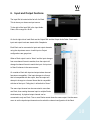
The Input Rail is located at the far left of a Rack.
This is where you choose an input source.
To the right of the Input Rail is the Input Audio
Fader, with a range of ±18 dB.
On the far right side of each Rack are the Output Rail and the Output Audio Fader. Rack audio
input and output levels are stored within Snapshots.
Each Rack can be connected to input and output channels
using the drop-down menus. Invalid Input or Output
configurations are grayed out.
When a Rack output is set to “None” and the input changes
from one channel format to another, then the output will
change its channel format to match the input. An input set
to “None” behaves in the same manner.
Or consider a Rack with input and output whose channel
formats are compatible. If the input changes to a format
that is incompatible with the output, then the output will
attempt to change to a channel format that is compatible
with that of the input. Failing that, it will default to “None.”
The same input channel can be connected to more than
one Rack, thus sending the same input to multiple Racks
simultaneously. A physical output channel can be
connected to only one Rack. Two or more Racks cannot share the same output. Use the same
menu to set the input/output channels and to switch the channel configuration of the Rack.
10
7. Adding Plugins to a Rack
To add a plugin to a Rack, click on the “plus” (+) sign to the right of the Input Fader. Select a
plugin from the pull-down menu. An icon representing the plugin will appear on the Rack, along
with a new “plus” (+) sign that you can click to add a new plugin to the right of the existing one.
Signal flow within a Rack is always from left-to-right.
While in the Main view, you can always change the plugin sequence within a Rack by grabbing a
plugin and moving it to the desired location. Each plugin icon has an 'In' switch, with which you
can bypass that processor without disengaging it from the Rack.
There is also a led indicator on the icon that shows plugin’s output state:
•
Grey – no signal
•
Green – signal
•
Red – Peak
To view a plugin and adjust its parameters, double click on the box representing it. The plugin
interface will appear below the Rack. Set the plugin parameters as desired.
11
8. View Modes
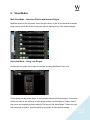
Main View Mode – Overview of Racks and Inserted Plugins
MultiRack opens in this view mode. Use it during the show, to see all your Racks and inserted
plugins and to check that all are running well, without clipping on any of the inserted plugins.
Rack View Mode – Using Your Plugins
Double-click on a plugin icon to open its interface and enter MultiRack’s Rack view.
This is where you adjust each plugin. If you’re already familiar with Waves plugins, this window
will be very easy to use. At the top of each plugin window is a WaveSystem Toolbar, used to
load, save, and compare processor settings. The layout of the WaveSystem Toolbar may vary
from one plugin to another. Use this toolbar to save plugin or Rack-specific presets.
12
You can quickly jump to any other Rack by clicking on arrow by the Rack’s name field and
choosing from the drop-down menu desired Rack.
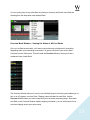
Overview Mode Window – Viewing the Status of All Your Racks
Once you’ve filled several racks, you’ll want a convenient way to keep track of everything
happening within your processing environment. To get an overview of your racks, select
Overview from the View menu. This will reveal the Overview Window, where you’ll see a
condensed view of each Rack.
The Overview Window tells you if a rack or an individual plugin is functioning and enables you to
turn on or off, bypass, or mute a Rack. Clipping is also indicated for each Rack. Use the
Overview Window when you want to keep an eye on the entire processing setup. Since each
mini-Rack in the Overview Window displays clipping information, you can easily watch out for
over-level clipping across your entire setup.
13
9. System Monitor Window (MultiRack SoundGrid Only)
Open this window from the Audio menu or by pressing
Ctrl/Cmd+M.
This window displays real-time status info on your network,
I/O devices, servers, and integration controller.
Redundancy displays redundancy status.
Network displays the network transport load.
High loads may result in audio drops.
Processing/Redundant Server
•
Device – Device name
•
Status – Server status (online or offline)
•
CPU Peak and average loads (AVR) –
Displays the load on the processing server.
High loads may result in audio drops.
I/O Device 1, 2, 3 and 4
•
Device – Device name
•
Status – Device status
SG Driver Status – Device status
Integration – IP of the controller and its connectivity status
14
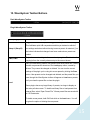
10. WaveSystem Toolbar Buttons
Rack WaveSystem Toolbar
Plugin WaveSystem Toolbar
Undo (Plugin)
Undoes the last change(s) you made within the plugin.
Toggles between two setups, allowing you to compare different settings.
This facilitates quick A/B comparisons and lets you determine which of
Setup A (Setup B)
two settings works best without having to save a preset. An asterisk (*) on
the button indicates that changes have been made since a preset was
loaded.
A►B; B►A
Copies the current settings to the second setup register. The direction of
copying is from the currently shown setup to the one not shown.
Here you load factory presets, user presets, and other preset files. Factory
presets are permanent elements of the Load popup menu, created by
Waves. They cannot be changed or deleted. You can turn the current
settings of the plugin you’re using into a user preset by clicking the Save
button. User presets can be changed and deleted, and the preset files you
save through the WaveSystem toolbar will appear as Load menu presets
until you close the preset file or close the plugin.
Load
Some plugins has a very large library of presets, too large to display on
the main pull-down menu. To load these library files or load presets from
external files, select “Open Preset File.” Waves preset files are saved with
an .XPS extension.
To delete a user preset, hold Ctrl/Cmd+click on the Load menu. You will
be given the option of deleting the user preset.
15
Save your plugin presets here. You can save the current parameters as a
user preset in the Preset menu, or create a new file. If you choose to save
Save
the preset as a new file — outside the plugin’s Preset menu —
WaveSystem will ask you where you want to put it.
? (Help) (Plugin)
Opens the PDF manual for the current plugin.
Clicking on the Waves logo will bring up the “About This Plugin” page,
(Plugin)
providing information about the plugin.
There are several quick ways to move from one plugin to another within a Rack:
•
Use your keyboard’s left and right arrows. This will move you through the list of plugins in
the Rack, opening each plugin interface as it is selected.
Note: If the current plugin contains a selected value window, this will not work, and it may
change the parameter within the selected value window.
•
Click on another plugin icon. This will move you directly to the new plugin and open its
window.
16
11. Setting Up a Sidechain
Each Rack can be set to receive a sidechain from any of the
I/O device inputs (any of the inputs set in the Connections
window). Sidechains are used by some plugins to modify
their behavior, for example to allow ducking by a compressor
plugin. A stereo Rack can receive a stereo or mono sidechain
signal; a mono or mono-to-stereo Rack can receive a mono
sidechain signal.
The top section of each Rack features a drop-down menu
titled “Side Chain,” where you can set the input that will be
feeding the sidechain signal to the Rack.
Select the input source you want to feed as sidechain to the Rack. Insert a sidechain-capable
plugin. Sidechain-capable plugins are marked by a yellow SC button.
Right-click on the plugin and select Enable Side Chain from the drop-down menu, or click on the
SC button on the side of the Rack View, as shown below. This will enable the sidechain option
for that respective plugin.
The same device input can be used for Rack input and sidechain simultaneously. You can
preview your Side Chain input by clicking on speaker button:
17
12. Group Properties Window: Organization and Latency
Alignment
Since MultiRack allows you to build Sessions with up to 64 Racks, each of which is a specific
processing chain, you may choose to organize related Racks into groups to better manage your
Session. Grouping Racks offers a few advantages:
•
Group related Racks together (such as all drum channels), and they will share a common
group name.
•
Groups are color-coded, making visual identification of similar Racks much easier.
•
Grouped tracks can be latency-aligned, offsetting unequal delays caused by each
channel’s chain of plugins, which may have different latencies.
Create a group by clicking on the grouping pull-down menu and choosing Open Group
Properties window. Here you create Rack groups and determine if and how Racks within the
group will be latency-aligned.
18
In the Group Properties window, you can create up to 16 processing groups, each of which can
contain any number of Racks.
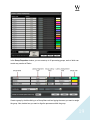
Create a group by double-clicking on a Group Name cell and typing the name you want to assign
the group. Now, decide how you want to align the processors within the group.
19
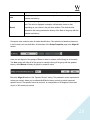
None
Auto
A group is created, but there is no latency alignment.
The group is delayed to match the latency of the Rack in the group with the
greatest total latency.
Manually delay the group by a specific value by entering it in the Latency
field. The value is displayed in samples, milliseconds, meters or feet,
Manual
depending on your choice in the pull-down window. The minimal value
allowed for this setting matches the latency of the Rack in the group with the
greatest total latency.
Groups are color-coded to make for easier identification. Color selection is based on placement
in the list and is not user-definable. At the bottom of the Group Properties page is the Align All
section.
Here you can align all of the groups of Racks in order to create a unified timing for all channels.
The Auto setting will offset all of the groups to match the timing of the group with the greatest
latency, while Manual will delay all groups by a specific value.
Below the Align All section is the “Speed of Sound” setting. This parameter control, expressed in
meters per second, allows you to calibrate MultiRack’s latency controls to match measured
speed of sound. The speed of sound at sea level, at a temperature of 20 degrees Celsius and
dry air, is 343 meters per second.
20
13. Snapshot Pane: Automating Your Racks
One of the main benefits of a plugin based processing host for live applications is the ability to
create detailed presets and recall them live during concerts. The Snapshot Pane is where you
store, recall and manage the Snapshots that contain all of the parameters of the plugins that
make up your processing Racks. It’s here where your programming efforts pay off. Snapshots
contain the following parameters:
•
Rack input and output gain
•
Rack in/out, mute and on/off states
•
Current plugin parameters
Snapshots are contained and saved as part of a Session file. A single Session file can contain
up to 1000 Snapshots, which are displayed as a vertical playlist. Snapshots can also be
exported or imported to or from files in order to integrate them into a Session. Use Snapshots to
change the state of Racks (Mute/In/Off), levels, and, most importantly, the settings for the
plugins. Snapshots do not change the physical configuration of a Session, so you cannot use a
Snapshot to change the audio I/O, the Rack order or the plugins embedded in a Rack.
To open the Snapshot Pane, click the Snapshots button on the Status Bar or select Open
Snapshot Pane from the View menu (F7). The Snapshot Pane can hold up to 1000 Snapshots
(the maximum per Session).
21
To save a Snapshot of your existing Rack environment, click Store or Store As. As with most
programs, these two commands do the same thing with empty Snapshot registers, but if a
Snapshot already exists, Store will overwrite the current Snapshot, while Store As will allow you
to create a new name without overwriting the Snapshot and store the Snapshot in an empty slot
in the playlist.
If you’re saving a new Snapshot, the Store Snapshot As pane will open. Choose the list position
where you want to save the new or modified Snapshot and click Store. If you are overwriting an
existing Snapshot, you will see this warning:
Once you have named a few Snapshots, the Snapshot Pane may look like this:
Note that selected Snapshots are highlighted, and the currently recalled Snapshot’s name
appears in boldface and its number is highlighted in green. At the bottom of the pane is an area
where you can write notes about the selected Snapshot. To recall a Snapshot, you can either
double-click on its name, or select the Snapshot and then click Recall.
22
It’s often useful to create a copy of a Snapshot to use as a starting point for creating similar
setups. Copy a Snapshot by selecting it, then clicking Duplicate. The copy will appear at the end
of the Snapshot list. The word “Copy” will be appended to the Snapshot name; right-click and
choose “Rename” to choose a new name for the new Snapshot.
Select a Snapshot and click the Delete button to permanently remove it from the Snapshot List.
Global Paste enables you to copy a plugin or a Rack’s parameters into one snapshot or more.
This is useful when you’ve set up several Racks filled with plugins and you decide to change
plugins settings across several Snapshots. Say, for example, that after several rehearsals you
have arrived at the perfect plugin settings for a particular instrument, an instrument that is
included in numerous Snapshots. Rather than opening each of the Snapshots, making the
desired adjustments and then overwriting the Snapshots, use Global Paste to globally make the
changes:
1. Begin by clicking Global Paste. The button will flash to indicate that the Snapshot Pane
is in the Global Paste mode.
2. Select the target Snapshot or Snapshots that you want to modify. To select multiple
Snapshots, Ctrl/Cmd+Click on the desired target Snapshots, or Shift+Click to select
several contiguous Snapshots.
3. In the Rack windows, select the plugin or Rack whose state you want to copy to the
selected Snapshots. Right-click on the plugin or Rack and choose Global Paste Plugin
from the plugin menu or Global Paste Rack from the Rack menu. Repeat this for each of
the plugins or Racks whose settings you want to Global Paste.
23
4. Press the Global Paste button in the Snapshot Pane once again to end the process.
Import allows you to add Snapshots from another MultiRack Session.
•
Click on the Import button. A browser window will appear.
•
Locate the MultiRack Session that contains the Snapshot you want to import into the
current Session. The Import Snapshot window will appear.
•
Choose the Snapshot(s) you wish to add, and then click Import.
Remember, Snapshots contain information about parameters, not configurations, so the source
and target Sessions must have the same plugin content and order in each Rack.
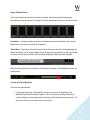
Recall Safe
There are times when you don’t want certain Racks or specific plugins to be affected by
Snapshot changes. The Recall Safe option applies within the Session (not a specific Snapshot).
To set a Rack or plugin to Recall Safe:
•
Racks: Select a Rack or multi-select several Racks and then right-click in any empty area
of the Rack. Select Recall Safe from the pull-down menu. A Rack’s blue input/output rails
indicate that it is in Recall Safe.
24
•
Plugins: Select the plugin or plugins you want to set to Recall Safe. Right-click on any of
the selected plugins and choose Recall Safe from the pull-down menu. Recall Safe
plugins glow blue.
To remove a Rack or plugin from Recall Safe mode, de-select Recall Safe from the right-click
menu in Recall Safe mode.
Recall-Safe Plugin
Recall Safe Rack
25
14. Dugan Automixer
The Dugan Automixer plugin is a MultiRack Native and SoundGrid plugin only, integrated into the
MultiRack system. The Dugan Automixer is inserted on the MultiRack’s outputs, post the Racks.
All the Racks processing occurs prior to the signal reaching the Dugan Automixer plugin. For
example, if MultiRack is inserted on console channels, turning the Dugan Automixer On will
insert the Automixer between Rack Outs and Insert Returns, as shown below.
All available Outs are routed through the Dugan Automixer consecutively; Rack Outs routing
values are thus identical to Automixer's channel number: Rack 1 Mono Out 1 connects to
Automixer channel 1; Rack 2 Stereo Outs 3-4 connect to Automixer channels 3 and 4.
When the Dugan Automixer is turned on, all its channels are bypassed by default.
The Dugan Automixer is installed into the plugins folder:
1. Windows - C:\Program Files(x86)\Waves\Plugins V9.
2. Mac – Applications > Waves > Plugins V9
To open the Dugan Automixer, go to the Waves tab under Advanced > Dugan Automixer, or
press F9.
Close the Automixer by clicking X on top right corner. Note that closing the Dugan Automixer
window does not stop the Automixer’s processing. It only closes its control window.
26
Dugan Channel Count
The Dugan Automixer opens 64 processing channels, distributed across 8 tabs that are
selectable from the top section of the plugin. Each tab represents 8 channels, as shown below.
Snapshots – All plugin controls are saved in the snapshots except for Master Pane controls.
Master pane controls are not saved in Snapshots.
Recall Safe – The Dugan Automixer can be Recall Safed as a whole by clicking/pressing the
Recall Safe button on the plugin’s Master Pane. Alternatively, right-clicking on the top of Dugan
Automixer window opens a menu where enabling/disabling Recall Safe is also possible.
When the Dugan Automixer is turned on, an indicator will appear on the MultiRack window, as
shown below.
License & Session Behavior
There are three possibilities:
1. If the Dugan Automixer is not installed, its menu item will not be displayed in the
MultiRack Native and SoundGrid systems. When you load an existing session that
contains Dugan Automixer processing, the session will load without the Automixer. The
Automixer will not be removed from the session file.
27
2. If the Dugan Automixer is installed but not activated, its menu item will be grayed out.
When you load an existing session that contains Dugan Automixer processing, the
session will load with the Automixer disabled. The Automixer will not be removed from the
session file.
3. If the Dugan Automixer is installed and activated, its menu item will be shown normally.
The Automixer will be saved in the session file even if it’s not turned on.
Use Rescan Licenses to refresh activation for added licenses via the Waves tab > Window >
Rescan Present Licenses.
For more information, please refer to the Dugan Automixer manual by clicking on the question
mark (?) on the plugins GUI.
28
15. Setting Up Your MIDI Environment for Remote Control
Since FOH situations demand that you keep your hands on the console and your eyes on the
show, you may not always want to control MultiRack using a mouse and a computer display.
Instead, you may choose to control MultiRack using your digital console or other familiar MIDI
hardware controller for greater efficiency.
The following MultiRack functions can be controlled via MIDI:
•
Navigation between Racks and between plugins
•
Global controls such as Rack or Plugin On/Off, Mute, etc.
•
Selected plugin parameter controls
•
Snapshot recall
How to Use MultiRack with a MIDI Controller
Important MultiRack functions can be assigned to a MIDI hardware controller or your console’s
faders/knobs/switches, using the Remote Controller Editor (MRRC Editor) supplied with
MultiRack. Assigning is simple: on the Editor’s interface, select the MultiRack function you wish
to control, and move the desired knob or press the desired button on your MIDI controller to
establish an assignment. Even when you have Racks full of processors, you can only control the
plugin that’s currently being displayed. This way, you always know which plugin parameter you’re
adjusting. When controlling MultiRack via MIDI, you will always first select the Rack and plugin
you want to address, and then adjust its parameters.
The Controller Strip
A MultiRack Session can have up to 64 Racks, each containing up to eight plugins. Since every
plugin has several parameter controls, remote control of so many different variables could be a
logistically complex task, and would require users to re-map MIDI links each time the
configuration changes. MIDI mapping is simplified in MultiRack by using a matrix that sits
between the plugin and the MIDI controller. This matrix assigns key parameter control knobs and
buttons to fixed matrix positions so that MIDI assignments always make sense, regardless of
type of processor. For example, when dynamics processors are being used, the matrix usually
assigns the first variable MIDI position to Threshold, the second to Ratio, the third to Attack, and
29
so forth. With EQ processors, the first variable position is usually Input Gain, followed by Band
One Gain, Band One Frequency, etc. The matrix is reflected in the Controller Strip, which can be
displayed at the bottom of the Rack View page by choosing Show Controller Strip from the
View menu or by using the shortcut Ctrl/Cmd+Alt+C.
The Controller Strip shows up to eight variable controls (top row) and eight switches for the
displayed plugin that can be remotely controlled via MIDI. Many plugins have more than eight
variable and or discrete controls; to assign these additional controls, extra Controller Strip pages
are provided. Use the Remote Controller Editor’s Next/Previous buttons to navigate to the
relevant page of Controller Strip parameter controls.
MultiRack’s standardized Controller Strip means that the relationship between hardware and
software need be set only once. The specific parameter control will change with each type of
plugin, but the logic will remain consistent within categories (e.g. EQs, Dynamics) of Waves
plugins.
Assigning Hardware Control with the Remote Controller Editor
Use the Remote Controller Editor to map relationships between hardware MIDI controllers and
numerous MultiRack functions. Its interface displays MultiRack functions that can be controlled
directly via MIDI, including the eight continuous and eight discrete controls of the Controller Strip.
You can assign up to 46 MIDI links to desired MultiRack controls using a standard MIDI “Learn”
routine.
30
There are three categories of MIDI controlled MultiRack functions that you can assign with MIDI
Remote Control:
1. Navigation: Use MIDI buttons to navigate between and within Racks to select and edit
the specific plugin to control. You can additionally assign up to eight 'Hot Plugins' that can
be recalled by touching the assigned MIDI. This way you can access critical plugins
without having to navigate to them.
2. Plugin/Rack Controls: Once a Rack and a plugin are selected, you have direct control
over the Rack (levels, on/off, in/out, etc.), as well as control over the plugin parameters.
Plugin control is available for the eight knobs and eight buttons shown on the plugin’s
Controller Strip.
3. Snapshot Recall: This provides control for Next and Previous Snapshots. You can also
directly recall specific “Hot” Snapshots.
To assign MIDI controls, launch the Remote Controller Editor by clicking Editor from the
Control Setup tab of the Preferences window.
Select a MIDI port. Use the pull-down menu to choose the port your MIDI controller is
connected to.
31
Enable 14bit CC support. Check this box to allow MultiRack to handle 14bit MIDI CC (control
change message) data. For example, Yamaha consoles send out 14bit MIDI data; un-checking
this sets MultiRack to handle 7bit MIDI CC.
Assign hardware controllers to the navigation tools.
1. Click on any of the five navigation keys (Up Rack, Down Rack, Prev Plugin, Next Plugin,
or Select).
2. Choose the hardware control you want to assign and move or press it to communicate
with the Remote Controller Editor. You’ll see floating text above the selected parameter,
indicating the MIDI command assigned to the respective parameter.
3. This completes the assignment of the MIDI switch or variable controller. Proceed with the
other navigation functions.
Follow the same procedure for the eight continuous parameter controls and eight discrete
switches of the Controller Strip. Remember, the specific plugin parameter controls and switches
will change with type of plugin, but the position and the assigned knob on your MIDI hardware
controller will remain fixed.
You can assign control of a Rack’s Input and Output Gain, as well as Rack On/Off, Rack In/Out
and Mute.
32
Remotely Triggering Snapshots
Assign hardware switches to control the Previous and Next Snapshot function. When using
remote MIDI control to scroll to a Snapshot, the Snapshot will become active immediately.
Snapshots may also be recalled by sending MultiRack bank and program change messages.
By creating Hot Snapshots, you can assign up to eight Snapshots to specific MIDI switches.
This is useful for very important or frequently used Snapshots.
In the Snapshots pane, select a Snapshot you want to make Hot. Right click on the Snapshot
name and choose a Hot Snapshot number from the pull-down menu. Once you create a Hot
Snapshot, the assignment procedure is the same as with other MIDI trigger assignments. Hot
Snapshots are displayed in red in the Snapshots Pane and their Hot Snapshot number is
indicated on the right side of the window.
33
16. Hot Plugins
You can designate up to eight 'Hot Plugins' which can
be recalled directly via MIDI and/or the Hot Plugin
Panel buttons, in much the same way that Hot
Snapshots are used. To make a plugin Hot:
1. Select a plugin you want to designate as Hot.
2. Right-click on the plugin and choose a Hot
Plugin number (1-8) from the Set a Hot
Plugin submenu.
3. The plugin will now display a numbered
marker (H1, H2, …) indicating its Hot
Plugin designation.
Once you complete the assignments, save the MIDI/Keyboard
Setup file, using the Save or Save As… buttons at the bottom
of the interface.
Return to MultiRack and open the Control Setup tab of the Preferences window. Browse to your
newly created MIDI control file in the window, MIDI/Keyboard Setup File.
34
Select the desired MIDI/Keyboard Setup file. The mapping you assigned with Remote Controller
Editor will become available to MultiRack.
MIDI control setup is discussed in greater detail in the section the Preferences window.
The Hot Plugin Panel is a floating window that provides quick access to your
Hot Plugins. To show the panel, go to the View menu and choose View Hot
Plugin Panel. Use the top-right corner Flip button to switch the window’s
orientation between vertical and horizontal. The Panel holds 8 buttons that
serve as shortcuts to your Hot Plugins. A plugin is represented by plugin name
and icon, and the Rack number and name. Click on the Plugin button to open
its GUI in Rack View. The Plugin button also displays its output and gain
reduction meters where applicable.
The contents of the Hot Plugin panel are saved in snapshots. This means
that a Hot button can represent different plugins in different snapshots.
For example, Hot button #1 can be an REQ 6 in snapshot #4 and an SSL
Channel in Snapshot #6. Same Hot button, different plugins.
You are now done with the Remote Controller Editor and may close the application.
35
17. Rescan Present Licenses (Edit Menu)
If you are preparing setup and routing without licenses, i.e. without a connected USB flash drive,
plugins will load in a disabled state. The plugin won’t process audio, but you can still assign
inserts and FX as well as load plugins and presets.
To enable a disabled plugin or plugins:
3. Connect your USB flash drive.
4. Go to Edit Menu (on DiGiCo under Window menu) and select Rescan Present Licenses or
use keyboard shortcut Ctrl+L.
All disabled plugins will be enabled. You can re-enable plugins individually by right-clicking on
disabled plugin and choosing the Enable option from the menu.
18. Recovering from an Unexpected Error
Since MultiRack is an application for live usage, it is equipped with an automatic recovery
mechanism. This means that if MultiRack quits unexpectedly, it will automatically relaunch and
reopen the same Session file it was running when it crashed, with the same Snapshot that was
recalled when the crash occurred (if applicable).
When set to Automatic, MultiRack will relaunch itself and load the session to the Server
immediately. During recovery there will be a short mute when the session is loaded to the server.
When set to Manual, MultiRack will relaunch itself but will not load the session to the Server until
you press the Connect button on the dialog box which will appear. When connecting, your
session is reloaded on the SoundGriid Server, causing a short momentary audio interrupt.
When set to Off, MultiRack will not relaunch itself, giving opportunity to troubleshoot an error.
When MultiRack relaunches it synchronizes to the server. At the moment of synchronization
there is a short mute. Setting the recovery type allows control over when this mute occurs –
automatically or manually.
36
19. Show Mode
This mode prevents you from rerouting your Racks, moving plugins or adding them. Switch to
Show Mode during your concert to avoid audio drops and prevent mistakes.
To switch between Show and Setup mode, simply double-click on the Show/Setup button on the
top of the MultiRack window.
37
20. MultiRack Keyboard Shortcuts
MultiRack is controlled mostly from within its five windows, so there are very few application
menus. Most menu commands offer keystroke shortcuts, so it’s worthwhile studying the menus
in order to learn how to quickly navigate through MultiRack’s commands.
File Menu
Menu Item
New Session
Open Session
Open Recent
Session
Definition
Opens a dialog window to select a
template
Opens a Session file
Keyboard
shortcut
Ctrl/Cmd+N
Ctrl/Cmd+O
Lists recent Session files
Import Rack Preset
Import a Rack preset file from
from Session
another session.
Close Session
Closes the Session
Save Session
Saves the Session to the same file Ctrl/Cmd+S
Save Session As…
Comments
Alt+Ctrl/Cmd+P
MultiRack SoundGrid
Only
Ctrl/Cmd+W
Saves the Session under a
different name
Save Session As
Saves the Session as a Session
Template…
Template
Windows only. On
Preferences
Opens the Preferences window
Ctrl+P
OSX this command is
in the MultiRack
menu (Cmd+,)
On OS X this
Exit
Closes the application
Ctrl/Cmd+Q
command is in the
MultiRack menu.
38
MultiRack Menu (OS X only)
Menu Item
About MultiRack
Preferences…
Quit MultiRack
Definition
Reveals information about current
version of MultiRack.
Opens the MultiRack Preferences
window.
Closes the application.
Keyboard
shortcut
Comments
None
Cmd + ,
Cmd+Q
Edit Menu
Menu Item
Add Rack(s)
Definition
Add a new Rack to the MultiRack
Session
Keyboard
shortcut
Comments
Ctrl/Cmd+R
Undo
Undoes the last action
Ctrl/Cmd+Z
Redo
Re-does the last Undo action
Ctrl/Cmd+Shift+Z
Applies to selected
Cut
Cuts selection to copy buffer
Ctrl/Cmd+X
plugins, Racks, and
Snapshots
Applies to selected
Copy
Copies selection to copy buffer
Ctrl/Cmd+C
plugins, Racks, and
Snapshots
Applies to selected
Paste
Pastes clipboard to selection
Ctrl/Cmd+V
plugins, Racks, and
Snapshots
Duplicate
Delete
Duplicates selected Rack, snapshot,
or plugin
Deletes the selected Rack, snapshot
or plugin
Ctrl/Cmd+D
Delete (PC),
Cmd+Backspace
(Mac)
39
Select All
Deselect All
Selects all Racks. Applicable only in
MultiRack window.
De-selects all Racks. Applicable only
in MultiRack window.
Ctrl/Cmd+A
none
Show Mode
Sets MultiRack to Show Mode
Alt+Cmd/Ctl+T
Setup Mode
Sets MultiRack to Setup Mode
Alt+Cmd/Ctl+S
Rescans currently available licenses
Rescan Present
on connected USB flash drive and
Licenses
enables all disabled plugins in the
Ctrl/Cmd+L
Session
View Menu
Menu Item
Definition
Open Snapshot
Opens/closes the Snapshot Pane in
Pane
MultiRack window.
Mainview Mode
Opens the main application view
(multiple Racks)
Keyboard
shortcut
F7
F4
Overview Mode
Opens the overview view
F5
Rackview Mode
Opens the Rack view
F6
Shows or hides the Controller Strip
Alt+Cmd/Ctl+C
Show/Hide
Controller Strip
Show/Hide Hot
Opens the Hot Plugin floating
Plugin Panel
window
Full Screen
Sets MultiRack to Full Screen mode
Comments
Ctl /Cmd +T
F8
40
Audio Menu
Menu Item
Turn Audio On/Off
Keyboard
Definition
Turns the main audio engine on
or off
shortcut
Comments
Alt+Cmd/Ctl+J
Assigns input and output
Auto Route All
Racks…
channels to all Racks
consecutively, based on their
none
top-down order in MultiRack’s
main window.
Rack(s)
5. Active
6. Bypassed
7. Mute
Latency Group
Effects the selected Rack(s)
Properties
window
SoundGrid Inventory
Opens the Inventory window
F2
MRSG Only
SoundGrid Inventory
Opens Connections window
F3
MRSG Only
Show System
Opens the System Monitor
Monitor
window
Cmd/Ctl+M
MRSG Only
Opens the Group Properties
Ctrl/Cmd+G
41
Snapshots Menu
Menu Item
Definition
Keyboard
Comments
shortcut
Stores Snapshot parameters. If
Store Snapshot
a Snapshot already exists in the
selected register, “Store” will
Ctrl/Cmd+Shift+S
overwrite.
Store Snapshot As..
Saves current
Recall Previous
Recalls the previous Snapshot in
Snapshot
the play list.
Previous is relative to
Ctrl/Cmd+Shift+<
the currently recalled
Snapshot
“Next” is relative to
the currently recalled
Recall Next
Recalls the next Snapshot in the
Snapshot
play list.
Snapshot. If the next
Ctrl/Cmd+Shift+>
Snapshot slot is
empty, Next jumps to
the next occupied
slot.
Global Paste Mode
Move Snapshot(s)
To..
Turns Global Paste Mode on
and off
Ctrl/Cmd+Shift+G
Moves the selected Snapshot(s)
to a user- specified location in
the Snapshot list.
42
Help
Menu Item
Open MultiRack
Manual…
Definition
shortcut
Comments
If the help manual is
Opens MultiRack PDF manual
F1
unavailable, visit
www.waves.com
Go to Waves
Launches the default browser with the
web site
URL www.waves.com
About MultiRack
Keyboard
Opens page containing information
In OS-X, this item is
about current version of MultiRack
in the Apple menu
43