1
4. Working With Images
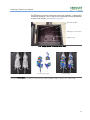
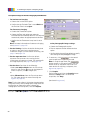
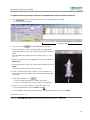
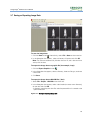
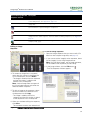
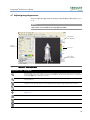
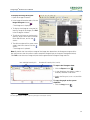
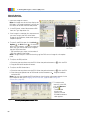
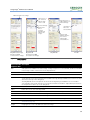
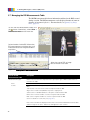
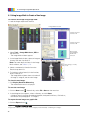
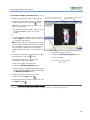
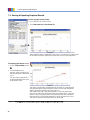
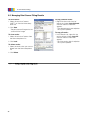
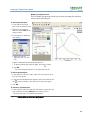
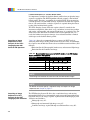
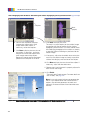
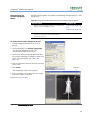
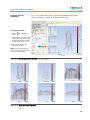
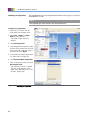
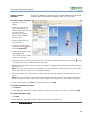
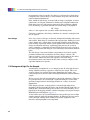
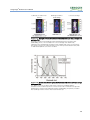
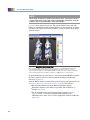
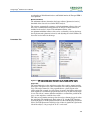
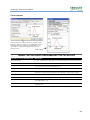
To display a crop box on the image:
1. Open the image of interest and in the
Image Information tools, click the
Image Crop button .
- The pointer changes to a +.
2. Draw a rectangle on the area of
interest.
3. To change the size or position of the
crop box, drag a box corner or side.
4. To delete the crop box from the
image, click the
button.
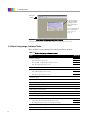
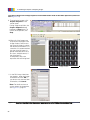
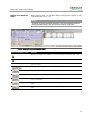
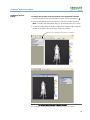
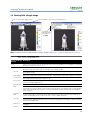
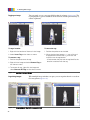
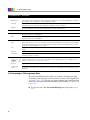
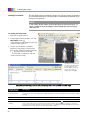
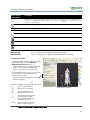
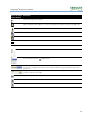
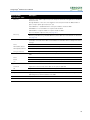
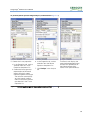
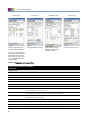
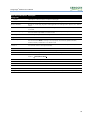
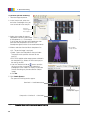
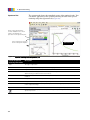
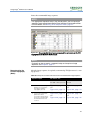
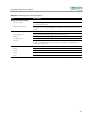
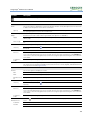
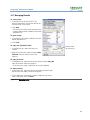
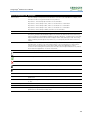
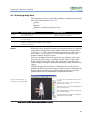
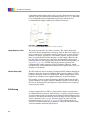
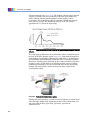
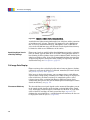
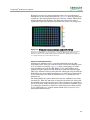
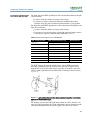
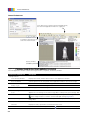
Crop box position and dimensions:
x,y coordinates at the upper
left corner of the box.
Crop box
x,y coordinates of lower
right corner of the box.
Box width and height.
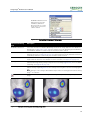
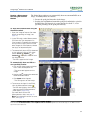
Distance Length of the diagonal from
the upper left to lower right
f h b
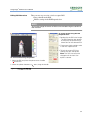
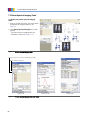
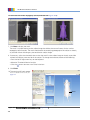
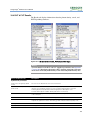
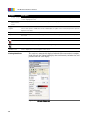
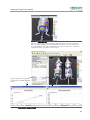
Figure 4.24 Measuring distance with the crop box
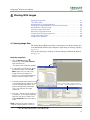
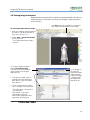
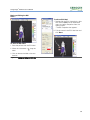
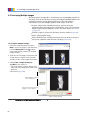
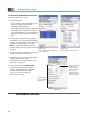
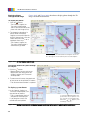
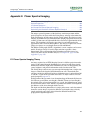
4.10 Image Layout Window
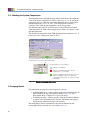
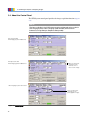
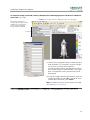
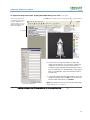
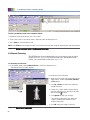
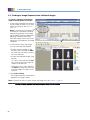
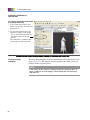
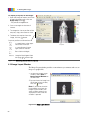
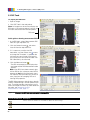
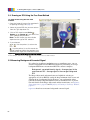
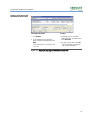
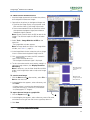
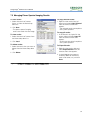
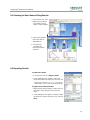
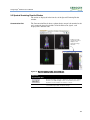
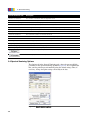
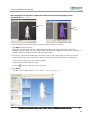
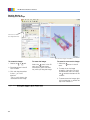
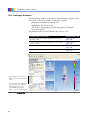
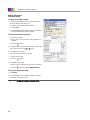
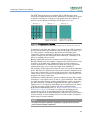
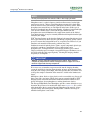
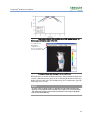
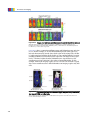
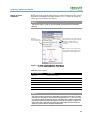
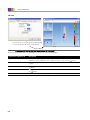
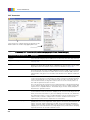
The Image Layout window provides a convenient way to annotate and save an
image to a graphic file.
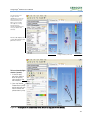
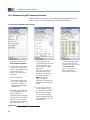
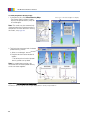
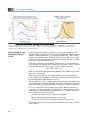
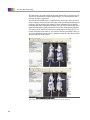
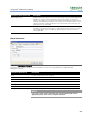
• To open the Image Layout
window, select View →
Image Layout Window on
the menu bar.
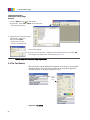
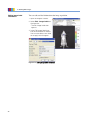
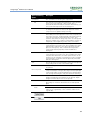
•To paste the active image into
the Image Layout window,
click the
button.
Note: If you do not clear the
layout before you close the
Image Layout window, the
same window contents are
displayed the next time the
window is opened.
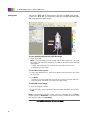
Figure 4.25 Image Layout window
54