1
21
MDL ROOM REQUEST USER MANUAL
Tutorial 3-B: View Calendar
This tutorial shows you how to view the Monthly Room Schedule Calendar and the approved
requests.
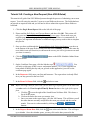
7. If you have not already accessed the MDL Scheduler Online Room Request Menu, please
refer to Tutorial 1 on how to access the system.
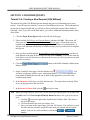
8. On the MDL Scheduler main menu screen, click the
button. You will see the monthly calendar view. You may encounter the certificate page,
if so, please click the
link to continue.
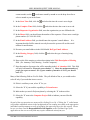
9. If you want to move forward or backward in the calendar, click the
buttons.
or
10. If you would like to see the details for a particular scheduled item, click the red link that
says „Click for details‟. The number after that statement tells you how many events are
scheduled for that day.
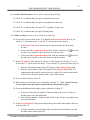
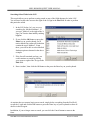
a. You will see the details of the events scheduled for the day you chose. If you‟d
like to see another date, click the calendar
icon above the details and select the
date you would like to view, then click the
button.
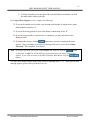
b. To see the additional rows, click the
arrow at the bottom of the list or select a
group from the drop down list.
11. When you are done viewing the calendar, please close your browser to exit.
INFORMATION ENGINEERING BRANCH
Printed: 5/19/2009