1
QP-OHCI Users Guide
Quantum Parametrics, LLC
Document #RM000-302
Version v1r0 5/31/05
3 User Interface
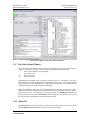
QP-OHCI consists of five primary windows: Quantum Parametrics’ Total Test Executor
environment, QP-NT Executor, Test Select, Control, and Console. The Quantum Parametrics’
Total Test Executor environment window is the home (main window) for QP-OHCI. The QP-NT
Executor window executes the commands given to it by the test scripts. To run QP-OHCI the QPNT Executor window must remain open during any script code execution. The Test Select and
Console windows reside in the Total Test Executor environment window and comprise the OHCI
Test Suite Application interface to the user. Buttons in the Control panel are programmed to
specific functions relating to the control of the OHCI tests.
QP-OHCI requires Microsoft Excel to log test results in the OHCI Integrated results form. QPOHCI also generates a log file containing detailed accounts of the test.
3.1 Starting and Exiting
*** Important Note ***
Before starting QP-OHCI make sure all 1394 devices are disconnected from the Tester computer.
If devices are connected, please disconnect them, quit QP-OHCI and restart QP-OHCI.
Initial startup of QP-OHCI:
1. Using the Start | All Programs menu, select the “OHCI Test” executable from the “Quantum
Parametrics” group.
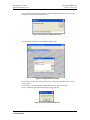
• The application will ask you to insert the USB key
• When the USB key is plugged in for the first time a “Found New Hardware” dialog box
will appear. This will install the software for the Crypto USB key device.
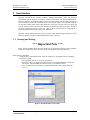
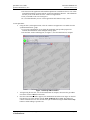
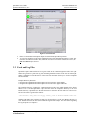
• Next, it will prompt you for the Key code and authorization codes with the following
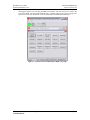
screen.
Figure 2: Product/Feature Codes entire.
Copyright Quantum Parametrics, all rights reserved
Confidential Data
Page 8