1
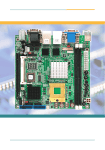
ITX-i7418VL
Mini ITX Industrial Motherboard
User’s Manual
Version 1.0
2007.05
Index
Table of Contents
Chapter 1 Introduction ...........................................................4
1.1 Copyright Notice ..........................................................................5
1.2 About this User’s Manual ...........................................................5
1.3 Warning ......................................................................................5
1.4 Replacing the lithium battery .......................................................6
1.5 Technical Support .......................................................................6
1.6 Warranty .....................................................................................7
1.7 Packing List ................................................................................8
1.8 Ordering Information ...................................................................8
1.9 Specification ...............................................................................9
1.10 Board Dimensions ..................................................................10
1.11 Installing the CPU ...................................................................12
1.12 Installing the Memory .............................................................13
Chapter 2 Installation .............................................................14
2.1 Jumpers and Connectors .........................................................15
2.2 ATX: ATX Power Supply Connector .........................................16
2.3 JVLCD1: LCD Panel Voltage Selection ...................................16
2.4 LVDS1: LVDS LCD Connector .................................................17
2.5 CPUF1: CPU Fan Power Connector ........................................17
2.6 SYSF1: System Fan Power Connector ....................................18
2.7 IDE2: Secondly 44-pin IDE Connector .....................................18
2.8 IDE1: Primary 40-pin IDE Connector .......................................19
2.9 JFRT1: Switches and Indicators ..............................................19
2.10 MPCI1: MiniPCI slot ...............................................................19
2.11 PCI1: Standard 32 bit/33MHz PCI slot ..................................19
2.12 JBAT1: CMOS Setup ..............................................................20
2.13 FDD1: FDD Connector ...........................................................20
2.14 IR1: Infrared Connector ..........................................................20
2.15 INV1: LCD Inverter Connector ................................................21
2.16 DIO1: Digital I/O Connector ....................................................21
2.17 COM1: Two D-SUB 9 Connector .............................................22
2.18 USB5: USB Connector ............................................................22
2.19 CN2: 10/100 RJ-45 + USB1 + USB2 .......................................22
2.20 AUDIO1: Audio Interface Port ................................................23
2.21 USB3/ USB4 ...........................................................................23
2.22 LPT1: Parallel Port Connector ...............................................23
2.23 VGA1: CRT Connector ...........................................................24
2.24 KBM1: PS/2 Keyboard & Mouse ............................................24
2
Index
Chapter 3 BIOS ......................................................................26
3.1 BIOS Introduction .....................................................................27
3.2 BIOS Setup ..............................................................................27
3.3 Standard CMOS Features ........................................................28
3.4 Advanced BIOS Features ........................................................31
3.5 Advanced Chipset Features .....................................................35
3.6 Integrated Peripherals ..............................................................39
3.7 Power Management Setup .......................................................44
3.8 PNP/PCI Configurations ...........................................................47
3.9 PC Health Status ......................................................................49
3.10 Frequency/Voltage Control .....................................................50
3.11 Load Optimized Defaults ........................................................51
3.12 Set Password .........................................................................52
3.13 Save & Exit Setup ..................................................................53
3.14 Exit Without Saving ................................................................54
3.15 BIOS Beep Sound code list ....................................................55
3.16 BIOS memory mapping ..........................................................55
3.17 Award BIOS Post Codes .......................................................56
Chapter 4 Appendix ...............................................................60
4.1 I/O Port Address Map ...............................................................61
4.2 Interrupt Request Lines (IRQ) ..................................................62
3
Introduction
1
Chapter 1
Introduction
4
Introduction
1.1 Copyright Notice
All Rights Reserved.
The information in this document is subject to change without prior notice in
order to improve the reliability, design and function. It does not represent a
commitment on the part of the manufacturer.
Under no circumstances will the manufacturer be liable for any direct, indirect, special, incidental, or consequential damages arising from the use or inability to use the product or documentation, even if advised of the possibility
of such damages.
This document contains proprietary information protected by copyright. All
rights are reserved. No part of this manual may be reproduced by any mechanical, electronic, or other means in any form without prior written permission of the manufacturer.
1.2 About this User’s Manual
This User’s Manual is intended for experienced users and integrators with
hardware knowledge of personal computers. If you are not sure about any
description in this User’s Manual, please consult your vendor before further
handling.
1.3 Warning
Single Board Computers and their components contain very delicate
Integrated Circuits (IC). To protect the Single Board Computer and its
components against damage from static electricity, you should always follow
the following precautions when handling it :
1. Disconnect your Single Board Computer from the power source when you
want to work on the inside
2. Hold the board by the edges and try not to touch the IC chips, leads or
circuitry
3. Use a grounded wrist strap when handling computer components.
4. Place components on a grounded antistatic pad or on the bag that came
with the Single Board Computer, whenever components are separated
from the system
5
Introduction
1.4 Replacing the lithium battery
Incorrect replacement of the lithium battery may lead to a risk of explosion.
The lithium battery must be replaced with an identical battery or a battery
type recommended by the manufacturer.
Do not throw lithium batteries into the trashcan. It must be disposed of in
accordance with local requlations concerning special waste.
1.5 Technical Support
If you have any technical difficulites, please consult the user’s manual first
at:
ftp://ftp.arbor.com.tw/pub/manual
Please do not hesitate to call or e-mail our customer service when you still
can not find out the answer.
http://www.arbor.com.tw
E-mail:[email protected]
6
Introduction
1.6 Warranty
This product is warranted to be in good working order for a period of two
years from the date of purchase. Should this product fail to be in good
working order at any time during this period, we will, at our option, replace
or repair it at no additional charge except as set forth in the following terms.
This warranty does not apply to products damaged by misuse, modifications,
accident or disaster.
Vendor assumes no liability for any damages, lost profits, lost savings or any
other incidental or consequential damage resulting from the use, misuse of,
or inability to use this product. Vendor will not be liable for any claim made
by any other related party.
Vendors disclaim all other warranties, either expressed or implied, including
but not limited to implied warranties of merchantibility and fitness for a particular purpose, with respect to the hardware, the accompanying product’s
manual(s) and written materials, and any accompanying hardware. This
limited warranty gives you specific legal rights.
Return authorization must be obtained from the vendor before returned
merchandise will be accepted. Authorization can be obtained by calling or
faxing the vendor and requesting a Return Merchandise Authorization (RMA)
number. Returned goods should always be accompanied by a clear problem
description.
7
Introduction
1.7 Packing List
1x ITX-i7418VL Mini ITX Industrial MB
1x I/O Bracket
1x CPU Heat Sink or Cooler
or
1x CD-ROM (For Driver used)
1x Quick Installation Guide
1x Warranty Card
If any of the above items is damaged or missing, contact your vendor
immediately.
1.8 Ordering Information
ITX-i7418VL w/o
CF
Mini-ITX Pentium M Socket 478 Industrial Motherboard
with CRT/LCD, Audio and LAN
ITX-i7418VL
Mini-ITX Pentium M Socket 478 Industrial Motherboard
with CRT/LCD, Audio, CF socket (Optional) and LAN
ITX-i7418VL/
Mini-ITX Celeron M 600MHz Industrial Motherboard
CM600 (optional) with CRT/LCD, Audio, CF socket and LAN
ITX-i7418VL/
CM1000
(optional)
Mini-ITX Celeron M 1.0GHz Industrial Motherboard
with CRT/LCD, Audio, CF socket and LAN
Cable Kit
CBK-05-7418-00
8
Introduction
1.9 Specification
Product Name
ITX-i7418VL
Form Factor
Mini ITX Industrial MB (170 x 170 mm)
Processor
μFC-PGA478 pin Pentium-M Up to 1.8GHz
FSB 400MHz
μFC-BGA479 pin Celeron-M 600MHz or 1GHz
FSB 400MHz (Optional)
Chipset
Intel 852GM + Intel ICH4
System Memory
2 x 184-pin DDR 200/266 DIMM Up to 2GB
SDRAM
VGA/LCD Controller
UMA 852GM AGP Video Controller w/ CRT and
LVDS support (dual mode independent display)
Ethernet
Intel 82562EZ PHY 10/100Mbps Fast Ethernet
I/O Chips
WINBOND W83627HG
BIOS
Phoenix-Award BIOS 6.0PG, 4MB Flash ROM
Audio
AC’97 Codec, MIC-in/Line-in/Line-out
IDE Interface
1 x ATA-100 and 1 x ATA-33 (4 ATAPI devices)
1 x CompactFlash II up to 4GB
Serial Port
2 x COM port (COM 1, COM 2: RS-232)
Parallel Port
SPP/EPP/ECP mode
KBMS
Standard PS/2 KBMS
Universal Serial Bus
6 x USB 2.0 (4 ports Stack connectors & 2 ports
by pin header.)
DIO
16 bit programmable Digital I/O
LCD
18/36 bit LVDS
Expansion Interface
1 x MiniPCI & 1 x PCI Slot
Hardware Monitor
Chip
Integrated in W83627HG
RTC
Real Time Clock
Power Input Connector ATX Power Connector
Operation Temp.
0ºC ~ 60ºC
Watchdog Timer
127-level Reset
Dimension (L x W)
170 x 170 mm (6.7” x 6.7”)
9
Introduction
1.10 Board Dimensions
10
Introduction
11
Introduction
1.11 Installing the CPU
The processor socket comes with a screw to secure the CPU. As showing in
the picture as below, loose the screw first before inserting the CPU.
Place the CPU into the socket by making sure the notch on the corner of
the CPU corresponding with the notch on the inside of the socket. Once the
CPU has slide into the socket, lock the screw.
Loose
Lock
Make sure that heat sink of the CPU top surface is in complete contact to
avoid the CPU overheating problem.
If not, it would cause your system or CPU to be hanged, unstable, damaged.
12
Introduction
1.12 Installing the Memory
To install the Memory module, locate the Memory DIMM slot on the board
and perform as below:
1. Hold the Memory module so that the key of the Memory module align
with those on the Memory DIMM slot.
2. Gently push the Memory module in an upright position and a right way
until the clips of the DIMM slot close to lock the Memory module in place,
when the Memory module touches the bottom of the DIMM slot.
3. To remove the Memory module, just pressing the clips of DIMM slot with
both hands.
Lock
Lock
13
Installation
2
Chapter 2
Installation
14
Installation
2.1 Jumpers and Connectors
15
Installation
2.2 ATX: ATX Power Supply Connector
Pin
Description
Pin
Description
11
3.3V
1
3.3V
12
-12V
2
3.3V
13
GND
3
GND
14
PS-ON
4
5V
15
GND
5
GND
16
GND
6
5V
17
GND
7
GND
18
-5V
8
PW-OK
19
5V
9
5VSB
20
5V
10
+12V
11
1
20
10
2.3 JVLCD1: LCD Panel Voltage Selection
The voltage of LCD panel could be selected by JVLCD1 in 5V or 3.3V.
Pin
Voltage
1-2
5V
2-3
3.3V (Default)
16
1
3
Installation
2.4 LVDS1: LVDS LCD Connector
The LVDS connector on board DF-13 30-pin header and supports 18-bit or
36-bit.
Pin
Description
Pin
Description
2
VDD
1
VDD
4
TX2CLK+
3
TX1CLK+
6
TX2CLK-
5
TX1CLK-
8
GND
7
GND
10
TX2D0+
9
TX1D0+
12
TX2D0-
11
TX1D0-
14
GND
13
GND
16
TX2D1+
15
TX1D1+
18
TX2D1-
17
TX1D1-
20
GND
19
GND
22
TX2D2+
21
TX1D2+
24
TX2D2-
23
TX1D2-
26
GND
25
GND
28
TX2D3+
27
TX1D3+
30
TX2D3-
29
TX1D3-
2
1
30
29
2.5 CPUF1: CPU Fan Power Connector
CPUF1 is a 3-pin header for the CPU fan. The fan must be a 12V fan.
Pin
Description
1
GND
2
+12V
3
FAN_CTL
3
1
17
Installation
2.6 SYSF1: System Fan Power Connector
SYSF1 is a 3-pin header for the CPU fan. The fan must be a 12V fan.
Pin
Description
1
GND
2
+12V
3
FAN_CTL
3
1
2.7 IDE2: Secondly 44-pin IDE Connector
Pin
Description
Pin
Description
1
IDE RESET
2
GND
3
DATA7
4
DATA8
5
DATA6
6
DATA9
7
DATA5
8
DATA10
9
DATA4
10
DATA11
11
DATA3
12
DATA12
13
DATA2
14
DATA13
15
DATA1
16
DATA14
17
DATA0
18
DATA15
19
GND
20
N/C
21
REQ
22
GND
23
IO RWITE
24
GND
25
IO READ
26
GND
27
IO READY
28
IDESEL
29
DACK
30
GND
31
IRQ14
32
N/C
33
ADDR1
34
ATA66 DETECT
35
ADDR0
36
ADDR2
37
CS#2
38
CS#3
39
IDEACTP
40
GND
41
VCC(+5V)
42
VCC(+5V)
43
GND
44
N/C
18
1
43
2
44
Installation
2.8 IDE1: Primary 40-pin IDE Connector
39
1
40
2
2.9 JFRT1: Switches and Indicators
It provides connectors for system indicators that provides light indication
of the computer activities and switches to change the computer status.
Pin
Description
Pin
Description
1
Power LED+
2
PWRBTN+
3
GND
4
PWRBTN-
5
GND
6
RESET+
7
HDD LED+
8
RESET-
9
HDD LED-
10
SPEAKER+
11
SMBCLK
12
SPEAKER+
13
SMBDATA
14
SPEAKER-
15
GND
16
SPEAKER-
1
15
2
16
2.10 MPCI1: MiniPCI slot
2.11 PCI1: Standard 32 bit/33MHz PCI slot
19
Installation
2.12 JBAT1: CMOS Setup
Pin
Voltage
1-2
Keep CMOS (Default)
2-3
Clear CMOS
1
3
2.13 FDD1: FDD Connector
FDD1 is a 26-pin connector.
Pin
Description
Pin
Description
1
GND
2
Drive density select 0
3
GND
4
N/C (Key)
5
GND
6
Drive density select 1
7
#Write data
8
#Index
9
#Write gate
10
#Motor enable A
11
#Track 0
12
#Driver select B
13
#Write protect 14
#Driver select A
15
#Read data
16
#Motor enable B
17
#Head select
18
#Direction
19
#Disk change
20
#Step
1
2
19
20
2.14 IR1: Infrared Connector
Onboard 2.54mm 5-pin header
Pin
Voltage
1
+5v
2
N/C
3
IRRX
4
GND
5
IRTX
20
1
5
Installation
2.15 INV1: LCD Inverter Connector
Onboard 5-pin mini boxheader
Pin
Voltage
1
+12V
2
GND
1
3
Backlight on/off
4
Brightness control
5
GND
5
2.16 DIO1: Digital I/O Connector
DIO1 is a 16 bit GPIO connector w/ Onboard 20-pin 2.54 mm pin header
connector
Pin
Description
Pin
Description
1
DIO0
2
DIO1
3
DIO2
4
DIO3
5
DIO4
6
DIO5
7
DIO6
8
DIO7
9
GND
10
GND
11
DIO8
12
DIO9
13
DIO10
14
DIO11
15
DIO12
16
DIO13
17
DIO14
18
DIO15
19
+5V
20
N/C
1
2
19
20
21
Installation
2.17 COM1: Two D-SUB 9 Connector
Pin
Description
Pin
Description
1
DCD
6
DSR
2
RXD
7
RTS
3
TXD
8
CTS
4
DTR
9
RI
5
GND
COM1-A
COM1-B
2.18 USB5: USB Connector
USB5 supports 2 USB 2.0 w/ 480MB/s
Pin
Description
Pin
Description
1
+5V
2
+5V
3
USBD-
4
USBD-
5
USBD+
6
USBD+
7
GND
8
GND
9
GND
10
N/C
1
2
9
10
2.19 CN2: 10/100 RJ-45 + USB1 + USB2
CN2 supports one 10/100 Mbps Fast Ethernet (Intel 82562EZ PHY) and two
USB 2.0 connectors w/ 480MB/s.
10/100 RJ-45
USB1
USB2
22
Installation
2.20 AUDIO1: Audio Interface Port
AUDIO1 is composed of Line in, Line out and Microphone jacks.
Pin
Description
Pin
Description
1
Line Left in
2
Line Right in
3
GND
4
GND
5
MIC
6
N/C
7
GND
8
GND
9
Speaker LEFT
10
Speaker Right
1
2
9
10
2.21 USB3/ USB4
USB3/ USB4 connector supports USB 2.0 w/ 480MB/s.
USB3
USB4
2.22 LPT1: Parallel Port Connector
LPT1
23
Installation
2.23 VGA1: CRT Connector
VGA1
2.24 KBM1: PS/2 Keyboard & Mouse
Mouse
Keyboard
24
Installation
This page is intentionally left blank.
25
BIOS
3
Chapter 3
BIOS
26
BIOS
3.1 BIOS Introduction
The Award BIOS (Basic Input/Output System) installed in your computer system’s. The BIOS provides for a standard device such as disk drives, serial
ports and parallel ports. It also adds password protection as well as special
support for detailed fine-tuning of the chipset controlling the entire system.
3.2 BIOS Setup
The Award BIOS provides a Setup utility program for specifying the system
configurations and settings. The BIOS ROM of the system stores the Setup
utility.
When you turn on the computer, the Award BIOS is immediately activated.
Pressing the <Del> key immediately allows you to enter the Setup utility. If
you a little bit late press the <Del> key, POST (Power On Self Test) will
continue with its test routines, thus preventing you from invoking the Setup.
If you still wish to enter Setup, restart the system by pressing the ”Reset”
button or simultaneously pressing the <Ctrl>, <Alt> and <Delete> keys. You
can also restart by turning the system Off and back On again.
The following message will appear on the screen:
Press <DEL> to Enter Setup
In general, you press the arrow keys to highlight items, <Enter> to select, the
<PgUp> and <PgDn> keys to change entries, <F1> for help and <Esc> to
quit. When you enter the Setup utility, the Main Menu screen will appear on
the screen. The Main Menu allows you to select from various setup functions
and exit choices.
27
BIOS
3.3 Standard CMOS Features
“Standard CMOS Features” allows you to record some basic hardware
configurations in your computer system and set the system clock and
error handling. If the CPU card is already installed in a working system, you
will not need to select this option.
You will need to run the Standard CMOS option, however, if you change
your system hardware configurations, shch as onboard battery fails, or the
configuration stored in the CMOS memory was lost or damaged.
Date
The date format is:
Day : Sun to Sat
Month : 1 to 12
Date : 1 to 31
Year : 1999 to 2099
Time
Hour : 00 to 23
Minute : 00 to 59
Second : 00 to 59
To set the date & time, highlight the “Date” & “Time” and use the <PgUp>/
<PgDn> or +/- keys to set the current time.
The time format is:
28
BIOS
IDE Primary HDDs / IDE Secondary HDDs
The onboard PCI IDE connectors provide Primary and Secondary channels
for connecting up to four IDE hard disks or other IDE devices.
Each channel can support up to two hard disks; the first is the “Master” and
the second is the “Slave”.
Press <Enter> to configure the hard disk. The selections include Auto,
Manual, and None. Select ‘Manual’ to define the drive information manually.
You will be asked to enter the following items.
Cylinder:
Number of cylinders
Head:
Number of read/write heads
Precomp:
Write precompensation
Landing Zone: Landing zone
Sector:
Number of sectors
The Access Mode selections are as follows:
CHS (HD < 528MB)
LBA
(HD > 528MB and supports Logical Block Addressing)
Large (for MS-DOS only)
Auto
Remarks: The main board supports two serial ATA ports and are represented
in this setting as IDE Channel 0.
Drive A / Drive B
These fields identify the types of floppy disk drive A or drive B that has
been installed in the computer. The available specifications are:
None
360K, 5.25 in.
1.2M, 5.25 in.
720K, 3.5 in.
1.44M, 3.5 in.
2.88M, 3.5 in.
Video
This field selects the type of video display card installed in your system.
You can choose the following video display cards:
EGA/VGA
For EGA, VGA, SEGA, SVGA or PGA monitor
adapters. (default)
CGA 40
Power up in 40 column mode.
CGA 80
Power up in 80 column mode.
MONO
For Hercules or MDA adapters.
29
BIOS
Halt On
This field determines whether or not the system will halt if an error is
detected during power up.
All errors
Whenever the BIOS detects a non-fatal error, the
system will stop and you will be prompted.
No errors
The system boot will not be halted for any error that
may be detected.
All, But Keyboard
The system boot will not be halted for a keyboard
error; it will stop for all other errors.
All, But Diskette
The system boot will not be halted for a disk error; it
will stop for all other errors.
All, But Disk/Key
The system boot will not be halted for a keyboard
or disk error; it will stop for all others.
30
BIOS
3.4 Advanced BIOS Features
CPU L1/ L2/ L3 Cache
Cache memory is additional memory that is faster than conventional DRAM
(system memory).
CPUs from 486-type on up contain internal cache memory, and most, but not
all, modern PCs have additional (external) cache memory.
When the CPU requests data, the system transfers the requested data from
the main DRAM into cache memory, for even faster access by the CPU.
These allow you to enable (speed up memory access) or disable the cache
function.
Quick Power On Self Test
When enabled, this field speeds up the Power On Self Test (POST) after
the system is turned on.
If it is set to Enabled, BIOS will skip some items.
Setting: Enabled (Default), Disabled.
31
BIOS
First/ Second/ Third Boot Device
These fields determine the drive that the system searches first for an
operating system. The options available include
Setting: Floppy, LS120, HDD-0, SCSI, CDROM, HDD-1, HDD-2, HDD-3,
ZIP100, USB-FDD, USB-ZIP, USB-CDROM, USB-HDD, LAN and
Disabled.
Boot Other Device
It allows the system to search for an OS from other devices other than the
ones selected in the First/ Second/ Third Boot Device.
Setting: Enabled (Default), Disabled.
Swap Floppy Drive
It allows you to determine whether or not to enable Swap Floppy Drive.
When enabled, the BIOS swaps floppy drive assignments so that Drive A
becomes Drive B, and Drive B becomes Drive A.
Setting: Disabled (Default), Enabled.
Boot Up Floppy Seek
This feature controls whether the BIOS checks for a floppy drive while
booting up. If it cannot detect one (either due to improper configuration or its
absence), it will flash an error message.
Setting: Enabled (Default), Disabled.
Boot Up NumLock Status
It allows you to activate the NumLock function after you power up the
system.
Setting: On (Default), Off.
32
BIOS
Gate A20 Option
It allows you to select how the Gate A20 is worked. Gate A20 is a device
used to address memory above 1 MB.
Setting: Normal, Fast (Default).
Typematic Rate Setting
When disabled, continually holding down a key on your keyboard will
generate only one instance. When enabled, you can set the two typematic
controls listed at the next.
Setting: Disabled (Default), Enabled.
Typematic Rate (Chars/Sec)
When the typematic rate is enabled, the system registers repeated
keystrokes speeds.
Setting: 6 to 30 characters per second.
Typematic Delay (Msec)
When the typematic rate is enabled, this item allows you to set the time
interval for displaying the first and second characters.
Setting: 250 (Default), 500, 750, 1000.
Security Option
It allows you to limit access to the System and Setup.
When you select System, the system prompts for the User Password every
time you boot up.
When you select Setup, the system always boots up and prompts for the
Supervisor Password only when the Setup utility is called up.
Setting: Setup (Default), System.
APIC Mode
APIC stands for Advanced Programmable Interrupt Controller.
Setting: Disabled, Enabled (Default).
33
BIOS
MPS Version Control for OS
It is specifies the MPS (Multiprocessor Specification) version for your
operating system. MPS version 1.4 added extended configuration tables
to improve support for multiple PCI bus configurations and improve future
expandability.
Setting: 1.1, 1.4 (Default).
Small Logo (EPA) Show
The EPA logo appears at the right side of the monitor screen when the
system is boot up.
Setting: Disabled (Default), Enabled.
34
BIOS
3.5 Advanced Chipset Features
DRAM Timing Selectable
It refers to the method by which the DRAM timing is selected.
Setting: Manual, By SPD (Default).
CAS Latency Time
It allows CAS latency time in HCLKs as 2 or 2.5. The system board designer
should set the values in this field, depending on the DRAM installed. Do
not change the values in this field unless you change specifications of the
installed DRAM or CPU.
Setting: 2.5 (Default), 2.
Active to Precharge Delay
Setting: 7 (Default), 6, 5.
35
BIOS
DRAM RAS# to CAS# Delay
It allows you to insert a delay between the RAS (Row Address Strobe) and
CAS (Column Address Strobe) signals. This delay occurs when the SDRAM
is written to, read from or refreshed. Reducing the delay improves the
performance of the SDRAM.
Setting: 3 (Default), 2.
DRAM Data Integrity Mode
Setting: Non-ECC (Default), ECC.
MGM Core Frequency
This Select equates are used for determining the FSB MEM/GFX LOW/GFX
high core frequency DRAM data integrity mode.
Setting: Auto Max 266MHz (Default), 100MHz-533MHz,
Auto Max 400/333MHz, Auto Max 533/333MHz.
System BIOS Cacheable
The setting of Enabled allows caching of the system BIOS ROM at F000hFFFFFh for better system performance. However, if any program writes to
this memory area, a system error may result.
Setting: Disabled, Enabled (Default).
Video BIOS Cacheable
The Setting Enabled allows caching of the video BIOS ROM at C0000hF7FFFh for better video performance. However, if any program writes to this
memory area, a system error may result.
Setting: Disabled, Enabled (Default).
36
BIOS
Memory Hole At 15M-16M
In order to improve performance, certain space in memory can be reserved
for ISA cards. This memory must be mapped into the memory space below
16 MB.
Setting: Disabled (Default), Enabled.
Delayed Transaction
The chipset has an embedded 32-bit posted write buffer to support delay
transactions cycles. Select Enabled to support compliance with PCI
specification version 2.1.
Setting: Disabled, Enabled (Default).
Delay Prior to Thermal
This field activates the CPU thermal function after the systems boots for
the set number of minutes.
Setting: 4 Min, 8 Min, 16 Min (Default), 32 Min.
AGP Aperture Size (MB)
It sets aperture size of the graphics. The aperture is a portion of the PCI
memory address range dedicated for graphics memory address space. Host
cycles that hit the aperture range are forwarded to the AGP without any
translation.
Setting: 4, 8, 16, 32, 64 (Default), 128, 256.
On-Chip VGA
Setting: Enabled (Default), Disabled.
On-Chip Frame Buffer Size
Setting: 1MB, 4MB, 8MB (Default), 16MB, 32MB.
37
BIOS
Boot Display
Setting: VBIOS Default, CRT (Default), LFP, CRT+LFP, EFP, TV, CRT+EFP,
CRT+TV.
Panel Number
It allows you to select the LCD Panel type as below --Setting:
640x480
18-bit
800x600
18-bit
1024x768
18-bit
(Default)
1280x1024
18-bit
1400x1050
18-bit 2-CH
1600x1200
18-bit 2-CH
38
BIOS
3.6 Integrated Peripherals
OnChip Primary/Secondary PCI IDE
The integrated peripheral controller contains an IDE interface with support
for two IDE channels. Select Enabled to activate each channel separately.
Setting: Disabled, Enabled (Default).
39
BIOS
IDE Primary/Secondary Master/Slave PIO
It allows your system HDD controller to run faster.
Rather than having the BIOS issue with a series of commands that
transferring to or from the disk drive, PIO (Programmed Input/Output) allows
the BIOS to communicate with the controller and CPU directly.
When Auto is selected, the BIOS will select the best available mode.
Setting: Auto (Default), Mode 0, Mode 1, Mode 2, Mode 3, Mode 4.
IDE Primary/Secondary Master/Slave UDMA
It allows your system to improve disk I/O throughput to 33MB/sec with the
Ultra DMA33 feature.
Setting: Disabled, Auto.
IDE HDD Block Mode
It allows your HDD controller to use the fast block mode to transfer data to
and from your HDD drive.
Setting: Disabled (Default), Auto.
USB Controller
Setting: Enabled (Default), Disabled.
USB 2.0 Controller
For using USB 2.0, it is necessary OS drivers must be installed first. Please
update your system to at least Windows 2000 SP4 or Windows XP SP2.
Setting: Enabled (Default), Disabled.
40
BIOS
USB Keyboard/ Mouse Support
For using USB 2.0, it is necessary OS drivers must be installed first. Please
update your system to at least Windows 2000 SP4 or Windows XP SP2.
Setting: Disabled, Enabled (Default).
AC97 Audio
Setting: Auto (Default), Disabled.
Init Display First
This determines which VGA controller is initialized when the system boots.
Setting: PCI Slot (Default), Onboard/AGP.
Onboard LAN1
Setting: Disabled, Enabled (Default).
Onboard FDC Controller
Select “Enabled” if your system has a floppy disk controller (FDC) installed
and you wish to use it. Select “Disabled” if your system has an add-in FDC
or has no floppy drive.
Setting: Disabled, Enabled (Default).
41
BIOS
Onboard Serial/Parallel Port
It allows you to select the onboard serial and parallel ports with their
addresses.
Setting:
Serial Port 1
3F8/IRQ4 (Default)
Serial Port 2
2F8/IRQ3 (Default)
Parallel Port
378H/IRQ7 (Default)
UART Mode Select
It determines the UART 2 mode in your computer.
Setting: IrDA, ASKIR, Normal (Default).
RxD, TxD Active
Setting: Hi,Hi , Hi,Lo (Default) , Lo,Hi , Lo,Lo.
IR Transmission Delay
Setting: Disabled, Enabled (Default).
UR2 Duplex Mode
Setting: Full, Half (Default).
Use IR Pins
Setting: RxD2,TxD2 , IR-Rx2Tx2 (Default).
Parallel Port Mode
Setting:
42
SPP (Default)
EPP
ECP
ECP+EPP
Normal
BIOS
EPP Mode Select
Setting: EPP1.9, EPP1.7 (Default)
ECP Mode Use DMA
Setting: 1, 3 (Default).
PWRON After PWR-Fail
It sets the system power status whether on or off when power returns to the
system from a power failure situation.
Setting: Off (Default), On, Former-Sts.
43
BIOS
3.7 Power Management Setup
ACPI Function
It supports ACPI (Advance Configuration and Power Interface).
Setting: Enabled (Default), Disabled.
Power Management
It allows you to select the type of power saving management modes.
Setting: User Define (Default) Each of the ranges is from 1 min. to 1hr.
Except for HDD Power Down which ranges
from 1 min. to 15 min
Min Saving
Minimum power management
Max Saving
Maximum power management
Video Off Method
It defines the Video Off features.
Setting: Blank Screen
Writes blanks to the video buffer
V/H SYNC + Blank
blank the screen and turn off vertical and
horizontal scanning
DPMS (Default)
Allowing BIOS to control the video display.
44
BIOS
Video Off In Suspend
When enabled, the video is off in suspend mode.
Setting: No, Yes (Default).
Suspend Type
Setting: Stop Grant (Default), PwrOn Suspend.
Modem Use IRQ
It sets the IRQ used by the Modem.
Setting: NA (Default), 3, 4, 5, 7, 9, 10, 11.
Suspend Mode
When “Enabled”, after the set time of system inactivity, all devices except the
CPU will be shut off as the set time.
Setting: Disabled (Default), 1 Min, 2 Min, 4 Min, 8 Min, 12 Min, 20 Min,
30 Min, 40 Min, 1 Hour.
HDD Power Down
When “Enabled”, after the set time of system inactivity, the hard disk drive
will be powered down while all other devices remain active.
Setting: Disabled (Default), 1 Min - 15 Min.
Soft-Off by PWRBTN
It defines the power-off mode when using an ATX power supply.
In the Instant Off mode, It allows powering off immediately upon pressing the
power button.
In the Delay 4 Sec mode, the system powers off when the power button is
pressed for more than 4 seconds or enters the suspend mode when pressed
for less than 4 seconds.
Setting: Instant-off (Default), Delay 4 Sec. .
45
BIOS
Power-On by LAN/ Ring
It enables or disables the power on of the system through the modem
connected or LAN.
Setting: Disabled (Default), Enabled.
Resume by Alarm
It enables or disables the resumption of the system operation. When
enabled, the user is allowed to set the Date and Time.
Setting: Disabled (Default), Enabled.
Reload Global Timer Events
The HDD, FDD, COM, LPT Ports, and PCI PIRQ are I/O events that can
prevent the system from entering a power saving mode or can awaken
the system from such a mode. When an I/O device wants to gain the
attention of the operating system, it signals this by causing an IRQ to
occur. When the operating system is ready to respond to the request, it
interrupts itself and performs the service.
46
BIOS
3.8 PNP/PCI Configurations
Reset Configuration Data
It allows you to determine whether to reset the configuration data or not.
Setting: Disabled (Default), Enabled.
Resources Controlled By
This PnP BIOS can configure all of the boot and compatible devices with the
use of a PnP operating system.
Setting: Auto(ESCD) (Default), Manual.
IRQ / DMA Resources
It allows you to configure the IRQ / DMA Resources.
47
BIOS
PCI/VGA Palette Snoop
Some non-standard VGA display cards may not show colors properly.
It allows you to set whether or not MPEG ISA/VESA VGA cards can
display with PCI/VGA.
When “Enabled”, a PCI/VGA can display with an MPEG ISA/VESA
VGA card.
When “Disabled”, a PCI/VGA can not display with an MPEG ISA/VESA
VGA card.
Setting: Disabled (Default), Enabled.
PCI IRQ Actived By
Setting: Edge, Level (Default).
48
BIOS
3.9 PC Health Status
Shutdown Temperature
It allows you to set the temperature by which the system automatically shuts
down once the threshold temperature is reached.
The setting can help prevent damage to the system that is caused by
overheating.
Setting: 60°C/140°F, 65°C/149°F, 70°C/158°F, Disabled (Default).
49
BIOS
3.10 Frequency/Voltage Control
Auto Detect PCI Clk
It enables or disables the auto detection of the PCI clock.
Setting: Enabled (Default), Disabled.
Spread Spectrum
It sets the value of the spread spectrum. It is for CE testing use only.
Setting: Disabled (Default), Enabled.
50
BIOS
3.11 Load Optimized Defaults
It allows you to load the default values to your system configuration. The
default setting is optimal and enabled all high performance features.
51
BIOS
3.12 Set Password
Useing Password to set a password that will be used exclusively on the
system. To specify a password, highlight the type you want and press
<Enter>.
The Enter Password: message prompts on the screen. Type the password,
up to eight characters in length, and press <Enter>. And the system confirms
your password by asking you to type it again. After setting a password, the
screen automatically returns to the main screen.
To disable a password, just press the <Enter> key when you are prompted
to enter the password. A message will confirm the password to be disabled.
Once the password is disabled, the system will boot, then you can enter
BIOS Setup freely.
52
BIOS
3.13 Save & Exit Setup
Typing “Y”, you will quit the setup utility and save all the changes into the
CMOS memory.
Typing “N”, you will return to Setup utility.
53
BIOS
3.14 Exit Without Saving
Typing “Y” will quit the Setup utility without saving the modifications.
Typing “N” will return you to Setup utility.
54
BIOS
3.15 BIOS Beep Sound code list
Beep Sound
Message
1 short (Beep)
System booting is normally
2 short (Beep)
CMOS setting error
1 long - 1 short (Beep)
DRAM error
1 long - 2 short (Beep)
Display card or monitor connected error
1 long - 3 short (Beep)
Keyboard error
1 long - 9 short (Beep)
ROM error
Long (Beep) continuous
DRAM hasn’t inset correctly
Short (Beep) continuous
POWER supply has problem
3.16 BIOS memory mapping
Address
Device Description
E000:0000h - F000:FFFFh
System BIOS Area
D000:2000h - D000:FFFFh
Free space
D000:0000h - D000:1FFFh
LAN ROM
C000:E000h - CF00:FFFFh
Free space
C000:0000h - C000:DFFFh
VGA BIOS
A000:0000h - B000:FFFFh
VGA RAM
0000:0000h - 9000:FFFFh
DOS 640K
55
3.17 Award BIOS Post Codes
CFh Test CMOS read/write functionality
chipset initialization: Disable shadow RAM, L2 cache (socket 7
C0h Early
and below), program basic chipset registers
memory: Auto detection of DRAM size, type and ECC, auto
C1h Detect
detection of L2 cache (socket 7 and below)
C3h Expand compressed BIOS code to DRAM
C5h Call chipset hook to copy BIOS back to E000 & F000 shadow RAM
01h Expand the Xgroup codes located in physical memory address 1000:0
02h Reserved
03h Initial Superio_Early_Init switch
04h Reserved
05h Blank out screen; Clear CMOS error flag
06h Reserved
07h Clear 8042 interface; Initialize 8042 self test
Test special keyboard controller for Winbond 977 series Super I/O
08h chips;
Enable keyboard interface
09h Reserved
Disable PS/2 mouse interface (optional); Auto detect ports for
0Ah keyboard & mouse followed by a port & interface swap (optional);
Reset keyboard for Winbond 977 series Super I/O chips
0Bh Reserved
0Ch Reserved
0Dh Reserved
Test F000h segment shadow to see whether it is read/write capable or
0Eh not.
If test fails, keep beeping the speaker
0Fh Reserved
Auto detect flash type to load appropriate flash read/write codes into
10h the
run time area in F000 for ESCD & DMI support
11h Reserved
Use walking 1’s algorithm to check out interface in CMOS circuitry.
12h Also
set real time clock power status and then check for overrride
13h Reserved
chipset default values into chipset. Chipset default values
14h Program
are MODBINable by OEM customers
15h Reserved
16h Initial Early_Init_Onboard_Generator switch
17h Reserved
CPU information including brand, SMI type (Cyrix or Intel) and
18h Detect
CPU level (586 or 686)
19h Reserved
1Ah Reserved
Initial interrupts vector table. If no special specified, all H/W
1Bh interrupts are directed to SPURIOUS_INT_HDLR & S/W interrupts to
SPURIOUS_soft_HDLR
1Ch Reserved
1Dh Initial EARLY_PM_INIT switch
1Eh Reserved
1Fh Load keyboard matrix (notebook platform)
56
20h
21h
22h
23h
24h
25h
26h
27h
28h
29h
2Ah
2Bh
2Ch
2Dh
2Eh
2Fh
30h
31h
32h
33h
34h
35h
36h
37h
38h
39h
3Ah
3Bh
3Ch
3Dh
3Eh
3Fh
40h
41h
42h
43h
44h
45h
46h
Reserved
HPM initialization (notebook platform)
Reserved
Check validity of RTC value; Load CMOS settings into BIOS
stack. If CMOS checksum fails, use default value instead; Prepare
BIOS resource map for PCI & PnP use. If ESCD is valid, take into
consideration of the ESCD's legacy information; Onboard clock
generator initialization. Disable respective clock resource to empty
PCI & DIMM slots; Early PCI initialization - Enumerate PCI bus
number, assign memory & I/O resource, search for a valid VGA device
& VGA BIOS, and put it into C000:0
Reserved
Reserved
Reserved
Initialize INT 09 buffer
Reserved
Program CPU internal MTRR (P6 & PII) for 0-640K memory address;
Initialize the APIC for Pentium class CPU; Program early chipset
according to CMOS setup; Measure CPU speed; Invoke video BIOS
Reserved
Reserved
Reserved
Initialize multilanguage; Put information on screen display, including
Award title, CPU type, CPU speed, etc...
Reserved
Reserved
Reserved
Reserved
Reserved
Reset keyboard except Winbond 977 series Super I/O chips
Reserved
Reserved
Reserved
Reserved
Reserved
Reserved
Reserved
Reserved
Test 8254
Reserved
Test 8259 interrupt mask bits for channel 1
Reserved
Test 9259 interrupt mask bits for channel 2
Reserved
Reserved
Test 8259 functionality
Reserved
Reserved
Reserved
57
47h
48h
49h
4Ah
4Bh
4Ch
4Dh
4Eh
4Fh
50h
51h
52h
53h
54h
55h
56h
57h
58h
59h
5Ah
5Bh
5Ch
5Dh
5Eh
5Fh
60h
61h
62h
63h
64h
65h
66h
67h
68h
69h
6Ah
6Bh
6Ch
6Dh
6Eh
6Fh
58
Initialize EISA slot
Reserved
Calculate total memory by testing the last double last word of each
64K page; Program writes allocation for AMD K5 CPU
Reserved
Reserved
Reserved
Reserved
Program MTRR of M1 CPU; initialize L2 cache for P6 class CPU &
program cacheable range; Initialize the APIC for P6 class CPU; On
MP platform, adjust the cacheable range to smaller one in case the
cacheable ranges between each CPU are not identical
reserved
Initialize USB
Reserved
Test all memory (clear all extended memory to 0)
Reserved
Reserved
Display number of processors (multi-processor platform)
Reserved
Display PnP logo; Early ISA PnP initialization and assign CSN to
every ISA PnP device
Reserved
Initialize the combined Trend Anti-Virus code
Reserved
Show message for entering AWDFLASH.EXE from FDD (optional
feature)
Reserved
Initialize Init_Onboard_Super_IO switch; Initialize Init_Onboard_
AUDIO switch
Reserved
Reserved
Okay to enter Setup utility
Reserved
Reserved
Reserved
Reserved
Initialize PS/2 mouse
Reserved
Prepare memory size information for function call: INT 15h ax=E820h
Reserved
Turn on L2 cache
Reserved
Program chipset registers according to items described in Setup &
Auto-Configuration table
Reserved
Assign resources to all ISA PnP devices; Auto assign ports to onboard
COM ports if the corresponding item in Setup is set to “AUTO”
Reserved
Initialize floppy controller; Setup floppy related fields in 40:hardware
70h
71h
72h
73h
74h
75h
76h
77h
78h
79h
7Ah
7Bh
7Ch
7Dh
7Eh
7Fh
80h
81h
82H
83H
84h
85h
86h
87h
88h
89h
90h
91h
92h
93h
94h
95h
96h
FFh
Reserved
Reserved
Reserved
Enter AWDFLASH.EXE if: AWDFLASH.EXE is found in floppy dive
and ALT+F2 is pressed
Reserved
Detect and install all IDE devices: HDD, LS120, ZIP, CDROM...
Reserved
Detect serial ports and parallel ports
Reserved
Reserved
Detect and install coprocessor
Reserved
Reserved
Reserved
Reserved
Switch back to text mode if full screen logo is supported: if errors
occur, report errors & wait for keys, if no errors occur or F1 key is
pressed continue - Clear EPA or customization logo
Reserved
Reserved
Call chipset power management hook: Recover the text fond used
by EPA logo (not for full screen logo), If password is set, ask for
password
Save all data in stack back to CMOS
Initialize ISA PnP boot devices
Final USB initialization; NET PC: Build SYSID structure; Switch
screen back to text mode; Set up ACPI table at top of memory; Invoke
ISA adapter ROM’s; Assign IRQ’s to PCI devices; Initialize APM; Clear
noise of IRQ’s
Reserved
Reserved
Reserved
Reserved
Reserved
Reserved
Reserved
Read HDD boot sector information for Trend Anti-Virus code
Enable L2 cache; Program boot up speed; Chipset final initialization;
Power management final initialization; Clear screen and display
summary table; Program K^ write allocation; Program P6 class write
combining
Program daylight saving; Update keyboard LED and typematic rate
Build MP table; Build and update ESCD; Set CMOS century to 20h or
19h; Load CMOS time into DOS timer tick; Build MSIRQ routing table
Boot attempt (INT 19h)
59
Appendix
4
Chapter 4
Appendix
60
Appendix
4.1 I/O Port Address Map
Each peripheral device in the system is assigned a set of I/O port addresses
which also becomes the identity of the device.
The following table lists the I/O port addresses used.
Address
Device Description
000h - 01Fh
DMA Controller #1
020h - 03Fh
Interrupt Controller #1
040h - 05Fh
Timer
060h - 06Fh
Keyboard Controller
070h - 07Fh
Real Time Clock, NMI
080h - 09Fh
DMA Page Register
0A0h - 0BFh
Interrupt Controller #2
0C0h - 0DFh
DMA Controller #2
0F0h
Clear Math Coprocessor Busy Signal
0F1h
Reset Math Coprocessor
1F0h - 1F7h
IDE Interface
278h - 27Fh
Parallel Port #2 (LPT2)
2F8h - 2FFh
Serial Port #2 (COM2)
2B0h - 2DFh
Graphics adapter Controller
378h - 3FFh
Parallel Port #1 (LPT1)
360h - 36Fh
Network Ports
3B0h - 3BFh
Monochrome & Printer adapter
3C0h - 3CFh
EGA adapter
3D0h - 3DFh
CGA adapter
3F0h - 3F7h
Floppy Disk Controller
3F8h - 3FFh
Serial Port #1 (COM1)
61
Appendix
4.2 Interrupt Request Lines (IRQ)
Peripheral devices use interrupt request lines to notify CPU for the service
required. The following table shows the IRQ used by the devices on board.
Level
Function
IRQ 0
System Timer
IRQ 1
Keyboard
IRQ 2
Cascaded with IRQ 9
IRQ 3
COM2
IRQ 4
COM1
IRQ 5
AC’97
IRQ 6
Floppy Drive Controller
IRQ 7
LPT1
IRQ 8
Real Time Clock
IRQ 9
USB, ACPI
IRQ 10
USB, VGA
IRQ 11
USB, LAN
IRQ 12
PS/2 mouse or Open
IRQ 13
Math Coprocessor
IRQ 14
Primary Hard Drive controller
IRQ 15
Secondary Hard Drive controller
62
Appendix
This page is intentionally left blank.
63