1
••••
108
Chapter 8
Using System Tools
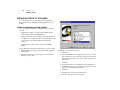
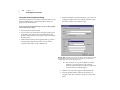
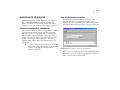
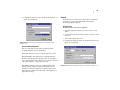
2. Specify the menu item you want QuicKeys to locate when
this Action is triggered.
3. In the General tab of the Action Properties dialog, a name is
automatically assigned to the Action. You can use the
assigned Action name or type a different name.
6. Close the QuicKeys Editor and press the hot key or other
trigger you assigned to this Action. The menu item is
selected.
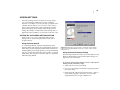
SELECT MENU OPTIONS
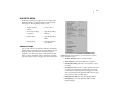
Below is a description of the Action-specific properties
available with the Select Menu Action.
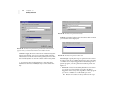
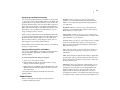
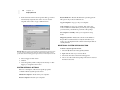
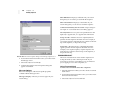
Menu Item—This option is available in the Setup Wizard.
Type the name of the menu item you want to select in this box.
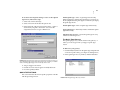
Browse—This option is available in both the Setup Wizard
and the Action Properties dialog. As soon as you click the
Browse button, the QuicKeys Editor disappears and a
recording palette appears. Select the menu item you want
to use for this Action. The QuicKeys Editor reappears with
the name of the menu item you selected displayed in the
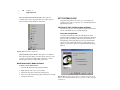
Menu Item field. To cancel the Browse option, press the X
button on the recording palette.
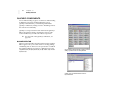
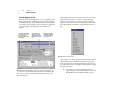
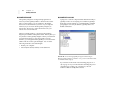
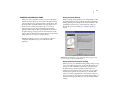
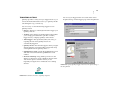
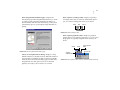
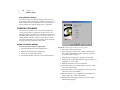
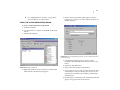
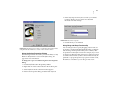
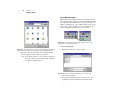
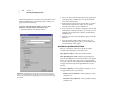
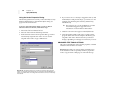
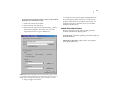
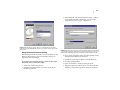
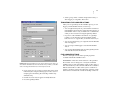
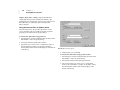
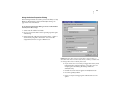
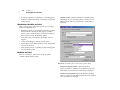
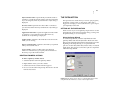
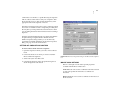
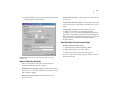
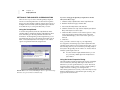
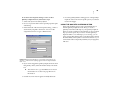
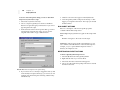
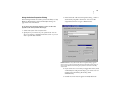
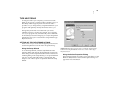
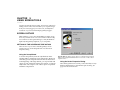
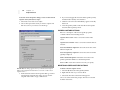
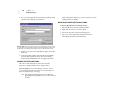
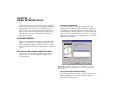
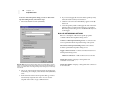
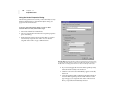
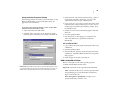
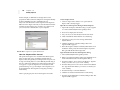
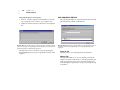
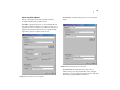
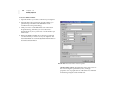
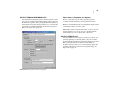
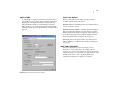
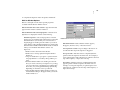
FIGURE 118: The Select Menu Action Properties dialog appears when
you choose the Select Menu Action from the Create menu, or when you
double-click an existing Select Menu Action in the My Actions tab.
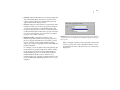
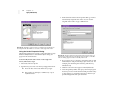
4. If you want to choose a hot key to trigger this Action, click
on the Hot key box and press the key(s) you want to use. For
example, press the Shift key and the F3 key simultaneously.
5. Click OK. Your new Action appears in the My Actions tab.
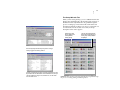
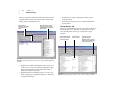
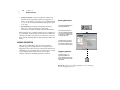
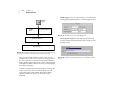
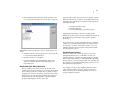
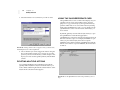
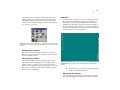
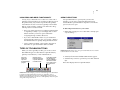
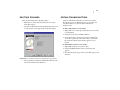
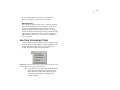
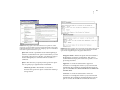
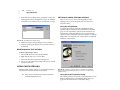
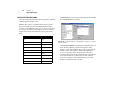
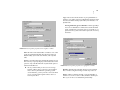
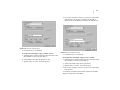
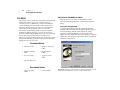
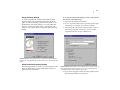
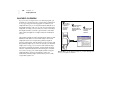
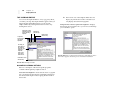
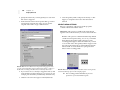
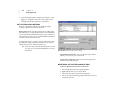
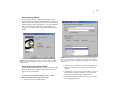
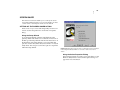
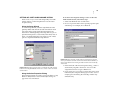
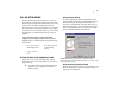
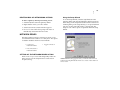
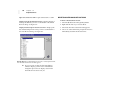
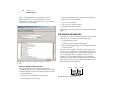
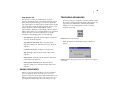
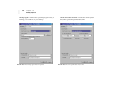
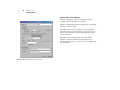
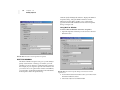
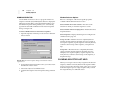
FIGURE 119: In this illustration, the Select Menu Action is being used to
select the Word Wrap option in the Notepad program.
❖
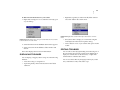
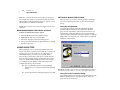
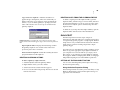
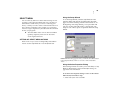
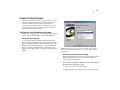
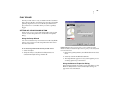
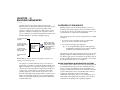
The recording palette remembers its previous
position on your screen when it opens.