1
••••
8
Chapter 2
Installing and Starting QuicKeys
HOW TO USE YOUR NEW ACTIONS
You can trigger the Actions created by the QuickStart Wizard
by:
• Selecting the hot key you assigned to your new Actions.
• Selecting an Action from the QuicKeys menu.
Each of these methods is discussed in “Triggering Actions” on
page 25, but this section provides instructions for using the
QuickReference Card to trigger your Actions.
USING THE QUICKREFERENCE CARD
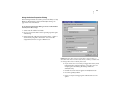
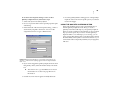
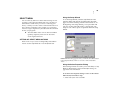
To trigger your new Actions using the QuickReference
Card:
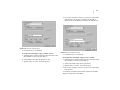
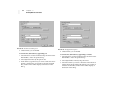
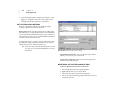
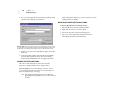
1. Click the close box to close the QuicKeys Editor.
2. If you chose to print the QuickReference Card, refer to
your printout right now and select one of the hot keys
listed on it. Your computer should complete the Action
described in the Action column of your printed
QuickReference card.
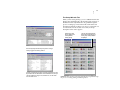
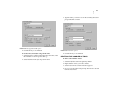
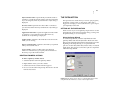
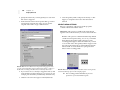
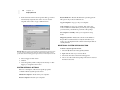
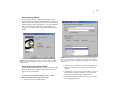
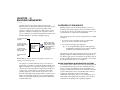
•If you chose not to print the QuickReference Card, press
Shift+Control+Space to display the QuickReference Card on
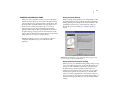
your screen. Click one of the Actions listed in the QuickReference Card to trigger it. See page 34 for more information on the QuickReference Card.
MORE ABOUT THE QUICKSTART WIZARD
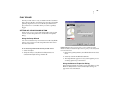
Below are some quick facts about the QuickStart Wizard you
just completed.
• The QuickStart Wizard only displays when there are no
Actions created or when you select Run QuickStart Wizard from
the Help menu.
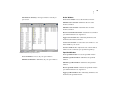
• If you want to edit an Action you created in the QuickStart
Wizard, double-click the Action in the My Actions tab of the
QuicKeys Editor.
• By default, all Actions created with the QuickStart Wizard
are universal in scope. This means that you can use the
Actions in any of the programs you have open. See page 22
for more information on Action Scope.
• The list of programs presented to you in the QuickStart
Wizard is populated by the programs available in your Start
menu. If you want to open a program that is not listed, see
page 87 for information on the Open Action.
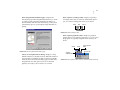
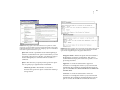
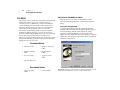
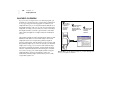
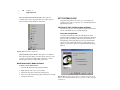
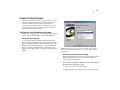
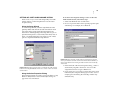
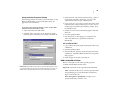
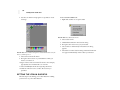
• By default, all Actions created with the QuickStart Wizard
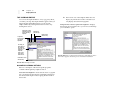
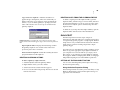
are listed in the My Actions tab of the QuicKeys Editor and in
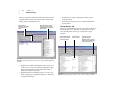
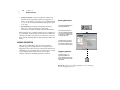
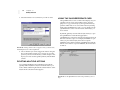
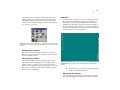
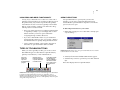
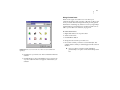
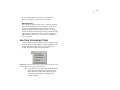
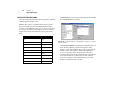
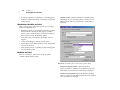
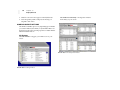
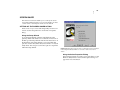
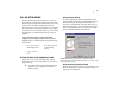
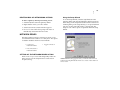
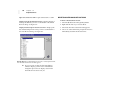
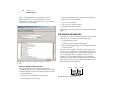
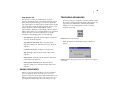
the QuicKeys menu. See Figure 1 for an illustration of the
QuicKeys menu.
• If you want to trigger your Actions with hot keys rather
than selecting them from the QuicKeys menu, refer to the
printed QuickReference Card for a list of the hot keys
automatically assigned to the Actions. See page 34 for
more information on the QuickReference Card.
• You can type up to 10 KB (more than 10,000 characters) of
text when you set up the Type Text Action with the
QuickStart Wizard.
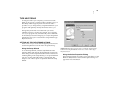
• The QuickStart Wizard creates a Dockable toolbar that
displays QuicKeys Action Menu buttons.
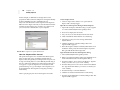
STARTING QUICKEYS
Since the QuickStart Wizard only appears when there are not
any QuicKeys Actions created, it’s likely that the only time
you will see the QuickStart Wizard is immediately after
installation. When QuicKeys is started again after completing
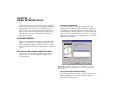
the QuickStart Wizard, you see the QuicKeys Editor. To learn
more about the QuicKeys Editor, see page 12. To learn how to
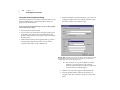
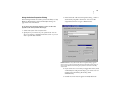
start QuicKeys without the assistance of a wizard, use the
following instructions: