1
Store and Share your Digital Creations
(SSD not included)
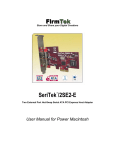
SeriTek /i6G
™
Bootable, Two Port Internal Serial ATA 6G,
PCI-Express 2.0 Host Adapter
Macintosh User Manual
FirmTek, LLC
www.firmtek.com
Copyright
Copyright © 1999-2015 FirmTek, LLC. All rights reserved. No part of this manual may be
reproduced, translated by any means, photocopied, or transmitted in any form without the prior
written permission of FirmTek.
Trademarks
FirmTek, UltraTek, AV-Tek, SeriTek names and logotypes are trademarks of FirmTek, LLC.
Apple, Macintosh, Mac OS, OS X, and the Mac logo are registered trademarks of Apple
Computer, Incorporated. The "Built for OS X" graphic is a registered trademark of Apple
Computer, Incorporated, and used under license. All other manufacturer product names
mentioned in this manual are for identification purposes only and are trademarks or registered
trademarks of their respective owners.
Changes
FirmTek reserves the right to make changes to product design, specifications, or details without
notice. Actual product photos or screenshots may look different from those provided.
Notice
The material content of this manual is for informational purposes only. It is possible the content
of this manual may contain technical inaccuracies, typographical, or other errors. FirmTek
assumes no liability for any errors, omissions, or from the use of this manual that may result from
such errors, including, but not limited to loss of data or profits.
Before installing the SeriTek/i6G or any other hardware or software, you are responsible for
backing up data contained on any storage devices. After hardware or software installation, you
are responsible for backing up data on any storage devices at frequent intervals. FirmTek, LLC is
not liable for any loss of data or damage to equipment resulting from the use of the SeriTek/i6G
host adapter.
TABLE OF CONTENTS
I.
Introduction.............................................................................................. 4
II.
Installing the SeriTek/i6G...........................................................................8
III. Troubleshooting
………...……………………………………………… 16
IV. Product Support...................................................................................... 17
V. Product Warranty and Disclaimers ................................................. 18
VI. Regulatory Compliance Statements............................................... 18
Addendum - Quick Start Internal Drive Install Guide............................. 19
I. Introduction
Welcome
Congratulations and thank you for purchasing the SeriTek/i6G Serial ATA host adapter. This
product is another innovative solution made possible by the creative engineers at FirmTek.
About This Manual
This user manual was written with the assumption you are familiar with the Macintosh computer,
and are comfortable with opening its case. For further information, and to get acquainted with
your computer, please refer to your Macintosh user manual.
About Serial ATA Technology
An evolutionary replacement for Parallel ATA, Serial ATA (Advanced Technology Architecture)
provides an interface that allows computer users to connect additional hard disks and peripherals.
Serial ATA offers insulated cables that are thinner and longer with smaller 7-pin connectors which
results in easier installation and improved airflow, compared to wider and shorter Parallel ATA
cables. Improved airflow translates into a cooler operating environment for the Macintosh and
hard disks.
About the SeriTek/i6G Serial ATA Host Adapter
The SeriTek/i6G host adapter extends Serial ATA's 6.0 Gbit/sec performance to SSD and 2.5”
HDD without the need for an external enclosure. Drives are mounted directly on the SeriTek/i6G,
enabling users with PCI-Express compatible Macintosh computers to take advantage of the latest
hi-speed SSD storage internally or install the card in an external Thunderbolt chassis for use with
a Thunderbolt compatible computer.
With two internal 6G Serial ATA ports built right on the card and PCI-Express connectivity, the
SeriTek/i6G host adapter provides the high bandwidth necessary to meet the needs of
performance-hungry applications.
4
Package Contents
•
•
•
SeriTek/i6G Serial ATA host adaptor
Six 2.5” SSD/HDD mounting screws
CD-ROM Containing Macintosh User Manual
Key Features and Benefits
•
•
•
•
•
•
•
•
•
•
•
•
•
•
•
•
•
•
Two high performance 2.5” internal SATA mounting connections on the PCIe card
Bootable with Mac OS X 10.6.x thru 10.10.x.
Thunderbolt aware for use with Thunderbolt PCIe Expansion Chassis or in a PCIe slot
Boosts overall performance, per-port data transfer burst rates up to 600 MBytes/sec or 6Gbits/sec
Compatible with Apple Mac Pro and Windows 7/8 PCI-Express 4x equipped computers
PCI-Express Base 2.0 specification compliant and SATA 6Gb/s Compliant
Supports PCIe communication speeds of 5.0Gbps and 2.5Gbps
Includes 32 and 64-bit support for Intel-based Mac Pro models
Native SATA 6G SSD and HDD support: Backward compatible with 3G and 1.5 Gbps devices
Supports Apple Disk Utility RAID and JBOD drive configurations
Complete CRC error checking for all bits transmitted, offers enhanced data protection
Bus Mastering off-loads data I/O handling from CPU
Supports Native Command Queing (NCQ)
User-upgradeable firmware
Perfect for upgrading and expanding Macintosh computers by leveraging the power of PCI-Express
Host interface with internal SSD 6G SATA connectivity
Bus master operation enhances multitasking during disk transfers and increases CPU efficiency: The
CPU is free to handle other tasks during data transfers between the PCI-Express Bus and system
Ideal for multimedia-intensive applications: audio/video capture and editing, and graphics
manipulation/publishing
Ideal for a variety of applications: Desktop publishing, Audio/Video storage and editing, photo storage
and editing, servers, and gaming
5
Specifications
Hardware
Requirements
Operating Systems
Supported
Bus Type
External & Internal
Connectors
Drive Types
Supported
Data Transfer
Rates
Drive Modes
Supported
Advanced Data
Features
Onboard Flash
ROM
Warranty
Physical
Dimensions
Power
Requirements
Environmental
EMC Compliance
• PCI-Express based Macintosh or PC with available
PCI-Express 4x expansion slot
• Supports Thunderbolt PCIe Expansion Chassis
• Mac OS X version 10.6.x or later
• Windows 7/8 32 or 64-bit
• PCI-Express 2x - Compatible with 4x, 8x, 16x slots
• Serial ATA 6G interface supports up to two 2.5”
drives mounted on the PCIe card
• SATA 6G SSD and HDD devices, backward
compatible with SATA 3G, 1.5G drives. Internal PCIe
mounting supports 2.5” HDD or SSD
• Up to 600 MBytes/second or 6.0 Gbits/second burst
data transfer rate per channel
• SATA with or without Native Command Queuing
Bootable with Mac OS X 10.6.x or later
Ultra High Performance SATA 6G design
Fully compliant with SATA Revision 3.0 specification
Bus Mastering off-loads data I/O handling from CPU
CRC error checking, for all bits transmitted
(command, data, and status), offers enhanced data
protection for high-speed Serial ATA drives
• Two independent data channels allows for separate
device timings
• Automatically identifies and configures drive types
•
•
•
•
•
• Allows easy upgrades to the latest firmware
• One year limited parts & labor
• 160mm(L) x 7mm(W) x 110mm(H) (not including
bracket or internal 2.5” SSD/HDD)
• 5V ± 5%
• Temperature:
Operating: +5°C to +55°C
Non-Operating: -25°C to +70°C
• Relative humidity:
Operating: 20% to 80%
Non-Operating: 15% to 90%
• EN55022/1998, EN55024/1998 (European
Community)
• FCC Part 15 Class B (US)
6
System Requirements
Operating System
•
•
Macintosh OS X version 10.6.x or later
Windows 7 or 8, 32 or 64-bit
Hardware Requirements
•
•
PCI-Express based Macintosh with available PCI-Express 4x expansion slot or a
Thunderbolt PCIe Expansion Chassis
Internal 2.5” SSD/HDD
Materials Required
•
Standard medium-sized Phillips screwdriver may be required if computer does not have a
PCI bracket with captive screws
SSD not included with SeriTek/i6G
7
Installing the SeriTek/i6G
Caution:
Prior to installing the SeriTek/i6G host adapter and hard drive(s) or peripheral(s), please
make sure your data is backed up.
The SeriTek/i6G host adapter and your Macintosh contain sensitive components that can be
permanently damaged by Static Electric Discharge. Be sure you’re working in an area free of
static electricity to prevent them from being damaged. Use a wrist grounding strap if you
have one or regularly touch a metal part of the computer chassis such as the power supply
case or a port access cover to discharge any built-up static electricity from your body. Make
sure to handle the SeriTek/i6G host adapter by its bracket or around its edges to avoid
damage to the card by static electricity.
Introduction
This section describes the proper method of installing the SeriTek/i6G.
Internal 2.5” SSD/HDD Installation:
Up to two 2.5” SATA SSD or HDD drives can be attached to the SeriTek/i6G card. To mount
drives on the SeriTek/i6G, please do the following:
1. Place a rubber spacer on top of each gold plated screw hole between the card and drive.
2. Slide the 2.5” HDD or SSD onto the SATA mounting bracket.
3. Secure each drive using three mounting screws per drive.
SeriTek PCI-Express Host Adapter Installation:
1. Properly shut down your computer and disconnect the AC power cord.
2. Open the side panel. On some models, the user may need to unscrew the captive
screws in the PCI bracket to access the PCI-Express slots. Please refer to your
computer user manual for more information about gaining access to PCI-Express slots.
3. Choose an empty 4x or higher PCI-Express slot for installing the SeriTek/i6G.
4. Remove the PCI slot screw or the PCI Bracket.
5. Remove the SeriTek/i6G from its protective packaging. Make sure to hold the card by its
bracket or around its edges to avoid touching components on the board that might be
damaged by static electricity.
6. Position the PCI-Express card bracket by facing it towards the rear of the computer.
Align the gold connectors of the SeriTek/i6G over the PCI-Express slot and gently press it
into the PCI-Express slot until the card is firmly seated. If the card is properly seated, the
upper ear of the PCI-Express card bracket should line up with the top of the PCI bracket
mounting location.
7. Secure the card with the PCI screw or the PCI bracket (See Figure 1). Close your
Macintosh computer case and re-attach the AC power cord.
Thunderbolt PCI-Express Expansion Chassis Installation
If you will be installing the SeriTek/i6G in a Thunderbolt Expansion Chassis please follow the
installation instructions provided with the Chassis. If you will install the SeriTek/i6G in the
ThunderTek/PX please see the Troubleshooting section of this manual on page 19.
8
Figure 1: Inserting and securing the SeriTek/i6G in a Computer
The SeriTek/i6G host adapter is now installed. Once the FirmTek driver is installed and the
computer is restarted, the SeriTek/i6G will be recognized by Mac OS X.
Formatting Serial ATA Drives Using Macintosh OS X Version 10.6.x or Later
Turn on your Macintosh computer.
1. Open Apple’s Disk Utility which is located in the Utilities folder of the Macintosh OS X
start-up volume.
To open Disk Utility:
a) From the Finder, click on the Go menu
b) Pull down to Utilities and release the mouse button
c) Double click the Disk Utility Application (See Figure 5)
Figure 5: Locating Apple’s Disk Utility
9
2. Review the list of hard disks shown in Disk Utility (see Figure 6). Drives that have been
formatted should have a volume name below their listing. New, unformatted disks
typically have no volume name. Carefully select the hard disk you wish to format.
Figure 6: Example hard drive listing
3. After carefully selecting the drive you wish to format, select the Erase tab in Apple’s Disk
Utility (see Figure 7).
Figure 7: Selecting the Erase tab in Apple’s Disk Utility
10
4. For Volume Format, the default choice is “Mac OS Extended (Journaled).”
5. In the Name field, users can type a name for the new hard disk.
6. If the selected SATA hard disk or Solid State Drive (SSD) has data on it, be sure to back
up any important data before clicking the Erase button. Once the Erase button is pushed
the selected device will be formatted for use with Mac OS X. Any previous data on the
disk will no longer be available.
7. Click the Erase button to format the hard drive.
8. Once the hard drive is initialized, it will be displayed as an icon on the Mac OS X desktop.
11
Creating a RAID Volume
(Macintosh OS X version 10.6.x or Later)
Mac OS X 10.6.x or later Disk Utility RAID (Redundant Array of Independent Drives) options
allow the user to display multiple disks as a single volume. A RAID 1 mirror can provide data
redundancy in the case of a hard disk hardware failure. A RAID 0 striped RAID set, can
increase performance and volume size by striping multiple disks into a single. Both methods
are described below.
Mirrored RAID Set - Apple Disk Utility can be used to create a mirror. This is also known as
a RAID 1 configuration. The hard disks should be the same size and model for optimal
performance. Data written to a mirror volume is archived onto two separate duplicate hard
disks. The mirror configuration provides redundancy that will usually protect data should a
single hard disk fail. A mirror cannot protect against the user accidentally trashing an
important file. In addition, if the mirror hard disk directory becomes corrupted, the corruption
will be copied to all hard disks in the mirror configuration. As a result, a backup copy should
always be maintained of any important data on the mirror. RAID 1 mirror performance equals
the performance of the slowest hard disk in the mirror set. The RAID 1 mirror volume size
equals the size of the smallest member disk. All data on hard disks used to create a new
Disk Utility based mirror will be destroyed when the mirror is created.
Striped RAID Set - Apple Disk Utility can also be used to create a stripped RAID set. This is
also known as a RAID 0 configuration. The hard disks should be the same size and model
for optimal performance. Data is spread (striped) equally across multiple hard disks for
increased performance. A stripped RAID set provides no data redundancy. As a result,
should one hard disk fail all data stored on the RAID 0 volume is lost. While a stripped RAID
set provides excellent performance, a back up is required to protect important data. RAID 0
direct connect performance usually equals the performance of the slowest hard disk in the
RAID 0 x the number of hard disks used. The RAID 0 volume size equals the size of the
smallest member disk x the number of disks in the RAID 0. All data on all hard disks used to
create a striped RAID set will be destroyed when the RAID 0 is created with Disk Utility.
Step by step instructions
1. Turn on your computer.
2. Open Apple Disk Utility, which is located in the Utilities folder of the Mac OS X start-up
volume.
To open Disk Utility please do the following:
a) From the Finder, click on the Go menu
b) Pull down to Utilities and release the mouse button
c) Double click the Disk Utility Application
3. Review the list of hard disks show within Disk Utility. Hard disks that have been formatted
should have a volume name below their listing. New, unformatted disks typically have no
volume name. Carefully select the hard disk you wish to format.
4. Select the RAID tab in Apple’s Disk Utility (see Figure 8)
12
Figure 8: Selecting the RAID tab in Apple’s Disk Utility
5. Carefully select and drag a hard drive to add it as a member of the new RAID volume in
the Disk Utility status window (Figure 9).
Figure 9: Example drives and options for a RAID volume;
Drag and Drop Drives into the RAID Set Window
6. Repeat step 5 for each member for the RAID volume.
7. Choose a RAID Scheme: Stripe or Mirror.
8. Name the new RAID volume.
9. For Volume Format, the default choice is “Mac OS Extended (Journaled)”. Note: Mac OS
X 10.6.x users and later can select the RAID block size. For enhanced performance with
large file sizes push the option button and select a RAID block size of 64K or 128K.
13
Figure 10: Selecting a RAID Block Size
10. After reviewing the options selected, click on the Create button to initialize the new RAID
volume (see Figure 11).
Figure 11: Creating a new RAID volume
11. After the RAID volume is successfully initialized, it should appear on the desktop.
14
SeriTek Card Mounted Inside ThunderTek/PX
15
III. Troubleshooting
• Installing SeriTek/i6G in ThunderTek/PX
The SeriTek/i6G can be installed in the ThunderTek/PX by following the instructions found
on page 9-11 of the PX manual. Support posts are not required or included for
ThunderTek/PX-i6G.
• The SeriTek/i6G host adapter is not recognized
Check the SeriTek/i6G adapter by ensuring it is properly seated in the PCI-Express slot on
the motherboard. Verify the correct driver is installed and the OS is supported.
• My hard disk won’t mount
Check connections. Ensure the card is properly seated and the drive(s) are properly
mounted on the card.
Apple System Profiler
1. Open Apple System Profiler by clicking “About this Mac”, in the Finder while holding the
option key, click on “System Information”. Apple System Profiler will now open. Select
PCI Cards. Under PCI Cards section, pci1b21,625 should be shown. This is the
SeriTek/i6G card.
2.
If pci1b21,625 is not listed, re-seat the card in the PCI-Express slot by removing and
reinserting it and then restart the Mac Pro.
• Transfer rate seems less than SATA 6G specified max. of 600 Mbytes/sec.
The 600 Megabyte/Sec speed is the theoretical limit. It is usually higher than the speed
provided by a single SATA or SSD hard disk. A high performance 6G SSD will more
accurately display the available bandwidth provided by the SeriTek/i6G.
• Does the SeriTek/i6G work with all Mac and PC computers?
No, SeriTek/i6G only works with desktop computers with at least one 4x or higher PCIExpress slot available and Mac OS X 10.6 and above or Windows 7 or later. If your system
lacks PCI-Express slots, a PCIe expansion chassis can be used with the SeriTek/i6G and
Thunderbolt enabled computers.
• Does the SeriTek/i6G work with Boot Camp?
Yes, Windows 7/8 are supported with direct connect enclosures like the miniSwap/ES. The
SeriTek/i6G provides additional storage for your Boot Camp configuration. Booting
Windows 7/8 is unsupported whether the card is used in a PCIe slot or with a Thunderbolt
Expansion chassis.
• Mac OS X Boot drive on the SeriTek/i6G will not boot
The SeriTek/i6G is bootable with Mac OS X 10.6.x or later. The Mac OS X installer can be
used to create a boot drive. To create a multi-drive Bootable RAID, please use CarbonCopy
Cloner to clone the internal Boot drive to the target boot volume on the SeriTek/i6G. The
Apple Recovery Partition is not supported with RAID volumes.
16
IV. Product Support
Technical Support
For additional information on how to use SeriTek/i6G, download the latest firmware updates, or
for technical assistance, please visit us at www.firmtek.com, or email us at
[email protected].
Please provide the following information when contacting us:
• Product model and serial number
• Firmware version (You may use the Apple System Profiler as described in the
troubleshooting section to determine the firmware version. Look for ROM # and Revision #)
• Macintosh model
• Macintosh OS type and version (example: Mac OS X, version 10.5.8)
• Hardware and software installed on your system
• Contact information including daytime telephone number and email address
• A detailed description of the question or problem
Return Merchandise Authorization
If FirmTek technical support determines the product needs to be repaired or replaced, a Return
Merchandise Authorization (RMA) number and shipping address will be provided. Please pack
the SeriTek/i6G in the original shipping container along with all of the original packaging including the static bag, all hardware, software, cables, and other accessories that came with the
original product. You are responsible for shipping and insurance costs, and any damage incurred
due to improper packaging or transport.
FirmTek reserves the right to determine whether the product will be repaired or replaced with new
or refurbished parts, or with a new or refurbished product. Standard United States return
shipping charges will be paid by FirmTek. Foreign and other shipping methods such as express
shipping are available for an additional charge.
Write the RMA number on the outside of the shipping container, and include the following
information with the shipment:
• A description of the problem
• A copy of the original purchase invoice
• Return shipping address
• Contact information including daytime telephone number and email address
FirmTek, LLC reserves the right to refuse shipments missing a valid RMA number.
17
V. Product Warranty and Disclaimers
FirmTek warrants to the original buyer only that this product shall be free from defects in material
and workmanship for a period of one year from the original date of purchase. This warranty is
valid only when the original purchase invoice is provided. This warranty shall not apply to any
defects resulting from improper handling, misuse, misapplication, abuse, or unauthorized
modification(s) which are performed by end user.
FirmTek, LLC reserves the right to make changes to any products described in this manual at any
time without notice. FirmTek, LLC assumes no responsibility for the use or reliability of hardware
or software that is not supplied by FirmTek, LLC or its affiliated companies. FirmTek, LLC does
not assume any responsibility or liability arising out of the application or use of any product
described in this document, except as expressly agreed to in writing by FirmTek, LLC; nor does
the purchase or use of a product from FirmTek, LLC convey a license under any patent rights,
copyrights, trademark rights, or any other intellectual property rights of FirmTek, LLC or third
parties.
VI. Regulatory Compliance Statements
Federal Communications Commission Radio Frequency Interference Statement
WARNING: Changes or modifications to this unit not expressly approved by the party responsible for
compliance could void the user’s authority to operate the equipment.
This equipment has been tested and found to comply with the limits for a Class B digital device, pursuant to
Part 15 of the FCC rules. These limits are designed to provide reasonable protection against harmful
interference in a residential installation. This equipment generates, uses, and can radiate radio frequency
energy, and if not installed and used in accordance with the instruction manual, may cause harmful
interference to radio communications. However, there is no guarantee that interference will not occur in a
particular installation. However, if this equipment does cause interference to radio or television equipment
reception, which can be determined by turning the equipment off and on, the user is encouraged to try to
correct the interference by one or more of the following measures:
• Reorient or relocate the receiving antenna.
• Increase the separation between equipment and receiver.
• Connect the equipment to an outlet on a circuit different from that to which the receiver is connected.
• Consult the dealer or an experienced radio/television technician for help.
• Use a shielded and properly grounded I/O cable and power cable to ensure compliance of this unit to the
specified limits of the rules.
This device complies with part 15 of the FCC rules. Operation is subject to the following two conditions: (1)
this device may not cause harmful interference and (2) this device must accept any interference received,
including interference that may cause undesired operation.
CE European Union Compliance Statement
EMC compliance:
Emissions:
EN55022: 1998, Class B
Immunity:
EN55024: 1998
EN61000-4-2: 1995+A1: 1998
EN61000-4-3: 1995+A1: 1998
EN61000-4-4: 1995
EN61000-4-6: 1996
EN61000-4-8: 1993
SeriTek/i6G TSLKC2K151119
18
Quick Start - Install Internal Drive on SeriTek/i6G
Package Contents
SeriTek/i6G
6 Circle Spacer
6 Mounting Screws
Install 2.5" SSD/HDD on the SeriTek/i6G
Caution:
Prior to installing the SeriTek/i6G host adapter and hard drive(s) or peripheral(s), please
make sure your data is backed up.
The SeriTek/i6G host adapter and your Macintosh contain sensitive components that can be
permanently damaged by Static Electric Discharge. Be sure you’re working in an area free of
static electricity to prevent them from being damaged. Use a wrist grounding strap if you
have one or regularly touch a metal part of the computer chassis such as the power supply
case or a port access cover to discharge any built-up static electricity from your body. Make
sure to handle the SeriTek/i6G host adapter by its bracket or around its edges to avoid
damage to the card by static electricity.
1. Place 3 Circle Spacers on top the Golden Plated Circle of the SeriTek/i6G adapter as shown.
2. Slide the 2.5" SATA SSD/HDD on top the
spacers and connect drive to the
SATA/Power connector as shown.
3. Turn the SeriTek/i6G over, and
secure the drive mounting screws.
4. Repeat step 1, through 3 for the
2nd drive.
19