1
Installing the SeriTek/i6G
Caution:
Prior to installing the SeriTek/i6G host adapter and hard drive(s) or peripheral(s), please
make sure your data is backed up.
The SeriTek/i6G host adapter and your Macintosh contain sensitive components that can be
permanently damaged by Static Electric Discharge. Be sure you’re working in an area free of
static electricity to prevent them from being damaged. Use a wrist grounding strap if you
have one or regularly touch a metal part of the computer chassis such as the power supply
case or a port access cover to discharge any built-up static electricity from your body. Make
sure to handle the SeriTek/i6G host adapter by its bracket or around its edges to avoid
damage to the card by static electricity.
Introduction
This section describes the proper method of installing the SeriTek/i6G.
Internal 2.5” SSD/HDD Installation:
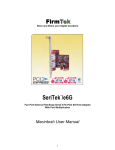
Up to two 2.5” SATA SSD or HDD drives can be attached to the SeriTek/i6G card. To mount
drives on the SeriTek/i6G, please do the following:
1. Place a rubber spacer on top of each gold plated screw hole between the card and drive.
2. Slide the 2.5” HDD or SSD onto the SATA mounting bracket.
3. Secure each drive using three mounting screws per drive.
SeriTek PCI-Express Host Adapter Installation:
1. Properly shut down your computer and disconnect the AC power cord.
2. Open the side panel. On some models, the user may need to unscrew the captive
screws in the PCI bracket to access the PCI-Express slots. Please refer to your
computer user manual for more information about gaining access to PCI-Express slots.
3. Choose an empty 4x or higher PCI-Express slot for installing the SeriTek/i6G.
4. Remove the PCI slot screw or the PCI Bracket.
5. Remove the SeriTek/i6G from its protective packaging. Make sure to hold the card by its
bracket or around its edges to avoid touching components on the board that might be
damaged by static electricity.
6. Position the PCI-Express card bracket by facing it towards the rear of the computer.
Align the gold connectors of the SeriTek/i6G over the PCI-Express slot and gently press it
into the PCI-Express slot until the card is firmly seated. If the card is properly seated, the
upper ear of the PCI-Express card bracket should line up with the top of the PCI bracket
mounting location.
7. Secure the card with the PCI screw or the PCI bracket (See Figure 1). Close your
Macintosh computer case and re-attach the AC power cord.
Thunderbolt PCI-Express Expansion Chassis Installation
If you will be installing the SeriTek/i6G in a Thunderbolt Expansion Chassis please follow the
installation instructions provided with the Chassis. If you will install the SeriTek/i6G in the
ThunderTek/PX please see the Troubleshooting section of this manual on page 19.
8