1
Getting Started
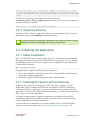
same application can be compiled for multiple GPU architectures. Use the -gencode
compilation option to dictacte which GPU architecture to compile for. The option can be
specified multiple times.
For instance, to compile an application for a GPU with compute capability 3.0, add the
following flag to the compilation command:
-gencode arch=compute_30,code=sm_30
To compile PTX code for any future architecture past the compute capability 3.5, add the
following flag to the compilation command:
-gencode arch=compute_35,code=compute_35
For additional information, please consult the compiler documentation at http://
docs.nvidia.com/cuda/cuda-compiler-driver-nvcc/index.html#extended-notation
3.4. Using the Debugger
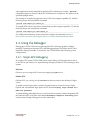
Debugging a CUDA GPU involves pausing that GPU. When the graphics desktop
manager is running on the same GPU, then debugging that GPU freezes the GUI and
makes the desktop unusable. To avoid this, use CUDA-GDB in the following system
configurations:
3.4.1. Single-GPU Debugging
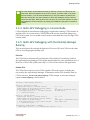
In a single GPU system, CUDA-GDB can be used to debug CUDA applications only if
no X11 server (on Linux) or no Aqua desktop manager (on Mac OS X) is running on that
system.
On Linux
On Linux you can stop the X11 server by stopping the gdm service.
On Mac OS X
On Mac OS X you can log in with >console as the user name in the desktop UI login
screen.
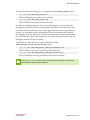
To enable console login option, open the System Prerences->Users & Group->Login
Options tab, set automatic login option to Off, and set Display login window as to
Name and password.
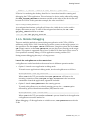
To launch/debug cuda applications in console mode on systems with an integrated GPU
and a discrete GPU, also make sure that the Automatic Graphics Switching option
in the System Settings->Energy Saver tab is unchecked.
www.nvidia.com
CUDA Debugger
DU-05227-042 _v5.5 | 9