1
Vehicle History Operations
Screen Layout
12.1.1 Vehicle History Main Body
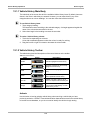
The main body of the screen lists all of the available Vehicle History items. By default, items are
shown in the order in which they are entered. However, you can resort them by any of the
categories shown as column headings. You can also resize the individual columns.
z
To sort Vehicle History items:
1. Tap a category heading.
The listed items resort according to the selected category. A triangle appears alongside the
name of the column that was used for the sort.
2. Select the triangle in the heading to reverse the sort order.
z
To resize a Vehicle History column:
1. Touch the line separating two columns.
A line with arrowheads appears to show the column is ready for resizing.
2. Drag the line left or right to increase or decrease the column width.
12.1.2 Vehicle History Toolbar
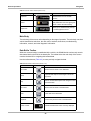
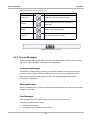
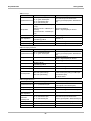
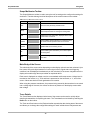
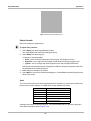
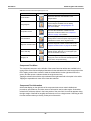
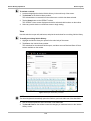
The table below gives brief descriptions of the control buttons on the toolbar:
Table 12-1 Toolbar buttons
Name
Button
Description
Activate
Loads the highlighted vehicle history
View
Opens the worksheet for the currently
highlighted vehicle history
Delete
Erases the currently highlighted vehicle
history
Search
Opens a window that allows you to
locate a particular vehicle history
Show All
Available only after a search, use to
return to a complete Vehicle History list
Settings
Opens a window that allows you
configure which fields display on main
Vehicle History screen
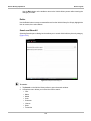
Activate
Use this button to load an existing vehicle history when servicing a vehicle that you have
previously worked on. VERDICT uses the identification characteristics stored in the vehicle history
to load the correct database, so you do not need to identify the vehicle to begin testing.
114
















































![VERUS PRO User Manual [3980kb PDF File] - Snap](http://vs1.manualzilla.com/store/data/005690474_1-9ff68923f14d7698ce72469cabae3990-150x150.png)