1
TABLE OF CONTENTS
1.
PRODUCT DESCRIPTION ................................................................................................1
2.
USING CORPORATE EMAIL ..........................................................................................2
3.
HANDSET REQUIREMENTS ..........................................................................................4
3.1. Handset Memory Requirements .................................................................................4
3.2. BREW and ARM versions supported.........................................................................4
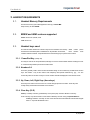
3.3. Handset keys used .....................................................................................................4
4.
APPLICATION SETUP ......................................................................................................6
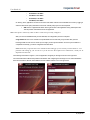
4.1. Setting up Corporate Email on your mobile phone .....................................................6
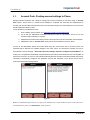
4.2. Account Push: Pushing account settings to Phone .................................................... 15
4.3. Device Security and Policy Settings......................................................................... 16
4.3.1. PIN settings ......................................................................................................... 16
4.3.2. Remote Data Wipe ............................................................................................... 17
5. HOME PAGE ................................................................................................................... 18
5.1. Email [called Inbox for POP/IMAP accounts] ................................................................... 20
5.2. Contacts ............................................................................................................................ 28
5.3. Calendar ............................................................................................................................ 30
5.4. Tasks ................................................................................................................................. 36
5.5. Sync Now.......................................................................................................................... 42
5.6. Corporate Directory ........................................................................................................... 42
5.7. Groups .............................................................................................................................. 43
5.8. Quick Messages ................................................................................................................ 44
5.9. Manage Accounts .............................................................................................................. 45
5.10.
Settings ....................................................................................................................... 50
5.10.1.
Sync Settings .................................................................................................... 50
5.10.2.
Email Filter Settings ......................................................................................... 55
5.10.3.
Contact Settings ............................................................................................... 55
5.10.4.
Out of Office .................................................................................................... 57
5.10.5.
Time Zone ........................................................................................................ 58
5.10.6.
Past Reminder Display Time ............................................................................ 59
5.10.7.
Sync Status ....................................................................................................... 60
5.11.
Turn Sync On/Off ....................................................................................................... 61
5.12.
Help ............................................................................................................................ 62
6
TIPS & TRICKS ............................................................................................................... 63
7
FREQUENTLY ASKED QUESTIONS [FAQ] ................................................................. 64
8
TROUBLESHOOTING .................................................................................................... 67
9
DEVELOPER WEBSITE .................................................................................................. 69
10
DISCLAIMER & COPYRIGHT INFORMATION ........................................................... 70
11
APPENDIX A - Account Push .......................................................................................... 71