1
Installation
I
Installation and Using HR
Installation:
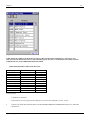
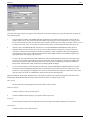
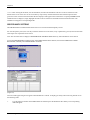
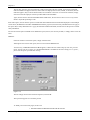
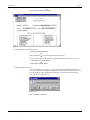
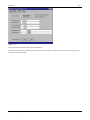
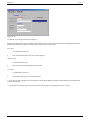
Installation is quick and simple. Insert the Essential*HR CD-ROM in the appropriate drive. Click on
START/RUN and enter the CD-ROM drive letter and type HROBJ1301.EXE or click on the browse
pushbutton and select the file listed. Depending on the drive letter, you should have something similar
to “E:\HROBJ1301.EXE” in the Run dialog box. Click OK and follow the instructions on the screen.
When finished, remove the CD-ROM and store it in a safe place. That’s all there is to it!
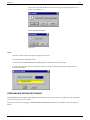
If you want to create a windows shortcut from which to launch HR, do the following:
a. Right click on START and select EXPLORE. The right side of the screen should display
the contents on the “Start Menu.”
b. Click on FILE, on the menu bar, then click on NEW/SHORTCUT.
c. In the first dialog box, for command, enter the path to Essential*HR and the file name
MAINMENU.EXE, i.e. C:\EIDLHR\HROBJ\MAINMENU.EXE.
d. Click NEXT and enter the name you want to use to identify the application then click on
FINISH. Close the EXPLORE window. Now, when you click on START, you should see
the demo listed in the portion of the start menu.
Using HR:
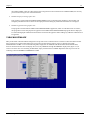
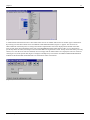
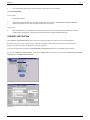
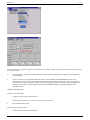
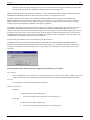
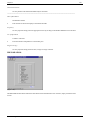
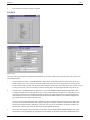
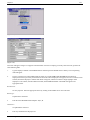
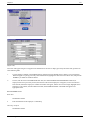
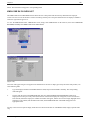
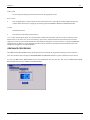
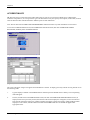
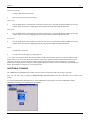
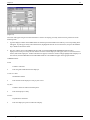
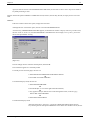
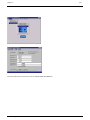
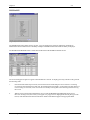
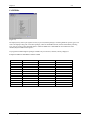
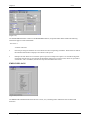
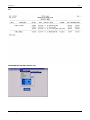
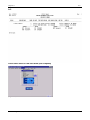
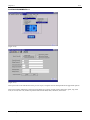
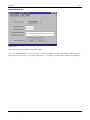
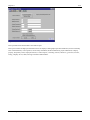
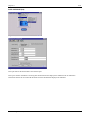
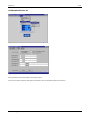
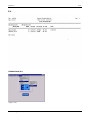
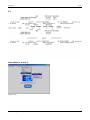
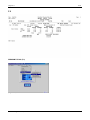
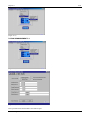
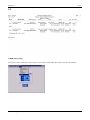
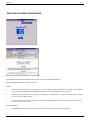
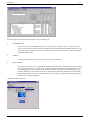
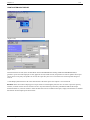
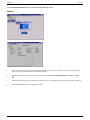
To launch HR, click on START/PROGRAMS and select Essential*HR on the menu. The first thing to
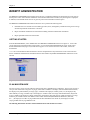
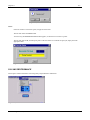
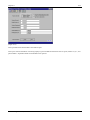
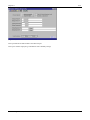
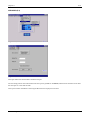
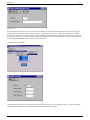
display will be the main menu, then the company selection screen. Enter company number “00” (zero,
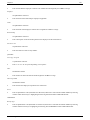
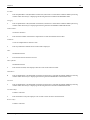
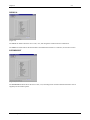
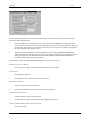
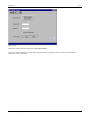
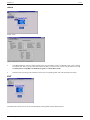
zero) and press the enter key or click on the OK pushbutton. The user logon and password dialog box
will display. Enter any initials and press the enter key or click on the OK pushbutton. A password is
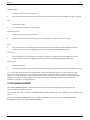
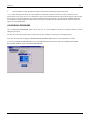
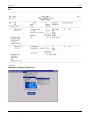
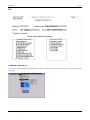
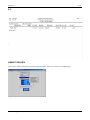
not required. You should now have the main menu displayed with the real-time clock running under
the Essential*HR logo in he center of the menu screen.
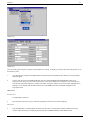
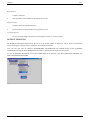
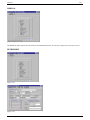
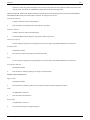
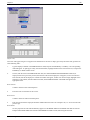
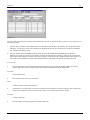
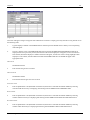
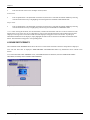
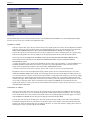
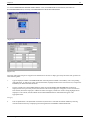
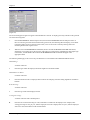
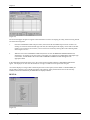
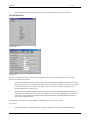
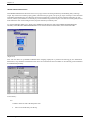
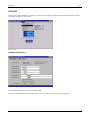
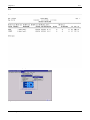
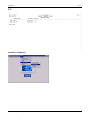
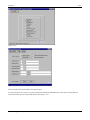
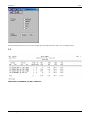
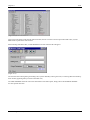
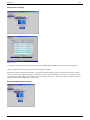
To select an item, click on it with the mouse or press the F10 key to activate the menu bar and traverse
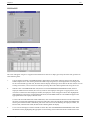
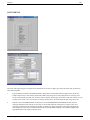
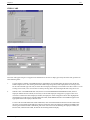
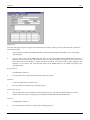
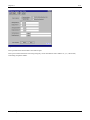
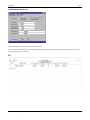
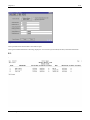
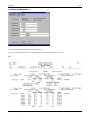
the menus with the arrow keys. The main driving program to HR is the Employee Demographics
function. Employees have to be set up in the demographic file before their other records can be added.
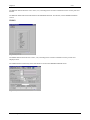
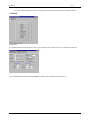
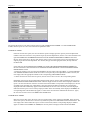
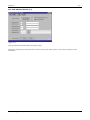
To get there, select Employee/Employee Records/Employee Demographics.
Essential Integrated Data, Ltd.
Essential*HR