1
TEST REPORT
HDTV Satellite Receiver
Master
08-09/2011
Icecrypt S3000HDCCI
Super fast blindscan finds
all channels
of Blind Scan
The term “well rounded”
comes to mind when studying the specifications of
this receiver. Although it
has only one tuner and not
that many interfaces as you
might find in top-of-theline models, all the main
functions and features of a
PVR-type satellite receiver
are there. But how does it
perform? Is it fast enough?
Is its software stable and
are its submenus logically
organized and easy to follow? Will it be good for
family use or is this more
a model for a satellite enthusiast? Our TELE-satellite
test gives clear answers to
these questions and other
ones like that.
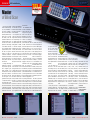
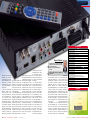
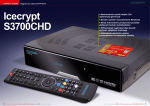
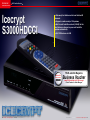
Its elegant black design
pleases the eye. We especially liked the eight-character 14-segment green
display mounted on the
left hand side of the front
panel. Also the labels for
the eight front panel buttons look great. On the
right side of the front panel
is a flap behind which we
can find the USB 2.0 port,
a smart card slot and a CI
slot. The smart card reader
is described in the specifications as compatible with
Conax but it is in fact a uni-
1
versal one. We confirmed in
our tests that it can work
with smart cards of at least
two other CA systems: Viaccess and SECA.
The rear panel has everything you expect from a
single tuner box: LNB input
and looped-through output, digital outputs: HDMI
and optical S/PDIF audio,
analog outputs: 2 x SCART,
6 x RCA with composite,
component video and stereo audio, data interfaces:
Ethernet and RS-232 and
a main power switch. The
USB port is not duplicated
on the rear panel – so when
you connect a memory device you have to keep the
flap open on the front panel.
In our opinion the remote
control unit does not look
as elegant as the box. It’s
a puzzling thing: why does
the design of a remote control often have no resemblance to the design of the
box? That’s a fact for quite
a few A/V devices. It would
be great if you could look
at several remote controls
spread out on a table and
be able to instantly match
the remote control with the
receiver simply by comparing its appearance to that
of the receiver.
The S3000HDCCCI does
not have an installation assistant. Right after powering up the unit, you are
taken to the main menu.
Navigation in the menu is
simple and fast. The menu
consists of six submenus:
Edit Channel, Installation,
System Setup, Tools, Game
and REC. It would help to
have some experience with
satellite TV receivers in order to install the S3000HDCCI properly. We’ll describe this process a little
to assist our less experienced readers.
The first and most obvious step is to set the OSD
language so that you can
understand all the menu
items. By pressing the
down arrow button twice in
the Main Menu, the System
Setup submenu is shown. A
push of the OK button takes
you to the right hand side of
the menu and the Language
submenu is highlighted. After pressing the OK button
again, the content of this
menu is displayed. You can
choose from the following
language options: English,
French, German, Italian,
Spanish, Portuguese, Russian, Turkish, Polish, Ara-
2
18 TELE-satellite — Global Digital TV Magazine — 08-09/2011 — www.TELE-satellite.com
bic, Dutch, Czech, Slovak,
Greek and Hungarian. Not
only can the OSD language
be set here but you can
also select the preferred
audio language (first and
second) as well as the preferred teletext language.
When a new channel is selected, the S3000HDCCI
will always try to connect
to the soundtrack in the
language that was selected
as the first audio. If it’s not
available, it will try to find
the second audio and only if
the second preferred audio
is not available will it connect to the first available
soundtrack of a given channel.
Now that a proper OSD
language has been chosen, the next step would be
setting up the TV system,
which can be found in another submenu in Systems
Setup. If you are using an
HDMI connection and your
TV supports 1080i resolution, we suggest setting
this value as the Video
Resolution in the receiver’s
submenu. We also suggest
leaving the other menu
items in their default settings (Aspect Mode = Auto,
Video Output = YUV, etc.).
You can adjust them later if
necessary.
The next submenu you
should visit is the Local
Time Settings where you
tell the receiver what your
local time is with respect
to Greenwich Mean Time
(UTC). You can also configure the S3000HDCCI to
automatically adjust the
receiver’s time to daylight
savings time if this is in use
in your country.
At this point you’ll want
to match the antenna system connected to the LNB
IN jack to the receiver. This
3
0.4
7
can be taken care of in the
Installation Menu. From the
Antenna Connection menu
you have two options: Fixed
Antenna and Motor Antenna. If it’s a simple installation, you would choose the
Fixed Antenna option. In
the next submenu you can
identify which satellites you
want to receive with your
dish. Depending on the settings in these two menus,
the third menu item – Antenna Setup – gives you an
opportunity to set up your
reception system in more
detail.
The LOF frequencies have
to be chosen from the list
– they cannot be entered
manually.
Fortunately,
there’s no need to worry,
the list is quite extensive.
It contains the following
frequencies: 5150, 5750,
5950, 9750, 10000, 10050,
10450,
10600,
10700,
11250, 11300, 5150-5750,
5750-5150,
Universal
(9750-10550),
Universal
(9750-10600),
Universal
(9750-10700) and Universal
(9750-10750). By default
the most popular choice in
Europe for the Ku-Band is
Universal
(9750-10600).
These settings must match
your LNB LOFs.
Depending on the type
of antenna you have, there
are different DiSEqC op-
tions available. For a fixed
antenna, you can select between DiSEqC 1.0, 1.1 or
no DiSEqC (= direct). If you
have just one LNB and do
not use any DiSEqC switches between your receiver
and the LNB, then ‘no DiSEqC’ is the proper choice.
For a motorized antenna,
you can select either DiSEqC 1.2 or USALS depending on the type of motor
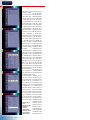
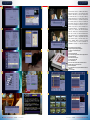
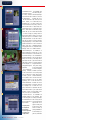
you have. If USALS is se1. Edit Channel
2. Installation submenu
3. System Setup submenu
4. Tools submenu
4
www.TELE-satellite.com — 08-09/2011 —
TELE-satellite — Global Digital TV Magazine
19