1
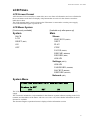
E-Streamer Manual - June 2008 Setting your local IP address to 10.0.0.1 on page 58) To connect to the E-Streamer's web interface, launch your preferred web browser and enter http://10.1.2.3 in the address bar. If your browser returns an error referring to the nonavailability of the server, check that: The E-Streamer has finished booting up and is showing the Main Menu screen on the LCD panel. Both your computer and the E-Streamer are connected to the same Ethernet network. Both your computer and the E-Streamer have IP addresses on the same subnet. Connecting to the E-Streamer on a network with a DHCP server If your Local Area Network already has a DHCP server allocating IP addresses, and you intend to use the E-Streamer on that network: 1. Connect the E-Streamer to the LAN via the Secondary Ethernet port before starting up (or reboot after connecting to the LAN). 2. Get the IP address of the E-Streamer from the Network Menu on the LCD panel (See Network Menu (NET) on page 51) 3. 4. 5. 6. 7. 8. Launch your preferred web browser and enter the E-Streamer's IP address into the address bar. Open the Settings page on E-Streamer's Web Interface On the Network Interfaces panel, either set the Primary Interface to DHCP mode or assign a known vacant subnet address on the LAN subnet. (See Network Interfaces on page 41) Change the E-Streamer's LAN connection to the Primary Ethernet port. Reset the E-Streamer. (See Software Reset on page 39) Get the new IP address of the E-Streamer from the Network Menu on the LCD panel (See Network Menu (NET) on page 51) 9. Launch your preferred web browser and enter the E-Streamer's new IP address into the address bar. 57