1
Freescale Semiconductor, Inc.
4.0
Troubleshooting
Freescale Semiconductor, Inc...
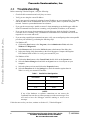
Before contacting Technical Support, verify the following:
•
Check all cable connections and verify they are secure.
•
Verify you are using the correct IP address.
•
Verify your network is running by pinging a known IP address on your command line. Type ping,
and the IP address at the command line. If there is no response, there is a problem with your
network. Contact a system administrator for assistance.
•
If you get the error message “unable to connect” when attempting to run the debugger while the
Suite56 Command Converter Server is running, verify hostname, IP address, or the network.
•
If you get an error screen when attempting to run the debugger while the Suite56 Command
Converter Server is running, verify your hardware connections to the command converter or the
target device are correct and secure.
•
If you are using a parallel port command converter, verify you are configuring to the correct parallel
port from your machine by performing the following steps:
For Windows NT:
a) Click on the Start button, select Programs, select Administrative Tools, and select
Windows NT Diagnostics.
b) In the Resources tab, click on the I/O Port button at the bottom of the dialog box.
c) In the ports listing, check the numbers to the left of the parport. Compare them against
LPT numbers listed in Table 1 to verify your current LPT port.
For Windows 95/98:
a) Click on the Start button, select Control Panel, double click on the Systems icon.
b) Select the Device Manager tab and click on the ports icon to view all ports on your
computer.
c) Select the printer port icon and click on the Properties button.
d) Select the Resources tab. In the Settings box, check the numbers against those in
Table 1 to verify your current LPT number.
Table 1. Parallel Port Configuration
LPT Number
Parallel Port
LPT1
0x378
LPT2
0x278
LPT3
0x3BC
NOTE:
If any of the hardware or software connections are not correct, the
Command Converter Server will not prompt you with error messages. You
will need to have the Debugger software running to receive error
messages.
If this does not resolve your issue, continue to Section 4.2, “Technical Support.”
8
Suite56 Command Converter Server User’s Guide
For More Information On This Product,
Go to: www.freescale.com