1
Key Features
The RTC-P3 has a few key features that greatly dictate its operation. Therefore, please read
this section carefully so that the RTC-P3 works as desired.
Door Type
Choosing the correct “door type” is extremely important in determining when pedestrians will
be counted. There are three different settings for this option: Door Swings Out, Door Swings
In and Count In & Out.
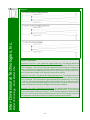
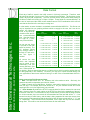
There are two reasons why this option exists. First, the action of the doors of the establishment can interfere with the RTC-P3’s door sensors. Our door sensors are bi-directional.
This means that the door sensors can normally determine if the pedestrian is entering or
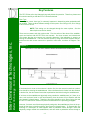
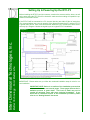
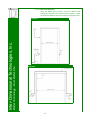
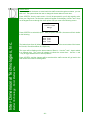
leaving the establishment. The door sensors do this by using two infrared sensors that protrude from the door sensor case and run parallel to each other, as shown in Diagram 1 below.
Diagram 1
Better Technology...For A Better Life
Inter-Dimensional Technologies, Inc.
NOTE: This setting can be changed through the menu options. See the
Menu Options section for details.
If the beam that is closer to the entrance is broken first, the door sensor knows that a pedestrian should be entering the establishment. When the beam that is further from the entrance
is broken first, the door sensor knows that a pedestrian should be leaving the establishment.
If all doors to the establishment physically swing outside the establishment (or if there is no
door, such as those found in mall environments), then the doors will not interfere with the
door sensor’s infrared beams. Therefore, this option should be set to Doors Swing Out and
the RTC-P3 and its door sensors will perform as described in the preceding paragraph.
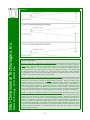
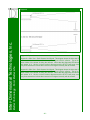
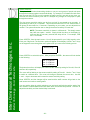
However, if at least one of the doors physically swings into the establishment, there is the potential for that door to interfere with the door sensor’s infrared beams. To illustrate this, the
following is a description of what happens when a pedestrian enters through a door that
physically swings outside the establishment, and then when a pedestrian enters through a
-4-