1
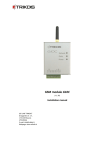
Setting Up Operation Parameters of the Module Module operation parameters are set using the computer program SPconfig which runs on MS Windows OS. You can find the program on the website www.trikdis.lt.
Connecting to a computer using a USB cable 1.
2.
3.
4.
5.
6.
7.
8.
Connect module to the computer using a USB cable. Module does not require additional power supply during the programming. Computer must have a USB driver installed. If the module is connected to a computer for the first time, MS Windows OS should open the window Found New Hardware Wizard for installing USB drivers. Download file USB driver.zip from the website www.trikdis.lt and extract it. In the wizard window select the function Yes, this time only and click Next. After the window Please choose your search and installation options opens click Browse and select the location where the file USB_COM.inf was extracted to. Follow the remaining installation wizard instructions to finish the USB driver installation. Note. Computer has to be connected to the internet network for proper USB driver installation! Start the program SPconfig; Choose the command Settings in the menu bar and select the port to which the module is connected in the Serial port list. Click OK. A specific port appears only once the module is connected to a computer and the USB driver is installed properly. Select the preferred language in the Language option field. Click OK. Choose the command Devices in the menu bar and make sure it is set to SP131/SP133. Default factory settings will be shown in SPconfig windows and the status bar will display information about the module. System is ready for configuration even if in the status bar of program window is indicating Disconnected. For more, see section Setting Up Operation Parameters using SPconfig. When desired parameters and functions are set press Write [F6] and the new configuration will be sent to module SP131. When configuration is finished, turn off the program SPconfig and unplug the USB. Button for writing configuration to the Button for opening TCFG configuration file
module
Button for reading configuration off the module
Button for saving TCFG configuration file
Serial port list. Select the right port to which module is connected
Language option field
Firmware version of the module
Connection state
Open USB port
14