1
3 SETUP
This section covers the settings you will need to make in Live and on the MPK in order to use MPKRx. Please take your
time when completing these steps. If you should run into trouble when performing any of these steps, please refer to the
Troubleshooting section.
3.1 Required Live Settings
The following settings will be found in Live’s Preferences on the MIDI/Sync tab. All of the settings listed here are required
for proper functionality of MPKRx.
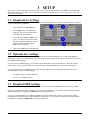
1.
Select MPKRx as a Control Surface.
2.
For the Input, select your MPK’s first
input port. This will typically be named
Akai MPK61 or Akai MPK88.
3.
Select whichever Takeover Mode you’d
prefer. Selecting a Takeover Mode other
than None will prevent jumps in values of
parameters that are controlled by the
MPK’s Faders and Knobs.
4.
Turn on the Track switch for MPKRx Input.
3.2 Optional Live Settings
When using the Required Live Settings, it is not possible for other controllers/MIDI devices to conflict with MPKRx as
MPKRx has a direct line of communication with Live. However, these settings will also prevent you from being able to use
your MPK for MIDI mapping.
In order to allow for MIDI mapping, you will need to turn on the Remote switch for MPKRx Input. When this switch is
turned on, this will open up the potential for conflicts with other controllers/MIDI devices and/or other MPK presets.
To avoid such conflicts, you should ensure that other controllers/MIDI devices and other MPK presets do not use the
following MIDI messages for MIDI mapping:
-
Any MIDI messages on MIDI Channel 16.
-
CC115 – 119 on MIDI Channel 1.
3.3 Required MPK Settings
In order to access the functionality that MPKRx offers, you will need to have the MPKRx preset selected on your MPK.
You will also need to ensure that your MPK is set to use Common Channel 1A. You can make this setting by pressing the
MPK’s Global Button, navigating to CommonCH and selecting CHANNEL 1A.
Lastly, it is recommended that you configure the MPK to not send out MIDI Clock as this uses up unnecessary MIDI
bandwidth and could potentially interfere with MPKRx’s functionality. You can make this setting by pressing the MPK’s
Global Button, navigating to MIDI CLK and selecting EXTERNAL.
MPKRx User Manual
2