1
Using Echo
3
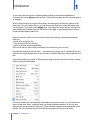
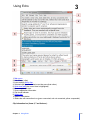
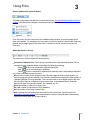
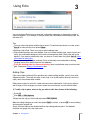
If the item is not checked, click it. Echo should now connect to clipboard, and there should be a
checkmark shown next to the menu command, as in the image above.
You can also click this menu command to temporarily disconnect from clipboard and suspend
capturing clips.
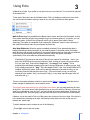
To quickly check if Echo is connected to clipboard, you can also look at the status bar. There is
a small icon in the bottom-left corner. If the icon has a green check mark, Echo is connected
and everything is go. This is the icon you should see whenever you start Echo:
- connected to clipboard and active
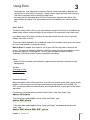
If there is a red marker instead, Echo is not connected to the Windows clipboard, so see the
Troubleshooting section:
- NOT connected to clipboard
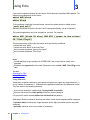
A yellow marker indicates that Echo is connected to the clipboard, but capturing clips is
temporarily suspended (because Echo is performing certain operations during which clips
cannot be captured). You can see this icon for example when editing a clip in-place, since
capturing is not possible then:
- connected to clipboard, capturing clips is SUSPENDED
Two methods of connecting to clipboard
Chapter 3 Using Echo
22