1
Using Echo
3
Shift+Ctrl+C: copy selected clip(s) as text only
Unlike when using the Paste command, Echo does not minimize by default when you use the
Copy feature. If you want Echo to minimize when you copy clips as well, you can enable it in the
Preferences dialog box.
If you find that you use this feature very often, you can alter Echo's behavior in the Preferences
dialog box, so that the default command (Enter or Ctrl+C, without the Shift key) will paste clips
as text only. In that configuration, you need to use the Shift+Enter and Shift+Ctrl+C to paste
clips using all available formats.
Note that you do not need to remember these keyboard combinations and their meanings. You
can always right-click the selected clips and choose the appropriate command from the menu.
Notes on copying and pasting multiple clips
In the Preferences dialog box you can specify how Echo should order multiple clips when you
copy (Ctrl+C) or Paste (Enter) them in the main window. By default, Echo orders clip in straight
chronological order: from oldest to newest, so that oldest clips come first. Depending on how
the list of clips is sorted, it may not be the same order in which clips are currently displayed. If
you prefer, you can change the configuration option so that multiple clips are always copied and
pasted in the same order in which they appear in the list. See Modifying Views for information on
sorting the list of clips.
Searching for Clips
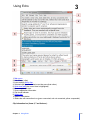
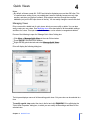
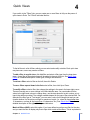
The search functionality is at the very core of Ethervane Echo. In the basic mode, searching for
text instantaneously filters the list, so that only the matching clips are displayed. This is by far
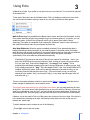
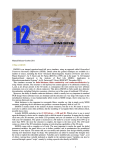
the fastest way to locate a clip. To find a clip, just type some text in the search box at bottom of
the main window:
Echo supports two search modes: Basic and Advanced. In the Basic mode, Echo starts
searching as soon as you start typing, so there is no need to press the Enter key. In the
Advanced mode you type the search phrase, then press Enter. (This is because the Advanced
mode requires a complete search phrase, otherwise no useful search results would be
returned.)
When you start searching, note that the color of the selection bar in the clip list changes from
blue (unfiltered list) to orange (filtered list). This way you can instantly tell whether a search is
active. You can customize the colors in Preferences.
Clicking the blue looking glass icon at the right end of the search box is the same as pressing
Enter to execute the search, and it is usually not necessary, because in the basic mode Echo
To clear the search box, press ESC. The search will be canceled and Echo will display the full,
25
Chapter 3 Using Echo