1
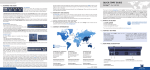
FRONT PANEL DESCRIPTION
SETTING UP THE VERTIGE™ & CONFIGURING THE SHOW
5
6
1
7
1
Configuring the Vertige™
Network
Press the SETTINGS button in
the upper-right corner
Select the NETWORK
EDITOR tab
Select the Ethernet port you
want to use
Enter the desired IP address,
subnet mask and gateway
Press Apply
2
3
4
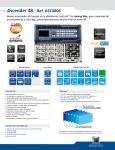
1- Touch screen
The touch screen 15’’6 Wide displays comfortably on
the same page, the representation of the Program
& Preview but also of a typical scene (Blend + 2
satellites). It is important to have the whole scene
represented to work on multiple layers from
different screens at the same time (change of source
of background, for example). It is useful to have both
states Program/Preview shown at the same time as
the LiveCore™ series allows you to change one or the
other at any time (even during an effect).
2- Preset section
This section allows the operator to save/load its
scene presets (10 direct access presets and a page
mechanism to organize them).
3- Layer section
This section enables the operator to select a set of
layers which belong to different screens in order to
edit them simultaneously. Various criteria are used to
perform advanced combinations. It will be possible
to save those combinations for later use.
4- Source section
This section allows assigning sources to the selected
layers in Program or Preview. Twelve contextual
buttons display the name of source. The capability
to change a page allows benefiting from numerous
sources in association with the management of plugs
for the LiveCore™ series.
8
5- Control section
This section enables the operator to select which
preset to work with, and have direct access to
basic functions applied to all selected layers (Clear,
Unify...).
6- Edit section
This section allows the operator to edit the selected
layers in three different ways: roughly by the
joystick, finely by coders or directly by numpad. The
block containing the numpad is contextual and also
provides access to pages of shortcuts, tools, layer
presets (Position, Size, Border, Effect …).
7- Transition section
This section enables to use the T-Bar for transitions.
Sliders can be used like T-Bar (Effects) or like Faders
(Alpha). They are motorized in order to see the
current state of the selection.
8- Control Transition
This section allows giving a specific role to the sliders:
- In FX mode, they allow to individually mix each
screen
- In Alpha mode, where different layers of different
screens can be assigned to a slider, they will allow
to control the layer opacity (transparency).
2
Starting
the Vertige™
Press Start
Creating a User
Select the CREATE option.
Enter a name and
a password (optional)
Press Create
Logging in
Select the LOGIN option
Select a user
Press Login
3
4
Wizard Step 1
In the Device Type field,
Select the type of device you
have. Select a quantity for
this kind of devices.
Adjust each device IP address
to match your network
configuration.
Press Next
Wizard Step 2
Select a quantity of screens wired to your devices. Rename each screen if necessary. If some
of the screens will be used for a blend, adjust their size accordingly. Press CREATE
Note 1: The wizard will automatically create an assembly with its devices and streams, the
screens, the sources and the front panel key bindings.
Note 2: If your event requires creating other devices and screens, use the wizard as many
times as necessary.
Note 3: After using the wizard, you may have to adjust some default settings in the assemblies/screens/sources.
5
Creating a Show
Select the CREATE option
Enter a name
Press Create
Note: Creating a show
will automatically create
a default iteration
Loading a Show
Select the LOAD option
Select a show
Press Load
Configuring an Assembly
Select the ASSEMBLY tab
Select an assembly
Configuring the Internal Rate
Select the CONFIGURE/RATE
option.
Choose the desired mode
(Internal, Follow or Framelock).
Adjust the settings.
Configuring the Inputs
Select the CONFIGURE/
INPUT option.
Press Auto Set All to set up
automatically all the inputs
of the devices.
Configuring the Streams
Select the CONFIGURE/
STREAM option.
Make sure each "Live"
stream matches the correct
input plug.
Configuring the Screen
Mapping
Select the MAP option
Make sure each screen area
is mapped to the correct
device output.
Note: If some mappings
don’t match your wiring,
remove them and create
new ones
Configuring the Soft Edge
blending
Select the BLENDING
option.
Adjust the covering
Adjust the black levels
Adjust the blending curves
6
Loading an Iteration
Select the LOAD option
Select an iteration
Press Load
Configuring a Screen
Select the SCREEN tab
Select a screen
Configuring the Scene
Select the SCENE option.
Press Move left or Move right
to move your screen in the
scene.
7
Configuring a Source
Select the SOURCE tab
Select a source
Renaming the Source
Select the EDIT option
Enter a name
Press Apply
Note: Use a short name with
a maximum of two words to
ensure readability on LCD
buttons.
Configuring the Source key binding
Select the EDIT option
Navigate to an empty key
Press the corresponding button on the touch screen
Press Apply
8
Running the Show
Select the PRESET tab
Enjoy!
9