1
DocumentViewer Manual of Features
Preview Image
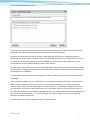
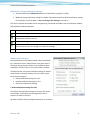
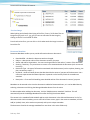
When looking at the Details View listing of the files, if some / all of those files are
image file type (such as .tif, .jpg, .gif) you can see a Preview of that image by
clicking on the file’s icon beside its name.
From that Preview form, you can click on a link underneath the image in order to
launch the file.
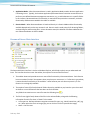
Document Metadata
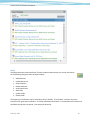
Document Metadata enables you to provide information about a document's:
•
•
•
•
•
•
•
Date Modified - the date the document was last changed.
Subject - a descriptive outline of the document content / purpose.
Author and Author Organization - the name and organization of the author / creator of the document.
Security / Sensitivity - any restrictions on access or use associated with the document (such as Internal
Use Only)
Document Type - the type of information associated with the document (such as a photo, drawing, site
plan, consultancy report...)
Keywords - words and word phrases that best describe the content / purpose of the document. Use a
comma to separate words and word phrases. Keywords are the basis by which the metadata are
searched.
Description - a free text field enabling more detailed outline of the document's content / purpose.
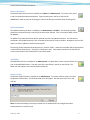
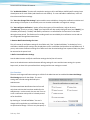
Metadata can be entered at the time the document is added to DocumentViewer, or it can be added later by
selecting a document and clicking the Manage Metadata button from the menu.
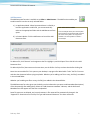
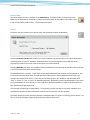
To add metadata when adding the document, click the "Add document metadata" checkbox. This will
automatically launch the Manage Metadata form after the file(s) have been added.
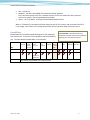
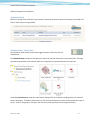
The content in the metadata fields ALWAYS applies to ALL documents in the Selected Documents list. So, for
documents with similar metadata, you can select all of them at once, type in the common metadata, and click
Add (or Update). Next, select each one separately and input its unique metadata.
The documents listed in the manage metadata form are those in the active folder only.
February 2014
14