1
ASPEN Web: ePOC Procedures
Print CMS-2567
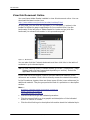
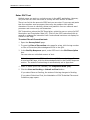
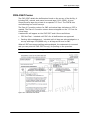
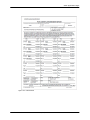
To view/print the CMS-2567, CMS-2567B, or “A” Form
1
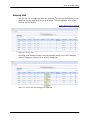
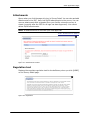
In the Survey List, click the Reports button (printer icon) associated with
the survey.
2
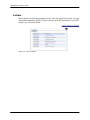
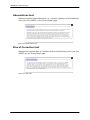
Select 2567, 2567B, or “A” Form.
The available options depend on the survey. For example, 2567B is available
only for revisit surveys with corrected tags.
Note: The only way to view corrected deficiencies is to print the 2567B. If
all deficiencies are corrected, a message tells you no POC is required.
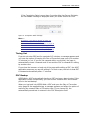
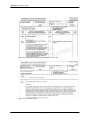
A watermark will appear on the CMS-2567 and A forms as follows:
•
POC Not Final - included until POCs for all deficiencies are approved
•
Pending Acknowledgement - included until all tags are acknowledged on
a survey with tags 0000/9999 only, or all tags are A-level or PNC.
If the survey is closed, there is no watermark.
More ...
Screen: CMS-2567 Forms on page 45
Submit and Attest POCs
When you submit a POC as final, the Attestation of POC Submittal Terms and
Conditions page is displayed. You can sign this attestation electronically. You
have the option of submitting all pending POCs as final and signing the
attestation for all the POCs at once. As soon as POCs are submitted, POC Status
for the applicable tags changes to Submitted.
The Attestation page lists the deficiencies for which the attester is submitting
POCs. If you are not ready to sign the attestation, you can back out of the
Attestation page.
To submit and attest POC(s):
1
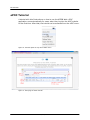
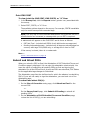
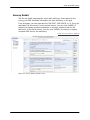
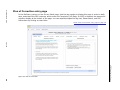
On the Plan of Correction entry page, click Submit as Final for the
current POC.
-orOn the Survey Detail page, click Submit All Pending to submit all
pending POCs.
2
22
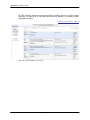
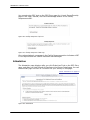
On the Attestation of POC Submittal Terms and Condition page,
review the list of POC(s) you are submitting.
7/17/15
ASPEN Web: ePOC 10.2