1
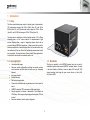
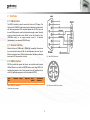
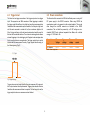
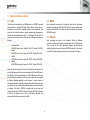
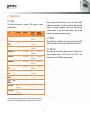
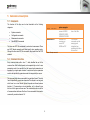
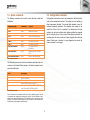
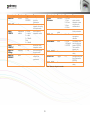
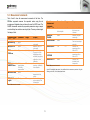
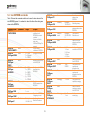
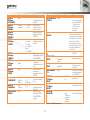
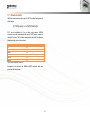
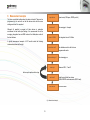
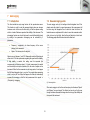
operating manual hera spectrometer Contents 1 2 3 4 5 Introduction.......................................................................................... 3 Command set description ................................................................... 8 1.1 Hera ............................................................................................. 3 5.1 Commands .................................................................................. 8 1.2 Hera highlights ............................................................................ 3 5.2 Command structure ..................................................................... 8 1.3 Standards .................................................................................... 3 5.3 System commands ...................................................................... 9 Interfaces............................................................................................. 4 5.4 Configuration commands ............................................................ 9 2.1 USB interface .............................................................................. 4 5.5 Measurement commands .......................................................... 11 2.2 Ethernet interface ........................................................................ 4 5.6 User EEPROM commands ....................................................... 12 2.3 RS232 interface .......................................................................... 4 5.7 Returned results ........................................................................ 14 2.4 Trigger in/out ............................................................................... 5 6 Measurement example ...................................................................... 15 2.5 Power connections ...................................................................... 5 7 Autoranging ....................................................................................... 16 Communications protocol .................................................................... 6 7.1 Introduction ................................................................................ 16 3.1 USB ............................................................................................. 6 7.2 How autoranging works ............................................................. 16 3.2 RS232 ......................................................................................... 6 7.3 Autorange parameters .............................................................. 17 3.3 Ethernet ....................................................................................... 6 7.4 Autorange in practice ................................................................ 17 Device drivers...................................................................................... 7 7.5 Programming Hera for autoranging........................................... 18 7.6 Autoranging recommendations ................................................. 18 4.1 USB ............................................................................................. 7 4.2 RS232 ......................................................................................... 7 8 Hera measurement results ................................................................ 19 4.3 Ethernet ....................................................................................... 7 9 Operating modes & triggering ........................................................... 19 2 1 Introduction 1.1 Hera The Hera spectrometer series consist of various types of spectrometers. VIS spectrometers ranging from 380 to 780nm (Hera 01), and 360 to 830nm (Hera 02), an UV spectrometer with a range from 190 to 435nm (Hera 03), and UV-NIR with a range of 200 to 1100nm (Hera 04). The Hera series is available in a variety of optical systems: 5, 10 or 20mm 2 collimating lens or a 1cm cosine corrector. For measurements of light sources Admesy offers a range of integrating spheres which can be connected through M8 fiber connections. A fixed position fiber connector has been developed to connect the optical fiber in a fixed and uniform way from calibration to final use. Due to this fixed position measurement results are more stable. This manual covers all Hera models. Where applicable, it is indicated for which model a command is valid or not. 1.2 Hera highlights 1.3 Standards Various spectral ranges Numerous optical configurations including lens based systems, cosine corrector and fiber optics for remote use (e.g. integrating spheres) Auto-range function Excellent linearity Dark current compensated All spectral calculations and compensations are done inside the device USBTMC compliant, SCPI command set, high speed device Directly supported in Labview / Labwindows / Visual Studio via VISA library. Other programming languages that support VISA can be used Numerous interfaces, ideal for system integration The Hera is compliant to the USBTMC standard and can be used in combination with external provided USBTMC compliant drivers. Currently it has been tested on Windows, Linux and Apple OSX using NI VISA (www.ni.com/visa) and using the open source drivers on Linux (i686, x86_64 and ARM). 3 2 Interfaces 2.1 USB interface The USB B connector is used to connect the Hera to a PC/Laptop. The Hera uses the USBTMC class protocol and can therefore be used directly with third party provided VISA compliant libraries like NI-VISA. Hera can be used USB powered in case the host provides enough current. Normally every host should be able to drive 500mA, but not all of them do. Also, USB-HUBs mostly do not supply enough current. It is therefore recommended to use powered USB-HUBs only. 2.2 Ethernet interface Ethernet of Hera is 100Mbit and is 10Mbit/GigE compatible. Ethernet can be used in the same way as USB. All commands have the same format. Ethernet is preferred over USB in situations where the distance between device and a PC are more than 5 meters. Fig 1 Hera RS232 connection. 2.3 RS232 interface RS232 is provided to connect the Hera to any host that doesn't provide USB or Ethernet or for which no USBTMC drivers exist. Using RS232, the functions that generate a lot of data (spectrum) are still available, but the use of it is highly discouraged due to the low speed of RS232. Baud rate 115200¹ Data bits Parity Stop bits 8 None 1 Flow control None Termination character LF=’\n’ Table 1 RS232 port configuration. Fig 2 Rear side mini-DIN-6 pin connector. 1 Baud rate can be changed. 4 2.4 Trigger in/out 2.5 Power connections The Hera has two trigger connections. One trigger output and one trigger input. The connectors are SMA connectors. When triggering is enabled, the trigger output line will be set to a high level once the measurement has finished and the measurement result is available. It will stay at a high level until the next command is carried out, but has a minimum high level of 50μs. A trigger will carry out the last send command and send the result to the host via the selected interface. The colorimeter main application allows external triggering in the data-logging tab. Supplied code examples show how to use this feature in an application. The trigger output line is used to indicate that the measurement is ready. Trigger signals should comply to the following timing (Fig 3). The Hera should be connected to USB with sufficient power or using a 9V DC power supply to the RS232 connector. When using RS232 the spectrometer needs to be powered via the external adapter. This can be done through the mini-DIN connector as illustrated in the RS232 connections. The unit shall be powered by a 9V DC voltage or via a standard USB PC-port, reinforced separated from Mains, with a limited energy of < 150VA and < 8A. Connection USB powered DC powered Min. Voltage 4.75 V 8.50 V Table 2 Power supply levels. 𝑡 > 5𝜇𝑠 Fig 3 Trigger-in timing. Trigger pulses arriving faster than the Hera can measure will be ignored, but it may slowdown overall performance. Trigger pulses should not arrive faster than the measurement takes to complete. The best way is to use the trigger output to make sure measurement was finished. 5 Typ. voltage 5.00 V 9.00 V Max. voltage 5.25 V 15.00 V Max current 350mA 350mA 3 Communications protocol 3.1 USB 3.2 RS232 The Hera can be connected to any USB host and is a USBTMC compliant device which is a standard USB class. Device drivers for this class are available for most popular operating systems (also embedded). This makes the Hera directly usable in popular programming languages like NI's Labview and Labwindows but als C++, Visual basic, C#, Java etc. The Hera has two interfaces build in, which require a different device driver to be used. Hera commands are equal for all interfaces. Note that for high speed transfers it is best to use USB. When RS232 will be used, the device mode should be set to RS232. This is done via software and stored in the device EEPROM memory. 3.3 Ethernet Hera commands are equal for all interfaces. When the Ethernet connection will be used, the device mode should be set to ETH (Ethernet). This is done via the Iliad application software: DeviceStart-up settingsHera and stored in the device EEPROM memory. In the start-up menu the IP address, gateway and network mask can also be changed. Hera bootloader (USB RAW device driver, Vendor ID: 0x23CF, Product ID 0x0105) Hera01 (USBTMC device driver, Vendor ID: 0x23CF, Product ID 0x1021) Hera02 (USBTMC device driver, Vendor ID: 0x23CF, Product ID 0x1022) Hera01 (USBTMC device driver, Vendor ID: 0x23CF, Product ID 0x1023) When the Hera is connected to the host, it will start the Hera firmware. As soon as the firmware is idle to receive commands, the Power LED goes to the ON state. The Admesy bootloader is a RAW USB device and in order to use this device in Windows, a driver must be installed which is supplied by Admesy. Besides upgrading to new firmware, it is also allowed to downgrade firmware in case this is required. Note that older firmware also may require the use of older software libraries and/or executable versions of software. The Hera is USBTMC compliant and can be used with libraries that contain a USBTMC compliant driver like NI-VISA. The Hera is a USB 2.0 Full speed device. In case a USB host is detected, it is assumed that the Hera operates only via USB. 6 4 Device drivers 4.1 USB Admesy supports all tested platforms but does not provide standard applications on all platforms. The matrix is provided to show the possible platforms for software development. Admesy does however provide software examples for most of the tested platforms. Most of these examples can be found on our support web page. The following table shows an overview of USB support on various operating systems. OS Windows XP NI-VISA 2 Windows VISTA Windows 7 Windows 8(.1) Windows 10 Windows CE Apple OSX PPC Apple OSX Intel Linux i386 (32bit) Linux i386 (64bit) Linux ARM Linux other · · · · · · · · · · Not available Not available Libusb · · · Not tested¹ Not tested¹ Not tested¹ Not tested¹ Not tested¹ · · · · Native kernel Not available Not available Not available Not available Not available Not available Not available Not available · · · · Agilent USBTMC Not tested¹ 4.2 RS232 When no USB driver is available or the host system does not provide USB, RS232 can be used as it does not require additional drivers for the Hera. Not tested¹ Not tested¹ 4.3 Ethernet Not tested¹ No special drivers are needed for Ethernet operation. The Hera can be directly addressed through a TCP/IP socket on port 10000. In case firewalls are used, the TCP/IP port needs to be opened. Not tested¹ Not tested¹ Unknown Unknown · · · · Table 3 Supported operating systems. 1 Not tested: Available, but not tested by Admesy, 2 Native Kernel: Driver included with OS. 2 Windows XP SP3 is supported: Windows official support has ended as of April 8 2014 7 5 Command set description 5.1 Commands The functions of the Hera can be best described via the following categories. Command table :SENSe: INT 50000 System commands Configuration commands Measurement commands User EEPROM commands :MEASure:XYZ The Hera uses SCPI like commands for control and measurement. These are ASCII based commands and follow specific rules regarding syntax. Although the Hera uses SCPI like commands, they deviate from the SCPI standard. Table 4 Example commands. 5.2 Command structure Every command starts with a colon “:”, which identifies the root of the command tree. Each further keyword is also separated by a colon. In case parameters need to be specified, the last keyword and parameters are separated by a single space character. In case more than one parameter needs to be specified, the parameters need to be separated by a comma. The command tables show commands in long and short format. The short format is specified by upper case characters. It is allowed to use long and short format or a mixed format. Optional keywords are shown between brackets [...]. Commands are not case sensitive, so it is allowed to use both or a mix of upper and lower case. The command structure is valid for all communication interfaces of the Hera. It is recommended to terminate a command by a newline character “\n”. 8 Valid command syntax examples :sens:int 500000 :sense:int 500000 :SENS:INT 500000 :SENSE:INT 500000 :measure:XYZ :measure:xyz :meas:XYZ :MEASure:XYZ Notes Sets the integration time of the Hera The measure commands use the averaging and integration time parameters that have to be set first 5.3 System commands 5.4 Configuration commands The following commands can be used to control the Hera or read back information. Configuration commands are used to set parameters of the Hera that are used by the measurement functions. The settings are used globally by other measurement functions. The selected white standard is used for dominant wavelength calculation. The integration time setting can be varied from 2.5ms to 20s. It is specified in μs. Results from the Hera include a clip and noise indication which indicate, whether the measured light is too bright (clip) or too low (noise). When clipping is detected, the resulting colour will not be correct and a lower integration time should be chosen. When noise is detected, a larger integration time should be chosen, see table 7 on next page. Command syntax :*CLS :*IDN? :*RST :*STB? :*TST :*FWD? :*FWT? :SYSTem:VERSion? Parameters None None None None None None None None :SYSTem:ERRor? None :SYSTem:ERRor:NEXT? None Purpose Clear status Identification query Reset Command Read Status Byte query Self-test query Firmware date query Firmware time query Get system version information Retrieve the last occurred error Retrieve previous errors Table 5 System commands. The Status byte can be used to retrieve information about the status of a command or the system. Return values of the status command can be seen in the table below. Code 0 1 2 4 8 Description System is idle Data is available Command processed Data in buffer (should not occur) An error occurred Use “:SYSTem:ERRor?” to get the exact error that occurred Table 6 Status commands. Note: The status and error commands should not be used in standard programs. They are not necessary when programming has been done correctly. They are available in case a problem occurs during development. The :*RST command is also not necessary in normal programs. It is advised to use the :SENSe and :CONF commands in case the behaviour of the Hera needs to be changed to its default settings. 9 Command syntax :SENSe:INT Parameters Int time :SENSe:INT? None :SENSe: INTERPOL Interpolation method :SENSe: INTERPOL? :SENSe:SP: AVERage :SENSe:SP: AVERAGE? Range 2500 – 20000000 0 = linear 1 = cosine 2 = cubic 3 = CatmullRom 4 = Hermite None Command syntax :SENSe: RESolution Parameters Resolution :SENSe:SP:SBW :SENSe:CAL Calibration matrix User cal :SENSe:MODE Mode Set the averaging for the spectrometer :SENSe:MODE? None Returns the averaging setting for the spectrometer :SENSe:TRIG Trigger :SENSe:TRIG? None Set integration time (μs) of the spectrometer Returns the current integration time setting of the spectrometer Set the spectrum interpolation method Returns the current interpolation method None Averaging Purpose 1 – 200 Table 7 Sense and configuration commands. 10 Range 0 = 0.5nm 1 = 1nm 2 = 2.5nm 3 = 5nm 4 = 10nm “off” or “user” Purpose 0/1 = off/on Activate or deactivate user spectrum calibration Set operating mode (note, this one is not stored in EEPROM). This is useful for triggering only Returns the current setting Set trigger mode (note this is note stored in EEPROM) Returns the current setting 0 = USB 1 = Ethernet 2 = RS232 0–1 Set the spectrum output resolution. Interpolation is done using the earlier selected method Set calibration matrix for the spectrometer 5.5 Measurement commands Table 8 and 9 show the measurement commands of the Hera. The MEASure commands measure the requested values using the set averaging and integration time and returns the result in ASCII format. The SAMPle commands measure the requested parameters using a sample count and delay time and return an array of data. The array contains single float array of data. Command syntax :MEASure:XYZ :MEASure:Yxy Parameters None None :MEASure:Yuv None :MEASure: SPECtrum None :MEASure: RAWSPECtrum 1 Dark compensation 2 Linearity compensation :MEASure:TEMP None :GET:WAVE lengths Pixels Range 0/1 0/1 Purpose Measure XYZ Measure Y and x,y colour point Measure Y and u',v' colour point Measure the spectrum The output is in the selected resolution and either uses factory calibration or user calibration Measures the raw spectrum, suitable for user calibration Special measurement commands :MEASure:CRI Parameters Range Purpose Number of test samples 8 or 15 :MEASure: PEAKWL :MEASure:DWL None Measure the CRI of a light source, see comment Measures the peak wavelength :MEASure:ALL CRI 0/1 :MEASure: LEDCHAR CRI 0/1 :MEASure:CCT None None Measures the Dominant wavelength and purity Measures all parameters with or without CRI Measures all parameters with or without CRI Measures the correlated color temperature Table 9 Measurement commands. Note: CRI calculation takes about 11ms additional time to measure a spectrum. Using the Admesy colour DLL, this can be achieved faster. Measures the temperature at the sensor Get the wavelength axis according to the set resolution Table 8 Measurement commands. 11 5.6 User EEPROM commands Table 10 shows the commands which can be used to store values in the user EEPROM space. It is advised to reboot the Hera after writing new values to the EEPROM. Command syntax :EEPROM: STARTUP:READ Parameters None :EEPROM: STARTUP:WRITE :EEPROM: CONFigure:MODE None :EEPROM: CONFigure: MODE? :EEPROM: CONFigure: BAUDRATE None :EEPROM: CONFigure: BAUDRATE? :EEPROM: CONFigure:TRIG :EEPROM: CONFigure:TRIG? :EEPROM: CONFigure:IP None Mode Baudrate Trigger Range Copies start up conditions from EEPROM to internal variables. Values can then be read using :SENSe:AVERage? for example Copies internal variables to EEPROM 0 = USB 1 = Ethernet 2 = RS232 0 = 9600 1 = 19200 2 = 38400 3 = 57600 4 = 115200 5 = 230400 Configures the RS232 baudrate in the EEPROM Read the current RS232 baudrate from EEPROM 0 = off 1 = on Configures triggering Reads from EEPROM if triggering is used. Example: 192.168.0.100 None :EEPROM: CONFigure:GW :EEPROM: CONFigure:GW? Gateway :EEPROM: CONFigure:MASK Ethernet mask :EEPROM: CONFigure:MASK ? :EEPROM: CONFigure:RES None :EEPROM: CONFigure:RES? :EEPROM: CONFigure:SPINT None :EEPROM: CONFigure: SPINT? None :EEPROM: CONFigure: SPAVG :EEPROM: CONFigure: SPAVG? :EEPROM: CONFigure: AUTORANGE Averaging Configures the Ethernet IP address 12 Example: 192.168.0.1 None Resolution Configures the mode Reads the mode at set in the EEPROM None IP address Purpose :EEPROM: CONFigure:IP? Int time Example: 255.255.255. 0 Reads the current gateway address from EEPROM Configures the Ethernet mask Reads the current ethernet mask from EEPROM 0 = 0.5nm 1 = 1nm 2 = 2.5nm 3 = 5nm 4 = 10nm Configures the resolution in EEPROM Reads the resolution from EEPROM 1000 – 500000 1 – 4000 Configures default spectrometer integration time Reads the default spectrometer integration time from EEPROM Configures default spectrum averaging Reads the default spectrum averaging from EEPROM None Autorange Reads the current IP address from EEPROM Configures the Ethernet gateway 0 = off 1 = on Configures autoranging Command syntax :EEPROM: CONFigure: AUTORANGE? :EEPROM: CONFigure: USERABS :EEPROM: CONFigure: USERABS? :EEPROM: CONFigure: INTERPOL Parameters None Range Absolute calibration 0 = factory 1 = user :EEPROM: CONFigure: INTERPOL? :EEPROM: CONFigure: SPSBW None :EEPROM: CONFigure: SPSBW? None :EEPROM: SPSBW:WRITE Row, Column Value Row Column :EEPROM: SPSBW:READ :EEPROM:READ: USERCAL Purpose Reads the current autorange setting from EEPROM Calibration matrix None 0 = linear 1 = cosine 2 = cubic 3 = CatmullRom 4 = Hermite 0–2 0–2 single float 0–2 0–2 :EEPROM: READ:ID None :EEPROM:WRITE: ID :EEPROM:ABS: WRITE ID number Range Configures the interpolation method to be used Reads the current interpolation method from EEPROM “off” or “user” Parameters None Configures the absolute calibration mode to be used Reads the absolute calibration mode from EEPROM Interpolation Command syntax :EEPROM:WRITE: USERCAL Configures the default spectrometer calibration matrix to be used Reads the default spectrometer calibration matrix from EEPROM Writes the values of the spectrum matrix to Hera :EEPROM:ABS: READ Reads the values of the spectrum matrix from Hera Reads the user calibration values from EEPROM to memory Write the user calibration values form memory to EEPROM. This step fixes all values for a next restart of the instrument Reads the device ID. This is useful for use with Medusa or any other system with multiple units attached. The deviceID can be used to link to a mechanical position of the instrument, which can then be selected by software for a specific task Write the device ID to EEPROM Write the user absolute spectrum parameters Index, Parameter, value Index, parameter :EEPROM:ABS: FIX None :EEPROM: CONFigure: WHITE :EEPROM: CONFigure: WHITE? :EEPROM: READ:UNIT White point Table 10 User EEPROM commands. 13 1 – 255 Purpose “D65”, “A”, etc Reads the user absolute spectrum parameters Fixes the user absolute spectrum parameters in the EEPROM Used for Dominant wavelength Gets the currently configured white point 0 Radiant power 1 Radiance 2 Irradiance 3 Radiant intensity Reads the calibrated unit as set from factory 5.7 Returned results :MEASure command return their result in ASCII formatted floating point as shown below. (X,Y,Z,clip,noise) → %f,%f,%f,%d,%d\n X,Y,Z can be substituted for Y,u,v or other colour spaces. :SAMPle command return all measurement data also in ASCII format., except the :Sample:Y function. The first three values indicate the delta time between samples and the clip and noise values. MEAS command dt Clip Noise Value1 Value2 Value3 %f\n %f\n %f\n %f\n %f\n %f\n Table 11 Return result MEAS command. Exceptions to the above is the :MEASure:TEMP command which only gives back the temperature. 14 6 Measurement example The Hera uses default settings when the device is started. These can be programmed by the end user so that the device starts with the same settings each time it is connected. Although it's possible to program all Hera devices in production environment to start with equal settings, it is recommended to set the averaging, integration time and SBW values in the initialization routine of the host software. open device Open device (VISA open, RS232 port init) :sens:aver 1 Set averaging to 1 sample :sens:int 16666 Set integration time to 16.666ms :sens:sbw user1 Set calibration matrix to the first user programmable matrix A typical measurement example of XYZ would include the following commands as shown on the right. :sens:autorange 1 Set autoranging on :meas:xyz Measures CIE X, Y and Z read result Read the result back from device (VISA/USBTMC read command or RS232 read) Action may be performed in a loop close device Fig 4 Measurement example. 15 Close the device 7 Autoranging 7.1 Introduction 7.2 How autoranging works The Hera includes an auto range function for the spectrometer sensor. This function is useful in case the measured object shows an unknown luminance value. In this case, the Hera will try to find the optimum setting which is a trade-off between speed and the stability of the instrument. The autoranging function can also be fine-tuned to reach better stability levels by setting a few parameters. Autoranging can be controlled by 3 parameters. The auto ranging works, by first setting a default integration time. If this already meets the criteria for a good measurement, the measurement will be done using that integration time. It should be clear that this is the fastest because no adjustment will be done. In case the measured result is either to low or too high (clip), than the Hera will adjust to a better level. The following graph shows how levels inside the Hera work. Frequency : supposed to be frame frequency of the source (display) that is measured Adjmin : The minimum level to adjust to adjmax level Adjmin can vary between 1 and 100. Reasonable results will be achieved when set to 40 for the spectrometer regarding the speed and the stability. If high stability is needed, this setting must be increased (but measurements will become slower). If a faster measurement is needed and the stability level may be lowered a little, the value of adjmin can be decreased. When the Hera measures in auto range mode, it can happen that the found integration time is very low. For example when measuring white it may be just 7ms. When this happens, the Hera will automatically increase the averaging so that the total measurement time equals >= (1/frequency) · averaging. adjmin level clipping Fig 5 Autorange levels When auto ranging is set, the Hera will accept any level between “Adjmin” and “Adjmax” as a good signal. The Adjmin level can be set by the user through a software command, allowing some fine tuning of the stability and the speed of the instrument. 16 7.3 Autorange parameters 7.4 Autorange in practice Autorange controls the following parameters: When auto ranging is set, the measurement settings (integration time, gain and averaging) are automatically adjusted. An initial measurement is done to determine the final settings of averaging and integration time, based on the settings of frequency and adjmin. Frequency: This setting must be set to the frame frequency of the measured sample. The range is 1 to 255 Hz. Adjmin: The adjmin parameter is very important. The higher this level is set, the more stable the measurement becomes, but it also slows down the measurement if set too high. That means, there is a trade-off between speed and stability. It mainly affects the lower grey scale levels. If these levels appear not stable, adjmin needs to be increased. Adjmin is set from 1-100, which means 1-100% of the Adjmax level (Adjmax is fixed by Admesy). The set integration time (1/frequency as set in the EEprom autorange frequency parameter) of the instrument will always be used as the first value to try. If this setting results in a value between adjmin and adjmax, no further actions are necessary and the speed is optimal. When measuring a display we can measure random patterns, but mostly known patterns are measured. Setting an integration time that is nearly right, 1/frequency (Hz) is preferred, as it optimizes the speed for adjusting the auto ranging settings and thus provides optimal results. Maximum integration time: Although not really part of the autoranging algorithm, this parameter is used when the autoranging result exceeds this setting of integration time. When the grey scales are low (grey scale 0 for example), the maximum integration time setting can be used to allow only a maximum measurement time. Of course this affects stability (longer measurement is always more stable), but again this is a trade-off for production environments to save on test time. Example: a 23” TFT display (standard desktop LCD) with white at 290 cd/m² and a frame rate of 60Hz. Settings for auto ranging are: Frequency = 60 Adjmin SP = 40 max int SP = 3000000 These settings will provide a stable measurement on white and black. 2 Autorange algorithm will adjust to measure black 0.3cm/m with 3000ms integration time, resulting in ~5600ms tact time for the spectrometer sensor. Averaging: The averaging will only be used if the autorange algorithm does calculate a averaging that is less than the set averaging for the spectrometer sensor. 17 7.5 Programming Hera for autoranging 7.6 Autoranging recommendations The Hera has start-up settings. This means that when the Hera is connected to a PC or pattern generator, it only needs the “:meas:spectrum” command to get luminance and colour data. All other settings can be saved as preset and are loaded when the instrument is started. However, it requires the right settings to be set in advance. This can be done though the Admesy Iliad application and select DeviceStart-up settingsHera. These setting may be optimized per display type. There are a few categories we can define. Those are shown in the next chapters. It is recommended to apply auto ranging in case process variation is high or in case various grey scales are measured. In cases where luminance setting is known, it may be desirable to turn off autoranging to save additional measurement / test time. Display without PWM: This can be measured using almost any settings, but the settings may be optimized for high speed. This means, we can use a short integration time for bright images (white for example) and decreased the maximum integration of black to a level that gives stable results and is still fast. In this case the frequency setting is not critical. Display with PWM: Since the luminance will show PWM, a measurement must at least cover 1 full frame. Taking more frames will result in better stability. In this case the frequency setting is apparently more critical to get a good stability. Regarding the grey scales, like a gamma measurement is performed, speeds up the measurement significantly, when using auto-ranging in combination with the feedback function. There are a lot of ways to fine tune the Hera for each application. Take this document into consideration and apply the comments correctly. By assuming that any default setting will do, it will lead to a non-optimal measurement results. Any measurement is application dependent. One should consider that autorange settings exist for the sole purpose of optimizing each application. 18 8 Hera measurement results 9 Operating modes & triggering The Hera is a spectrometer that provides direct calibrated output. As from many other mini spectrometers the Hera differs in great processing power. Spectrum conversion to XYZ is done inside the Hera and so are all colour space conversions, including CRI calculation. Apart from this internal calculation, it is also possible to receive the spectral data and do the processing on the host PC. This can be done by Admesy’s colour DLL. The calculations performed inside the Hera are based on the same formula’s as the DLL. Calculations done inside Hera are performed using single precision floats and the DLL uses double precision. For formula’s please check the user manual of the Admesy colour DLL. The operating mode only matters in trigger mode. The mode is used to send back results by USB, Ethernet or RS232. The modes of the Hera are: USB mode Ethernet mode RS232 mode A trigger actives only one command, for example “:meas:spectrum”. This command needs to be set first by the host. After a trigger is received, the command will execute and the result will be presented on the selected interface as shown above. The Hera responds to a rising edge of the trigger signal. 19 Admesy B.V. Branskamp 5 6014 CB Ittervoort The Netherlands The material in this document is subject to change. No rights can be derived from the content of this document. All rights reserved. No part of this document may be reproduced, stored in a database or retrieval system, or published in any form or way, electronically, mechanically, by print, photo print, microfilm or any other means without prior written permission from the publisher. T +31 (0)475 600 232 F +31 (0)475 600 316 www.admesy.com [email protected] Version 1.0.4 20 12/2015