1
Bridgemate ‘Pro’ Scoring system
Manual
Chapter 8: Using Bridgemates with ACBLscore
Bridgemate
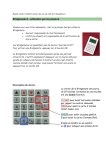
• Bridgemate normally
operated by North
• When “Verification
by East or West”
appears, East or
West must verify.
• Traveler should be
viewed by all
silently.
© 2004-2012 Bridge Systems BV
Adapted for North American use
Bridgemate.US, LLC – 2012
All information contained in this document is subject to change without prior warning. Unless stated otherwise, all
persons and details mentioned in this document are fictitious. No part of this publication may be reproduced and/or
published, by print, photoprint, microfilm or otherwise, or stored in a retrieval system, without prior written permission
from Bridge Systems BV.
© Copyright 2004-2012 Bridge Systems BV. All rights reserved.
Bridgemate, Bridgemate Pro and the Bridgemate logo are trademarks and/or registered trademarks of Bridge
Systems BV in the Netherlands and other countries. Microsoft and Microsoft Windows are trademarks and/or
registered trademarks of the Microsoft Corporation in the United States and other countries.
Every user should read and take notice of the Safety Instructions printed on pages 3 & 4 of this manual.
Customers who have concerns with the Bridgemate Pro Control software End User License Agreement (displayed
when Bridgemate Pro Control software is installed) and/or the Bridgemate Scoring System Limited Warranty (pages
1 and 2 of this manual) may return unused products at the customer’s expense to Bridgemate.US, LLC, for a full
refund of the purchase price – excluding shipping charges.
Bridgemate.US, LLC
350 Sawmill Creek Dr.
Nellysford, VA 22958
434-361-1397
FAX: 434-361-0220
[email protected]
www.bridgemate.us
Table of Contents
LIMITED WARRANTY ................................................................................................................................................................1
SAFETY INSTRUCTIONS............................................................................................................................................................3
INTRODUCTION...........................................................................................................................................................................5
CHAPTER 1: DESCRIPTION BRIDGEMATE SCORING SYSTEM .....................................................................................6
DESCRIPTION OF COMPONENTS .......................................................................................................................................................6
PROCEDURE ......................................................................................................................................................................................8
CHAPTER 2: HARDWARE CONFIGURATION .....................................................................................................................9
SYSTEM REQUIREMENTS ..................................................................................................................................................................9
INSTALLING BRIDGEMATE CONTROL SOFTWARE (BCS) ...............................................................................................................9
INSTALLING THE SERVER .................................................................................................................................................................9
POWER SUPPLY ..................................................................................................................................................................................9
CONNECTING THE SERVER TO THE PC..............................................................................................................................................10
SETTING THE REGION .......................................................................................................................................................................10
SETTING THE CHANNEL ....................................................................................................................................................................11
CONFIGURING THE BRIDGEMATES ................................................................................................................................................11
OPERATING INSTRUCTIONS ............................................................................................................................................................11
CHAPTER 3: BRIDGEMATE CONTROL SOFTWARE.......................................................................................................12
LAUNCHING BRIDGEMATE CONTROL............................................................................................................................................12
LOGGING IN AND LOGGING OFF BRIDGEMATES ............................................................................................................................13
LOGGING IN BRIDGEMATE ...............................................................................................................................................................13
LOGGING OFF BRIDGEMATE .............................................................................................................................................................13
BOARD RESULTS .............................................................................................................................................................................14
READING FROM THE SERVER ............................................................................................................................................................14
RESULTS – ROUND MONITOR – BOARD MONITOR – RESULT MATRIX .............................................................................................14
CREATING REPORTS .........................................................................................................................................................................14
CHANGING AND DELETING BOARD RECORDS ....................................................................................................................................15
PROCESSING DATA IN THE SCORING PROGRAM .................................................................................................................................15
OPENING AND CLOSING RESULTS FILES .........................................................................................................................................15
USING MULTIPLE CLIENTS..............................................................................................................................................................16
ADDING A CLIENT TO THE RESULTS FILE .......................................................................................................................................16
MANAGING TABLES – TOURNAMENT (NETWORK) MODE ..............................................................................................................16
SERVER CONTROL ..........................................................................................................................................................................17
ACTIVATING THE SERVER.................................................................................................................................................................17
ADDING TABLES ...............................................................................................................................................................................17
REMOVING TABLES ..........................................................................................................................................................................17
SYNCHRONIZING THE SERVER AND CLIENT ......................................................................................................................................17
RECOVERING THE SERVER ................................................................................................................................................................18
UPDATING MOVEMENT IN THE SERVER .............................................................................................................................................18
CLOSING ROUNDS.............................................................................................................................................................................18
PROGRAM SETTINGS (OPTIONS) ....................................................................................................................................................19
CHAPTER 4: SERVER FUNCTIONS........................................................................................................................................20
OVERVIEW OF TABLES....................................................................................................................................................................20
OVERVIEW OF ENTERED RESULTS .................................................................................................................................................20
RESTARTING BRIDGEMATE NETWORK ..........................................................................................................................................20
RESETTING THE SERVER ................................................................................................................................................................20
SETTING THE REGION .................................................................................................................................................................... 21
SETTING THE CHANNEL ................................................................................................................................................................. 21
SYSTEM FUNCTIONS ....................................................................................................................................................................... 21
CHAPTER 5: USE OF THE BRIDGEMATE® PRO SCORING DEVICES........................................................................ 22
EXPLORING THE BRIDGEMATE...................................................................................................................................................... 22
ACTIVATING THE BRIDGEMATE .................................................................................................................................................... 23
ENTERING RESULTS WITH THE BRIDGEMATE ............................................................................................................................... 24
READING BRIDGEMATE PRO RESULTS .......................................................................................................................................... 28
TD MENU ........................................................................................................................................................................................ 28
CHAPTER 6: ADDITIONAL BRIDGEMATE FUNCTIONS................................................................................................. 30
READING RESULTS MANUALLY IN BRIDGEMATE .......................................................................................................................... 30
BRIDGEMATE SETTINGS ................................................................................................................................................................. 30
UPDATE SETTINGS DURING PLAY ................................................................................................................................................... 31
SYSTEM FUNCTIONS ....................................................................................................................................................................... 32
CHAPTER 7: TIPS FOR USE..................................................................................................................................................... 33
REPLACING BRIDGEMATE ............................................................................................................................................................. 33
RECOVERING THE SERVER ............................................................................................................................................................. 33
PROCEDURE IN THE EVENT OF DATA LOSS .................................................................................................................................... 33
MULTIPLE BRIDGE CLUBS PLAYING SIMULTANEOUSLY ............................................................................................................... 34
LARGE TOURNAMENTS................................................................................................................................................................... 35
USING ACBLSCORE AND BRIDGEMATES ON A NETWORK ........................................................................................................... 35
CHAPTER 8: USING BRIDGEMATES WITH ACBLSCORE ............................................................................................. 36
INSTALLATION................................................................................................................................................................................ 36
SOFTWARE REQUIRED ..................................................................................................................................................................... 36
INSTALL SOFTWARE ......................................................................................................................................................................... 36
CONNECT THE BRIDGEMATE SERVER TO THE COMPUTER................................................................................................................ 36
BCS SETUP ...................................................................................................................................................................................... 36
ACBLSCORE SETUP ........................................................................................................................................................................ 37
READ DATA FROM THE BRIDGEMATE SCORING SYSTEM INTO ACBLSCORE. ............................................................................ 39
PLAYER NUMBERS ........................................................................................................................................................................... 39
BOARD RESULTS ............................................................................................................................................................................. 39
QUICK SETUP TIPS ......................................................................................................................................................................... 40
CHANGE MOVEMENT AFTER GAME HAS STARTED ....................................................................................................................... 40
CHANGE BEFORE ANY BRIDGEMATES HAVE BEEN USED .................................................................................................................. 41
CHANGE AFTER PEOPLE HAVE STARTED MEMBER NUMBER AND/OR SCORE ENTRY .......................................................................... 41
REPLACING BRIDGEMATE DURING PLAY ...................................................................................................................................... 41
ACBLSCORE TOURNAMENT SETUP .............................................................................................................................................. 41
SWISS TEAMS AND KNOCKOUTS .................................................................................................................................................... 42
PROCEDURES WHEN USING PLAYER ENTRY OF SECTION/TABLE ................................................................................................. 42
SPECIAL REPORTS .......................................................................................................................................................................... 42
EXPANDED DETAIL AVAILABLE ON WEBSITES.............................................................................................................................. 43
USING BRIDGEMATES II AND BRIDGEMATES PRO TOGETHER ..................................................................................................... 43
DECLARATION OF CONFORMITY ....................................................................................................................................... 44
Limited Warranty
1
Limited Warranty
IMPORTANT—PLEASE READ THIS LIMITED WARRANTY CAREFULLY TO UNDERSTAND YOUR RIGHTS AND
OBLIGATIONS! The term “Hardware Device” means the Bridge Systems hardware product. The term “You” means
either an individual or a single legal entity who will be referred to in this Limited Warranty as “You” and “Your”.
A. WARRANTIES.
1. Express Warranty. Subject to the terms and conditions of this Limited Warranty and in lieu of any other (if any)
express warranties, Bridge Systems warrants that under normal use and service, on the date of acquisition as shown
on Your receipt or similar proof of payment and for the period of time stated below for the applicable Hardware
Device (hereafter each defined as the “Warranty Period”), that the Hardware Device will substantially conform with
the accompanying Bridge Systems packaging and documentation. As to any defects discovered after the Warranty
Period, there is no warranty or condition of any kind.
Warranty Period:
For all hardware parts of the Bridgemate Scoring System: one (1) year.
This Limited Warranty does not cover, and no warranty of any kind is provided with respect to any subjective or
aesthetic aspects of the Hardware Device. The express warranty stated above is the only express warranty made to
You and is provided in lieu of all other express or implied warranties and conditions (except for any nondisclaimable
implied warranties that exist), including any created by any other documentation or packaging. No information or
suggestions (oral or in a record) given by Bridge Systems, its distributors, agents, affiliates or suppliers or its or their
employees or agents, shall create a warranty or condition or expand the scope of this Limited Warranty.
2. Limitation on Duration of Implied Warranties. If You are a consumer, You may also have an implied warranty
and/or condition under the laws of some jurisdictions, which is hereby limited to the duration of the Warranty Period.
Some jurisdictions do not allow limitations on how long an implied warranty or condition lasts, so the foregoing
limitation may not apply to You.
B. EXCLUSIVE REMEDY. Subject to applicable law and the following, and provided that You return the Hardware
Device to Your place of acquisition (or, if that place will not accept the return, to Bridge Systems) with a copy of Your
receipt or other bona fide proof of payment during the Warranty Period, Bridge Systems will, at its option and as Your
exclusive remedy for breach of this Limited Warranty and any implied warranties:
repair or replace the defective Hardware Device; or make payment to You for the allowable damages that You
incurred in reasonable reliance, but only up to the amount You paid (if any) for the Hardware Device less reasonable
depreciation based on actual use.
The above remedy is subject to the following:
Any repaired or replaced Hardware Device will be new or refurbished or serviceably used, comparable in function
and performance to the original Hardware Device, and may include third party items;
Any Hardware Device repaired or replaced under this Limited Warranty will be warranted for the remainder of the
original Warranty Period or 30 days from the date of shipment of the item back to You, whichever is longer.
Except as otherwise required by legislation in Your jurisdiction, costs associated with transport (including packaging)
for warranty service shall be at Your expense; and Bridge Systems, its distributors, agents, affiliates and suppliers do
not provide any warranties regarding any other services provided under this Limited Warranty and disclaim all duties
(if any) of workmanlike effort or of lack of negligence regarding such services.
C. NO OTHER WARRANTIES. The express warranty stated above is the only express warranty made to You and is
provided in lieu of all other express or implied warranties and conditions (if any) including any created by any other
documentation or packaging. No other warranties or conditions are made with respect to the Hardware Device or the
warranty services by any person, including but not limited to Bridge Systems, its distributors, agents, affiliates and
suppliers. No information (oral or written) or suggestions given by Bridge Systems, its distributors, agents or
suppliers or its or their employees, shall create a warranty or condition or expand the scope of this Limited Warranty.
Also, there is no warranty or condition of title, quiet enjoyment, or noninfringement in the Hardware Device. You may
have greater rights existing under legislation in Your jurisdiction.
2
Limited Warranty
D. EXCLUSION OF OTHER DAMAGES.
TO THE FULL EXTENT ALLOWED BY LAW, BRIDGE SYSTEMS AND ITS DISTRIBUTORS, AGENTS,
AFFILIATES AND SUPPLIERS ARE NOT LIABLE FOR ANY:
(i) CONSEQUENTIAL OR INCIDENTAL DAMAGES;
(ii) DAMAGES OR LOSS OF ANY NATURE WHATSOEVER RELATING TO LOST PROFITS, BUSINESS
INTERRUPTION, LOSS OF DATA OR PRIVACY OR CONFIDENTIALITY, ANY INABILITY TO USE ALL OR PART
OF THE HARDWARE DEVICE, PERSONAL INJURY, OR ANY FAILURE TO MEET ANY DUTY (INCLUDING BUT
NOT LIMITED TO ANY DUTY OF NEGLIGENCE, GOOD FAITH OR OF WORKMANLIKE EFFORT); OR
(iii) INDIRECT, SPECIAL, OR PUNITIVE DAMAGES ARISING OUT OF OR RELATING IN ANY WAY TO THE
HARDWARE DEVICE. THE FOREGOING APPLIES EVEN IF BRIDGE SYSTEMS OR ANY DISTRIBUTOR,
AGENT, AFFILIATE OR SUPPLIER HAS BEEN ADVISED OF THE POSSIBILITY OF SUCH LOSSES OR
DAMAGES; AND EVEN IN THE EVENT OF FAULT, TORT (INCLUDING NEGLIGENCE), STRICT OR PRODUCT
LIABILITY, MISREPRESENTATION OR OTHER REASON.
Some jurisdictions do not allow the exclusion or limitation of incidental or consequential damages, so the above
limitation or exclusions may not apply to You.
E. EXCLUSIONS FROM COVERAGE. This Limited Warranty shall not apply and Bridge Systems, its distributors,
agents, affiliates and suppliers have no liability under this Limited Warranty if the Hardware Device:
- is used for commercial purposes (including rental or lease);
- is modified or tampered with;
- is damaged by Acts of God, power surge, misuse, abuse, negligence, accident, wear and tear, mishandling,
misapplication, or other causes unrelated to defects in the Hardware Device;
- is damaged by programs, data, viruses, or files, or during shipments;
- is not used in accordance with the accompanying documentation and use instructions; or
- is repaired, modified or altered by other than a Bridge Systems authorized repair center and the unauthorized
center causes or contributes to any defect or damage.
F. REGISTRATION. You need not register Your acquisition of the Hardware Device for the Limited Warranty to be
effective.
G. BENEFICIARY. To the extent allowed by applicable law, the Limited Warranty is only made to You, the first
purchaser of the Hardware Device, and there are no third party beneficiaries of the Limited Warranty. It is not
intended for and does not apply to anyone else (except as required by law), including anyone to whom You make
any transfer of the Hardware Device.
H. FURTHER INFORMATION. Bridge Systems is the warrantor under this Limited Warranty. To receive
instructions for obtaining performance of this Limited Warranty You must either contact the local Bridgemate
distributor serving Your country, or write to: Bridge Systems BV, Postal Box 21570, Rotterdam, 3001 AN, The
Netherlands, or visit Bridge Systems on the World Wide Web at http://www.bridgemate.com.
You must also:
1. Submit proof of payment in the form of a bona fide, dated receipt, or invoice (or a copy) evidencing that You are
the beneficiary of this Limited Warranty and that Your request for a remedy is made within the Warranty Period;
2. Follow Bridge Systems’ shipping and other instructions if it determines that all or part of Your Hardware Device
requires return. To obtain the Limited Warranty performance, You must take or deliver the item in either its original
packaging or packaging that provides an equal degree of protection to the location specified by Bridge Systems.
Except as otherwise required by legislation in Your jurisdiction, costs associated with transport (including packaging)
for warranty service shall be at Your expense. Failure to follow the above instructions may result in delays, cause
You to incur additional charges, or may void Your warranty.
This Limited Warranty gives You specific legal rights and You may also have other rights which vary from jurisdiction
to jurisdiction. Where any term of this Limited Warranty is prohibited by such laws, it shall be null and void, but the
remainder of the Limited Warranty shall remain in full force and effect if its allocation of risks is not materially
disturbed.
Safety Instructions
3
Safety Instructions
Important safety warning
Failure to properly set up, use, and care for the Bridgemate system can increase the risk of serious injury or death, or
damage to the system. Read this manual and the manuals of any peripherals for important safety and health
information. Keep all manuals for future reference. For replacement manuals, go to
www.bridgemate.us/user guides.php or contact your local Bridgemate supplier.
Select a safe location for the Bridgemate server and scoring devices
If the Bridgemate Pro server or Bridgemate Pro scoring devices falls and hits someone, it could cause serious injury.
To reduce the risk of such injuries and damage to parts of the system, set them up according to these instructions
and place them on a surface that:
•
Is flat and level.
•
Is stable and not likely to tip over.
•
Allows all four feet of both the server and scoring device to be in contact with the surface.
•
Is not likely to allow the server and scoring device to slip or slide off.
•
Is clean and free of dust and debris.
If the surface or feet of server or scoring devices become dirty or dusty, clean them with a dry cloth.
Arrange all cables and cords so that people and pets are not likely to trip over or accidentally pull on them as they
move around or walk through the area. When the Bridgemate server is not in use, you may need to disconnect all
cables and cords from the server to keep them out of the reach of children and pets. Do not allow children to play
with cables and cords.
Do not place any part of the Bridgemate system on a bed, sofa, or other soft surface. Do not place any part near
heat sources, such as radiators, heat registers, stoves, or amplifiers.
Avoid smoke and dust
Do not use the Bridgemate Scoring system in smoky or dusty locations. Smoke and dust may damage the
Bridgemate server and scoring devices.
Connect the Bridgemate server to power
WARNING
As with many other electrical devices, failure to take the following precautions can result in serious
injury or death from electric shock or fire or damage to the Bridgemate Pro system.
Select an appropriate power source for your Bridgemate server:
•
Use only the power adapter that came with the Bridgemate server or that you received from your Bridgemate
supplier. If you are not sure if you have the correct power adapter, stop using it and contact Bridgemate.US.
If you need a replacement power adapter, contact Bridgemate.US as well.
•
Confirm that your electrical outlet provides the type of power indicated on the power adapter (in terms of
voltage [V] and frequency [Hz]).
•
Do not use non-standard power sources, such as generators or inverters, even if the voltage and frequency
appear acceptable. Only use AC power provided by a standard wall outlet.
•
Do not overload your wall outlet, extension cord, power strip, or other electrical receptacle. Confirm that they
are rated to handle the total current (in amps [A]) indicated on the power adapter and any other devices that
are on the same circuit.
To avoid damaging the power cord and power supply:
•
Do not wrap the power cord around the power adapter.
•
Protect the power cord from being walked on.
•
Protect cords from being pinched or sharply bent, particularly where they connect to the power outlet, the
power adapter, and the Bridgemate Pro server.
•
Do not jerk, knot, sharply bend, or otherwise abuse the power cord.
•
Do not expose the power cord to sources of heat.
4
Safety Instructions
•
•
•
Keep children and pets away from the power cord. Do not allow them to bite or chew on it.
When disconnecting the power cord, pull on the plug—do not pull on the cord.
Do not let the power supply hang from the power cord.
If a power cord or power supply becomes damaged in any way, stop using it immediately and contact your
Bridgemate supplier. Only use the power supply and AC power cords supplied with your Bridgemate Scoring System
or received from your Bridgemate supplier.
Unplug the Bridgemate server during lightning storms or when unused for long periods of time.
Always connect the power cord according to the following instructions:
1. Fully insert the power supply cord into the Bridgemate Pro server.
2. Plug the power adapter into the wall outlet.
Insert batteries into the Bridgemate Pro scoring devices or server
Improper use of batteries may result in battery fluid leakage, overheating, or explosion. Released
battery fluid is corrosive and may be toxic. It can cause skin and eye burns, and is harmful if
swallowed. To reduce the risk of injury:
Keep batteries out of reach of children.
Do not heat, open, puncture, mutilate, or dispose of batteries in fire.
Do not mix new and old batteries or batteries of different types (e.g., carbon-zinc and alkaline batteries)
Remove the batteries if they are worn out or before storing your Bridgemate Pro system for an extended
period of time. When removing batteries from the Bridgemate or server do not use your fingers or finger nails
to remove the batteries; use a blunt object like a screwdriver or pen to safely remove the batteries.
If a battery leaks, remove all batteries, taking care to keep the leaked fluid from touching your skin or clothes.
If fluid from the battery comes into contact with skin or clothes, flush skin with water immediately. Before
inserting new batteries, thoroughly clean the battery compartment with a damp paper towel, or follow the
battery manufacturer's recommendations for cleanup.
Dispose of batteries in accordance with Local and National Disposal Regulations, including those governing
the recovery and recycling of waste electrical and electronic equipment (WEEE).
WARNING
•
•
•
•
•
•
Remove batteries aboard aircraft
Before boarding any aircraft or packing the Bridgemate scoring devices or server in luggage that will be checked,
remove all batteries. The Bridgemate server and scoring devices can transmit radio frequency (RF) energy, much
like a cellular telephone, whenever batteries are installed.
Do Not Attempt Repairs
Do not attempt to take apart, service, or modify the Bridgemate server, Bridgemate Pro scoring devices, power
supply, or its peripherals in any way. Doing so could present the risk of serious injury or death from electric shock or
fire, and it will void your warranty.
Any evidence of any attempt to open and/or modify the Bridgemate Pro system, including any peeling, puncturing, or
removal of any of the labels, will void the Limited Warranty and render the Bridgemate Pro system ineligible for
authorized repair.
Disposal of Waste Electrical and Electronic Equipment in the European
Union and other countries/regions with separate collections systems
This symbol on the product or its packaging means that this product must not be disposed of with
household waste. Instead, it is your responsibility to hand this over to an applicable collection point
for the recycling of electrical and electronic equipment. This separate collection and recycling will
help to conserve natural resources and prevent potential negative consequences for human health
and the environment, which inappropriate disposal could cause due to the possible presence of hazardous
substances in electrical and electronic equipment. For more information about where to drop off electrical and
electronic waste, contact your local city/municipality office, your household waste disposal service, or the shop where
you purchased this product.
Introduction
5
Introduction
Thank you for purchasing your Bridgemate® Scoring System. Bridgemate is an advanced electronic scoring system
for bridge clubs and tournaments, designed to enhance the enjoyment of bridge. Bridgemate automatically registers
board results. The data are verified and fed to the central PC. Tournament directors will value the user-friendly
features of Bridgemate system, as it enables them to focus fully on their core tasks.
This manual describes the operation of the Bridgemate Scoring System, including the central software program, the
server and the Bridgemate Pro scoring devices. This manual serves as an addition to the manual supplied with your
scoring program. As the Bridgemate Scoring System operates independently from the scoring program, this manual
includes instructions for operating ACBLscore – but not other scoring programs.
This manual consists of the following chapters:
-
The components of the Bridgemate Scoring System are explained in Chapter 1. A brief and concise
explanation is given of the individual components and how they relate to each other.
-
Chapter 2 explains how to configure and install the Bridgemate Control Software and hardware and how to
configure the Bridgemates per section and table. This chapter also explains how to set the radio channels to
enable wireless data exchange.
-
Chapter 3 explores the use of the Bridgemate Control Software program in more detail.
-
Chapter 4 explains the different Bridgemate Control options offered by the Bridgemate server.
-
Use of the Bridgemate Pro scoring devices is explained in Chapter 5.
-
Chapter 6 highlights the additional functions for the Bridgemate.
-
Chapter 7 contains tips on how to operate the Bridgemate Scoring System when multiple bridge clubs are
playing simultaneously in one room. Practical advice is also offered on how to deploy Bridgemates in big
tournaments, involving different rooms and/or multiple servers.
-
Chapter 8 describes using the Bridgemate system with ACBLscore.
Version numbers
This manual covers the following versions of the Bridgemate Pro components:
Bridgemate Control Software
Bridgemate Pro “serial’ server
Bridgemate Pro scoring devices
Bridgemate RF Protocol
2.7.9
1.2.6 (firmware version)
2.3.2a (firmware version)
1.3
(firmware version)
BCSsetup2-7-9.exe
serv126.exe
US232a.bpf
rfmodem13.bpf
Download Software and Firmware
Bridgemate software and firmware can be downloaded from http://www.bridgemate.us/support.php
6
Chapter 1: Description Bridgemate Pro scoring system
Chapter 1: Description Bridgemate Scoring System
This chapter describes the components of the Bridgemate Scoring S ystem and how they relate to each other. It also
explains how to use the Bridgemate System - from creating a session in your scoring program to registering the
scores in the scoring program.
Please read this chapter carefully. Once you understand the function of the individual components and how they
relate to each other, you will quickly get to grips with the Bridgemate Scoring System.
Description of components
The Bridgemate Scoring System consists of the following hardware and software:
•
•
•
•
•
•
Bridgemate Pro scoring devices
Bridgemate server + power adapter
USB-to-serial converter
Bridgemate communication cable
Tournament directors key
Bridgemate Control Software
Bridgemate server + power adapter
USB-to-Serial converter,
“dongle”
Bridgemate Pro
scoring device
“Bridgemate”
Bridgemate communication cable
Tournament
directors key
“TD Key”
Bridgemate Pro scoring devices
The Bridgemate Pro scoring devices are placed on the bridge table and are used to enter the results. For the
purpose of simplicity, we shall refer to these input devices as ”Bridgemates”. Wireless communication between the
Bridgemates and the server is established and maintained using radio frequency waves. Only one Bridgemate is
required per table. The use of the Bridgemates is explained in more detail in Chapter 5.
Bridgemate server
The Bridgemate server, “server” for short, is a small device connected to the PC. It acts as a bridge between the PC
and the Bridgemates Pro. As the PC cannot communicate directly with the Bridgemates, the server is a vital
component. The server is equipped with a radio transmitter and a receiver, establishing and maintaining wireless
data communication with the Bridgemates. The server sends all movement data to the Bridgemates, including board
numbers and pair numbers, and receives the board results in return. The server can control up to 128 Bridgemates
simultaneously. The server can be powered by either an external power adapter or by 4 AA Batteries.
Chapter 1: Description Bridgemate Pro scoring system
7
USB-to-serial converter
The server is connected to the serial port of your PC. If your PC does not have a serial port, use the USB-to-serial
converter, included with the Bridgemate server. To add a serial port to your PC, connect the converter to a USB port
on your PC. It is recommended the same USB port be used every time. Do not use a USB hub.
Bridgemate communication cable
The Bridgemate communication cable enables you to connect the Bridgemate scoring devices directly to the PC.
This in turn enables you to read the board results stored in the Bridgemate memory manually, or to install new
firmware in the Bridgemates.
Tournament directors key (TD Key)
The tournament directors key, TD-key for short, is a small key that enables the tournament director to configure the
Bridgemate for each section and table, and to activate the special TD menu.
Bridgemate Control Software
A specific program is required to control the server from the PC: Bridgemate Control Software (BCS). This program
runs on Windows 98 or higher and is controlled in part by your scoring program. BCS fully controls the server and
data exchange between the server and the PC. BCS first saves all the relevant session data used by the server to
control the Bridgemates. BCS then retrieves all entered board results from the server and stores these in the results
file. All other server controls are also executed from BCS.
In addition, the following three components are important. Although they are not supplied together with your
Bridgemate Scoring System, they are of crucial importance to the correct operation of the system.
•
•
•
Client (=Personal computer with Bridgemate Control Software)
Results file
Scoring program
Client
Bridgemate Control Software runs on a so-called “client” (Windows-based) personal computer (PC). The scoring
program and BCS usually run on one client PC, to which the server is also connected. During big tournaments,
multiple servers may be required to support the high number of Bridgemates and/or to establish and maintain the
wireless communication between the server and the Bridgemates. In this case, the servers are connected to a
network PC, and the network consists of multiple clients.
Note: The term “client” suggests that the Bridgemate Scoring System also consists of a PC network server. This is
not the case. All (network) PCs running the Bridgemate Control Software are known as clients.
Results file
The results file is created by the scoring program. It contains all the session data, including sections, tables,
movements, etc. This data is generated by the session configured in the scoring program. BCS reads this session
data and feeds the correct data to the server. During the session, BCS reads all the board results entered in the
server and saves these in the results file. All Bridgemate results files have the file extension .bws.
Scoring program
The scoring program creates the session and calculates the scores. After you have created a session, the scoring
program will create the abovementioned results file. This file contains all the relevant session data. The scoring
program will read all board results saved in the results file and process these during the session. These procedures
are explained in more detail in the user manuals or help files of your scoring program.
8
Chapter 1: Description Bridgemate Pro scoring system
Procedure
Having examined the individual components of the Bridgemate Scoring System, the next step involves assessing the
entire process and how the different components relate to each other.
The process is outlined in the below diagram:
Activity
Explanation
Step 1: Session created in the
scoring program
This is the starting point in the process. In the session, users can set
the number of sections to be played, the number of pairs per section,
boards and movements.
Step 2: Results file created by the
scoring program
Using the session data, the scoring program creates a results file,
containing all data relating to the sections, corresponding movements,
boards and pairs.
Step 3: Bridgemate Control Software
reads the results file
The scoring program starts BCS. The results file is then read by BCS,
generating the data for all tables used in each session.
Step 4: Bridgemate Control Software
transfers data to the server
BCS initializes the server using the data contained in the results file. All
session tables are stored in the server. Movements from each table are
included, so that the server knows (per round) which pairs and boards
correspond with which table.
Step 5: The server has been
activated and the Bridgemates can
be activated
Now that all the relevant data has been stored in the server, the
Bridgemates can be activated. The players activate the Bridgemates,
which log in to the server. The results can now be entered.
Step 6: Results are entered in the
Bridgemate and sent to the server
During this process, the board number and pair number/direction of play
are verified for accuracy. Verification is executed via direct
communication between the Bridgemate and the server. The
Bridgemate itself does not contain any movement data. Entered board
results are sent directly to the server. This data is stored in the server
memory.
Step 7: Bridgemate Control Software
retrieves the data from the server.
The information is saved in the
results file
BCS reads all newly entered results from the server and saves them in
the results file.
Step 8: The scoring program reads
the results saved in the results file
and adds these to the session
The scoring program reads the data saved in the results file and stores
these in its session file. The results are processed and incorporated
into the session data to calculate the final score.
Automatic launch from your scoring program
If your scoring program fully supports Bridgemate, BCS can execute steps 2 to 4 and read the data (step 7)
automatically via one simple command from the scoring program. For further information on how to enable
automatic launch of the Bridgemate Scoring System, please contact the supplier of your scoring program.
Chapter 2: Hardware Configuration
9
Chapter 2: Hardware Configuration
System requirements
Operating system
The Bridgemate Scoring System needs Windows 2000 SP3 or higher.
Hardware
Recommended configuration:
Processor
Memory
Pentium II 600MHz or higher
256MB or higher
The PC must also be equipped with a serial port. If your PC does not have a serial port, use the USB-to-serial
converter (dongle) to create a extra serial port on the PC.
Installing Bridgemate Control Software (BCS)
To install the Bridgemate Scoring System, run the “BCSsetup.exe” file. This software may be on the CD from
Bridgemate.US, downloaded from Bridgemate.US’s website http://www.bridgemate.us/support.php or the Bridgemate
Developer’s www.bridgemate.com/support website. The requirements for installing Bridgemate Control Software
may differ, depending on your scoring program. For more information about where to install the software on your
PC, please consult information supplied with your scoring program or by your Bridgemate supplier. To install BCS on
a separate client, we recommend the default folder (=C:\Program Files\Bridgemate Pro).
Special Note for Vista and Windows 7 PC’s: Windows 7 and Vista security precautions inhibit writing to the BCS
log file when it is located in the default C:\Program Files\Bridgemate Pro folder or the “root” C:\. Therefore, the BCS
software option should be configured to save the Bridgemate Log File elsewhere, e.g., C:\ACBLSCOR.
See Log file settings on Page 19 for specific details.
See Chapter 8 for information on using ACBLscore as your scoring program.
Installing the server
Power supply
To operate the server, please ensure it is connected to the power adapter or is fitted with batteries. The server
cannot operate without a power adapter and/or batteries. If batteries are not installed in the server and AC power is
lost, any unsaved data in the server will be lost!
Read the safety instructions at the front of this manual before installing the server.
Power adapter
A 9~12V power adapter is supplied with the server. Plug the adapter into the wall socket and the into the black
connector on the top of the server. The green LED on the server will light up, indicating that the server is now
connected to commercial power.
Batteries
Batteries are used if there is no commercial power source, or as a back-up in the event of power failure. The battery
compartment on the bottom of the server holds four AA 1.5 volt batteries (included). Install the four batteries as
indicated. A red LED will light up, indicating that the batteries have been installed correctly and no power adapter is
being used. The approximate operating time of the batteries is 50 hours.
Warning
•
Always install the batteries as indicated. Incorrectly installed batteries could damage the server and the
batteries. The batteries may start leaking, potentially damaging the server and voiding the warranty.
10
Chapter 2: Hardware Configuration
•
With batteries installed (but also when powered by power adapter) the server is always actively waiting to
receive a radio signal from a Bridgemate – even if the client PC is not running BCS. If a battery is not
removed, and the server is running on batteries only, the battery set will drain in aproximately 50 hours.
•
When removing batteries from the Bridgemate scoring device or server do not use your fingers or finger nails
to remove the batteries; use a blunt object like a screwdriver or pen to safely remove the batteries.
When both the power adapter and batteries are used, the server will obtain its power from the adapter. The batteries
will only be activated if the adapter is not supplying power (e.g., during a power cut). Power will immediately transfer
to the batteries and no data will be lost. We recommend installing batteries (as a back-up) while the server is in
operation. This will ensure no data is lost during the session.
Switching on / off
The server will automatically switch on once the power adapter is connected or the batteries are installed. To switch
off the server, both power sources will need to be removed. It is recommended the power adapter and batteries be
removed after you have finished using the server. Only one of the four batteries needs to be removed. To remove
the batteries, please use a screwdriver or pen; do not attempt to remove them with your fingers.
Warning Do not reinstall the removed batteries in the opposite direction. Instead, store them separately.
Reinstalling batteries in the opposite direction will damage the server as well as the batteries and void the warranty.
Note: Servers (supplied since June 2008) have a battery-power on/off switch. With the power adapter disconnected,
a red LED indicates good batteries. Use the on/off switch to save battery power. When starting a new game, turn
the switch on (the “|” indicator) to confirm that the batteries are OK (red LED); then, connect the power adapter.
Connecting the server to the PC
Connect the server to the serial port of your PC. If your PC does not have a serial port available, use the USB-toserial converter which is supplied with the server and connect it to a USB port. This adds an extra serial port to the
PC. The converter comes with a set of software drivers which need to be installed separately. See the
documentation included with the converter for more information.
When using a USB-to-serial converter, please ensure the serial port has a port number between 1 and 20. If the
assigned COM port is 21 or higher, it will must be corrected manually in Device Settings of Windows Control Panel.
Special note when using the USB-to-serial converter.
It is recommended that the USB converter always be connected to the same USB port. On some computers
Windows® will not recognize the converter when it is connected to a different USB port.
There is an LED in the ATEN USB-to-serial converter housing that flashes when data is being transferred through the
cable. If this light does not flash, it may be an indication that the converter is connected to a USB port that is not
configured with the appropriate drivers – or the assigned COM port is 21 or higher.
Note: BCS will only work with a COM port – 1 through 20.
With the USB converter connected to your computer, check the Windows’ Device Manager for the COM port
assignment. Left click
on or
Æ RUN and enter the devmgmt.msc command.
The correct driver must be used for the ATEN USB-to-serial adapter. Driver version 3.1.0.0 is required with the
64-bit Windows 7 & and 64-bit Vista. All other operating systems – including 32-bit Vista and 32-bit Windows 7 – will
use version 2.0.2.1. Visit Bridgemate.US’s website for specific information:
http://www.bridgemate.us/support.php?subpage=Download&subpageitem=Drivers
Do not use a USB HUB. The USB-to-serial converter will not work reliably through a USB hub
Setting the region
When BCS is started with a new server attached to the PC, you will be asked to select the correct region. Select
your region. To enable the server to transmit data to the Bridgemates over the correct radio frequency, it is vital that
you select the appropriate region. The region setting in the Bridgemates is controlled by the Bridgemate firmware.
The Bridgemate firmware must be for the same region as selected for the server. In other words, the server will be
unable to transmit data to the Bridgemates if the server's region differs from the Bridgemates' region firmware.
Chapter 2: Hardware Configuration
11
Setting the channel
The Bridgemate Scoring System can communicate over different radio channels. This enables users to install
multiple systems next to each other without causing interference (see also Chapter 6, “Multiple clubs”). To enable a
Bridgemate to communicate with the server, it must be set to the same channel as the server. The number of
channels at your disposal depends on the region in which you are playing. The default setting for the Bridgemate
and server is channel 0 for each region.
Setting Bridgemate channel
The channel over which the Bridgemate Pro communicates is set using the same menu used for changing the
section/table settings. The tournament director (TD) key is used to perform this operation. See also Chapter 5 for
more information.
SECTION: A
+/TABLE:
1
Set the section and the table first, and press OK. The following screen will appear:
CHANNEL: 0
Press the CANCEL button to delete (erase) the set value and enter the new value. Press OK to save the new
settings.
Setting server channel
The channel over which the server communicates is set via Bridgemate Pro Control, Server Æ Channel selection
menu. For more information on how to set the channels, please see Chapter 4.
Configuring the Bridgemates
Before the Bridgemates can be used in the session, the section and table for each Bridgemate will need to be
configured. For more information on how to configure the Bridgemates, please see Chapter 5.
Operating instructions
The Bridgemate server is very easy to use. Only a few instructions need to be followed. The following rules must be
observed:
-
The supplied power adapter may only be used with the Bridgemate server. Under no circumstances should
another adapter be used.
-
Under no circumstances should the power adapter be connected to the data port of the Bridgemate (black
connector at the back) as this may cause damage to the Bridgemate hardware. This data port may only be
used with the Bridgemate communication cable and tournament director’s key.
-
Under no circumstances should the Bridgemate communication cable and TD-key be connected to the
power adapter connection of the server.
-
Install the batteries as indicated. Incorrectly installed batteries could damage the server.
-
During use, make sure the server is placed horizontally on a level surface.
-
Do not place any objects on the server and make sure there is as much distance between the server and
other objects as possible. The fewer objects there are between the Bridgemates and the server, the better
the data exchange will be.
-
Where possible, make sure the Bridgemates and the server are not separated by a wall. The server should
preferably be placed in a central location between the Bridgemates. If this is not possible, place the server
as closely as possible to the Bridgemates along the edge of the playing room.
-
When removing batteries from the server (or Bridgemates) do not use your fingers or finger nails to remove
the batteries; use a blunt object such as a screwdriver or pen to safely remove the batteries.
12
Chapter 3: Bridgemate Control Software
Chapter 3: Bridgemate Control Software
The Bridgemate Control Software (BCS) program is the bridge between the results file and the server. BCS reads
the session data from the results file and loads it into the server so that the server can control the Bridgemates.
Then, BCS retrieves the entered board results from the server and stores these in the results file. BCS has been
designed for simplicity and ease of use and is very user friendly.
This chapter contains information on the basic and advanced functions of BCS. For general program use, it is not
necessary to know all the information contained in this chapter. When first starting the system, be sure to read the
paragraphs “Launching Bridgemate Control”, “Logging in and logging off Bridgemates” and “Board results” first.
Launching Bridgemate Control
Bridgemate Control Software is launched from your scoring program. Depending on your scoring program, there are
several ways to launch BCS. The majority of scoring programs have a launching function, enabling fully automatic
activation of the Bridgemate server using the existing and active results file. For more information, please consult the
manual of your scoring program.
The BCS screen, as displayed here, shows a typical “mid-game”
condition where all Bridgemates are active and game results have
been entered for a number of boards.
The name of the active results file is displayed in the title bar. If no
results file is open, the text “No session active” will be displayed.
Normally, when BCS is launched from the scoring program, it is
quickly minimized – returning to the scoring program display.
However, if the program cannot connect to the server, the BCS
screen remains visible to alert the user to an abnormal condition
that requires attention.
Server information
The pane in the top left-hand corner of the screen displays information relating to the server. If a server has been
found, the text “connected” and the version number will be displayed. You can also check which serial port is being
used, and whether the server is running on a power adapter or batteries. If the power adapter is used, “AC mains
adapter” will be displayed; if batteries are used, the power meter will display the number of operating hours remaining
in percentages. If you are using batteries, we would recommend replacing them periodically rather than overusing
them. BCS will indicate when to replace the batteries. Lastly, BCS will display the Region and Channel being used.
Tables
The bottom left-hand corner of the screen lists the tables in play. In Club (single computer) mode only the “Client
tables” is visible. In Tournament (network) mode there are two tabs, All tables and Client tables. Below these tabs is
a list of tables. The All tables tab contains all the tables stored in the results file. These are generally all the tables
used in the session. The tables must be assigned to a client. The Client tables tab displays the tables assigned to
the client PC you are currently using. The name of this client is displayed in the bottom left-hand corner of the
screen. If you are using one PC for your sessions, all tables will be assigned to the same client. In this case, the All
tables and Client tables tabs contain the same tables. If you are using multiple clients (e.g., in big tournaments), the
All tables tab contains all tables in the session; the tables may be assigned to different clients. The Client tables tab
only displays those tables assigned to that specific client.
The scoring program will create the results file for you. It is assumed that only one client is used. The program will
automatically assign all tables to the PC you are currently using. You do not need to perform any manual changes.
Manual changes are only required during big tournaments involving a network with multiple clients and servers.
Received board results
All board results read from the server are displayed in the right-hand side of the screen. For each hand/board
played, the table(s), pair numbers, declarer, contract, tricks made or set and the exact time the board result was
saved in the results file are displayed. BCS logs the time/date when the server was read and the board result was
saved in the results file. The system does not log the time/date when the hand was actually registered in the server.
Chapter 3: Bridgemate Control software
13
Board monitor and round monitor
To provide the director with up-to-date information on the progress of the session, a round and a board monitor are
available. The round monitor shows how many scores have been recorded for each table in each round. The
board monitor shows how many scores have been recorded at each board for each table. Both monitors are
updated in realtime when new results come in.
Result matrix
The result matrix shows the results conveniently arranged. A quick glance tells you which scores are recorded per
board or table. The matrix has different viewing orientations which can be controlled from the Options menu.
Players
This tab shows the member numbers as they are entered on the Bridgemates, and the names of the players – as
found in the local database (loaded from ACBLscore initially) or tournament database (pre loaded in BCS options).
Filtering and sorting board results
The multi-criteria filtering and sorting functions are in the bottom right-hand of the screen. This enables fast searches
for specific boards or to compare results using Section, Table, Round, Board, Pair NS and Pair EW filter/sort options.
Logging in and logging off Bridgemates
Logging in Bridgemate
Once the corresponding tables have been added to the server, Bridgemates can be activated.
Once the Bridgemate has been switched on, the start-up screen will display the text “Bridgemate Pro” followed by the
version number. Press OK to go to the section and table number screen. Press OK again to log the Bridgemate in
to the server. The flashing symbol in the top right-hand corner of the Bridgemate screen indicates that radio
communication is taking place. Once the Bridgemate has logged in, all first round data will be displayed. The red
symbol in the “Status” column of the table list will turn to green. This column also gives a clear overview of all
inactive Bridgemates: if the status column is still red, the table has not activated its Bridgemate.
In the following cases, the Bridgemate will not be logged in to the server, but instead the message “SYSTEM NOT
ACTIVATED YET” will be displayed and the Bridgemate is returned to the start-up screen:
- The Bridgemate Scoring system has not been started yet by the scoring program.
- The corresponding table has not been added to the server.
- The session of this table has finished, all the results have been registered for this table. In this case, the
Bridgemate will display the message “End of session”.
- Another Bridgemate with the same section/table number setting has already logged in to the server.
o Check the BCS screen (lower left) and confirm the Section/Table is showing green (from another unit).
o Right click on the table and “Remove from server.” Close the confirming report.
o Right click (again) on the table and “Add to server.” Close the report .
o Immediately log in the desired Bridgemate as this Section/table.
o The Bridgemate that logged on incorrectly will now not work and need to be reset using the TD Key.
- The server is outside the range of the Bridgemate and cannot communicate with the Bridgemate.
- The server and the Bridgemate are not communicating over the same channel.
- The region setting in BCS does not match the region setting of the Bridgemate firmware region.
Logging off Bridgemate
The “End of session” message is displayed on Bridgemates that have completed all rounds and sent all the results.
These Bridgemates are returned to the “Bridgemate Pro” start-up screen and are automatically logged off from the
server. The status column of this table will turn red again, indicating that the session has been completed on this
table. A clear overview is given of all the active tables. All Bridgemates with the green status display are still in use.
Bridgemates log off automatically at the end of the session; also there are two altnerative options to log off manually:
-
Use the reset function in the TD menu (option 0). The Bridgemate is returned to the start-up screen and is
logged off from the server. See Chapter 5 for more information on how to reset the Bridgemates.
-
Via menu Server Æ Show tables, Log off table(s). See Chapter 4 ”Overview of tables.”
The latter function can be used if you need to use another Bridgemate for a specific reason but cannot log off via the
reset function. A Bridgemate needs to be logged off before it can be replaced. See Chapter 7 for more information.
14
Chapter 3: Bridgemate Control Software
Board results
Reading from the server
Once the Bridgemates have logged in, they will feed data to the server during the session. These results are first
saved in the server. As long as the server is connected, BCS retrieves data every second from the server and
automatically stores it in the results file. This is an automatic process and indicated by the following message in the
status bar: “Status: retrieving data from server”.
If the server is disconnected for a while, all results not yet sent to BCS will be retrieved from the server, read and
saved in the results file as soon as the server is reconnected. Delayed reading and processing of scores is therefore
possible. It is advised, however, that the server is connected at all times during the session and BCS is running.
Results – Round Monitor – Board Monitor – Result Matrix
Viewing results
Results that have been read and saved in the results file are displayed in the right-hand table of BCS. Per result, an
overview is given of the corresponding table, the round, the team, the player declaring the game and the contract.
The registration time and date is also displayed in the results file. Remarks are also displayed (“Not played” = the
Bridgemate indicates that the game has not been played, 40% / 60% = arbitral score entered in the Bridgemate).
Go to the menu Tools Æ Show/hide columns to select the columns you would like to show or hide.
Applying filter or sort order
As more board results are added and displayed, it becomes more time-consuming and difficult to find or compare
specific results. Although you will generally use your scoring program to see the scores, you may wish to view the
registered data in BCS.
To display a specific grouping of board results, you can apply a filter to the entire list. This filter can be configured at
the bottom of the screen. Enter specific criteria per section, table, round and board number and NS/EW pair number.
It is possible to enter multiple criteria, for example section A, table 1, round 3. Per criterion, select the filtering
preference - equal to, not equal, equal or less, equal or greater, between - and enter the relevant values. Select
Apply filter to apply the filter. To remove the filter and display all board results, press Reset filter.
The sort function can be used to sort the (filtered) results according to various criteria. Select the criteria and choose
Ascending or Descending for each criteria. Select Apply sort to start sorting the results.
Round and Board Monitor
Use Round monitor to view the number of boards that have been reported from each table in play. This enables
Directors to identify slow players and visit the table, if necessary. Board monitor show which boards have been
played at each table.
Result Matrix
Another way of viewing the scores is the Result matrix. The matrix shows the scores as a grid where the scores are
outlined for each table and board. This provides a quick way to locate/view a specific score.
The grid can be shown in four different formats:
• Boards horizontally, tables vertically
• Tables horizontally, boards vertically
• Boards horizontally, declarer vertically
• Declarer horizontally, boards vertically
Use for Mitchell movements
Use for Mitchell movements
Use for Howell or Mitchell where every pair # is unique
Use for Howell or Mitchell where every pair # is unique
Go to Tools Æ Options Æ General (tab) to select the desired display.
Creating Reports
Hand-record data from the right-hand display may be copied to an external file. For example, this can be used to
create a report that compares the results achieved by the various teams that played each board.
•
Go to the menu Tools Æ Show/hide columns to select the columns to be in the report.
Chapter 3: Bridgemate Control software
•
•
•
15
Select the records by highlighting the first entry for the report – hold the Shift key down and press End or use
the ↑ or ↓ key to select the desired records.
Right click on the highlighted records and select “Copy scores to clipboard.”
The comma-delimited data may then be “pasted” into an external program (such as Word and Excel).
Note: If the results file (i.e., 070904E.bws) is opened by a different client computer, the results will not be
immediately displayed in the right-hand panel. Follow the procedure shown under Managing tables, Taking over
tables from another client, on page 16.
Changing and deleting board records
You have the option of changing or deleting records saved in the results file and displayed in the result list.
Changing records
Right-click on the record you would like to change and select Edit score. A detail screen will appear displaying all the
score data. You can now edit the result: Declarer is pair that played the hand; NS/EW is the “declarer” player;
contract is ♣ = C, ♦ = D, ♥ = H, ♠ = S, no trump = NT, double = x, redouble =xx, pass = PASS. Enter a space
between the value of the contract, the contract type and double/redouble. With “American Style” enter the numbers
of tricks taken – or number of tricks down.
If the board result has already been read by the scoring program, it makes little sense to change the board result in
BCS. It would be better in this instance to change it directly in the scoring program. If however the score has not yet
been read, this change can be performed in BCS and then it will be read into the scoring program correctly.
Note that any changes made to the results in the results file will be fed back to the server. Bridgemates will therefore
show the edited result in the overview of previous results.
If you wish to change a score from the result matrix, double click on the score to pop up the edit score window.
Deleting results
To delete a board result, right-click on the entry you would like to delete and select Delete score. To delete multiple
records simultaneously, highlight the first record - hold the Shift key down and use the ↑ or ↓ key to select the records
you would like to delete; alternatively, hold the left mouse key down and select records. The result will also be
deleted from the server. A new score can be entered in the Bridgemate.
Note: Deleted records will not be removed from ACBLscore if the result(s) were already posted into ACBLscore.
Scores cannot be deleted through the result matrix.
Processing data in the scoring program
For information on how to read and process data from the Bridgemate results file, please consult Chapter 8: Using
Bridgemates with ACBLscore or the manual supplied with your scoring program.
Opening and closing results files
If no results files are open in BCS, options are limited. The Session menu is inactive and no server data can be
processed. During normal use of the Bridgemate Scoring System, the scoring program creates and automatically
reads the results file into BCS. You do not need to open the results file or read the relevant session data. This is
processed automatically. To read other results files in BCS, use the Open and Close functions in the File menu.
Opening existing results file
Use the File Æ Open menu to open an existing results file. If this results file has not been opened previously on this
client, BCS will ask whether the client wants to log in to this results file. This step is necessary to add tables to the
client and interact with the results file.
Closing the results file
Select File Æ Close to close the active results file. You can now open another results file.
16
Chapter 3: Bridgemate Control Software
Using multiple clients
In ordinary club sessions all scoring is done of one computer. In large tournaments, however, it may be necessary to
split the session over multiple computers each serving a selection of the tables, while having the scores collected all
in one Bridgemate results file. BCS supports multiple clients simultaneously logging in to a single results file and
storing scores during the session from multiple Bridgemate servers.
In order to change the program to multiple client mode, go to menu Tools Æ Options Æ tab General, and set the
mode to “Tournament”.
The list of tables will now show two tabs: “All tables” and “Client tables”. The All tables tab contains all the tables
stored in the results file. These are generally all the tables used in the session. The Client tables tab displays the
tables assigned to the client PC you are currently using. The name of this client is displayed in the bottom left-hand
corner of the screen. The tables must be assigned to a client. If you are using one PC for your sessions, all tables
will be assigned to the same client. In this case, the All tables and Client tables tabs contain the same tables. If you
are using multiple clients, the All tables tab contains all tables in the session; the tables may be assigned to different
clients. The Client tables tab only displays (on both PCs) those tables assigned to that specific client.
The scoring program will create the results file for you. By default it is assumed that only one client is used. The
program will automatically assign all tables to the PC you are currently using. You do not need to perform any
manual changes. Manual changes are only required during big tournaments involving the use of multiple clients and
servers.
Adding a client to the results file
The results file keeps track of which clients are using the results file. Your scoring program will automatically add
your client to the results file.
If the results file has not previously been opened by the client PC (it was created on another PC), this client has not
yet logged in to and cannot use the results file. To add a new client to the results file, open the results file on the
relevant client. Confirm that the client is to be logged in to the results file. The results file may now be used.
Managing tables – Tournament (network) mode
Assigning tables to a client
Once a results file has been opened, all tables of the results file will be displayed. In Tournament (network) mode
the All tables “Client” column will display the currently-assigned Client, or “not assigned” if the table is not assigned to
any client. To assign a table to the client you are currently using, right-click on the table and select Add to client. To
add multiple tables simultaneously, select the table by clicking and holding the left mouse button and the Shift key, or
use the Select all function to select all the tables. Once the table has been added to the client, the client name will
be stored in the table. You can only assign tables to the client (PC) you are currently using. If you are using multiple
clients in a network, the results file will need to be opened manually per client and the tables added to that client.
Taking over tables from another client
To transfer a table that has already been assigned to another client to your own client, repeat the above procedure.
Right-click on the table and select Add to client and confirm you would like to take over the table from another client.
Overview of tables assigned to a client
The client to which the tables have been assigned is displayed in the “Client” column of the All tables tab. The Client
tables tab only displays those tables assigned to the current client.
Removing tables from the client
Click on the Client tables tab for an overview of all the tables added to this client. Right-click on the table you would
like to remove and select Remove from client. The table will now be removed from the client.
Chapter 3: Bridgemate Control software
17
Server control
Activating the server
To activate the server, connect it to the client PC and connect the power adapter or fit batteries. Once the server has
been found, specific data will be displayed in the top left-hand corner of the BCS screen and the Server menu will be
activated. You are advised to connect the server before launching BCS.
Resetting the server
The server contains no data when initially connected to a power source. New tables can be added instantly.
If the server contains data which you would like to delete, you will need to empty the server. This is done using the
reset function. Go to Server Æ Reset. You will be asked to enter a verification number which is displayed on the
screen. This verification number ensures that the server cannot accidentally be reset. Once the correct verification
number has been entered, the server is emptied and all data removed.
Adding tables
The server is activated by adding tables. As soon as a table has been added, the server feeds this data to the
corresponding Bridgemate, which in turn is activated. The Bridgemate cannot operate if the corresponding table has
not been added to the server. Tables can only be added once to the server. If you attempt to add a table that has
already been added to the server, an error message will be displayed.
To add a table to the server, go to the Client tables tab, select the relevant tables, right-click on one of the tables and
select Add to server. The tables will now be added one by one to the server, and the corresponding movement
loaded per table. An overview of the added tables will be displayed.
Removing tables
It is also possible to remove tables from the server using the Client tables tab. Select the tables you would like to
remove, right-click on these tables and select Remove from server. The tables will now be removed. You will not be
able to use any Bridgemates that are configured to these tables.
Synchronizing the server and client
All data relating to the tables is saved separately in both the results file and
the server. In the event of a temporary disconnect between the server and
the PC, there can be discrepancies between the server and the results file.
These discrepancies can be rectified using the Session Æ Synchronize /
recover menu function.
Check the relevant options to indicate your synchronization preferences.
You must determine whether to synchronize the server to the results file,
or whether to update the results file using the data stored in the server.
Tables in server which are not in client
Use this option to determine what to do with tables stored in the server but not assigned to the client. To delete
these tables from the server, select “Delete from server”. To add them to the client, select “Add to client”. Tables
that have already been assigned to another client can only be assigned to the current client if the “Take over from
other client” option has been checked. If this box has not been checked, the tables cannot be added to the client.
Tables in client which are not in server
Conversely, some tables may have been assigned to the client but not to the server. To add these tables to the
server, select the option “Add to server”. To delete these tables from the client, select the option “Delete from client”.
This option also allows you to delete all the tables from the results file by checking the “Delete from session” option.
Delete tables from server which are not in session
The synchronization function will also verify whether the server contains tables not contained in the results file.
These are so-called “obsolete tables”. Check the “Delete tables from server which are not in session” option to
delete these tables from the server. If this option is unchecked, these tables will not be removed.
18
Chapter 3: Bridgemate Control Software
Synchronizing client to server and vice versa
As outlined above, the main function of the synchronization process is to synchronize the client to the server and vice
versa. The default settings of this function are configured to synchronize the client to the server: tables that have
been assigned to the server but not to the client are added to the client, and tables that have been assigned to the
client but not to the server are removed from the client.
These settings will need to be adjusted when synchronizing the server to the client. In this case, delete all tables
from the server that have been assigned to the server but not to the client (select “Delete from server”). Conversely,
add to the server all tables that have been assigned to the client but not to the server (select “Add to server”).
In all these cases, make sure the “Delete tables from server which are not in session” option is checked to delete all
tables that have been assigned to the server but not the results file (and therefore not to the session). Should it
transpire that these tables were correctly stored in the server and not in the results file, a new results file will need to
be created, or the current file updated.
Recovering the server
The Synchronize menu function also offers users the opportunity to fully synchronize the results file and the server.
To do this, go to the “Recovery” tab and press the “Recover server” button. All existing data will be deleted from the
server and overwritten with the tables and the data contained in the results file. The server is synchronized with the
current position of the results file. This function is ideal if the server loses its data and you wish to reconfigure the
server with data that has been recorded in the results file.
Updating movement in the server
Movement data is assigned to all tables added to the server during the
synchronization process. The synchronization function does not update
the movement data of tables already stored in the server and which have
not been updated. If the movement data of the results file has been
synchronized from the scoring program, and the scoring program does not
order BCS to update this data, use the Session Æ Update movement
function to update the server with the correct movement for these tables.
All sections are checked by default. Uncheck all sections that you do not wish to update. By default, data is updated
from round 1. To update from a later round, select another round number using the selection option. Press Update
now to update the sections with the correct movement. Any table data belonging to sections that you wish to update
will now be deleted from the selected round onwards. A report will be displayed of the executed operations.
When updating from a later round option to “Erase results from prior
rounds…” will appear. If this is checked, all Bridgemates will start from
the selected round. However, this will erase all movement info of the
previous rounds and delete all scores from the server for those rounds.
Be very cautious with this functionality. If you only want to move the
Bridgemates to the next round, use the “Close rounds” function.
Note: The scoring program normally updates all movements in BCS automatically. It is therefore not necessary to
invoke this function manually.
Closing rounds
If a Bridgemate hasn’t received all the scores of a round and it needs to be moved on the
next round, for example due to late play or when players didn’t enter their score in the
Bridgemate, you can simply close the round in BCS and force all Bridgemates to move on to
the next round. Go to menu Session Æ Close rounds.
Select the sections of which you want the Bridgemates to move on, and select the number
of round you wish to close. For example, if you want all Bridgemates of section B to move
on the 4th round, then select only section B by deselecting the other sections, set close
rounds 1 till 3 (not 4!), and press “Close rounds”. All missing scores up to round 3 for all
tables of section B will be filled up with Not played, and this will also appear in the result list
and result matrix. Bridgemates of section B which are still in round 3 will automatically move on to round 4.
Chapter 3: Bridgemate Control software
Program Settings (Options)
Change program functions using menu Tools Æ Options Æ General.
To disable the automatic server detection while the program is
running, check Disable server detection. You may wish to do this
when BCS is running without a server connected. During sessions,
however, you are always advised to leave this function unchecked.
To close BCS automatically at the end of a session, check “Close
program at end of session.” This requires that all tables – at least
one time during the session – are logged in (all status indicators are
green) and at end of the session all tables have finished and are
logged off.
The Erase original records of deleted stores is required when using ACBLscore.
To view the settings that Bridgemates will be used before the Bridgemate system is actually started, check “Show
Bridgemate options when starting new session.” This allows the TD to verify if all settings are correct and make
changes where needed – before the movement is actually loaded into the server.
Tab View
When ACBLscore updates the movement, the result is shown on the BCS
screen through a report window. You may disable this report. Note: the
report will close itself after 60 seconds.
“American Style” should be displayed for North American operation.
Result matrix display options are discussed in Chapter 8.
Log file settings
Normally the Log files are saved in: option will have the “BMPro.exe program folder”
checked. However, Windows VISTA and Windows 7 security precautions block
writing to the log file in the default “C:\Program Files\Bridgemate Pro” folder.
When you are running Vista or Windows 7, the “Other folder” should be checked – then
specify
a non-“Program Files” folder such as C:\ACBLSCOR. Double
click
on C:\ACBOSCOR to select this as the log file location.
Scoring Program and Player Database
ACBL affiliated Clubs/Units should select ACBLscore as the scoring program
in use; also, check the “Load player database after BMS command.” This
works well when your “local” (Club mode) database is not too large; i.e.,
perhaps no more than 10 to 15,000 names.
With ACBLscore specified and the “load” option checked, Player names as
well as entered numbers will be displayed on the BCS screen “Players” tab.
To use ACBL’s very large “Tournament” data base, load the tournament
database into a special BMPlayerDB.mdb file.
19
20
Chapter 4: Server Functions
Chapter 4: Server Functions
Once the server is connected to the PC, the BCS Server menu is active. This menu contains several useful server
functions. It is not necessary to open a results file to use these functions.
Overview of tables
Use the Server Æ Show tables menu to create an overview of the
tables stored in the server.
Per table, the green or red status light indicates whether this table
has logged in to the server, logged off, or has not yet logged in.
To delete a table from the server, select the relevant table(s) and
choose “Delete table(s)”. The table(s) will be deleted from the
server, as will all the data of the table(s).
To log off a table manually, select the relevant table(s) and click
“Log off table(s)”.
Click the “Show scores” button to create an overview of the results entered by the Bridgemate. Select the table(s) of
which you would like to see the board results and select this function.
When the Bridgemate settings have been modified, they are updated in the Bridgemates by selecting the tables and
clicking “Update settings”. The updated settings will become in each Bridgemate when it is “reset” and logs in again;
the Bridgemate will return to the position where is was before the reset and will now use the new settings.
Click the “Retrieve scores” button to move all entered results for the selected tables to the results file.
Overview of entered results
The Server Æ Show all scores menu function displays an overview of all board results entered in the server.
Depending on the number of tables stored in the server, there may be a delay in reading and displaying the data.
Restarting Bridgemate network
The wireless network can be restarted from the server using the function Server Æ Restart
network. Use this function to solve wireless communication problems between multiple
Bridgemates and the server.
Resetting the server
The Server Æ Reset menu function resets the entire server and deletes all entered data. To avoid accidental resets,
you will be asked to enter a verification number which is displayed on the screen.
Note: If the server is not connected to the power adapter and/or is not fitted with batteries, all data will be lost. It is
therefore not necessary to reset the server before disconnecting it from the power source or after connecting it to the
power source.
Chapter 4: Server Functions
21
Setting the region
The Bridgemate Scoring System communicates over a predetermined frequency spectrum. The permitted
frequencies differ per continent. Three continents are currently supported: Europe, North America and Australia /
New Zealand. When first launching BCS with a new server attached, you will be asked to select your region. The
server will select the corresponding frequency spectrum to communicate with the Bridgemates. Remember to use
the correct Bridgemate firmware for your region. For North America, the firmware version with country code US is
used. This country code is displayed on the start-up screen of the Bridgemate.
If you want to change the regional settings of the server, go to Server Æ Region selection.
The “Current region” function displays the current region. Select the new region and press “Set”. The new region
has now been set. Remember, however, that Bridgemates must have firmware for the region selected.
Setting the channel
The server and the Bridgemates must be set to the same channel to communicate with each other. To set the
channel on the server, use the Server Æ Channel selection menu.
The “Current channel” function displays the current channel. Select the new channel and press “Set”. The new
channel has now been set in the server.
System functions
Update firmware.
The server’s firmware may be updated in the future. If there is an update, download the new firmware from
www.bridgemate.us/support.php?subpage=Download&subpageitem=Firmware and follow the instructions carefully.
22
Chapter 5: Use of the Bridgemate® Pro scoring devices
Chapter 5: Use of the Bridgemate® Pro scoring devices
The Bridgemate is a small device designed to enhance the enjoyment of
bridge for tournament directors and bridge players alike. The system
enables you to enter results faster than before, and is guaranteed to
prevent operator errors. As well as allowing players to enter board results,
the Bridgemate also feeds information to the players, such as the achieved
percentage on the board played, and the traveler overview. We are
convinced that tournament directors and bridge players will appreciate the
convenience of the Bridgemate!
Preparing the Bridgemate for use
The Bridgemates are individually packed in compact sturdy cardboard
boxes. Each Bridgemate comes complete with four AAA batteries, which
must be inserted into the bottom of the Bridgemate unit. The + and – signs
in the casing indicate the insertion direction of the batteries. Insert all four
batteries in the direction indicated, close the lid and press the OK button. Check whether the text “Bridgemate Pro”
appears. The Bridgemate is now ready for use.
Exploring the Bridgemate
The keyboard
The Bridgemate keyboard contains 25 keys. Some of the
keys have a dual function.
Keys
Explanation
1 to 9, 10
These keys are used to enter numbers in the Bridgemate, for
example board numbers, pair numbers, contract and result. The
10 button is used to enter 0 (when entering member numbers,
board numbers etc) and to indicate 10 as the lead card.
♣, ♦, ♥, ♠, NT
These keys enable you to indicate the contract type or the card
color of the lead card.
+, -
Indicates overtricks or downtricks of the result.
=
Indicates that the contract has been exactly made.
J, Q, K, A
Use these keys to specify Jack/Queen/King/Ace as the lead
card.
Chapter 5: Use of the Bridgemate® Pro scoring devices
23
X, XX
Double or redouble.
N/S, E/W
Declarer’s direction of play.
PASS
Indicates a pass-out.
CANCEL
Correct (erase) an entry and cancel commands.
OK
Confirm an entry.
Switching on/off
The Bridgemate does not have a separate on/off button. To switch on the Bridgemate, press the OK button. It is not
possible to switch off the Bridgemate manually. The Bridgemate will automatically switch off after it has been idle for
a while, i.e., no buttons have been pressed. No data will be lost when the Bridgemate switches off. Simply press the
OK button to continue as before. In other words, you can continue entering results as soon as the Bridgemate has
been activated again.
The default autopower-off time is set to 20 seconds. This value can be changed to between 5 and 60 seconds. See
Chapter 6 for more information.
Activating the Bridgemate
When switching on the Bridgemate for the first time, you will be taken to the main screen:
BRIDGEMATE PRO
v2.3.2a US
(version number and language code may differ)
Press the OK key again to view the Bridgemate’s Section / Table settings. The default setting is Section A, Table 1.
Configuring Bridgemates for Section/Table entry at each table at the beginning of a game/session.
1. Bridgemates may be configured for manual Section and Table entry at each table at the beginning of each
game/session. When the “Bridgemate Pro” screen displays - insert the TD-key in the Bridgemate. The
following screen will appear:
SECTION: A
+/TABLE:
1
2. Use the minus (–) key to change the display to read:
SECTION: SEL +/TABLE:
SEL
3. Press OK to confirm the “SEL” configuration. The screen will now display: CHANNEL: 0_
4. If you wish to leave the channel number unchanged, press OK. To use a different wireless channel, press the
CANCEL button to delete the number, then enter the new channel and press OK. The Bridgemate will confirm
that the settings have been saved. The SEL configuration remains active until changed by using the TD key.
To exit the screen without making any changes, simply remove the TD-key.
Pre-assigning Bridgemate Section and Table
1. You may program the Section and Table for each Bridgemate. To do this – when the “Bridgemate Pro” screen
displays - insert the TD-key in the Bridgemate. The following screen will appear:
SECTION: A
+/TABLE:
1
2. Use the + and - key to adjust the Section. Sections range from A to Z.
3. Press OK to confirm the section. The following screen will now be displayed:
SECTION: D
TABLE:
1_
24
Chapter 5: Use of the Bridgemate® Pro scoring devices
4. Use the number keys to set the correct Table number. Press CANCEL to delete the current number. Table
numbers range from 1 to 511.
5. Press OK again to confirm the table number. The screen will now display:
CHANNEL:
0_
If you wish to leave the channel number unchanged, press OK. To use a different wireless channel, press the
CANCEL button to delete the number, then enter the new channel and press OK.
The Bridgemate will display a message informing you that the settings have been saved. The Bridgemate
will retain these settings until you next change the section and table number. In other words, these settings
will be retained even after the session has been completed. It is therefore not necessary to change the
settings for the next session. All you need to do is move the Bridgemate to the correct table.
6.
Activating the server
For more information on how to activate the server, please see Chapter 3.
Replacing batteries
The Bridgemate will check the remaining battery life each time it is activated for a new session. If the battery power
is extremely low, the “Replace batteries” message will appear. Although it is safe to continue using the Bridgemate
for several more sessions, it is recommended that you replace the batteries as soon as possible. The average
battery life is approximately 300 sessions. However, this depends largely on the length of each session, the time
frame over which these sessions are played, and how the Bridgemates are stored.
Entering results with the Bridgemate
Who operates the Bridgemate?
As with the score card, the Bridgemate is normally operated by North. North is responsible for the correct operation.
East (or west) is responsible for verification of the entered board results.
Switching on/off
To switch on the Bridgemate, press the OK button. The Bridgemate will automatically switch off after it has been idle
for a while, i.e., no buttons have been pressed. No data will be lost. Press the OK button again to continue.
Activating the Bridgemate
At the start of the session, the Bridgemate will, by default, display the “Bridgemate Pro” main screen, including the
version number and language code. Press OK to view the Bridgemate’s Table and Section settings.
•
Pre-assigned Section/Tables: The display will show the assigned Section/Table, i.e.,
•
Manual Section/Table entry: The first line will show the last-used Section, i.e., SECTION: A
+/If needed, press + or – to change the Section letter. Press OK.
Enter the Table number and press OK.
TABLE = A2
will display.
CONFIRM -> OK
If this is correct, press OK.
SECTION: B
TABLE:
3
To activate the Bridgemate and log on to the server, press OK again.
The Bridgemate has now been activated and can be put into use.
Entering member numbers (optional)
If you have specified in BCS that you wish to enter member numbers, the Bridgemate will ask you – after activation
and before the start of the first round – to enter the member numbers of the four players.
N:_
and
E:_
S:
W:
The number must be numeric and has a maximum of 12 digits. Use the number keys to enter the number, and
confirm by pressing the OK key. If a player does not know his member number or does not have a member number,
press OK without entering a number. No number will be registered for this player.
Chapter 5: Use of the Bridgemate® Pro scoring devices
25
Once a member number has been entered for West, the numbers will be fed to the server and the Bridgemate will
start the first round.
Information before the start of the round
At the start of each new round, the Bridgemate will display the new round and the expected pairs, as well as the
direction of play. The board numbers will also be displayed. For example, you can verify at the start of the round
whether you are seated in the correct direction and have the correct boards on the table. This information is
displayed as follows:
ROUND 1, 1-4
NS: 1
EW: 2
Press OK to confirm this screen and continue with the board input.
Entering board results
The following screen will be displayed when entering the board results:
BOARD: _
CONTR:
The flashing line indicates the input position. Before starting the game, enter the board number and press OK to
confirm. The Bridgemate will verify the number. An error message will be displayed if the board number does not
appear in that round:
BOARD NUMBER
INCORRECT! R1
R1 indicates that the Bridgemate is in round 1. The message will disappear after a few seconds – or you may press
CANCEL. You will now be asked to enter the correct board number.
If the board is entered a second time within the same round, the following message will be displayed:
BOARD ALREADY
PLAYED! R1
It is not possible to enter a board twice in the same round. If the board result has been entered incorrectly and
requires correction, call the director. If supported by your scoring program, the director may “delete” the board result
using the TD-key and the correct score may be entered.
Use the Bridgemate settings to indicate whether you would like the Bridgemate to check whether the entered board
number corresponds to the logical order. If the Bridgemate expects a different board number to be entered, the
following message will appear:
BOARD OUT OF
ORDER, ACCEPT?
Press CANCEL to return to the previous screen and press CANCEL again to erase the board number and to enter a
new board number. If you do wish to play an out-of-sequence board, press OK. The board number will be accepted,
and the Bridgemate will assume that you have chosen to deviate from the logical order.
Once the board number has been entered and confirmed, the cursor will jump to the second line. You can now begin
bidding. As soon as the contract has been determined, enter the contract and the direction of the declarer.
To enter the contract, use numbers 1 to 7 and the ♣, ♦, ♥, ♠ and NT keys. If required, you can also use the X and
XX keys to indicate double or redouble. To specify the declarer, use the N/S and E/W keys. If the declarer is North,
press N/S once. If the declarer is South, press this key twice. Alternatively, if the declarer is East or West, press
E/W once or twice. The screen is displayed as follows:
BOARD: 13
CONTR: 3NT x E_
Press OK to confirm this.
If the OK key is pressed before the Declarer has been entered, the display will read:
ENTER DECLARER
N/S or E/W
26
Chapter 5: Use of the Bridgemate® Pro scoring devices
Entering lead card (optional)
If you have specified in BCS that lead cards must be entered, the Bridgemate will ask you to enter the lead card.
LEAD:
_
RESULT:
Select the lead card using keys 2 to 9, 10, J, Q, K or A and the card type using ♣, ♦, ♥ or ♠. You are free to decide
in which order to enter the card and the card suit. Press OK to confirm the lead card.
Entering the result
Once you have finished playing the board, you can enter the result. Using “American Style,” when the contract has
been made enter the number of tricks taken. If the contract was not made, use the – key followed by the number of
tricks “down.” The = key may also be used when the contract has been exactly made.
Depending on the settings in BCS, the result can also be entered as the total number of tricks won (i.e., 0 to 13) or
Up/down tricks. When using Up/down, enter = key when contract has been exactly made, the + key followed by the
number of “overtricks,” or the – key followed by the number of tricks “down.”
Verification by East or West
Once you have entered the contract, the lead card (if requested) and the result, press OK. "Verification by East or
West" will display. The Bridgemate must now be passed to East or West to verify the entered data.
The verification screen will for example be displayed as follows:
Board 13, 3NTx +1
Board 13, 3NTx 4
by East,
-950
by East,
+950
The board data entered by North is displayed on one total screen (the lead card will not be displayed). In addition,
the number of score points obtained on this board will be displayed. Depending on the BCS setting, the number of
score points will be displayed as assigned to the North/South pair or to the Declarer.
Confirming board result
East or West verifies the data displayed on the verification screen. If this data is incorrect, East or West will press
CANCEL to edit the data. If the result is correct, East or West will press OK to confirm the result. The message
“Entry completed” will now be displayed. The data is saved and sent to the server. It is now no longer possible for
players to edit the results.
Overview of percentage achieved and previous results (optional)
Once East or West has confirmed the board result, players have feedback options for viewing their achieved result
and board results achieved by other pairs. Depending on the BCS settings, the following information can be
displayed:
• Achieved percentage for the entered board result
• Overview of scores at other tables on the entered board
If one (or both) of the functions is activated, the message “Entry completed” will also display the text “Show
results?”. Press OK to view information on the achieved board result.
The percentage achieved on the board will be displayed first. This is done by reviewing the other results registered
on the board, the value of the entered score and how the entered score compares with the other results. This
percentage will have little significance at the start of a session. As the session progresses, the percentage will
approximate the actual end percentage on the board.
3NTx E +1
-950 = 33%
/when showing
\
\North/South results/
3NTx
+950
E
=
5
67%
/when showing
\
\declarer results/
The percentage relates to the achieved number of score points. Depending on the BCS setting, this always applies
to the North/South pair and/or the declarer. Press OK to exit this screen.
Chapter 5: Use of the Bridgemate® Pro scoring devices
27
If you have set BCS to also display the scores of other pairs on the entered board, the Bridgemate will display these
results. This screen is displayed as follows:
S 2S
2
E* 3NTx 4
+110
-950
The scores are sorted from high to low on the basis of the achieved score points of North/South. The score achieved
by the table (viewing the results) is displayed with a * (optional). The scores are displayed in pairs. If there are
multiple board results, press OK to view the next results.
It is possible to set BCS to view the scores again after they have all been displayed.
End of round
At the end of the round, the Bridgemate will display the message "End of round". You do not need to do anything.
The Bridgemate will automatically switch off after a few seconds. Press OK again to begin entering the results in the
next round.
End of session
At the end of the last round, the Bridgemate will display the message “End of session” and return to the Bridgemate
Pro main screen after a few seconds. The Bridgemate has completed its tasks and can now be safely stored away.
Special entries: Pass-out and board not played
If the players have passed four times without making a bid, enter ‘Pass’ at CONTR and confirm with OK. You will not
be asked for the lead card and the result; the Bridgemate will switch immediately to the verification screen.
If a board has not been played in a particular round, e.g., due to time constraints, the Bridgemate must be informed.
If this step is skipped, the Bridgemate will remain in the uncompleted round, and other pairs will be prevented from
entering their results. To enter an unplayed board, press the 10 key in the CONTR row. The screen will now display
the text ”NO PLAY”. Confirm by pressing OK. The Bridgemate will now display the verification screen again.
The Bridgemate will not display an overview for unplayed boards. As it is possible to play the board in a later round,
players must be prevented from seeing the results of previous boards. The board can be played afterwards without
the Bridgemate; in that case, the relevant score is entered manually in the scoring program.
Rectifying an input error
If you have made an input error, press CANCEL to rectify the error. You can to return to the board number input
screen by repeatedly pressing this button. It is also possible for East or West to reject the entered data by pressing
CANCEL. The Bridgemate will now return to the input screen, and the entered data can be deleted by pressing
CANCEL again. Once East or West has confirmed the score and the message “Entry completed” has been
displayed, the score cannot be edited. Only tournament directors are authorized to change a score after it has been
verified.
Please note:
•
It is not necessary to enter the number of score points (+420, -50 etc.) in the Bridgemate. The Bridgemate
will calculate the score using the entered contract and result, taking vulnerability into account.
•
The Bridgemate monitors the active rounds. In case of a sit-out, the Bridgemate will skip this round.
•
Before starting a new round, verify whether you and your opponents are seated in the correct direction to
avoid playing in the wrong direction. At the start of the round, press OK to display the directions.
28
Chapter 5: Use of the Bridgemate® Pro scoring devices
Reading Bridgemate Pro results
Results to Bridgemate Control Software
Information entered on the Bridgemates is first saved on the server. The BCS program continuously reads the data
from the server and stores these in the results file.
Reading scores in the scoring program
Once the results have been saved in the results file, your scoring program can read and process the scores. For
more information, please consult the manual of your scoring program.
TD menu
Tournament directors have far-reaching powers to verify the entered results. A special TD menu is available for this
purpose. To access this menu, please use the TD-key supplied with the package.
Activating the menu
To activate the TD menu, insert the TD-key in the communication port of the Bridgemate. This requires the
Bridgemate to be switched on and waiting for data to be entered (board, contr, lead, result input screen). It is for
instance not possible to activate the menu if the device is in the verification screen or is displaying an overview of
previous results.
To exit the menu, simply remove the TD-key.
Menu options
Once you have inserted the TD-key, the following screen will appear:
TD-MENU
The TD-Menu seven options:
1. To enter an arbitral score, press ‘1’.
2. For an overview of the entered scores, press ‘2’.
3. To delete an entry, press ‘3’. [Note: Only use this if supported by your scoring program.]
4. If you would like to view the corresponding table and section of the Bridgemate and/or the corresponding
round and pairs, press ‘4’ (retrieve status).
5. To retrieve an overview of the board numbers not yet entered, press ‘5’.
6. To reset the Bridgemate, press ‘0’.
7. To set the contrast of the screen, press + or -.
Entering an arbitral score
It is possible to specify in the Bridgemate that an arbitral score must be entered for a certain board. Proceed as
follows: enter the board number and confirm with OK. The cursor is positioned at CONTR. Insert the TD-key in the
Bridgemate to activate the TD menu. Press '1' and confirm (OK button) “Arbitral score?” Next, enter the arbitral
score for each pair:
NS: _
EW:
You can choose between 40% (average-minus), 50% (average) and 60% (average-plus). Press 4 or – to enter 40%,
5 or = to enter 50%, 6 or + to enter 60%. It is not possible to enter a value other than these percentages. Press OK
after you have entered the percentage. Do this for both pairs. The screen will now return to the TD MENU. Remove
the TD key. The assigned arbitral score is now displayed at CONTR. Press OK to confirm this, and confirm the
verification screen. The Bridgemate has now saved an arbitral score for this board and will feed this to the scoring
program during read-out.
Chapter 5: Use of the Bridgemate® Pro scoring devices
29
Retrieving overview
To obtain a board overview without reading the data or completing a board input, it is possible to use the special
overview function of the TD menu. To access this overview, insert the TD-key and press ‘2’. You will be asked to
enter the corresponding board number. The overview displays the declarer pair number, declarer position (e.g., N,
S, E, W), contract and result. The number of score points is not displayed in this overview. If the screen returns to
the TD menu after the board number has been entered, no results have been registered for this board at this table.
Note that results that have been entered on the same board but in other Bridgemates, will not be shown in this
overview.
Erasing entry
Directors have always the option of erasing entries. This can either be a board result from the current round or the
previous round. If board results have not yet been entered in the current round, the board result of the previous
round will be erased. This method enables you to erase all results from the Bridgemate.
To erase a board input, insert the TD Key, press ‘3’ and press OK when prompted to confirm “Erase result?” You will
be asked to enter a board number. Enter the board number and confirm with OK. If that particular board can be
erased, the message “Board erased” will be displayed to indicate that the entered result has been erased. If the
board has not yet been played, or not played at this table in the current or a previous round, the TD menu will be
displayed again after you have pressed OK.
Once a board result has been erased, the correct information may be entered.
Note when using the ACBLscore: Board results may be erased at the Bridgemate only if the result hasn’t already
been posted into ACBLscore. Once a board has been posted into ACBLscore, the correction must be made in
ACBLscore
Retrieving current status
If you no longer know to which table and section the Bridgemate relates, you can retrieve this information in the
status part of the TD menu. To do so, insert the TD-key in the Bridgemate and press ‘4’. Press OK when prompted
to confirm ‘Status?’ The expected table and section of the Bridgemate will be displayed first. Press OK again to view
the current round of the Bridgemate and the corresponding pairs at the table. You will also see the boards to be
played in this round.
Overview of missing results
From the TD menu, it is easy to establish which boards of the round have not yet been entered. Press ‘5’ and OK
when prompted to confirm ‘Missing boards?’ The Bridgemate will now display the numbers of the boards not yet
entered in this round at this table.
Resetting the Bridgemate
The Bridgemate can be reset from the TD menu. Press ‘10’ and OK when prompted to confirm ‘Reset?’. It will now
return to the main screen.
Setting contrast
It is possible to set the contrast of the screen from the TD menu. Press + to make the screen darker, – to make the
screen lighter. Press the button several times to adjust the contrast. It is also possible to adjust the contrast –
without using the TD Key – if the Bridgemate is displaying Bridgemate Pro in the main screen.
Please refer to the “Solutions for non-functioning Bridgemates” laminated sheet – Items 5 and 6 for procedures to
follow if the screen is all black or there is no display at all.
30
Chapter 6: Additional Bridgemate Functions
Chapter 6: Additional Bridgemate Functions
Bridgemate Pro Control (BCS) has a number of functions specifically designed for the Bridgemate terminals.
Reading results manually in Bridgemate
All entered data are also saved in each Bridgemate’s local memory. If for whatever reason a Bridgemate is unable to
feed one-or-more board results to the server, the results may be read manually into BCS at the end of the session.
Connect the Bridgemate Communication Cable to a serial port of your
PC. On the BCS menu select Session Æ Read Bridgemate Locally.
Click OK on the screen display.
Connect the Bridgemate
Communication Cable to the Bridgemate via the data port at the back
of the Bridgemate. Press OK on the Bridgemate.
All board results from
this Bridgemate are read and stored in the results file along with any
of this Bridgemate’s results that were already received by the server.
These results can now be processed in the scoring program in the
usual way. They are also displayed on the BCS screen.
This function can be used, for example, in the event of PC and server data loss. See Chapter 7, page 33 Server
data loss, for more information about the applicable procedures in the event of data loss.
Bridgemate settings
All Bridgemate settings can be changed via the menu Tools Æ
Options Æ Bridgemate tab.
Bridgemate settings can be specified either by the scoring program
or by BCS. If you want your scoring program to control Bridgemate
settings, choose “Use Bridgemate Pro settings specified by Scoring
program”. The settings information is included in the results file by
the scoring program. Consult the manual of your scoring program
for more information on how to set Bridgemate settings through the
scoring program. Select “Use Bridgemate Pro settings specified by
Bridgemate Pro Control” when you want to manually set the
Bridgemate settings disregarding the information provided by the
scoring program.
Displaying previous results
To enable the Bridgemate to display an overview of previous board results of this game, check the “Show previous
results” option. If you would also like to display your own score, check the “Show own result” option. Your table is
indicated by an * on the Bridgemate screen. To enable the players to display multiple overviews, check the “Repeat
results” box. Limit the number of scores to be displayed by entering a maximum number. To remove the limitation,
set the maximum to unlimited.
To display the board result percentage achieved so far, check the “Show percentage of own result” box.
When multiple sections are calculated as one, check the option “Group sections for results”. The percentage will be
calculated across all sections, and the results on all boards with the same number are shown in the previous results
overview. Especially in this case, it is recommended to set a maximum number of scores you want the Bridgemate
to show. Without doing so, the players will use up a greater amount of time reviewing the results at large sessions.
Chapter 6: Additional Bridgemate Functions
31
Displaying score points
The score points can be displayed from the perspective of the declarer or from the N/S direction of play. In the latter
case, score points are obtained by displaying E/W as an opposite score (4H – making 5, by E/W is displayed as -450
or -650). This applies both to the score points displayed in the verification screen for E/W and to the percentage
overview screen. The overview of previous board results always shows the scores as N/S scores.
Entering results
Results can be entered in three ways: as overtricks / downtricks, as the total number of tricks won, or by using the
American style (tricks made/down). The default setting is overtricks / downtricks.
Displaying the pair number
If you do not wish to display the pair numbers in the round-information screen, disable the “Show pair numbers at
round info” function. This option can be used for team-of-four events.
Transmitting contracts
The Bridgemate offers users the option of feeding information to the server immediately after the contract and/or lead
card have been entered. This could for example be displayed on vuegraph presentations while the game is still
being played. If you wish to feed this information to the server, check the “Intermediate transmission of contract” box.
Board order verification
Check the relevant box if you would like the Bridgemate to check whether the boards are to be played in the logical
order. An error message will appear on the Bridgemate if the entered board number does not correspond to the
logical order. The logical order starts with the first board of the round and the numbers of subsequent boards should
be entered in ascending order. For example, if boards 1 to 3 are to be played in round A, the logical order is 1, 2, 3,.
Lead card
If you would like to enter the lead card on the Bridgemate, check this setting.
Member numbers
If you would like to enter the member numbers on the Bridgemate, check this setting. By default, players have the
option of leaving the entry blank when entering the member number. If entry of member numbers is compulsory,
check the “Blank entry not allowed” box.
Show contracts using
Use this function to specify whether the Bridgemate displays card symbols or letters for the contracts.
Autopower-off periods
The Bridgemate will automatically go into autopower-off mode if it remains idle for a while. The default setting is 20
seconds. To change this setting, enter a value between 5 and 60 seconds in “Autopower-off period”. In “Verification
message”, enter the length of time you would like the message “Verification by East or West” to be displayed.
Update settings during play
Option settings are sent to the Bridgemates when a new session is started and Bridgemates log in to the server. It is
also possible to modify the Bridgemate settings during play and have the Bridgemates use these new settings.
To update the Bridgemate settings after the Bridgemates have already started the session, do the following:
1. Update the Bridgemate settings either through the Bridgemate and Bridgemate II settings tabs in BCS (Tools
Æ Options) or in ACBLscore.
2. Go to menu Server Æ Show Tables.
3. Select the tables you wish to update the settings for. Note, CTRL + A will select all the tables at once.
4. Press the “Update settings” button.
5. Go to each Bridgemate Pro that is to have the new options settings.
6. Use the TD Menu #0 to reset the unit.
7. The new settings will take effect when the Bridgemate logs on again.
32
Chapter 6: Additional Bridgemate Functions
System functions
The Bridgemate has two separate system functions. In both cases, the Bridgemate communication cable must be
connected to the PC.
Changing Firmware
The Bridgemate is controlled by a piece of software in the internal memory. This software can be changed from
BCS. This means that the Bridgemate can be updated and new functions can be added. The language selection
option for example can also be changed. In other words, the Bridgemate can be updated without requiring you to
purchase new Bridgemates.
To update the Bridgemate firmware, proceed as follows:
1. Connect the Bridgemate communication cable to the serial port (or the USB-to-serial Converter).
2. Go to Tools Æ Bridgemate Æ Bridgemate Pro update firmware.
3. Press Choose firmware file.
4. Select a Bridgemate firmware file to be loaded into the Bridgemate. These files have the extension ‘.bpf’.
Once the file has been selected, the location, version number and date of the file are displayed.
5. Switch on the Bridgemate and connect it to the PC. If the Bridgemate is not switched on, connect it first and
press OK.
6. The program is written in the Bridgemate. Wait to disconnect the Bridgemate until the text "Writing firmware
completed. Disconnect Bridgemate" is displayed.
7. The new program has now been loaded. Press OK to activate the Bridgemate.
8. Note: With the firmware update/reload, the Bridgemate will be “reset” to Section A, Table 1. Use the TD-Key
to change the Bridgemate to the desired Section and Table or the optional player entry of section and table..
The process will be cancelled if an error occurs during loading. When this happens, disconnect and reconnect the
Bridgemate to repeat the process. If the problem persists, replace the Bridgemate batteries.
WARNING
Only use this option as instructed. Incorrect use may result in faulty operation. Only use those files supplied by
Bridgemate.US and follow the instructions carefully. We strongly advise against any other use.
Bridgemate analysis
The Tools Æ Bridgemate Æ Bridgemate Pro analysis menu displays relevant information about the Bridgemate,
including version numbers, autopower-off time and/or correct operation of the Bridgemate.
When the 1st screen is displayed, connect the
Bridgemate Communications cable to the serial port
and click OK on the screen.
When the 2nd screen appears, connect the mini plug
to the jack on the back of the Bridgemate; press OK
on the Bridgemate and then click OK on the screen.
The screen to the right shows a normal Bridgemate
that is deactivated, i.e., it is in “sleep mode.”
Note: When the 2nd screen appears, you may first
press OK on the Bridgemate (wake it up), connect
the mini plug and then click OK on the screen.
Using this scenario, the Current status will display
“Bridgemate Pro main screen.” There are other
descriptions for other Bridgemate conditions.
Chapter7: Tips for use
33
Chapter 7: Tips for use
Replacing Bridgemate
If for whatever reason you need to replace a Bridgemate during a session, and you are unable to log off the
Bridgemate using the Reset TD menu option, proceed as follows:
-
In BCS, go to Server Æ Show tables.
-
Select the relevant table and press “Log off table(s)”. The Bridgemate will now be logged off from the server.
-
Take another Bridgemate and use the TD-key to set this Bridgemate to the correct section and table number.
Also make sure to set the correct channel.
-
Activate this Bridgemate. The Bridgemate will take over the position of the old Bridgemate.
Recovering the server
If the server is disconnected from the power supply (and batteries were either not installed or turned off), all data will
be lost and the Bridgemates will stop functioning. BCS is able to recover the old situation. Proceed as follows:
-
Make sure the server is reconnected to the power adapter.
-
In BCS, go to menu Session Æ Synchronize / recover
-
Go to the “Recovery” tab and press “Recover server”. All information from the results file will now be moved to
the server.
When recovering the server, it is important that all data had been moved from the server to the results file. If this is
not the case, information that has not been moved to the computer will be lost and the server cannot restart fully from
the previous position. Make sure, therefore, that the data retrieval is always activated during the session.
Procedure in the event of data loss
The security of the board results entered in the Bridgemate Scoring System is given top priority. As the best defense
against data loss the Bridgemate system stores the results in multiple locations, namely:
•
The Bridgemate memory
All results entered in the Bridgemate are sent to the server. At the same time, each result is also stored in the
Bridgemate’s internal memory. These results are stored until the Bridgemate is started up again for a new
session when the memory will be erased.
Until erased, data remains stored in the internal memory of the Bridgemate, even if no batteries are installed.
With BCS running, go to Session Æ Read Bridgemate locally. You will be prompted to connect the
Bridgemate Communications cable to a serial port (use the USB-to-serial dongle if necessary). Follow the onscreen instructions.
•
The server memory
Results entered in the Bridgemate are sent to the server, and stored in the server’s internal memory. It is
essential that the server is connected to a power source (batteries and/or power adapter). If there is no power
source, or in the event of power failure, all data will be lost.
•
BCS results file and log file
BCS continuously reads the new results from the server and processes these into the results file. This data is
immediately written to the hard disk of your PC, ensuring the data is safe even in the event of power failure.
All results shown on the BCS screen have been written to the results file.
BCS also has a log file, containing all the relevant events. All received results are written to this log file. To
view the log file, go to the Tools Æ Show log file menu. The actual file – BMProLog.log – is located in the
Bridgemate Pro folder – normally C:\Program Files\Bridgemate Pro.
34
Chapter 7: Tips for Use
Special Note for Vista and Windows 7 Users: Because of Windows’ “security precautions,” use the BCS
option to specify the location where the Log File is saved. See Log File settings, Chapter 3, for details.
•
Session file in your scoring program
Lastly, the scoring program retrieves the results from the results file. The scoring program stores the results in
its own files.
The results are therefore stored in five locations in total. In the event of data loss in one of the five locations, it is
possible to check whether the results are still stored at the next level up, and to reprocess the results from there.
Scoring program data loss
In the event of data loss in the scoring program, check whether the results are still stored in the BCS results file. The
recommended method is to launch BCS from the Windows Start menu Æ All Programs Æ Bridgemate Pro. Once
BCS is started up, go to the File Æ Open menu and select the results file (with the .bws extension) used for your
session. If the results appear on the screen, they have been stored in the results file. The results can now be
reprocessed from the scoring program. For further information about processing Bridgemate results, see the
instructions included with the scoring program.
BCS data loss
If the results file contains no results (see the above-mentioned step), it is possible to retrieve them from the server
and to read them in the results file. The first step is to check whether the results are still stored on the server. Use
the Server Æ Show all scores menu for this purpose. All the results stored in the server will now be shown. If the
correct results are shown, it is possible to read them manually using the Server Æ Show tables menu. Select all
tables (hold down the Shift key and with the left mouse button down move the cursor over all the tables – to select all
the tables) and then click on “Retrieve scores”. The results of the selected tables are retrieved from the server and
processed into the results file. The results can now be read by the scoring program.
Server data loss
If neither the server, nor the results file, nor the scoring program contains any data, your next resort is to retrieve the
results from the individual Bridgemates. All results entered in each Bridgemate are stored in the internal memory of
the Bridgemate – until the Bridgemate is used for a new game! The information can be read into the results file using
the manual connection between the Bridgemates and your PC. Use the Bridgemate communication cable for this
purpose. See Chapter 6 Reading results manually in Bridgemate for more information.
Warning
The board results are stored in the internal memory of the Bridgemate. Once the Bridgemate has been started up
again for a new session, the memory is erased and all the data removed. This procedure is executed after you have
pressed OK in the SECTION/TABLE screen and the Bridgemate has logged into the server. When retrieving the
results from the Bridgemate, please ensure that no players are operating the Bridgemates so as to avoid the
Bridgemate logging into the server and erasing all stored data.
Retrieving results from the log file
Results can also be retrieved from the log file. All results entered in BCS are stored in the log file. To view the log
file, go to the Tools Æ Show log file menu. The selected rows can be copied and saved to an empty text file and
printed. Automatic processing is not possible; the results must be entered manually in the scoring program. The
actual file, BMProLog.log, is located in the BCS folder, normally C:\Program Files\Bridgemate Pro.
Special Note for Vista and Windows 7 Users: Because of Windows’ “security precautions,” use the BCS option to
specify a non-Program Files folder where the Log File should be saved. See Log file settings, Chapter 3, for specific
details.
Multiple bridge clubs playing simultaneously
There may be times when two or more bridge clubs are playing at the same time in one building – each with their
own client PC. As the Bridgemate server can incorporate a specific Section/table number only once at a time, it is
not possible for two clubs to make use of one server simultaneously. Both bridge clubs will therefore require their
own server.
It is of course vitally important that they do not interfere with each other. This problem can be rectified by:
Chapter7: Tips for use
35
•
each club using different Section letters. In this case the clubs can communicate with their Bridgemates on
the same channel.
•
the systems communicating over different channels. The first club sets its system (server and Bridgemates)
to channel 0, while the other uses channel 1. A third and fourth club can then use channel 2, 3, etc. This
method enables multiple clubs to use the Bridgemate scoring system in the same area simultaneously with
the same Section letters without causing any interference.
Large tournaments
During large tournaments, more than one server will be required to control over 128 tables. The layout of the tables
is important in this respect. If the tables are outside the range of the server, an extra server will be needed to
increase the range. The Bridgemate Scoring System supports multiple servers over a network. In principle, this
network can support an unlimited number of tables. The following guidelines must be observed:
-
You will need a fully operational network in which all used PCs are interconnected, enabling them to access
and process files.
-
Only one results file is used, containing all session data and board results of all tables.
-
The scoring program is running on one of the computers in the network. It is not necessary for the scoring
program to be running and/or the results file to be stored on one of the client computers that is running BCS.
From an organizational point of view, it may be easier to use a separate PC containing the scoring program
and results file. Client PCs access the results file over the network.
-
Each Bridgemate server is connected to its own PC (=client) where BCS is running. Do not connect two
servers to one client PC; although technically feasible, it may cause unnecessary confusion, as both servers
are using the same client name. Worse still, it may even be counter-productive if both servers are operating
over the same channel.
-
Use different channels for each server, especially if the servers are within range of each other. Only use the
same channels if you are sure that the servers are not interfering with each other (e.g., in different
buildings).
Using ACBLscore and Bridgemates on a Network
ACBLscore and the Bridgemate Scoring System can be used on a network where the ACBLscore program and
Bridgemate Control Software (BCS) software both operate on a single computer. Each separate client computer will
run its own BCS program and open the single results file, e.g., 070904E.bws, on the ACBLscore computer.
ACBLscore Computer
- Configure the C:\ACBLSCOR\GAMEFILE folder for Network sharing and “change my files” by a remote computer.
- In BCS, Server Æ Show Tables, highlight tables controlled on the remote computer(s) and click Delete Table(s).
- The BCS option (Tools Æ Options Æ General) “Mode = Club [single computer]” should be checked.
Remote Computer(s)
- Open BCS program and check the BCS option “Mode = Club [single computer]” (Tools Æ Options Æ General).
- Use File Æ Open to manually open the *.bws file on the ACBLscore computer.
- BCS lower left: Highlight tables to add to this client Æ right click and click Add to client
Note: The tables not “added” above, will not be in this “remote” server.
If the Bridgemates working into the Remote Computer(s)’ server(s) are configured for different channels, the BCS
changes need only be made at the Remote Computer(s).
Contact Bridgemate.US for more detail.
36
Chapter 8: Using Bridgemates II with ACBLscore
Chapter 8: Using Bridgemates with ACBLscore
ACBLscore (Windows), starting with version 7.45, supports the Bridgemate Scoring System (BCS). This chapter
describes how to use ACBLscore to activate BCS and retrieve information from the results file.
Installation
Software Required
• ACBLscore (Windows version) v7.66 or later – download from www.acbl.org
• Bridgemate Control Software install program – see website www.bridgemate.us/support.php or Flash Drive.
Install software
The BCS program controls communication with the Bridgemate Pro hardware and exchanging data with ACBLscore
through the results file. The default installation folder is C:\Program Files\Bridgemate Pro. If BCS is installed in
another folder, you will need to identify the “different” installation folder to ACBLscore.
•
BCSsetup.exe installs the BCS software. It is recommended you accept the default installation folder.
Special Note for Vista and Windows 7 Users: Because of Windows’ “security precautions,” use the BCS
option to specify a non-Program Files folder where the Log File should be saved.
See Log file settings on Page 19, Chapter 3, for specific details
•
Install ACBLscore Version 7.74 or later.
Note:
Normally, BCS and ACBLscore will be installed on the same “client” PC.
Connect the Bridgemate Server to the Computer.
The server has a standard 9-pin, serial port connector. If your computer has a serial port, connect the server directly
to that port. If there is no serial port, use the ATEN plug-and-play USB-to-serial (RS-232) converter to add a
hardware serial port to client PC. Insert the converter in a free USB port. If the converter does not install
automatically, see the converter’s instructions and driver CD for the installation.
Note: The same USB port should always be used! Do not use a USB hub.
See Special note when using the USB-to-serial converter on Page 10, Chapter 2.
The 64-bit Windows 7 and Vista require USB-to-Serial Adapter driver version 3.3.0.1.
All 32-bit and previous Windows’ versions require the USB-to-Serial Adapter driver version 2.0.2.1.
The Server requires electric power – supplied by an external power adapter, or 4 AA batteries.
• When the server is being used with the power adapter, the 4 batteries should be installed to provide “backup”
power if there is an AC power interruption. This will preclude inadvertent loss of scoring data.
• When powered, the Server is active – waiting to receive radio signals from Bridgemates; thus, to conserve
the batteries, the battery-power rocker switch on the top of the server should be “off” (the “0” position), or one
or more of the batteries should be removed when the server is not in use.
BCS Setup
Verify BCS/server connectivity
Once the server has been activated – by using batteries or the power adapter –
start BCS to see if it finds the server. Normally, BCS is started by ACBLscore;
but, to verify server connectivity, Start BCS directly from the Windows start menu
at this time. [Go to Start - All programs Æ Bridgemate Pro Æ Bridgemate
Control.] A small text bar will display while it searches for the server.
The BCS screen will appear and the server details, displayed in the upper left
“Server Information” section, should show “Connected.”
Verify that the region is set to North America.
Chapter 8: Using Bridgemates II with ACBLscore
37
Set BCS options
Go to menu Tools Æ Options Æ General
“Club (single computer)”
“Disable server detection”
(unchecked)
“Erase original records of deleted scores” MUST be checked when using ACBLscore
On the “Log file” tab: with a Vista or Windows 7 PC use the
‘Log files are saved in’ = Other folder
See Log file settings on Page 19.
See Chapter 3, Program Settings (Options), page 19 for option
settings on the General, View, Log file and Scoring program tabs.
Go to Tools Æ Options Æ Bridgemate
Options should be set as appropriate. See the laminated
Quick Setup Guide and Chapter 6, Bridgemate settings, page 30.
The Bridgemate Control Software is ready for use with ACBLscore.
Close the BCS program.
Configure Bridgemates
1. The TD (Tournament Director) Key is used to configure each Bridgemate.
2. Each Bridgemate may be assigned to its own Section and Table: A1, A2, A3 ....., B1, B2 ...., etc. – or –
Bridgemates may be configured for manual entry of the Section and Table by players at the table when a
new game/session is started. See Chapter 5, page 23 – Activating the Bridgemate.
3. The default RF (radio frequency) channel is 0. If you experience transmission troubles with this channel,
change to another channel. The channel selected in BCS for the Server must always be the same as the
one set in all the Bridgemates. The frequency range for North America is 902 ~ 927 mHz.
Note: Bridgemates automatically shut off power when not in use. Batteries need not be removed when not in use.
When Bridgemates are activated and communicate with the server, a low-battery notice will be displayed
when the battery life is at 25-30%. Typical life is 250~300 sessions, so – even with a low-battery notice –
there is enough battery power for several more sessions.
When the Bridgemate batteries are “critically” low, there will be a brief “battery low” note on the screen and
the Bridgemate will shut itself off. The batteries must be replaced before play can continue.
The Bridgemate Scoring System is now ready to be used with ACBLscore.
ACBLscore Setup
When the background screen is green, the program is in
Club Mode and Game Options will be visible. If the
screen is pink and/or Game Options is not visible, switch
to Club Mode (from Tournament mode).
Enable Bridgemate functionality
Go to: Setup Æ Game Options.
It is recommended that all 3 options be selected.
Set Bridgemate Options in ACBLscore
It is recommended that Bridgemate options be configured in BCS for control by the scoring program – ACBLscore.
Once the Bridgemate options have been set, they will be used for all future games – until changed.
38
Chapter 8: Using Bridgemates II with ACBLscore
When a game is first “opened,” press F11 to display the “Select Command” screen. Left click on “BMO Remote
Options” or highlight the line and press ENTER.
Typical club game options are shown here.
Set up a Game
1. With the BCS program already installed, create the game file and set
up sections in the normal manner.
Special considerations are:
Pick-ups must be: “Sequence by table number”
Click “Yes” or use cursor key to highlight “Yes” and press ENTER for ”Use Remote Server for score entry”
2. ACBLscore automatically interrupts “posting” as of the penultimate (next-to-last) round to accommodate
preparing a one-round-to-go report. After all results for the next-to-the-last round have been posted, one or
more additional ACBLscore “post” commands will be needed to complete a game.
3. To set up a new game (especially with multiple sections) in ACBLscore more quickly, you may bypass event
rating. See Quick Setup Tip on page 40.
4. When all Sections are set up, start BCS software.
The Bridgemate commands are at the “end/bottom”
of the F11 commands; or, key “BMO” to go to the last entry –
in order to see all the commands.
5. The BMO command is used to set Bridgemate options, when BCS software is configured to use options
settings specified by the “Scoring Program.”
6. The BMS command is only used to start a new game/session. This will RESET the BCS software, server
and Bridgemates – erasing any existing settings.
7. The BMR command is used to “restart” BCS without losing data already entered. This may happen when
the PC has been stopped, e.g., due to a power failure, PC reboot, or any other reason for BCS being shut
down during a session. There is no loss of data when BMR is used to restart the Bridgemate software.
8. Special note: If Bridgemate use was not enabled as shown in item 1 above,
there will be a BME command visible. This should be used to “enable” the
Bridgemate Scoring System for each section in the game.
Chapter 8: Using Bridgemates II with ACBLscore
39
Read data from the Bridgemate Scoring System into ACBLscore.
¾
The ACBLscore screen is normally visible on the PC, and the BCS screen is minimized.
¾
When you first key F11 (or F9) the keyboard may appear to be inactive. Use the mouse (or touch pad) to
move the cursor within the ACBLscore screen and left click. This will normally enable/activate the keyboard.
Player Numbers
•
If Player Numbers are to be entered at each table, this will be done as each table starts to use a Bridgemate.
After play has started, names are read from the results file into ACBLscore – using the BMN command.
Key F11 Æ B Æ M Æ N -or- F11 Æ End & highlight the BMN command line; Press ENTER
Special Note: In multi-section games the BMN command must be issued separately for each section.
•
ACBL Life Members enter their alpha character as a number. J=1, K=2, L=3, M=4, N-5, O=6, P=7, Q=8 &
R=9. A “Life Master ACBL Alpha = Number” file is on the www.bridgemate.us/user guides.php website.
There is a Life Master ACBL Alpha=Number label on the bottom of each Bridgemate.
•
Non ACBL member “pseudo” numbers: When there are regular players who are not ACBL members, each
non-member may be assigned a pseudo number that may be used. Pseudo numbers are in the ACBLscore
database preceded by the “#” character. For example: Player number 19 will be “#19” in the database.
•
For each number that is found in the database, the player’s name will be entered into the Player Names (F3)
file. If a number (ACBL member or pseudo) is not found – or no number has been entered – there will be no
entry made in the file for that player.
•
The BMN command will be available whenever ACBLscore’s Bridgemate Options is configured to “Allow
entry of player numbers at remote.” ACBL member numbers as well as non-member “pseudo” numbers are
read into ACBLscore and entered in the Names (F3) file. The BMN command must be executed separately
for each Section in a session. If the ‘Auto Strat when posting names from remote’ option is checked, a strata
will be assigned to each pair based on the players masterpoints in your ACBLscore database; otherwise all
names (read in from Bridgemate) are entered in the Names file as strata “A” until the STRAT command is
run. The F11 Æ STRAT command is used to assign the correct strata to each pair;.
Use the F3 command to manually enter the names of new players and those without a number.
Note:
Use the up-arrow key to move into the player name field when there is only one player in a pair.
•
Before or after the “auto stratify,” manually enter the names of players not shown in the Player Names file.
With “Allow Auto Stratification” – see page 37 – you will be prompted to confirm the strata for each team.
Note: When using a Mitchell-Rover movement, the will be no opportunity for the “bump” team (that moves to
different tables) to enter their player numbers. Use F3 to enter the names of the “bump team” players.
Board Results
•
Once boards have been played and the results recorded on Bridgemates, the information may be “posted”
into ACBLscore. Typically, this is done periodically throughout the game. This will also enable the scorer
(usually the director) to spot any anomalies that might occur.
•
The BMP command (F11 followed by B-M-P – or “End”) is to read board results from Bridgemate and post
them into ACBLscore. Posting will automatically stop at the end of the penultimate round – to accommodate
the preparation of a next-to-last round report. After the penultimate round has been posted, one or more
additional “post” commands are needed to read all of the final results. Ctrl-P is a shortcut for this command.
•
When a board is not going to played at a table, it should be recorded as a “no play.” Enter “0” on the “Contr”
line and press OK. E/W should approve the “No play” result. When the result is “posted” into ACBLscore, it
is treated as a “Late play.” This must be resolved (within ACBLscore) before the end of the game:
o
o
o
o
If it is a true late play, the actual score may be entered after the board is played.
If the players actually “passed out” the board but incorrectly entered in to the Bridgemate, you can enter
“0” for the score in ACBLscore.
A nice alternative may be to give the players an ACBLscore “no play” (NP). This will then (for this board)
give each pair their average of all the other boards they have played.
A fourth alternative might to be assign arbitral scores.
40
Chapter 8: Using Bridgemates II with ACBLscore
•
When posting results in a multi-section session you will see:
1 Post all sections configured for remote entry
2 Post only Section x
If you wish to post only scores for the “active” session,
- click on “2 Post only Section C” and click OK,
- press “2” and press Enter, or
- use the arrow keys to highlight the line and press ENTER.
Otherwise just press ENTER to post scores for all sections.
•
The ACBLscore screen displays the number of rounds whose scores have all been posted. After all of the
rounds being played are shown as “entered,” the section/game is over. Results and reports can be
displayed and printed using F4, F5 and/or F8 as desired.
•
Before a score has been accepted in a Bridgemate, the TD key can be used to separately assign an arbitral
score [AVG – (40%), AVG = (50%) or AVG + (60%)] for E/W and for N/S.
•
Scores already accepted/recorded in a Bridgemate – but not yet posted into ACBLscore – can be corrected
using the TD Key. See Erasing entry, chapter 5, page 29. Insert the TD Key, press ‘3,’ OK to confirm
“Erase result,” enter board number and press OK. The erroneous result is erased and the new may entered.
•
Scores already posted into ACBLscore must be corrected there. To erase a score in ACBLscore – type “x”
•
See page 27 for Special entries: Pass-out and board not played.
Quick Setup Tips
1. Early game/session setup:
Single or multi-section games/sessions may be set up early in ACBLscore. Extraneous information such as
expected movement, Event rating (stratification criteria), Event Information (Tournament data), etc., may be
entered before the stress of actual play being started. It is suggested ACBLscore be “preset” with fewer tables
than are actually expected in a single or multi-session game/session. Do not start BCS at this time.
> Then, when play is ready to start:
a) Use F9Æ5 Change movement parameters and change to the actual movement/tables/etc.
b) In a multi-section session, repeat the F9Æ5 Change movement parameters for each section.
c) After the all the movement(s) have been finalized, use F11ÆBMS to start BCS – and the session.
2. To setup a session (with one or more sections) more quickly, bypass the
masterpoint portion of normal setup. Just select “13 No masterpoints” when
the “Select event rating” screen appears.
Later, after play has started, use “F9Æ10
Set masterpoint rating to create stratification for the game/sections.
Change Movement after Game has started
To the extent possible, each session/game should be as fully
configured as possible in ACBLscore before starting BCS. Movement
changes can be made in ACBLscore after the BCS program has been
started – to accommodate the arrival of new player(s) or one-or-more
“no show” players. The ACBLscore manual more fully describes how
to make changes.
Key F9Æ5 Change movement parameters and ENTER (or ‘left’ mouse
click). After the new parameters have been entered and accepted, ACBLscore will automatically update the results
file and effect the changes in BCS.
Chapter 8: Using Bridgemates II with ACBLscore
41
Always post all scores before making any movement changes in ACBLscore. Especially if adding pairs or
making special changes using EDMOV, post all scores using ‘F11ÆBMP’ or Ctrl-P – before making any
changes.
Note: When BCS is updated, there will normally be a “Report”
screen displayed. This screen may “closed” or BCS will
automatically close it after 1 minute.
When ACBLscore updates BCS, “deleted” table(s) or section(s) may
not actually be removed. Thus, it is recommended that any “deleted”
table(s) and/or section(s) be manually deleted/logged off in BCS to
preclude possible confusion if someone inadvertently activates a
deleted-table or deleted-section Bridgemate.
Change before any Bridgemates have been used
When the changes can be made before players have started entering
their member numbers and/or results, instruct players to delay any
entries until the changes are made. After the ACBLscore changes have been made and BCS has been updated,
players may begin normal Bridgemate use.
Change after people have started member number and/or score entry
•
•
•
Ask players to hold up any further Bridgemate entries until the movement change has been completed.
If the movement change will move pairs around, player numbers will need to be entered manually, later.
However, if pairs remain at the same tables (even though they may now have different team numbers, e.g.,
when change from a 5 table Howell to a 6 table Howell, or a 6 table Howell to a 7 table Mitchell, ACBLscore
BMN (Post Names from Bridgemate) will correctly assign pairs to the correct tables – when the “membernumber” option is being used.
Make the movement changes as noted above. ACBLscore automatically updates BCS with the new info.
Note: When BCS is updated, there will normally be an “update” screen displayed. See above.
Replacing Bridgemate during play
If a Bridgemate appears to have stopped working, use the TD Key and “reset” (0). The unit should “log off” and be
ready to be returned to service.
The alternative is to program a spare Bridgemate as a replacement.
•
•
•
•
•
In BCS go to Server Æ Show Tables – highlight the table number involved (the Status indicator should be
green) – click on “Log off table(s).”
Log-in the replacement Bridgemate as the desired Section/Table. If necessary, use the TD Key to program
the replacement unit for the desired Section and Table.
The reprogrammed Bridgemate should now be useable.
If results had already been entered using the “old” Bridgemate, use Server Æ Read scores to see if the
server has the results already entered – if so, no further action is needed.
However, if some-or-all of the already entered results were deleted, use Session Æ Synchronize Client <
- > Server Æ Recovery to update the server with the results already recorded in the results file.
CAUTION: When there is a Recovery, it is possible that results entered at other tables at about the
same time may be lost and need to be re-entered.
If the replacement Bridgemate displays SYSTEM NOT ACTIVATED YET screen, it may be necessary to
“recover the server” as described above.
ACBLscore Tournament Setup
There is a special instruction sheet on how to configure ACBLscore to use the Bridgemate Scoring System at a
tournament. This may be downloaded from www.bridgemate.us/user guides.php.
42
Chapter 8: Using Bridgemates II with ACBLscore
Swiss Teams and Knockouts
ACBLscore does not support using the Bridgemate wireless scoring system for team events. There is a third-party
software “SwissTeamScorer” which may be used for team games. The final results are then entered manually into
ACBLscore. Detailed information is available on the Bridgemate.US website:
www.bridgemate.us/User Guides.php?subpage=Team Games using Bridgemates
Procedures when using Player entry of Section/Table
Check each Bridgemate as it is placed on a table. Press the OK key; if the "Bridgemate Pro" screen appears, the
unit is ready for Section/Table input. If the display is anything other than "Bridgemate Pro," reset the Bridgemate.
For multi-section games, the suggested procedure when placing Bridgemates Pro on tables is to:
• wake with OK,
• press OK to go to Section/Table screen,
• use + / - to select Section assigned to the table,
• press OK to put cursor on the Table line.
Now, when players start each Bridgemate, they will only need to enter the table.
Special Reports
Play data may be copied from BCS and used to prepare special reports – such as a summary of the results of each
board played.
•
See Creating Reports, Chapter 3, page 14 on how to copy play data from the BCS screen.
•
EXCEL spreadsheet:
o Paste the copied data into an Excel Spreadsheet.
o With the new data highlighted, select Data Æ Text to Columns
Select “Comma” as the delimiter.
•
WORD document:
o Paste the copied data into a Word document.
o Highlight the new data, select Table Æ Convert Æ Text to Table
Complete the “Convert Text to Table” screen as noted for
“Commas,” “AutoFit to contents” and number of columns in your
data (7 is shown here).
o The table that is created will be highlighted. Select Table Æ
Convert Æ Table to Text. This creates text which may be pasted
into an email message or uploaded to a website.
•
OpenOffice.org: A simpler procedure is to use the spreadsheet
program of OpenOffice.org which is “free to download, use, and
distribute” at http://download.openoffice.org/
o Paste the copied data into the OpenOffice.org calc spreadsheet. On the “Text Import” screen that will
display, check
under “Separator options” and click OK.
o Adjust column widths – if desired.
o Highlight and copy the data for your report.
It is suggested the BCS column heading “NS/EW” be changed to Declarer. Below is a sample report.
Note: This example includes the “Lead” card which may be captured when options are controlled by BCS.
Section
A
A
A
A
Board
1
1
1
1
NS
2
3
4
5
EW
3
5
7
9
Declarer
N
N
S
N
Contract
4 H
4 H
3 NT
3 H
Result
-2
-2
-1
-1
Lead
H4
H4
SJ
H4
Chapter 8: Using Bridgemates II with ACBLscore
A
A
1
1
6
7
2
4
43
S
N
3 NT
4 H
-3
-1
DA
C2
Expanded detail available on Websites.
With the Bridgemate Scoring System more detail is available about each board than the limited information from
ACBLscore. The Declarer, Contract and actual result – when coupled with ACBLscore info – provides players with
more information than they have ever had. The detail is even more significant with pre-dealt hands using a Dealer4
or Duplimate dealing machine. Also, makeable contracts may be added to the display when using DealMaster Pro.
Bridgemate.US has been working with two bridge-specific websites that are easily set up and controlled by anyone.
Our test sites are: www.waynesboro.bridge-club.org and www.bridgewebs.com/waynesboro/.
Visit www.bridge-club.org or www.bridgewebs.com to review their offerings and pricing. Both offer a trial period.
When a game is finished, it is very easy to upload 2 files (3 – with pre-dealt hands) and the result is immediate.
Using Bridgemates II and Bridgemates Pro together
If you have both a Bridgemate Pro and a Bridgemate II system, it is possible to use both systems together to score a
single event. As Bridgemates II only communicate with a Bridgemate II USB server and Bridgemates Pro only with a
Bridgemate Pro ‘serial’ server, it is a requirement that both servers are connected to the computer.
To use both Bridgemate Pro and Bridgemate II in one event:
1. Connect both a Bridgemate II USB server and a Bridgemate Pro serial server to your computer. The
Bridgemate Pro server can be connected through the USB-to-serial “dongle.” Please refer to the Bridgemate
Pro manual for operating instructions of the Bridgemate Pro server.
2. Start the Bridgemate system from your scoring program. This will start the Bridgemate II system first.
3. After BCS has been loaded and Bridgemates II have been activated, click on Session Æ Run Bridgemate
Pro concurrently. This will load a second copy of BCS and this copy will start the Bridgemate Pro server.
Both systems may now be used together.
4. When the session is finished, manually close both instances of BCS.
Please keep in mind the following when working with both systems together:
• All tables will be loaded into the Bridgemate II server and the Bridgemate Pro server. You decide which
tables are used by the Pro system, and which by the II system. As a consequence, both systems may show
that certain tables are not activated yet within their server, since these units are logged into the other server.
• You may wish to use Bridgemate Pro’s and II’s in separate sections, e.g., Section A uses Bridgemates II,
and Section B uses Bridgemates Pro. However, the units may even be “mixed” within a Section.
• Scores are exchanged between the two systems. Scores entered in Bridgemate Pro will also appear on the
Bridgemate II scoring devices, and vice versa.
• A scoring-program movement update will first be carried out by Bridgemate II, and a few seconds later by
Bridgemate Pro. This is done automatically.
• If the second instance of BCS is accidently closed, it can be started again by using the same BCS menu:
Session Æ Run Bridgemate Pro concurrently. It will remember that it has already been started before and
will not start from round 1 but instead continue from where it was when the program was closed.
• Since Bridgemate II has more settings than Bridgemate Pro, Bridgemate Pro will only use those settings that
are for Bridgemate Pro. For example, names may appear on Bridgemates II but will not on Bridgemates Pro.
44
Declaration of Conformity
Declaration of Conformity
Federal Communication Commission Declaration of Conformity (DoC) Statement
Responsible party:
Address:
Bridge Systems BV
Postbus 21570, 3001 AN, Rotterdam, The Netherlands
Hereby declares that the product:
Product Name:
Table Terminal:
Serial Server:
Bridgemate® Pro Wireless Scoring System
Model No: BM11R11B
FCC ID: UVIBM11R11B
Model No: BS10R11B
FCC ID: UVIBS10R11B
Conforms to the following regulations: FCC part 15, subpart B, section 15.47
This equipment has been tested and found to comply with the limits for a Class B digital device, pursuant to Part 15
of the FCC rules. These limits are designed to provide reasonable protection against harmful interference in a
residential installation. This equipment generates, uses, and can radiate radio frequency energy and, if not installed
and used in accordance with the instructions, may cause harmful interference to radio communications. However,
there is no guarantee that interference will not occur in a particular installation. If this equipment does cause harmful
interference to radio or television reception, which can be determined by turning the equipment off and on, the user is
encouraged to try to correct the interference by one or more of the following measures:
•
•
•
•
Reorient or relocate the receiving antenna.
Increase the separation between the equipment and receiver.
Connect the equipment into an outlet on a circuit different from that to which the receiver is connected.
Consult the dealer or an experienced radio/TV technician for help.
This device complies with Part 15 of the FCC Rules. Operation is subject to the following two conditions: (1) This
device may not cause harmful interference, and (2) This device must accept any interference received, including
interference that may cause undesired operation.
Caution:
Any changes or modifications not expressly approved by Bridge Systems BV could void the user's authority to
operate the equipment.
Canada Regulatory Compliance Statement
This device complies with Industry Canada Standard RSS-210. Operation is subject to the following two conditions:
(1) this device may not cause harmful interference, and (2) this device must accept any interference, including
interference that may cause undesired operation of the device.
Ce dispositif est conforme avec la norme CNR-210 d’Industrie Canada. Le fonctionnement du dispositif est sujet aux
deux conditions suivantes: (1) le dispositif ne doit pas causer de brouillage, et (2) le dispositif doit accepter tous
brouillages, incluant tous brouillages.
Table Terminal:
Server:
IC: 6946A-BM11R11B
IC: 6946A-BS10R11B
September 2012