Download MOST Tool Kit Application Examples Application Note - SMSC

Transcript
MOST Tool Kit
Application Examples
Appendix A: List of Figures
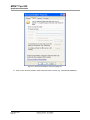
Figure 3-1: Firewall Switched Off .......................................................................................................... 11
Figure 3-2: MOST Network Setup - Share Folder ................................................................................. 12
Figure 3-3: Ipconfig Command for PC1, Showing 192.168.1.1 for IP Address..................................... 14
Figure 3-4: Ipconfig Command for PC2, Showing 192.168.1.2 for IP Address..................................... 14
Figure 3-5: Send Ping from PC2 to PC1 ............................................................................................... 14
Figure 3-6: Send Ping from PC1 to PC2 ............................................................................................... 15
Figure 3-7: Right Click Menu for the New Folder Named ShareFolderViaMOST ................................. 15
Figure 3-8: ShareFolderViaMOST Properties Dialog Box ..................................................................... 16
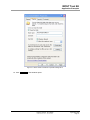
Figure 3-9: Share Folder via MOST Properties Dialog Box 2 ............................................................... 17
Figure 3-10: Set Permissions ................................................................................................................ 18
Figure 3-11: Shared Folder on PC2 ...................................................................................................... 18
Figure 3-12: Shared Folder on PC2 - File ............................................................................................. 19
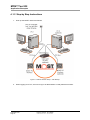
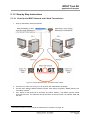
Figure 3-13: MOST Network Setup - Share Printer .............................................................................. 21
Figure 3-14: Ipconfig Command for PC1, Showing 192.168.1.1 for IP Address (e.g., for INIC) ........... 22
Figure 3-15: Ipconfig Command for PC2, Showing 192.168.1.2 for IP Address (e.g., for INIC) ........... 22
Figure 3-16: Send Ping from PC2 to PC1 ............................................................................................. 23
Figure 3-17: Send Ping from PC1 to PC2 ............................................................................................. 23
Figure 3-18: Printers Window Displaying Newly Installed Printer ......................................................... 23
Figure 3-19: Right Click Menu for Installed Printer ............................................................................... 24
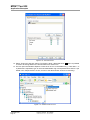
Figure 3-20: Sharing Properties for “Printer on PC1” ............................................................................ 25
Figure 3-21: Printers Window ................................................................................................................ 26
Figure 3-22: Add Printer Wizard Window 1 ........................................................................................... 26
Figure 3-23: Add Printer Wizard Window .............................................................................................. 27
Figure 3-24: Add Printers Wizard, Final Step ........................................................................................ 27
Figure 3-25: Printers Window Showing the PC1 Printer ....................................................................... 28
Figure 3-26: MOST Network Setup – Share Internet Connection ......................................................... 30
Figure 3-27: Ipconfig Command for PC1, Showing 192.168.1.1 for IP Address (e.g., for INIC) ........... 31
Figure 3-28: Ipconfig Command for PC2, Showing 192.168.1.2 for IP Address (e.g., for INIC) ........... 31
Figure 3-29: Send Ping from PC2 to PC1 ............................................................................................. 32
Figure 3-30: Send Ping from PC1 to PC2 ............................................................................................. 32
Figure 3-31: Sharing Internet Connection ............................................................................................. 33
Figure 3-32: Specifying DNS Server ..................................................................................................... 34
Figure 4-1: MOST Network Setup - Use Winamp ................................................................................. 36
Figure 4-2: Settings in the MOST Interface Control .............................................................................. 37
Figure 4-3: Winamp Output Preferences ............................................................................................... 38
Figure 4-4: Winamp DirectSound Output Settings ................................................................................ 39
Figure 4-5: MOST Network Setup - Use Sound Recorder .................................................................... 41
Figure 4-6: Settings in the MOST Interface Control (PC1) .................................................................... 42
Figure 4-7: MOST Interface Control: Settings on PC2 .......................................................................... 43
Figure 4-8: Winamp Output Preferences ............................................................................................... 44
Figure 4-9: Winamp DirectSound Output Settings ................................................................................ 45
Figure 4-10: Sound Recorder ................................................................................................................ 45
Figure 4-11: Sound Recorder Edit Menu ............................................................................................... 46
Figure 4-12: Audio Properties for the Sound Recorder ......................................................................... 46
Figure 4-13: Sound Recorder Recording Audio from the MOST Network ............................................ 47
Figure 5-1: MOST Network Setup - Use MOST Video Viewer.............................................................. 49
Figure 5-2: Settings in the MOST Interface Control (PC1) .................................................................... 50
Figure 5-3: Command Prompt Window - Starting Mbtest for Sending .................................................. 50
Figure 5-4: Command Prompt Window - Starting Mbtest for Receiving ............................................... 51
Figure 5-5: Example of Video Viewer Settings ...................................................................................... 54
Copyright © 2006 - 2012 SMSC
Document Version: V4.0.X-1 Date: 2012-08-24
Application Note
Page 57