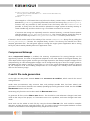
1
•
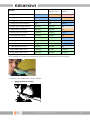
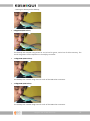
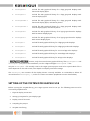
Invert. Uses the current foreground color.
•
Transparent. No background is drawn.
•
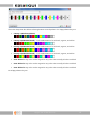
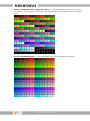
Table. Use the color specified in the table of user defined colors.
•
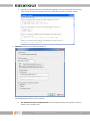
Variable. Uses the variable defined in the appearing dropdown box to determine the color.
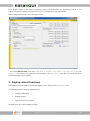
The C button copies the variable name to the clipboard to be easily used in the target code.
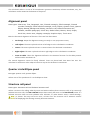
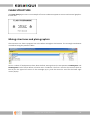
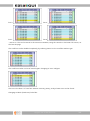
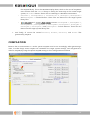
The
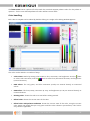
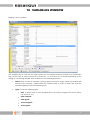
button shows a window for color selection, just like explained above for foreground color.
The bar background color is used for cursor fields and scroll lines, when these are active, i.e. selected.
In early versions of easyGUI the foreground and background colors were merely swapped, that
corresponds to both foreground bar color and background bar color being set to Invert. If the item in
question is not used in cursor fields/scroll lines the bar background color has no effect.
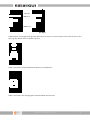
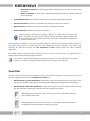
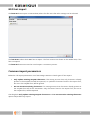
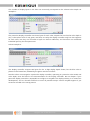
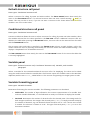
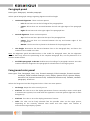
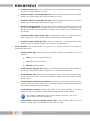
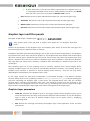
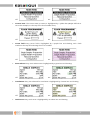
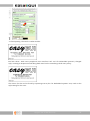
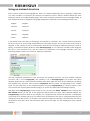
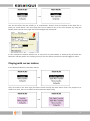
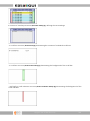
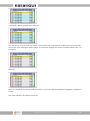
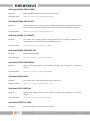
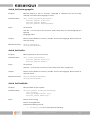
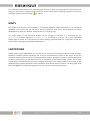
The
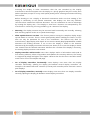
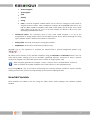
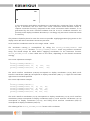
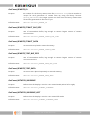
area controls the addition of an extra pixel row or column, to make the background
more prominent, and to allow the background to fully contain e.g. a “g” letter, without the bottom of
the “g” touching the background border. One or more of the four rectangles surrounding the “Border
pixels” text can be clicked. If a rectangle is black it means that an extra pixel row/column is added on
that side. Example:
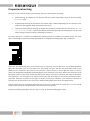
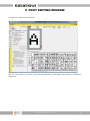
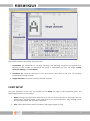
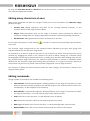
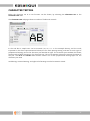
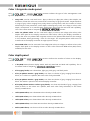
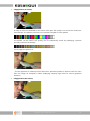
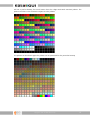
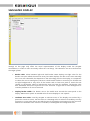
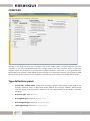
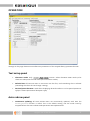
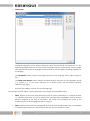
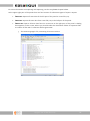
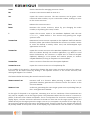
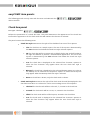
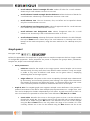
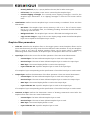
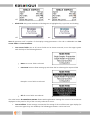
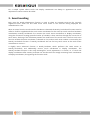
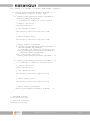
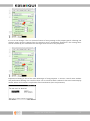
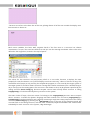
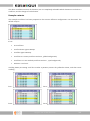
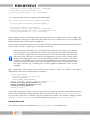
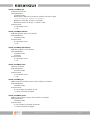
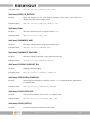
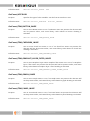
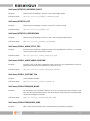
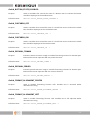
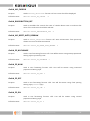
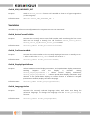
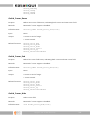
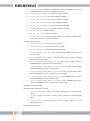
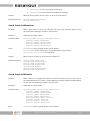
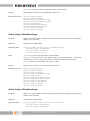
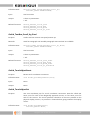
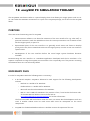
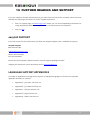
Normal setting (
)
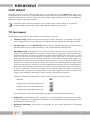
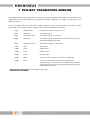
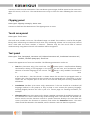
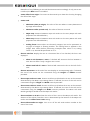
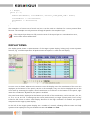
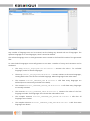
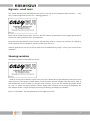
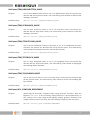
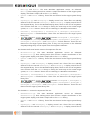
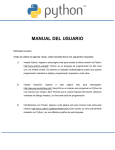
- versus:
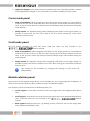
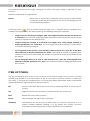
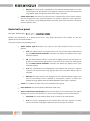
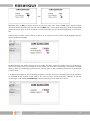
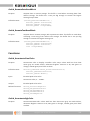
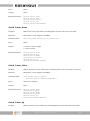
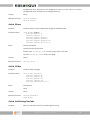
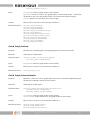
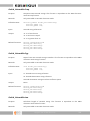
Extra bottom row of pixels (
)
Border pixels also work for background boxes.
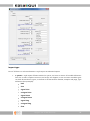
Miscellaneous panel
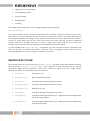
Item types: Text, Paragraph, Pixel, Line, Framed rectangle, Filled rectangle, Framed rounded
rectangle, Filled rounded rectangle, Circle, Ellipse, Quarter circle, Quarter ellipse,
Bitmap, Background bitmap, Structure call, Indexed structure call, Conditional
structure call, Variable, Variable paragraph.
Contains various special item flags:
•
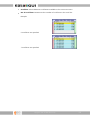
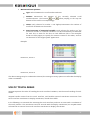
Cursor field. If checked the item is considered a cursor field by the target system. The cursor
number can be selected in an edit box to the right of the check box (only visible when the
check box is checked). Cursor fields consume a sizeable amount of memory in the target,
because a copy of the complete item with all parameters must be made. Cursor numbers do
not need to be contiguous or start at zero, thereby allowing dynamic parts of the display
containing cursor fields to be invisible without corrupting the cursor system. Multiple cursor
fields may also have a single cursor number, so multiple items can be easily selected at once.
Cursor field visibility can be checked in the left part of the display panel.
Copyright © 1999 - 2015 IBIS Solutions ApS
111