1
Next, make sure that the relevant GuiLib functions (GuiLib_Init() and GuiLib_Refresh()) are
actually called at all. A little embarrassing if they are not, and if this is overlooked before proceeding
with the next attempts, because then guaranteed nothing will show up on the display.
Still no reaction: Time to recheck all settings, both easyGUI settings, and the display controller specific
code written previously.
If this doesn't help either, it is prudent to measure all signals to the display with an oscilloscope or
similar equipment, and make sure that they look satisfactory, regarding levels, flanks, and timings.
Last resort is to dig into the display controller data sheet, and double check if anything was overlooked,
misunderstood, or misread.
Bitter experience has shown that very carefully rechecking the above issues one by one normally ends
with the proper result, albeit some times not after a certain amount of frustration... This, however, has
nothing to do with easyGUI, but is the normal process necessary to get things working.
3 - Showing the test pattern
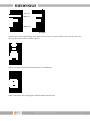
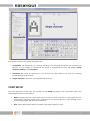
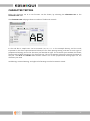
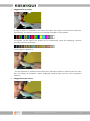
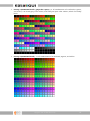
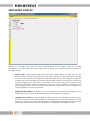
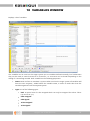
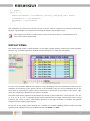
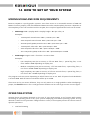
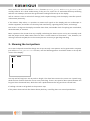
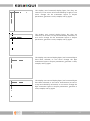
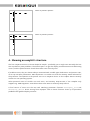
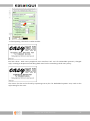
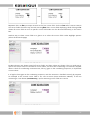
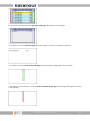
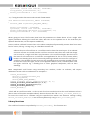
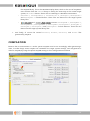
As an extra help and control that things are set up correctly a test pattern can be generated in easyGUI.
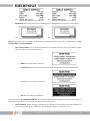
Just call the GuiLib_TestPattern function, and the following pattern should be shown in the top left
corner of the display:
The top and left long lines are 32 pixels in length. The short lines nearest the corner are 7 pixels long,
while the lines farthest from the corner are 6 pixels long. There is one pixel of white space between the
long and short horizontal lines, while there are 3 pixels between the long and short vertical lines.
If nothing is shown at all go back to the previous step.
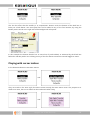
If the pattern does not look like shown above (look very carefully!) there are several possibilities:
Copyright © 1999 - 2015 IBIS Solutions ApS
166