1
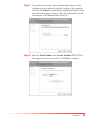
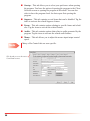
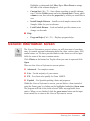
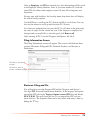
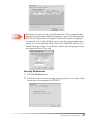
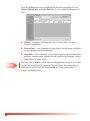
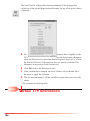
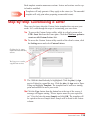
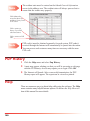
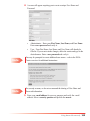
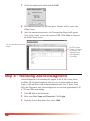
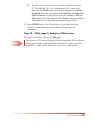
Step 6 By default, the software will install to the C drive on your
machine. Click the Change button if you need to change the
default installation path. We recommend that you leave this setting as the default.
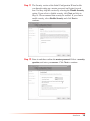
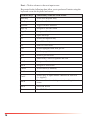
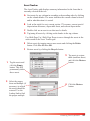
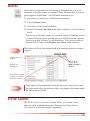
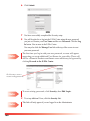
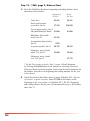
Step 7 After reading the license agreement and verifying the installation
path, click the Accept & Install button.
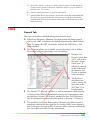
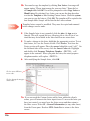
Step 8 The software will install to the location specified in Step 6.
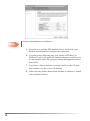
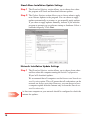
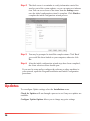
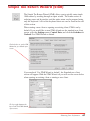
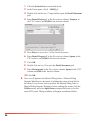
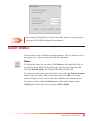
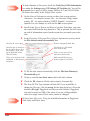
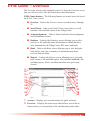
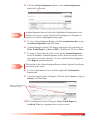
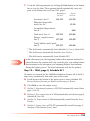
Step 9 After all of the files have been installed, the InstallShield Wizard
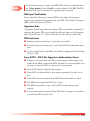
Complete screen will be shown. Select the option to launch the
program and click the Finish button. If the program does not start
automatically, you may run the program by double clicking the
Tax Prep Software icon on your desktop.
Note
8
Adobe Reader is no longer required, but recommended. If you do not
have Adobe Reader 9.0 or higher installed on your computer it is available
for download from Adobe’s website at www.adobe.com.