1
•
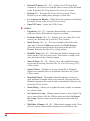
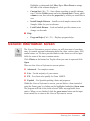
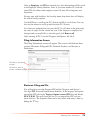
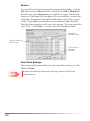
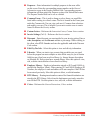
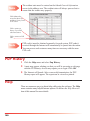
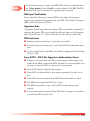
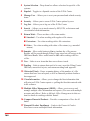
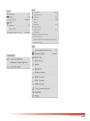
Refresh EF Status (Ctrl + F5) – Updates the E-File and Bank
columns in Client Selection with the status of each e-filed and bank
return. Reference the Filing Returns Electronically section.
•
Refresh (F5) – Refreshes the Client Selection screen. This is
helpful if you are making many changes to client files.
•
Use Captions on Buttons – Hides/shows the captions on the button
bar across the top of the Client Selection screen.
•
Open EF Center – Opens the E-File Center.
n Utilities
64
•
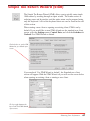
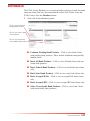
Organizers (Alt + Z) – Organizes data and helps you communicate
with your clients. Reference the Organizers section.
•
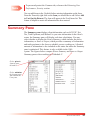
Proforma Clients (Alt + P) – Updates prior year client files to the
current year. Reference the Proforma Clients section.
•
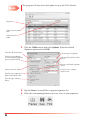
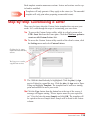
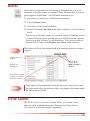
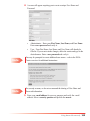
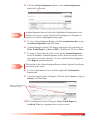
Batch Process (Alt + A) – Processes multiple client files at the
same time. Click the Utilities menu and select Batch Process.
Select the desired action from the drop down menu and click
Process. Reference the Batch Processing section.
•
Rebuild Clients (Alt + R) – Refreshes the database listing for the
clients on the Client Selection screen. This feature is usually used
only when directed by technical support.
•
States & Pups (Alt + G) – Allows you to select additional states
for per unit processing. Reference the Per Unit Processing (PUP)
Codes section.
•
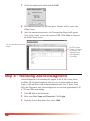
Upload Clients – Uploads one or more client files to Technical
Support or to another office or account bin. Reference the Upload
Clients section.
•
Download Clients – Downloads client files that have been previously uploaded to another office or account bin. You must enter the
filename assigned to the return in order to download it. Reference the
Download Clients section.
•
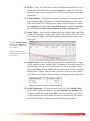
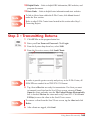
Status Dialog – Allows you to update the status or make a comment
on a client’s return.
•
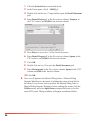
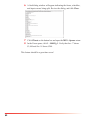
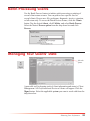
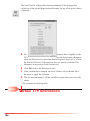
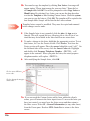
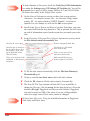
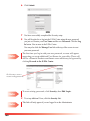
Set Status for Group – Changes status for one or more clients. Tag
one or more clients, click the Utilities menu and select Set Status
for Group. Choose a status from the drop down menu and click
Assign.
•
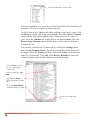
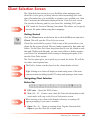
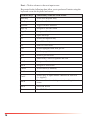
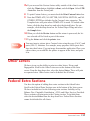
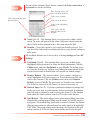
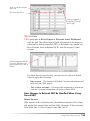
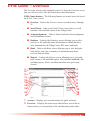
Hide/Show Columns (Alt + K) – Hides/shows columns on the Client
Selection screen. Choose which columns you would like to view.