1
Quality & Value
The SmartDVR.com
4
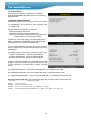
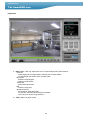
Move mouse over
programme.
5
Press
icon and using wheel select preset number you wish to
icon to save preset – “SET PRESET”will flash momentarily confirming save.
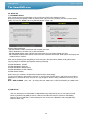
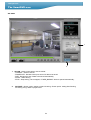
Calling PTZ presets using mouse
1
Move mouse over
2
Press
3
Press
icon and using wheel change the top left hand menu bar to
button on mouse menu to select Preset number
to call selected preset
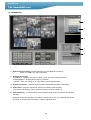
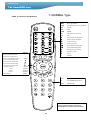
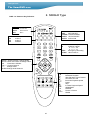
Operating PTZ via remote control
The supplied remote offers limited PTZ functionality. The curser key will offer pan and tilt control
however the calling of presets is not possible. The PTZ menu can be scrolled using the [+] key
and selecting using [OK].
It should be noted that the DVR offers basic PTZ functionality over a number of protocols. However if
complete control is required then a PTZ Keypad, appropriate to the camera being used, should be
employed.
Calling Dome Tours etc. will depend on the preset code allocated to the specific dome eg. PTZ300 =
51preset. Refer to cameras manual for further guidance.
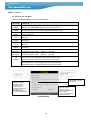
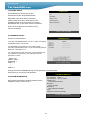
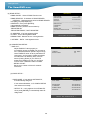
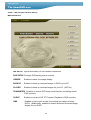
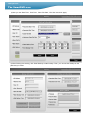
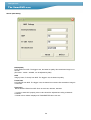
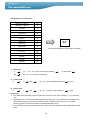
4) SPOT MONITOR SETUP
1) SWITCHING INTERVAL
Channel switching time (1 sec. ~ 99 secs.)
2) ALARM POP-UP
Set ON to show screen pop-up on Alarm
3) MOTION POP-UP
Set ON to show screen pop-up on Motion
4) EVENT POP-UP DURATION
Set DURATION time of Alarm or Motion
Event (1 sec ~ 99 secs.)
If events (MOTION or ALARM) happen on several channel at the same time,
channel No. 1 has the first priority to pop up. For example, if events happen on
channel No. 1, channel No. 2 and channel No. 4 at the same time, channel No. 1
pops up. If the motion disappears on channel No. 1, then channel
No. 2 pops up for the duration that you set. However, even though motion happens
on channel No. 1again within the duration, channel No. 2 still displays. If motion on
channel No.1 keeps on going even after the duration, channel No. 1 pops up again.
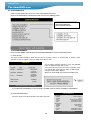
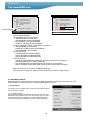
5)
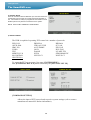
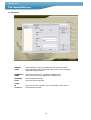
AUDIO SETUP
Use direction button to move to channel and press [ENTER] button to set (ON/OFF).
40