1
FRONT AND REAR PANELS
1. FRONT AND REAR PANELS
1.1 Front Panel
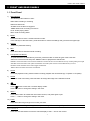
1)
LED Indication
The following LEDs will be on when:
HDD: HDD is reading or recording
HDD Full: HDD is full.
ALARM: Once the alarm is triggered
TIMER: When timer recording is turned on
PLAY: Under playing status
REC: Under recording status
2)
MENU
Press this button to enter / exit the DVR menu mode.
In the sub-layer of the DVR menu, press this button to confirm the settings and go back to the upper layer.
3)
ENTER
Confirm the password entering.
4)
REC
Press this button to activate manual recording.
5)
LIST (Event List Search)
To quick search the recorded files by event list, press this button to show all types of the event lists.
Select one of the event list and press “ENTER” button to playback the selected file.
MANUAL: List the information of the manual-recorded files. The DVR will save one recorded file once any recording setting is changed
SYSTEM: List the information of the system-recorded files. The DVR system will save one recorded file every one hour.
MOTION: List the information of the motion-trigger-recorded files.
TIMER: List the information of the timer-recorded files.
6)
SLOW
Under the playback mode, press this button to slowly playback the recorded file (by 1/4 speed or 1/8 speed).
7)
ZOOM
In the live mode of the DVR, press this button to enlarge the image of the selected channel.
8)
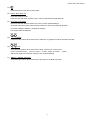
/ -
Press “ ” button to show the 4 channel display modes.
Press “-” button to change the setting in the menu.
9)
SEQ /+
Press “SEQ” button to activate the call monitor function, and press again to quit.
Press ”+” button to change the setting in the menu.
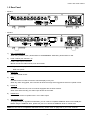
10) Power
Press this button long enough to turn on/off your DVR.
Note: Under the recording mode, please stop recording before turning off your DVR.
11) 1 / 2 / 3 / 4
Press one of these buttons to show the channel display of CH1 ~ CH4 on the monitor.
1